
How to Ensure Screen Mirroring on the Same Wi-Fi Network
Screen mirroring problems can be frustrating, especially when your devices are on the same Wi-Fi network. These issues might be caused by network settings, firewall restrictions, or outdated software. Follow the steps below to troubleshoot and improve your screen mirroring experience.
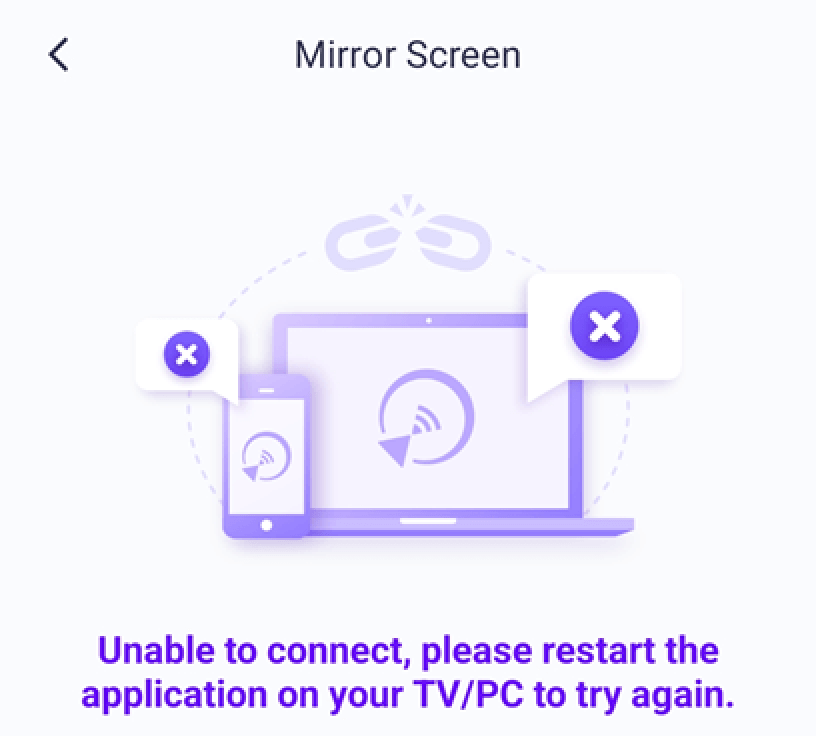
1. For iPhone users:
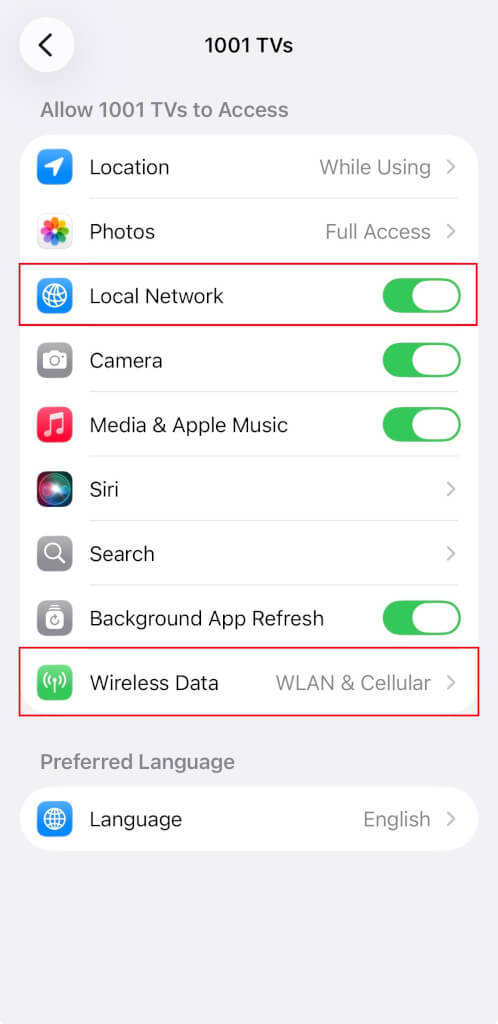
If you see a reminder on your iPhone, enable the “Local Network” permission for 1001 TVs by following these steps:
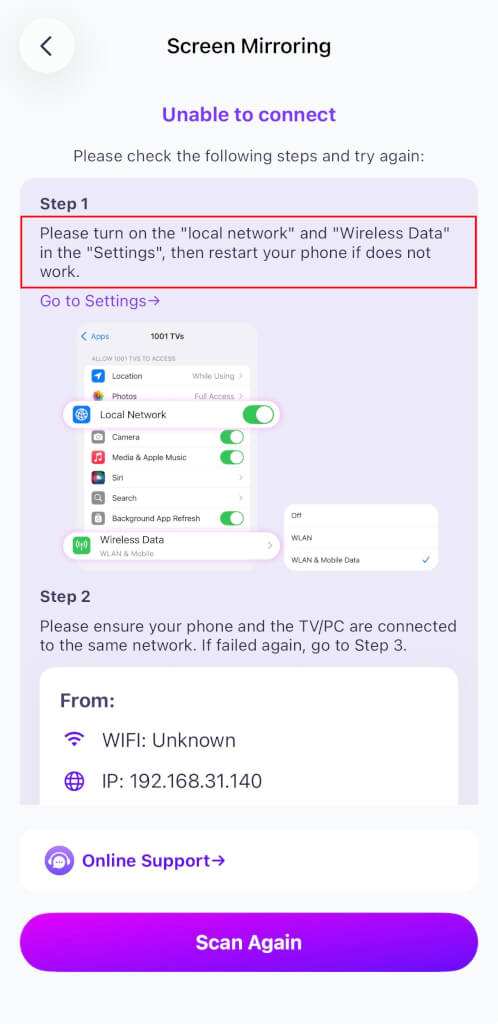
Go to Settings → Apps → Scroll down to 1001 TVs → Enable Local Network
→ Wireless Data → WLAN and Cellular.
2. For macOS 15+ Users:
If you’re using macOS 15 or later and encounter the error:
“Pairing timed out! The receiver did not accept the pairing request. Please try pairing again.”
— even when both devices are connected to the same Wi-Fi network — the issue is likely caused by macOS 15+’s Local Network permission restrictions.
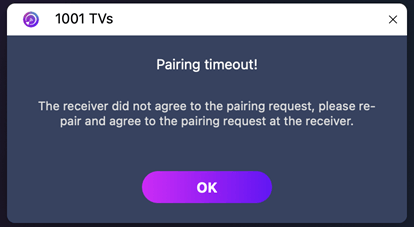
Run the following commands in Terminal to reset network permissions:
sudo rm /Library/Preferences/com.apple.networkextension.plist
sudo rm /Library/Preferences/com.apple.networkextension.uuidcache.plist
Then restart your Mac.
⚠️ Important:
After rebooting, if macOS prompts for Local Network access, make sure to click “Allow” to grant permission.
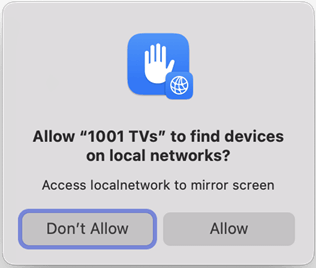
3. For Computer Users:
The issue might be caused by a firewall blocking the connection.
Using Norton 360 as an example:
- Close 1001 TVs App.
- In the system tray at the bottom right corner of your desktop, right-click the application icon.
- Select Disable Smart Firewall, then choose a duration (e.g., 10 minutes, 1 hour, or until restart); or directly disable Smart Firewall by going to Advanced Security > Network in Norton 360.
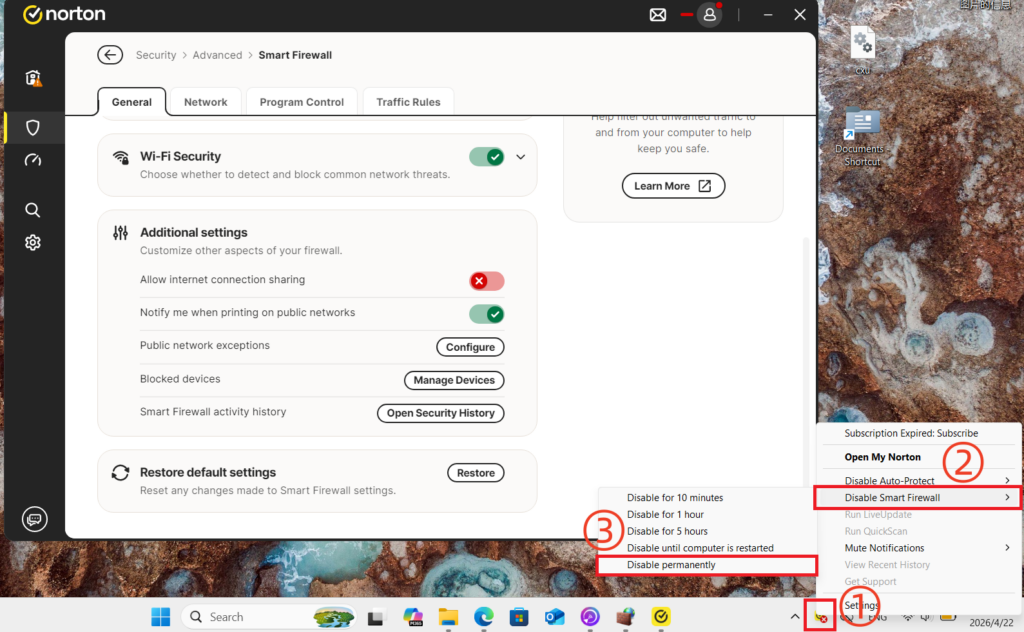
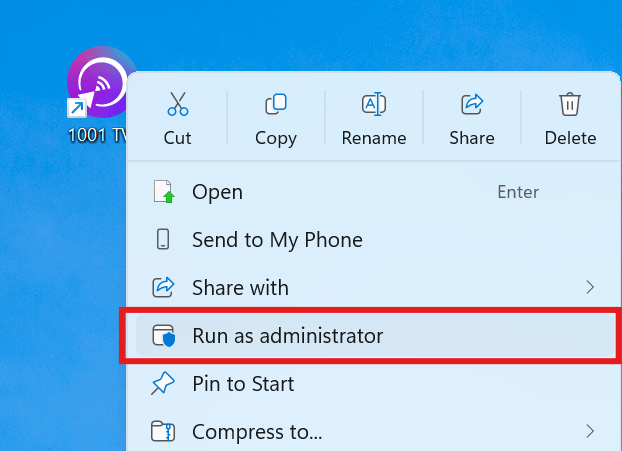
After disabling the firewall, restart 1001 TVs App as administrator (right-click the application and select Run as administrator) before trying to receive the screen cast again.
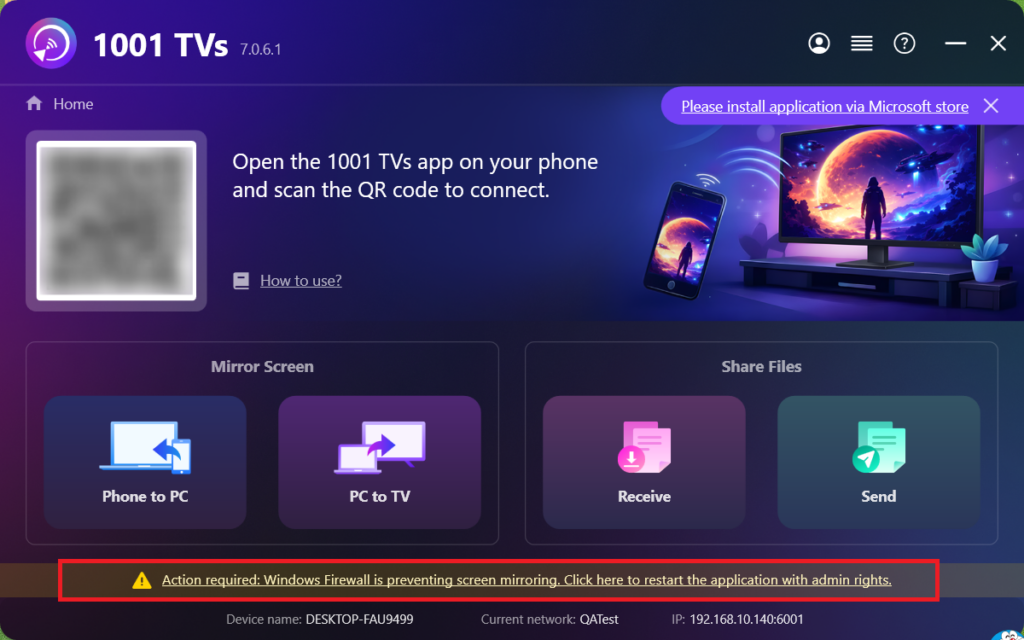
If a prompt appears, please click “Yes” to allow it to run.
4. If mirror screen to TV:
Power off the TV, wait 3 minutes, then power it back on.
5. Still not working?
Power off the router, wait 3 minutes, then power it back on. This can help resolve various network issues.
6. For public Wi-Fi networks (e.g., hotels, airports):
AP isolation may be enabled, which blocks screen mirroring.
Check your router settings and disable AP isolation if possible.
For example, on TP-Link routers: Device Management → AP Isolation → Off.
Alternatively, turn on your phone’s personal hotspot, then connect your computer or TV to it and try mirroring again. If this works, the issue is likely with the original network.
7. Check Proxy Settings:
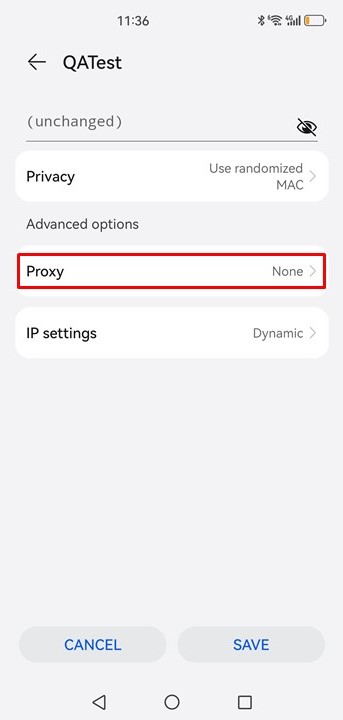
If a proxy is active on your device (mobile or computer), turn off the manual proxy or add the target device’s IP address to the exception list.
8. Update the 1001 TVs PC App:
Ensure that the 1001 TVs PC app is up-to-date. If not, upgrade to the latest version.
9. Use the “Mirror To Browser” Function:
If screen mirroring issues persist, you can try the [Mirror To Browser] function:
How to Mirror Your Phone to a PC Browser?
10. Stay on the Screen Receiver Page:
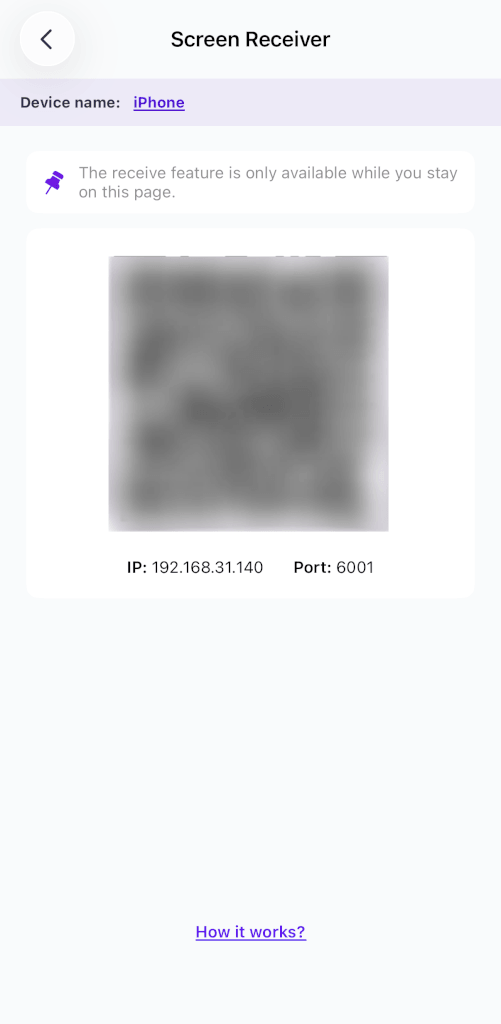
If you’re trying to mirror to a phone/ tablet, stay on the screen receiver page and do not exit.
Contact Customer Support:
If it’s still not working, please feel free to contact customer support for assistance at 1001tvs@nero.com.