检测到浏览器语言为中文,点此切换到中文页面->
3 Steps to Control Your TV from Your Phone
1
Install
Install 1001 TVs on your phone.
2
Connect
Ensure your phone and TV are on the same Wi-Fi network.
Open the Remote Control feature in the 1001 TVs app and select your TV.
3
Start Controlling
Enter the verification code shown on your TV to complete the connection.
You’re ready to control your TV from your phone.
All your TV controls in one place.
tap-control-watch-without-ads
Tap. Control. Watch — Without Ads.
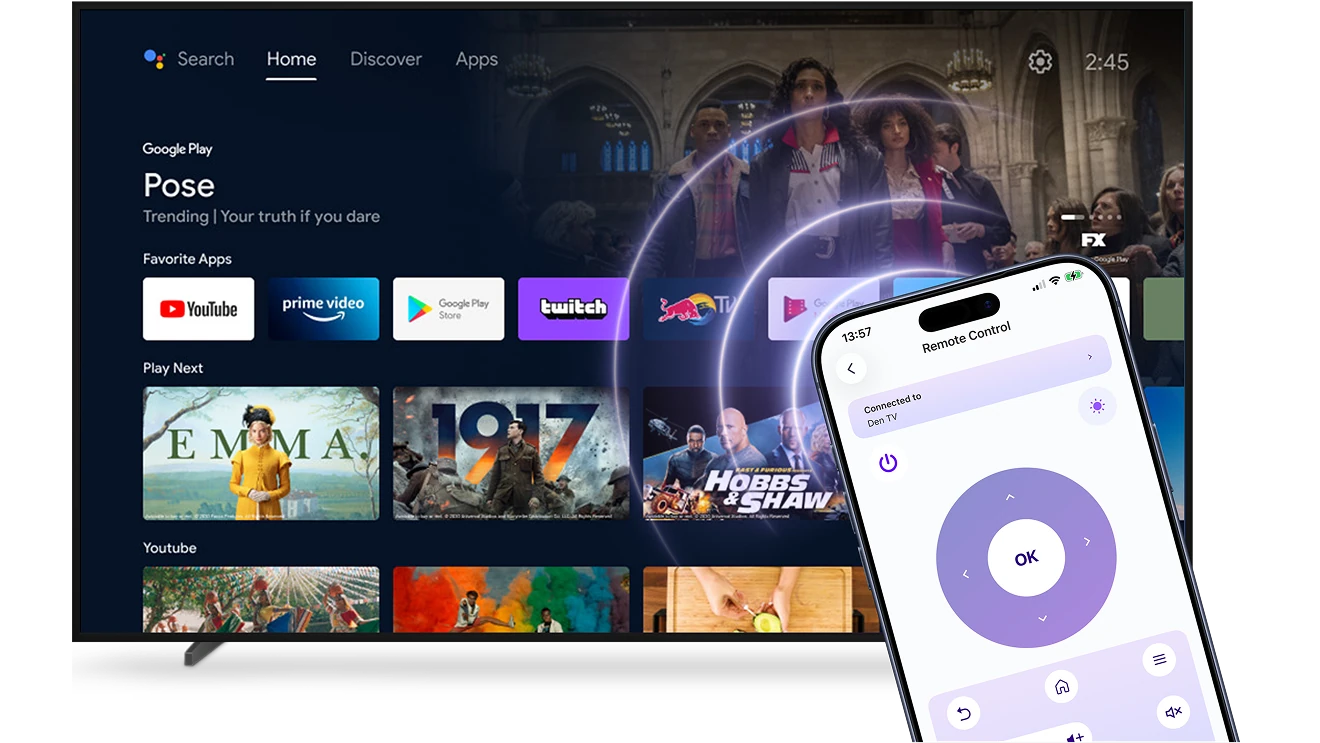
Use your phone as a universal Smart TV remote.
Connect over Wi-Fi in seconds and control your TV without cables, setup hassle, or interruptions.
checkedNo ads or pop-ups — just a clean, focused interface
checkedVolume, apps, input switching, and navigation in one simple place
always-ready-just-like-a-real-remote
Always Ready. Just Like a Real Remote.
Reliable, responsive, and ready whenever you pick up your phone — just open the app and control your TV instantly.
checkedSmooth wireless control without lag or dropped commands
checkedWorks across major Smart TV systems — no extra hardware needed
Use Cases
Instant Backup Control
One Remote for Everything
Faster Search & Input
Enjoy TV Without Interruptions
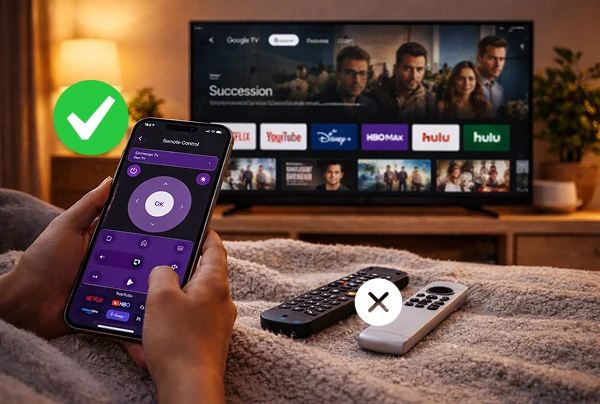
When the TV remote is missing, out of battery, or simply not within reach, your viewing experience shouldn’t be interrupted.

With 1001 TVs, your phone works as a reliable Smart TV remote. Open the app and control your TV instantly over Wi-Fi — no searching for batteries, no waiting for a replacement.

Stay in control of your Smart TV whenever you need it. Simple, responsive, and always ready in your hand.
instant-backup-control
Simplify Your Living Room
Too many remotes on the table? Switching between devices shouldn’t feel complicated.

With 1001 TVs, your phone becomes a single, easy way to control your Smart TV. Adjust volume, change inputs, browse apps, and manage playback — all from one simple interface.

Less clutter. Fewer remotes. Smoother everyday control.
one-remote-for-everything
Skip the on-screen keyboard
Typing with a TV remote can be slow — especially when entering passwords or searching for a specific show.

Use your phone’s keyboard to search, log in, and navigate apps quickly and accurately. No endless clicking through letters.

Find what you want faster and get back to watching.
faster-search-input
FAQ
Can I try it out?
1001 TVs offers a limited-time free trial with full, unlimited access to premium features like screen mirroring, file transfer, and album.
To continue enjoying the service, simply upgrade to a subscription once the trial ends.
How do I install the 1001 TVs app?
You can find it by searching "1001 TVs" in the following app stores:
· Apple App Store (for iPhone, iPad, Mac, Apple TV)
· Microsoft Store (for Windows)
· Google Play (for Android phones, tablets, and TVs)
How to cancel subscription?
Cancel a subscription on your iOS
·  Open the Settings app → your name → Subscriptions → the subscription → Cancel Subscription
Cancel a subscription on Google Play
· Open the Google Play Store app → Profile picture on top right → Payment & subscriptions → Subscriptions → the subscription → Cancel Subscription → Confirm the cancellation
How to contact us?
Please contact us at 1001tvs@nero.com.