
Πώς να διασφαλίσετε τη λειτουργία Screen Mirroring στο ίδιο δίκτυο Wi-Fi
Τα προβλήματα αντικατοπτρισμού οθόνης μπορεί να είναι απογοητευτικά, ειδικά όταν οι συσκευές σας βρίσκονται στο ίδιο δίκτυο Wi-Fi. Τα προβλήματα αυτά μπορεί να οφείλονται σε ρυθμίσεις δικτύου, περιορισμούς τείχους προστασίας ή ξεπερασμένο λογισμικό. Ακολουθήστε τα παρακάτω βήματα για να αντιμετωπίσετε προβλήματα και να βελτιώσετε την εμπειρία κατοπτρισμού οθόνης.
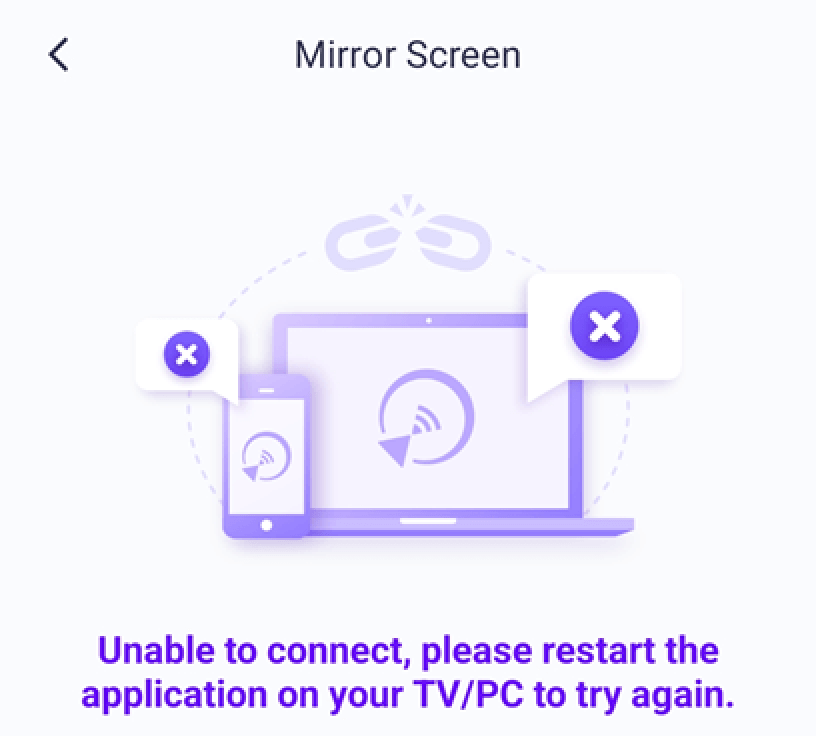
1. Για τους χρήστες iPhone:
Αν δείτε μια υπενθύμιση στο iPhone σας, ενεργοποιήστε την επιλογή “Τοπικό δίκτυο” να αποκτήσετε άδεια για το 1001 TVs ακολουθώντας τα παρακάτω βήματα:
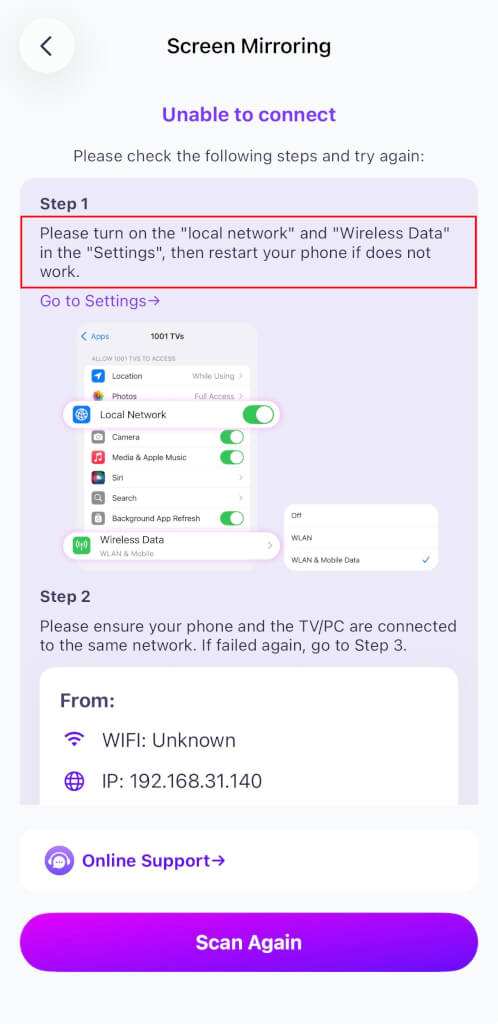
Πηγαίνετε στο Ρυθμίσεις → Εφαρμογές → Μετακινηθείτε προς τα κάτω μέχρι το 1001 TVs → Ενεργοποίηση Τοπικό δίκτυο
→ Ασύρματη μετάδοση δεδομένων → WLAN και κινητή τηλεφωνία.
2. Για χρήστες macOS 15 και νεότερων εκδόσεων:
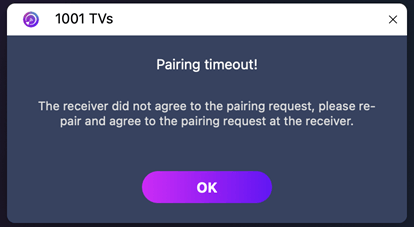
Αν χρησιμοποιείτε macOS 15 ή νεότερη έκδοση και αντιμετωπίζετε το σφάλμα:
“Η διαδικασία σύζευξης έληξε! Ο δέκτης δεν αποδέχτηκε το αίτημα σύζευξης. Παρακαλώ, δοκιμάστε ξανά τη σύζευξη.”
— ακόμα και όταν και οι δύο συσκευές είναι συνδεδεμένες με το ίδιο δίκτυο Wi-Fi — το πρόβλημα πιθανότατα οφείλεται σε Περιορισμοί δικαιωμάτων στο τοπικό δίκτυο του macOS 15+.
Εκτελέστε τις ακόλουθες εντολές στο Τερματικό για να επαναφέρετε τα δικαιώματα δικτύου:
sudo rm /Library/Preferences/com.apple.networkextension.plist
sudo rm /Library/Preferences/com.apple.networkextension.uuidcache.plist
Τότε επανεκκινήστε τον Mac σας.
⚠️ Σημαντικό:
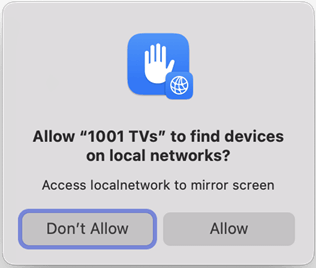
Μετά την επανεκκίνηση, αν το macOS ζητήσει Πρόσβαση σε τοπικό δίκτυο, φροντίστε να κάνετε κλικ στο "Επιτρέψτε" για να χορηγήσει άδεια.
3. Για χρήστες υπολογιστών:
Το πρόβλημα ενδέχεται να οφείλεται σε τείχος προστασίας που εμποδίζει τη σύνδεση.
Χρήση Norton 360 για παράδειγμα:
- Κλείσιμο της εφαρμογής 1001 TVs.
- Στη γραμμή εργασιών, στην κάτω δεξιά γωνία της επιφάνειας εργασίας σας, κάντε δεξί κλικ στο εικονίδιο της εφαρμογής.
- Επιλέξτε Απενεργοποίηση του Smart Firewall, και στη συνέχεια επιλέξτε μια διάρκεια (π.χ. 10 λεπτά, 1 ώρα ή μέχρι την επανεκκίνηση)· ή απενεργοποιήστε απευθείας το Smart Firewall μεταβαίνοντας στο Προηγμένη ασφάλεια > Δίκτυο στο Norton 360.
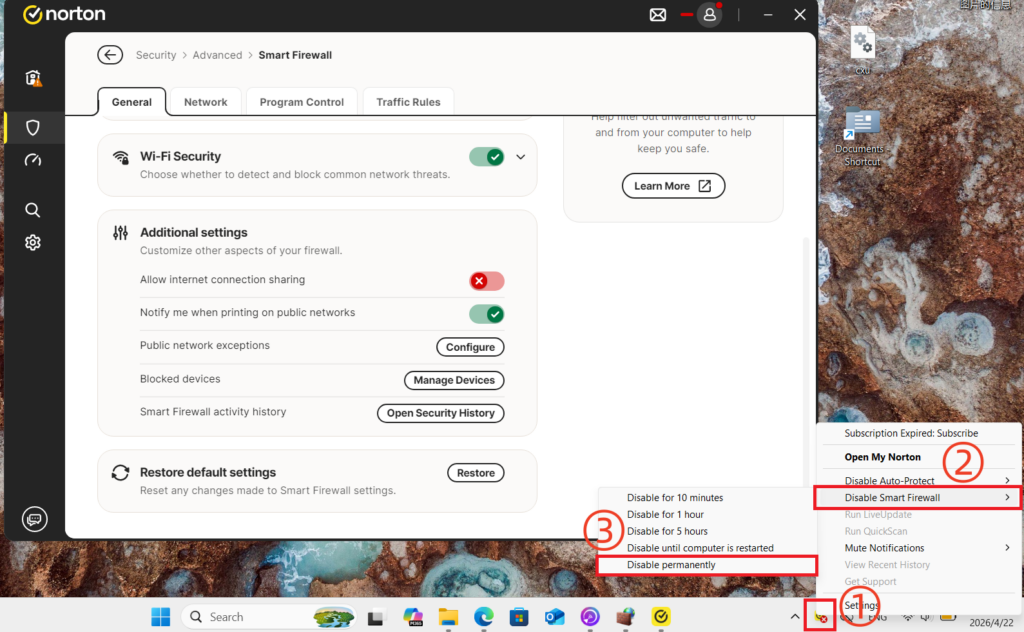
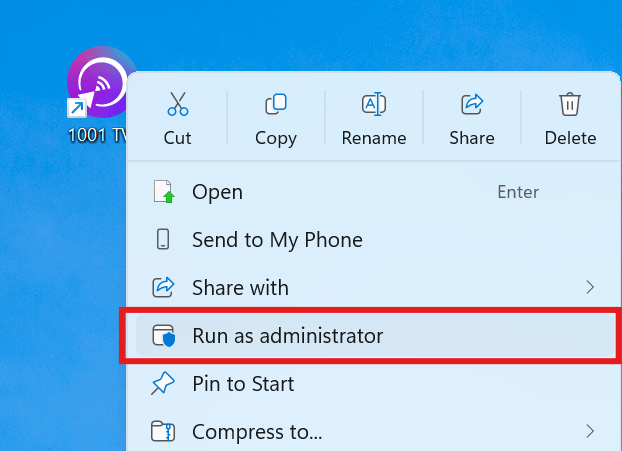
Αφού απενεργοποιήσετε το τείχος προστασίας, επανεκκινήστε την εφαρμογή 1001 TVs ως διαχειριστής (κάντε δεξί κλικ στην εφαρμογή και επιλέξτε Εκτέλεση ως διαχειριστής) πριν προσπαθήσετε να παρακολουθήσετε ξανά το βίντεο.
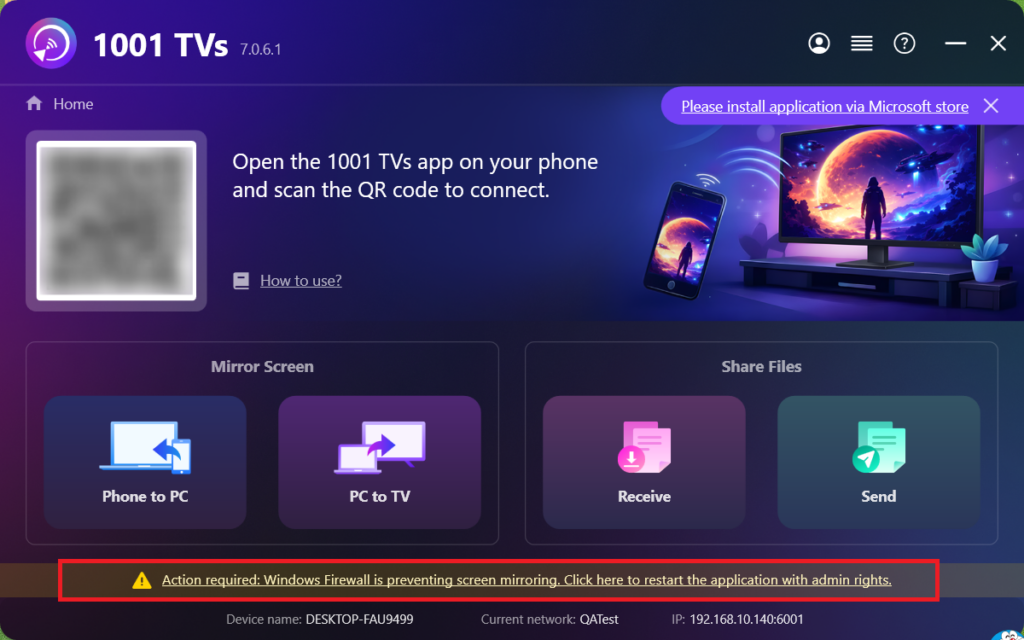
Εάν εμφανιστεί ένα μήνυμα, κάντε κλικ στο “Ναι” για να επιτρέψετε την εκτέλεσή του.
4. Σε περίπτωση που η οθόνη του κινητού προβάλλεται στην τηλεόραση:
Απενεργοποιήστε την τηλεόραση, περιμένετε 3 λεπτά και, στη συνέχεια, ενεργοποιήστε την ξανά.
5. Ακόμα δεν λειτουργεί;
Απενεργοποιήστε το δρομολογητή, περιμένετε 3 λεπτά και, στη συνέχεια, ενεργοποιήστε τον ξανά. Αυτό μπορεί να βοηθήσει στην επίλυση διαφόρων προβλημάτων δικτύου.
6. Για δημόσια δίκτυα Wi-Fi (π.χ. ξενοδοχεία, αεροδρόμια):
Μπορεί να ενεργοποιηθεί η απομόνωση AP, η οποία εμποδίζει την αναπαραγωγή οθόνης.
Ελέγξτε τις ρυθμίσεις του δρομολογητή σας και απενεργοποίηση Απομόνωση AP, αν είναι δυνατόν.
Για παράδειγμα, στους δρομολογητές TP-Link: Διαχείριση συσκευής → Απομόνωση AP → Απενεργοποίηση.
Εναλλακτικά, ενεργοποιήστε τη λειτουργία του κινητού σας προσωπικό hotspot, στη συνέχεια συνδέστε τον υπολογιστή ή την τηλεόρασή σας σε αυτό και δοκιμάστε ξανά την αναπαραγωγή οθόνης. Αν αυτό λειτουργήσει, το πρόβλημα πιθανότατα οφείλεται στο αρχικό δίκτυο.
7. Ελέγξτε τις ρυθμίσεις του διακομιστή μεσολάβησης:
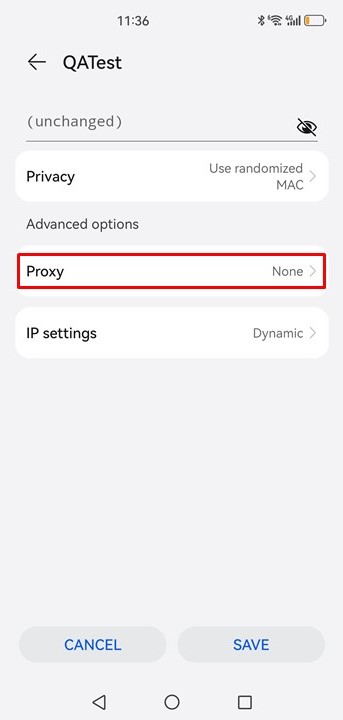
Εάν στη συσκευή σας (κινητό ή υπολογιστή) είναι ενεργοποιημένος ένας διακομιστής μεσολάβησης, απενεργοποιήστε τη χειροκίνητη ρύθμιση διακομιστή μεσολάβησης ή προσθέστε τη διεύθυνση IP της συσκευής-στόχου στη λίστα εξαιρέσεων.
8. Ενημέρωση της εφαρμογής 1001 TVs για υπολογιστή:
Βεβαιωθείτε ότι η εφαρμογή 1001 TVs PC είναι ενημερωμένη. Εάν όχι, αναβαθμίστε την στην τελευταία έκδοση.
9. Χρησιμοποιήστε τη λειτουργία “Mirror To Browser”:
Εάν τα προβλήματα αντικατοπτρισμού οθόνης επιμένουν, μπορείτε να δοκιμάσετε τη λειτουργία [Κατοπτρισμός στο πρόγραμμα περιήγησης]:
Πώς να προβάλλετε την οθόνη του κινητού σας σε πρόγραμμα περιήγησης υπολογιστή;
10. Παραμείνετε στη σελίδα του παραλήπτη:
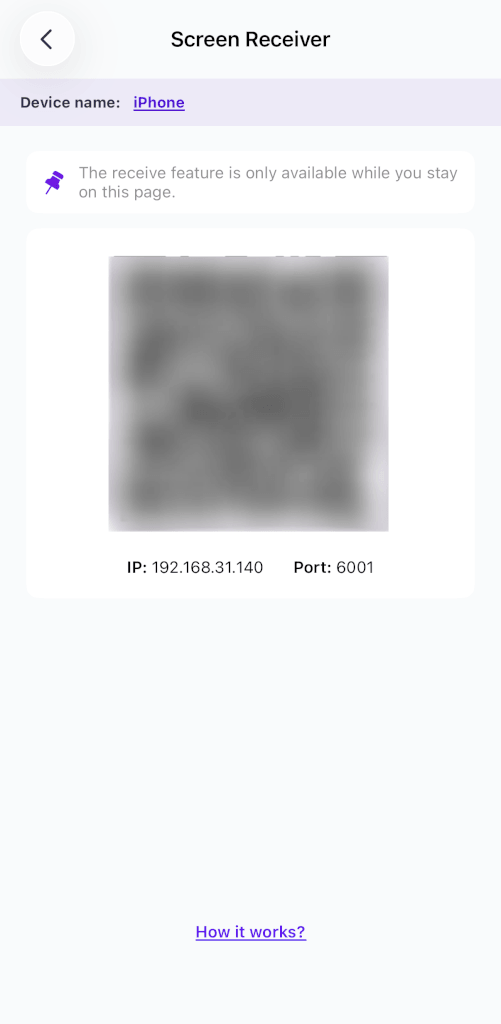
Αν προσπαθείτε να κάνετε mirroring σε κινητό ή tablet, παραμείνετε στη σελίδα της οθόνης-δέκτη και μην βγείτε από αυτήν.
Επικοινωνήστε με την Εξυπηρέτηση Πελατών:
Αν εξακολουθεί να μην λειτουργεί, μη διστάσετε να επικοινωνήσετε με την εξυπηρέτηση πελατών για βοήθεια στη διεύθυνση 1001tvs@nero.com.