ئوخشاش Wi-Fi تورىدا ئېكران ئەينىكىنى قانداق قىلىپ كاپالەتلەندۈرۈش كېرەك
ئېكران ئەينىكى مەسىلىلىرى، بولۇپمۇ ئۈسكۈنىلىرىڭىز ئوخشاش Wi-Fi تورىغا ئۇلانغاندا، كىشىنى بىئارام قىلىشى مۇمكىن. بۇ مەسىلىلەر تور تەڭشەكلىرى، ئوت ئۆچۈرۈش تام چەكلىمىسى ياكى كونا يۇمشاق دېتاللار سەۋەبىدىن كېلىپ چىققان بولۇشى مۇمكىن. ئېكران ئەينىكى تەجرىبىڭىزنى ياخشىلاش ۋە مەسىلىنى ھەل قىلىش ئۈچۈن تۆۋەندىكى قەدەملەرنى ئىجرا قىلىڭ.
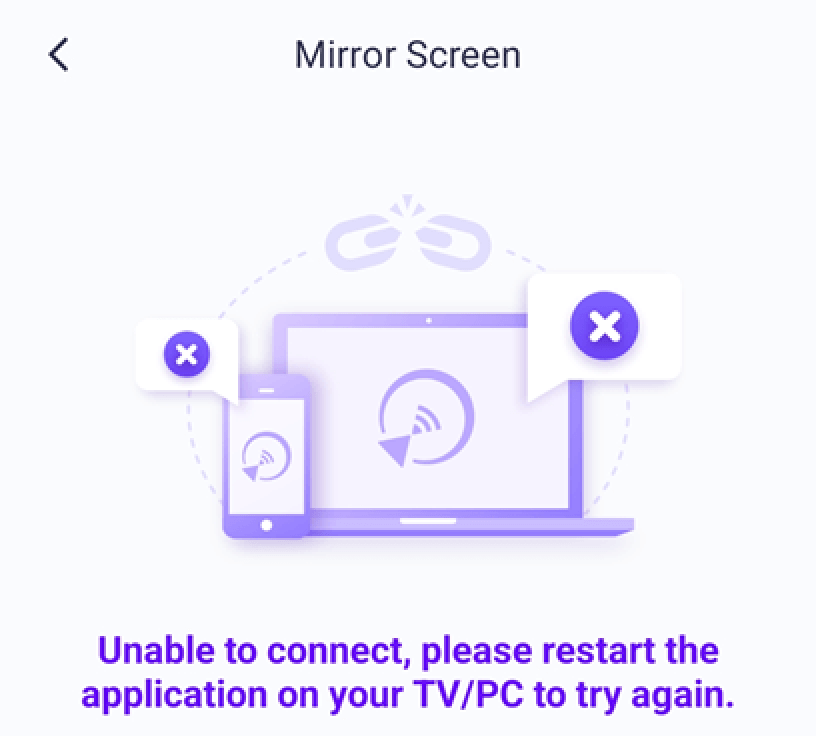
1. For iPhone users:
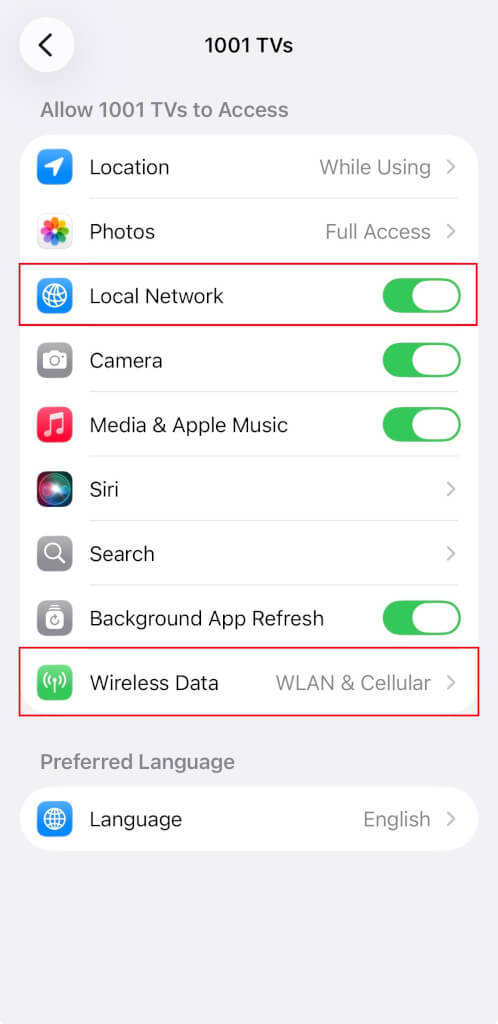
If you see a reminder on your iPhone, enable the “Local Network” permission for 1001 TVs by following these steps:
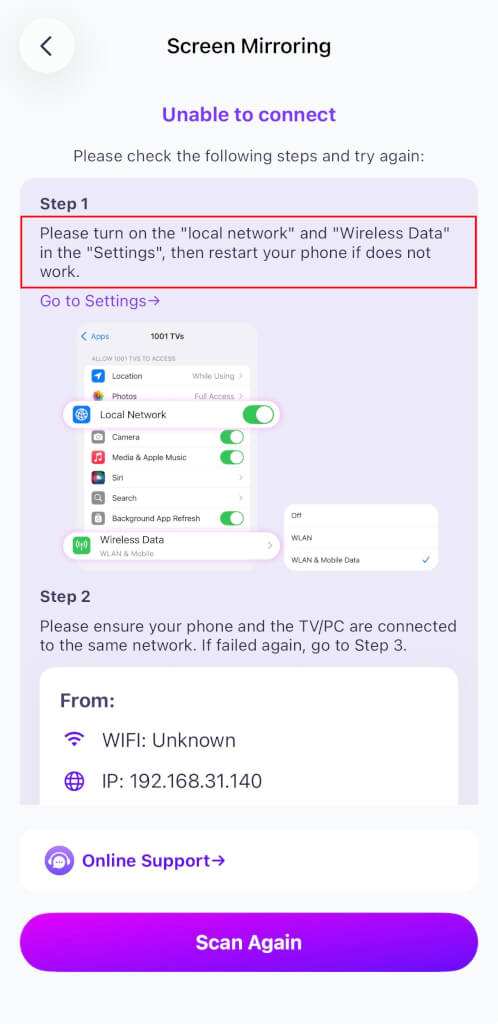
بارىڭ Settings → Apps → Scroll down to 1001 TVs → Enable Local Network
→ Wireless Data → WLAN and Cellular.
2. For macOS 15+ Users:
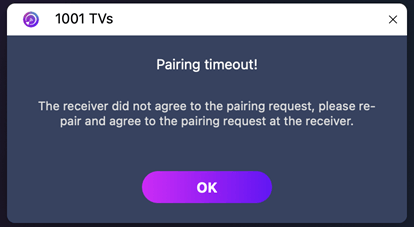
If you’re using macOS 15 ياكى ئۇنىڭدىن كېيىنكى نەشرى ۋە خاتالىققا يولۇقىدۇ:
“Pairing timed out! The receiver did not accept the pairing request. Please try pairing again.”
— even when both devices are connected to the same Wi-Fi network — the issue is likely caused by macOS 15+’s Local Network permission restrictions.
تۆۋەندىكى بۇيرۇقلارنى ئىجرا قىلىڭ تېرمىنال تور ئىجازەتلىرىنى قايتا تەڭشەش ئۈچۈن:
sudo rm / Library/Preferences/com.apple.networkextension.plist sudo rm ئاندىن Mac نى قايتا قوزغىتىڭ.
⚠️ مۇھىم:
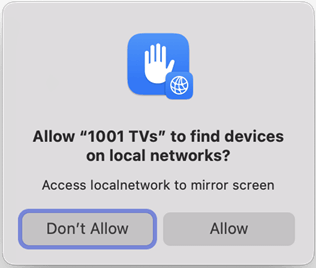
قايتا قوزغاتقاندىن كېيىن، macOS تەلەپ قىلسا يەرلىك تورغا كىرىش, ، چېكىشنى ئۇنتۇماڭ “رۇخسەت قىلىش” رۇخسەت بېرىش.
3. For Computer Users:
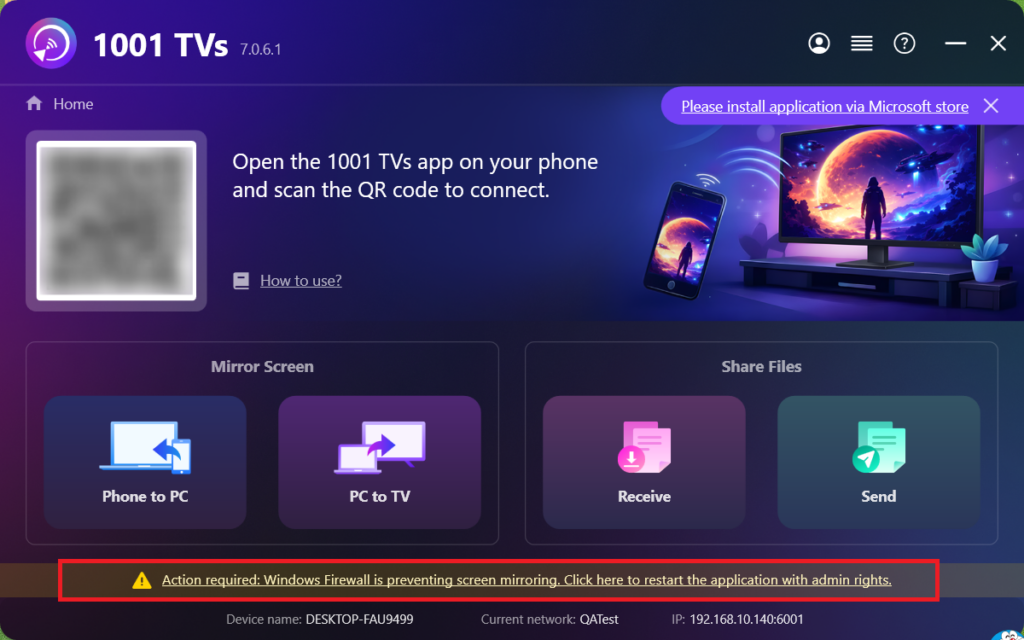
The issue might be caused by a firewall blocking the connection.
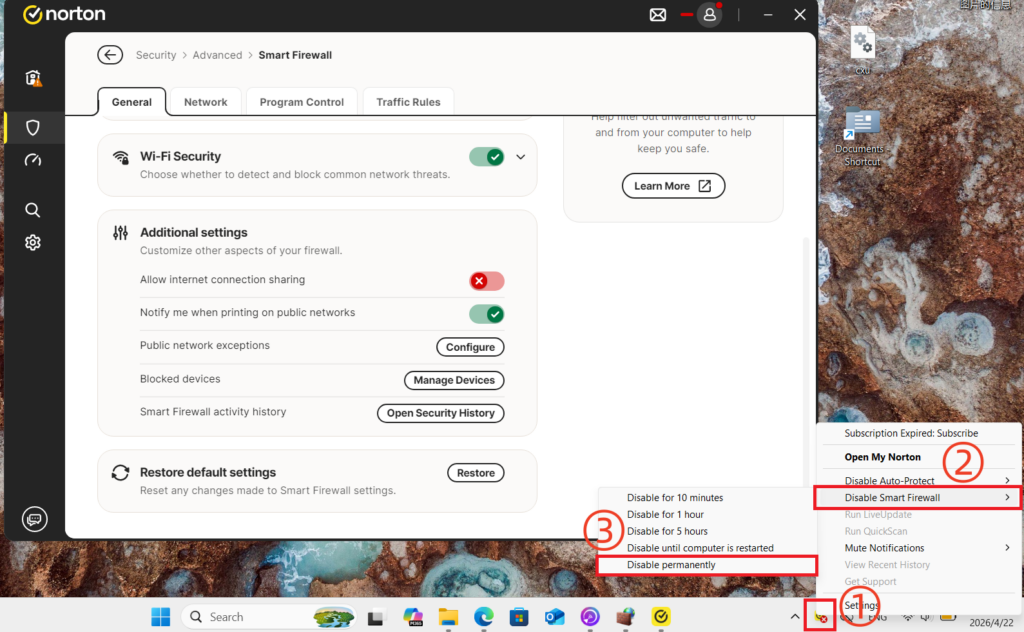
Using Norton 360 as an example:
- Close 1001 TVs App.
- In the system tray at the bottom right corner of your desktop, right-click the application icon.
- تاللاڭ Disable Smart Firewall, then choose a duration (e.g., 10 minutes, 1 hour, or until restart); or directly disable Smart Firewall by going to Advanced Security > Network in Norton 360.
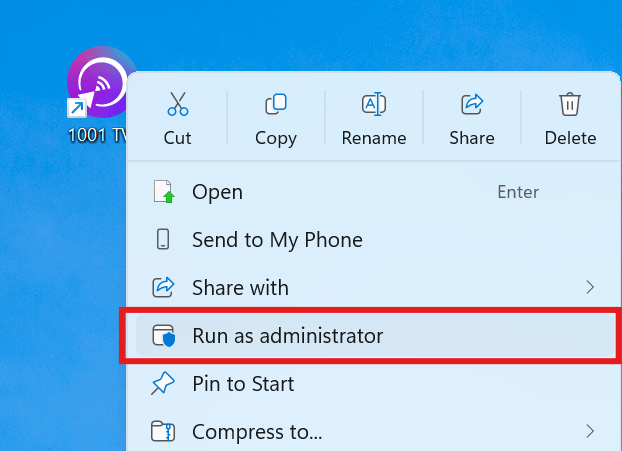
After disabling the firewall, restart 1001 TVs App as administrator (right-click the application and select Run as administrator) before trying to receive the screen cast again.
If a prompt appears, please click “Yes” to allow it to run.
4. If mirror screen to TV:
Power off the TV, wait 3 minutes, then power it back on.
5. Still not working?
Power off the router, wait 3 minutes, then power it back on. This can help resolve various network issues.
6. For public Wi-Fi networks (e.g., hotels, airports):
AP isolation may be enabled, which blocks screen mirroring.
Check your router settings and disable AP isolation if possible.
For example, on TP-Link routers: ئۈسكۈنە باشقۇرۇش → AP ئايرىش → تاقاش.
Alternatively, turn on your phone’s شەخسىي قىزىق نۇقتا, then connect your computer or TV to it and try mirroring again. If this works, the issue is likely with the original network.
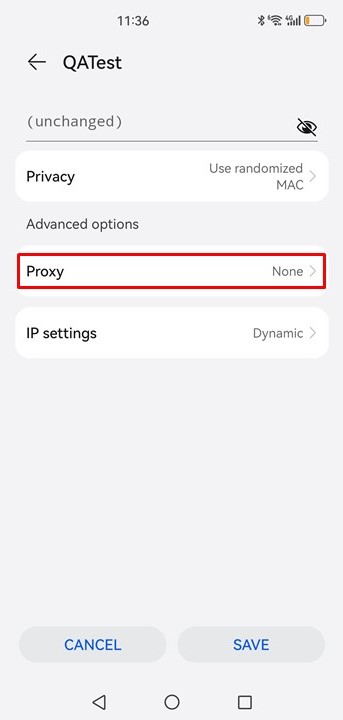
7. Check Proxy Settings:
If a proxy is active on your device (mobile or computer), turn off the manual proxy or add the target device’s IP address to the exception list.
8. Update the 1001 TVs PC App:
1001 TVs كومپيۇتېر ئەپ دېتالىنىڭ يېڭىلانغانلىقىغا كاپالەتلىك قىلىڭ. ئەگەر يېڭىلانمىغان بولسا، ئەڭ يېڭى نەشرىگە يېڭىلاڭ.
9. Use the “Mirror To Browser” Function:
ئەگەر ئېكران ئەينىكى مەسىلىسى داۋاملاشسا، [كۆرگۈچكە ئەينەك قىلىش] ئىقتىدارىنى سىناپ باقسىڭىز بولىدۇ:
How to Mirror Your Phone to a PC Browser?
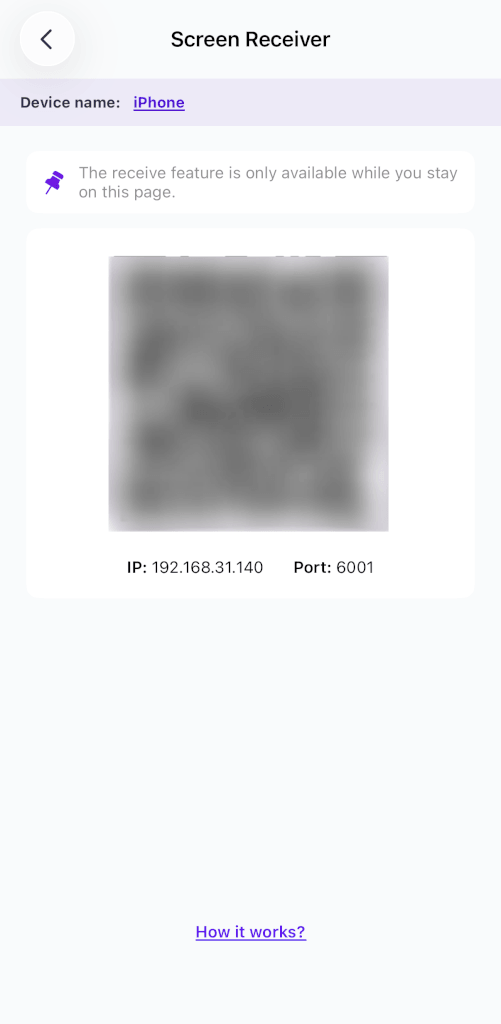
10. Stay on the Screen Receiver Page:
If you’re trying to mirror to a phone/ tablet, stay on the screen receiver page and do not exit.
Contact Customer Support:
If it’s still not working, please feel free to contact customer support for assistance at 1001tvs@nero.com.

Read More
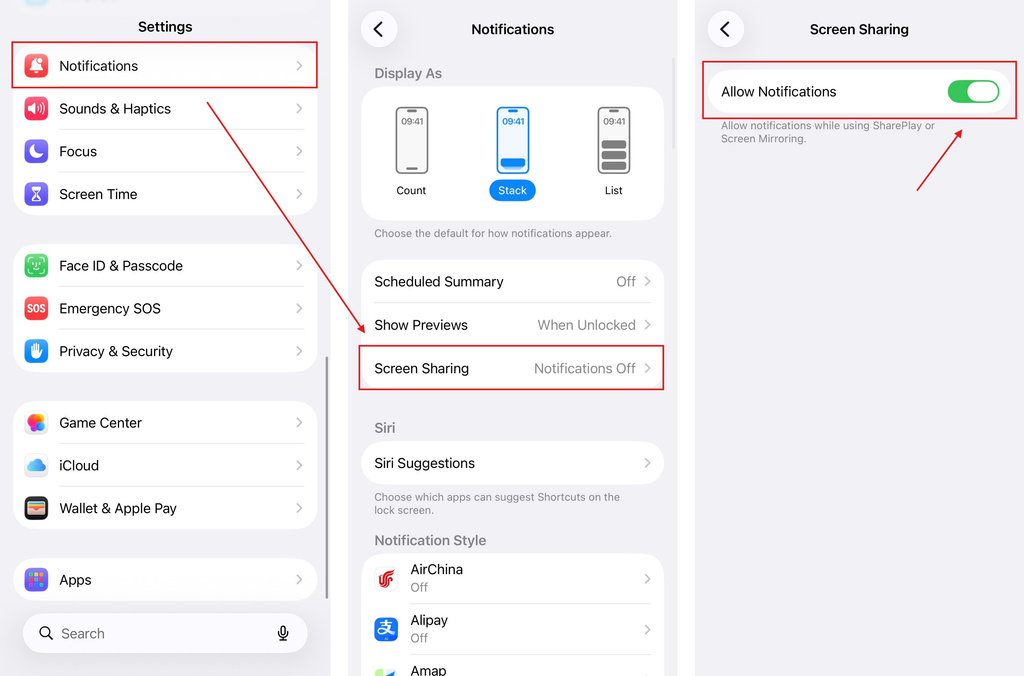 iOS: How to Fix Missing App Notifications During Screen Mirroring
Why Notifications Are Missing When you mirror your iPhone screen, notifications from other apps may not appear on the mirrored screen. This can happen…
iOS: How to Fix Missing App Notifications During Screen Mirroring
Why Notifications Are Missing When you mirror your iPhone screen, notifications from other apps may not appear on the mirrored screen. This can happen…
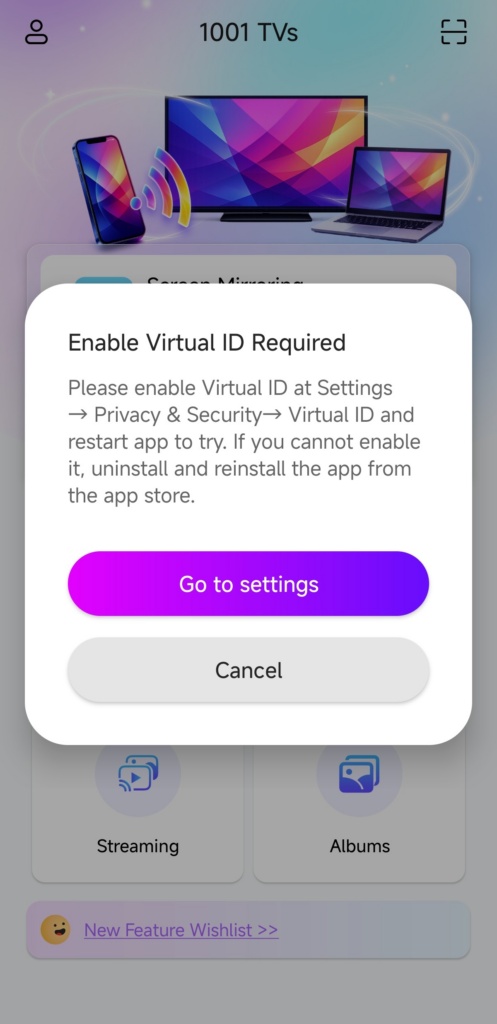 How to Fix the Enable Virtual ID Required Pop-Up
If you're using a Xiaomi or Redmi phone or tablet, you might see a pop-up that says "Enable Virtual ID Required" when you launch…
How to Fix the Enable Virtual ID Required Pop-Up
If you're using a Xiaomi or Redmi phone or tablet, you might see a pop-up that says "Enable Virtual ID Required" when you launch…

