How to Screen Share Your Phone to a TV: iPhone & Android Methods
Want to put photos, videos, apps, or a presentation from your phone on a bigger screen? The right method depends on the phone you use and the receiving features your TV supports.
Quick answer:
- iPhone → AirPlay
- Android → Google Cast or built-in screen cast
- Samsung Galaxy → Smart View
- No matching wireless option → HDMI or a supported mirroring app
Start with the quick guide below. In most cases, a built-in wireless option is the simplest place to begin. If your TV does not support the matching wireless method, a compatible HDMI connection is the practical fallback.
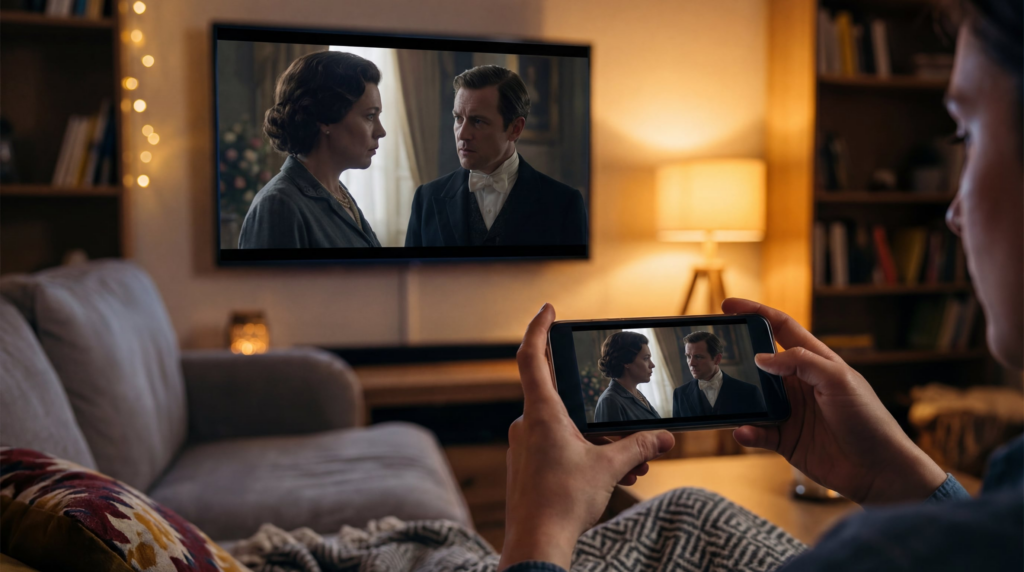
Before choosing a method, it helps to know the difference: screen mirroring shows your entire phone screen on the TV, while casting sends selected content from a supported app and lets your phone continue acting as a remote. Choose mirroring when you need to show your whole screen; use an app’s Cast or AirPlay button when you only want to play supported content.
Choose the right method in 30 seconds
| If you have… | Start with | Make sure |
| iPhone + Apple TV or AirPlay-compatible TV | AirPlay | Both devices are on the same Wi-Fi network and AirPlay is enabled |
| Android phone + Google Cast TV/device | Google Cast or Screen Cast | Your TV or receiver supports the method |
| Samsung Galaxy + compatible Samsung TV | Smart View | Smart View is available on both devices |
| Phone with wired video output + HDMI TV | HDMI adapter/cable | Your phone supports external video output |
| Phone and TV without a matching native method | Supported mirroring app | Sender, receiver, and setup requirements are supported |
Not sure which route fits your exact device pair? Use this screen mirroring compatibility checker to identify the most likely method to try first. Use the result as a starting point, then confirm any model-specific requirements before connecting.
How to screen share from an iPhone to a TV
Use AirPlay with Apple TV or an AirPlay-compatible TV
If your TV already supports AirPlay, start here. It is the built-in wireless route for sharing an iPhone screen with an Apple TV or AirPlay-compatible television. Connect both devices to the same Wi-Fi network, then make sure AirPlay receiving is enabled on the TV if prompted.
- Open Control Center on your iPhone. On iPhone X and later, swipe down from the top-right corner. On older iPhones with a Home button, swipe up from the bottom edge.
- Tap Screen Mirroring.
- Choose your Apple TV or compatible TV from the list.
- Enter the code shown on the TV if prompted.
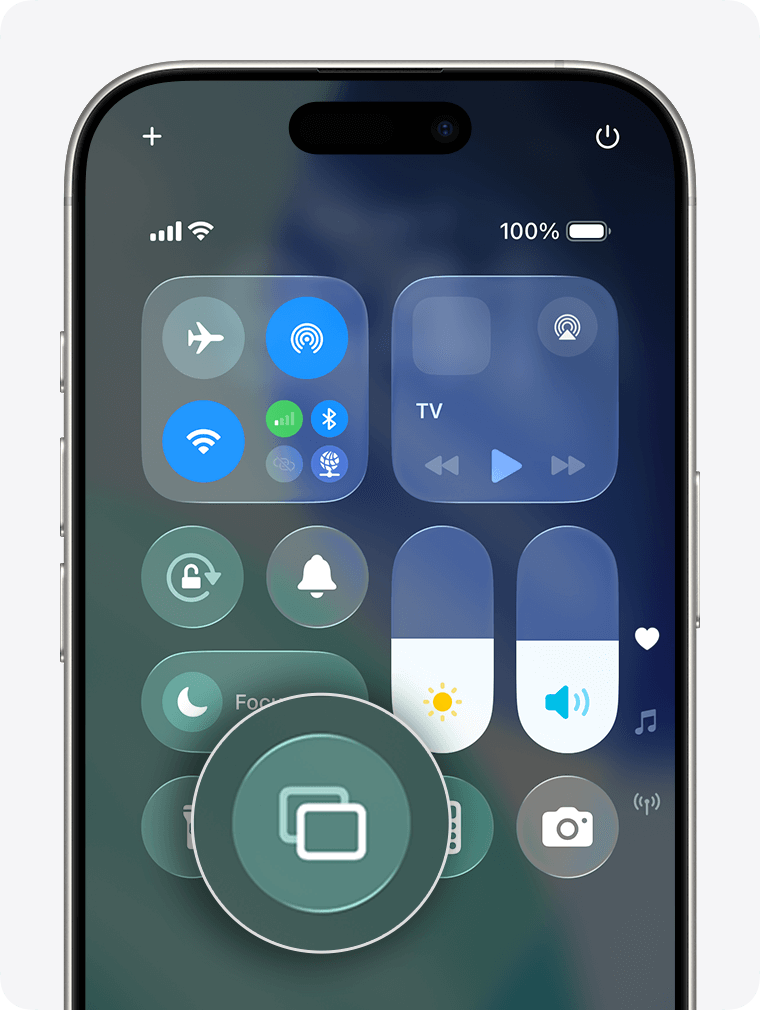
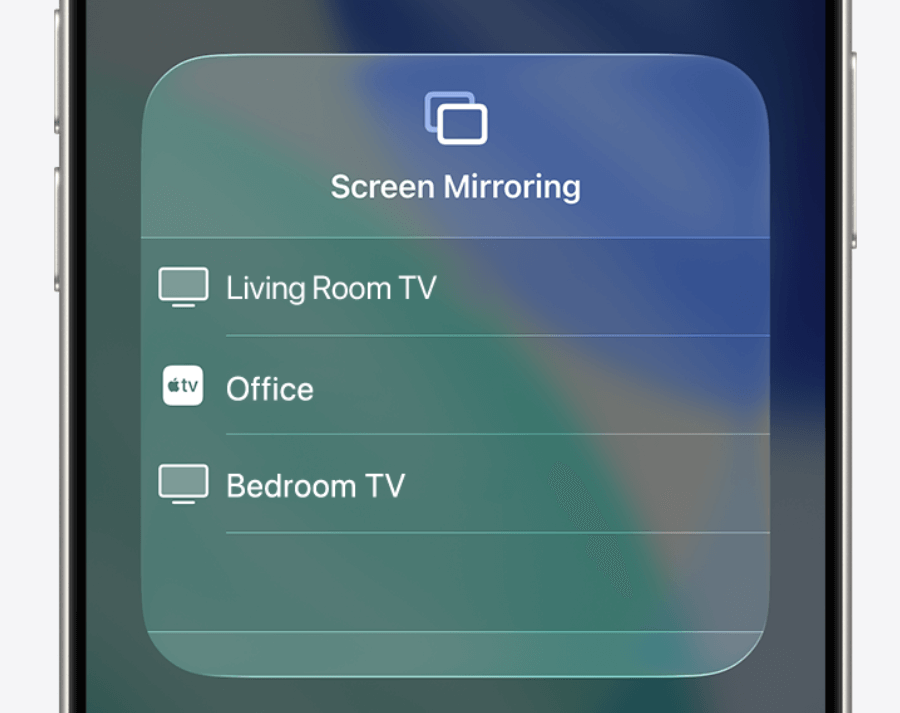
To stop mirroring, open Control Center, tap Screen Mirroring, and select Stop Mirroring.
For a video, photo, or music app that has its own AirPlay button, use that button instead of full-screen mirroring. It can provide a more direct playback route when the app supports it. Apple’s AirPlay and screen-mirroring guide explains the basic flow. If you are connecting an iPhone to a Samsung TV, see our detailed guide to screen mirroring an iPhone to Samsung TV without Apple TV.
Compatibility note: TV support can vary by exact model, region, and software version. Check your TV settings or manufacturer documentation for AirPlay support rather than relying on a model-year rule.
Connect an iPhone to a TV with HDMI
Use a wired connection when your TV does not support AirPlay, when Wi-Fi is unavailable, or when you prefer not to rely on a wireless connection.
For an iPhone with a Lightning port, you typically need a compatible Lightning-to-HDMI digital AV adapter and an HDMI cable. For an iPhone with USB-C, use a compatible USB-C video adapter or cable. The exact accessory depends on your phone and the display connection you need.
- Connect the adapter or compatible cable to the iPhone.
- Connect the HDMI cable to the adapter and an open HDMI port on the TV.
- Switch the TV to that HDMI input.
- If the adapter has a power port and the manufacturer recommends it, connect power before trying again.
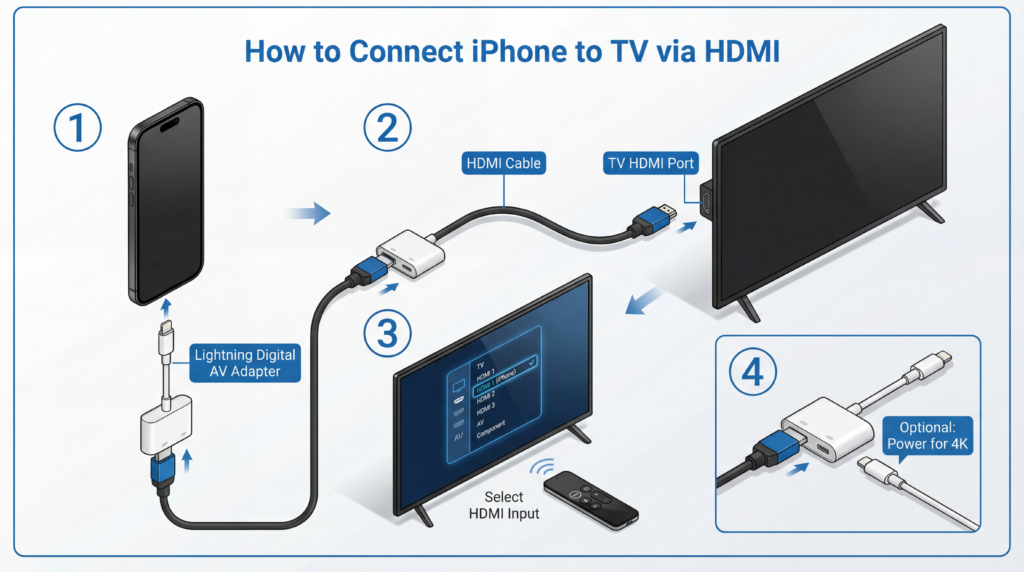
A wired connection is usually a sensible choice for presentations and other situations where you want a direct connection. However, individual apps and services can still apply their own playback or content-protection rules.
How to screen share from an Android phone to a TV
Android phones do not all use the same labels or wireless technologies. Before you start, identify whether your TV supports Google Cast, whether you have a Samsung Galaxy phone with Smart View, or whether your phone supports wired video output.
Use Google Cast or your phone’s screen-cast option
If your TV has Google Cast built in, or you use a compatible Google TV or Chromecast-type receiver, you may be able to cast supported app content to it. Many Android phones also include a system-level screen-sharing option, but its name and availability vary by manufacturer.
- Connect the phone and the TV or streaming device to the same Wi-Fi network.
- For a supported video or music app, look for the Cast icon in that app and select your TV.
- To mirror your full Android screen, open Quick Settings and look for an option such as Cast, Screen Cast, Screencast, or a manufacturer-specific equivalent.
- Choose the receiving TV or device, then accept any permission prompt on the phone or TV.
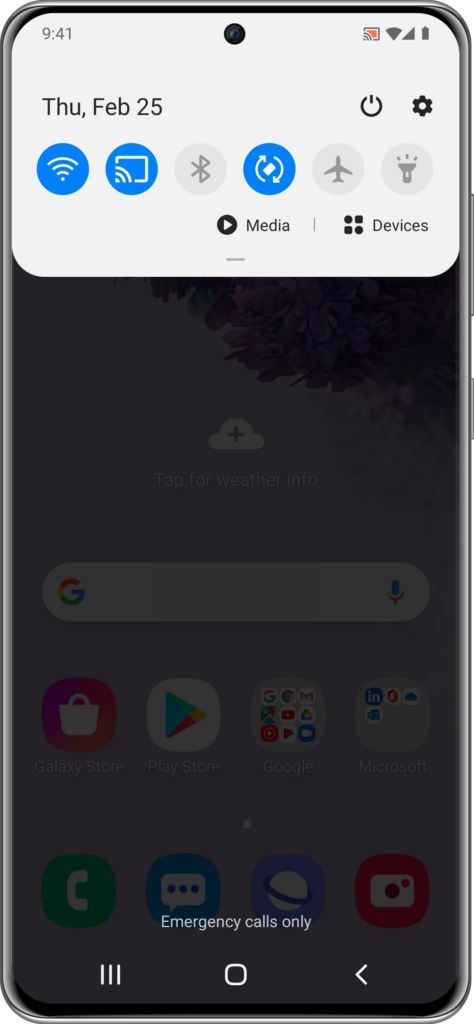
The in-app Cast button and whole-screen mirroring are not always the same feature. If your goal is simply to watch a supported streaming video, try the app’s Cast button first. If you need to show your phone’s entire interface, use the phone’s screen-cast or mirroring feature where available.
Important: A TV being “smart” does not automatically mean it supports Google Cast or every Android mirroring method. Check the TV’s settings, product specifications, or the receiver device connected to it.
Use Smart View from a Samsung Galaxy phone
Samsung Galaxy phones commonly use Smart View for compatible wireless display connections. The exact options may vary by device, TV model, software version, and region.
- Swipe down from the top of the phone screen to open the Quick Settings panel.
- Tap Smart View.
- Select your compatible TV from the available devices.
- Confirm the connection on the TV or phone if prompted.
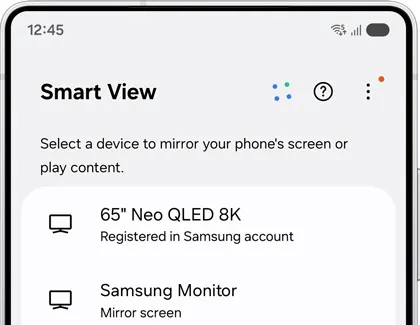
If your television does not appear, make sure both devices are on the same local Wi-Fi network and that the TV is allowed to accept connections. Samsung’s Smart View setup guidance also recommends checking device compatibility and keeping software current. For a broader breakdown of AirPlay, Smart View, Google Cast, and HDMI on Samsung sets, read our Samsung TV screen-mirroring guide.
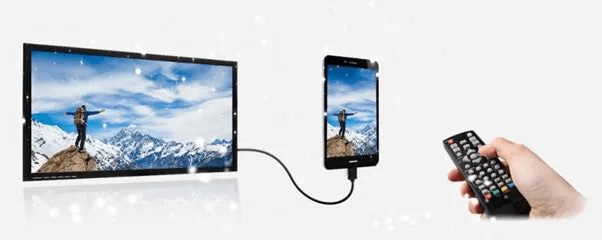
Use USB-C to HDMI from an Android phone
A USB-C-to-HDMI cable or adapter can connect some Android phones directly to a TV. This is not universal: USB-C is a connector type, not a guarantee that the phone can send video to an external display.
Before buying an adapter, check your phone manufacturer’s specifications for supported wired display output, often described as DisplayPort Alt Mode, HDMI output, or external display support.
- Connect a compatible USB-C-to-HDMI adapter or cable to the phone.
- Connect the HDMI end to the TV.
- Choose the corresponding HDMI input on the television.
- If nothing appears, confirm that the phone model supports video output and that the adapter is compatible with it.
Add a streaming device to a non-smart TV
A non-smart TV can still work with your phone if it has an HDMI port. One option is to connect a compatible streaming receiver, set it up on your Wi-Fi network, and then use the methods it supports. Another is to use a compatible wired HDMI adapter from your phone.
Choose the approach based on what you need: a streaming receiver can support wireless use after setup, while an HDMI adapter provides a direct wired path if your phone supports it.
When a cross-platform app is the right alternative
Native AirPlay, Google Cast, Smart View, and HDMI are good places to start because they use features already available on compatible devices. But the phone and TV do not always support the same native method.
In that situation, 1001 TVs is a screen-mirroring app that provides an app-based connection workflow for supported phones and receiving devices. Choose it when your phone and TV do not support the same built-in mirroring method and you want one app-led connection path across supported devices. This can be useful in mixed-device households or classrooms where people use different phone ecosystems and TV platforms.
For 1001 TVs-specific setup steps, see how to mirror an Apple iOS screen to a TV or how to mirror an Android phone screen to a TV.
Troubleshooting
My TV does not appear in the list
Start with the basics. Put both devices on the same local Wi-Fi network, not separate guest networks. Then confirm that the TV or streaming receiver is powered on and that its relevant receiving feature—AirPlay, Google Cast, Smart View, or another supported option—is enabled.
If the TV still does not appear, restart the phone, television, and router. Check for software updates on the phone and TV. A VPN, guest-network setting, or router setting that isolates devices can also prevent discovery on a local network.
The video is lagging or stuttering
Move closer to the router if the Wi-Fi signal is weak, reduce other heavy activity on the network, and close unneeded apps on the phone. If your router offers multiple bands, use the connection that gives both devices a stable local signal.
There is no single internet-speed number that guarantees a specific mirroring result. Local Wi-Fi quality, device capability, display resolution, network congestion, and the app you use can all affect playback. If wireless performance remains unsuitable and your phone supports it, try a compatible HDMI connection.
The connection keeps dropping or Wi-Fi is unavailable
Keep the phone and receiver connected to the same network, avoid aggressive battery-saving modes during the session, and update the phone and TV software. Restart the devices, reconnect to Wi-Fi, then try the same method again before switching connection types.
If Wi-Fi is unavailable, a compatible HDMI connection can work without it. Wireless methods usually require the phone and receiving device to discover and communicate with each other on a local network.
Netflix, Disney+, or another service shows a black screen
Some streaming services restrict screen mirroring or external playback to protect copyrighted content. A black screen can be caused by the service, the app, the connection method, or HDCP requirements.
Try the streaming service’s official TV app or its built-in Cast/AirPlay option first. A wired adapter is not a universal workaround; whether it works depends on the service, phone, adapter, TV, and content-protection path.

Read More
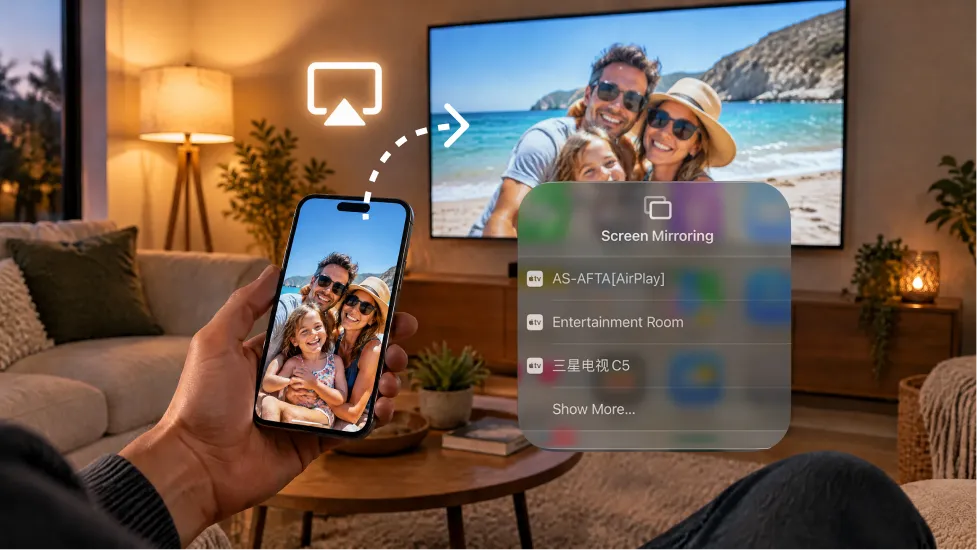 How to Turn On AirPlay on iPhone in iOS 26 (Screen Mirroring Guide)
To turn on AirPlay screen mirroring in iOS 26, open Control Center, tap the Screen Mirroring button (two overlapping rectangles), and choose your TV…
How to Turn On AirPlay on iPhone in iOS 26 (Screen Mirroring Guide)
To turn on AirPlay screen mirroring in iOS 26, open Control Center, tap the Screen Mirroring button (two overlapping rectangles), and choose your TV…
 How to Watch the 2026 World Series on TV
Every game of the 2026 World Series airs on FOX, and every scheduled first pitch is at 8 p.m. ET (5 p.m. PT). The…
How to Watch the 2026 World Series on TV
Every game of the 2026 World Series airs on FOX, and every scheduled first pitch is at 8 p.m. ET (5 p.m. PT). The…

