Samsung TV Screen Mirroring: The Complete Guide (All Devices)
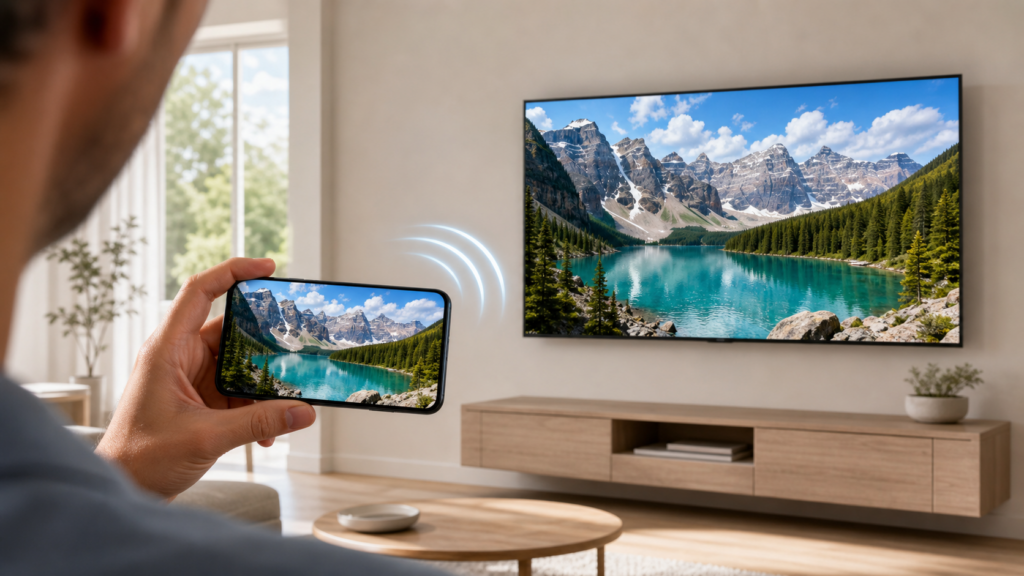
To mirror your screen to a Samsung TV, start with the built-in option for your device: Smart View on a compatible Galaxy phone, AirPlay on an iPhone, iPad, or Mac, or Windows + K on a Miracast-compatible PC. Other Android phones need a closer compatibility check because their Cast menus do not all use the same technology.
Your TV must support the method you choose. If it does not, use a compatible external receiver or an HDMI connection supported by your phone or computer. You do not necessarily need a new TV or another app.
Which Screen Mirroring Method Should You Use?
By Device
| Your device | Start with | Check before connecting | If it is unavailable |
| Samsung Galaxy phone or tablet | Smart View | Smart View is available on your Galaxy device, and the TV supports mirroring | Use another connection supported by your device, such as HDMI video output |
| Other Android phone | The phone’s supported screen-casting method | Both ends must support the same technology: Google Cast or Miracast | Add a matching external receiver, or use 1001 TVs with a supported receiver |
| iPhone or iPad | AirPlay | The Samsung TV supports AirPlay and has it enabled | Use a compatible HDMI adapter or external receiver |
| Mac | AirPlay | The Samsung TV supports AirPlay | Use HDMI, or 1001 TVs with a supported receiver |
| Windows PC | Windows + K | Both the PC and TV support Miracast | Use HDMI, or 1001 TVs with a supported receiver |
Check Your Samsung TV’s Compatibility
A model year is a starting point, not a guarantee that every feature is included.
| Feature | What to check on your TV |
| Smart View / Miracast | Look for screen-sharing support in the TV’s connection guide or model documentation. The sending phone or PC must also support the connection. |
| AirPlay | Samsung supports AirPlay on selected models from 2018 onward. Look for Apple AirPlay Settings and check the documentation for your exact model. |
| Google Cast | Samsung’s 2026 TV lineup includes built-in Google Cast. Selected 2024 and 2025 models also support it through software updates, with firmware v2115 or later required according to FlatpanelsHD. That report does not confirm support for 2023 models. Check your exact model and software version before relying on Google Cast. |
| Tap View / Multi View | Check the exact model and supported sources. Availability and screen layouts vary. |
Samsung’s AirPlay compatibility guide specifies selected models rather than blanket support for every TV made after a particular year.
To find your model code, look for About This TV in Settings or check the label on the television. Menu locations vary by model and software version. Use the full model code when checking Samsung’s support information.
How to Mirror an Android Phone to a Samsung TV
Samsung Galaxy Phones: Start With Smart View
Smart View mirrors the display of a compatible Galaxy phone or tablet. What you open on the phone appears on the TV, including navigation between apps.
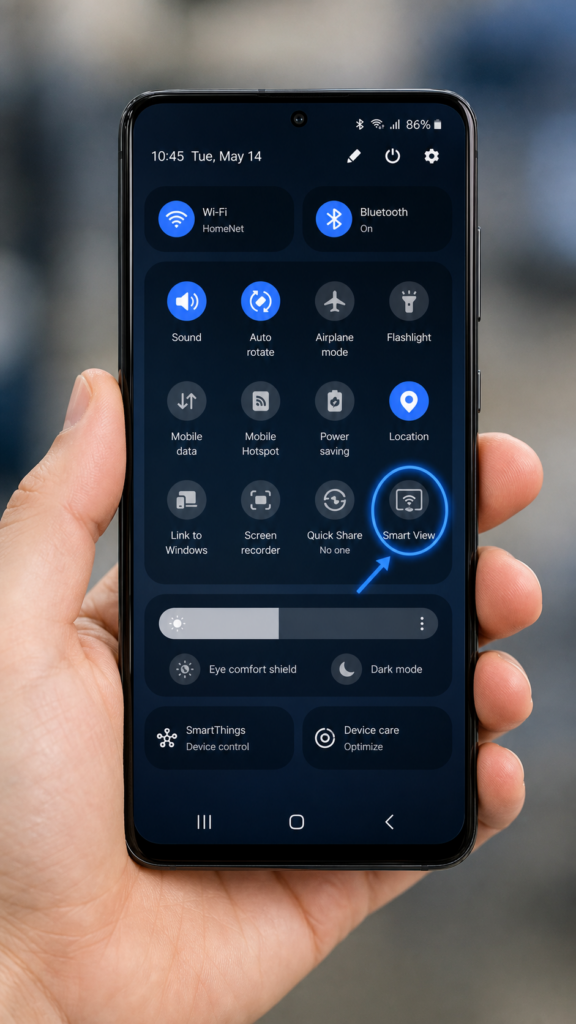
- Turn on your Samsung TV.
- Connect the phone and TV to the same Wi-Fi network for Samsung’s standard Smart View setup.
- Open the phone’s Quick Settings panel and find Smart View. You may need to expand the panel or swipe to another page.
- Tap Smart View and choose your Samsung TV.
- Tap Start now and allow the connection on the TV if prompted. Enter a PIN if one appears.
Your phone’s screen should now appear on the television. To finish, open the Smart View controls on your phone and tap Disconnect. Samsung’s official screen-mirroring guide explains the connection and permission steps.
If Smart View is missing: check whether your Galaxy model supports it before downloading a similarly named app. Not every Galaxy device has the same display-sharing features.
If the TV is missing: check that it supports mirroring, then look for a connection request on the television. Restarting both devices and checking their software updates are useful next steps. If either device lacks the required support, use a compatible receiver or a supported wired connection instead.
Other Android Phones: Match the Casting Technology
A button labeled Cast, Screen Cast, or Wireless Display does not tell you everything about compatibility. Different Android manufacturers use different technologies.
For a phone that supports Miracast, open its wireless-display or screen-sharing controls, select a Miracast-compatible Samsung TV, and approve the connection. Follow the phone manufacturer’s instructions for the exact menu name.
For a phone that uses Google Cast, the receiving TV or external device must support Google Cast. On a Pixel, Google’s instructions use Settings > Connected devices > Connection preferences > Google Cast. Choose the available screen- or app-sharing option and select the receiver. Google’s Pixel screen-projection guide covers sharing an entire screen or a single app, not just playing media from a Cast-enabled video app.
Samsung’s 2026 TV lineup includes built-in Google Cast. Selected 2024 and 2025 models also support it through software updates, with firmware v2115 or later required according to FlatpanelsHD’s Samsung Google Cast report. That report does not confirm support for 2023 models. Check your exact model and software version before relying on Google Cast.
If your phone and television do not share a compatible method, a matching external receiver is the next option. For an app-based route, see the 1001 TVs instructions below.
How to Screen Mirror an iPhone or iPad to a Samsung TV
Connect With AirPlay
If the Samsung TV supports AirPlay, you can mirror directly without an Apple TV box.
- Connect your iPhone or iPad and Samsung TV to the same Wi-Fi network.
- On the television, open Settings > General > Apple AirPlay Settings. On some models, Apple AirPlay Settings is under Connection instead. Turn AirPlay on.
- Open Control Center on your iPhone or iPad.
- Tap Screen Mirroring, then select your Samsung TV.
- Enter the code shown on the television if prompted.
To disconnect, return to Control Center > Screen Mirroring > Stop Mirroring.
For this Samsung TV setup, the devices need to be on the same network—not necessarily the same 2.4 GHz or 5 GHz band. Guest-network or client-isolation settings can prevent devices from communicating even when both have internet access.
If the TV Does Not Have AirPlay
You have two practical alternatives:
- Use a compatible HDMI connection. Lightning-equipped iPhones need a compatible Lightning Digital AV adapter; Apple’s wired-display setup guide explains the connection. USB-C iPhones need a supported video-output model and an appropriate USB-C-to-HDMI cable or adapter. A USB-C port alone does not guarantee video output: Apple excludes iPhone 16e and iPhone 17e from its USB-C external-display support list. Connect the supported adapter and HDMI cable, then select that HDMI input on the TV.
- Use an external receiver. Connect an AirPlay-compatible receiver to the TV’s HDMI port, or use 1001 TVs with a supported receiving device as described below. Check the receiver’s exact model and capabilities before buying it.
Installing SmartThings on an iPhone should not be treated as a substitute for AirPlay screen mirroring. The app’s availability on iOS does not establish that it can send the iPhone’s full screen over Miracast.
For additional setup illustrations and device-specific options, see our iPhone-to-Samsung-TV guide. Check the receiver and adapter requirements above before choosing an alternative method.
How to Mirror a Mac or Windows PC to a Samsung TV
Mac: Use AirPlay
- Connect the Mac and AirPlay-compatible Samsung TV to the same network.
- Enable AirPlay in the television’s Apple AirPlay Settings.
- Open Control Center in the Mac menu bar.
- Select Screen Mirroring and choose the Samsung TV.
- Enter the on-screen code if requested, then choose the available display-sharing mode you need.
If AirPlay is unavailable, connect the Mac through HDMI using a cable or adapter compatible with its video-output port. Change the TV to the matching HDMI input.
Windows: Press Windows + K
Both the PC and TV must support Miracast. Having Windows installed does not, by itself, guarantee compatible wireless-display hardware and drivers.
- Turn on the television and make sure its screen-sharing feature is available.
- Turn on Wi-Fi on the PC.
- Press Windows + K.
- Select the Samsung TV from the list.
- Allow the connection on the television if prompted.
- Press Windows + P and choose Duplicate to mirror the PC screen, or Extend to use the TV as another display.
Microsoft’s wireless-display connection guide recommends Windows + K for connecting to a Miracast-compatible display. If Windows reports that Miracast is unavailable, use another supported method rather than repeatedly searching for the TV.
For a wired connection, connect the computer’s video output to the TV’s HDMI input and select that input. HDMI avoids wireless-network congestion.
Our Mac and Windows Samsung TV tutorial covers these connections and the external-receiver setup for 1001 TVs in more detail.
Using 1001 TVs With a Samsung TV
Choose 1001 TVs when you want an app-based approach across supported sending devices and already have—or plan to add—a compatible receiver. For a Samsung TV running Tizen, a supported Android TV or Google TV device connected through HDMI is one practical setup.
Check receiver compatibility before installing or subscribing. The television is the display in this arrangement; the external device runs the receiving app. Our Samsung TV computer setup guide explains this distinction.
- Connect the supported Android TV or Google TV receiver to the Samsung TV through HDMI.
- Switch the television to that HDMI input.
- Install and open 1001 TVs on the receiver.
- Install and open 1001 TVs on the sending phone, tablet, Mac, or Windows PC.
- Connect the sender and receiver to the same local network.
- Select the receiver in the app and follow the connection and screen-sharing prompts for your platform.
For Mac and Windows setup, use the linked computer tutorial above. Follow the current app prompts for capture and audio permissions, since these differ by operating system.
1001 TVs is not a way to bypass a streaming service’s screen-capture restrictions. If a protected video stays black while the rest of your screen appears, use the service’s supported playback method.
Samsung’s Other Screen-Sharing Features
You do not need to learn every Samsung feature to mirror a screen. These options are useful for specific tasks after you have checked compatibility.
SmartThings: An Additional Connection and Control Interface
On compatible devices, SmartThings can provide a route to Mirror screen (Smart View). Add the TV to SmartThings, select it, and look for the mirroring option in its menu. The feature’s availability depends on the sending device and TV; SmartThings support on a phone does not guarantee full-screen mirroring from that phone.
Tap View: Start Sharing With a Compatible Galaxy Phone
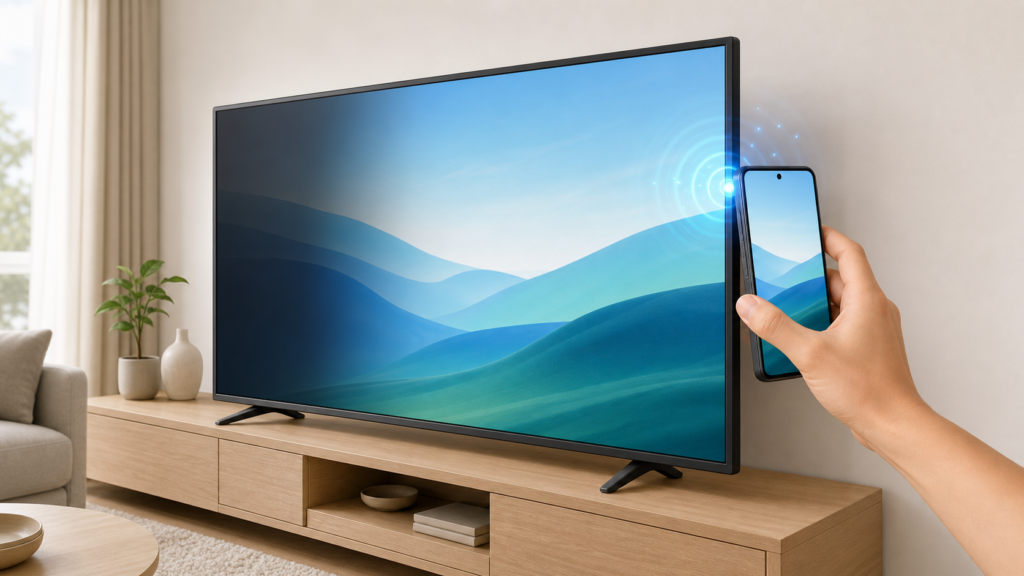
Tap View starts a connection by gently touching a supported Galaxy phone to the TV’s bezel after enabling the feature in SmartThings. Do not tap the screen itself. Check your exact TV and phone against Samsung’s Tap View requirements and setup instructions; the feature is not available on every Samsung model.
Samsung DeX: Use a Desktop-Style Workspace
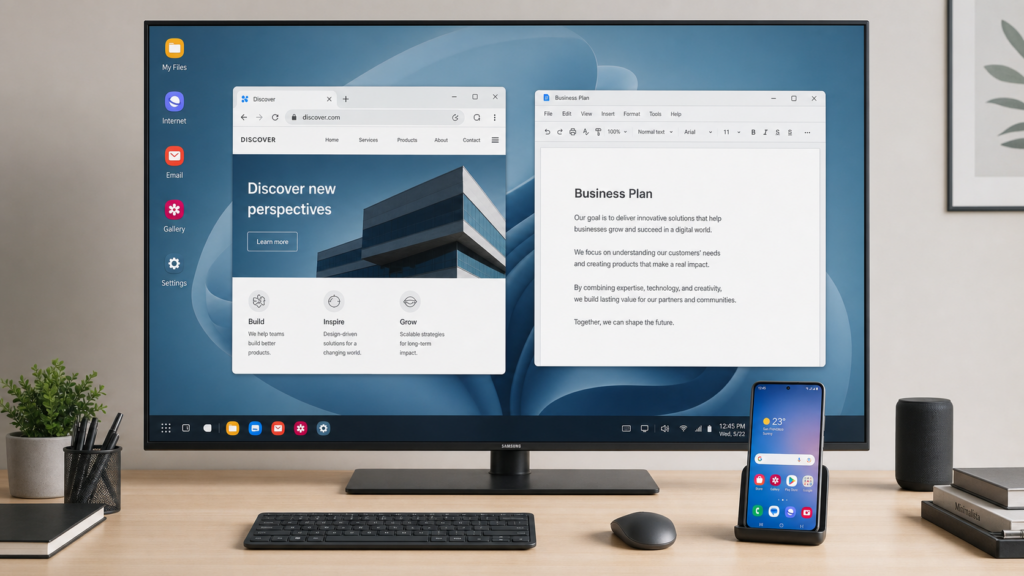
DeX is useful for documents, presentations, and multitasking because it provides a desktop-style interface rather than simply copying the phone display.
Check Wireless DeX support separately from wired DeX. A device supporting DeX through HDMI does not necessarily support it wirelessly. Samsung’s Wireless DeX compatibility and connection guide lists compatible phones and tablets, including S9 and Note9 models and later supported devices. Confirm your phone or tablet is on that wireless list before trying to connect.
Multi View: Show Supported Sources Together
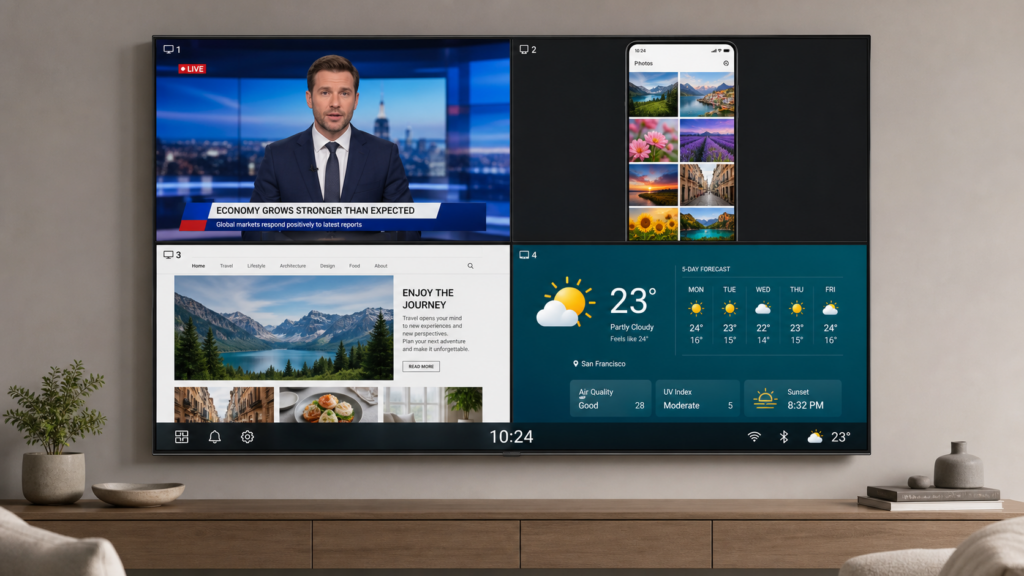
Multi View can place supported sources on the television at the same time. The number of views and allowed source combinations depend on the exact TV model and region—not simply whether it was made before or after 2025. Check Samsung’s Multi View model and screen-layout information and your model’s supported apps before planning a split-screen setup.
Common Samsung TV Screen Mirroring Problems
| Problem | What to check first |
| The TV does not appear | Confirm that the sending device and receiver support the same method. For Smart View, confirm both devices are on the same Wi-Fi network and check TV permissions. For AirPlay, Google Cast, and app-based mirroring, check local network access and router isolation. For Windows projection, confirm Miracast support on both devices. |
| AirPlay cannot connect | Enable AirPlay on the TV, check network isolation or VPN interference, then restart both devices. Different Wi-Fi bands alone do not establish the cause. |
| Mirroring lags or stutters | For network-based sharing, try a less congested Wi-Fi connection and move closer to the router. Use a supported HDMI connection when consistent response matters. |
| The picture looks blurry | Check the source content and any quality options actually available in your chosen method. Higher-quality settings may need a stronger connection. |
| There is no sound | Check TV volume and the sender’s audio output. For an app-based method, check its audio support and required permissions for your operating system. |
| A streaming video is black | Check the service’s playback restrictions. If ordinary photos or menus mirror correctly, repeated Wi-Fi troubleshooting may not solve protected-video playback. |
Netflix does not support AirPlay on iPhone or iPad. Other screen-mirroring methods may also be restricted depending on the device and app. Netflix casting is limited to supported receiver devices and eligible plans. For the most reliable playback, use the Netflix app on your Samsung TV or another supported streaming device. See Netflix’s guidance on iPhone and iPad mirroring restrictions and supported casting and connection methods.
For a fuller diagnostic path, see Samsung TV screen mirroring not working: how to fix it.
Samsung TV Screen Mirroring FAQ
Can I Mirror to a Samsung TV Without Wi-Fi?
Separate “no internet” from “no Wi-Fi.” A supported HDMI connection does not require Wi-Fi. Miracast uses Wi-Fi Direct and can connect without an internet router in supported setups, but it still uses Wi-Fi technology. Samsung’s standard Smart View instructions recommend connecting both devices to the same network. For AirPlay directly to a Samsung TV, follow the same-network setup above.
Can I Mirror My Samsung TV to My Phone?
Some compatible Samsung TV and Galaxy-device combinations support the reverse direction. Samsung’s Smart View instructions for TV-to-phone sharing describe Other device → Phone, but only if the TV supports the feature. Do not assume this works on every phone or through every version of SmartThings.
Can an Older Samsung TV Still Be Used for Screen Mirroring?
Yes, if it has a suitable connection. An HDMI input can accept a compatible external receiver or a supported wired video output. Match the receiver to the sending device: an iPhone’s AirPlay connection, an Android phone’s casting method, and Windows Miracast are not interchangeable.
Choose the Connection Your Devices Support
Start with Smart View for a compatible Galaxy device, AirPlay for an Apple device and compatible Samsung TV, or Windows + K for a Miracast-capable PC. For other Android phones, check which casting technology the phone actually supports.
If the built-in route is unavailable, use a supported wired connection or add the right receiver. If you choose 1001 TVs, confirm support at both ends first; a compatible Android TV or Google TV receiver connected through HDMI lets you use the Samsung television as the display. Visit the 1001 TVs Download Center to check the listed platforms and get the app for your sender and supported receiver.

Read More
 How to Watch Süper Lig on TV in Türkiye
To watch Süper Lig in Türkiye during the 2026–2027 season, start with beIN SPORTS coverage through Digiturk or TOD. The right TV viewing option…
How to Watch Süper Lig on TV in Türkiye
To watch Süper Lig in Türkiye during the 2026–2027 season, start with beIN SPORTS coverage through Digiturk or TOD. The right TV viewing option…
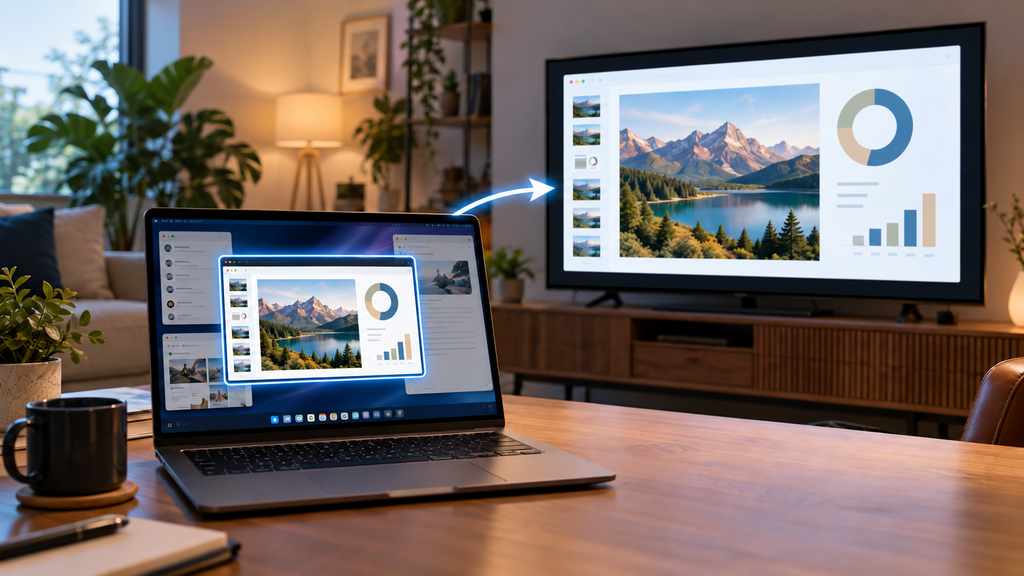 How to Share Only One Window to a TV During a Presentation
To share only one window to a TV, either use a tool that can mirror a single window, or set the TV up as…
How to Share Only One Window to a TV During a Presentation
To share only one window to a TV, either use a tool that can mirror a single window, or set the TV up as…

