
[2026] How to Transfer Files from iPhone to Windows (5 Best Methods Compared)
Have you ever tried to move a video from your iPhone to your computer and felt like giving up? You aren’t alone. In 2026, iPhones take amazing 4K videos, but moving those big files to a Windows PC can still feel like a headache.
Since Apple’s “AirDrop” doesn’t work on Windows, many people get stuck. In this guide, we will look at the best ways to move your files so you can stop stressing and start editing.
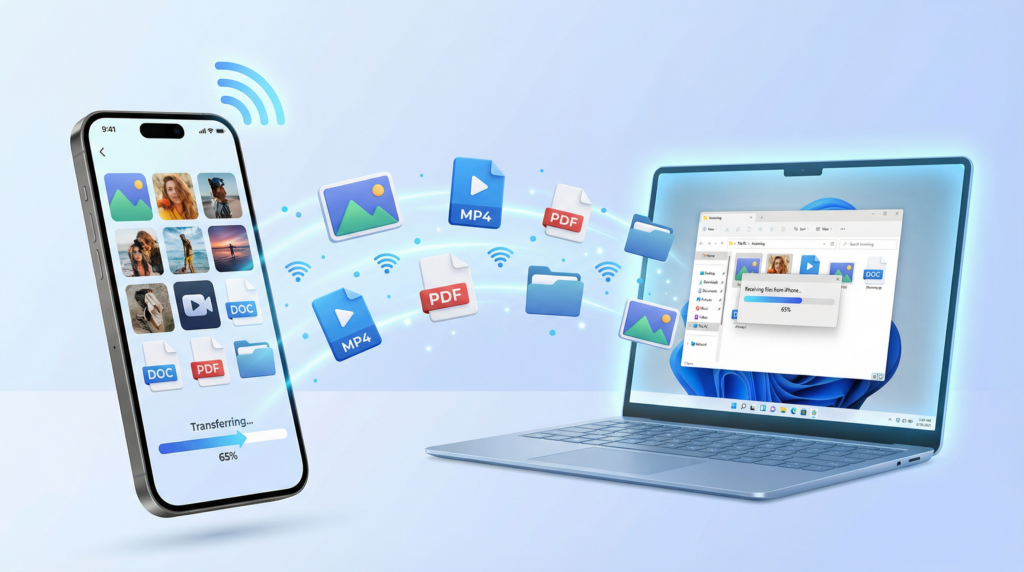
1. The Best Wireless Method: 1001TVs (AirDrop alternative)
If you want something that feels like AirPlay but works on your PC, 1001TVs is the top choice. While it connects your devices via Wi-Fi network, it doesn’t use your internet data to move your files.
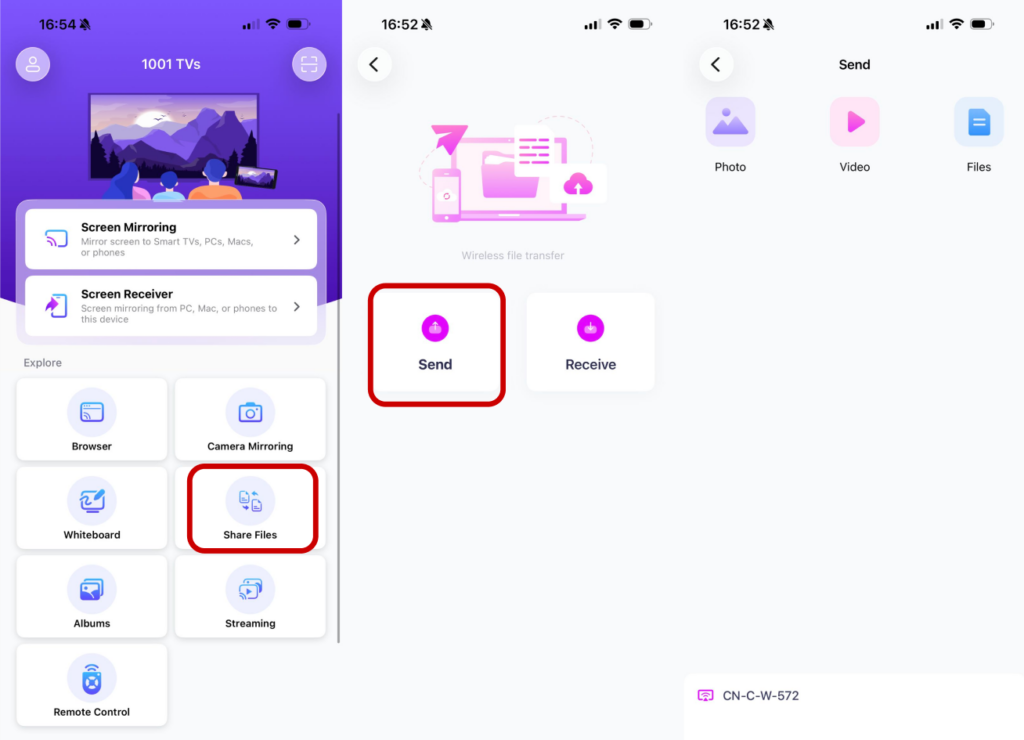
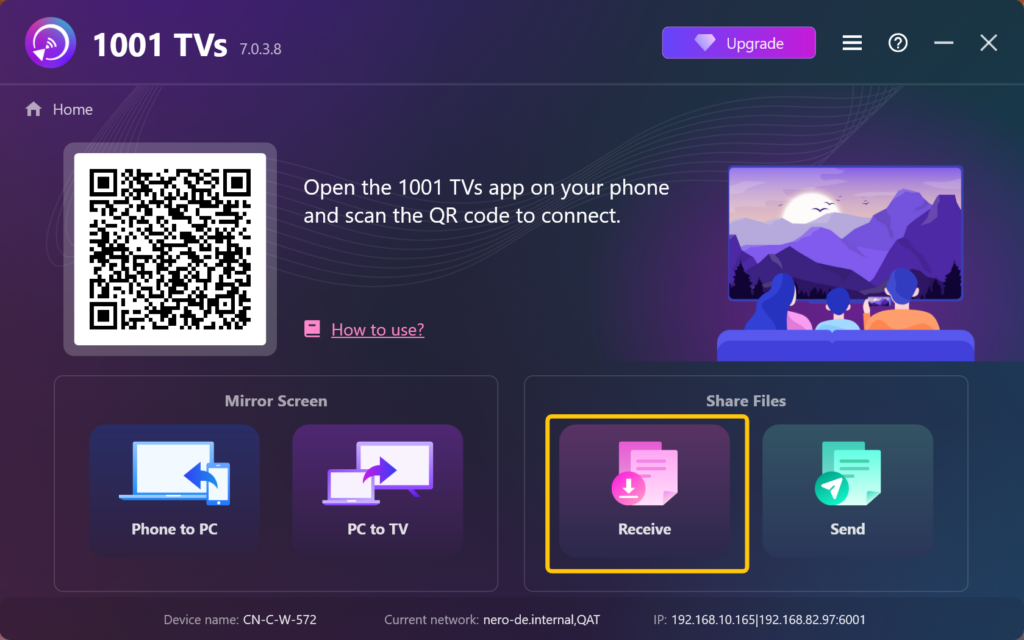
💡How to do it:
⬩ Open the app on your phone and your PC. Mkae sure they’re connected to the same Wi-Fi.
⬩ Choose “Share Files” on your phone, and select your PC from the device list.
⬩ Pick your photos/videos/files and hit “Send.”
⬩ Find your sent files on PC by clicking “Receive Files”
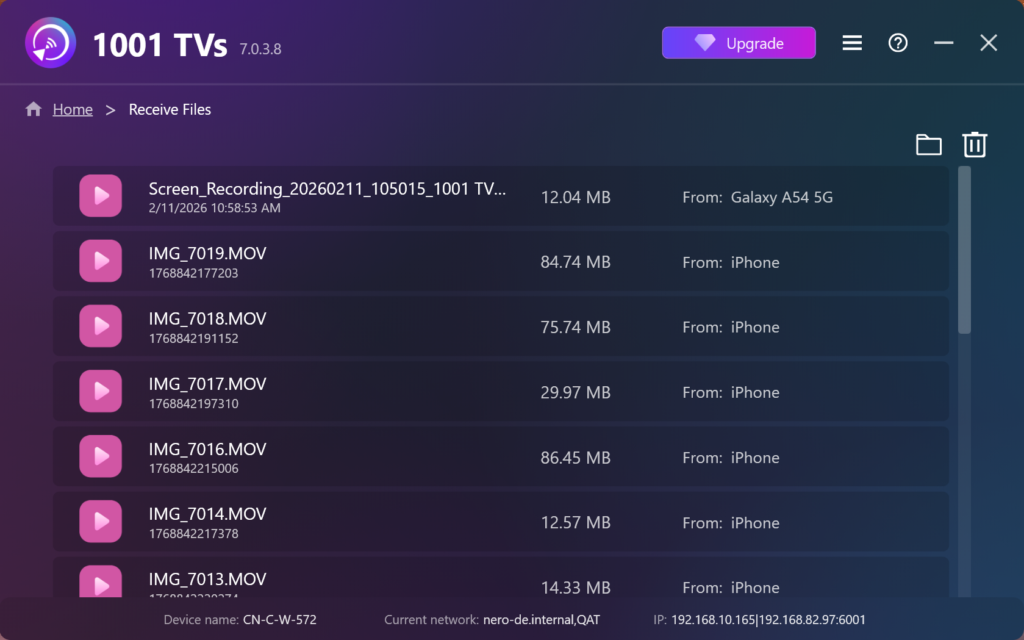
🟢 Why it’s great: There are no file size limits. You can send a 10GB movie just as easily as a single photo.
💎 Privacy: Since it stays on your home network, your private photos are never uploaded to a “cloud” server where others might see them.
2. The Built-in Method: USB Cable
This is the standard way to connect using your charging cable. You have to stay physically “tethered” to the computer, and if the cable wiggles just a little bit, the whole transfer cancels.
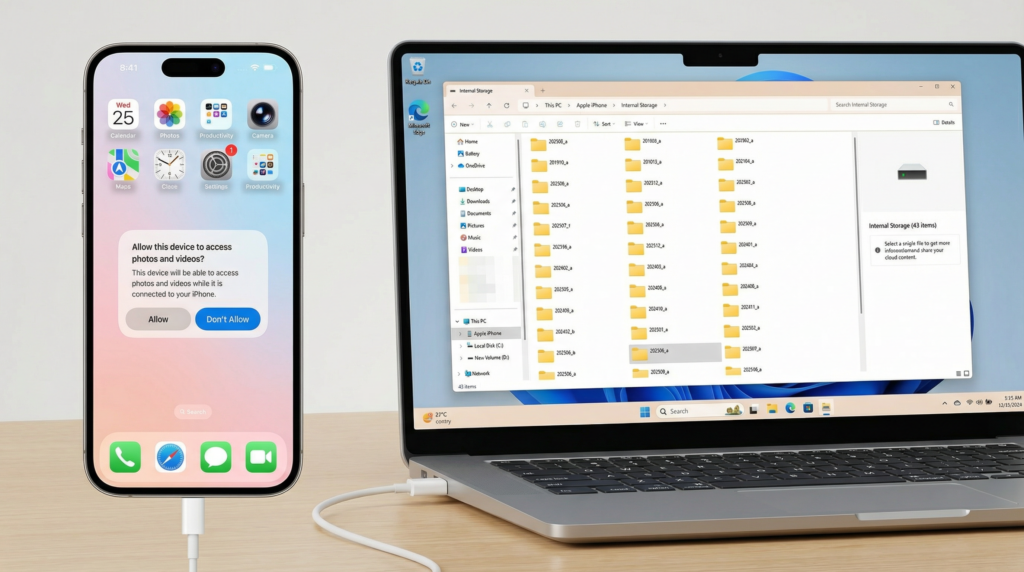
💡How it works: Plug your phone into the PC, trust your PC on your phone, and open the File Explorer – Apple Device.
🔴 The Catch: It is often very frustrating. Many times, the computer will only charge the phone but won’t show any of your files. This happens because:
⬩ You might be using a cheap “charge-only” cable that doesn’t carry data.
⬩ You have to unlock your phone and tap a “Trust This Computer” pop-up that doesn’t always appear.
⬩ Even when it works, it often crashes with an “unreachable” error when moving big videos.
3. The Cloud Method: iCloud
Apple’s official way to sync files to Windows.
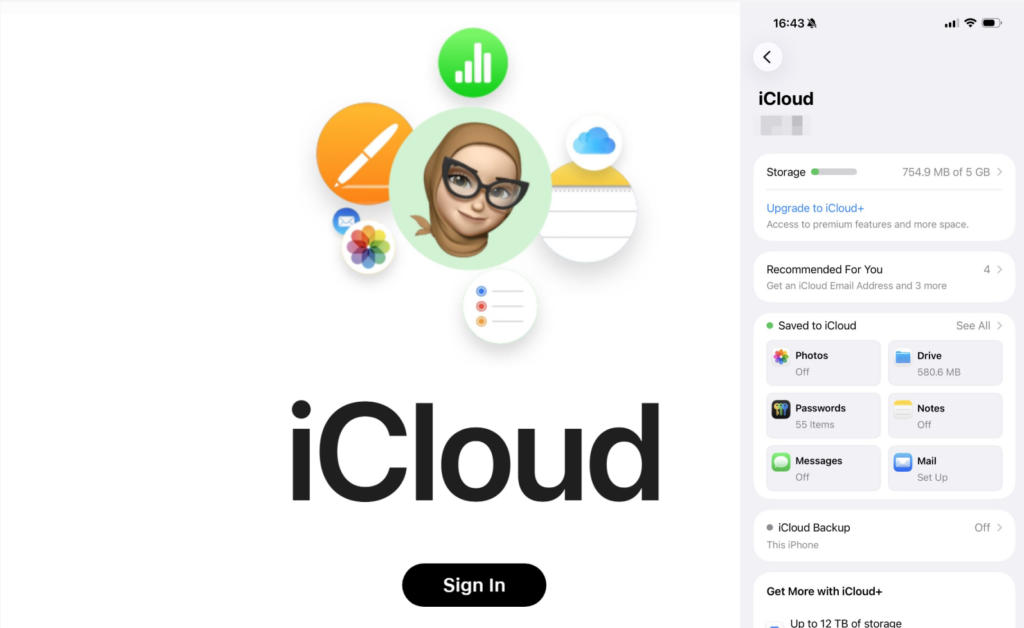
💡How it works: Your phone uploads photos to the internet, and then your PC downloads them.
🔴 The Catch: It is slow and has space limitation. It uses your internet “Upload” speed, which is usually much slower than your Wi-Fi speed. Also, Apple only gives you 5GB of free space before they ask for a monthly fee.
4. The Browser Way: Snapdrop
A simple website that works like a temporary bridge.
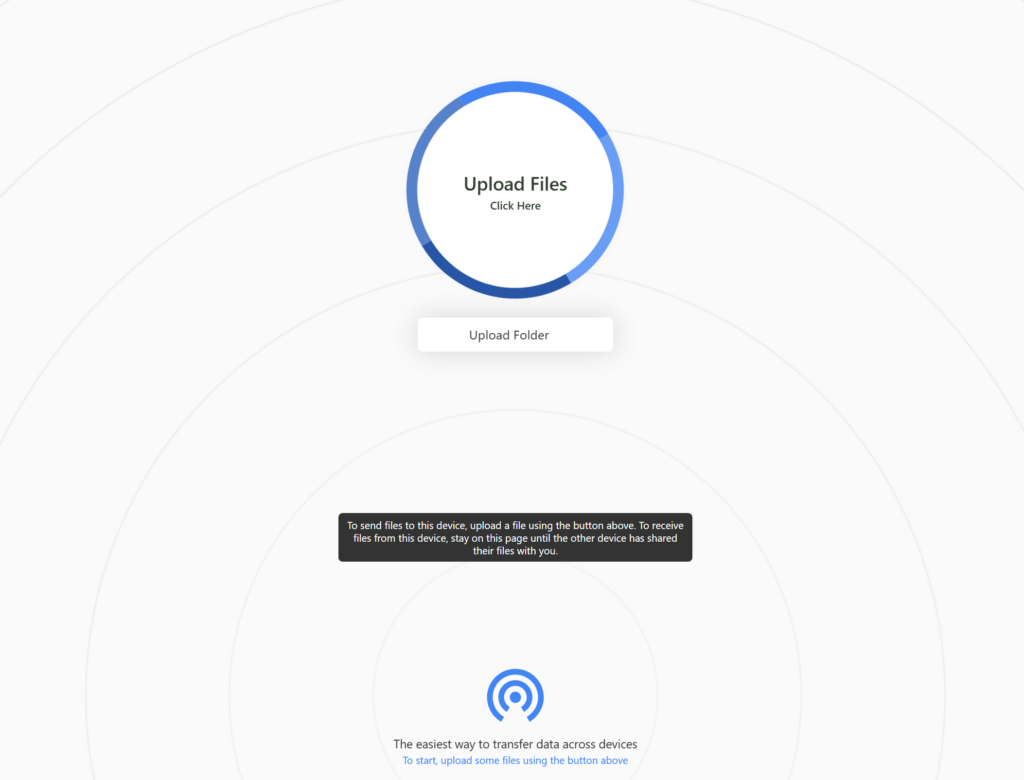
💡 How it works: You open the website on both devices, and they “see” each other.
🔴 The Catch: It is very convenient because you don’t install an app, but it is unstable. If your phone screen turns off or you close the browser tab, the transfer cancels.
5. The Professional Tool: Intel Unison
Intel Unison is a newer app designed to bridge Android/iOS with Windows PCs.
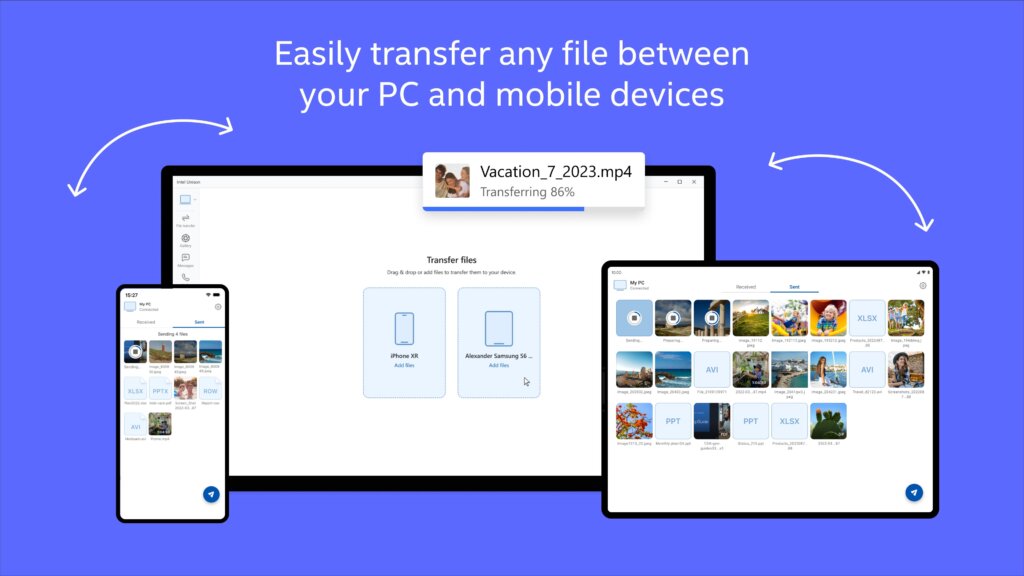
💡 How it works: Similar to 1001TVs, it pairs the phone and PC for notifications and file sharing.
🔴 The Catch: It usually requires a newer computer with Windows 11 and specific Intel chips. It isn’t as “universal” as other apps.
Comparison: Which Method is Right for You?
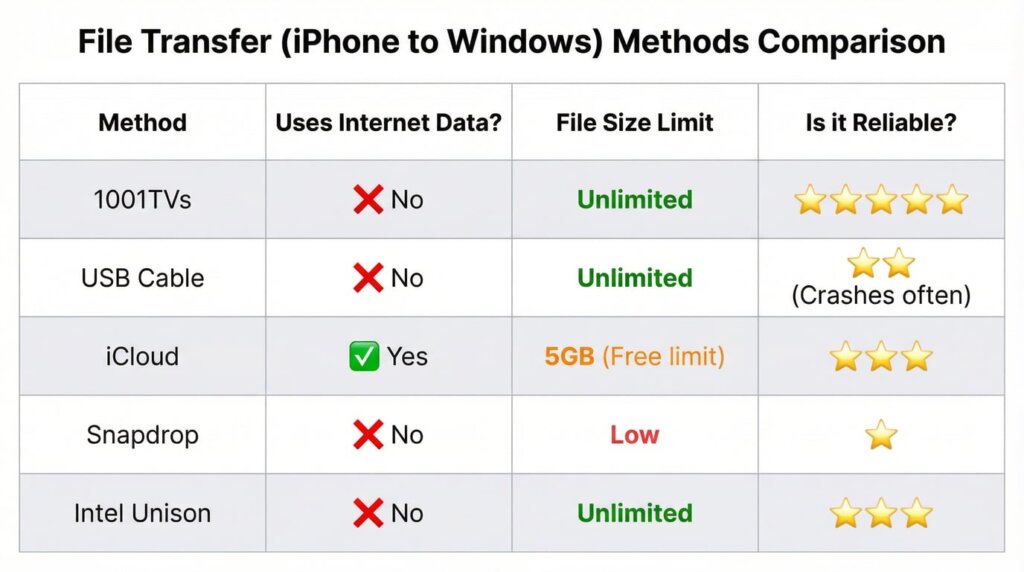
Summary
If you have a cable and it works, that’s a great start. But if you want a fast, wireless way to move massive 4K videos without paying for extra storage or using up your internet data, 1001TVs is the most reliable tool for the job.