How to Mirror iPhone to LG TV: AirPlay 2 & App Methods (2026)
To mirror an iPhone to an LG TV, use AirPlay 2 if your TV supports it (LG models from 2018 onward), or install a third-party screen mirroring app like 1001 TVs for older models or when AirPlay isn’t available. Both your iPhone and LG TV must be connected to the same Wi-Fi network for wireless mirroring to work.
This guide walks through every viable method — native AirPlay 2, third-party apps, and a wired HDMI fallback — so you can pick the one that matches your LG TV model and your setup.
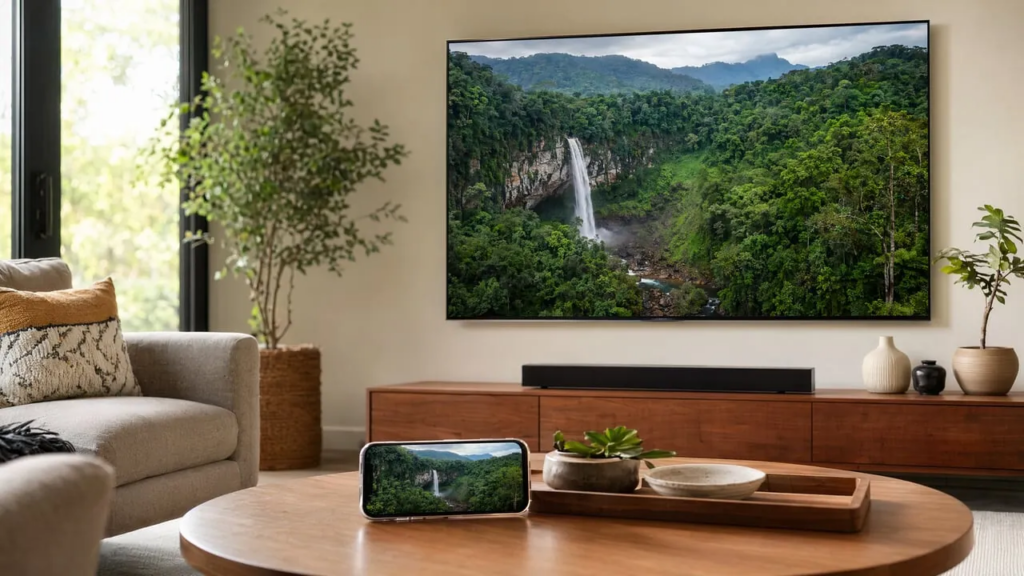
Which LG TVs Support AirPlay 2?
AirPlay 2 is Apple’s native wireless protocol for streaming audio, video, and full-screen mirroring from an iPhone, iPad, or Mac to a compatible display. LG integrated AirPlay 2 into its smart TV lineup that runs webOS 4.0 or later, starting in 2018, so the feature is available on a wide range of models.
One of the quickest ways to confirm your TV’s year and AirPlay 2 eligibility is to look it up on TVFindr’s LG model database (2019-2026) — just look for your model number and you’ll get the release year, specs, and feature support at a glance.
If your LG TV predates 2018, or if AirPlay simply isn’t appearing in your settings menu, skip ahead to the third-party app method below — it works on essentially any LG smart TV with Wi-Fi connectivity, no Apple certification required.
Method 1: Mirror iPhone to LG TV with AirPlay 2
AirPlay 2 is the simplest path when your LG TV supports it. There’s nothing to install — the feature is built into iOS and into LG’s webOS. Here’s the full setup:
Prerequisites
- An iPhone running iOS 12.4+ or macOS Mojave 10.14.5+
- An AirPlay 2–enabled LG TV (2018 models and newer)
- Both devices connected to the same Wi-Fi network
Step-by-step instructions
- Enable AirPlay on your LG TV. Press the Home button on your LG remote, navigate to Settings → Connection → Apple AirPlay Settings, and toggle AirPlay On. (Exact menu names vary by model — on some LG TVs the setting appears under General or Network instead.)
- Open Control Center on your iPhone. Swipe down from the top-right corner of the screen (on iPhones with Face ID) or swipe up from the bottom edge (on iPhones with a Home button).
- Tap the Screen Mirroring icon. It looks like two overlapping rectangles.
- Select your LG TV from the list of detected devices. If you don’t see it, confirm both devices are on the same Wi-Fi network and that AirPlay is enabled on the TV.
- Enter the AirPlay passcode if one appears on your TV screen. Type the code into your iPhone to complete the pairing.
Your iPhone screen should now appear on the LG TV in real time. Everything you do — apps, photos, videos, games — mirrors to the big screen with minimal latency.
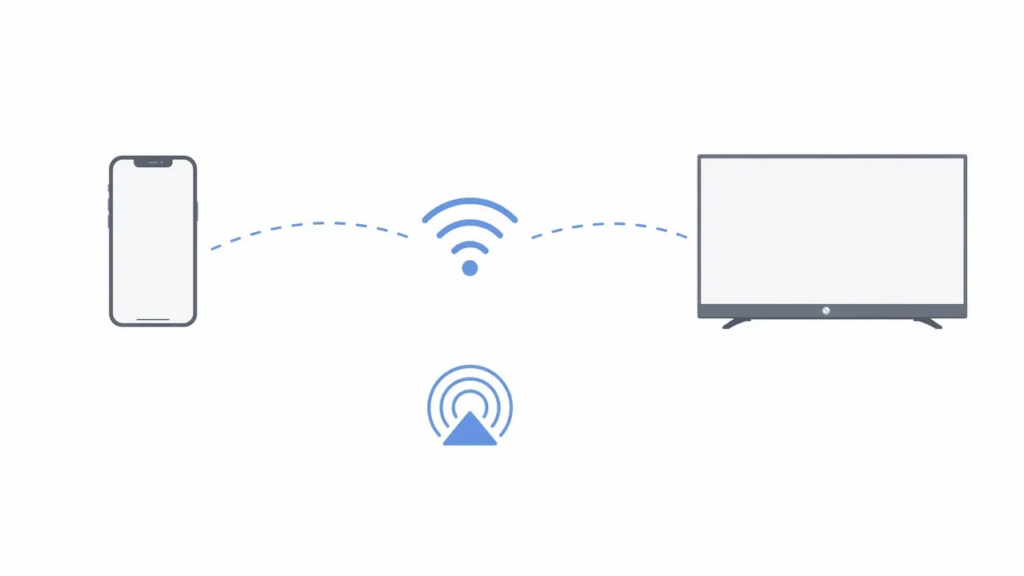
AirPlay 2 limitations on LG
AirPlay 2 works well for most use cases, but it has a few constraints worth knowing:
- Older LG TVs (pre-2018) have no AirPlay support at all — you’ll need an alternative method.
- DRM-protected content from some streaming apps may block mirroring or show a black screen.
- Latency can be noticeable for fast-paced gaming, since AirPlay prioritizes stability over sub-frame responsiveness.
- No cross-platform flexibility — AirPlay only connects Apple devices to Apple-certified receivers, so Android phones or Windows PCs in your household can’t use the same path.
Method 2: Use a Third-Party Screen Mirroring App
When AirPlay 2 isn’t an option — either because your LG TV is too old, or because you want a single solution that works across all your devices — a third-party app is the most practical route. These apps connect over your local Wi-Fi network and don’t depend on Apple’s AirPlay certification, so they work with virtually any LG smart TV.
1001 TVs: cross-platform mirroring with a built-in streaming feature
1001 TVs is a cross-platform, multi-functional screen mirroring app available on iOS, Android, Windows, and Mac. It supports a wide range of smart TV brands — including LG, Samsung, Sony, Hisense, TCL, and more — and offers several connection modes beyond basic screen duplication.
For LG TV specifically, the Streaming feature is the most relevant. It pushes media (videos, music, photos) directly from your iPhone to your LG TV over your local network, which means you can keep using your phone for other tasks while the content plays on the big screen — unlike full-screen mirroring, which ties up your entire display.

Here’s how to set it up:
- Download 1001 TVs from the App Store on your iPhone, and ensure your LG TV is connected to the same Wi-Fi network.
- Open the app and tap the Streaming tab.
- Select your LG TV from the auto-detected device list.
- Choose the media you want to play — a video from your Photos library, a downloaded movie file, or music.
- Your content begins streaming to the LG TV immediately, with playback controls (play, pause, seek) available on your iPhone.
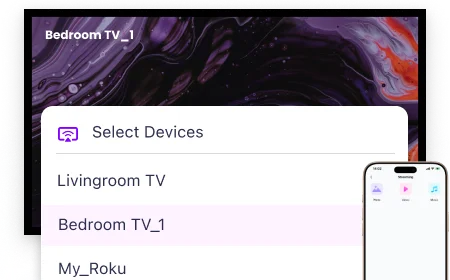
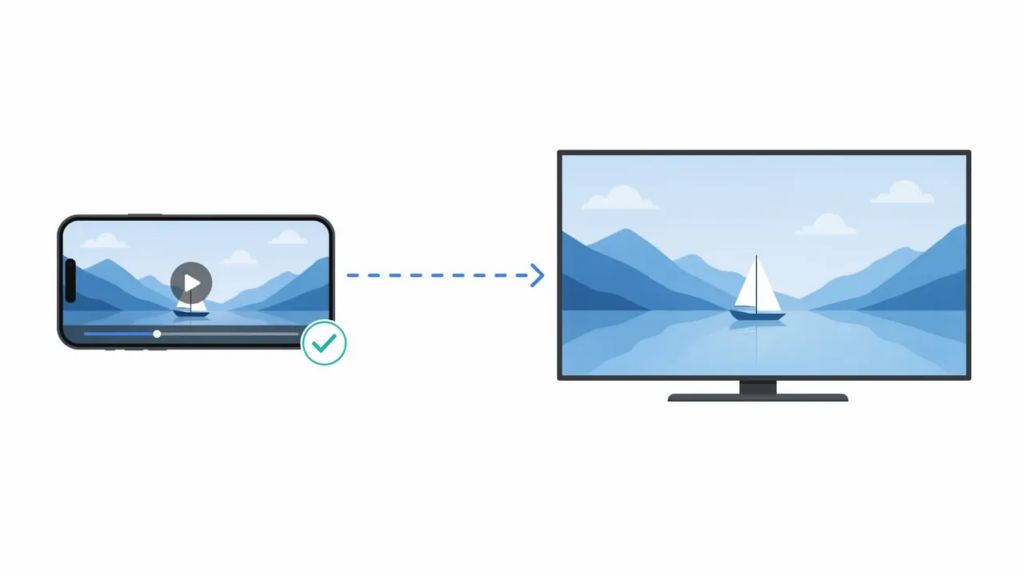
Beyond streaming, 1001 TVs also offers browser-based mirroring — no app needed on the receiving device, just open a generated URL in the LG TV’s built-in web browser and your iPhone screen appears. This is especially useful for LG TVs, since they run webOS rather than Android and can’t install the 1001 TVs – TV app from the Google Play Store.
Other features like Screen mirroring, file transfer, family album and remote control are available when both devices run the 1001 TVs app (e.g., phone-to-Android-TV), but aren’t applicable to LG TV. All data stays on your local network and never goes through the internet, which is a meaningful privacy advantage over cloud-dependent alternatives.
Other third-party options
A few other apps occupy this space, each with slightly different trade-offs:
| App | Best For | Notable Limitation |
|---|---|---|
| 1001 TVs | Cross-platform households; streaming + mirroring + file transfer | Premium features require subscription after time-limited trial |
| AirBeamTV | LG TVs without AirPlay; no extra hardware | Mirrors entire screen only; no background streaming |
| DoCast | Simple, lightweight mirroring | Free tier has strict time limits (3-min video, 15-min music) |
The right choice depends on whether you need a quick one-off mirror or a multi-device, multi-feature tool that covers your entire household.
Method 3: Wired Connection via HDMI Adapter
If wireless methods are unreliable in your environment — congested Wi-Fi, an older TV, or strict network restrictions at a workplace — a wired HDMI connection is the most stable fallback.
What you need
- A Lightning Digital AV Adapter (for iPhones with a Lightning port) or a USB-C to HDMI adapter (for iPhone 15 and later)
- A standard HDMI cable
- An available HDMI port on your LG TV
How to connect
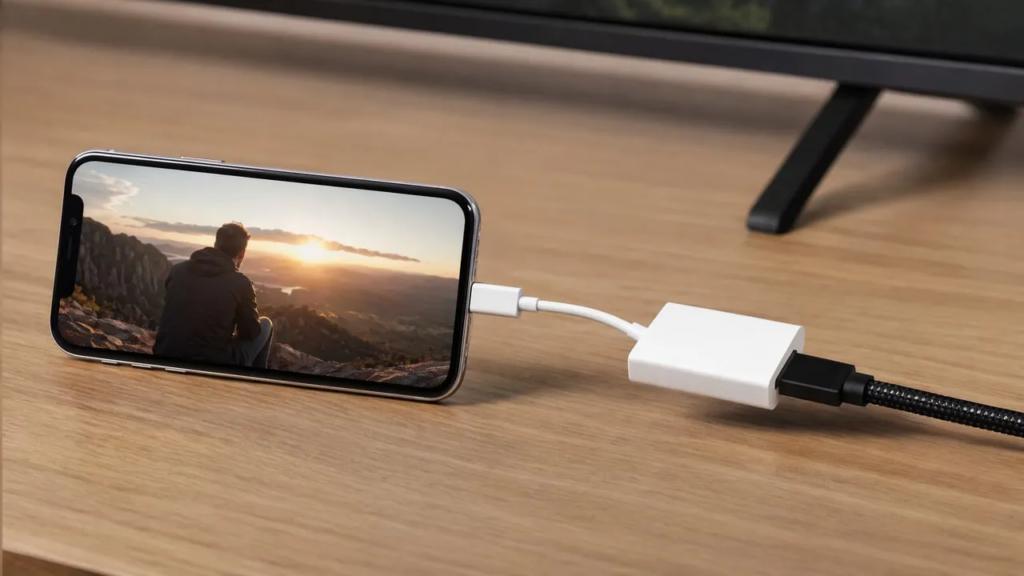
- Plug the adapter into your iPhone.
- Connect one end of the HDMI cable to the adapter and the other to your LG TV.
- Use the LG remote to switch to the corresponding HDMI input.
- Your iPhone screen appears on the TV instantly — no Wi-Fi, no pairing, no apps.
This method delivers zero latency and rock-solid stability, making it ideal for gaming or live presentations. The trade-off is physical tethering: you’re limited by cable length, and you’ll need to carry an adapter when traveling.
Comparison: Which Method Should You Choose?
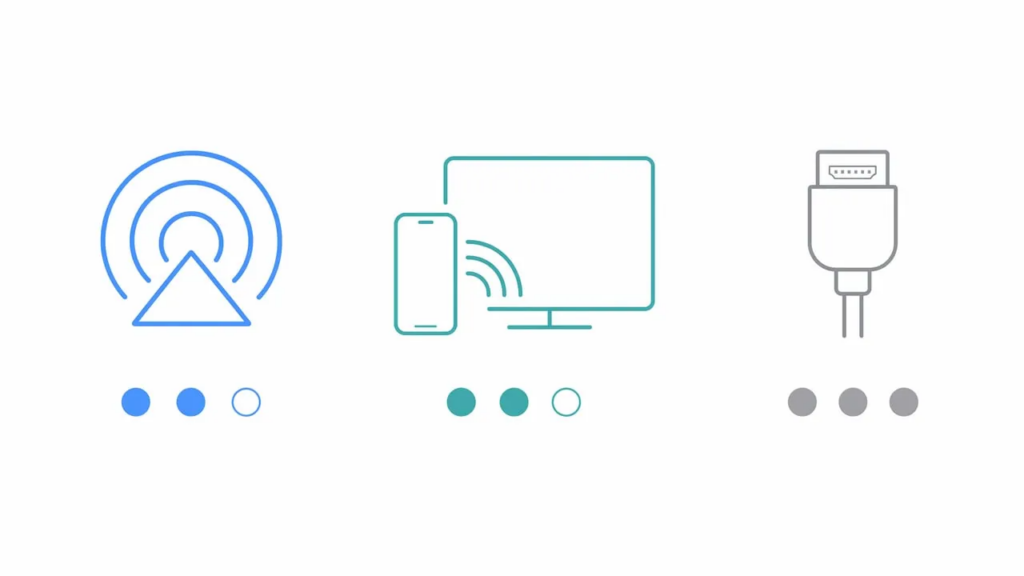
| Method | Best For | Setup Difficulty | Latency | Works on All LG TVs? |
|---|---|---|---|---|
| AirPlay 2 | Modern LG TVs (2018+); Apple-only households | Easy | Low | No (2018+ only) |
| 1001 TVs (Streaming) | Cross-platform homes; background media playback | Easy | Low | Yes |
| 1001 TVs (Mirroring) | Full-screen display; non-AirPlay LG TVs | Easy | Low–Medium | Yes |
| AirBeamTV / DoCast | Quick mirroring on non-AirPlay TVs | Easy | Medium | Yes |
| HDMI Adapter | Gaming, presentations, unstable Wi-Fi | Medium | None | Yes |
For most users with a 2018-or-newer LG TV, AirPlay 2 is the fastest, zero-install path. For older models or multi-device households, 1001 TVs offers the most versatility thanks to its streaming, mirroring, and file-transfer capabilities in a single app.
Troubleshooting: Common Screen Mirroring Issues
AirPlay isn’t showing your LG TV
This is the single most common problem, and the cause is almost always the same: your iPhone and TV are on different Wi-Fi networks. Double-check that both are connected to the same SSID — some routers broadcast separate 2.4 GHz and 5 GHz bands under different names, which can split your devices. If that’s the case, connect both to the same band.
Also verify that AirPlay is toggled on in your LG TV’s settings (Settings → Connection → Apple AirPlay Settings — exact menu names vary by model). A firmware update can occasionally reset this.
Mirrored screen is blurry or low quality
AirPlay automatically scales resolution based on network conditions. If your Wi-Fi is congested, the image degrades. Move your router closer to the TV, switch to the 5 GHz band, or reduce the number of active devices on the network. With a third-party app like 1001 TVs, you can adjust the mirror resolution and bitrate in the app’s settings for a sharper image.
DRM content shows a black screen
Some streaming apps (Netflix, Hulu, certain sports apps) use DRM that blocks screen mirroring — you’ll see a black rectangle where the video should be. This isn’t a bug; it’s an intentional copy-protection measure. In these cases, use the streaming app’s native LG TV app (downloaded from the LG Content Store) or cast directly via the app’s built-in cast button rather than mirroring the entire screen.
Connection drops intermittently
Wi-Fi interference is the usual culprit. Restart both your iPhone and LG TV, forget and rejoin the Wi-Fi network on your iPhone, and ensure your router’s firmware is current. If drops persist, a wired HDMI connection eliminates the variable entirely.
FAQ
Can I mirror my iPhone to an LG TV without Wi-Fi?
Not wirelessly. AirPlay 2 and third-party mirroring apps both require a local Wi-Fi network to transmit data. However, you can use a Lightning or USB-C to HDMI adapter for a direct wired connection that needs no Wi-Fi at all. Some apps also support USB tethering to a TV or PC for a stable wired mirror.
Do all LG TVs support AirPlay 2?
No. AirPlay 2 is available on LG TV models from 2018 onward. LG uses different model-number formats for its OLED, LED, and QNED lineups, so the easiest way to confirm your TV’s year is to look it up on TVFindr’s LG model database. Models from 2017 and earlier do not support AirPlay 2.
Is screen mirroring the same as casting?
Not exactly. Screen mirroring duplicates your entire iPhone display on the TV in real time — everything you see on your phone appears on the TV. Casting (or streaming) sends specific media — a video, a photo, a song — to the TV while freeing your phone for other use. 1001 TVs supports both modes: full-screen mirroring and media streaming for background playback.
Does 1001 TVs work with LG TVs specifically?
Yes, but with limitations. LG TVs run webOS rather than Android, so they can’t install the 1001 TVs TV app from the Google Play Store. This means only the Streaming feature (pushing media over your local network) and browser-based mirroring (via the TV’s built-in web browser) are available on LG. Features that require the app on both devices — such as full-screen mirroring, file transfer, family album, and remote control — work on Android TVs but aren’t applicable to LG. For full app-based mirroring on an LG TV, use AirPlay 2 or browser-based mirroring instead.
Is screen mirroring safe and private?
When using AirPlay or 1001 TVs, all data stays on your local network — nothing is uploaded to the internet or stored on external servers. 1001 TVs specifically operates without an account system and never routes screen data through the cloud, making it a privacy-conscious choice for sensitive content like personal photos or business presentations.
Summary
Mirroring your iPhone to an LG TV comes down to three reliable paths. AirPlay 2 is the zero-fuss native option for 2018-and-newer models. Third-party apps like 1001 TVs — a cross-platform, multi-functional mirroring app with a dedicated streaming feature — extend the capability to any LG smart TV while adding file transfer, browser casting, and multi-device support. And HDMI remains the bulletproof wired fallback for unstable networks or latency-sensitive use cases. Pick the method that matches your TV, your network, and how many devices you need to connect — and your iPhone’s screen will be on the big screen in minutes.

Read More
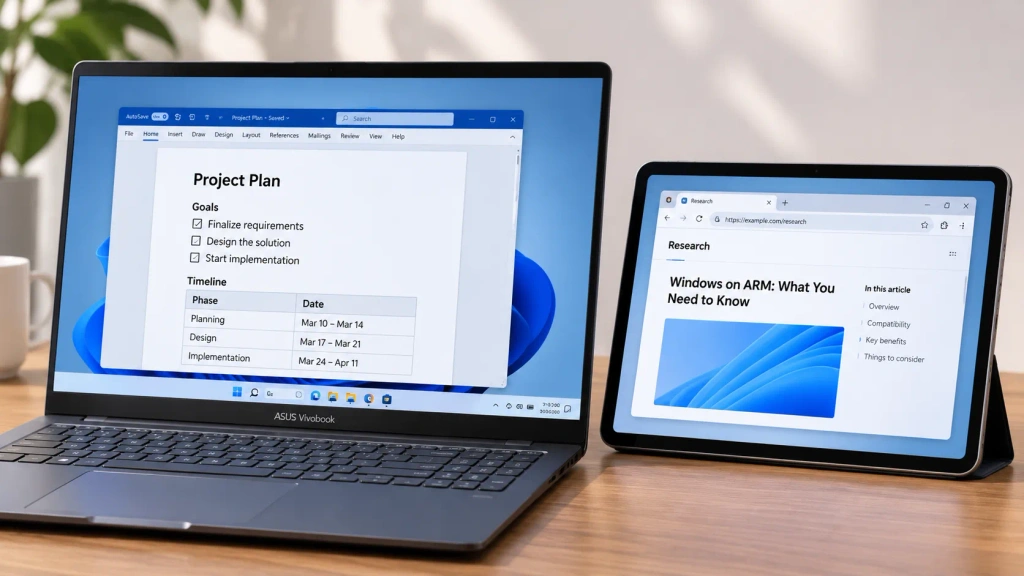 How to Extend Your Screen on Windows ARM
1001 TVs now runs natively on Windows ARM—with screen extension, not just mirroring. Its Arm64 app runs directly on ARM processors rather than through…
How to Extend Your Screen on Windows ARM
1001 TVs now runs natively on Windows ARM—with screen extension, not just mirroring. Its Arm64 app runs directly on ARM processors rather than through…
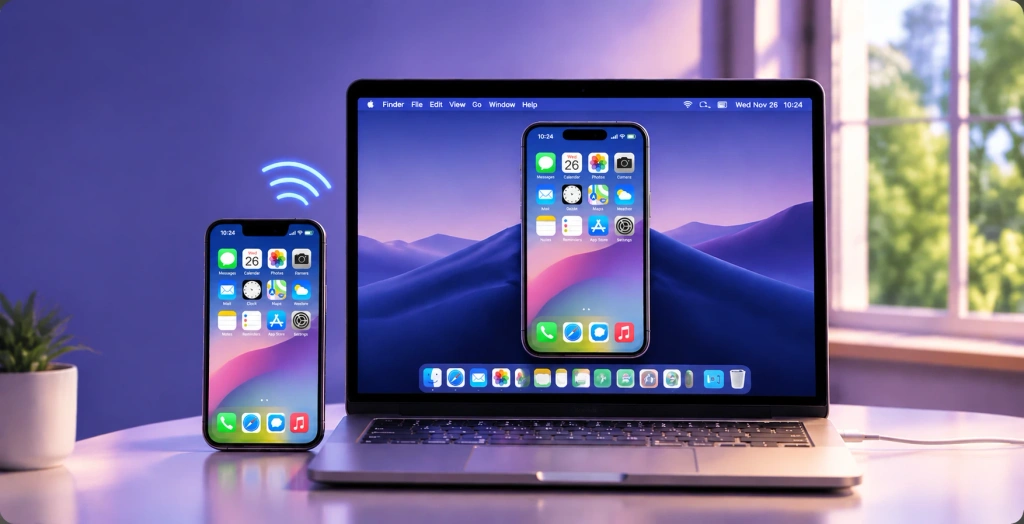 How to Mirror Your iPhone to a Mac: Easy Wired and Wireless Methods
To mirror your iPhone to a Mac, use AirPlay for wireless screen sharing, iPhone Mirroring to operate your iPhone from your Mac, or QuickTime…
How to Mirror Your iPhone to a Mac: Easy Wired and Wireless Methods
To mirror your iPhone to a Mac, use AirPlay for wireless screen sharing, iPhone Mirroring to operate your iPhone from your Mac, or QuickTime…

