
Jak udostępnić ekran telewizora? Kompletny przewodnik dla wszystkich urządzeń mobilnych
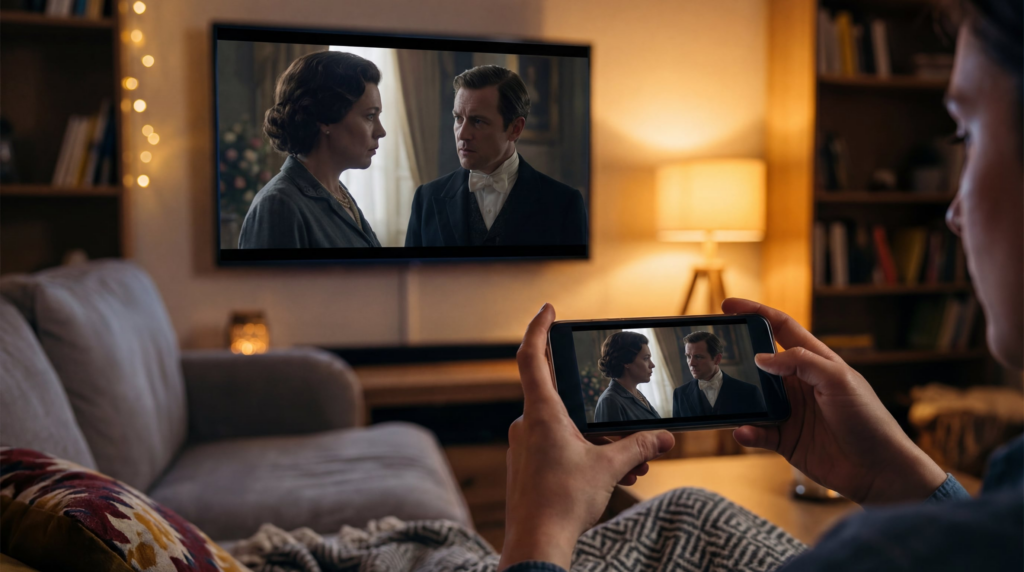
Screen sharing (also called screen mirroring or casting) lets you display your phone’s screen on your TV. Whether you want to watch videos with family, share photos, play mobile games on a bigger screen, or give presentations, this guide covers every proven method that works in 2026.
Quick comparison: Which method is right for you?
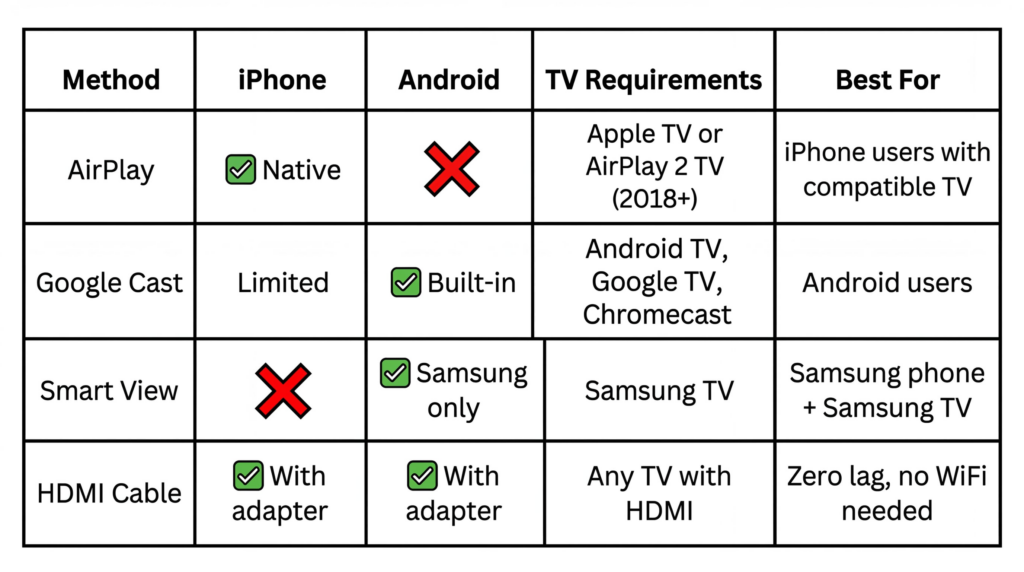
Understanding screen mirroring vs casting
Screen Mirroring displays everything on your phone’s screen onto your TV in real-time. Whatever you do on your phone appears on the TV instantly.
Casting sends specific content (like a YouTube video) from your phone to your TV. Your phone becomes a remote control while the TV plays the content directly. This uses less battery and lets you use your phone for other things.
How to screen share from iPhone to TV
Method 1: iPhone to Apple TV or AirPlay 2-compatible TV
What you need:
1. iPhone running iOS 12 or later
2. Apple TV OR AirPlay 2-compatible smart TV (Samsung 2018+, LG 2019+, Sony 2019+, Vizio 2017+)
Step-by-step:
1. Connect both devices to the same WiFi network (Settings → WiFi on iPhone; Settings → Network on TV)
2. Enable AirPlay on TV (first time only)
Samsung: Home → Settings → General → Apple AirPlay Settings → ON
LG: Settings → Connection → Apple AirPlay & HomeKit → ON
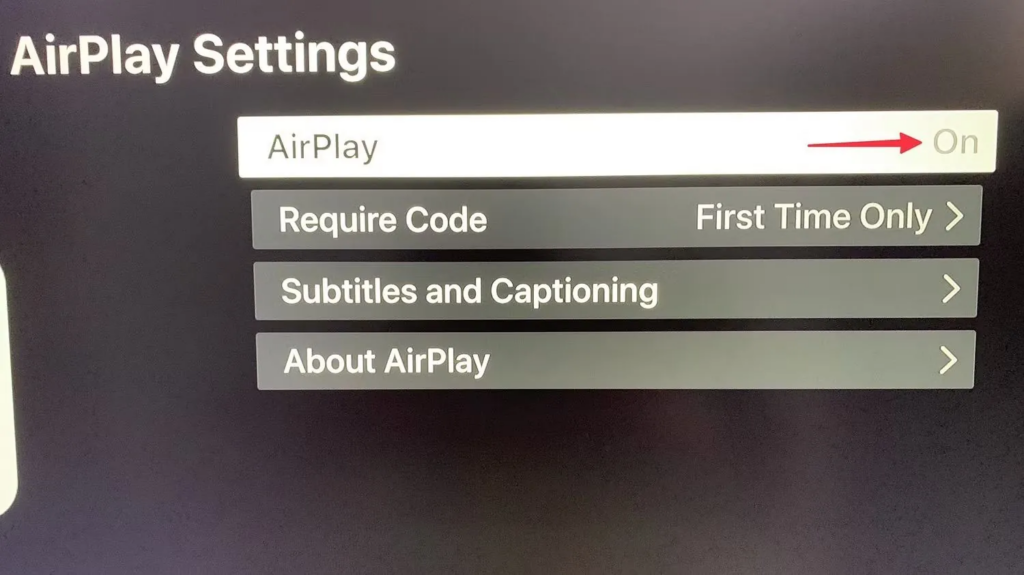
3. Open Control Center on iPhone:
iPhone X+: Swipe down from top-right corner
iPhone 8 and earlier: Swipe up from bottom
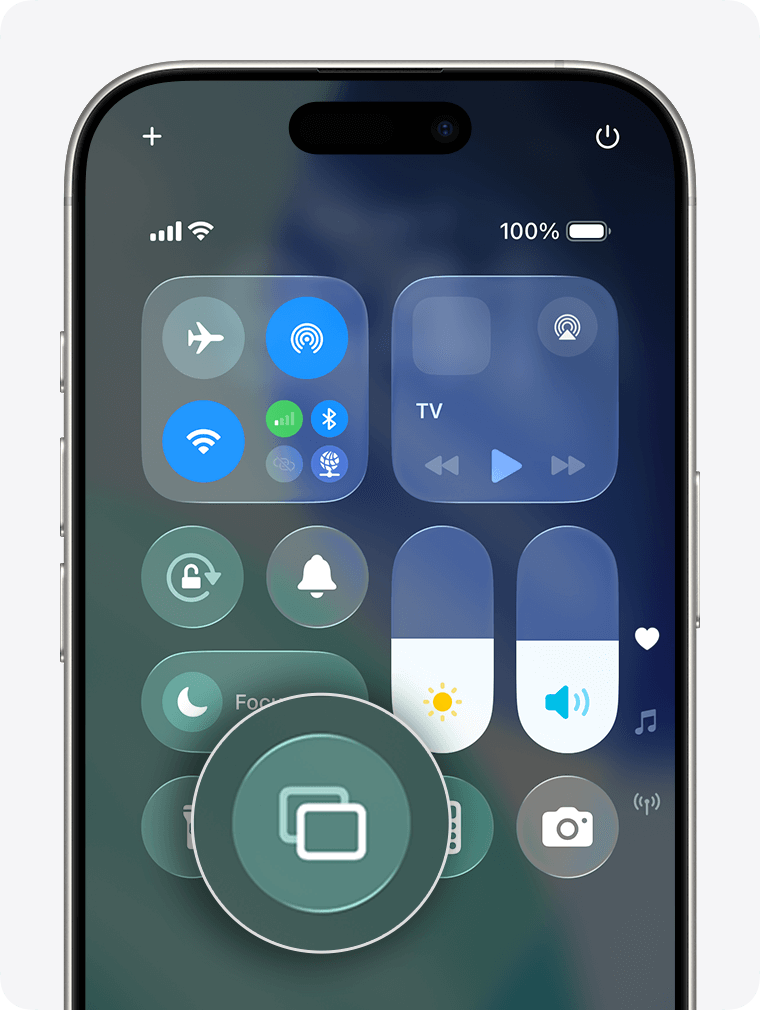
4. Tap Screen Mirroring → Select your TV → Enter code (first time only)
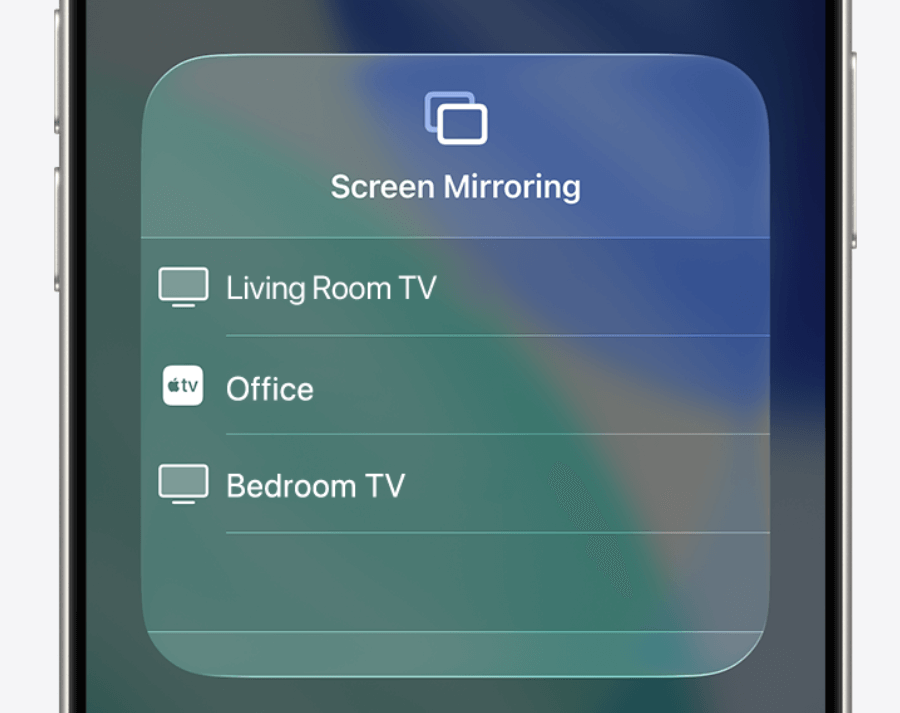
To stop: Control Center → Screen Mirroring → Stop Mirroring
Official guide: Use AirPlay to stream video or mirror your iPhone screen
Pros: Seamless, built-in, supports 4K
Cons: Requires Apple TV or AirPlay 2 TV (2018+)
Method 2: iPhone to Any TV (HDMI Cable)
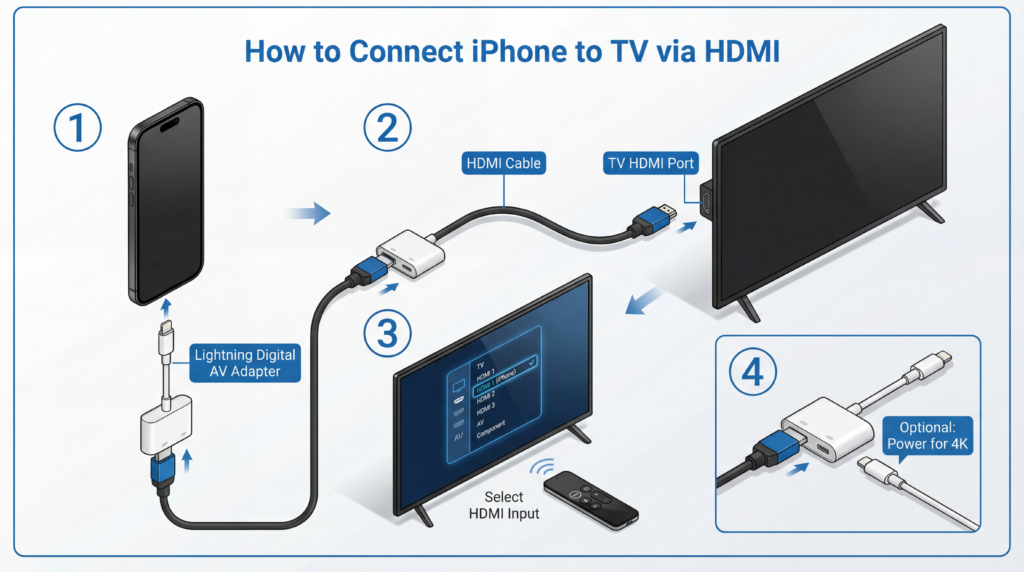
What you need:
1. Lightning Digital AV Adapter ($15-49)
2. HDMI cable
Kroki:
1. Connect adapter to iPhone’s Lightning port
2. Connect HDMI cable between adapter and TV
3. Switch TV input to the HDMI port
4. Optional: Connect power to adapter for 4K output
Pros: Zero lag, no WiFi needed, works with any TV
Cons: Wired connection, adapter cost
How to screen share from Android to TV
Method 1: Android to Android TV or Chromecast
What you need:
1. Android phone (5.0+)
2. Android TV, Google TV, or Chromecast
Kroki:
1. Connect both devices to same WiFi network
2. Swipe down twice to open Quick Settings
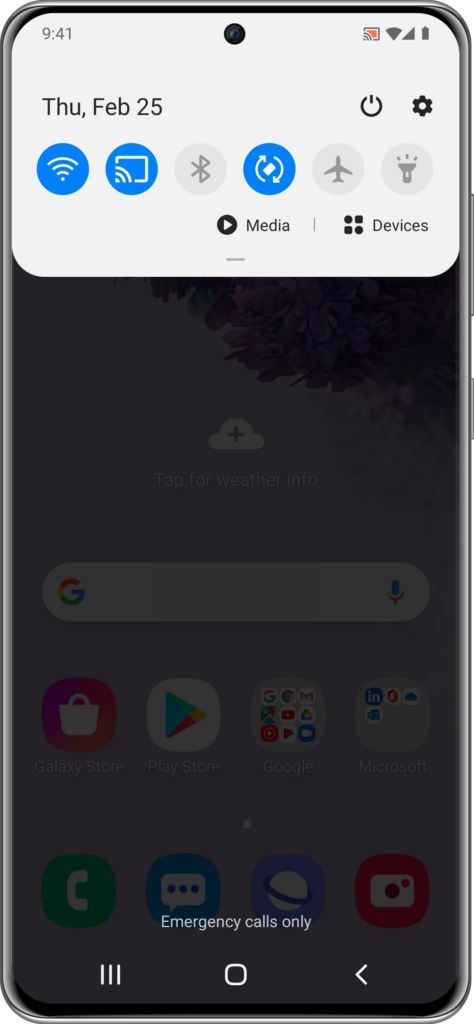
3. Stuknij Cast (or “Smart View” on Samsung, “Screen Cast” on Pixel)
4. Select your TV → Tap Start now
To stop: Quick Settings → Cast → Disconnect
Official guide: Cast video from your Android device
Pros: Built-in, free
Cons: Can be unstable with some routers
Method 2: Samsung Phone to Samsung TV (Smart View)
What you need:
1. Samsung Galaxy phone (Android 8.1+)
2. Samsung Smart TV (2016+)
Quick Settings method:
1. Swipe down from top
2. Stuknij Smart View
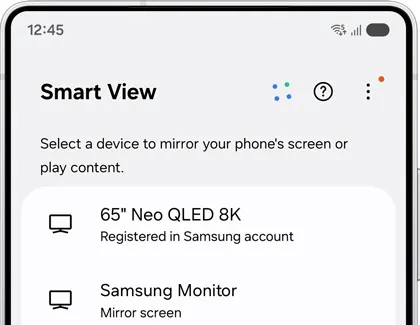
3. Select your Samsung TV
4. Tap Start now
Tap View (NFC method):
1. Enable NFC (Settings → Connections → NFC)
2. Tap your phone against the TV (near Samsung logo)
3. Mirroring starts automatically
Pros: Fastest for Samsung-to-Samsung, Tap View is convenient
Cons: Only works within Samsung ecosystem
Method 3: Android to Non-Smart TV
Option A: USB-C to HDMI cable
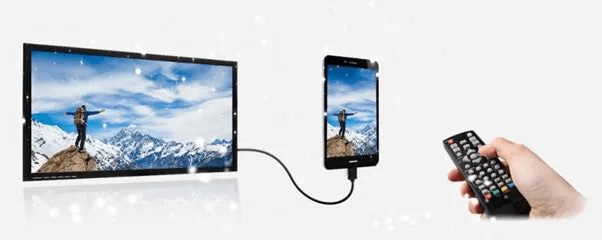
Your phone must support DisplayPort Alt Mode (most flagship phones 2019+).
1. Connect USB-C end to phone
2. Connect HDMI end to TV
3. Switch TV input to HDMI
Option B: Add Chromecast ($30-50)
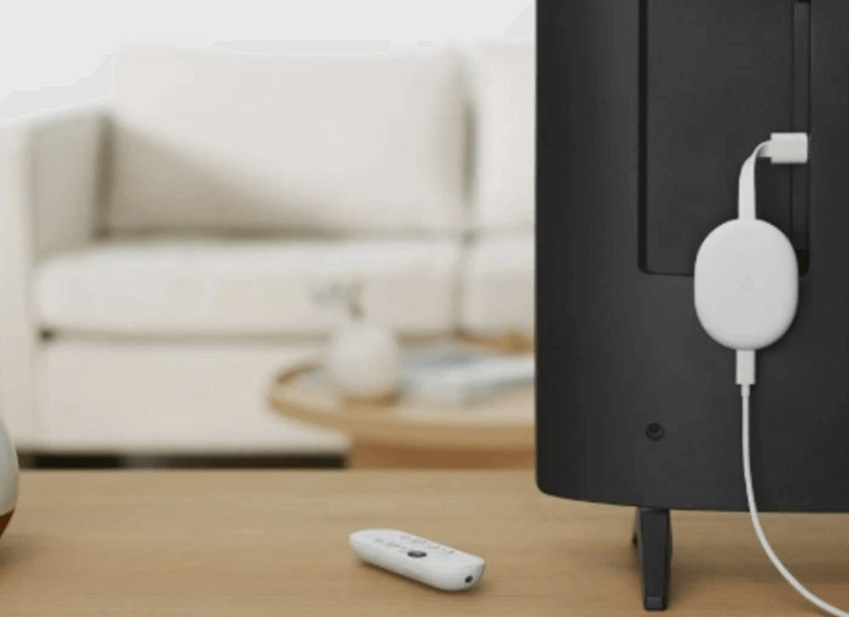
1. Plug Chromecast into TV’s HDMI port
2. Set up via Google Home app
3. Cast using built-in Cast feature
Universal solution: 1001 TVs for any phone to any TV
If your TV doesn’t support native screen mirroring, or if you want a more reliable cross-platform solution, 1001 TVs works with any phone and any smart TV.
Why choose 1001 TVs?
- ✅ Universal compatibility: iPhone, Android, Samsung, LG, Sony, TCL, Android TV, Fire TV, Apple TV
- ✅ No ecosystem lock-in: Connect any phone to any TV brand
- ✅ Supports older TVs: Works with smart TVs from 2016+
- ✅ 4K support with low latency mode
Jak to działa?
Common questions and troubleshooting
Why doesn’t my TV appear in the list?
Verify both devices are on the exact same WiFi network (not guest network). Enable Bluetooth on both devices (used for discovery). Disable VPN on phone. Restart router, phone, and TV. Check TV settings to enable AirPlay/Cast. If using a router, disable “AP Isolation” in settings.
Why is my video lagging or stuttering?
Move closer to your WiFi router. Use 5GHz WiFi instead of 2.4GHz. Close background apps. Reduce network congestion. For zero lag, use an HDMI cable.
Speed test (fast.com): Below 10 Mbps = use HDMI cable | 10-25 Mbps = good for 1080p | 25+ Mbps = smooth 4K
Why does my connection keep dropping?
Disable WiFi optimization (Settings → WiFi → Advanced). Keep phone awake during casting. Update TV software. Disable Screen Time restrictions (iPhone). For guaranteed stability, use an HDMI cable.
Why do Netflix/Disney+ show black screen?
HDCP protection blocks screen mirroring for copyrighted content. Use the app’s built-in cast button (NOT Screen Mirroring), use an HDMI adapter, or watch on your TV’s native app.
Can I screen share without WiFi?
Yes, use an HDMI cable with the appropriate adapter.
Can I use my phone while casting?
Yes, if you’re casting specific content. The TV plays directly while your phone is free. With screen mirroring, everything you do appears on TV.
Which method has the least lag?
HDMI cable has zero lag. For wireless, native AirPlay or Cast work well for most uses.
Do I need to buy anything?
Native methods (AirPlay, Cast) are free but require compatible devices. HDMI adapters cost $15-49. Chromecast costs $30-50.
Which method should you choose?
For iPhone users:
- To Apple TV or AirPlay 2 TV (2018+): Use built-in AirPlay
- To older smart TVs: Third-party apps like 1001 TVs
- To Non-Smart TV: Lightning to HDMI adapter or Chromecast
For Android users:
- To Android TV/Google TV: Use built-in Cast
- To Samsung TV with Samsung phone: Use Smart View or Tap View
- To Apple TV: Third-party apps like 1001 TVs
- To Non-Smart TV: USB-C to HDMI cable or Chromecast
For mixed devices or when native methods fail:
- 1001 TVs offers universal compatibility across all phones and TV brands
Screen sharing should be simple, regardless of what devices you own. Whether you use native features like AirPlay and Cast, universal apps like 1001 TVs, or reliable HDMI cables, you now have the complete roadmap to get your phone’s content on the big screen.