检测到浏览器语言为中文,点此切换到中文页面 →
How to Send Files to TV from Your PC & Mac?
1
Install the App
Download and open the 1001 TVs app on all devices.
2
Connect Devices
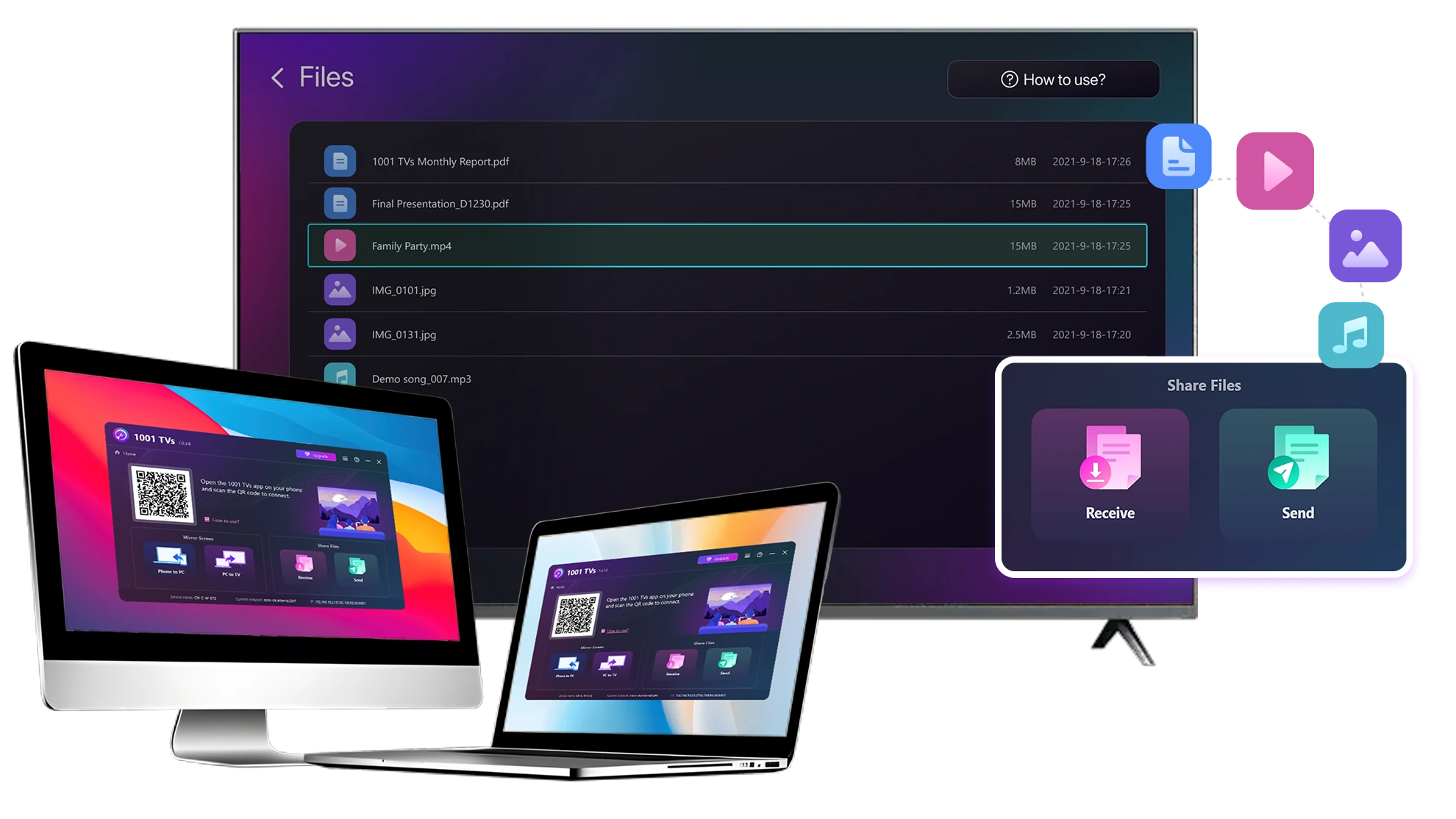
Connect your PC or Mac and TV to the same Wi-Fi network. Available devices will be detected automatically.
3
Send Files
Select your TV and send files instantly for fast, local transfer.
Stable. Local. Large File Transfer.
Large Files & Any Format
Transfer large files from your PC or Mac to your TV, including full-length videos and 4K movies.

Supports major file types such as MKV, MP4, AVI, and MP3, as well as documents and other desktop files.

No USB drives. No HDMI cables.
Select files on your computer and send them to the TV wirelessly.
large-files-any-format
Local Transfer. Reliable Playback.
All transfers happen over your local network — no cloud uploads and no data usage.

Transfer files in the background while you keep working.

Designed for stable, long-running transfers —even with large files.
local-transfer-reliable-playback
Use Cases
Home Theater & Movies
Family Photos & Videos
Presentations & Demos
Enjoy Your Movies — Bigger and Smoother
Movies stored on your PC or Mac look best on a TV. A larger screen brings out more detail and makes long movies far more comfortable to watch.

Stream large movie files, including full-length and 4K videos, directly from your computer to your TV for smooth, local playback—no USB drives, no HDMI cables, and no interruptions.

With 1001 TVs, your personal movie library turns into a true home-theater experience on the big screen.
home-theater-movies
Relive Family Memories on the Big TV Screen
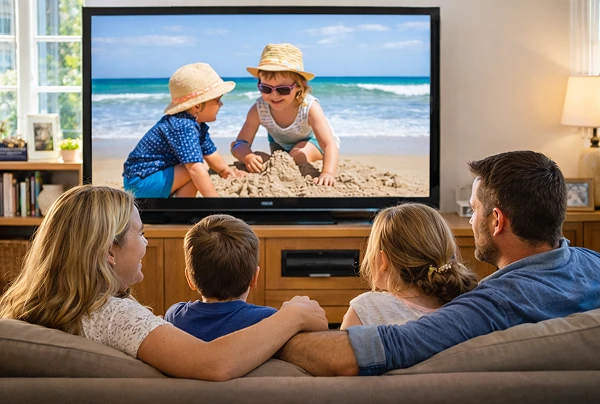
Your best photos and videos often live on your computer. Stop squinting at a laptop screen or risking your privacy with cloud uploads.

Send family photos and videos straight from your PC or Mac to the TV. No internet, no sign-ups, and no waiting — files go directly to your TV, locally.

With 1001 TVs, your memories stay safely on the local, while the joy of sharing them fills the room.
family-photos-videos
Present Like a Pro — Wireless and Reliable
Your presentation lives on your PC. Showing it on a TV shouldn’t depend on cables, adapters, or last-minute fixes.

Send slides, demo videos, and other files from your computer to the TV wirelessly. The connection stays stable, so your presentation runs without interruptions.

No setup delays. No unexpected glitches.
You focus on your content — the TV simply shows it.
presentations-demos
Download
FAQs
1001 TVs supports sending files from compatible Windows PCs and Macs to TVs that can run the 1001 TVs app. Install the latest app version on the computer and TV, then connect them to the same local network.
You can transfer a wide range of files — videos (MKV, MP4, AVI), audio (MP3), images (JPG, PNG), documents, and other common desktop files. A successful transfer does not guarantee that the TV can open every format; playback or viewing depends on the TV's apps and codec support.
Yes. 1001 TVs supports large files, full-length videos, and 4K movie files without a fixed transfer-size limit. Transfer time depends on file size and local-network speed, while playback depends on the TV's supported video and audio codecs.
Transferred files are available from the file-receiving area in the 1001 TVs app and are saved to storage accessible to the app. The exact folder and available file-management options depend on the TV platform and its storage permissions.
1001 TVs offers a limited-time free trial for Send Files to TV. After the trial, weekly, monthly, yearly, and lifetime plans are available; paid membership is only needed on the sending device, while the receiving TV does not need a separate subscription. Local prices are shown in the app, and recurring subscriptions can be managed or canceled through the store or account used for purchase.
No. Files are sent directly from the computer to the TV over the local network and are not uploaded to cloud storage by 1001 TVs.
Please contact us at 1001tvs@nero.com.