检测到浏览器语言为中文,点此切换到中文页面
Como enviar arquivos para a TV a partir do seu PC e Mac?
1
Instale o app
Faça o download e abra o aplicativo 1001 TVs em todos os dispositivos.
2
Conectar dispositivos
Connect your PC or Mac and TV to the same Wi-Fi network. Available devices will be detected automatically.
3
Enviar arquivos
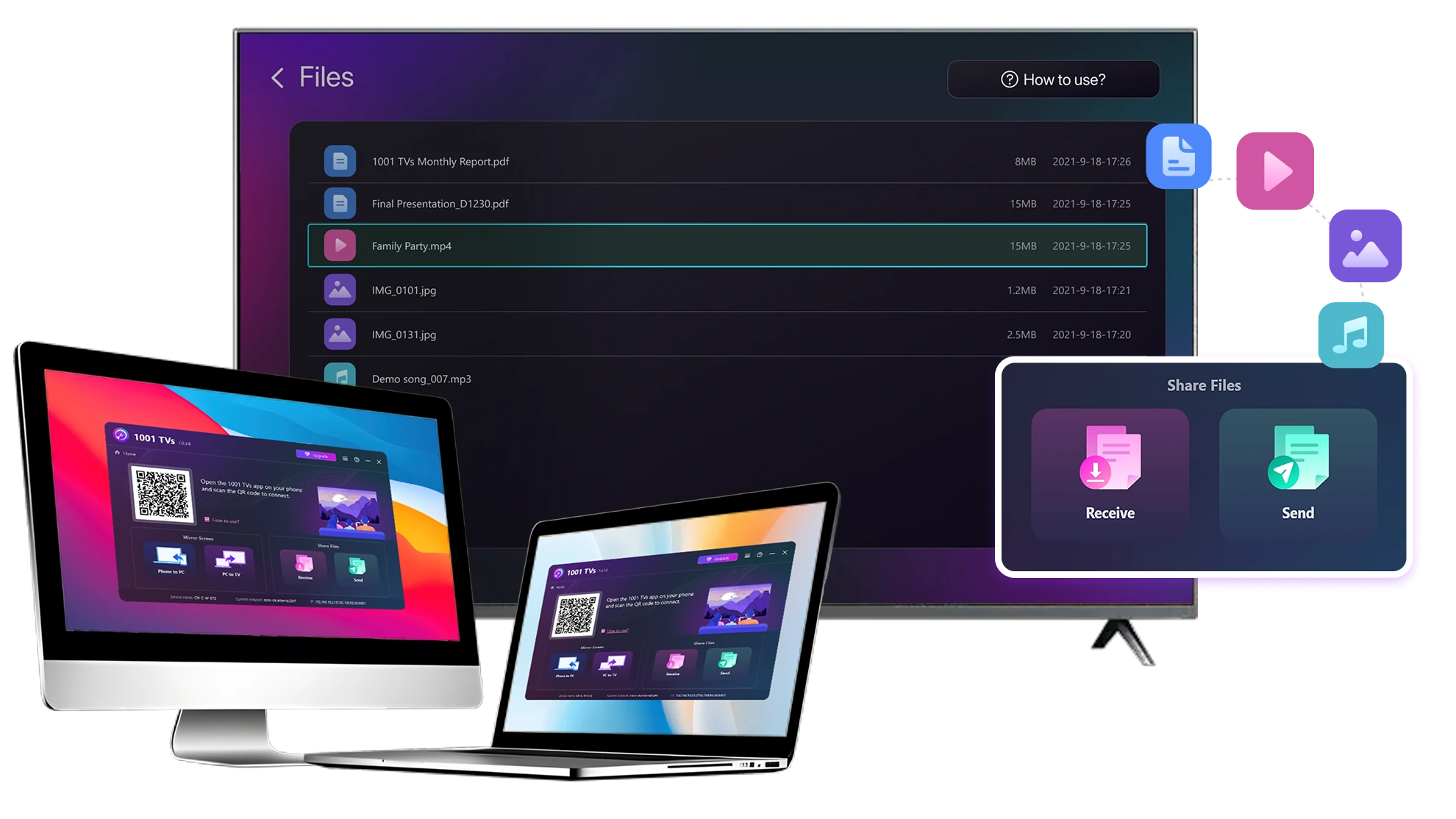
Selecione sua TV e envie arquivos instantaneamente para uma transferência rápida e local.
Estável. Local. Transferência de arquivos grandes.
Large Files & Any Format
Transfer large files from your PC or Mac to your TV, including full-length videos and 4K movies.

Supports major file types such as MKV, MP4, AVI, and MP3, as well as documents and other desktop files.

Não há unidades USB. Não há cabos HDMI.
Selecione arquivos no seu computador e envie-os para a TV sem fio.
large-files-any-format
Local Transfer. Reliable Playback.
Todas as transferências ocorrem em sua rede local - sem uploads na nuvem e sem uso de dados.

Transfira arquivos em segundo plano enquanto você continua trabalhando.

Projetado para transferências estáveis e de longa duração, mesmo com arquivos grandes.
local-transfer-reliable-playback
Casos de uso
Home Theater e filmes
Fotos e vídeos de família
Apresentações e demonstrações
Curta seus filmes - maiores e mais suaves
Os filmes armazenados no seu PC ou Mac ficam melhores em uma TV. Uma tela maior destaca mais detalhes e torna os filmes longos muito mais confortáveis de assistir.

Transmita arquivos de filmes grandes, inclusive vídeos completos e em 4K, diretamente do seu computador para a sua TV para uma reprodução local suave - sem unidades USB, sem cabos HDMI e sem interrupções.

With 1001 TVs, your personal movie library turns into a true home-theater experience on the big screen.
home-theater-movies
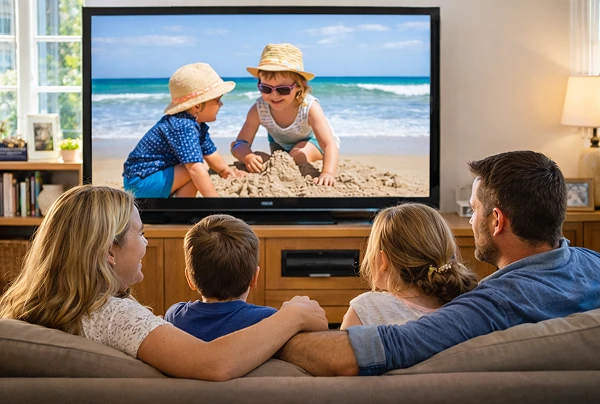
Reviva as memórias da família na tela grande da TV
Suas melhores fotos e vídeos geralmente estão em seu computador. Pare de ficar olhando para a tela de um laptop ou arriscar sua privacidade com uploads na nuvem.

Envie fotos e vídeos da família diretamente do seu PC ou Mac para a TV. Sem Internet, sem registros e sem espera - os arquivos vão diretamente para a sua TV, localmente.

With 1001 TVs, your memories stay safely on the local, while the joy of sharing them fills the room.
family-photos-videos
Apresente-se como um profissional - sem fio e confiável
Your presentation lives on your PC. Showing it on a TV shouldn’t depend on cables, adapters, or last-minute fixes.

Envie slides, vídeos de demonstração e outros arquivos do seu computador para a TV sem fio. A conexão conexão permanece estável, para que sua apresentação seja executada sem interrupções.

Sem atrasos na configuração. Sem falhas inesperadas.
Você se concentra no seu conteúdo - a TV simplesmente o exibe.
presentations-demos
Baixar
Perguntas Mais Frequentes
Which computers and TVs support file transfer?
1001 TVs supports sending files from compatible Windows PCs and Macs to TVs that can run the 1001 TVs app. Install the latest app version on the computer and TV, then connect them to the same local network.
Which file types can I transfer from a computer?
You can transfer a wide range of files — videos (MKV, MP4, AVI), audio (MP3), images (JPG, PNG), documents, and other common desktop files. A successful transfer does not guarantee that the TV can open every format; playback or viewing depends on the TV's apps and codec support.
Can I send large videos or 4K movie files?
Yes. 1001 TVs supports large files, full-length videos, and 4K movie files without a fixed transfer-size limit. Transfer time depends on file size and local-network speed, while playback depends on the TV's supported video and audio codecs.
Where can I find the transferred file on my TV?
Transferred files are available from the file-receiving area in the 1001 TVs app and are saved to storage accessible to the app. The exact folder and available file-management options depend on the TV platform and its storage permissions.
How does the 1001 TVs Send Files to TV subscription work?
1001 TVs offers a limited-time free trial for Send Files to TV. After the trial, weekly, monthly, yearly, and lifetime plans are available; paid membership is only needed on the sending device, while the receiving TV does not need a separate subscription. Local prices are shown in the app, and recurring subscriptions can be managed or canceled through the store or account used for purchase.
Are files uploaded to cloud storage?
No. Files are sent directly from the computer to the TV over the local network and are not uploaded to cloud storage by 1001 TVs.
Como posso entrar em contato com o suporte ou obter ajuda?
Entre em contato conosco em 1001tvs@nero.com.