How to Send Files from Your PC/Mac to TV/PC/Mac
With 1001 TVs, you can send files from your PC/Mac to your TV/PC/Mac over the same local network.
And yes — PCs and Macs on the same LAN can transfer files directly to each other, no additional setup.
No cloud uploads. No cables. No sign-ups — just fast, secure local transfers.
Before You Start
- Make sure your devices are connected to the same Wi-Fi network.
- Install and open 1001 TVs on both your devices, keep the app running on the receiving device.
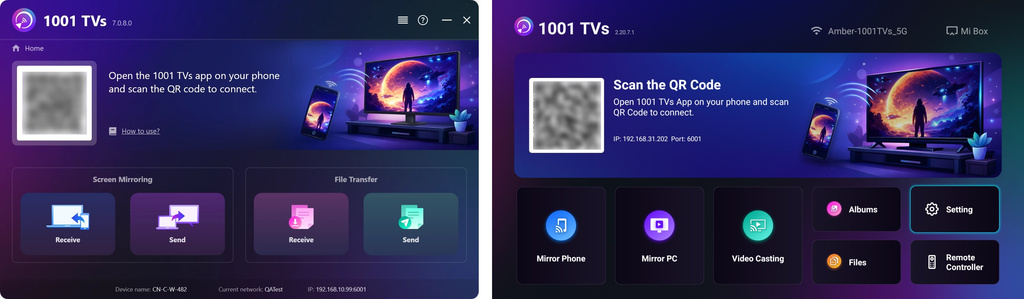
Start Sending
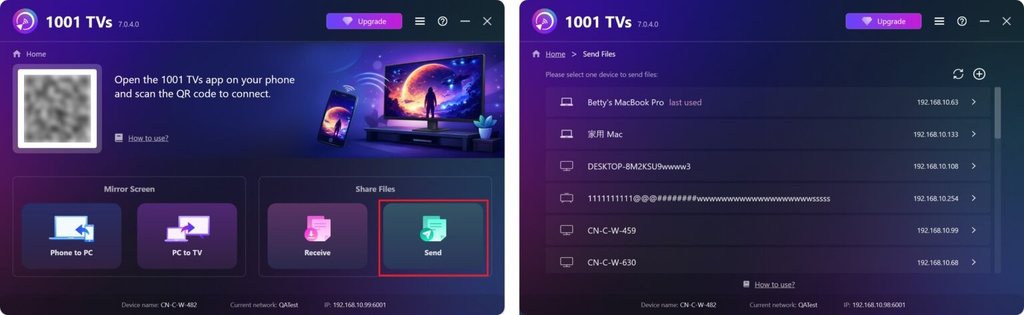
On your sending device, click Send and the app will automatically search for available devices on the same network.
Choose your target device from the list. (e.g., your TV/PC/Mac)
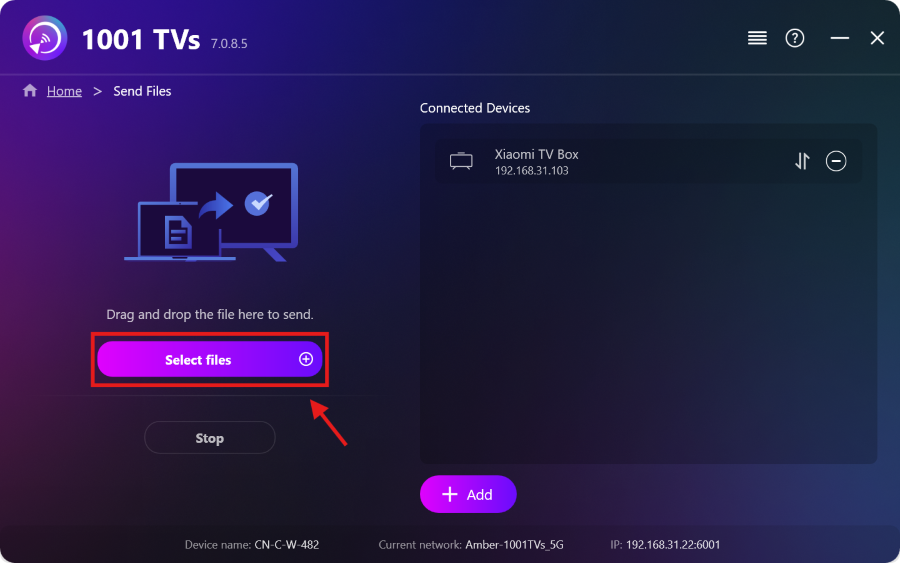
Select files on your PC/Mac (videos, photos, music, documents, and more), or simply drag and drop them into the file area on the left.
The transfer will start automatically to the target device.
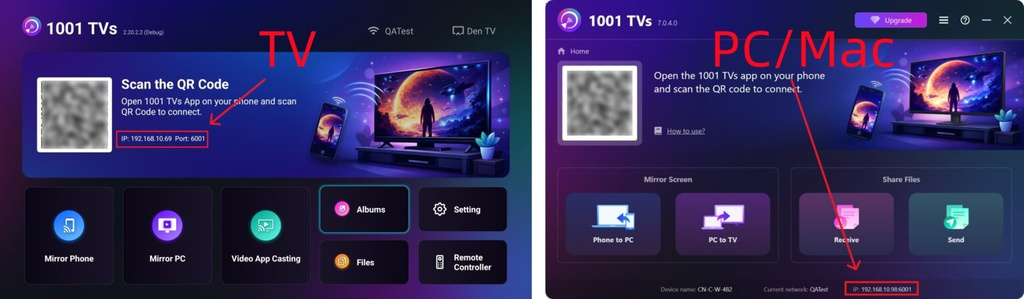
Can’t Find Your Target Device?
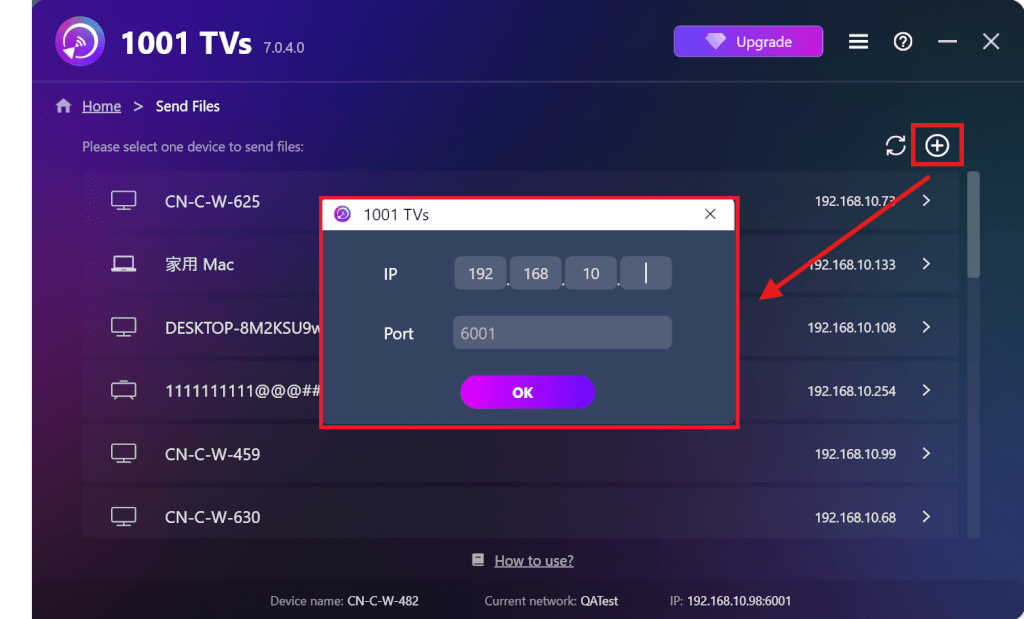
If the target device doesn’t appear in the device list, click the + icon in the top-right corner and use IP address pairing to connect quickly and securely.
View Received Files on PC/Mac
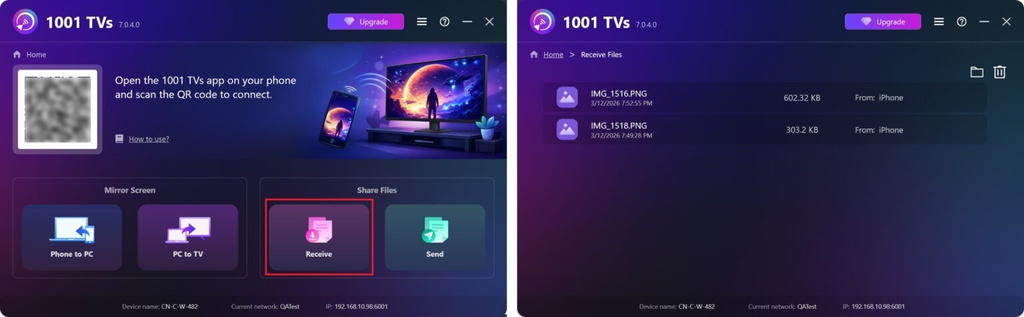
Click Receive on your PC/Mac to see all incoming files.
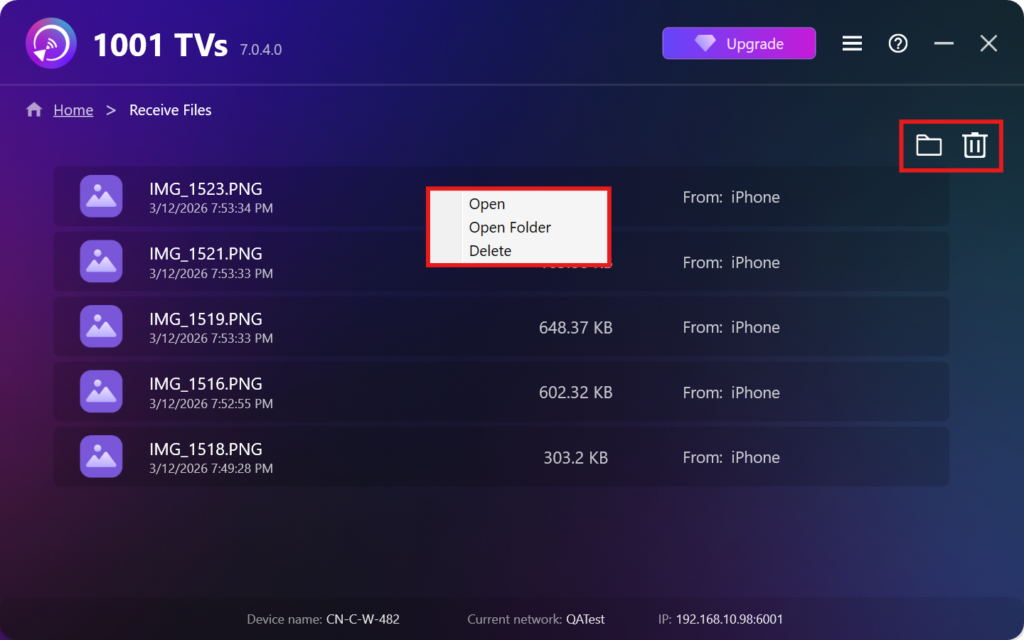
- Open View the received files – Click or right-click and select “Open Folder” to to view all files from that specific device (e.g., iPhone 12123).
- Locate them in Finder (Mac) or File Explorer (Windows) – Click the folder icon in the top‑right to access all device folders.
- Delete options – Right‑click a file and select “Delete” to remove it individually, or click the trash icon in the top‑right to delete all received files at once.
View Received Files on TV
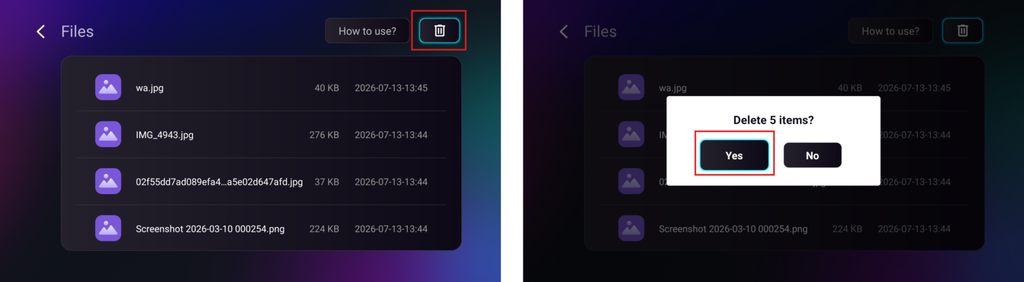
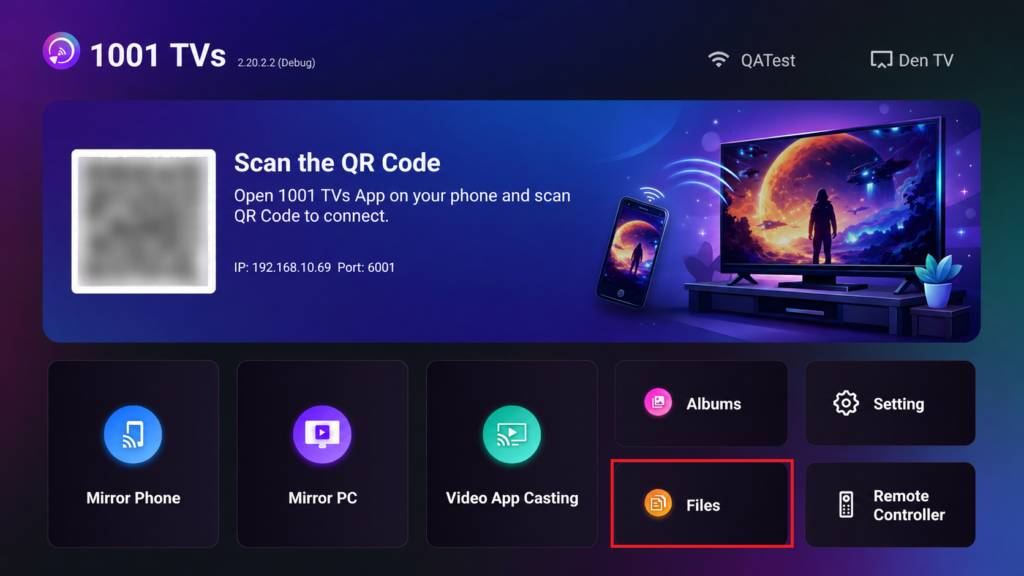
- Navigate to Files, you can see the received files. To delete a single file, long-press the OK button on your TV remote control to select the desired file, and then press “Confirm” to delete it.
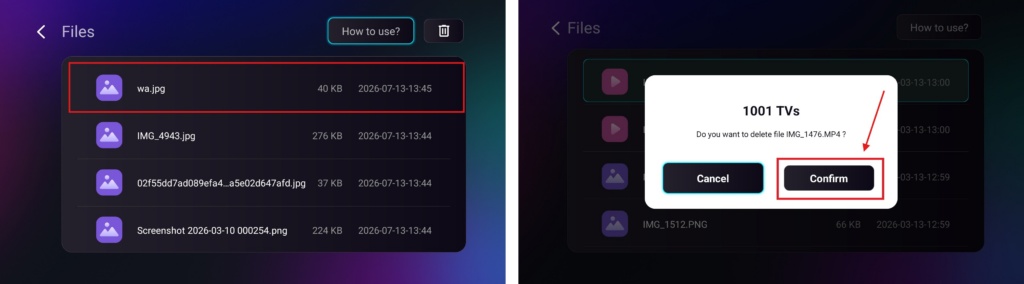
To delete all files at once, click the trash button, then press “Yes” to confirm.
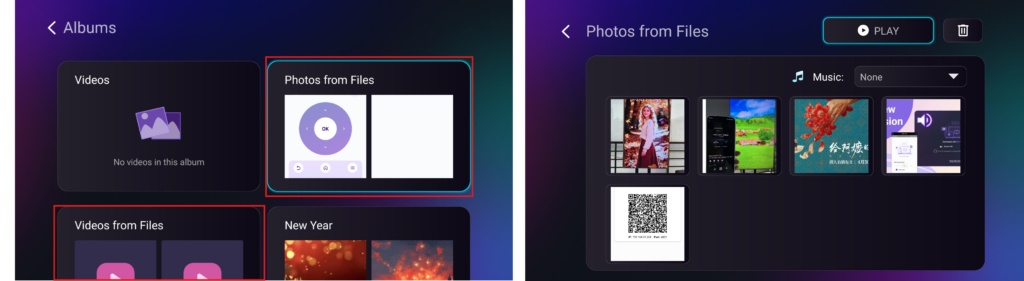
- Navigate to Albums > Photos/Videos from Files page to view your received photos and videos. They can be deleted using the same method as Files, or you can play them as a slideshow.
Why Use 1001 TVs?
- Fast, private, and easy to use
- Local transfer — no cloud required
- No login or account needed
- Supports large file transfers
Need Help?
If you encounter any issues, feel free to contact our support team:
📧 Email: 1001tvs@nero.com
🌐 Website: www.1001tvs.com
📖 More Guides: Guidance
Read More
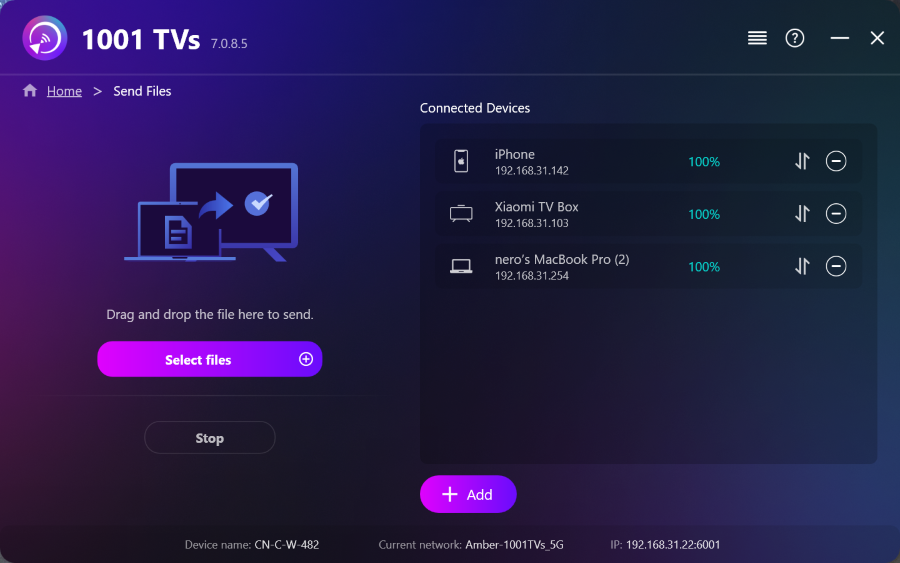 How to Send Files from PC to Multiple Devices at the Same Time (PC, Phone, TV, Tablet)
With the latest Windows version of 1001 TVs (v7.0.8.5), your PC can now send files to multiple devices — TVs, tablets, phones, or other…
How to Send Files from PC to Multiple Devices at the Same Time (PC, Phone, TV, Tablet)
With the latest Windows version of 1001 TVs (v7.0.8.5), your PC can now send files to multiple devices — TVs, tablets, phones, or other…
 How to Send Files from Your Phone to Android/Apple TV?
With 1001 TVs, you can send files from your phone to your TV over the local network.No cloud uploads. No sign-ups. Fast and secure.…
How to Send Files from Your Phone to Android/Apple TV?
With 1001 TVs, you can send files from your phone to your TV over the local network.No cloud uploads. No sign-ups. Fast and secure.…

