Mac ئېكرانىڭىزنى باشقا ئۈسكۈنىگە قانداق كېڭەيتىش كېرەك
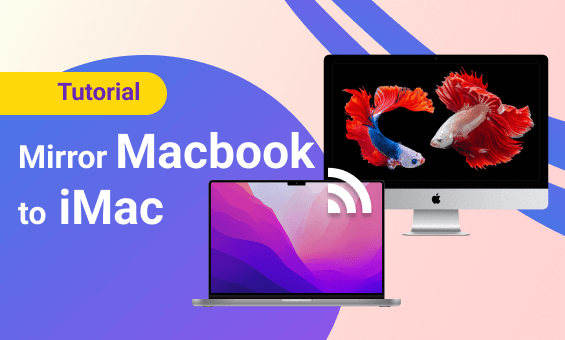
With 1001 TVs, you can extend your Mac desktop to another device (e.g., PC, Mac, phone, TV) and use it as a second display.
Depending on what you need, there are two ways to extend your screen:
· App Store Version (Mirror an Existing Screen)
If you already have a real second screen (like a physical monitor, an iPad, or another Mac), add it via AirPlay in macOS Settings > Displays. Then, 1001 TVs will mirror this existing screen to other devices.
For detailed steps, see: [How to Extend Your Mac Screen Using macOS Settings with 1001 TVs].
· DMG Version (Virtual Extension) — This is what this article covers
If you don’t have an extra physical display but still want a second screen, the DMG version is for you. You don’t need to add anything in macOS Settings. 1001 TVs will directly create a virtual extended screen inside the app and cast it to other devices.
Click here to download 1001 TVs
قانداق قىلىپ ئورنىتىشنى تاماملاش ۋە كېڭەيتىلگەن كۆرسىتىشنى قوزغىتىش كېرەك
1. ئەپنى ئورنىتىڭ
Install the appropriate version on the Mac you want to extend from:
- Choose the App Store version if you already have a second screen connected via macOS Settings and want to share it.
- Choose the DMG version if you want to create a virtual extended screen directly within the app without any extra hardware.
(Note: The receiving device can just use the standard App Store version, Microsoft Store version, etc.)
If 1001 TVs is already installed on your Mac, make sure to uninstall it before installing the new version.
⚠️ DMG Installation Note:
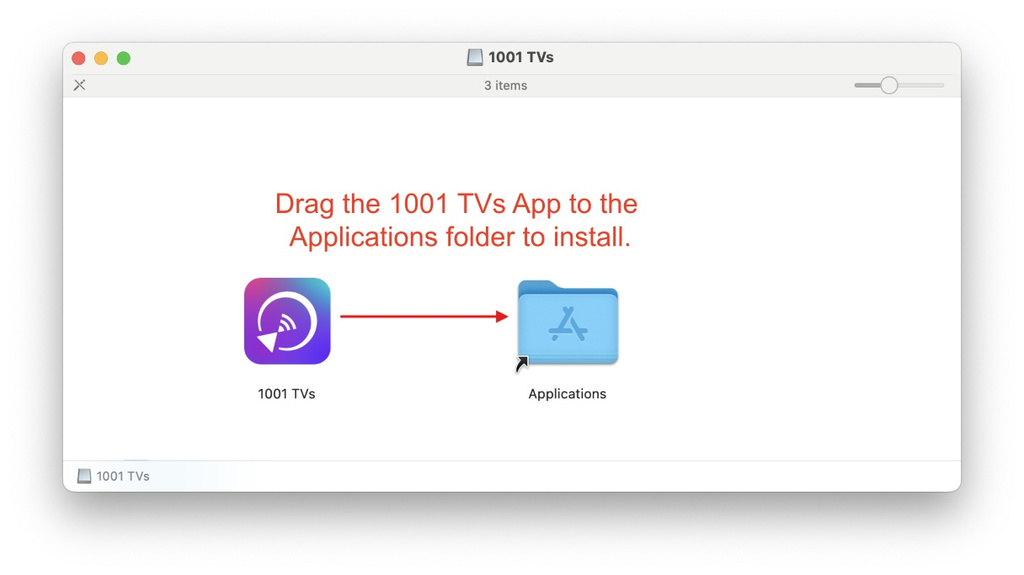
When you open the DMG installer, drag the app into the “Applications” folder (as shown below).
Do not run it directly from the DMG window or your “Downloads” folder, as macOS requires the app to be in the “Applications” folder to record permissions correctly.r your “Downloads” folder, as macOS requires the app to be in the “Applications” folder to record permissions correctly.
2. رۇخسەت بېرىش
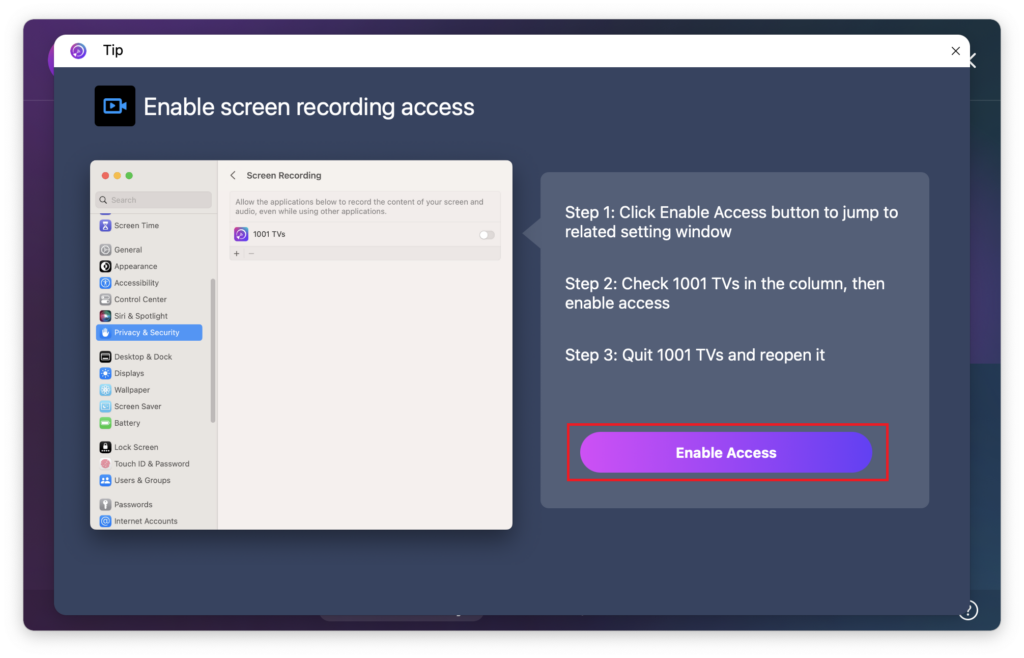
ئېكران خاتىرىلەش ئىجازىتىنى قوزغىتىش:
1) چېكىڭ “ئەۋەتىش”>”كىرىشنى قوزغىتىش“
(Note: Depending on your macOS version, you will be directed to System Settings > Privacy & Security > Screen Recording on macOS 14 and earlier, or Screen & System Audio Recording on macOS 15 and later.)

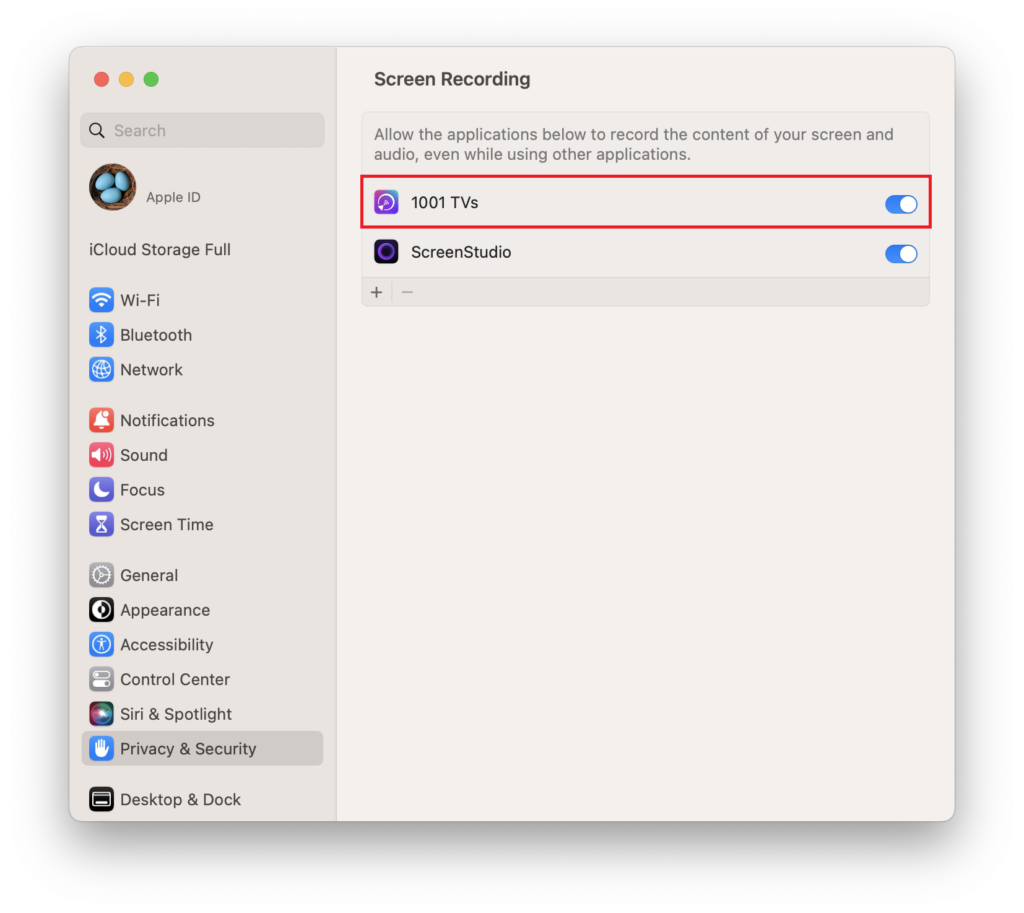
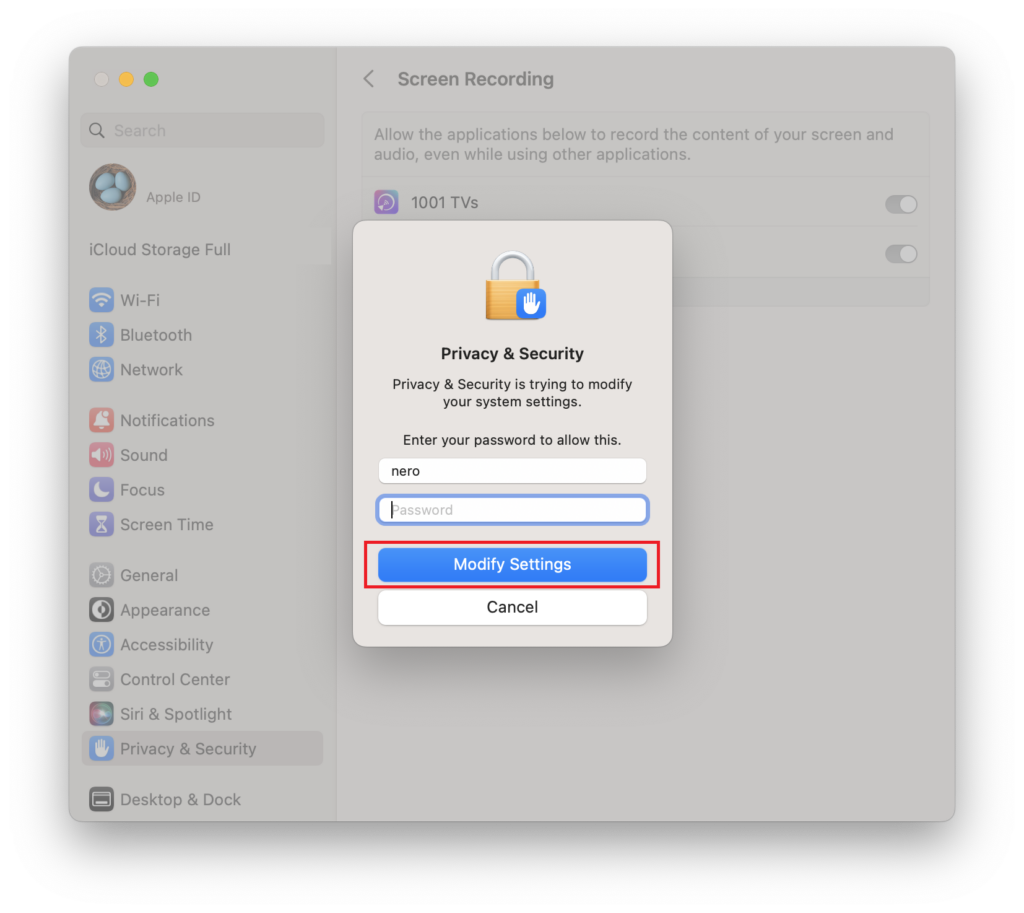
2) ئىجازەتلەرنى قوزغىتىش 1001 TVs.
3) Confirm the changes when prompted:
Enter your Mac’s login password and click “Modify Settings”.
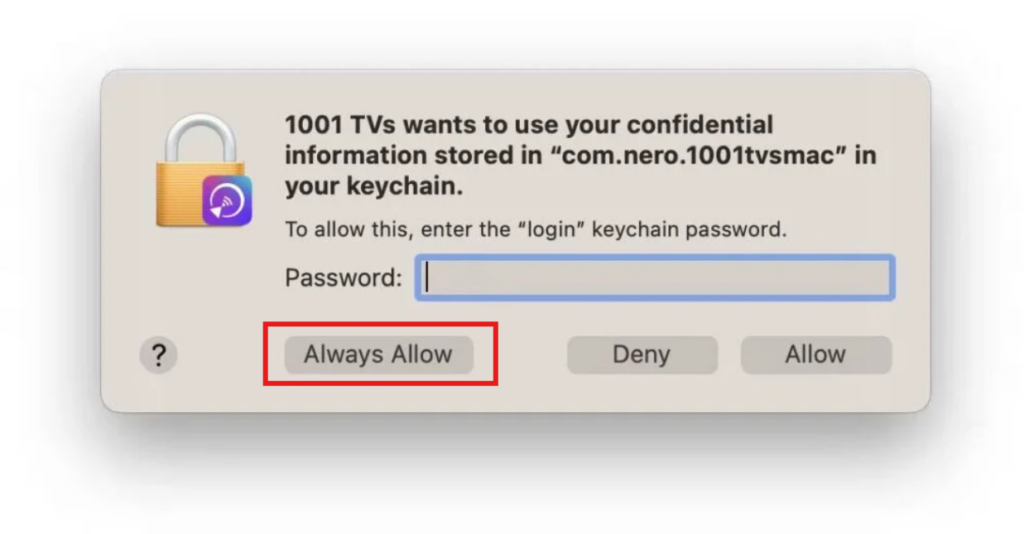
If a Keychain prompt appears, click “Always Allow”.
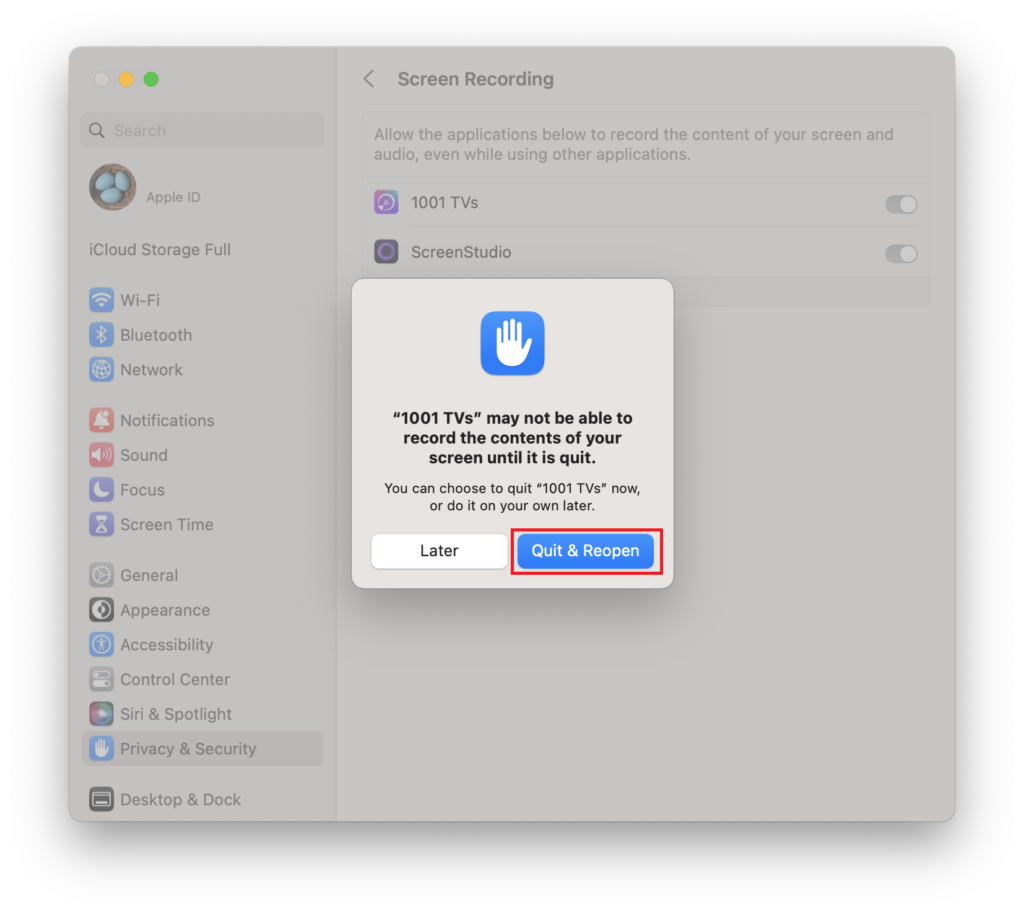
Finally, click “Quit & Reopen” to restart the app.
If the screen mirroring interface loads properly after permissions are enabled, please skip directly to Step 3.
If the 1001 TVs app keeps prompting for Screen Recording permission (even if it is already turned on, or if it is missing from the list), please refer to: How to Grant Screen Recording Permission (Mac DMG Version)
3. ئۈسكۈنىلەرنى ئۇلاڭ ۋە ئېكراننى كېڭەيتىڭ
1001 TVs نى ئۇچۇر يوللىغۇچى ۋە قوبۇل قىلغۇچى ئۈسكۈنىلەرنىڭ ھەر ئىككىسىدە ئېچىڭ.
Mac سىستېمىسىدا، سىز كېڭەيتىشنى خالايدىغان مەزمۇن:
1) تاللاڭ “ئەۋەتىش” > “كۆرسىتىشنى كېڭەيتىش”.
2) تىزىمدىن قوبۇللىغۇچ ئۈسكۈنىنى تاللاڭ.
قوبۇل قىلغۇچى ئۈسكۈنىدە “رۇخسەت قىلىڭ” تەلەپ قىلىنغاندا.

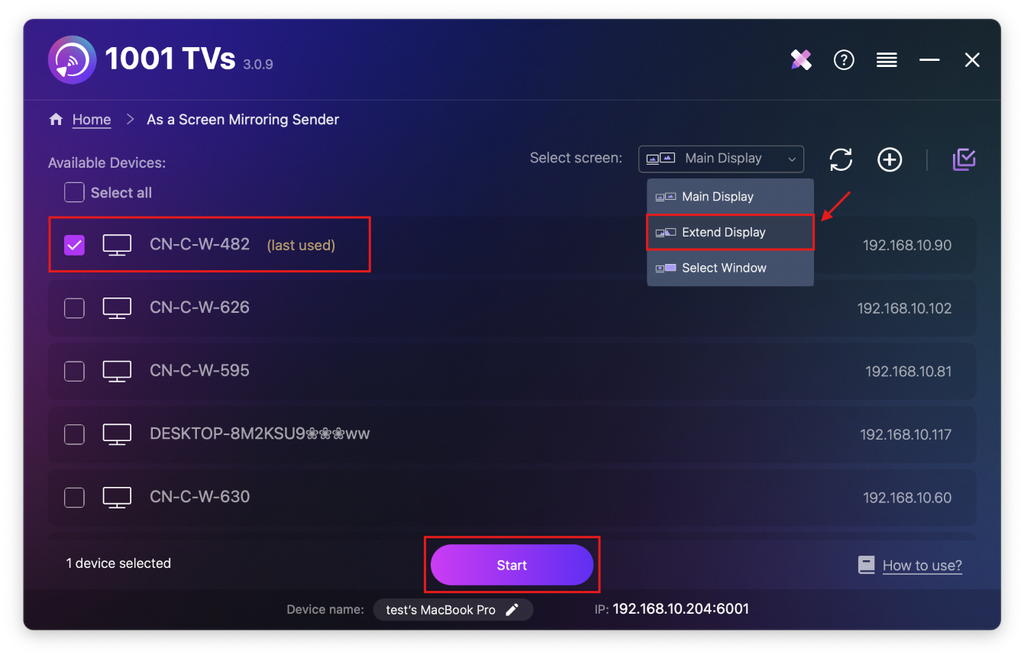
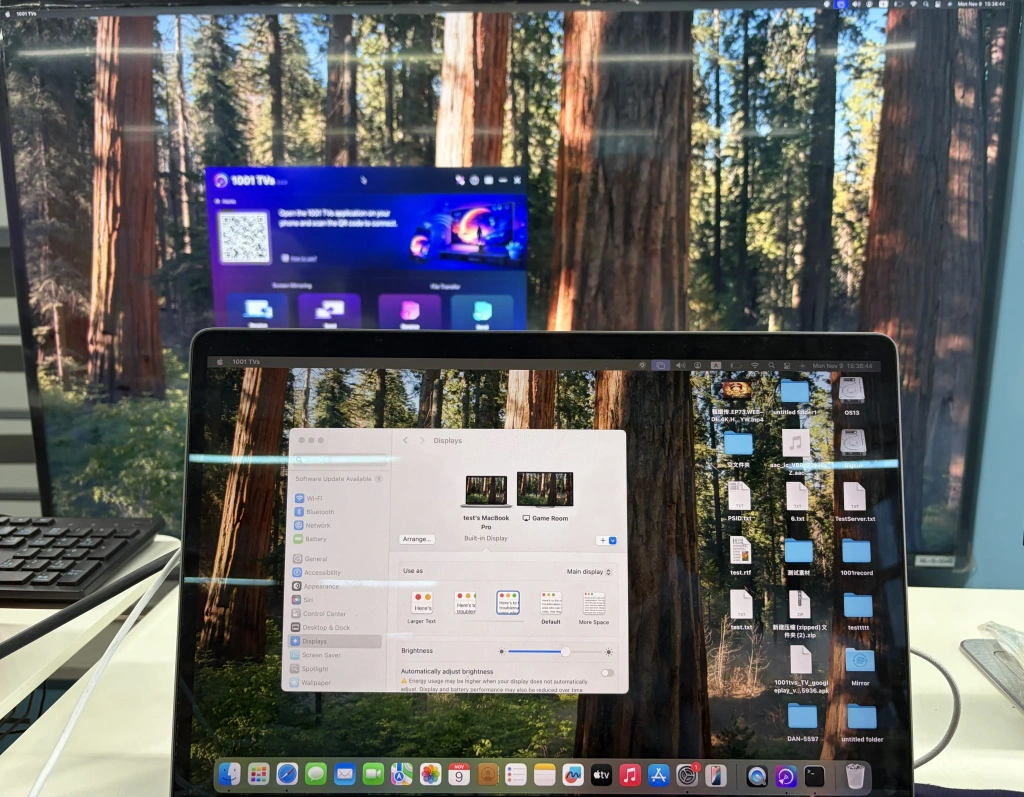
كۆرسىتىش ھازىر مۇۋەپپەقىيەتلىك كېڭەيتىلدى.
⭐ Want unlimited screen mirroring from your computer?

Read More
How to Grant Screen Recording Permission for the 1001 TVs App (Mac DMG Version)
"Why does 1001 TVs keep asking for Screen Recording permission, even when it's already turned on—or when the app doesn't even appear in the…
 iOS: How to Fix Missing App Notifications During Screen Mirroring
Why Notifications Are Missing When you mirror your iPhone screen, notifications from other apps may not appear on the mirrored screen. This can happen…

