
How to Use AirPlay on Windows: Wireless Connection Between Apple & Windows Devices
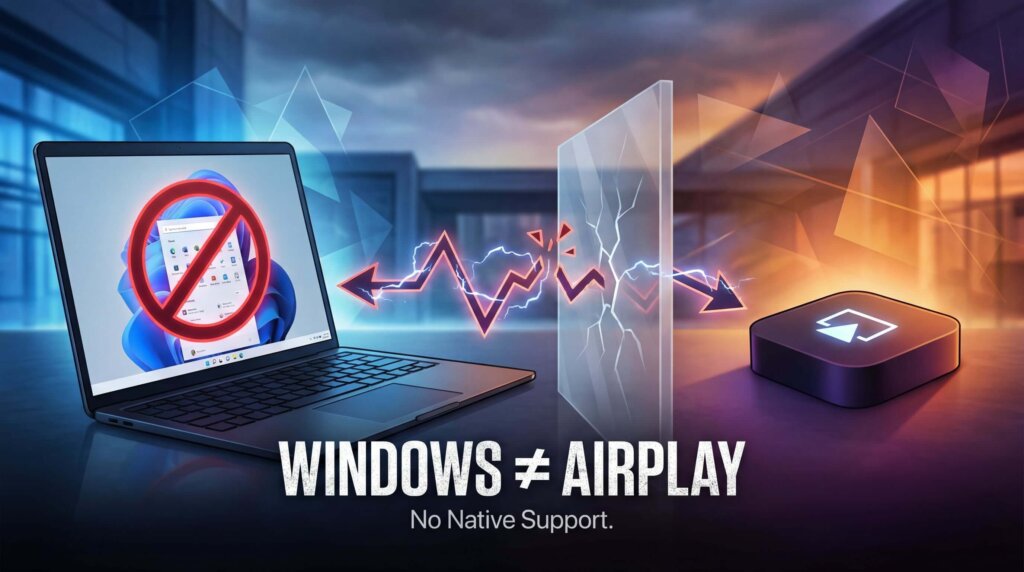
Looking to mirror your iPhone screen to a Windows computer? Or stream content from Windows to your Apple TV? You’ve probably noticed that Windows doesn’t show up when you tap Screen Mirroring on your iPhone. That’s because Windows has no native AirPlay support—and it never will.
But don’t worry. The tech community has created solid workarounds. This guide covers everything you need to know about using AirPlay-like features on Windows, based on real user experiences and thorough testing.
Why Windows Will Never Have Native AirPlay
Let’s address the elephant in the room. AirPlay is Apple’s proprietary wireless streaming protocol, designed exclusively for the Apple ecosystem. You’ll find it on iPhones, iPads, Macs, Apple TVs, and even some licensed smart TVs from Samsung, LG, Sony, and Vizio.
But Windows? Never going to happen. Here’s why:
Apple’s business model depends on ecosystem lock-in. Making AirPlay available on Windows would reduce the incentive to buy Macs and Apple TVs. When you open Control Center on your iPhone and tap Screen Mirroring, your Windows PC won’t appear in that list—by design.
Microsoft has its own standards. Windows supports Miracast for wireless display and DLNA for media streaming. Microsoft has no reason to support a competitor’s protocol.
Technical barriers exist. Even if both companies wanted it, implementing AirPlay on Windows would require deep system integration for device discovery, encryption, and DRM handling.
So if you want to connect your Apple devices to Windows, you need third-party software. Let’s explore your options.
Two Different Approaches to Screen Mirroring
Before diving into specific apps, understand that there are two fundamentally different approaches:
Approach 1: AirPlay Emulation
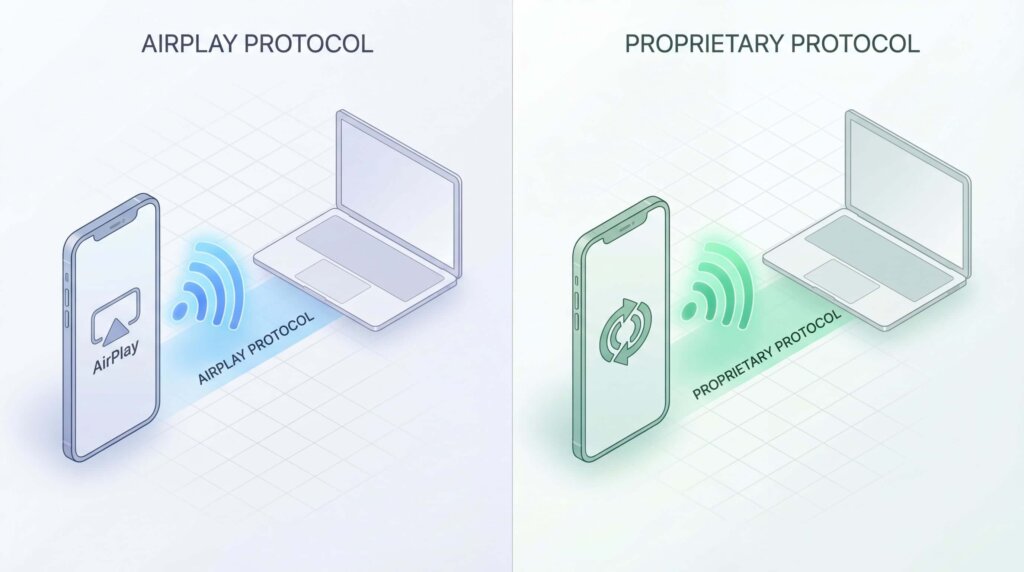
Apps like AirServer, Reflector, and LonelyScreen emulate Apple’s AirPlay protocol. They make your Windows PC pretend to be an Apple TV. When you open Screen Mirroring on your iPhone, these apps make your PC appear in the device list.
Pros: Works with iOS’s native Screen Mirroring menu
Cons: Limited to what AirPlay can do; doesn’t work on all networks
Approach 2: Proprietary Protocols
Apps like 1001 TVs don’t use AirPlay at all. Instead, they use their own transmission methods that work like a wireless HDMI cable, sending pixel data over your local network.
Pros: Works across any platform—Windows, Android, browsers, Linux
Cons: Requires the app on both devices; won’t appear in iOS’s native menu
Understanding this distinction helps you choose the right tool for your situation.
Best Apps for Mirroring iPhone to Windows
For Cross-Platform Flexibility: 1001 TVs
What makes it different: Developed by Nero AG (yes, the CD burning software company), 1001 TVs doesn’t try to emulate AirPlay. It uses its own protocol that can connect devices AirPlay simply can’t reach.
Setup process:
Critical detail: Your PC will never appear in Apple’s native Screen Mirroring menu. You must use the mirroring feature built into the 1001 TVs app itself.
What it offers:
- Works on Windows, Mac, iOS, Android, Smart TVs, and web browsers
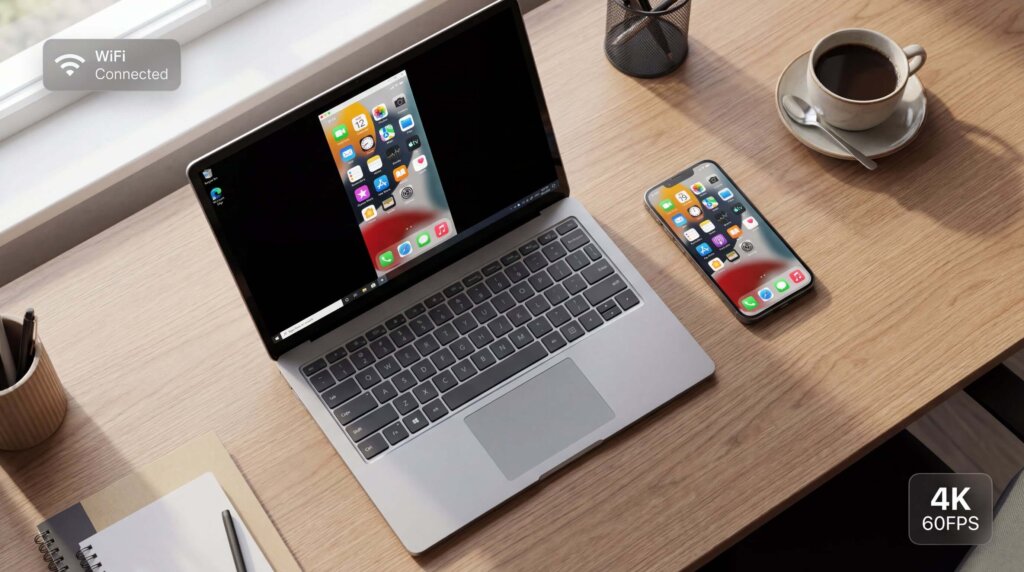
- Supports up to 4K at 60 FPS
- Can mirror to a browser without installing software on the receiver
- Bidirectional: mirror iPhone to Windows OR Windows to iPhone
Best for: Users who need to mirror across different platforms, work environments where AirPlay is blocked, or want to cast to web browsers
For Professional Use: AirServer
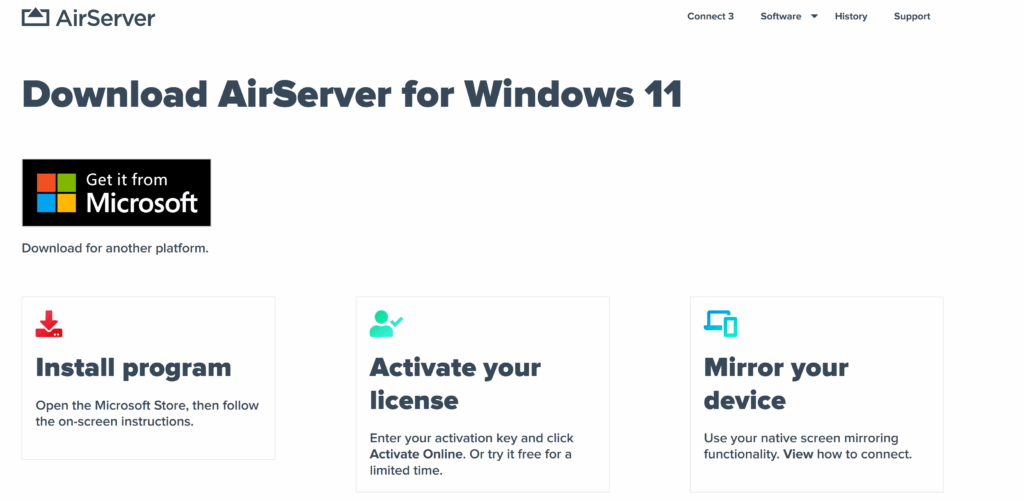
What it does: Transforms your Windows PC into a professional-grade AirPlay receiver. Originally designed for corporate and educational settings, it’s now popular with content creators and presenters.
Setup process:
1. Download from the AirServer website and install
2. Launch the app (appears in system tray)
3. On iPhone: Control Center → Screen Mirroring → Select your PC
4. Enter password if you enabled security
What it offers:
- 4K resolution at 60 FPS
- Accepts up to 8 devices simultaneously
- End-to-end encryption for sensitive content
- Built-in screen recording with audio
- Picture-in-picture mode for multiple devices
User feedback: “I’ve used AirServer for over 200 presentations without a single connection failure”
Best for: Professional presentations, content creators who need reliable recording, anyone requiring multi-device support
For Educators: Reflector 4
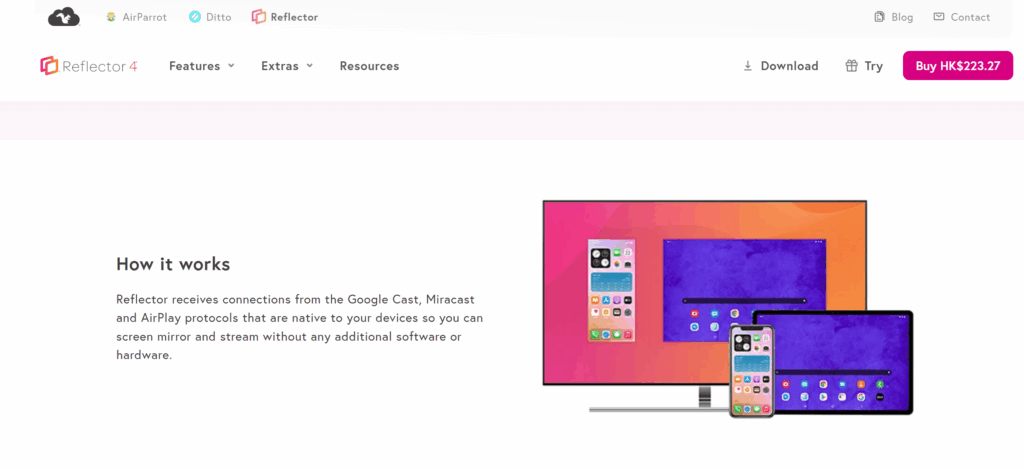
What it does: Specifically designed for classrooms with features like device frames (makes mirrored screens look like actual iPhones/iPads) and annotation tools.
Setup process:
1. Install Reflector (7-day free trial available)
2. Launch on Windows
3. iPhone: Control Center → Screen Mirroring → “Reflector [Your PC Name]”
4. Enter 4-digit code if prompted
What it offers:
- Display multiple student devices in a grid layout
- Draw annotations on mirrored screens during teaching
- Record demonstrations with voiceover
- Spotlight mode to highlight one device
User feedback: “I use Reflector daily to show student work to the class. The device frames make it feel more professional than just a floating screen”
Note: Some users report lag when mirroring multiple devices on older PCs. Recommended: 8GB RAM minimum.
Best for: Teachers, trainers, anyone displaying multiple devices simultaneously
For Simplicity: LonelyScreen
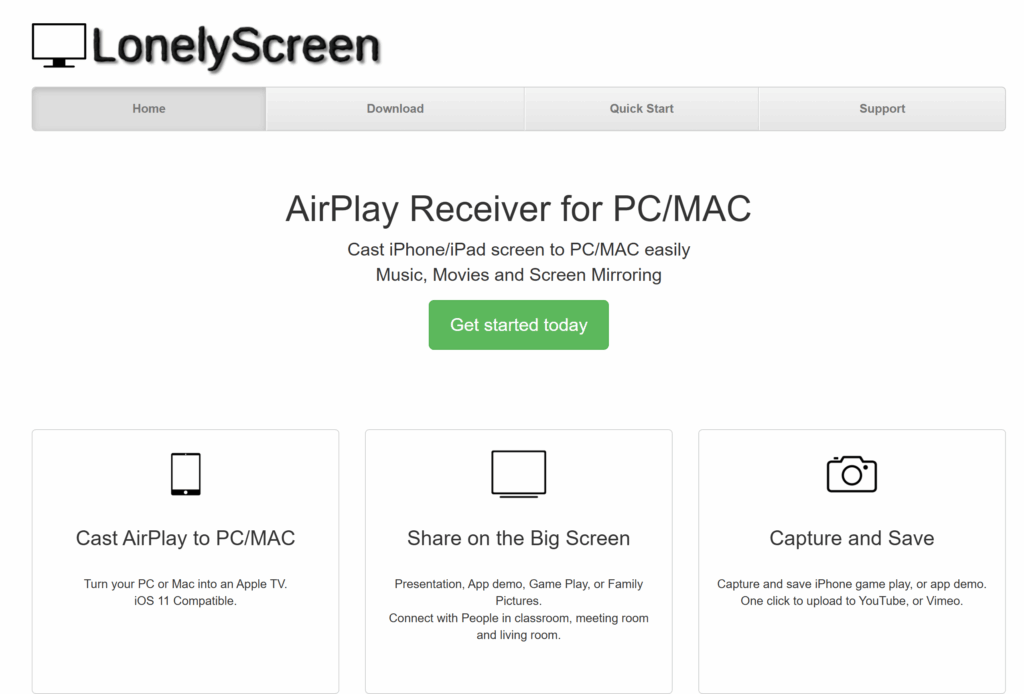
What it does: The minimalist option. Install, open, done. No account, no configuration, no pairing process.
Setup process:
1. Download from lonelyscreen.com (15MB)
2. Launch the app
3. iPhone: Control Center → Screen Mirroring → “LonelyScreen”
4. Connected
What it offers:
- Zero configuration required
- Lightweight (minimal system resources)
- Basic screen recording (paid version)
User feedback: “LonelyScreen works well if you are casting to a PC from an Apple device. It is handy to use for quick presentations or demonstrations”
Limitations: Free version includes watermark every few seconds; maxes out at 720p resolution
Best for: Quick demos, casual use, anyone who wants zero hassle
For Device Control: iMyFone MirrorTo
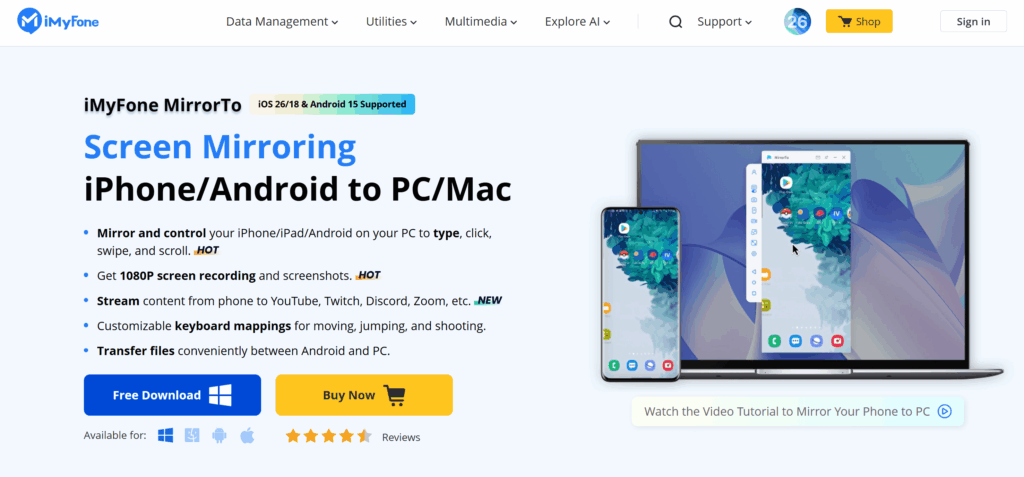
What it does: Goes beyond mirroring—lets you control your iPhone from your PC using keyboard and mouse.
Setup process:
1. Download MirrorTo (120MB)
2. Connect iPhone via USB (recommended) or WiFi
3. iPhone: Tap “Trust This Computer”
4. Click “Start Mirroring”
What it offers:
- Type on PC keyboard, text appears on iPhone
- Click and drag on mirrored screen to control iPhone
- 1080p at 60 FPS
- Supports both iOS and Android
- USB or WiFi connection
User feedback: “Being able to type Instagram captions on my PC keyboard while mirroring my phone is a huge time-saver”
Limitations: Subscription pricing model; WiFi connection can lag on congested networks (USB is more stable)
Best for: Mobile gamers, content creators who need keyboard input, users wanting full phone control from PC
For Budget Users: Air Screen Mirror Receiver
What it does: Basic AirPlay receiver from the Microsoft Store. Lifehacker tested it and found it works well for video streaming.
Setup process:
1. Install from https://airscreen.app/
2. Launch Air Screen
3. iPhone: Control Center → Screen Mirroring → “Air Screen”
What it offers:
- Microsoft Store app (automatic updates)
- Good video streaming performance
- Very affordable
Limitations: Free version adds watermark every 30 seconds; no recording; no advanced features
Best for: Budget-conscious users, simple video streaming
Streaming Windows to Apple TV
Want to go the other direction—display your Windows screen on Apple TV? Here are your options.
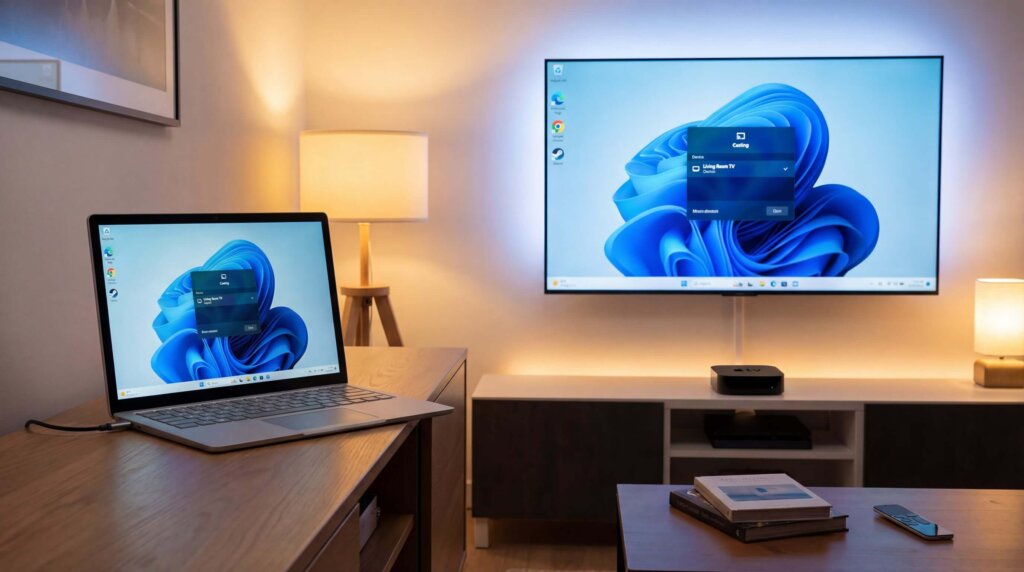
Option 1: 1001 TVs for Apple TV
Option 2: iTunes Home Sharing
For streaming media files (not screen mirroring):
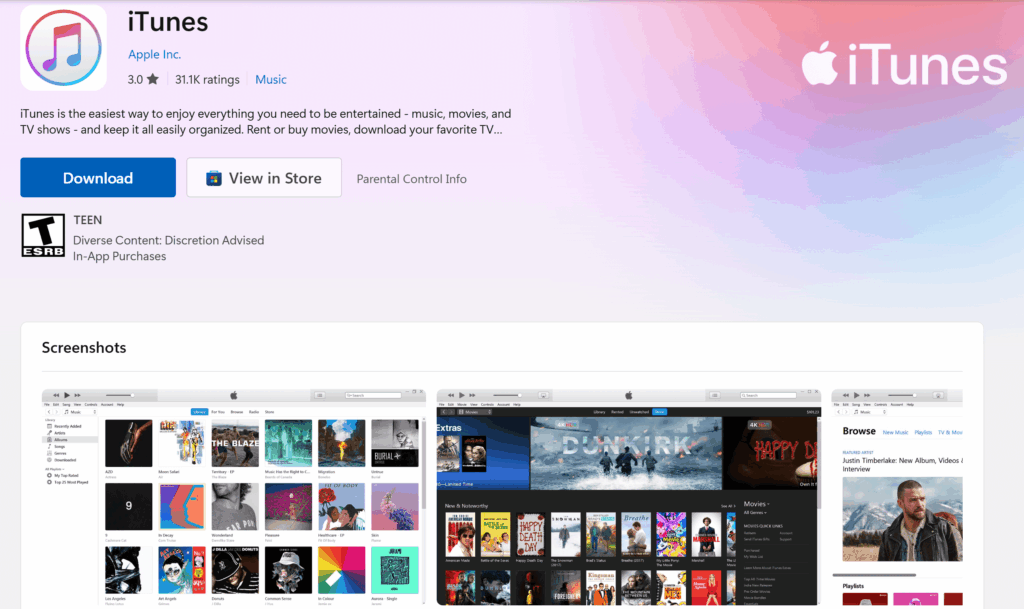
1. Install iTunes from Microsoft Store
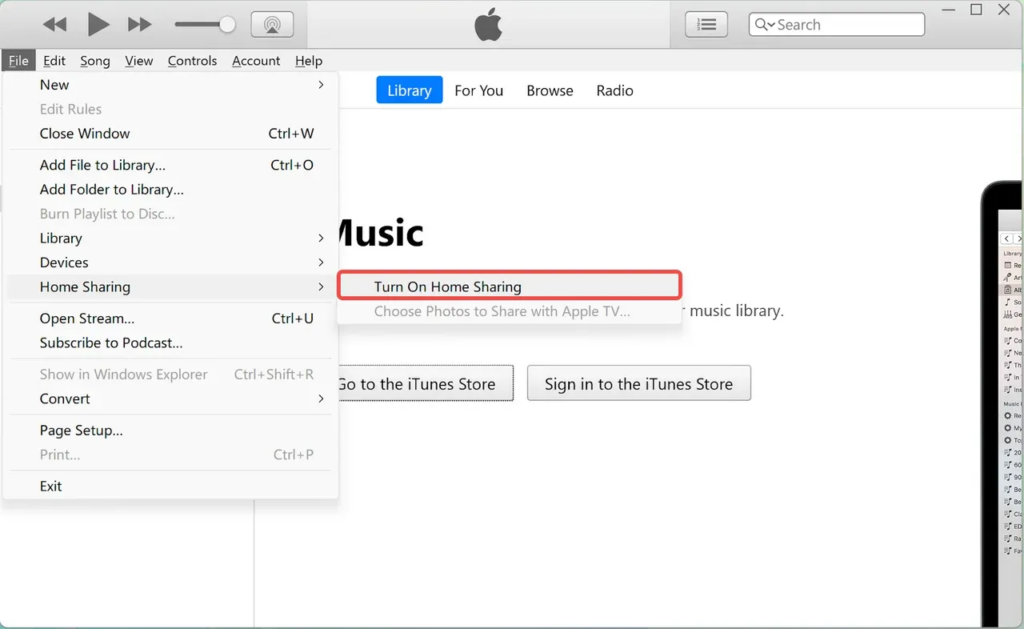
2. iTunes → File → Home Sharing → Turn On (enter Apple ID)
3. Apple TV → Settings → Users and Accounts → Home Sharing → Turn On
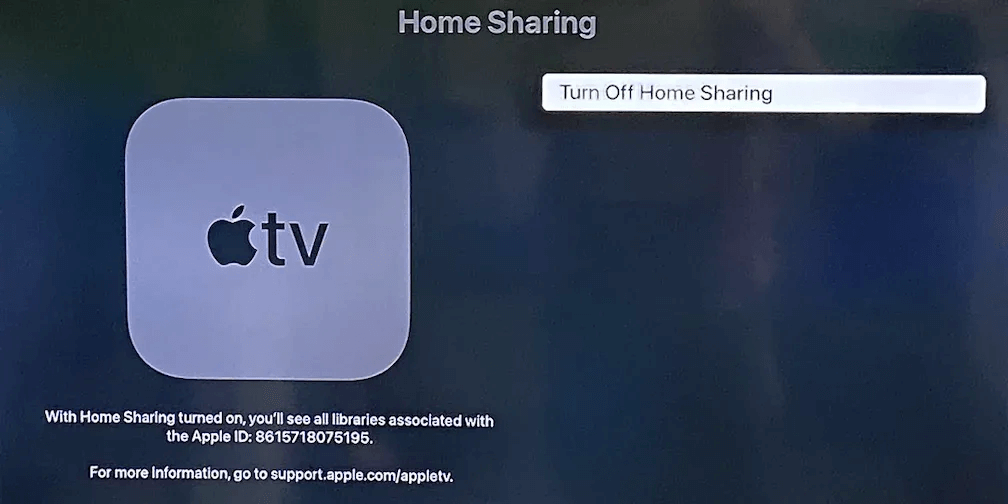
4. Share photos/videos from iTunes library
5. Access from Apple TV’s Computers app
This only works for media files in your iTunes library, not live screen mirroring.
Common Problems and Solutions
Problem: PC doesn’t appear in Screen Mirroring list
For AirPlay apps (AirServer, Reflector, LonelyScreen):
- Check both devices are on the same WiFi (not just same router—2.4GHz and 5GHz are separate networks)
- Windows Security → Firewall → Allow an app → Make sure your app is checked for Private and Public networks
- Restart the app and your iPhone
- Temporarily disable antivirus (some block AirPlay traffic)
For 1001 TVs:
- Remember: Your PC will NEVER appear in Apple’s native Screen Mirroring menu
- You must use the Screen Mirroring button inside the 1001 TVs app
- If PC doesn’t appear in device list, use QR code scanning instead
Problem: Laggy or stuttering connection
- Close bandwidth-heavy apps (downloads, streaming) on both devices
- Switch to 5GHz WiFi if available (better performance than 2.4GHz)
- Lower resolution in app settings (try 720p instead of 1080p)
- Use USB connection if supported (more stable than WiFi)
- Update WiFi adapter drivers on Windows
Problem: Audio out of sync with video
This is particularly common with 1001 TVs. Solutions:
- Enable “Low Latency Mode” in app settings
- Close other network apps
- Use wired Ethernet for PC instead of WiFi
- Consider switching to true AirPlay apps (AirServer, Reflector) which typically have better audio sync
Problem: Connection drops frequently
- Windows Device Manager → Network Adapters → Right-click WiFi adapter → Properties → Power Management → Uncheck “Allow computer to turn off this device”
- iPhone Settings → Display & Brightness → Auto-Lock → Set to “Never” during mirroring
- Router settings: Disable “AP Isolation” or “Client Isolation” if enabled
- Update router firmware
The Bottom Line
Windows will never have native AirPlay support—that’s just reality. But the third-party ecosystem has created solid alternatives that work well for most use cases.
If you need to connect across different platforms beyond just Apple to Windows—including Android devices, web browsers, or environments where AirPlay is blocked—1001 TVs offers the broadest compatibility. Just be aware of the subscription pricing and potential audio lag issues noted by some users.
The good news? Most of these apps offer free trials. Download a few, test them with your specific setup, and see which works best for your situation.