AirPlay στα Windows: Πώς να προβάλλετε την οθόνη του iPhone ή του iPad σε έναν υπολογιστή
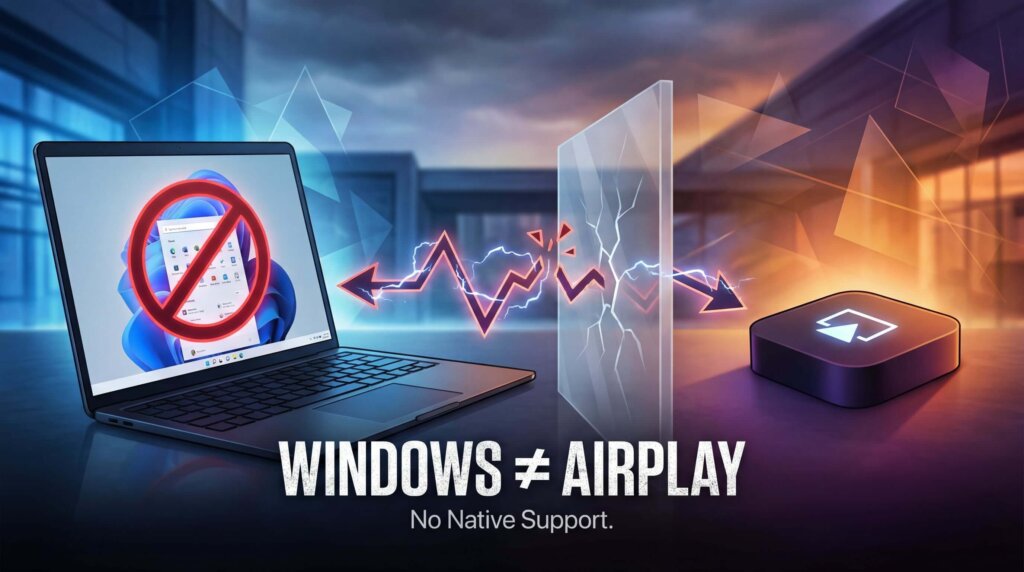
Για να κάνετε mirroring ενός iPhone ή iPad σε έναν υπολογιστή με Windows χρησιμοποιώντας το AirPlay, εγκαταστήστε ένα Εφαρμογή δέκτη AirPlay στον υπολογιστή. Τα Windows δεν περιλαμβάνουν τέτοιο πρόγραμμα από προεπιλογή. Μόλις ξεκινήσει η λειτουργία του δέκτη, συνδεθείτε από Κέντρο ελέγχου → Αντανακλάση οθόνης στο iPhone ή το iPad σας.
Μπορείτε επίσης να κάνετε mirror μέσω 1001 TVs ξεκινώντας τη σύνδεση μέσα από την εφαρμογή για κινητά της. Χρησιμοποιήστε την πρώτη μέθοδο όταν θέλετε τα Windows να εμφανίζονται στην ενσωματωμένη λίστα «Screen Mirroring» της Apple· χρησιμοποιήστε τη δεύτερη όταν χρειάζεστε μια ροή εργασίας βασισμένη σε εφαρμογή σε όλες τις υποστηριζόμενες συσκευές.
Μέθοδος 1: Αντανακλάστε την οθόνη στα Windows χρησιμοποιώντας έναν δέκτη AirPlay
Επιλέξτε αυτή τη μέθοδο αν θέλετε να χρησιμοποιήσετε τα ενσωματωμένα στοιχεία ελέγχου «Screen Mirroring» του iPhone ή του iPad σας, χωρίς να εγκαταστήσετε ξεχωριστή εφαρμογή αναπαραγωγής οθόνης στην κινητή συσκευή.
Επιλέξτε έναν δέκτη για τον υπολογιστή σας
Αυτές οι εφαρμογές μπορούν να προβάλλουν την οθόνη ενός iPhone ή iPad σε υπολογιστή με Windows:
- AirServer
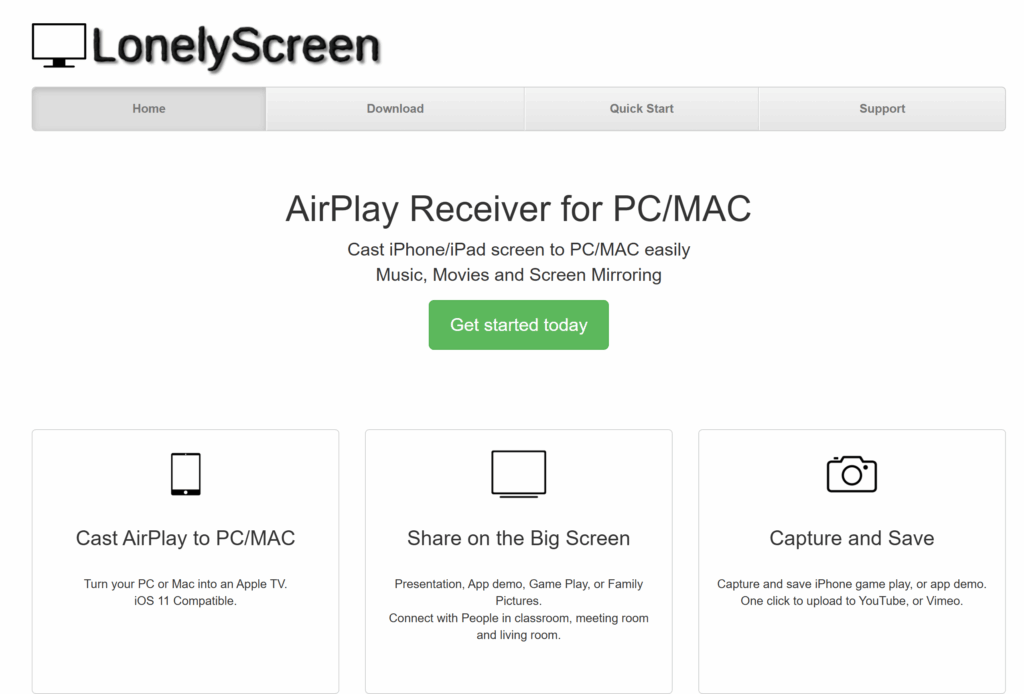
AirServer υποστηρίζει συνδέσεις AirPlay, Google Cast και Miracast σε συμβατές εκδόσεις των Windows. Αποτελεί μια χρήσιμη λύση όταν ένας υπολογιστής με Windows πρέπει να λαμβάνει εικόνες οθόνης από περισσότερους από έναν τύπους συσκευών, ενώ παράλληλα επιτρέπει σε ένα iPhone ή iPad να συνδεθεί μέσω των ενσωματωμένων λειτουργιών Screen Mirroring.
- Ανακλαστήρας
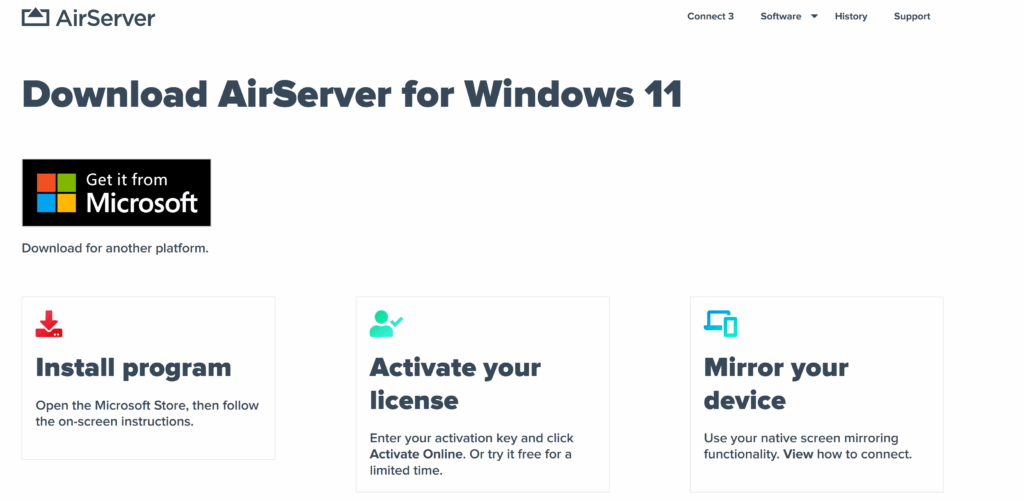
Ανακλαστήρας υποστηρίζει ασύρματη αναπαραγωγή οθόνης και περιλαμβάνει δυνατότητα εγγραφής με φωνητική περιγραφή για επιδείξεις και εκπαιδευτικά βίντεο. Σκεφτείτε να το χρησιμοποιήσετε όταν θέλετε να προβάλετε την οθόνη ενός iPhone ή iPad σε έναν υπολογιστή με Windows και παράλληλα χρειάζεστε να καταγράψετε ή να παρουσιάσετε αυτή την οθόνη στο πλαίσιο ενός μαθήματος, ενός βήμα-βήμα οδηγού ή μιας επίδειξης.
- LonelyScreen
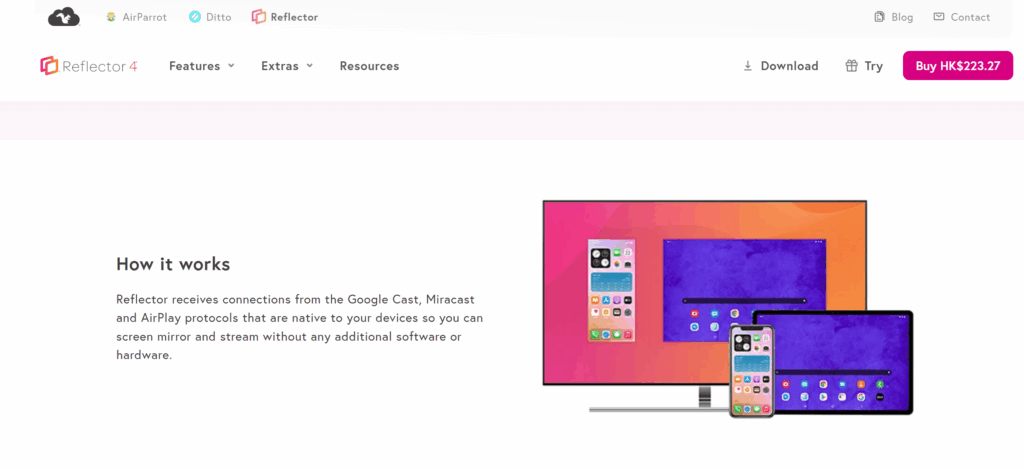
LonelyScreen υποστηρίζει λήψη σήματος AirPlay και καταγραφή οθόνης για iPhone και iPad. Αποτελεί μια απλή λύση όταν ο κύριος στόχος σας είναι απλώς να προβάλλετε την οθόνη μιας συσκευής Apple σε έναν υπολογιστή με Windows. Ελέγξτε τη συμβατότητα με τις εκδόσεις των Windows και του iOS που χρησιμοποιείτε πριν την επιλέξετε.
Εγκαταστήστε την έκδοση για Windows του δέκτη που επιλέξατε και, στη συνέχεια, ακολουθήστε τα παρακάτω βήματα σύνδεσης.
Συνδέστε το iPhone ή το iPad σας
- Ανοίξτε το πρόγραμμα λήψης στον υπολογιστή σας με Windows. Αφήστε το να λειτουργεί ενώ συνδέεστε.
- Συνδέστε και τις δύο συσκευές στο ίδιο δίκτυο Wi-Fi.
- Άνοιξε το Κέντρο Ελέγχου στο iPhone ή το iPad σου. Σε iPhone με Face ID ή σε iPad, σύρετε προς τα κάτω από την επάνω δεξιά γωνία. Σε iPhone με κουμπί Home, σύρετε προς τα πάνω από το κάτω άκρο.
- Πατήστε Screen Mirroring, και στη συνέχεια επιλέξτε το όνομα του δέκτη που εμφανίζεται στην εφαρμογή των Windows.
- Εισάγετε τον κωδικό που εμφανίζεται στην οθόνη, εάν σας ζητηθεί.
Η οθόνη της συσκευής σας θα πρέπει να εμφανίζεται πλέον στο παράθυρο του δέκτη. Για να αποσυνδεθείτε, ανοίξτε : Κέντρο Ελέγχου → Κατοπτρισμός οθόνης → Διακοπή κατοπτρισμού. Βλ. Οδηγός σύνδεσης του AirServer με iPhone και iPad για έναν οδηγό χρήσης ειδικά για τη συγκεκριμένη συσκευή λήψης.
Αντανακλάτε από Mac; Με τον δέκτη των Windows σε λειτουργία και τις δύο συσκευές συνδεδεμένες στο ίδιο δίκτυο, ανοίξτε το Mac σας Κέντρο ελέγχου → Αντανακλάση οθόνης και επιλέξτε τον παραλήπτη.
Μέθοδος 2: Αντιγραφή στο Windows με το 1001 TVs
Επιλέξτε 1001 TVs αν θέλετε μια ροή εργασιών μέσω εφαρμογής για κοινή χρήση οθόνης μεταξύ υποστηριζόμενων συσκευών Apple, Android και Windows. Για τη μέθοδο «από iPhone σε υπολογιστή» που περιγράφεται παρακάτω, εγκαταστήστε την εφαρμογή και στις δύο συσκευές και ξεκινήστε τη σύνδεση από την εφαρμογή 1001 TVs για κινητά.
Σημαντικό: Το 1001 TVs δεν απαιτεί ο υπολογιστής σας με Windows να εμφανίζεται στη λίστα AirPlay του iPhone. Επιλέξτε τον υπολογιστή από την εφαρμογή 1001 TVs.
Συνδεθείτε με το 1001 TVs
- Εγκαταστήστε και ανοίξτε το 1001 TVs στο iPhone ή το iPad σας και στον υπολογιστή σας με Windows.
- Συνδέστε και τις δύο συσκευές στο ίδιο δίκτυο Wi-Fi.
- Στο κινητό ή το tablet σας, ανοίξτε Αντικατοπτρισμός οθόνης Μπείτε στην εφαρμογή 1001 TVs και επιλέξτε τον υπολογιστή σας. Μπορείτε επίσης να χρησιμοποιήσετε το σαρωτή της εφαρμογής για να σαρώσετε τον κωδικό QR που εμφανίζεται στον υπολογιστή.
- Αποδέξου τη σύνδεση στον υπολογιστή όταν σας ζητηθεί.
- Στην κινητή συσκευή, πατήστε Έναρξη → Ξεκινήστε την κοινή χρήση για να ξεκινήσει η αναπαραγωγή.
Για στιγμιότυπα οθόνης των μεθόδων επιλογής συσκευής και χρήσης κωδικού QR, ακολουθήστε τις Οδηγός εγκατάστασης 1001 TVs για σύνδεση iPhone με υπολογιστή.
Εάν ο υπολογιστής σας δεν εμφανίζεται ή η αναπαραγωγή οθόνης αποτυγχάνει
Ελέγξτε από πού ξεκινά η σύνδεση
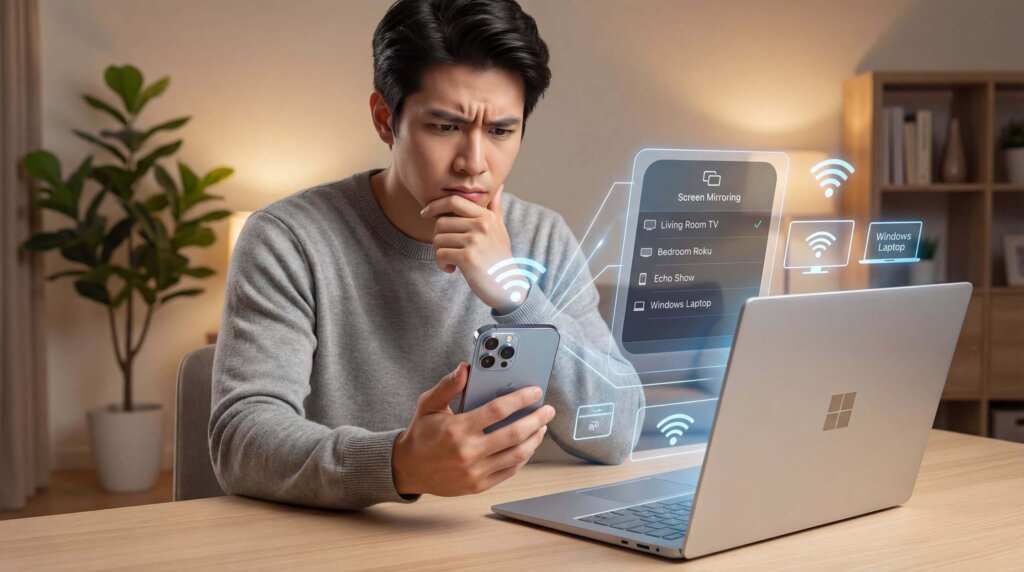
Με ένα Δέκτης AirPlay, επιλέξτε τον υπολογιστή σας από το iPhone ή το iPad Κέντρο ελέγχου → Αντανακλάση οθόνης λίστα. Βεβαιωθείτε ότι ο δέκτης είναι ανοιχτός και έτοιμος να δεχτεί συνδέσεις.
Με 1001 TVs, επιλέξτε τον υπολογιστή σας μέσα στο Εφαρμογή για κινητά 1001 TVs. Αν δεν εμφανίζεται, βεβαιωθείτε ότι η εφαρμογή για υπολογιστή εκτελείται, ανανεώστε τη λίστα συσκευών ή δοκιμάστε να σαρώσετε τον κωδικό QR της.
Ελέγξτε το τοπικό δίκτυο
Και οι δύο συσκευές πρέπει να μπορούν να επικοινωνούν μέσω του τοπικού δικτύου. Το Wi-Fi για επισκέπτες και ορισμένα δίκτυα γραφείων ή σχολείων απομονώνουν τις συσκευές, ακόμη και όταν εμφανίζουν το ίδιο όνομα Wi-Fi.
Δοκιμάστε ένα δίκτυο που επιτρέπει συνδέσεις τοπικών συσκευών. Εάν είναι ενεργό ένα VPN, ελέγξτε αν εμποδίζει την πρόσβαση στο τοπικό δίκτυο. Σε ένα διαχειριζόμενο δίκτυο, ζητήστε βοήθεια από τον διαχειριστή.
Ελέγξτε τα δικαιώματα του τείχους προστασίας του παραλήπτη
Εάν τα Windows απέκλεισαν την πρόσβαση του δικτύου του δέκτη κατά τη διάρκεια της εγκατάστασης, το iPhone ή το iPad σας ενδέχεται να μην το εντοπίσει.
Ελέγξτε τα δικαιώματα του τείχους προστασίας των Windows για την εφαρμογή και επιτρέψτε την πρόσβαση στο αξιόπιστο ιδιωτικό σας δίκτυο. Δεν χρειάζεται να απενεργοποιήσετε εντελώς το τείχος προστασίας. Για προβλήματα ανίχνευσης που αφορούν συγκεκριμένες εφαρμογές, χρησιμοποιήστε το οδηγίες αντιμετώπισης προβλημάτων για τον δέκτη.
Μείωση της καθυστέρησης ή των διακοπών σύνδεσης
Πλησιάστε πιο κοντά στο δρομολογητή και διακόψτε προσωρινά τις μεγάλες λήψεις ή άλλες δραστηριότητες που επιβαρύνουν το δίκτυο. Δοκιμάστε πρώτα με μια απλή οθόνη και, στη συνέχεια, δοκιμάστε το περιεχόμενο που θέλετε να προβάλετε.
Εάν η σύνδεση εξακολουθεί να αποτυγχάνει, επανεκκινήστε τον δέκτη και την κινητή συσκευή, ελέγξτε αν υπάρχουν ενημερώσεις και ακολουθήστε τις οδηγίες υποστήριξης της εφαρμογής. Δοκιμάστε τη σύνδεση στο πραγματικό δίκτυο πριν βασιστείτε στην αναπαραγωγή οθόνης για μια συνάντηση ή ένα μάθημα.
Θέλετε μάλλον να κάνετε mirroring των Windows στο Apple TV;
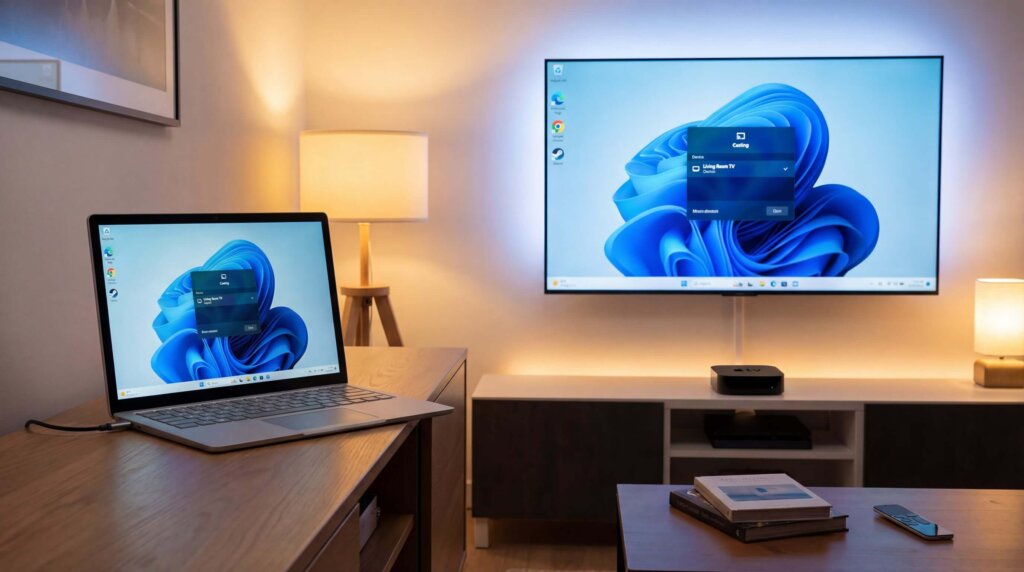
Η αναπαραγωγή της οθόνης ενός υπολογιστή με Windows στο Apple TV είναι το αντίστροφο της κύριας διαδικασίας που περιγράφεται σε αυτόν τον οδηγό: τα Windows γίνονται η συσκευή αποστολής, ενώ το Apple TV λαμβάνει την οθόνη.
Αφού εγκαταστήσετε το 1001 TVs και στις δύο συσκευές, συνδέστε τον υπολογιστή με Windows και το Apple TV στο ίδιο δίκτυο Wi-Fi. Ανοίξτε 1001 TVs στον υπολογιστή, επιλέξτε PC σε τηλεόραση, και επιλέξτε το Apple TV σας. Δείτε την πλήρη Οδηγός σύνδεσης των Windows με το Apple TV για εικονογραφημένες οδηγίες.
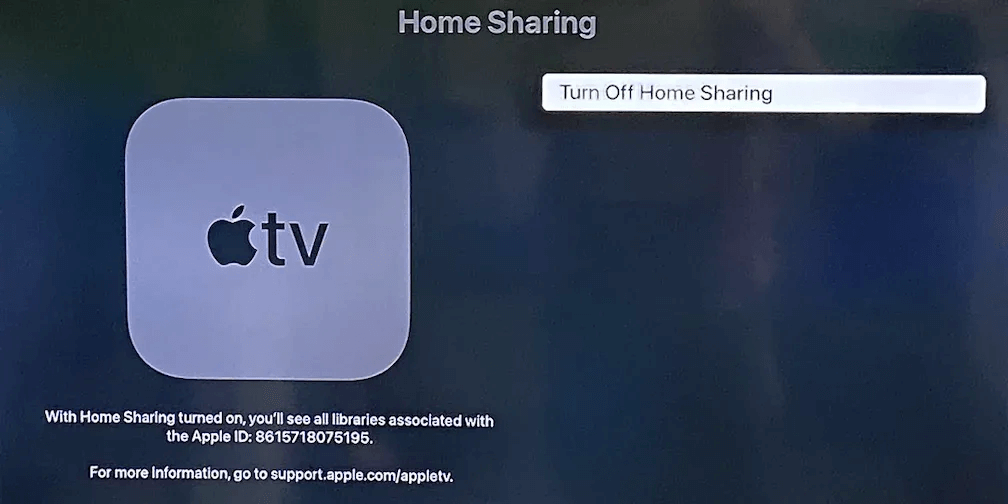
Αν θέλετε απλώς να αναπαράγετε αρχεία πολυμέσων που είναι αποθηκευμένα στον υπολογιστή σας, η Apple Κοινή χρήση κατοικίας είναι μια άλλη επιλογή. Επιτρέπει στο Apple TV να έχει πρόσβαση σε μια κοινόχρηστη βιβλιοθήκη του iTunes για Windows μέσω του Υπολογιστές εφαρμογή, αλλά δεν εμφανίζει την ενεργή επιφάνεια εργασίας των Windows, το πρόγραμμα περιήγησης ή τις εφαρμογές σας. Η Apple εξηγεί την τρέχουσα ρύθμιση στο Οδηγός για τη διαμονή σε ιδιωτικές κατοικίες.
Ποια μέθοδο πρέπει να χρησιμοποιήσετε;
Εγκαταστήστε ένα Δέκτης AirPlay στα Windows, αν θέλετε να επιλέξετε τον υπολογιστή σας από την ενσωματωμένη εφαρμογή του iPhone ή του iPad Αντικατοπτρισμός οθόνης μενού.
Επιλέξτε 1001 TVs αν προτιμάτε σύνδεση μέσω εφαρμογής ή θέλετε να κάνετε mirroring μεταξύ συμβατών συσκευών Apple, Windows και Android. Ξεκινήστε τη σύνδεση μέσα από το 1001 TVs αντί να αναζητήσετε τον υπολογιστή στη λίστα «Screen Mirroring» του iPhone.
Αν ο πραγματικός σας στόχος είναι να μεταδώσετε την οθόνη των Windows στο Apple TV, ακολουθήστε την ξεχωριστή μέθοδο «από τα Windows στο Apple TV» που περιγράφεται παραπάνω. Για αναπαραγωγή περιεχομένου από τη βιβλιοθήκη πολυμέσων χωρίς ζωντανή αναπαραγωγή οθόνης, χρησιμοποιήστε τη λειτουργία «Home Sharing».

Διαβάστε περισσότερα
 Πώς να παρακολουθήσετε το NBA στην τηλεόραση στις ΗΠΑ
Ο ευκολότερος τρόπος για να παρακολουθήσετε αγώνες του NBA στην τηλεόρασή σας στις ΗΠΑ είναι να λάβετε δύο αποφάσεις με τη σειρά: πρώτον, να επιβεβαιώσετε ποια εξουσιοδοτημένη υπηρεσία μεταδίδει...
Πώς να παρακολουθήσετε το NBA στην τηλεόραση στις ΗΠΑ
Ο ευκολότερος τρόπος για να παρακολουθήσετε αγώνες του NBA στην τηλεόρασή σας στις ΗΠΑ είναι να λάβετε δύο αποφάσεις με τη σειρά: πρώτον, να επιβεβαιώσετε ποια εξουσιοδοτημένη υπηρεσία μεταδίδει...
 Πώς να κάνετε προβολή οθόνης σε τηλεόραση Sony Bravia (Google TV)
Μια τηλεόραση Sony Bravia Google TV δεν χρησιμοποιεί μία ενιαία μέθοδο “Screen Mirroring” για όλα τα κινητά και τους υπολογιστές. Η σωστή επιλογή εξαρτάται τόσο από...
Πώς να κάνετε προβολή οθόνης σε τηλεόραση Sony Bravia (Google TV)
Μια τηλεόραση Sony Bravia Google TV δεν χρησιμοποιεί μία ενιαία μέθοδο “Screen Mirroring” για όλα τα κινητά και τους υπολογιστές. Η σωστή επιλογή εξαρτάται τόσο από...

