AirPlay on Windows: How to Mirror iPhone or iPad to a PC
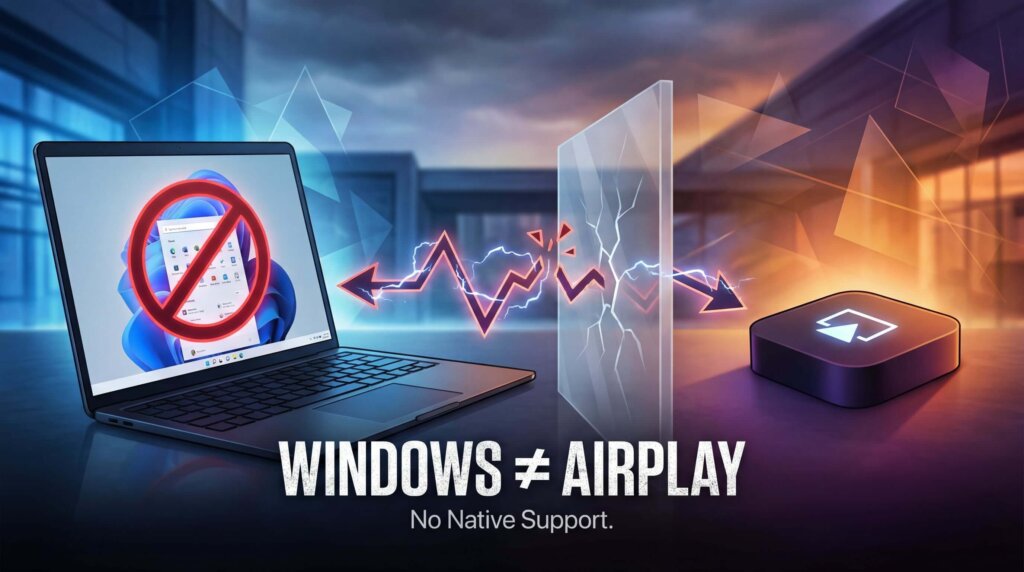
To mirror an iPhone or iPad to a Windows PC using AirPlay, install an AirPlay receiver app on the computer. Windows does not include one by default. Once the receiver is running, connect from Control Center → Screen Mirroring on your iPhone or iPad.
You can also mirror through 1001 TVs by starting the connection inside its mobile app. Use the first method when you want Windows to appear in Apple’s built-in Screen Mirroring list; use the second when you need an app-based workflow across supported devices.
Method 1: Mirror to Windows Using an AirPlay Receiver
Choose this method if you want to use your iPhone or iPad’s built-in Screen Mirroring controls without installing a separate mirroring app on the mobile device.
Choose a receiver for your PC
These apps can receive an iPhone or iPad screen on Windows:
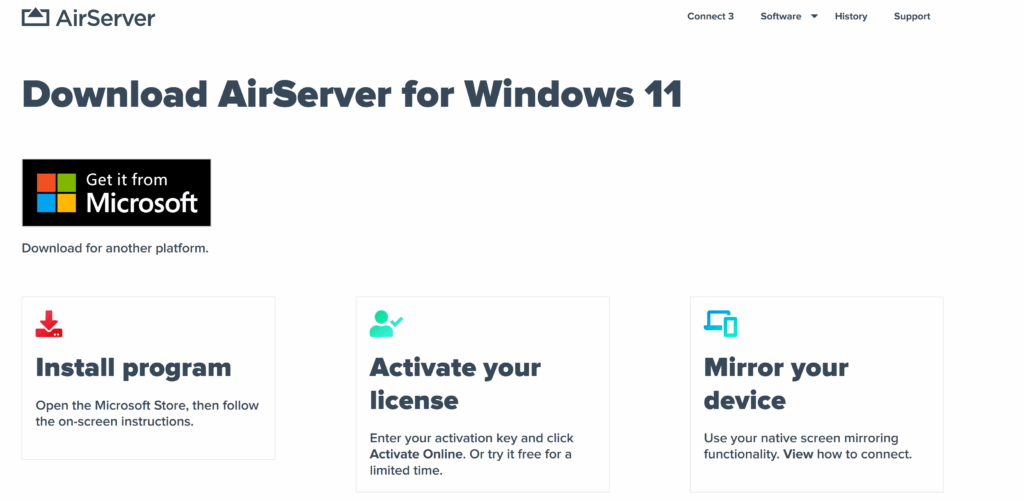
- AirServer
AirServer receives AirPlay, Google Cast, and Miracast connections on supported Windows editions. It is a useful fit when a Windows PC needs to receive screens from more than one type of device, while still letting an iPhone or iPad connect through its built-in Screen Mirroring controls.
- Reflector
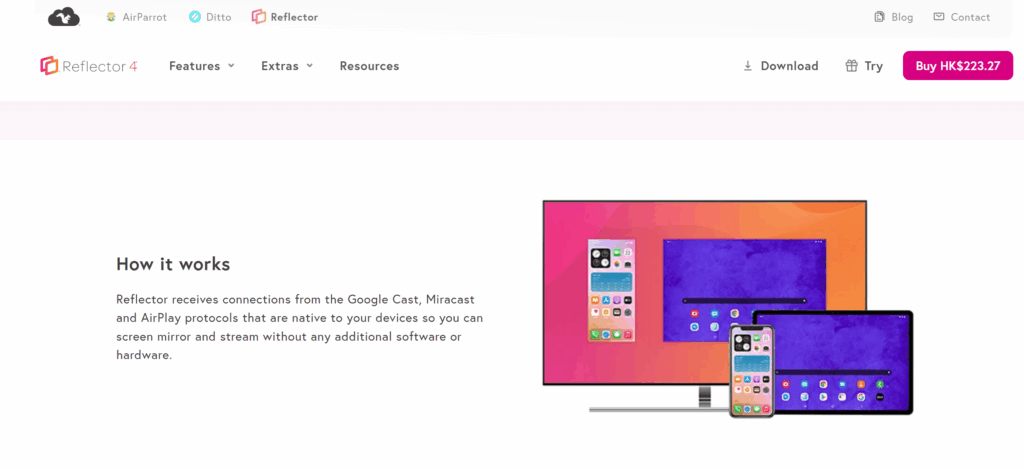
Reflector receives wireless screen mirroring and includes recording with voiceover for demonstrations and tutorials. Consider it when you want to show an iPhone or iPad on a Windows PC and also need to capture or present that screen as part of a lesson, walkthrough, or demo.
- LonelyScreen
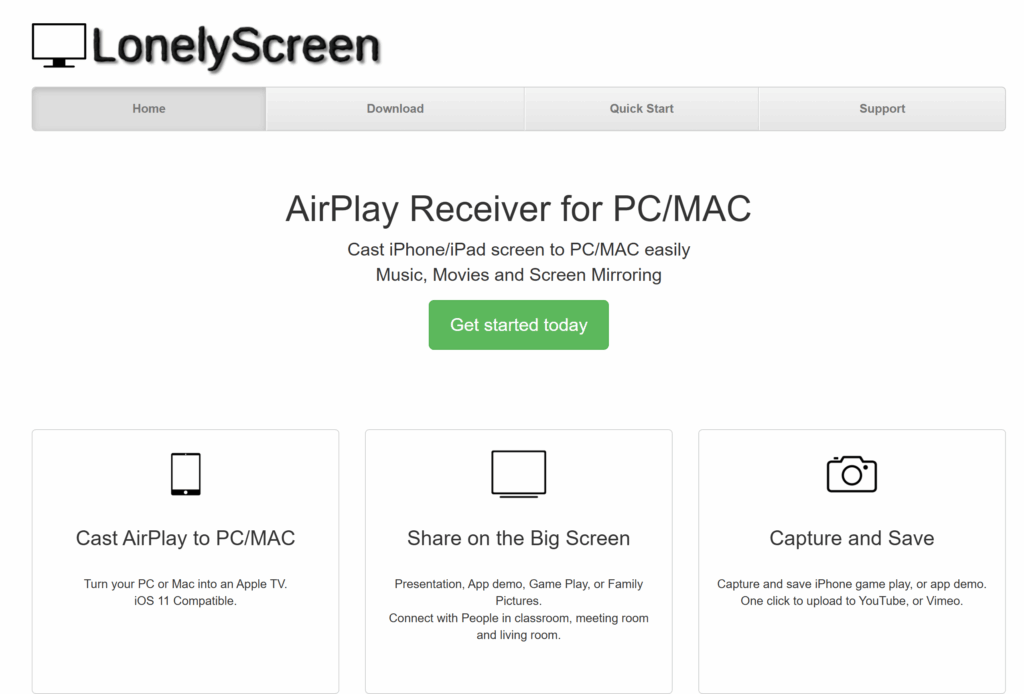
LonelyScreen offers AirPlay reception and screen capture for iPhone and iPad. It is a straightforward option when your main task is simply getting an Apple device screen onto a Windows PC. Check compatibility with your Windows and iOS versions before choosing it.
Install the Windows version of your chosen receiver, then follow the connection steps below.
Connect your iPhone or iPad
- Open the receiver on your Windows PC. Leave it running while you connect.
- Connect both devices to the same Wi-Fi network.
- Open Control Center on your iPhone or iPad. On an iPhone with Face ID or an iPad, swipe down from the top-right corner. On an iPhone with a Home button, swipe up from the bottom edge.
- Tap Screen Mirroring, then select the receiver name shown by the Windows app.
- Enter the onscreen code if prompted.
Your device’s screen should now appear in the receiver window. To disconnect, open Control Center → Screen Mirroring → Stop Mirroring. See AirServer’s iPhone and iPad connection guide for a receiver-specific walkthrough.
Mirroring from a Mac? With the Windows receiver running and both devices on the same network, open your Mac’s Control Center → Screen Mirroring and select the receiver.
Method 2: Mirror to Windows With 1001 TVs
Choose 1001 TVs if you want an app-based workflow for screen sharing across supported Apple, Android, and Windows devices. For the iPhone-to-PC method below, install it on both devices and start the connection in the 1001 TVs mobile app.
Important: 1001 TVs does not require your Windows PC to appear in the iPhone’s native AirPlay list. Select the PC from within the 1001 TVs app instead.
Connect with 1001 TVs
- Install and open 1001 TVs on your iPhone or iPad and Windows PC.
- Connect both devices to the same Wi-Fi network.
- On your phone or tablet, open Screen Mirroring inside 1001 TVs and select your PC. You can also use the app’s scanner to scan the QR code displayed on the computer.
- Accept the connection on the PC when prompted.
- On the mobile device, tap Start → Start Sharing to begin mirroring.
For screenshots of the device-selection and QR-code methods, follow the 1001 TVs iPhone-to-PC setup guide.
If Your PC Does Not Appear or Mirroring Fails
Check where you are starting the connection
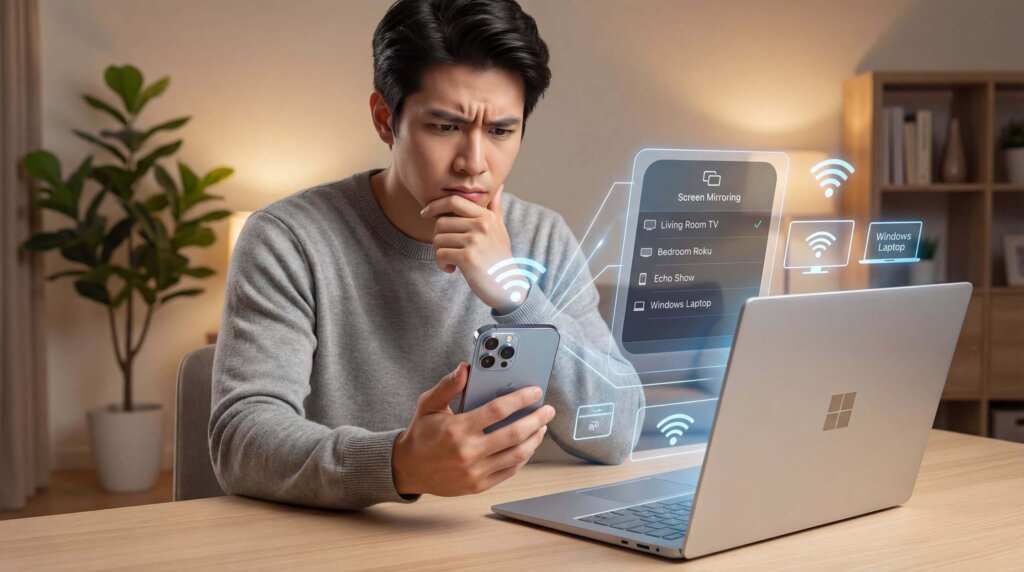
With an AirPlay receiver, select your PC from the iPhone or iPad’s Control Center → Screen Mirroring list. Make sure the receiver is open and ready to accept connections.
With 1001 TVs, select your PC inside the 1001 TVs mobile app. If it is missing, check that the desktop app is running, refresh the device list, or try scanning its QR code.
Check the local network
Both devices need to be able to communicate over the local network. Guest Wi-Fi and some office or school networks isolate devices even when they show the same Wi-Fi name.
Try a network that allows local device connections. If a VPN is active, check whether it blocks local-network access. On a managed network, ask the administrator for help.
Check the receiver’s firewall permission
If Windows blocked the receiver’s network access during setup, your iPhone or iPad may not find it.
Review the app’s Windows firewall permissions and allow it on your trusted private network. You do not need to turn off the firewall entirely. For app-specific discovery issues, use your receiver’s troubleshooting guidance.
Reduce lag or connection drops
Move closer to the router and pause large downloads or other heavy network activity. Test with a simple screen first, then try the content you want to show.
If the connection still fails, restart the receiver and mobile device, check for updates, and follow the app’s support instructions. Test on the actual network before relying on mirroring for a meeting or class.
Want to Mirror Windows to Apple TV Instead?
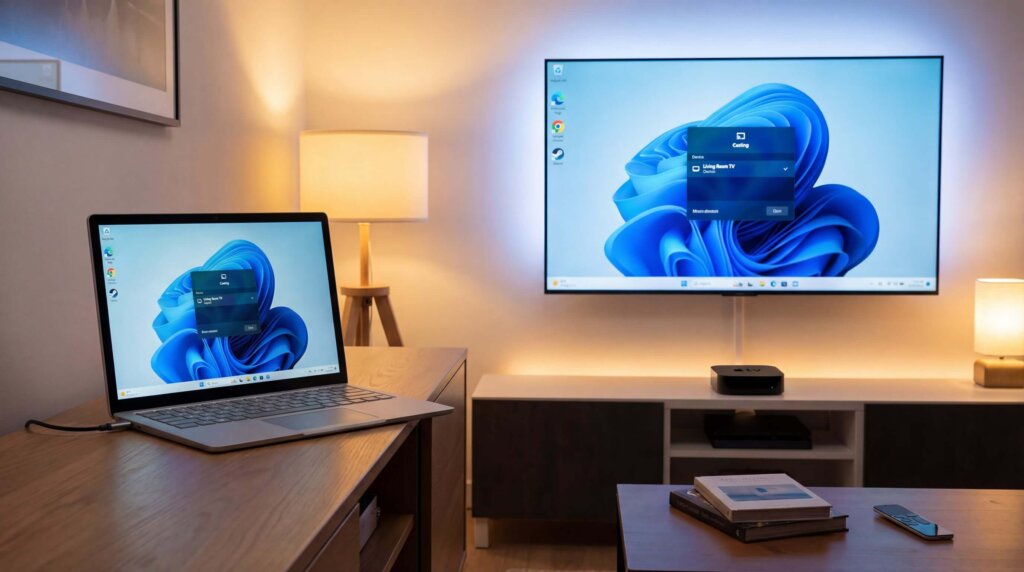
Mirroring a Windows PC to Apple TV is the reverse of the main task covered in this guide: Windows becomes the sending device, while Apple TV receives the screen.
With 1001 TVs installed on both devices, connect the Windows PC and Apple TV to the same Wi-Fi network. Open 1001 TVs on the PC, select PC to TV, and choose your Apple TV. See the complete Windows-to-Apple-TV guide for illustrated instructions.
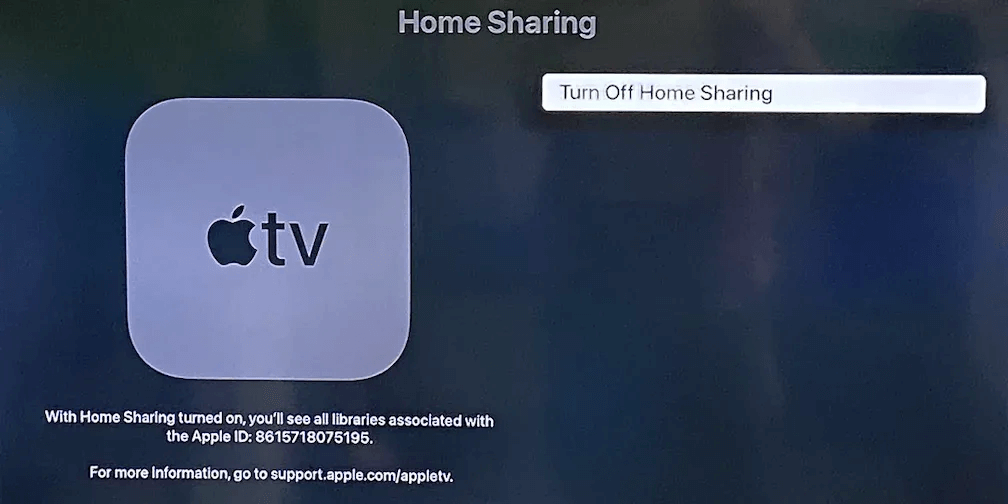
If you only want to play media stored on your PC, Apple’s Home Sharing is another option. It lets Apple TV access a shared iTunes for Windows library through the Computers app, but it does not show your live Windows desktop, browser, or applications. Apple explains the current setup in its Home Sharing guide.
Which Method Should You Use?
Install an AirPlay receiver on Windows if you want to select your PC from the iPhone or iPad’s built-in Screen Mirroring menu.
Choose 1001 TVs if you prefer an app-based connection or need to mirror between supported Apple, Windows, and Android devices. Start the connection inside 1001 TVs rather than looking for the PC in the iPhone’s native Screen Mirroring list.
If your actual goal is to send a Windows screen to Apple TV, follow the separate Windows-to-Apple-TV method above. For media-library playback without live screen mirroring, use Home Sharing.

Read More
 Samsung TV Screen Mirroring: The Complete Guide (All Devices)
To mirror your screen to a Samsung TV, start with the built-in option for your device: Smart View on a compatible Galaxy phone, AirPlay…
Samsung TV Screen Mirroring: The Complete Guide (All Devices)
To mirror your screen to a Samsung TV, start with the built-in option for your device: Smart View on a compatible Galaxy phone, AirPlay…
 How to Watch Süper Lig on TV in Türkiye
To watch Süper Lig in Türkiye during the 2026–2027 season, start with beIN SPORTS coverage through Digiturk or TOD. The right TV viewing option…
How to Watch Süper Lig on TV in Türkiye
To watch Süper Lig in Türkiye during the 2026–2027 season, start with beIN SPORTS coverage through Digiturk or TOD. The right TV viewing option…

