检测到浏览器语言为中文,点此切换到中文页面->
Send Files to TV in 3 Simple Steps
1
ئەپنى قاچىلاڭ
Install 1001 TVs on your phone and TV.
2
Connect Your Devices
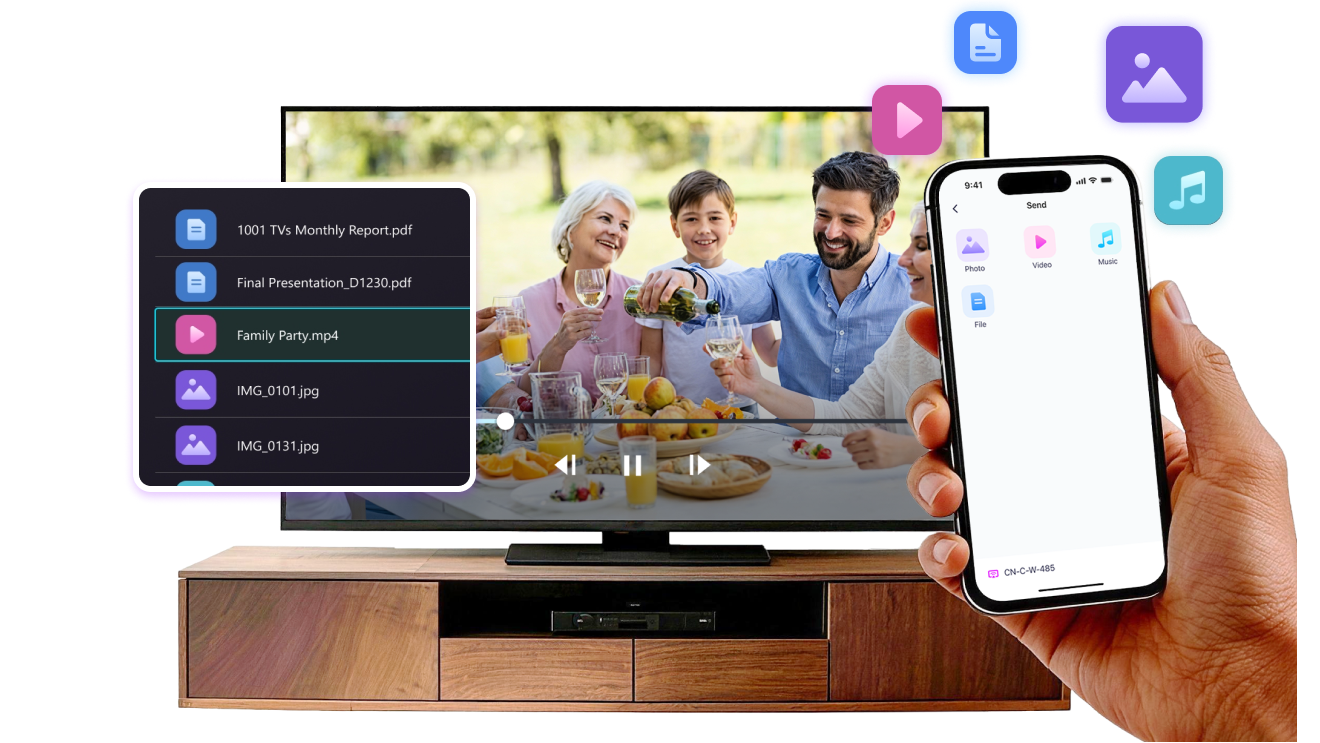
Make sure both devices are on the same Wi-Fi network. On the TV, open Files. On your phone, tap File Transfer. Available devices will be detected automatically.
3
Send Files
Select the target device and send files for fast, direct transfer.
Simple. Secure. File Transfer.
NO LIMITS ON FORMATS
Send photos, videos, and audio files directly from your phone to your TV.
Supports common formats like JPG, PNG, MP4, MKV, AVI, and MP3 — no conversion required.

No USB cables needed. No extra steps.

Just select your files and send them to the TV with ease.
no-limits-on-formats
LOCAL TRANSFER. NO DATA USAGE.
All transfers happen over your local network — no cloud uploads and no data usage.

Once files are sent, they play directly on the TV.

Phone calls, screen locks, or switching apps won’t interrupt playback, so you can watch with confidence.
local-transfer-no-data-usage
ئىشلىتىش ئەھۋاللىرى
رەسىم ۋە سىن ھەمبەھىرلەش
Presentations & Demos
Learning & Teaching
Show What You Captured — Bigger and Clearer
Photos and videos look better on a TV than on a small phone screen. A larger display makes details clearer and moments easier to enjoy together.

Send photos and videos directly from your phone to the TV for smooth playback and a more comfortable viewing experience. Share family moments, trips, or special occasions without passing phones around or dealing with cables.

With 1001 TVs, everyday photos and videos naturally become something everyone in the room can enjoy on the big screen.
photo-video-sharing
Present with Confidence — Clear and Distraction-Free
Presentations are easier to follow when everyone can see the content clearly.
A larger screen helps keep attention focused and makes key points stand out.

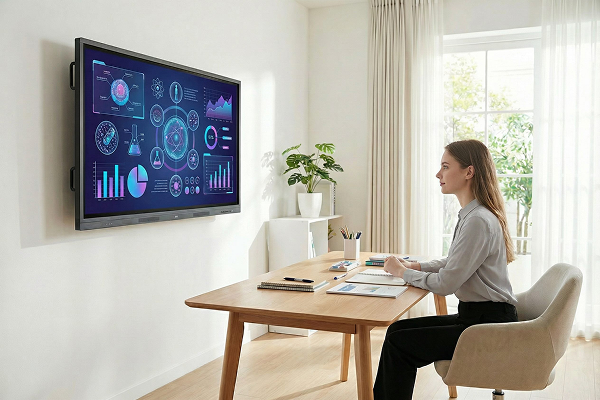
Share slides, visuals, or demos directly from your device to the TV for a smooth and uninterrupted presentation. No cables on the table, no crowding around a laptop.

With 1001 TVs, presenting on a big screen feels simple and professional in any space.
presentations-demos
Make Learning More Visual — and More Engaging
Learning becomes more effective when ideas are easy to see and follow. A bigger screen helps students stay focused and understand concepts more clearly.

Display lessons, exercises, or demonstrations on a TV to create a shared learning experience. Everyone can follow along at the same pace, without distractions.

With 1001 TVs, learning naturally becomes more interactive on the big screen.
learning-teaching
چۈشۈرۈش
سوئال
نېمىشقا تېلېۋىزور ياكى كومپيۇتېرنى ئۈسكۈنىلەر تىزىملىكىدىن تاپالمايمەن؟
  • تېلېفونىڭىز ۋە كومپيۇتېر / تېلېۋىزورنىڭ ئوخشاش Wi-Fi تورىغا ئۇلانغانلىقىنى جەزملەشتۈرۈڭ. ئەگەر زۆرۈر بولسا يېتەكلىگۈچنى قايتا قوزغىتىپ بېقىڭ.
  • ئايفون ئۈچۈن "يەرلىك تور" ۋە "سىمسىز سانلىق مەلۇمات" نى زىيارەت قىلىشىڭىزغا كاپالەتلىك قىلىڭ. تەڭشەك → قوللىنىشچان پروگراممىلار → 1001 TVs غا تۆۋەنلىتىڭ local يەرلىك تورنى قوزغىتىڭ → سىمسىز سانلىق مەلۇمات → WLAN & Cellular.
  • يانفونىڭىزدا ۋە قوبۇللىغۇچتا (كومپيۇتېر ياكى تېلېۋىزور) 1001 TVs نىڭ ئورنىتىلغان ۋە ئېچىلغانلىقىغا كاپالەتلىك قىلىڭ.
  • مەسىلىگە يولۇقسىڭىز ، 1001 TVs نى قايتا قوزغىتىپ قايتا سىناڭ.
  • مېھمانخانا ياكى ئايرودروم قاتارلىق جايلاردىكى ئاممىۋى Wi-Fi تورىنىڭ AP ئايرىلىشى بولۇشى مۇمكىن ، بۇ ئۇلىنىشنى توسىدۇ.
  • ئۇنىڭدىن باشقا ، تېلېفونىڭىزنىڭ قىزىق نۇقتىسىنى ئېچىپ كومپيۇتېرىڭىزنى ياكى تېلېۋىزورنى ئۇلاڭ ، ئاندىن ئېكران ئەينىكىنى سىناپ بېقىڭ.
  • ئەگەر يەنىلا ئىشلىمىسە ، تېلېفونىڭىزنى قايتا قوزغىتىپ قايتا سىناڭ.
مۇشتەرىلىكنى قانداق ئەمەلدىن قالدۇرىمىز؟
IOS دىكى مۇشتەرىلىكنى بىكار قىلىڭ
· تەڭشەك دېتالى → ئىسمىڭىز → مۇشتەرىلىك → مۇشتەرىلىك → مۇشتەرىلىكنى بىكار قىلىڭ
Google Play دىكى مۇشتەرىلىكنى بىكار قىلىڭ
· Google Play دۇكىنى دېتالىنى ئېچىڭ right ئوڭ تەرەپتىكى ئارخىپ رەسىمى → چىقىم قىلىش ۋە مۇشتەرىلىك → مۇشتەرىلىك → مۇشتەرىلىك → مۇشتەرىلىكنى بىكار قىلىش → ئەمەلدىن قالدۇرۇلغانلىقىنى جەزملەشتۈرۈڭ
پۇل قايتۇرۇشنى قانداق تەلەپ قىلىش كېرەك؟
IOS دا پۇل قايتۇرۇشنى تەلەپ قىلىڭ
· مۇشتەرىلىكنى بىكار قىلىڭ بىرىنچى.
· تەڭشەك دېتالىنى ئېچىڭ name ئىسمىڭىز → مېدىيا ۋە سېتىۋېلىش → ھېساباتنى كۆرۈش → سېتىۋېلىش تارىخى → مۇشتەرىلىك → مەسىلىنى دوكلات قىلىش → پۇل قايتۇرۇشنى تەلەپ قىلىش ۋە سەۋەبىنى تاللاڭ
Google Play دىن پۇل قايتۇرۇشنى تەلەپ قىلىڭ
· Play.google.com غا كىرىڭ. Right ئوڭ تەرەپتىكى ئارخىپ رەسىمى → چىقىم ۋە مۇشتەرىلىك → خامچوت ۋە زاكاز تارىخى → مەسىلە مەلۇم قىلىش → ئەھۋالىڭىزنى تەسۋىرلەيدىغان تاللاشنى تاللاڭ → يوللاڭ