检测到浏览器语言为中文,.点此切换到中文页面->
Send Files to TV in 3 Simple Steps
1
アプリをインストール
Install 1001 TVs on your phone and TV.
2
デバイスを接続
Make sure both devices are on the same Wi-Fi network. On the TV, open Files. On your phone, tap File Transfer. Available devices will be detected automatically.
3
ファイルを送信
Select the target device and send files for fast, direct transfer.
Simple. Secure. File Transfer.
NO LIMITS ON FORMATS
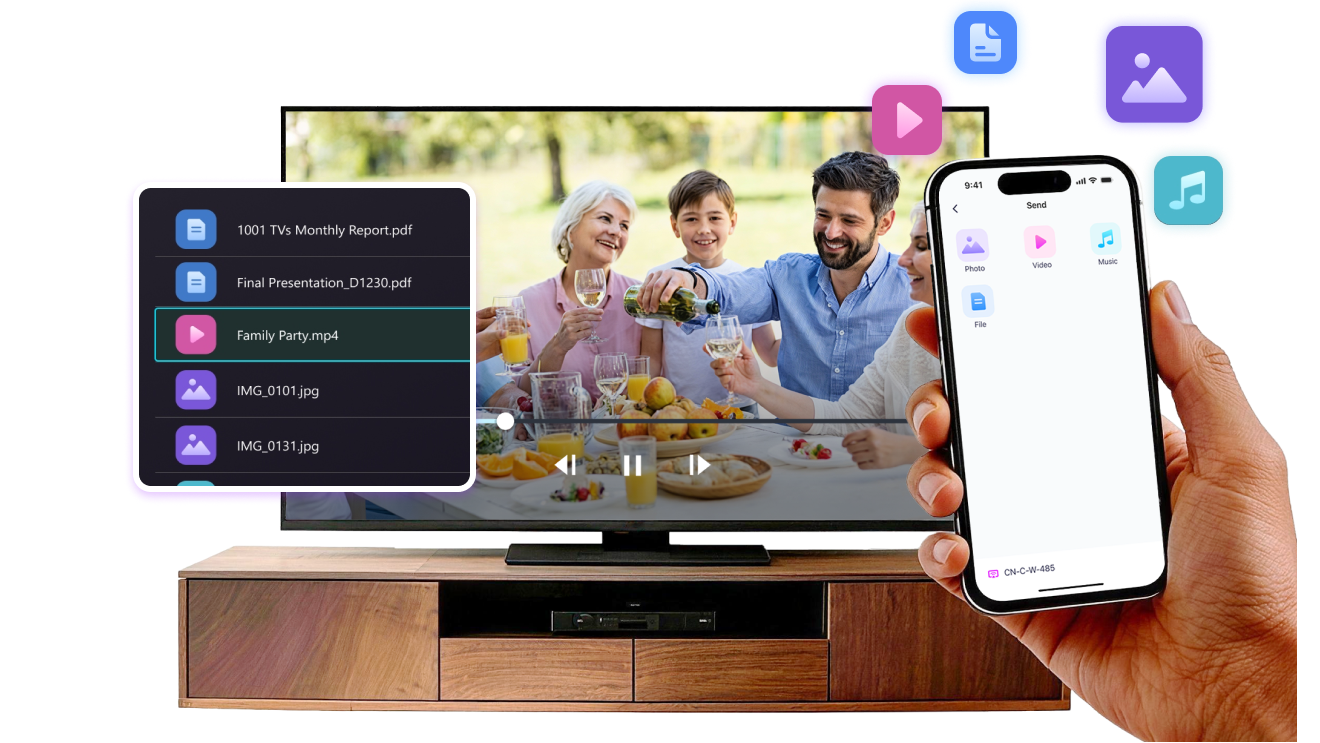
Send photos, videos, and audio files directly from your phone to your TV.
Supports common formats like JPG, PNG, MP4, MKV, AVI, and MP3 — no conversion required.

No USB cables needed. No extra steps.

Just select your files and send them to the TV with ease.
no-limits-on-formats
LOCAL TRANSFER. NO DATA USAGE.
All transfers happen over your local network — no cloud uploads and no data usage.

Once files are sent, they play directly on the TV.

Phone calls, screen locks, or switching apps won’t interrupt playback, so you can watch with confidence.
local-transfer-no-data-usage
利用シーン
写真・動画の共有
Presentations & Demos
Learning & Teaching
Show What You Captured — Bigger and Clearer
Photos and videos look better on a TV than on a small phone screen. A larger display makes details clearer and moments easier to enjoy together.

Send photos and videos directly from your phone to the TV for smooth playback and a more comfortable viewing experience. Share family moments, trips, or special occasions without passing phones around or dealing with cables.

With 1001 TVs, everyday photos and videos naturally become something everyone in the room can enjoy on the big screen.
photo-video-sharing
Present with Confidence — Clear and Distraction-Free
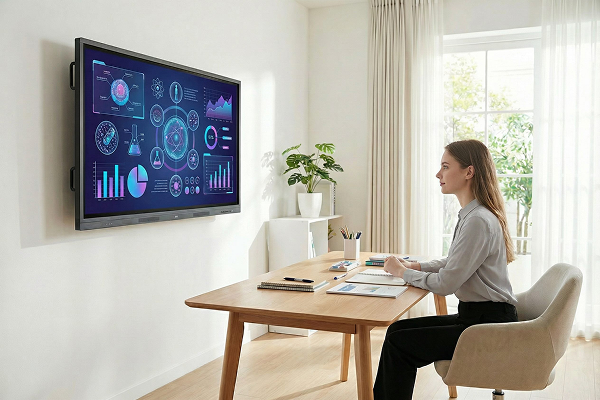
Presentations are easier to follow when everyone can see the content clearly.
A larger screen helps keep attention focused and makes key points stand out.

Share slides, visuals, or demos directly from your device to the TV for a smooth and uninterrupted presentation. No cables on the table, no crowding around a laptop.

With 1001 TVs, presenting on a big screen feels simple and professional in any space.
presentations-demos
Make Learning More Visual — and More Engaging
Learning becomes more effective when ideas are easy to see and follow. A bigger screen helps students stay focused and understand concepts more clearly.

Display lessons, exercises, or demonstrations on a TV to create a shared learning experience. Everyone can follow along at the same pace, without distractions.

With 1001 TVs, learning naturally becomes more interactive on the big screen.
learning-teaching
ダウンロード
よくある質問
デバイス一覧にテレビやパソコンが表示されないのはなぜですか?
  • スマートフォンとパソコン/テレビが同じWi-Fiネットワークに接続されていることを確認してください。必要であれば、ルーターを再起動してみてください。
  • iPhone をご利用の場合、「ローカルネットワーク」と「モバイルデータ」へのアクセスを許可してください。設定 → アプリ → 下へスクロールして 1001 TVs を選択 → 「ローカルネットワーク」を有効にする → 「モバイルデータ」→「Wi-Fi とモバイル通信」に設定します。
  • 1001 TVs がスマートフォンと受信デバイス(パソコンまたはテレビ)の両方にインストールされ、起動していることを確認してください。
  • 問題が発生した場合は、1001 TVs を再起動して再試行してください。
  • ホテルや空港などの公共Wi-Fiでは、APアイソレーションが有効になっていることがあり、接続がブロックされる可能性があります。
  • または、スマートフォンのテザリングをオンにして、パソコンやテレビを接続した後、ミラーリングを試してみてください。
  • それでもうまくいかない場合は、スマートフォンを再起動してもう一度お試しください。
サブスクリプションを解約するにはどうすればいいですか?
iOS でサブスクリプションを解約する
- 「設定」を開き → 画面上部に表示されている自分の名前をタップ → サブスクリプション → 選択 → 「サブスクリプションをキャンセル」
Google Play でサブスクリプションを解約する
- Google Play ストアを開く → 右上のプロフィールアイコンをタップ → 支払いと購読 → サブスクリプション → サブスクリプションを選択 → サブスクリプションをキャンセル → キャンセルを確認
払い戻しをリクエストするにはどうすればいいですか?
iOS で返金をリクエストする
- まずサブスクリプションをキャンセル
- 「設定」を開く → 最上部に表示されている自分の名前をタップ → メディアと購入 → アカウントを表示 → 購入履歴 → サブスクリプションを選択 → 問題を報告 → 返金を要求し、理由を選択
Google Play で返金をリクエストする
- play.google.com にアクセス → 右上のプロフィールアイコンをタップ → 支払いと購読 → 予算と注文履歴 → 問題を報告 → 該当する選択肢を選択 → 送信