ตรวจพบภาษาของเบราว์เซอร์เป็นภาษาจีนคลิกที่นี่เพื่อเปลี่ยนเป็นหน้าภาษาจีน->
Send Files to TV in 3 Simple Steps
1
ติดตั้งแอป
Install 1001 TVs on your phone and TV.
2
เชื่อมต่ออุปกรณ์ของคุณ
Make sure both devices are on the same Wi-Fi network. On the TV, open Files. On your phone, tap File Transfer. Available devices will be detected automatically.
3
ส่งไฟล์
Select the target device and send files for fast, direct transfer.
Simple. Secure. File Transfer.
NO LIMITS ON FORMATS
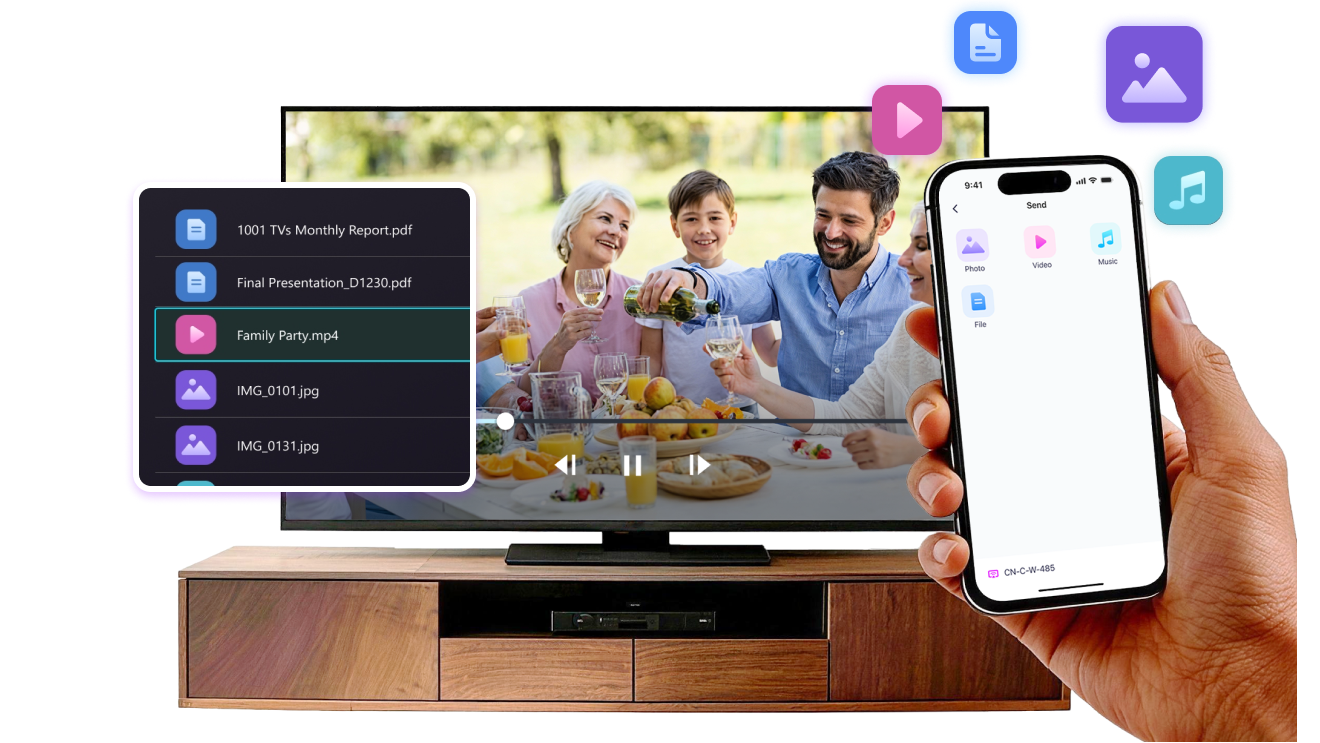
Send photos, videos, and audio files directly from your phone to your TV.
Supports common formats like JPG, PNG, MP4, MKV, AVI, and MP3 — no conversion required.

No USB cables needed. No extra steps.

Just select your files and send them to the TV with ease.
no-limits-on-formats
LOCAL TRANSFER. NO DATA USAGE.
All transfers happen over your local network — no cloud uploads and no data usage.

Once files are sent, they play directly on the TV.

Phone calls, screen locks, or switching apps won’t interrupt playback, so you can watch with confidence.
local-transfer-no-data-usage
กรณีการใช้งาน
การแชร์รูปภาพและวิดีโอ
Presentations & Demos
Learning & Teaching
Show What You Captured — Bigger and Clearer
Photos and videos look better on a TV than on a small phone screen. A larger display makes details clearer and moments easier to enjoy together.

Send photos and videos directly from your phone to the TV for smooth playback and a more comfortable viewing experience. Share family moments, trips, or special occasions without passing phones around or dealing with cables.

With 1001 TVs, everyday photos and videos naturally become something everyone in the room can enjoy on the big screen.
photo-video-sharing
Present with Confidence — Clear and Distraction-Free
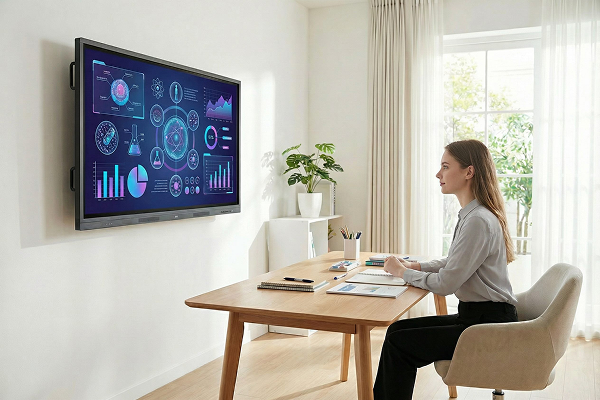
Presentations are easier to follow when everyone can see the content clearly.
A larger screen helps keep attention focused and makes key points stand out.

Share slides, visuals, or demos directly from your device to the TV for a smooth and uninterrupted presentation. No cables on the table, no crowding around a laptop.

With 1001 TVs, presenting on a big screen feels simple and professional in any space.
presentations-demos
Make Learning More Visual — and More Engaging
Learning becomes more effective when ideas are easy to see and follow. A bigger screen helps students stay focused and understand concepts more clearly.

Display lessons, exercises, or demonstrations on a TV to create a shared learning experience. Everyone can follow along at the same pace, without distractions.

With 1001 TVs, learning naturally becomes more interactive on the big screen.
learning-teaching
ดาวน์โหลด
คำถามที่พบบ่อย
ทำไมฉันถึงไม่พบทีวีหรือพีซีในรายการอุปกรณ์?
  • ตรวจสอบให้แน่ใจว่าโทรศัพท์และคอมพิวเตอร์/ทีวีของคุณเชื่อมต่อกับเครือข่าย Wi-Fi เดียวกัน หากจำเป็นให้ลองรีสตาร์ทเราเตอร์
  • สำหรับ iPhone โปรดตรวจสอบว่าได้อนุญาตการเข้าถึง "เครือข่ายท้องถิ่น" และ "ข้อมูลไร้สาย" แล้ว ไปที่ การตั้งค่า → แอป → เลื่อนลงไปที่ 1001 TVs → เปิด "เครือข่ายท้องถิ่น" → ข้อมูลไร้สาย → Wi-Fi และเซลลูลาร์
  • ตรวจสอบให้แน่ใจว่า 1001 TVs ได้ติดตั้งและเปิดใช้งานแล้วทั้งบนโทรศัพท์และอุปกรณ์ที่รับสัญญาณ (คอมพิวเตอร์หรือทีวี)
  • หากพบปัญหา กรุณารีสตาร์ท 1001 TVs แล้วลองใหม่อีกครั้ง
  • เครือข่าย Wi-Fi สาธารณะในโรงแรมหรือสนามบินอาจเปิดใช้ฟีเจอร์ AP isolation ซึ่งอาจทำให้เชื่อมต่อไม่ได้
  • หรือคุณอาจลองเปิดฮอตสปอตมือถือของคุณ แล้วเชื่อมต่อคอมพิวเตอร์หรือทีวีเข้ากับฮอตสปอตนั้น จากนั้นลองใช้การมิเรอร์หน้าจออีกครั้ง
  • หากยังใช้งานไม่ได้ ให้ลองรีสตาร์ทโทรศัพท์ของคุณแล้วลองใหม่อีกครั้ง
ยกเลิกการสมัครสมาชิกได้อย่างไร?
ยกเลิกการสมัครสมาชิกบน iOS
· เปิด “การตั้งค่า” → แตะชื่อของคุณที่แสดงอยู่ด้านบนสุด → การสมัครสมาชิก → เลือก → ยกเลิกการสมัคร
ยกเลิกการสมัครสมาชิกในบัญชี Google Play ของคุณ
· เปิด Google Play Store → แตะที่ไอคอนโปรไฟล์ของคุณ (มุมขวาบน) → การชำระเงินและการสมัครสมาชิก → การสมัครสมาชิก → เลือกการสมัคร → ยกเลิกการสมัคร → ยืนยันการยกเลิก
ขอคืนเงินได้อย่างไร?
ขอคืนเงินจาก iOS
· ยกเลิกการสมัครสมาชิกก่อน .
· เปิดการตั้งค่า → แตะชื่อของคุณที่แสดงอยู่ด้านบนสุด → สื่อและการซื้อ → ดูบัญชี → ประวัติการซื้อ → เลือกการสมัคร → รายงานปัญหา → เลือกขอคืนเงินและเหตุผล
ขอคืนเงินจาก Google Play
· ไปที่ play.google.com → แตะที่ไอคอนโปรไฟล์ของคุณ (มุมขวาบน) → การชำระเงินและการสมัครสมาชิก → ประวัติงบประมาณและคำสั่งซื้อ → รายงานปัญหา → เลือกตัวเลือกที่ตรงกับสถานการณ์ของคุณ → ส่ง