检测到浏览器语言为中文,点此切换到中文页面->
Send Files to TV in 3 Simple Steps
1
Installera appen
Install 1001 TVs on your phone and TV.
2
Anslut dina enheter
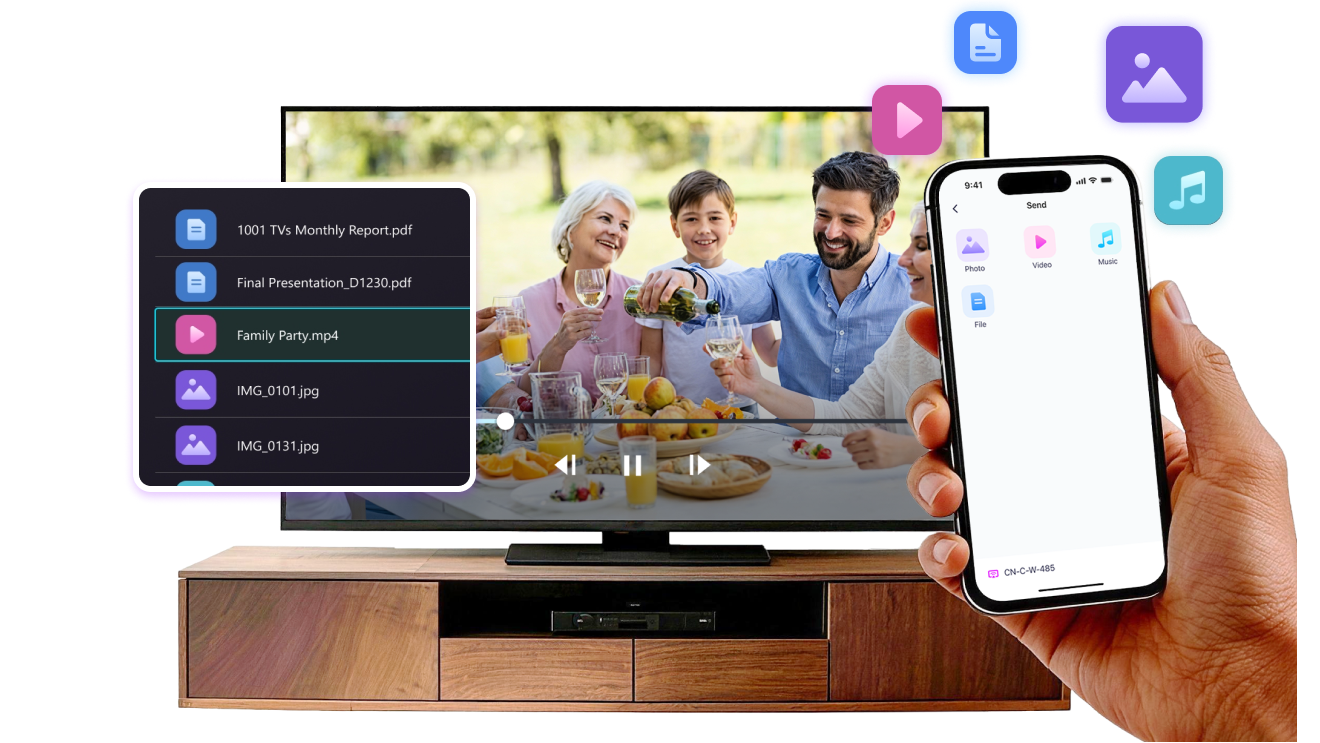
Make sure both devices are on the same Wi-Fi network. On the TV, open Files. On your phone, tap File Transfer. Available devices will be detected automatically.
3
Skicka filer
Select the target device and send files for fast, direct transfer.
Simple. Secure. File Transfer.
NO LIMITS ON FORMATS
Send photos, videos, and audio files directly from your phone to your TV.
Supports common formats like JPG, PNG, MP4, MKV, AVI, and MP3 — no conversion required.

No USB cables needed. No extra steps.

Just select your files and send them to the TV with ease.
no-limits-on-formats
LOCAL TRANSFER. NO DATA USAGE.
All transfers happen over your local network — no cloud uploads and no data usage.

Once files are sent, they play directly on the TV.

Phone calls, screen locks, or switching apps won’t interrupt playback, so you can watch with confidence.
local-transfer-no-data-usage
Användningsområden
Dela Foton och Videor
Presentations & Demos
Learning & Teaching
Show What You Captured — Bigger and Clearer
Photos and videos look better on a TV than on a small phone screen. A larger display makes details clearer and moments easier to enjoy together.

Send photos and videos directly from your phone to the TV for smooth playback and a more comfortable viewing experience. Share family moments, trips, or special occasions without passing phones around or dealing with cables.

With 1001 TVs, everyday photos and videos naturally become something everyone in the room can enjoy on the big screen.
photo-video-sharing
Present with Confidence — Clear and Distraction-Free
Presentations are easier to follow when everyone can see the content clearly.
A larger screen helps keep attention focused and makes key points stand out.

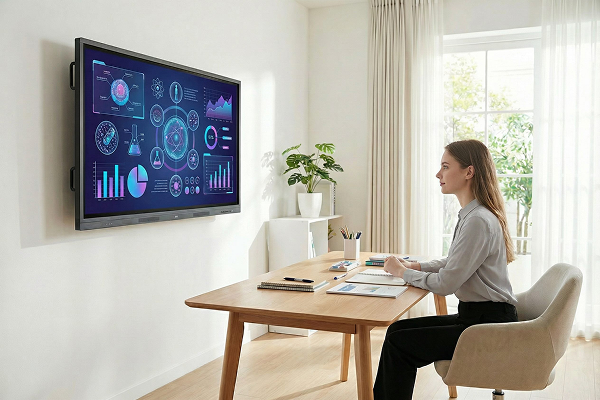
Share slides, visuals, or demos directly from your device to the TV for a smooth and uninterrupted presentation. No cables on the table, no crowding around a laptop.

With 1001 TVs, presenting on a big screen feels simple and professional in any space.
presentations-demos
Make Learning More Visual — and More Engaging
Learning becomes more effective when ideas are easy to see and follow. A bigger screen helps students stay focused and understand concepts more clearly.

Display lessons, exercises, or demonstrations on a TV to create a shared learning experience. Everyone can follow along at the same pace, without distractions.

With 1001 TVs, learning naturally becomes more interactive on the big screen.
learning-teaching
Ladda ner
Vanliga frågor
Varför kan jag inte hitta min TV eller dator i enhetslistan?
  • Kontrollera att både din telefon och datorn/TV:n är anslutna till samma Wi-Fi-nätverk. Om om nödvändigt, försök att starta om routern.
  • På iPhone, se till att du har gett åtkomst till "Lokalt nätverk" och "Trådlös data". Gå till Inställningar → Appar → Bläddra ner till 1001 TVs → Aktivera Lokalt nätverk → Trådlös data → Wi-Fi och mobilnät.
  • Kontrollera att 1001 TVs är installerat och öppet på både din telefon och mottagarenheten (dator eller TV).
  • Om du stöter på problem, starta om 1001 TVs och försök igen.
  • Offentliga Wi-Fi-nätverk på platser som hotell eller flygplatser kan ha AP-isolering, vilket kan blockera anslutningen.
  • Alternativt kan du försöka slå på telefonens hotspot och ansluta datorn eller TV:n till den, och sedan försök sedan med skärmspegling.
  • Om det fortfarande inte fungerar, starta om telefonen och försök en gång till.
Hur avbryter jag min prenumeration?
Avsluta en prenumeration på iOS
- Öppna Inställningar → tryck på ditt namn högst upp → Prenumerationer → välj prenumerationen → Avsluta
Avsluta en prenumeration på ditt Google Play-konto
- Öppna appen Google Play Store → Profilbild längst upp till höger uppe till höger → Betalning och prenumerationer → Prenumerationer → Prenumerationen → prenumerationen → Avbryt prenumerationen → Bekräfta uppsägningen
Hur begär jag en återbetalning?
Begär återbetalning på iOS
- Avbryt först prenumerationen .
- Öppna Inställningar → tryck på ditt namn högst upp → Media och köp → Visa konto → Köphistorik → välj prenumerationen → Rapportera ett problem → välj Begär en återbetalning och anledning
Begär återbetalning på Google Play
- Gå till play.google.com → tryck på din profilbild (upptill till höger) → Betalningar och prenumerationer → Budget- och orderhistorik → Rapportera ett problem → välj alternativet som beskriver din situation → Skicka