AirPlay på Windows: Så här speglar du skärmen på din iPhone eller iPad till en dator
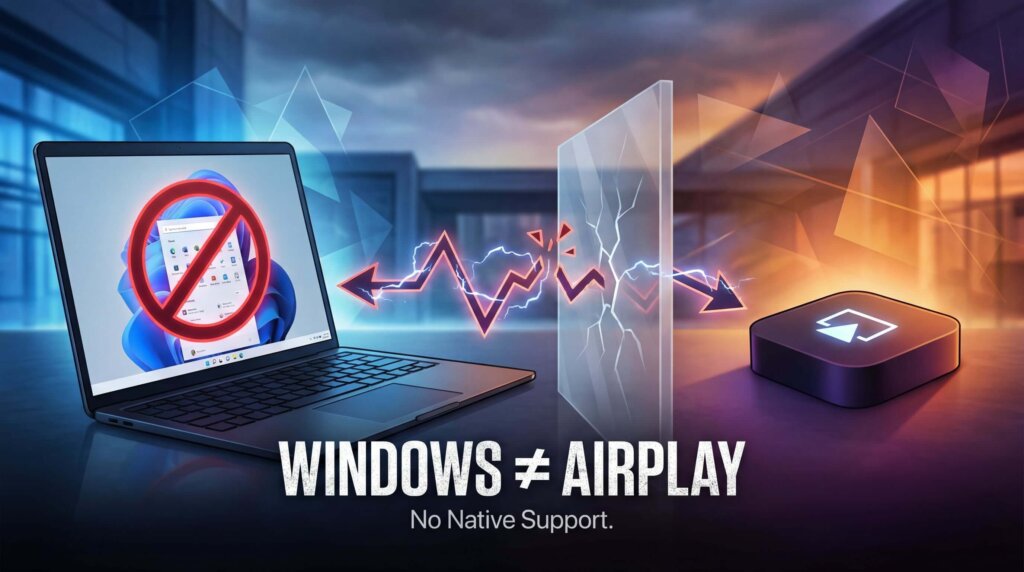
För att spegla en iPhone eller iPad till en Windows-dator med hjälp av AirPlay, installera en AirPlay-mottagarapp på datorn. Windows har inte någon sådan som standard. När mottagaren är igång ansluter du från Kontrollcenter → Skärmspegling på din iPhone eller iPad.
Du kan också spegla via 1001 TVs genom att starta anslutningen i mobilappen. Använd den första metoden när du vill att Windows ska visas i Apples inbyggda lista för skärmspegling; använd den andra när du behöver ett appbaserat arbetsflöde mellan enheter som stöds.
Metod 1: Spegla skärmen till Windows med hjälp av en AirPlay-mottagare
Välj den här metoden om du vill använda de inbyggda funktionerna för skärmspegling på din iPhone eller iPad utan att installera en separat app för skärmspegling på mobilenheten.
Välj en mottagare till din dator
Dessa appar kan visa skärminnehållet från en iPhone eller iPad på Windows:
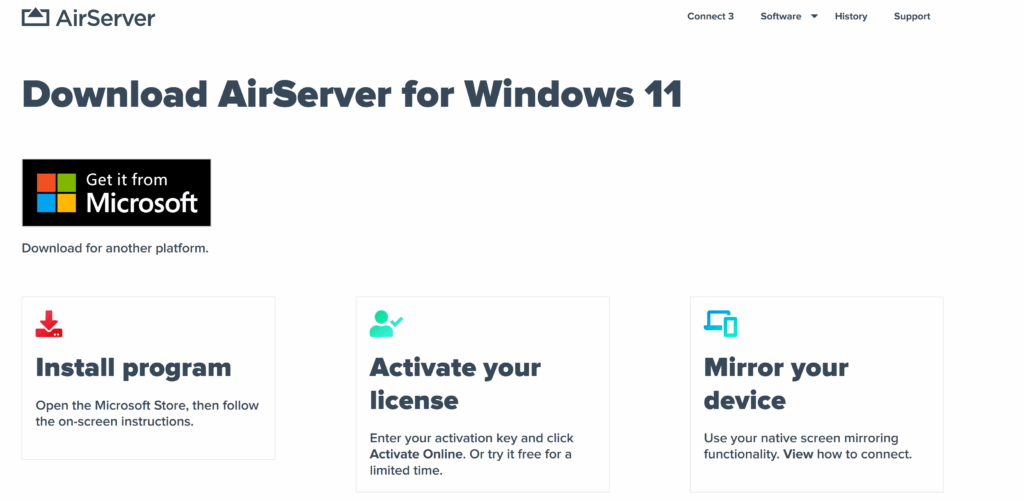
- AirServer
AirServer stöder AirPlay-, Google Cast- och Miracast-anslutningar på kompatibla Windows-versioner. Det är ett praktiskt alternativ när en Windows-dator behöver ta emot skärmbilder från fler än en typ av enhet, samtidigt som en iPhone eller iPad fortfarande kan anslutas via de inbyggda funktionerna för skärmspegling.
- Reflektor
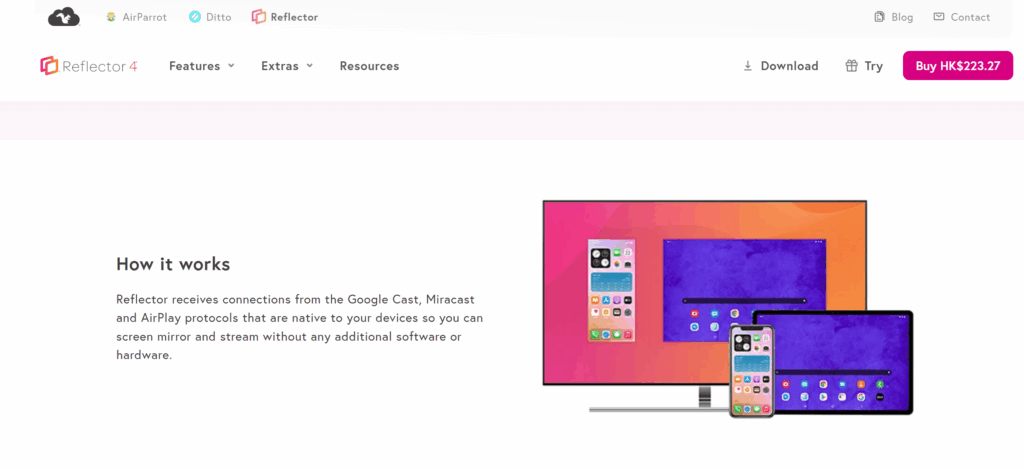
Reflektor stöder trådlös skärmspegling och har en inspelningsfunktion med röstkommentar för demonstrationer och handledningar. Tänk på det här när du vill visa en iPhone eller iPad på en Windows-dator och dessutom behöver spela in eller visa skärmen som en del av en lektion, en genomgång eller en demonstration.
- LonelyScreen
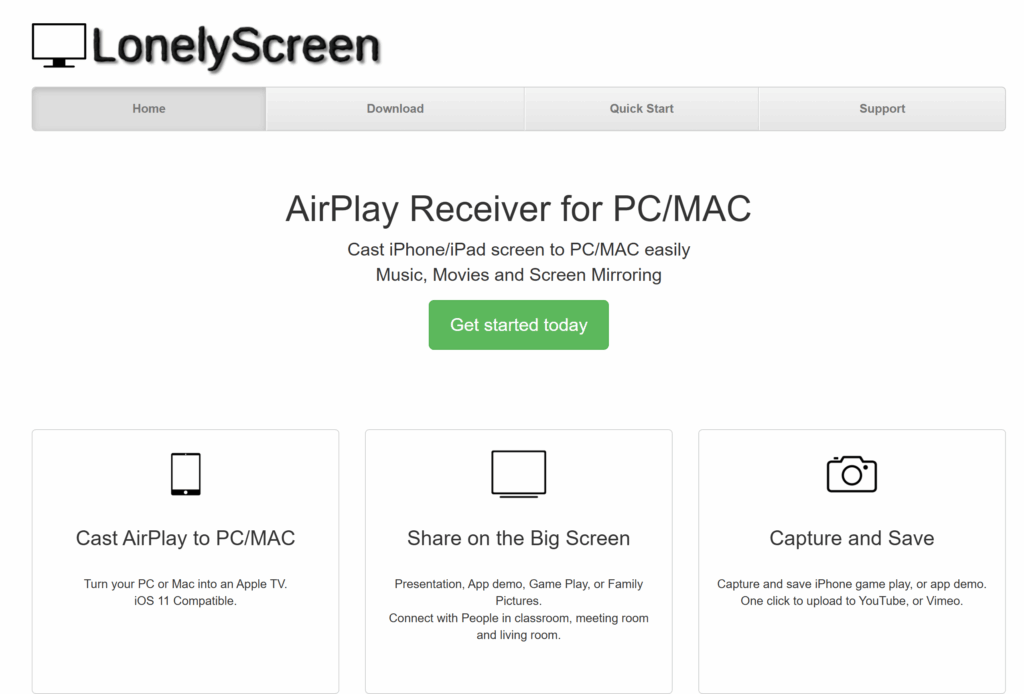
LonelyScreen erbjuder AirPlay-mottagning och skärmdump för iPhone och iPad. Det är ett enkelt alternativ när du främst vill visa skärmen på en Apple-enhet på en Windows-dator. Kontrollera att dina Windows- och iOS-versioner är kompatibla innan du väljer det här alternativet.
Installera Windows-versionen av den mottagare du har valt och följ sedan anvisningarna för anslutning nedan.
Anslut din iPhone eller iPad
- Öppna mottagaren på din Windows-dator. Låt den vara igång medan du ansluter.
- Anslut båda enheterna till samma Wi-Fi-nätverk.
- Öppna Kontrollcenter på din iPhone eller iPad. På en iPhone med Face ID eller en iPad sveper du nedåt från det övre högra hörnet. På en iPhone med hemknapp sveper du uppåt från den nedre kanten.
- Tryck på Skärmspegling, och välj sedan det mottagarnamn som visas i Windows-appen.
- Ange koden som visas på skärmen om du uppmanas att göra det.
Skärmen på din enhet bör nu visas i mottagarfönstret. För att koppla bort, öppna : Kontrollcenter → Skärmspegling → Stoppa spegling. Se AirServers anslutningsguide för iPhone och iPad för en mottagarspecifik genomgång.
Spegling från en Mac? När Windows-mottagaren är igång och båda enheterna är anslutna till samma nätverk öppnar du din Mac:s Kontrollcenter → Skärmspegling och välj mottagaren.
Metod 2: Spegla till Windows med 1001 TVs
Välj 1001 TVs om du vill använda ett appbaserat arbetsflöde för skärmdelning mellan kompatibla Apple-, Android- och Windows-enheter. För metoden nedan, där du delar skärm från iPhone till PC, ska du installera appen på båda enheterna och starta anslutningen i 1001 TVs-appen.
Viktigt: 1001 TVs kräver inte att din Windows-dator visas i iPhone:s inbyggda AirPlay-lista. Välj istället datorn direkt i 1001 TVs-appen.
Följ 1001 TVs
- Installera och öppna 1001 TVs på din iPhone eller iPad och på en Windows-dator.
- Anslut båda enheterna till samma Wi-Fi-nätverk.
- Öppna på din mobil eller surfplatta Spegling av skärm Gå in i 1001 TVs och välj din dator. Du kan också använda appens skanner för att skanna QR-koden som visas på datorn.
- Godkänn anslutningen på datorn när du blir tillfrågad.
- Tryck på följande på mobilenheten Start → Börja dela för att starta speglingen.
För skärmdumpar som visar hur man väljer enhet och använder QR-koder, följ 1001 TVs – Instruktioner för installation av iPhone på PC.
Om din dator inte visas eller om speglingen misslyckas
Kontrollera var du startar anslutningen
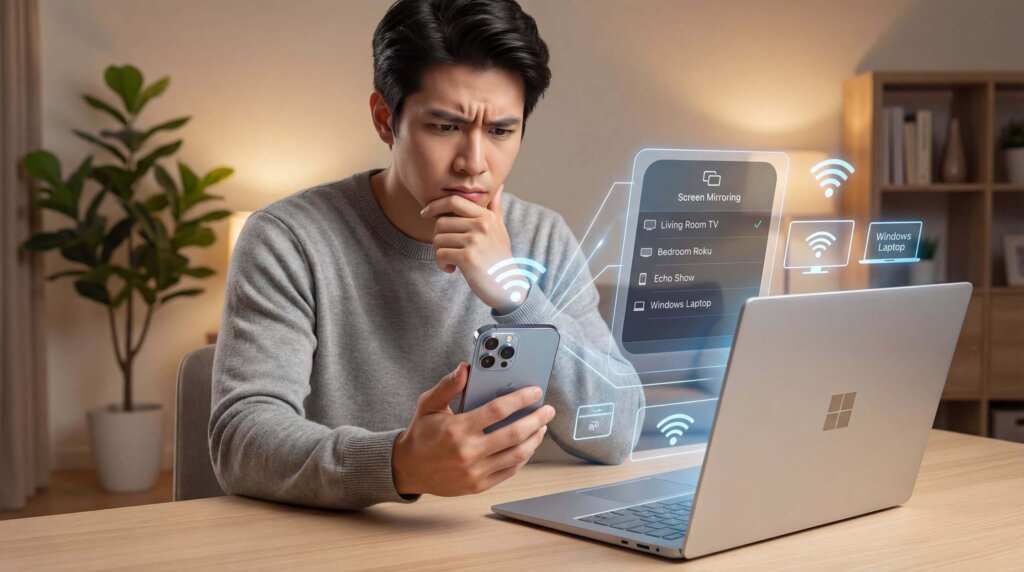
Med en AirPlay-mottagare, välj din dator från iPhone- eller iPad-enhetens Kontrollcenter → Skärmspegling lista. Se till att mottagaren är öppen och redo att ta emot anslutningar.
Med 1001 TVs, välj din dator i Mobilappen 1001 TVs. Om den saknas, kontrollera att skrivbordsappen är igång, uppdatera enhetslistan eller försök skanna dess QR-kod.
Kontrollera det lokala nätverket
Båda enheterna måste kunna kommunicera via det lokala nätverket. Gäst-Wi-Fi och vissa nätverk på kontor eller i skolor isolerar enheterna även om de har samma Wi-Fi-namn.
Prova ett nätverk som tillåter anslutningar från lokala enheter. Om ett VPN är aktivt, kontrollera om det blockerar åtkomsten till det lokala nätverket. I ett administrerat nätverk bör du be nätverksadministratören om hjälp.
Kontrollera behörigheterna i mottagarens brandvägg
Om Windows blockerade mottagarens nätverksåtkomst under installationen kan det hända att din iPhone eller iPad inte hittar den.
Kontrollera appens behörigheter i Windows-brandväggen och tillåt den i ditt betrodda privata nätverk. Du behöver inte stänga av brandväggen helt. Vid problem med att upptäcka specifika appar, använd din Felsökningsanvisningar för mottagaren.
Minska fördröjningar eller avbrott i anslutningen
Gå närmare routern och pausa stora nedladdningar eller annan resurskrävande nätverksaktivitet. Testa först med en enkel skärm och prova sedan det innehåll du vill visa.
Om anslutningen fortfarande inte fungerar ska du starta om mottagaren och den mobila enheten, söka efter uppdateringar och följa supportanvisningarna i appen. Testa i det verkliga nätverket innan du förlitar dig på spegling under ett möte eller en lektion.
Vill du istället spegla Windows till Apple TV?
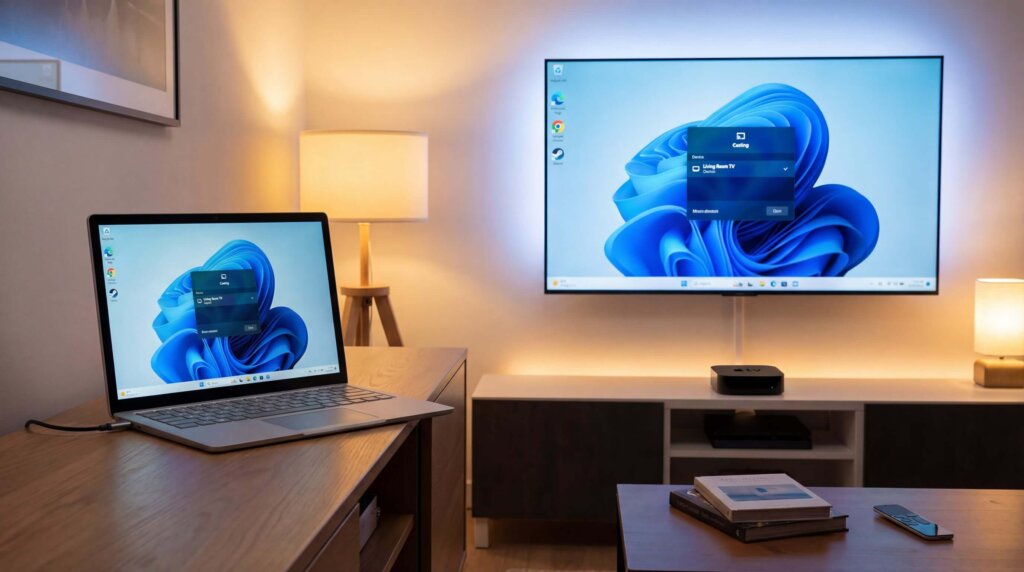
Att spegla en Windows-dator till Apple TV är det omvända av den huvudsakliga uppgiften som beskrivs i den här guiden: Windows blir den sändande enheten, medan Apple TV tar emot skärmbilden.
När 1001 TVs har installerats på båda enheterna ansluter du Windows-datorn och Apple TV till samma Wi-Fi-nätverk. Öppna 1001 TVs på datorn, välj PC till TV, och välj din Apple TV. Se den fullständiga Guide för anslutning av Windows-dator till Apple TV för illustrerade anvisningar.
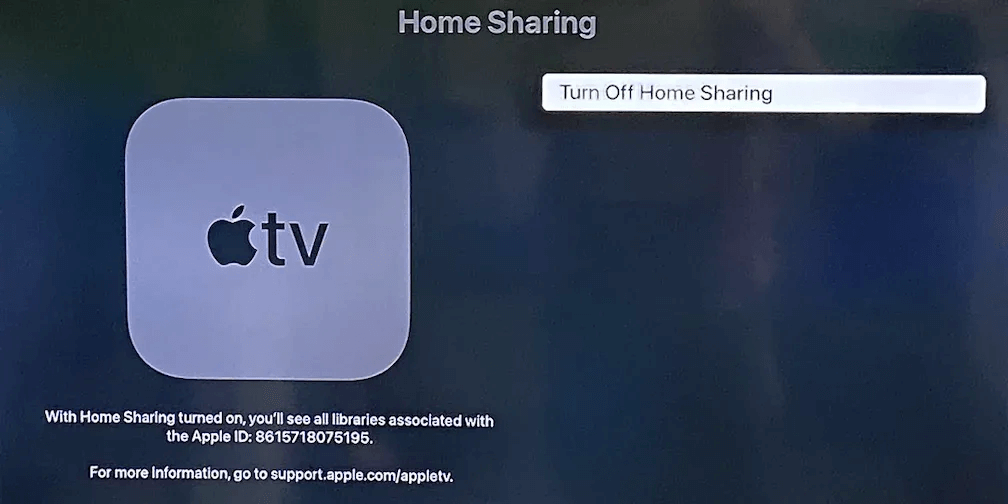
Om du bara vill spela upp media som är lagrad på din dator, så är Apples Hemdelning är ett annat alternativ. Det gör det möjligt för Apple TV att komma åt ett delat iTunes-bibliotek för Windows via Datorer appen, men den visar inte ditt Windows-skrivbord, din webbläsare eller dina program i realtid. Apple förklarar den nuvarande konfigurationen i sin Guide till bostadsdelning.
Vilken metod bör du använda?
Installera en AirPlay-mottagare i Windows om du vill välja din dator från iPhone- eller iPad-enhetens inbyggda Spegling av skärm meny.
Välj 1001 TVs om du föredrar en appbaserad anslutning eller behöver spegla skärmen mellan kompatibla Apple-, Windows- och Android-enheter. Starta anslutningen inuti 1001 TVs istället för att söka efter datorn i iPhone:s inbyggda lista för skärmspegling.
Om ditt egentliga mål är att skicka en Windows-skärm till Apple TV ska du följa den separata metoden för Windows till Apple TV ovan. För uppspelning från mediebiblioteket utan direkt skärmspegling använder du Hemdelning.

Läs mer
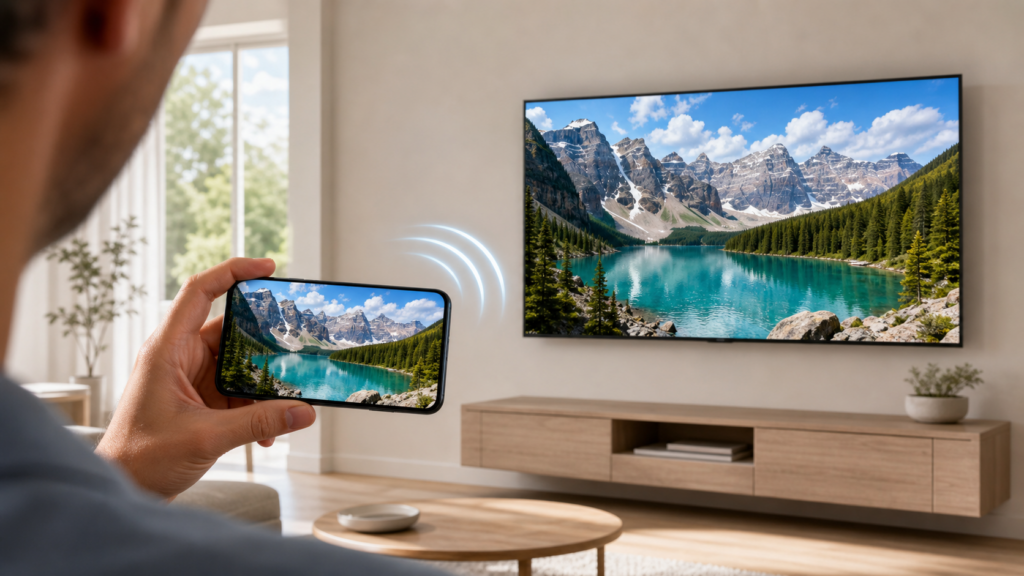 Skärmspegling på Samsung-TV: Den fullständiga guiden (alla enheter)
To mirror your screen to a Samsung TV, start with the built-in option for your device: Smart View on a compatible Galaxy phone, AirPlay...
Skärmspegling på Samsung-TV: Den fullständiga guiden (alla enheter)
To mirror your screen to a Samsung TV, start with the built-in option for your device: Smart View on a compatible Galaxy phone, AirPlay...
 How to Watch Süper Lig on TV in Türkiye
To watch Süper Lig in Türkiye during the 2026–2027 season, start with beIN SPORTS coverage through Digiturk or TOD. The right TV viewing option...
How to Watch Süper Lig on TV in Türkiye
To watch Süper Lig in Türkiye during the 2026–2027 season, start with beIN SPORTS coverage through Digiturk or TOD. The right TV viewing option...

