检测到浏览器语言为中文,点此切换到中文页面->
Send Files to TV in 3 Simple Steps
1
Installeer de app
Install 1001 TVs on your phone and TV.
2
Verbind je apparaten
Make sure both devices are on the same Wi-Fi network. On the TV, open Files. On your phone, tap File Transfer. Available devices will be detected automatically.
3
Bestanden verzenden
Select the target device and send files for fast, direct transfer.
Simple. Secure. File Transfer.
NO LIMITS ON FORMATS
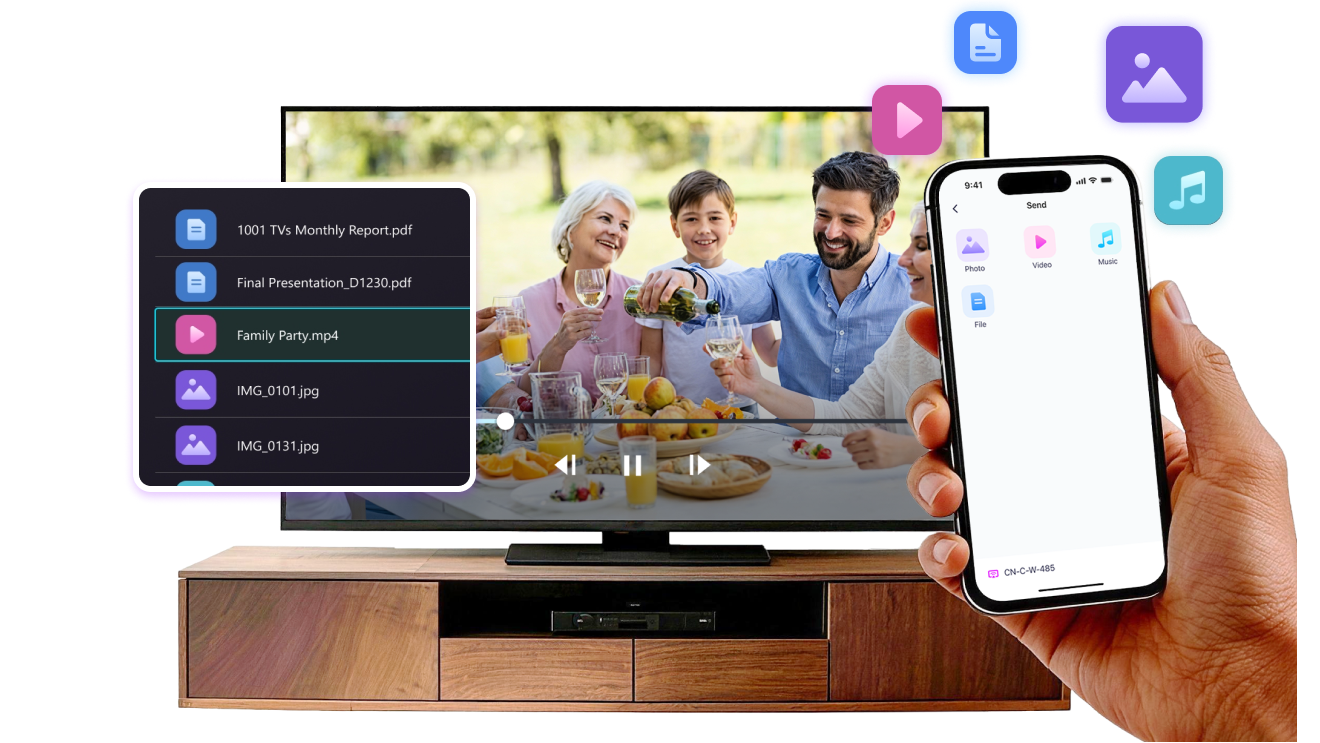
Send photos, videos, and audio files directly from your phone to your TV.
Supports common formats like JPG, PNG, MP4, MKV, AVI, and MP3 — no conversion required.

No USB cables needed. No extra steps.

Just select your files and send them to the TV with ease.
no-limits-on-formats
LOCAL TRANSFER. NO DATA USAGE.
All transfers happen over your local network — no cloud uploads and no data usage.

Once files are sent, they play directly on the TV.

Phone calls, screen locks, or switching apps won’t interrupt playback, so you can watch with confidence.
local-transfer-no-data-usage
Toepassingen
Foto’s & Video’s delen
Presentations & Demos
Learning & Teaching
Show What You Captured — Bigger and Clearer
Photos and videos look better on a TV than on a small phone screen. A larger display makes details clearer and moments easier to enjoy together.

Send photos and videos directly from your phone to the TV for smooth playback and a more comfortable viewing experience. Share family moments, trips, or special occasions without passing phones around or dealing with cables.

With 1001 TVs, everyday photos and videos naturally become something everyone in the room can enjoy on the big screen.
photo-video-sharing
Present with Confidence — Clear and Distraction-Free
Presentations are easier to follow when everyone can see the content clearly.
A larger screen helps keep attention focused and makes key points stand out.

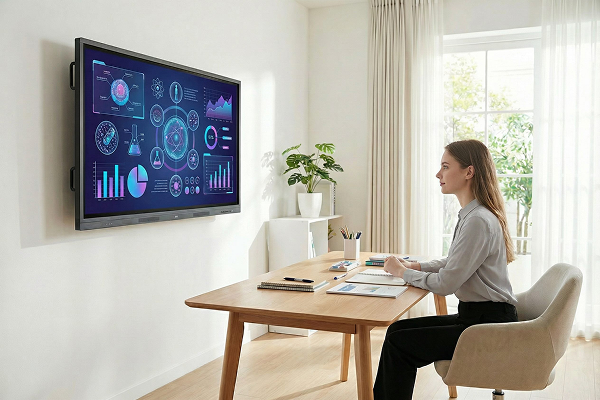
Share slides, visuals, or demos directly from your device to the TV for a smooth and uninterrupted presentation. No cables on the table, no crowding around a laptop.

With 1001 TVs, presenting on a big screen feels simple and professional in any space.
presentations-demos
Make Learning More Visual — and More Engaging
Learning becomes more effective when ideas are easy to see and follow. A bigger screen helps students stay focused and understand concepts more clearly.

Display lessons, exercises, or demonstrations on a TV to create a shared learning experience. Everyone can follow along at the same pace, without distractions.

With 1001 TVs, learning naturally becomes more interactive on the big screen.
learning-teaching
Downloaden
Veelgestelde vragen
Waarom zie ik mijn tv of pc niet in de apparatenlijst?
  • Zorg ervoor dat zowel je telefoon als de computer/tv verbonden zijn met hetzelfde Wi-Fi-netwerk. Als Probeer indien nodig de router opnieuw op te starten.
  • Zorg er op je iPhone voor dat je toegang geeft tot 'Lokaal netwerk' en 'Draadloze data'. Ga naar Instellingen → Apps → Scroll naar 1001 TVs → Schakel 'Lokaal netwerk' in → Draadloze data → Wi-Fi en mobiel netwerk.
  • Zorg ervoor dat 1001 TVs is geïnstalleerd en geopend op zowel je telefoon als het ontvangende apparaat (computer of tv).
  • Als je problemen ondervindt, herstart dan 1001 TVs en probeer het opnieuw.
  • Openbare wifi-netwerken op locaties zoals hotels of luchthavens kunnen AP-isolatie gebruiken, wat de verbinding kan blokkeren.
  • U kunt ook proberen de hotspot van uw telefoon in te schakelen en uw computer of tv daarop aan te sluiten. probeer het scherm te spiegelen.
  • Als het nog steeds niet werkt, start je je telefoon opnieuw op en probeer je het nog een keer.
Hoe annuleer ik mijn abonnement?
Abonnement annuleren op je iOS-apparaat
- Open Instellingen → tik op je naam bovenaan → Abonnementen → selecteer abonnement → Abonnement annuleren
Abonnement annuleren op je Google Play-account
- Open de Google Play Store → tik op je profielicoon (rechtsboven) → Betalingen en abonnementen → Abonnementen → selecteer het abonnement → Abonnement annuleren → bevestig annulering
Hoe vraag ik een terugbetaling aan?
Vraag een terugbetaling aan op iOS
- Annuleer eerst het abonnement .
- Open Instellingen → tik op de naam die bovenaan wordt weergegeven → Media en aankopen → Account weergeven → Aankoopgeschiedenis → selecteer het abonnement → Meld een probleem → kies Vraag om een terugbetaling en de reden
Vraag een terugbetaling aan op Google Play
- Ga naar play.google.com → tik op je profielicoon (rechtsboven) → Betalingen en abonnementen → Budget- en bestelgeschiedenis → Meld een probleem → selecteer de optie die past bij je situatie → Verzenden