How to Extend Your Mac Screen to Another Device
With 1001 TVs, you can extend your Mac desktop to another device (e.g., PC, Mac, phone, TV) and use it as a second display.
Due to Apple’s policy requirements, this feature isn’t available in the official distribution. You’ll need to download and install it manually.
Download link: Click here to download
Important Notes
· Install the version from the provided link on the Mac you want to extend.
· The receiving device can use the standard App Store version.
· If 1001 TVs is already installed on your Mac, make sure to uninstall it before installing the new version.
How to Complete the Installation and Enable Extended Display
1. Allow the Installer to Open
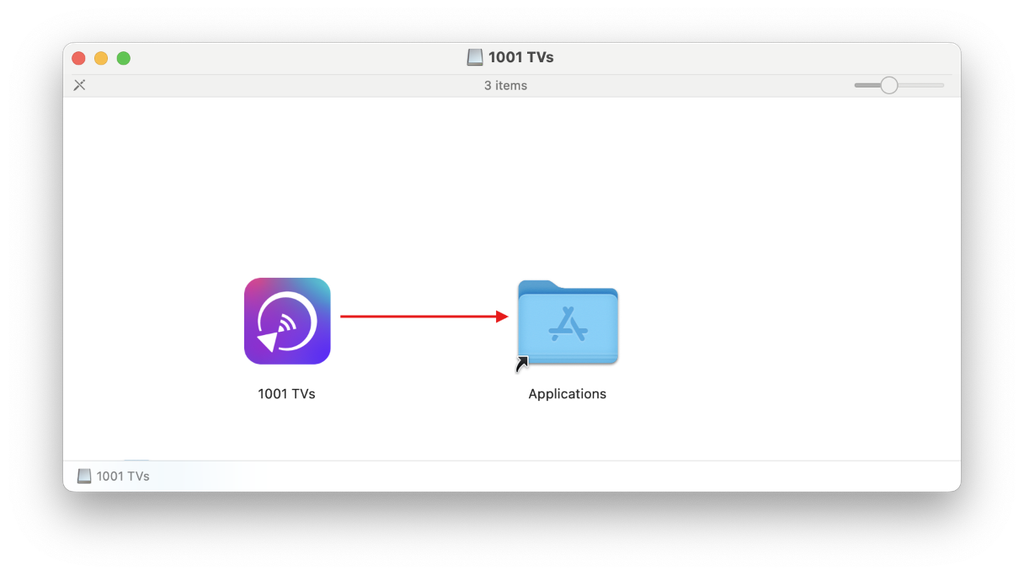
After downloading, double-click the installer file to begin.
· If the following pop-up appears:
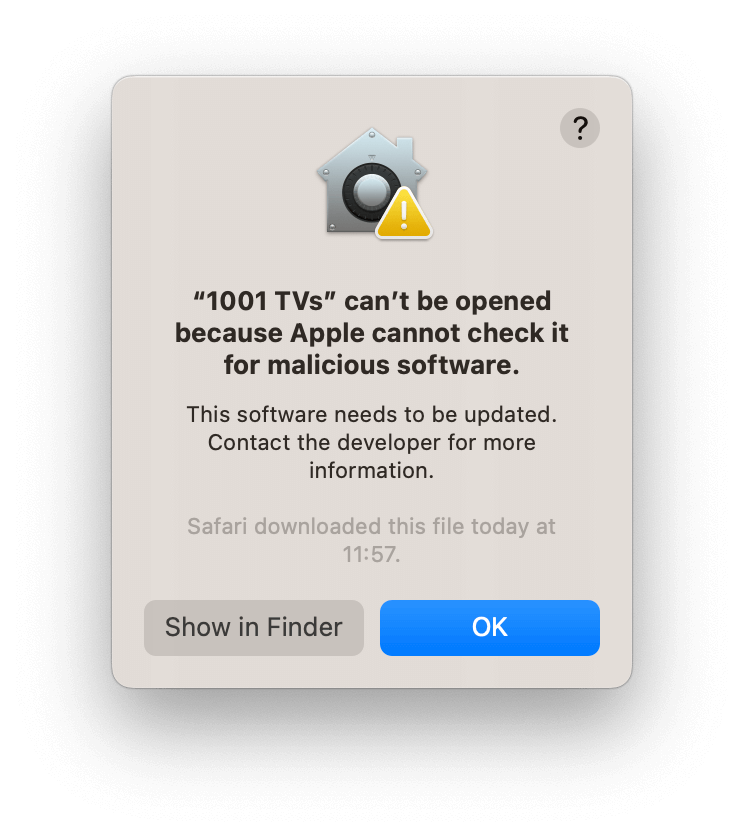
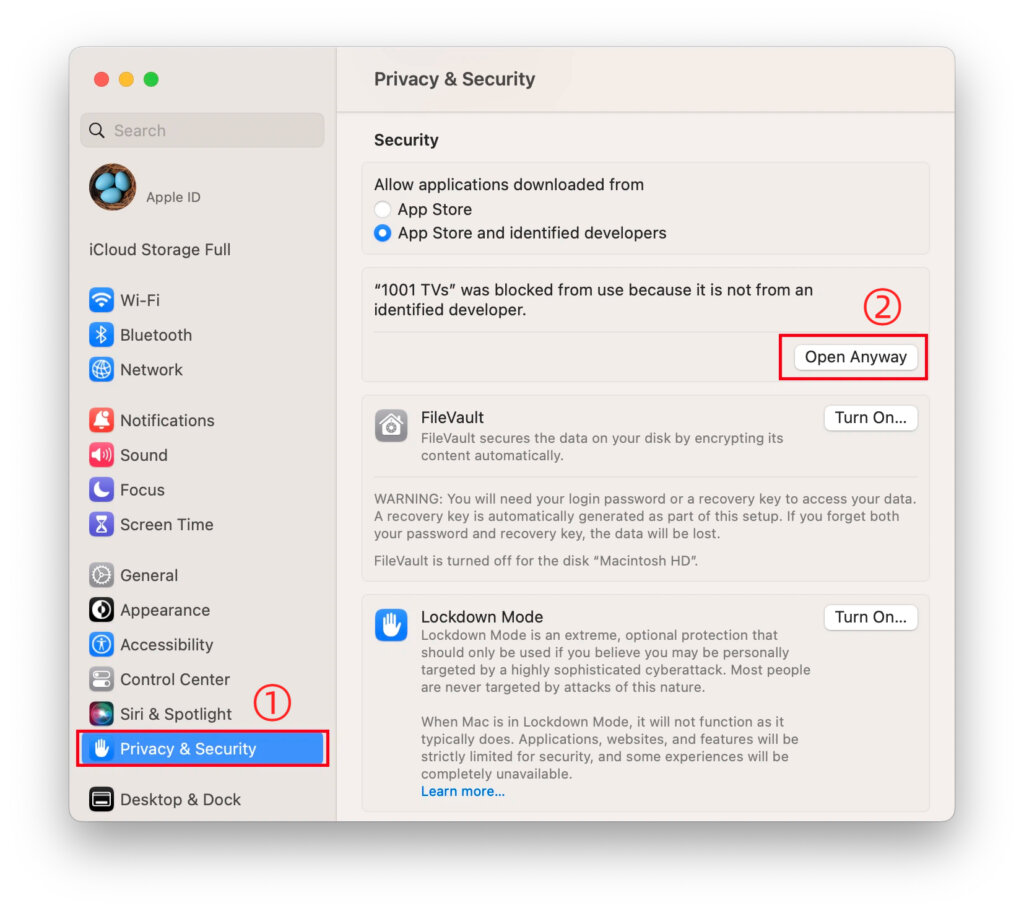
Go to “Settings” > “Privacy & Security” and select “Open Anyway” to proceed.
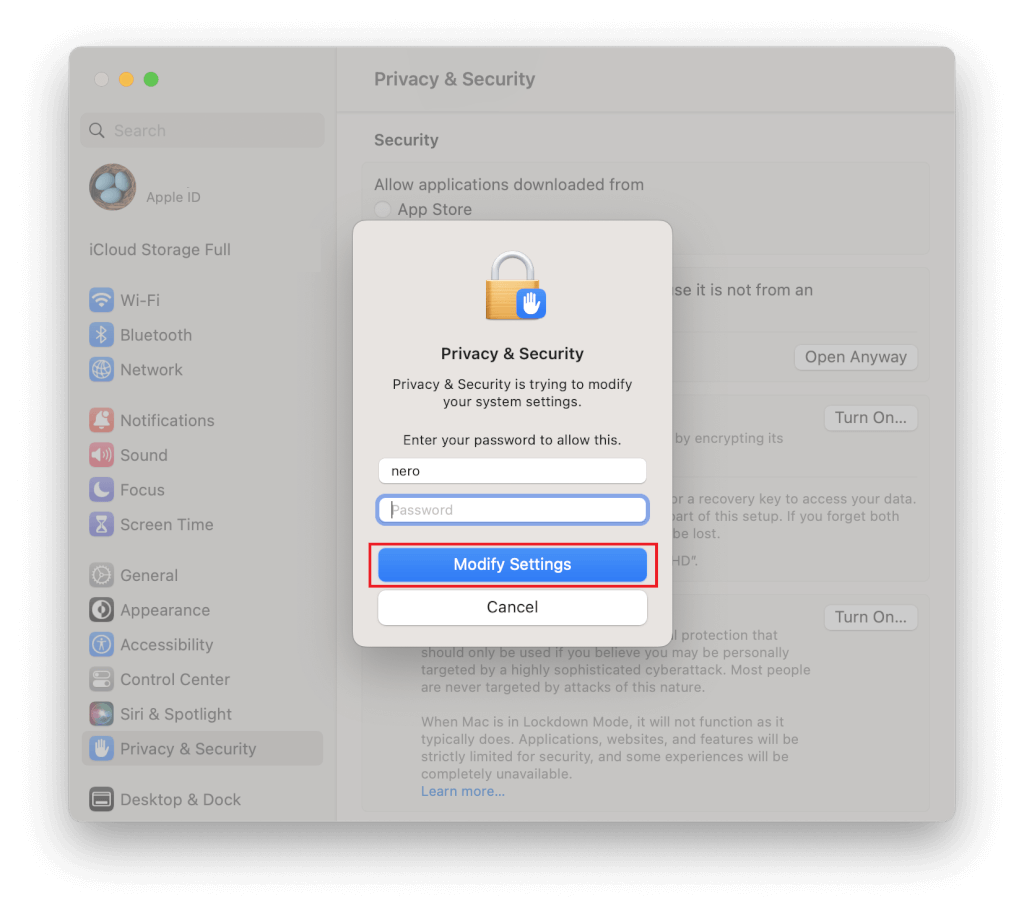
2. Grant Permissions
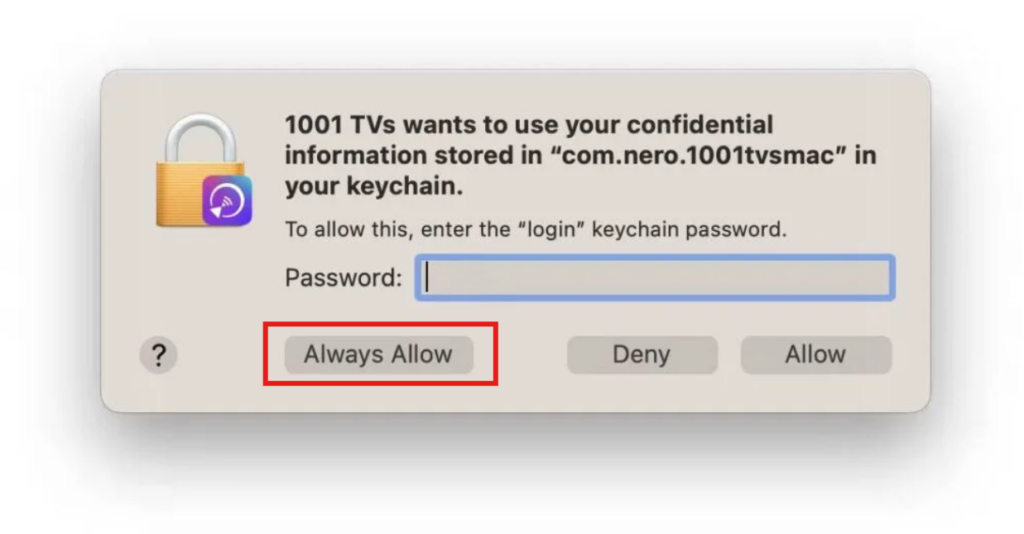
When prompted for a password, enter your Mac’s login password to allow the changes and select “Always Allow” .
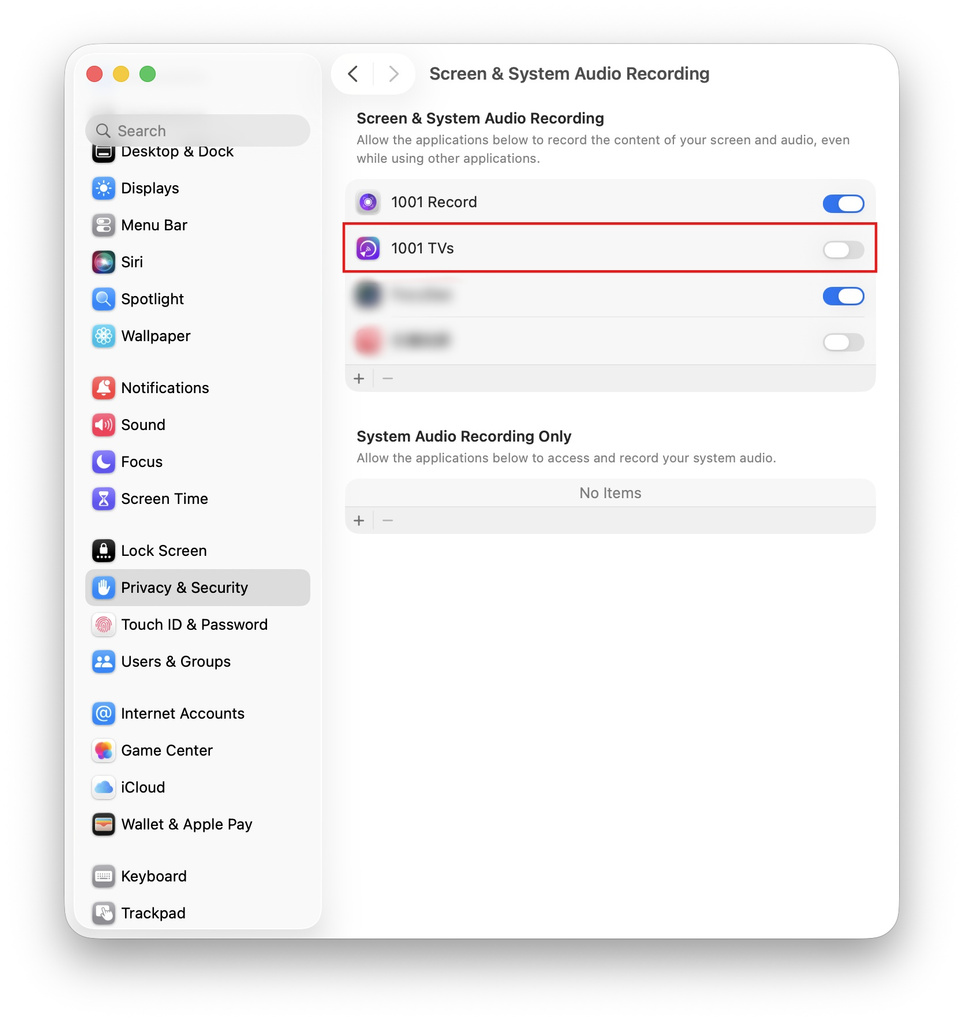
Enable screen recording permissions:
1) Click “Send”>”Enable Access” > “Open System Settings“.

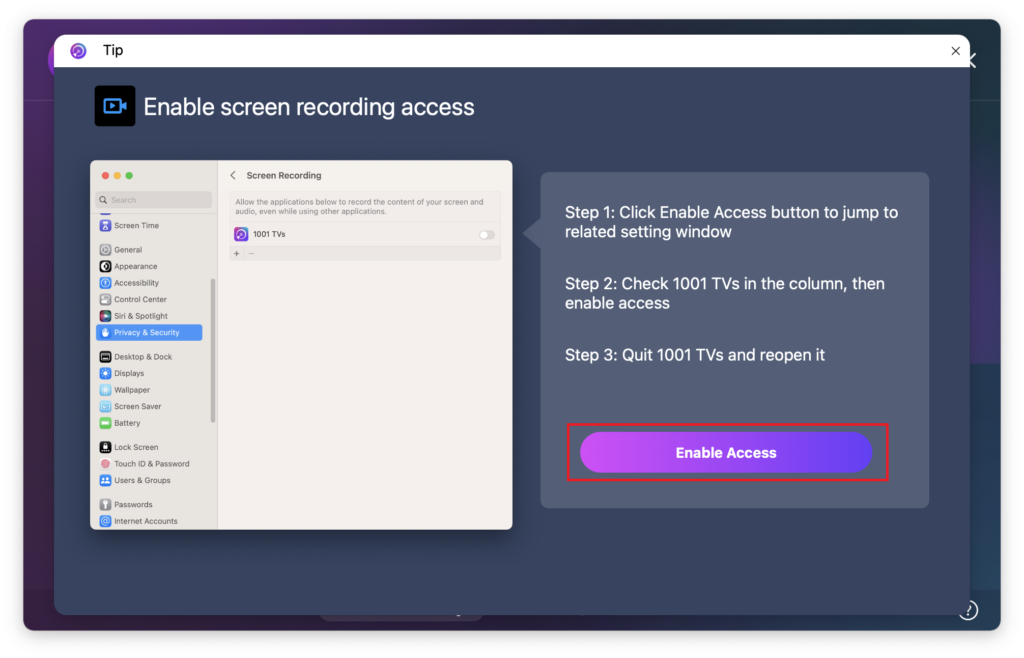
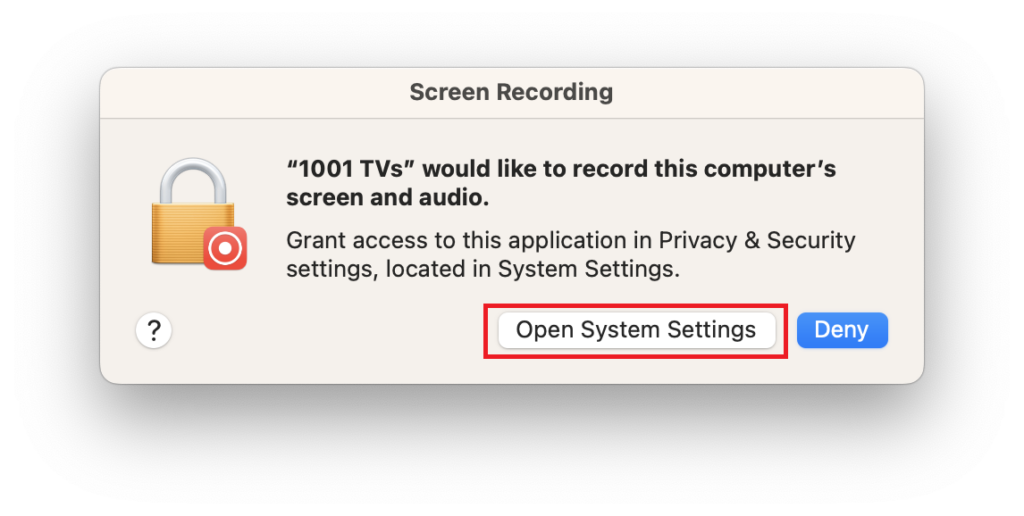
2) Turn on permissions for 1001 TVs.
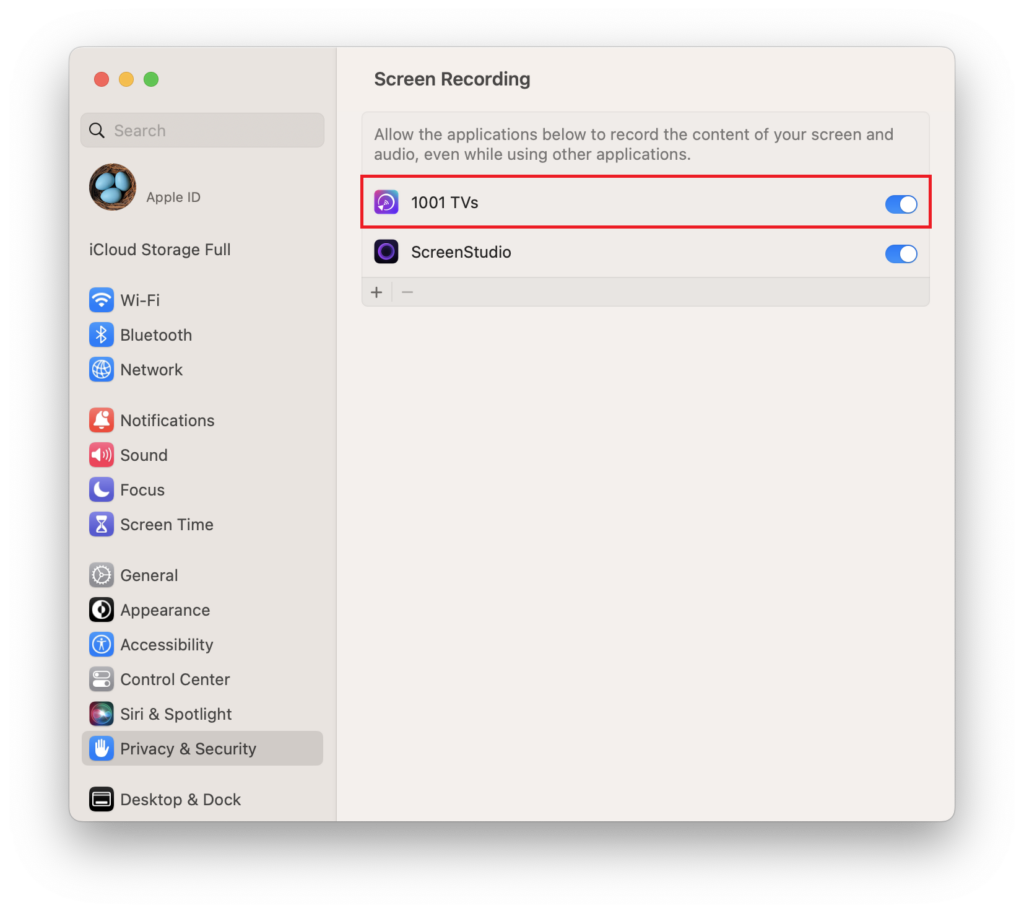
3) Enter your Mac’s login password to allow the requiry and restart the 1001 TVs app.
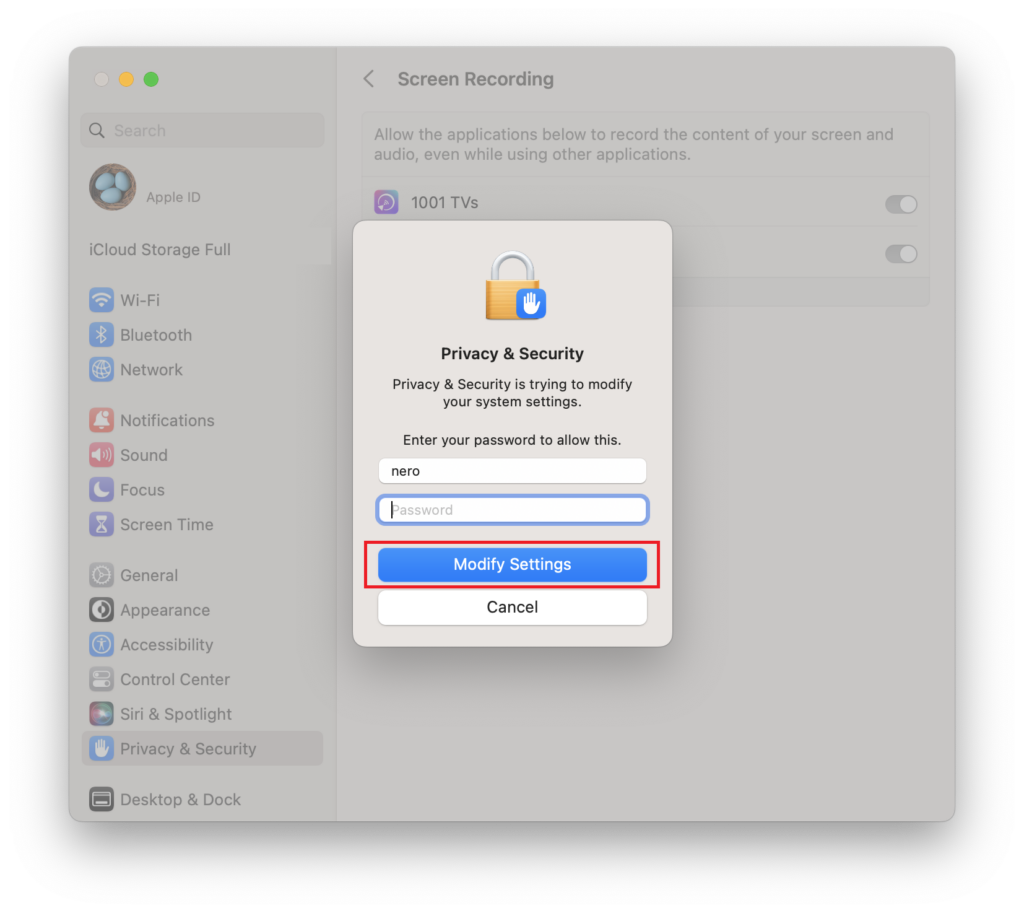
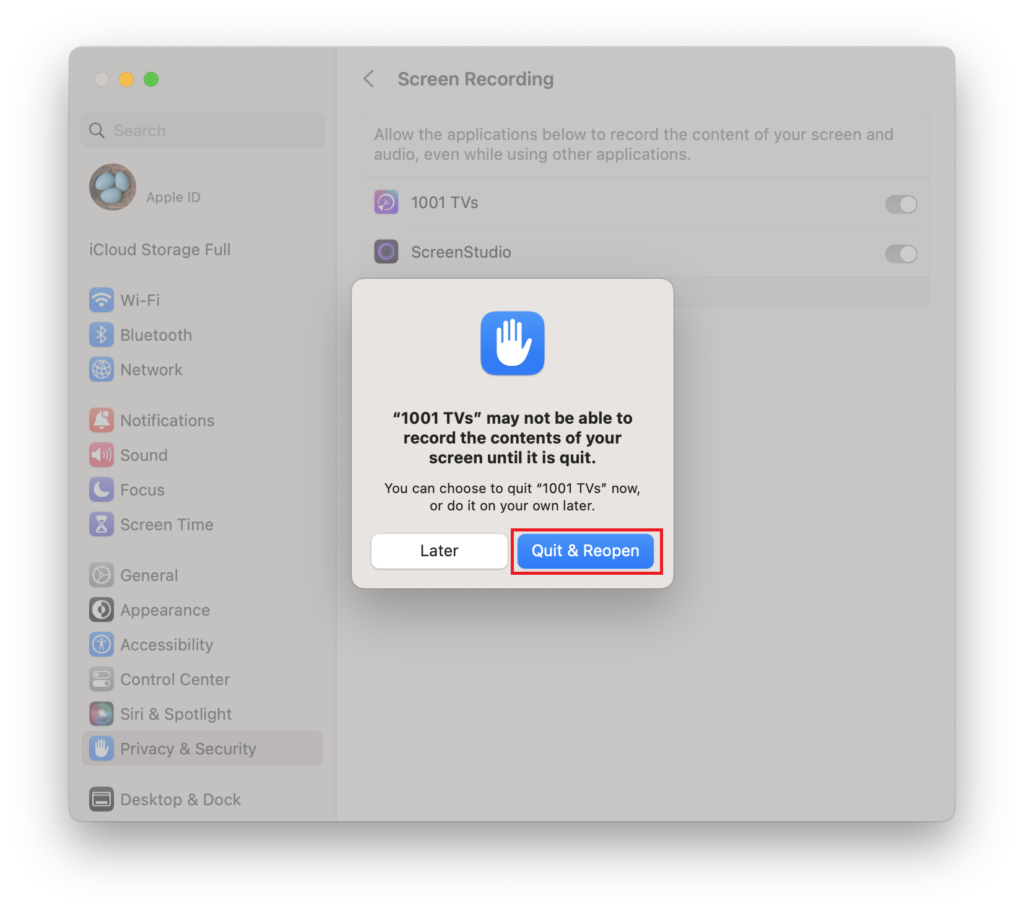
If the screen mirroring interface loads properly after permissions are enabled, please skip directly to Step 3.
If permissions are already enabled but the “Enable screen recording access” pop-up still appears:
1) Remove 1001 TVs app from the permissions list by clicking the – icon.
2) Add the app again by clicking the + icon and re-enable the permissions.
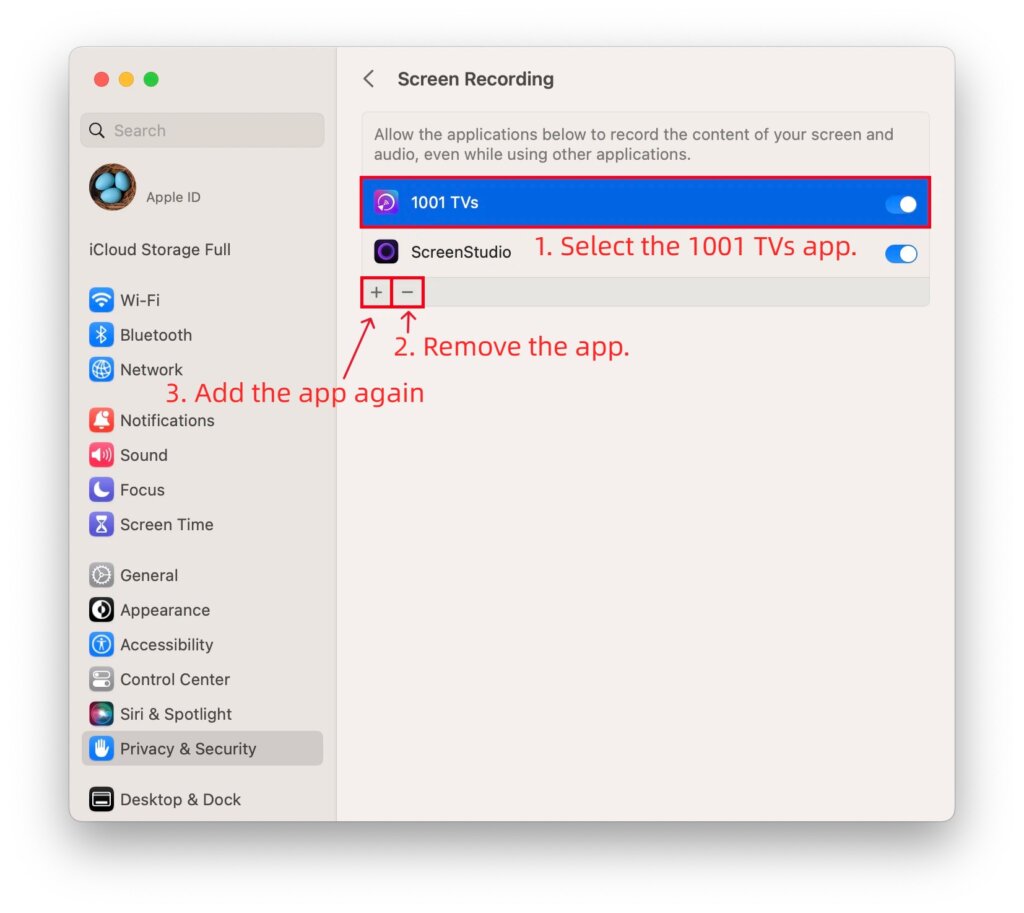
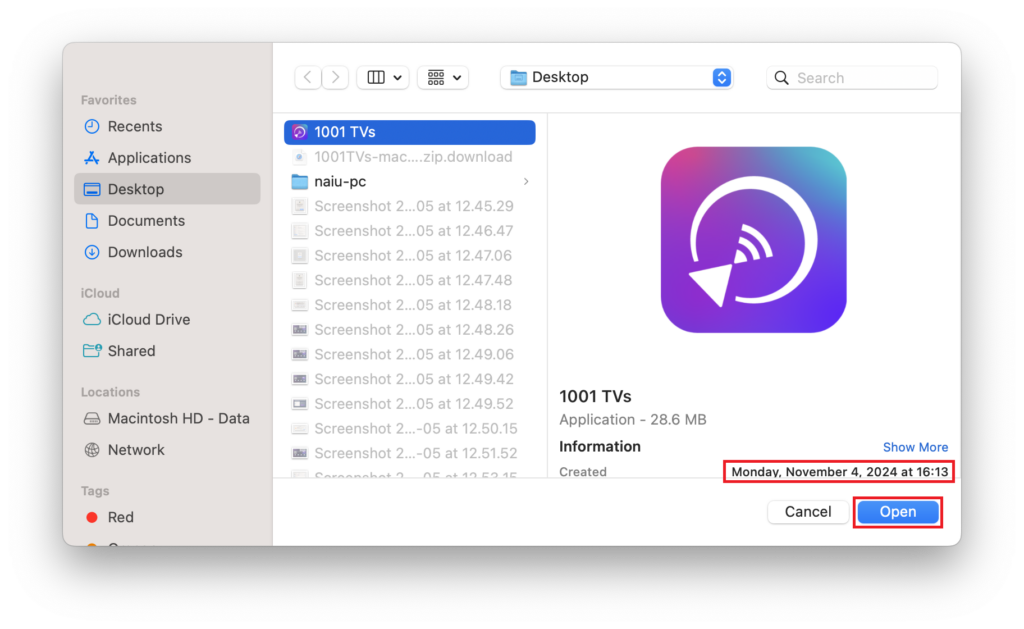
If the minus (-) button is unavailable:
1) Close 1001 TVs.
2) Open Terminal via Launchpad.
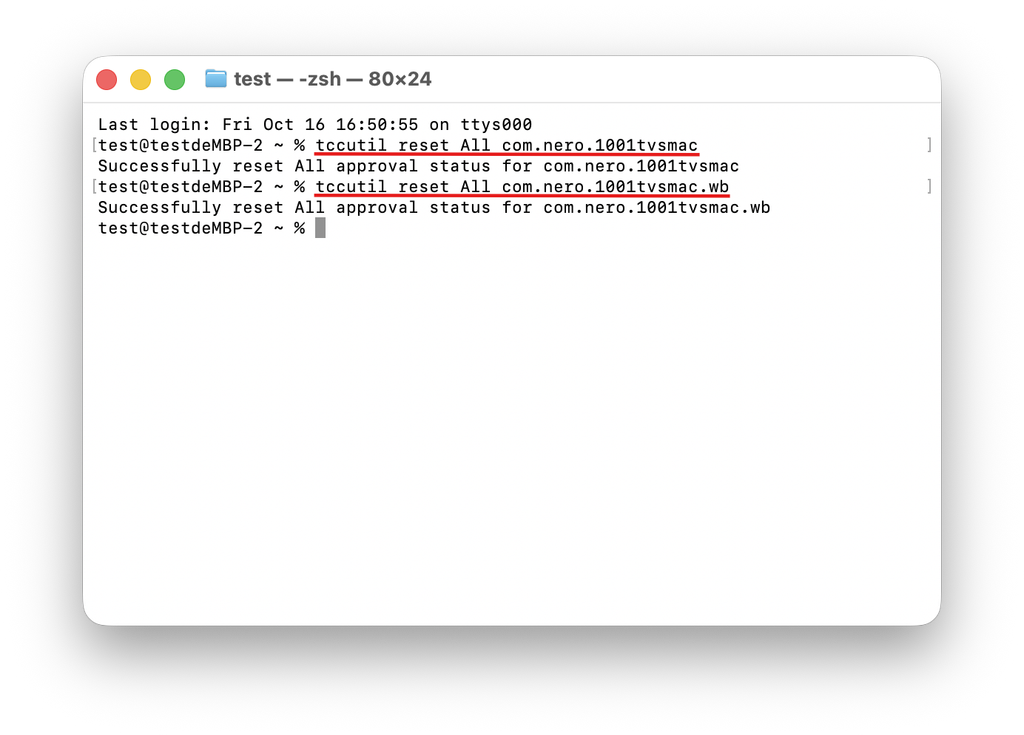
3) Enter the following command:
- tccutil reset All com.nero.1001tvsmac
- tccutil reset All com.nero.1001tvsmac.wb
4) Press Enter to execute, then restart 1001 TVs and set permissions again.
If all the steps above still fail, turn off the Audio Recording permission, then restart your computer and try again.
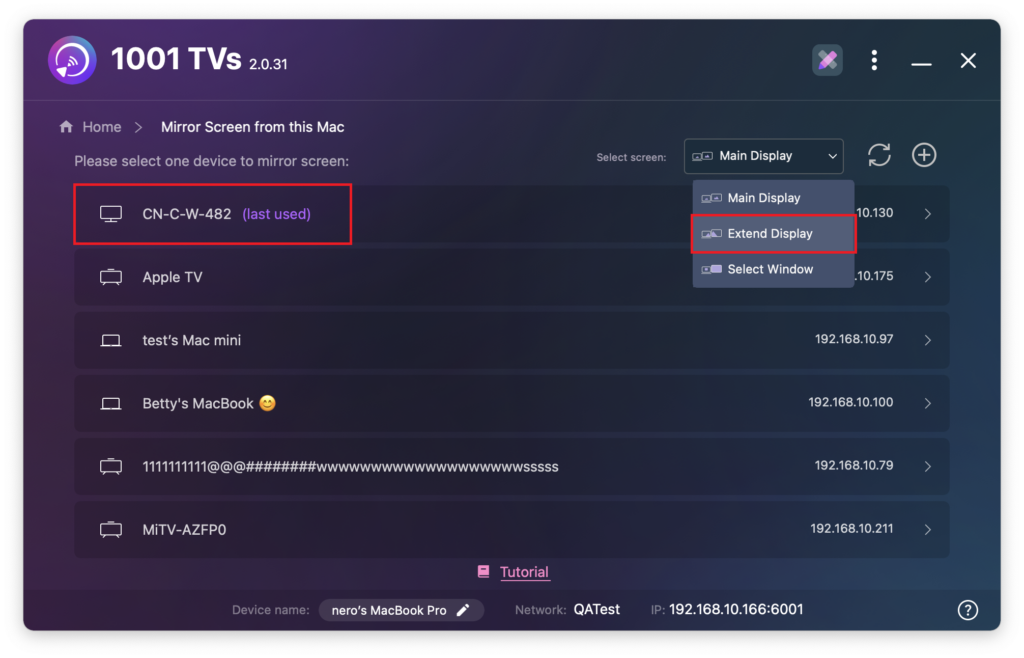
3. Connect Devices and Extend the Display
Open 1001 TVs on both the sending and receiving devices.
On the Mac you want to extend from:
1) Select “Send” > “Extend Display”.
2) Choose the receiving device from the list.
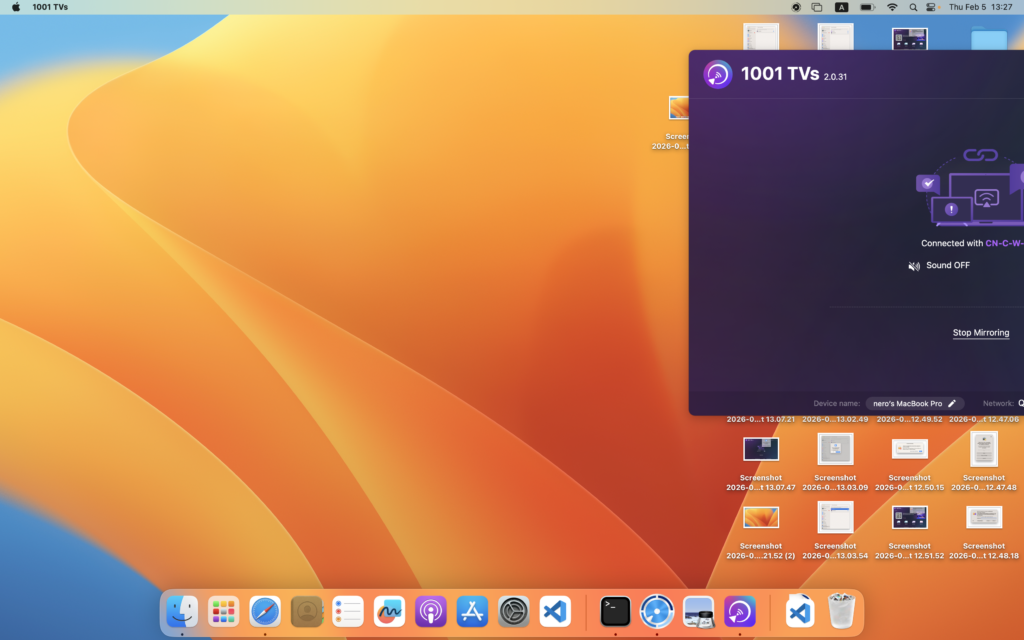
On the receiving device, click “Allow” when prompted.

The display is now successfully extended.
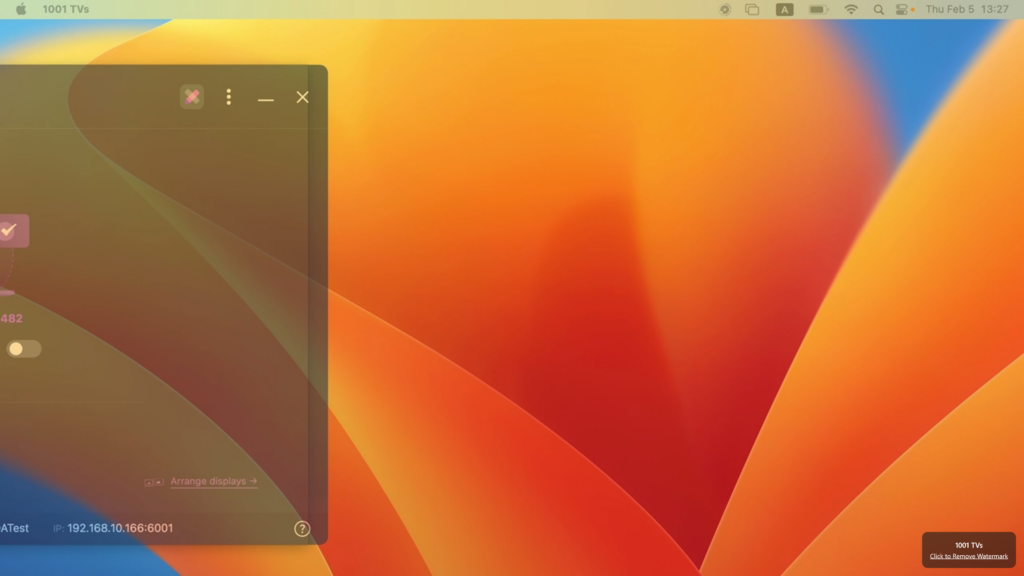
Alternative for Mac Users: Enable Extend Using macOS Settings
If you need to extend your Mac to multiple screens showing the same extended content, macOS together with the 1001 TVs app makes this possible.⭐
See the following guide for setup instructions:
How to Extend Your Mac Screen Using macOS Settings with 1001 TVs
Want unlimited screen mirroring from your computer?

Read More
 Mac: 1001 TVs DMG Screen Recording Permission Enabled but Still Prompting?
"Why does 1001 TVs keep asking for Screen Recording permission when it’s already turned on in my Mac settings?" If you previously installed the…
Mac: 1001 TVs DMG Screen Recording Permission Enabled but Still Prompting?
"Why does 1001 TVs keep asking for Screen Recording permission when it’s already turned on in my Mac settings?" If you previously installed the…
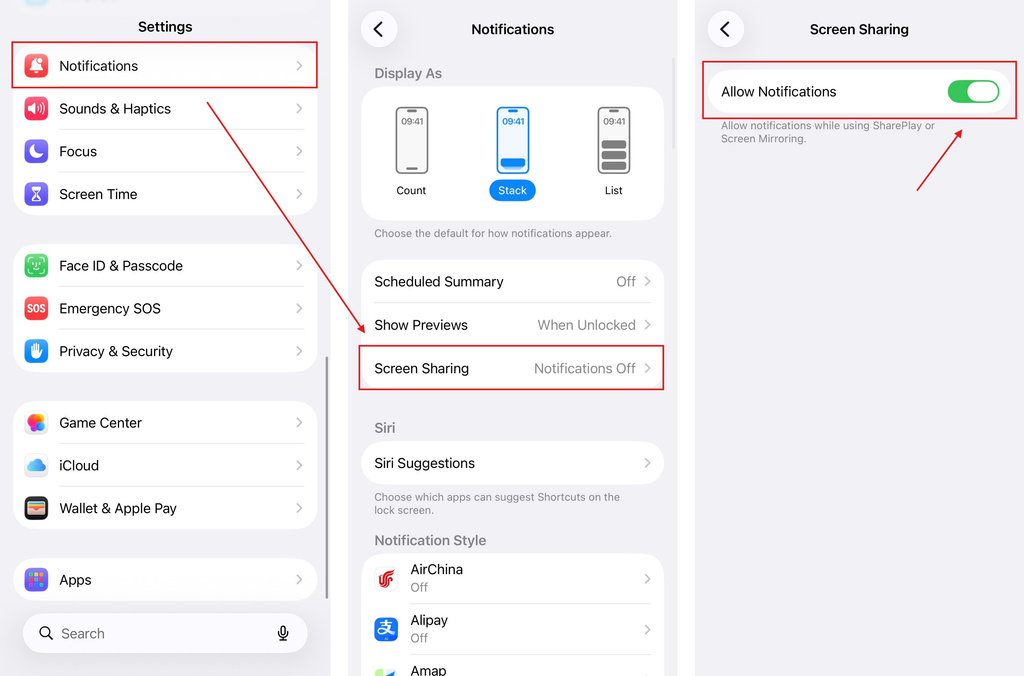 iOS: How to Fix Missing App Notifications During Screen Mirroring
Why Notifications Are Missing When you mirror your iPhone screen, notifications from other apps may not appear on the mirrored screen. This can happen…
iOS: How to Fix Missing App Notifications During Screen Mirroring
Why Notifications Are Missing When you mirror your iPhone screen, notifications from other apps may not appear on the mirrored screen. This can happen…

