ورلڈ کپ کے گروپ اسٹیج میچز کے لیے اینڈرائیڈ سے ٹی وی اسکرین پر بہترین مفت اسکرین مِرورنگ نکات
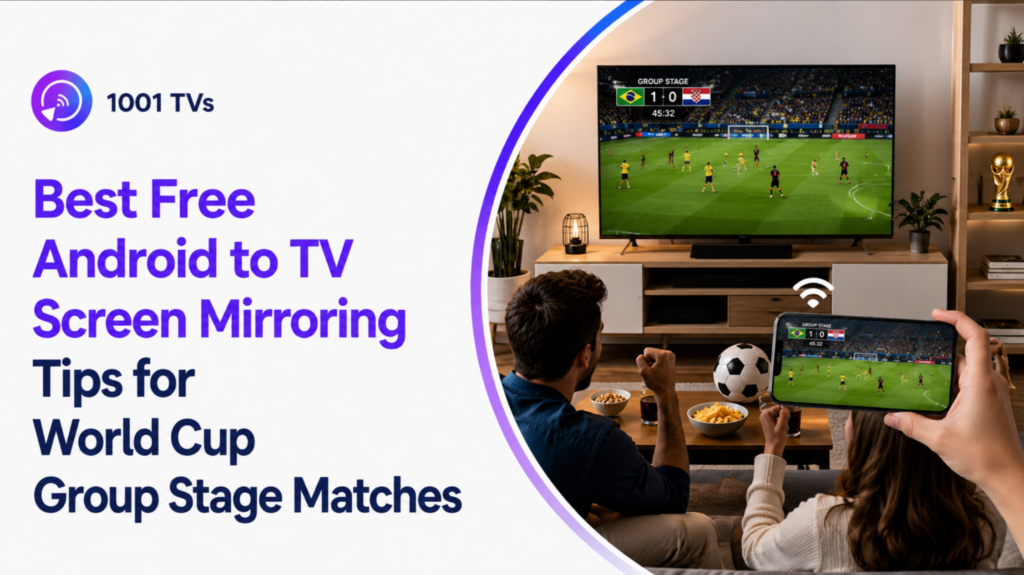
آپ ورلڈ کپ کے گروپ اسٹیج کے میچز کے لیے بلٹ ان کاسٹ، سمارٹ ویو، گوگل ہوم، 1001 TVs جیسی اسکرین مررنگ ایپ، یا USB-C سے HDMI کیبل استعمال کرکے اینڈرائیڈ کو ٹی وی پر اسٹریم کرسکتے ہیں۔
فون پر ورلڈ کپ کے گروپ اسٹیج کے میچز اکیلے دیکھنا ٹھیک ہے، لیکن جب دوست آتے ہیں یا کوئی بڑا میچ شروع ہونے والا ہوتا ہے تو یہ محدود محسوس ہوتا ہے۔ یہ گائیڈ ہر طریقہ، اسے کب استعمال کرنا ہے، اور مررنگ کے لیے کچھ نکات بتاتی ہے۔.
اگر آپ اینڈرائیڈ کے علاوہ مکمل بڑی اسکرین کا سیٹ اپ بھی چاہتے ہیں تو ہمارا مکمل جائزہ دیکھیں۔ فیفا ورلڈ کپ 2026 ٹی وی اسکرین کی مررنگ گائیڈ ٹی وی پر میچ دیکھنے کے مزید طریقوں کے لیے.
ورلڈ کپ کے گروپ مرحلے کے دوران اینڈرائیڈ سے ٹی وی اسکرین پر اسکرین مررنگ کیوں اہم ہے
ورلڈ کپ کے گروپ مرحلے میں کافی مصروفیت ہوتی ہے۔ میچ ایک کے بعد دوسرے آتے ہیں، اور آپ ہمیشہ ایک ہی جگہ سے نہیں دیکھ پاتے۔ ایک رات آپ گھر پر ہوتے ہیں، اگلی رات ہوٹل کے کمرے میں، ڈارم میں یا کسی دوست کے اپارٹمنٹ میں۔.
اسی لیے اینڈرائیڈ سے ٹی وی اسکرین پر اسکرین مررنگ مفید ہے۔ آپ اپنے فون پر میچ کی اسٹریم، ہائی لائٹس، لائیو اسکور کا صفحہ، حکمتِ عملی پر مبنی بحث یا مداحوں کی ویڈیو کھول سکتے ہیں اور پھر اسے بڑی اسکرین پر دکھا سکتے ہیں۔.
یہ خاص طور پر میچ کے آغاز سے پہلے، وقفے کے دوران، یا جب ایک گروپ ایک ہی میچ کو ایک ہی فون کے گرد بھیڑ کیے بغیر دیکھنا چاہتا ہے، بہت مددگار ثابت ہوتا ہے۔.
طریقہ 1: اینڈرائیڈ پر بلٹ ان کاسٹ، اسمارٹ ویو، یا وائرلیس پروجیکشن استعمال کریں
زیادہ تر جدید اینڈرائیڈ فونز میں بلٹ ان کاسٹنگ یا اسکرین مررنگ فیچر ہوتا ہے۔ نام فون کے برانڈ پر منحصر ہوتا ہے۔.
سام سنگ کے صارفین اسے Smart View کہہ سکتے ہیں۔ دیگر اینڈرائیڈ فونز اسے Cast، Screen Share، Screencast، Wireless Projection یا MirrorShare کہہ سکتے ہیں۔.
بلٹ ان کاسٹ کے ساتھ اینڈرائیڈ کو ٹی وی پر کیسے مِرر کریں
مرحلہ 1: دونوں آلات کو ایک ہی وائی فائی نیٹ ورک سے منسلک کریں۔.
شروع کرنے سے پہلے یقینی بنائیں کہ آپ کا اینڈرائیڈ فون اور ٹی وی ایک ہی وائی فائی پر منسلک ہوں۔.
مرحلہ 2: اپنے فون پر اسکرین مررنگ کا شارٹ کٹ کھولیں۔.
اسکرین کے اوپر سے نیچے کی طرف سوائپ کریں اور Cast، Smart View، Screen Share یا Wireless Projection پر ٹیپ کریں۔.
مرحلہ 3: اپنا ٹی وی منتخب کریں اور دیکھنا شروع کریں۔.
ڈیوائس کی فہرست سے اپنا ٹی وی منتخب کریں، اگر ضرورت ہو تو اشارے کو قبول کریں، پھر اپنی اسٹریمنگ ایپ، براؤزر یا میچ کا صفحہ کھولیں۔.
بہترین: اضافی ایپس کے بغیر میچ کے دن کی تیز سیٹ اپ کے لیے
یہ بہترین پہلا آپشن ہے کیونکہ یہ پہلے ہی بہت سے اینڈرائیڈ فونز میں موجود ہے۔ آپ کو کچھ بھی انسٹال کرنے، اکاؤنٹ بنانے یا اضافی ہارڈویئر منسلک کرنے کی ضرورت نہیں ہے۔.
یہ فوری دیکھنے، اسکور بورڈز، میچ کے پیش نظارے، یوٹیوب کلپس اور غیر رسمی گروہی دیکھنے کے لیے اچھا کام کرتا ہے۔.
پابندیاں: ٹی وی مطابقت اور ممکنہ تاخیر
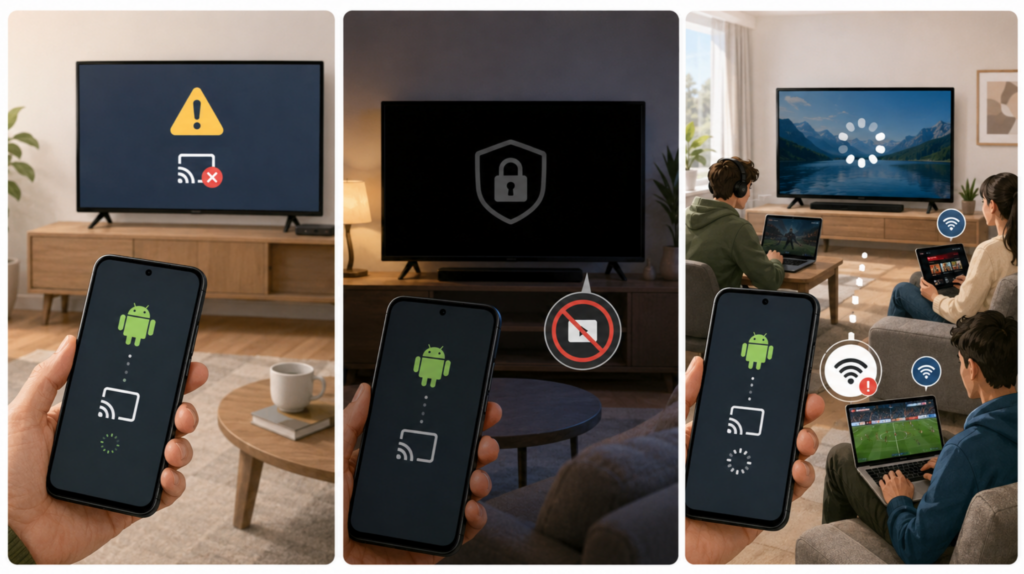
بلٹ ان کاسٹنگ کامل نہیں ہے:
- کچھ ٹی وی آپ کے فون کے کاسٹنگ معیار کو سپورٹ نہیں کر سکتے۔.
- کچھ محفوظ ویڈیو ایپس اسکرین مررنگ کو بلاک کر سکتی ہیں اور سیاہ اسکرین دکھا سکتی ہیں۔.
- وائرلیس میرورنگ میں بھی تاخیر ہو سکتی ہے اگر آپ کا وائی فائی زیادہ مصروف ہو، آپ کا روٹر دور ہو، یا دوسرے لوگ ایک ہی وقت میں گیمنگ، ڈاؤن لوڈنگ یا اسٹریمنگ کر رہے ہوں۔.
طریقہ 2: گوگل ہوم استعمال کرکے اینڈرائیڈ کو کروم کاسٹ، گوگل ٹی وی یا اینڈرائیڈ ٹی وی پر مِرر کریں
اگر آپ کی ٹی وی Chromecast، Google TV یا Android TV کو سپورٹ کرتی ہے تو Google Home آپ کو اپنی Android اسکرین کو آئینہ کرنے کا ایک اور آسان طریقہ فراہم کرتا ہے۔.
یہ خاص طور پر اس وقت مفید ہے جب آپ کا ٹی وی فون کے فوری ترتیبات کے پینل میں واضح طور پر نظر نہیں آتا۔.
گوگل ہوم کے ذریعے اینڈرائیڈ کو ٹی وی سے کیسے مِرر کریں
مرحلہ 1: دونوں آلات کو ایک ہی وائی فائی نیٹ ورک سے منسلک کریں۔.
یقینی بنائیں کہ آپ کا اینڈرائیڈ فون اور Chromecast، Google TV یا Android TV ایک ہی وائی فائی نیٹ ورک پر ہوں۔.
مرحلہ 2: گوگل ہوم ایپ کھولیں۔.
ایپ میں اپنا Chromecast یا ٹی وی ڈیوائس تلاش کریں، پھر اسے ٹیپ کریں تاکہ ڈیوائس کا صفحہ کھل جائے۔.
مرحلہ 3: اسکرین کاسٹنگ شروع کریں۔.
اپنی اسکرین کو کاسٹ کریں یا 'اسکرین/آڈیو کاسٹ کریں' پر ٹیپ کریں، ہدایت کی تصدیق کریں، پھر اپنے فون پر اپنی اسٹریمنگ ایپ، براؤزر یا میچ پیج کھولیں۔.
بہترین: کروم کاسٹ، گوگل ٹی وی، اور اینڈرائیڈ ٹی وی صارفین کے لیے
گوگل ہوم اس وقت بہترین کام کرتا ہے جب آپ کا ٹی وی یا اسٹریمنگ ڈیوائس پہلے ہی آپ کے گوگل اکاؤنٹ اور گھر کے وائی فائی سے منسلک ہو۔ یہ لیونگ روم کے سیٹ اپ کے لیے ایک اچھا انتخاب ہے جہاں کروم کاسٹ یا گوگل ٹی وی اکثر استعمال ہوتا ہے۔.
ورلڈ کپ کے گروپ مرحلے کے میچوں کے لیے یہ مفید ہے جب آپ اپنے اینڈرائیڈ فون سے بغیر HDMI کیبل کے بڑی اسکرین پر براہِ راست سٹریم، میچ کا پیش منظر، اسکور صفحہ یا فٹبال ویڈیو دکھانا چاہیں۔.
پابندیاں: ایک ہی وائی فائی، ایپ کی پابندیاں، اور ممکنہ تاخیر
گوگل ہوم اسکرین کی آئینہ کاری کے لیے اب بھی ایک مستحکم نیٹ ورک درکار ہے۔ اگر آپ کا فون اور ٹی وی ایک ہی وائی فائی پر نہیں ہیں، یا اگر وائی فائی ڈیوائس کی دریافت کو بلاک کر رہا ہے، تو آپ کی ٹی وی ظاہر نہیں ہوگی۔.
کچھ اسٹریمنگ ایپس مواد کی حفاظت کی وجہ سے اسکرین مررنگ کو بھی بلاک کر سکتی ہیں۔ اس صورت میں ٹی وی پر سیاہ اسکرین دکھائی دے سکتی ہے، یا صرف آواز چل سکتی ہے۔.
دیگر وائرلیس طریقوں کی طرح، اگر روٹر دور ہو یا براہِ راست میچ کے دوران نیٹ ورک پر بھیڑ ہو تو گوگل ہوم بھی سست ہو سکتا ہے۔.
طریقہ 3: مفت اینڈرائیڈ سے ٹی وی اسکرین کی آئینہ کاری کے لیے 1001 TVs استعمال کریں
1001 TVs یہ ایک اور آپشن ہے جب آپ مختلف ٹی وی مینوز میں کھنگالے بغیر اینڈرائیڈ کو بڑی اسکرین پر آئینہ کرنا چاہتے ہیں۔.
یہ فونز، پی سیز، میک، ٹی ویز، اینڈرائیڈ ٹی وی، ایپل ٹی وی اور بعض صورتوں میں براؤزر کے ذریعے وصولی سمیت مختلف آلات پر اسکرین کی عکاسی کی حمایت کرتا ہے۔ ورلڈ کپ دیکھنے کے لیے، یہ آپ کی اینڈرائیڈ اسکرین، فٹبال کلپس، شائقین کی ویڈیوز، تصاویر، براؤزر کے صفحات یا میچ سے متعلق مواد کو بڑے ڈسپلے پر دکھانے میں مفید ثابت ہو سکتا ہے۔.
1001 TVs کے ساتھ اینڈرائیڈ کو ٹی وی پر کیسے مِرر کریں
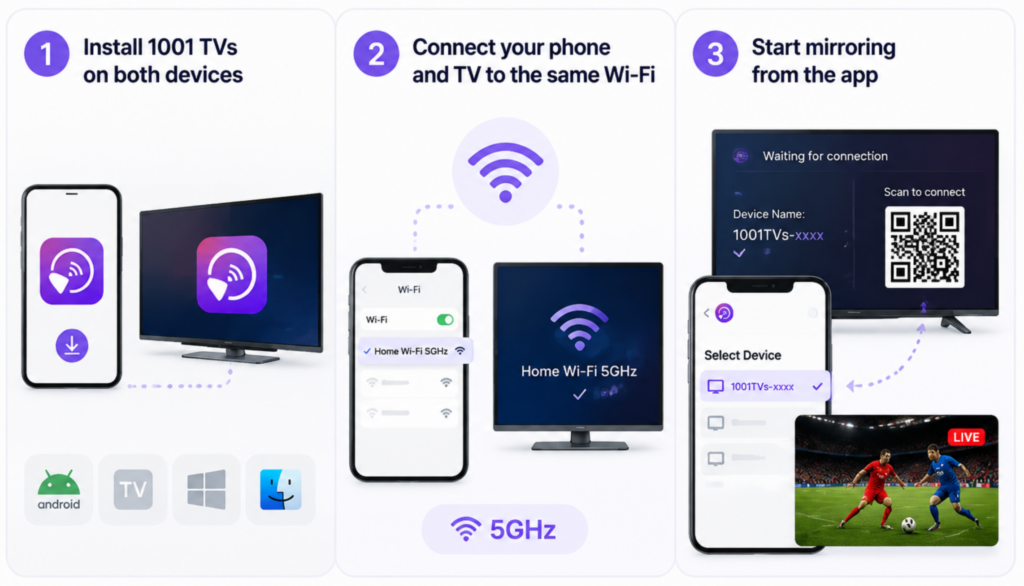
مرحلہ 1: دونوں آلات پر 1001 TVs انسٹال کریں۔.
اپنے اینڈرائیڈ فون اور وصول کرنے والے آلے (مثلاً اینڈرائیڈ ٹی وی، سمارٹ ٹی وی، پی سی، میک یا کسی دوسرے سپورٹڈ اسکرین) پر 1001 TVs ڈاؤن لوڈ اور کھولیں۔ دونوں آلات پر ایپ کھلی رکھیں تاکہ وہ ایک دوسرے کو تلاش کر سکیں۔.
مرحلہ 2: اپنے فون اور ٹی وی کو ایک ہی وائی فائی سے منسلک کریں۔.
یقینی بنائیں کہ دونوں ڈیوائسز ایک ہی وائی فائی نیٹ ورک پر ہوں، صرف موبائل ڈیٹا یا دو مختلف راؤٹر بینڈز پر نہیں۔ لائو میچ دیکھنے کے لیے زیادہ ہموار تجربے کے لیے، اگر دستیاب ہو تو 5 گیگا ہرٹز وائی فائی نیٹ ورک استعمال کریں اور اپنا فون راؤٹر کے قریب رکھیں۔.
مرحلہ 3: ایپ سے آئینہ بندی شروع کریں۔.
1001 TVs میں، ڈیوائس کی فہرست سے اپنا ٹی وی یا وصول کرنے والا آلہ منتخب کریں، یا اگر کہا جائے تو وصول کرنے والی اسکرین پر دکھائے گئے QR کوڈ کو اسکین کریں۔ ایک بار کنکشن ہو جانے کے بعد، اپنے اینڈرائیڈ فون پر فٹبال اسٹریم، میچ کا پیش نظارہ، براؤزر کا صفحہ یا ہائی لائٹس کھولیں اور اسے ٹی وی پر دیکھیں۔.
1001 TVs کب بہترین کام کرتا ہے
1001 TVs اس وقت سب سے زیادہ مفید ہوتا ہے جب دونوں آلات ایک ہی نجی وائی فائی نیٹ ورک پر ہوں اور آپ ایک آسان ایپ کی رہنمائی میں مانیٹرنگ کا عمل چاہتے ہوں۔ یہ اس وقت بھی مددگار ثابت ہو سکتا ہے جب آپ صرف ایک ویڈیو ایپ سے زیادہ چیزوں کو مانیٹر کرنا چاہتے ہوں، جیسے لائیو چیٹس، براؤزر ٹیبز، تصاویر، میچ شیڈولز، یا فٹ بال پر مباحثے کے صفحات۔.
یہ ان لوگوں کے لیے بھی ایک عملی آپشن ہے جو مختلف آلات کے درمیان سوئچ کرتے ہیں۔ مثال کے طور پر، آپ گھر میں اینڈرائیڈ فون، کسی دوسرے کمرے میں ونڈوز پی سی، اور لونگ روم میں اینڈرائیڈ ٹی وی استعمال کر سکتے ہیں۔ ایک کراس ڈیوائس میرورنگ ایپ اس ترتیب کو سنبھالنا آسان بنا سکتی ہے۔.
دوسری بیک اپ طریقہ کب استعمال کریں
ہوٹل، اسکول، دفتر یا عوامی وائی فائی ماحول میں کسی بھی وائرلیس مررنگ ایپ کو اپنا واحد حل نہ سمجھیں۔ کچھ نیٹ ورکس AP آئیسولیشن (جسے کلائنٹ آئیسولیشن بھی کہا جاتا ہے) استعمال کرتے ہیں۔ جب یہ سیٹنگ فعال ہوتی ہے تو آپ کا فون اور ٹی وی ایک ہی وائی فائی نام سے منسلک ہونے کے باوجود ایک دوسرے کو تلاش نہیں کر سکتے۔.
اگر آپ کا ہوٹل یا عوامی وائی فائی ڈیوائس ٹو ڈیوائس دریافت کو بلاک کرتا ہے تو وائرلیس میرورنگ ایپس آپ کی ٹی وی کو تلاش نہیں کر پائیں گی۔ اس صورت میں USB-C سے HDMI یا ٹریول روٹر استعمال کریں۔.
طریقہ 4: USB-C سے HDMI کیبل استعمال کریں
وائرلیس مررنگ آسان ہے، لیکن یہ براہِ راست فٹبال کے لیے ہمیشہ سب سے زیادہ قابلِ اعتماد انتخاب نہیں ہوتی۔.
اگر آپ کے ہوٹل کا وائی فائی بلاک ہے، آپ کے گھر کا نیٹ ورک بھیڑ بھاڑ کا شکار ہے، یا میچ بار بار لیگ کر رہا ہے، تو USB-C سے HDMI کیبل آپ کو زیادہ مستحکم وائرڈ سیٹ اپ فراہم کر سکتی ہے۔.
USB-C سے HDMI کے ذریعے اینڈرائیڈ کو ٹی وی پر کیسے مِرر کریں
مرحلہ 1: فون کی مطابقت چیک کریں۔.
اس طریقہ کار کو استعمال کرنے سے پہلے یقینی بنائیں کہ آپ کا اینڈرائیڈ فون USB-C ویڈیو آؤٹ پٹ کو سپورٹ کرتا ہو۔.
مرحلہ 2: اپنے فون کو ٹی وی سے منسلک کریں۔.
اپنے فون میں USB-C اڈاپٹر لگا دیں، HDMI کیبل کو ٹی وی سے جوڑیں، پھر ٹی وی کو درست HDMI ان پٹ پر سوئچ کریں۔.
مرحلہ 3: میچ کی اسٹریم کھولیں۔.
جب آپ کی فون اسکرین ٹی وی پر نمودار ہو جائے، تو اپنی اسٹریمنگ ایپ، براؤزر یا میچ کا صفحہ کھولیں اور کھیل کے دوران اپنے فون کو چارج رکھیں۔.
بہترین: ہوٹل وائی فائی، بھیڑ بھاڑ والے نیٹ ورکس، اور کم لیٹنسی والا دیکھنا
جب وائرلیس کاسٹنگ غیر مستحکم ہو تو USB-C سے HDMI بہترین حل ہے۔ یہ ہوٹلوں، کرائے کے اپارٹمنٹس، ڈارمز، اسپورٹس بارز یا واچ پارٹیز میں مفید ہے جہاں وائی فائی ڈیوائس کی دریافت کو روک سکتا ہے یا کسی بڑے میچ کے دوران بہت زیادہ مصروف ہو سکتا ہے۔.
ورلڈ کپ کے گروپ مرحلے کے میچوں کے لیے، جب آپ وائرلیس مررنگ کے مقابلے میں کنکشن ڈراپ اور تاخیر کم کرنا چاہتے ہیں تو یہ طریقہ بھی مددگار ثابت ہوتا ہے۔ سفر سے پہلے اسے پیک کرنا ایک اچھا بیک اپ ہے۔.
پابندیاں: فون کی مطابقت، کیبل کی تنصیب، اور کم لچک
سب سے بڑی حد تک مطابقت ہے۔ کچھ اینڈرائیڈ فونز USB-C ویڈیو آؤٹ پٹ کو سپورٹ کرتے ہیں، جبکہ بعض نہیں کرتے۔ صرف ایک کیبل اس مسئلے کو حل نہیں کر سکتی۔.
آپ کو ایک مناسب اڈاپٹر، ایک HDMI کیبل، اور ٹی وی کے HDMI پورٹ تک رسائی بھی درکار ہے۔ وائرلیس مررنگ کے برعکس، آپ کا فون ٹی وی کے قریب رہنا پڑے گا، لہٰذا اگر آپ دیکھتے ہوئے یا میچ کی دیگر اپ ڈیٹس چیک کرتے ہوئے فون ہاتھ میں پکڑنا چاہیں تو یہ کم آسان ہے۔.
اپنے اینڈرائیڈ اسکرین کو ٹی وی پر آئینہ کرنے سے پہلے رازداری کے لیے چیک لسٹ
اسکرین مررنگ شروع کرنے سے پہلے یاد رکھیں کہ آپ کی اینڈرائیڈ اسکرین پر موجود ہر چیز ٹی وی پر دکھائی دے سکتی ہے۔.
ایک مختصر پرائیویسی چیک آپ کو ورلڈ کپ واچ پارٹی کے دوران پیغامات، پاس ورڈز یا ذاتی ایپس دکھانے سے بچنے میں مدد دے سکتا ہے۔.
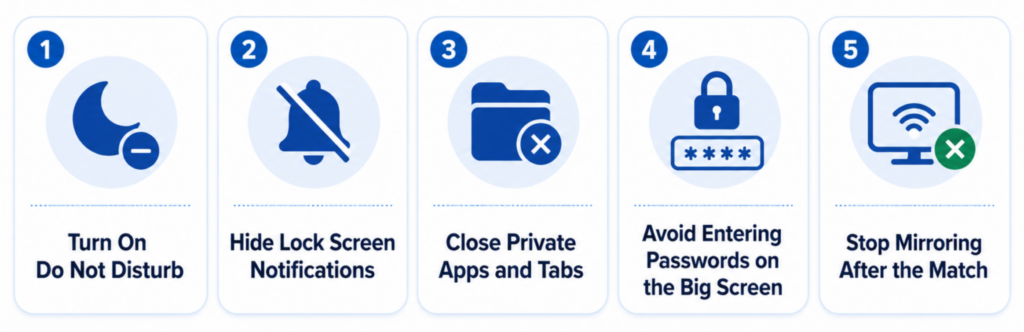
خلل نہ ڈالیں آن کریں
مررنگ شروع کرنے سے پہلے 'ڈو ناٹ ڈسٹرب' فعال کریں۔ اس سے میچ کے دوران کالز، پیغامات اور ایپ کے الرٹس بڑی اسکرین پر نمودار ہونے سے روکا جائے گا۔.
لاک اسکرین کے نوٹیفیکیشنز چھپائیں
اگر آپ کا فون لاک اسکرین پر پیغامات کی جھلکیاں دکھاتا ہے تو کاسٹ کرنے سے پہلے انہیں بند کر دیں۔ یہ اس وقت مفید ہے جب آپ کو کھیل کے دوران اپنا فون انلاک کرنا ہو یا ایپس تبدیل کرنا ہوں۔.
نجی ایپس اور ٹیبز بند کریں
ٹی وی سے کنکٹ کرنے سے پہلے نجی چیٹس، ای میل ایپس، بینکنگ ایپس اور ذاتی براؤزر ٹیبز بند کر دیں۔ صرف میچ کی سٹریم، لائیو اسکور صفحہ یا وہ فٹ بال مواد کھولیں جو آپ دوسروں کو دکھانا چاہتے ہیں۔.
بڑی اسکرین پر پاس ورڈ درج کرنے سے گریز کریں۔
مررنگ شروع کرنے سے پہلے اپنے اسٹریمنگ اکاؤنٹ میں لاگ ان کریں۔ اگر آپ کو پاس ورڈ درج کرنا ہو تو پہلے کاسٹنگ کو روک دیں تاکہ آپ کی لاگ ان کی تفصیلات کمرے میں موجود ہر کسی کو نظر نہ آئیں۔.
میچ کے بعد مانیٹرنگ بند کریں
جب کھیل ختم ہو جائے تو صرف فون لاک کرنے کے بجائے ٹی وی سے کنکشن منقطع کر دیں۔ Cast، Smart View یا Mirroring بٹن چیک کریں تاکہ یہ یقینی بنایا جا سکے کہ آپ کی Android اسکرین مزید شیئر نہیں ہو رہی۔.
بڑی اسکرین پر ورلڈ کپ کے گروپ اسٹیج کے میچ دیکھنے کے لیے آخری نکات
اینڈرائیڈ سے ٹی وی اسکرین کی آئینہ کاری آپ کے فون کو میچ کے دن کا مرکز بنانے کا ایک آسان طریقہ ہے۔ چاہے آپ بلٹ ان کاسٹ استعمال کریں یا گوگل ہوم،, 1001 TVs, چاہے وہ USB-C سے HDMI کیبل ہو یا کوئی اور، مقصد ایک ہی ہے: کھیل کو کم خلل کے ساتھ بڑی اسکرین پر لانا۔.
کِک آف سے پہلے اپنا سیٹ اپ جلد از جلد ٹیسٹ کریں۔ یقینی بنائیں کہ آپ کا فون اور ٹی وی ایک ہی وائی فائی نیٹ ورک پر ہیں، غیر استعمال شدہ ایپس بند کریں، اور اگر دستیاب ہو تو 5GHz وائی فائی پر سوئچ کریں۔.
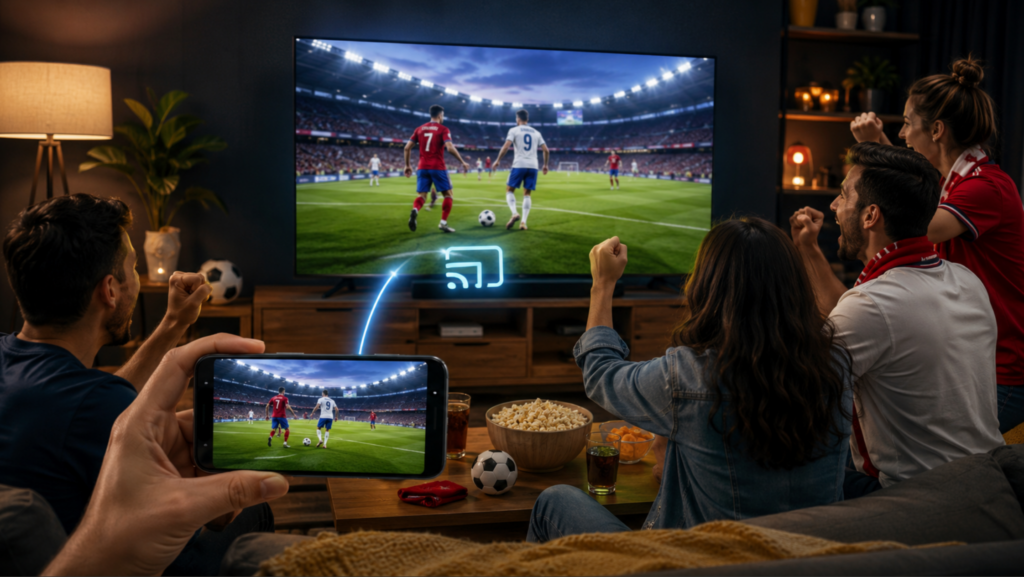
اگر وائرلیس میرورنگ بار بار لیگ کرتی رہے یا آپ کی ٹی وی ظاہر نہ ہو تو ابتدائی ٹربل شوٹنگ میں وقت ضائع نہ کریں۔ کوئی دوسرا میرورنگ طریقہ آزمائیں، دونوں ڈیوائسز کو ری اسٹارٹ کریں، یا بیک اپ کے طور پر USB-C سے HDMI استعمال کریں۔.
سفر کے لیے ہمیشہ ایک بیک اپ منصوبہ تیار رکھیں۔ ہوٹل اور عوامی وائی فائی ڈیوائس کی دریافت کو بلاک کر سکتے ہیں، اس لیے ایک کیبل یا ٹریول روٹر ٹی وی پر میچ دیکھنے اور چھوٹی فون اسکرین پر پھنس جانے کے درمیان فرق ثابت ہو سکتا ہے۔.
اکثر پوچھے گئے سوالات
کیا میں اینڈرائیڈ سے ٹی وی پر ورلڈ کپ کے میچز مفت میں اسٹریم کر سکتا ہوں؟
جی ہاں، آپ اکثر بلٹ ان کاسٹ، اسمارٹ ویو، اسکرین شیئر یا گوگل ہوم استعمال کرکے اینڈرائیڈ کو ٹی وی پر مفت میں آئینہ کرسکتے ہیں۔ کچھ تیسری پارٹی کی ایپس بھی مفت ٹرائلز یا محدود مفت استعمال پیش کرتی ہیں، لیکن پورے ٹورنامنٹ کے دوران ان پر انحصار کرنے سے پہلے آپ کو ایپ کی شرائط و ضوابط چیک کرنی چاہئیں۔.
میرا اینڈرائیڈ فون میری ٹی وی کو کیوں تلاش نہیں کر سکتا؟
آپ کا فون اور ٹی وی مختلف وائی فائی نیٹ ورکس پر ہو سکتے ہیں، ٹی وی آپ کے فون کے کاسٹنگ طریقہ کار کو سپورٹ نہیں کرتا ہو سکتا، یا نیٹ ورک ڈیوائس کی دریافت کو بلاک کر سکتا ہے۔ دونوں ڈیوائسز کو دوبارہ شروع کریں، وائی فائی کا نام چیک کریں، اور یقینی بنائیں کہ ٹی وی پر کاسٹنگ فعال ہے۔.
کیا گوگل ہوم اینڈرائیڈ اسکرین کی عکس بندی کے لیے بلٹ ان کاسٹ سے بہتر ہے؟
اگر آپ Chromecast، Google TV یا Android TV استعمال کرتے ہیں اور ایک زیادہ رہنمائی والا سیٹ اپ چاہتے ہیں تو Google Home بہتر ثابت ہو سکتا ہے۔ بلٹ ان کاسٹ جب کام کرتا ہے تو تیز ہوتا ہے، لیکن اگر آپ کا ٹی وی تیز تر ترتیبات میں ظاہر نہ ہو تو Google Home استعمال کرنا آسان ہو سکتا ہے۔.
کیا میں بغیر وائی فائی کے اینڈرائیڈ کو ٹی وی پر آئینہ کر سکتا ہوں؟
جی ہاں، لیکن عام طور پر بغیر وائر کے نہیں۔ سب سے عملی آپشن USB-C سے HDMI اڈاپٹر ہے، بشرطیکہ آپ کا اینڈرائیڈ فون ویڈیو آؤٹ پٹ کو سپورٹ کرتا ہو۔ یہ ہوٹلوں اور غیر مستحکم نیٹ ورکس کے لیے اکثر بہترین بیک اپ ہوتا ہے۔.
میرا میچ اسٹریم ٹی وی پر سیاہ سکرین کیوں دکھاتا ہے؟
کچھ اسٹریمنگ ایپس مواد کی حفاظت کی وجہ سے اسکرین مررنگ کو بلاک کرتی ہیں۔ آواز چل سکتی ہے جبکہ ویڈیو سیاہ رہ سکتی ہے۔ اسٹریمنگ سروس کی سرکاری ٹی وی ایپ استعمال کرنے کی کوشش کریں، ایپ کے اندر سے کاسٹ کریں، یا اگر HDMI سپورٹ ہو تو HDMI کے ذریعے کنیکٹ کریں۔.
لائو فٹبال میچز کی مانیٹرنگ کے دوران تاخیر کو کم کرنے کا بہترین طریقہ کیا ہے؟
5GHz وائی فائی استعمال کریں، اپنا فون اور ٹی وی راؤٹر کے قریب رکھیں، پس منظر میں چلنے والی ایپس بند کریں، اور ایک ہی نیٹ ورک پر بھاری ڈاؤن لوڈ سے گریز کریں۔ لیگ کے سب سے کم خطرے کے لیے تار والا USB-C سے HDMI کنکشن استعمال کریں۔.

مزید پڑھیں
 فیفا ورلڈ کپ 2026 کو ٹی وی پر کیسے کاسٹ کریں: ایئر پلے، کروم کاسٹ اور مزید
ورلڈ کپ کی فوٹیج کو اپنی ٹی وی پر کاسٹ کرنے کے لیے، اپنی اسٹریمنگ ایپ کے سپورٹ کردہ Cast یا AirPlay آپشن یا ایک مطابقت رکھنے والا HDMI کنکشن استعمال کریں۔ اسکرین-مررنگ ایپس…
فیفا ورلڈ کپ 2026 کو ٹی وی پر کیسے کاسٹ کریں: ایئر پلے، کروم کاسٹ اور مزید
ورلڈ کپ کی فوٹیج کو اپنی ٹی وی پر کاسٹ کرنے کے لیے، اپنی اسٹریمنگ ایپ کے سپورٹ کردہ Cast یا AirPlay آپشن یا ایک مطابقت رکھنے والا HDMI کنکشن استعمال کریں۔ اسکرین-مررنگ ایپس…
 2027 رہنما: پی سی کو ٹی وی سے اسکرین مِرر کرنے کا طریقہ
پی سی کو ٹی وی پر اسکرین مرر کرنے کے لیے، ایک HDMI کیبل منسلک کریں اور Windows + P دبائیں → Duplicate، یا اگر… تو Windows + K دبائیں۔
2027 رہنما: پی سی کو ٹی وی سے اسکرین مِرر کرنے کا طریقہ
پی سی کو ٹی وی پر اسکرین مرر کرنے کے لیے، ایک HDMI کیبل منسلک کریں اور Windows + P دبائیں → Duplicate، یا اگر… تو Windows + K دبائیں۔

