检测到浏览器语言为中文,检测到检测到浏览器语言为中文。중국어 페이지로 이동->
Send Files to TV in 3 Simple Steps
1
앱 설치하기
Install 1001 TVs on your phone and TV.
2
기기 연결
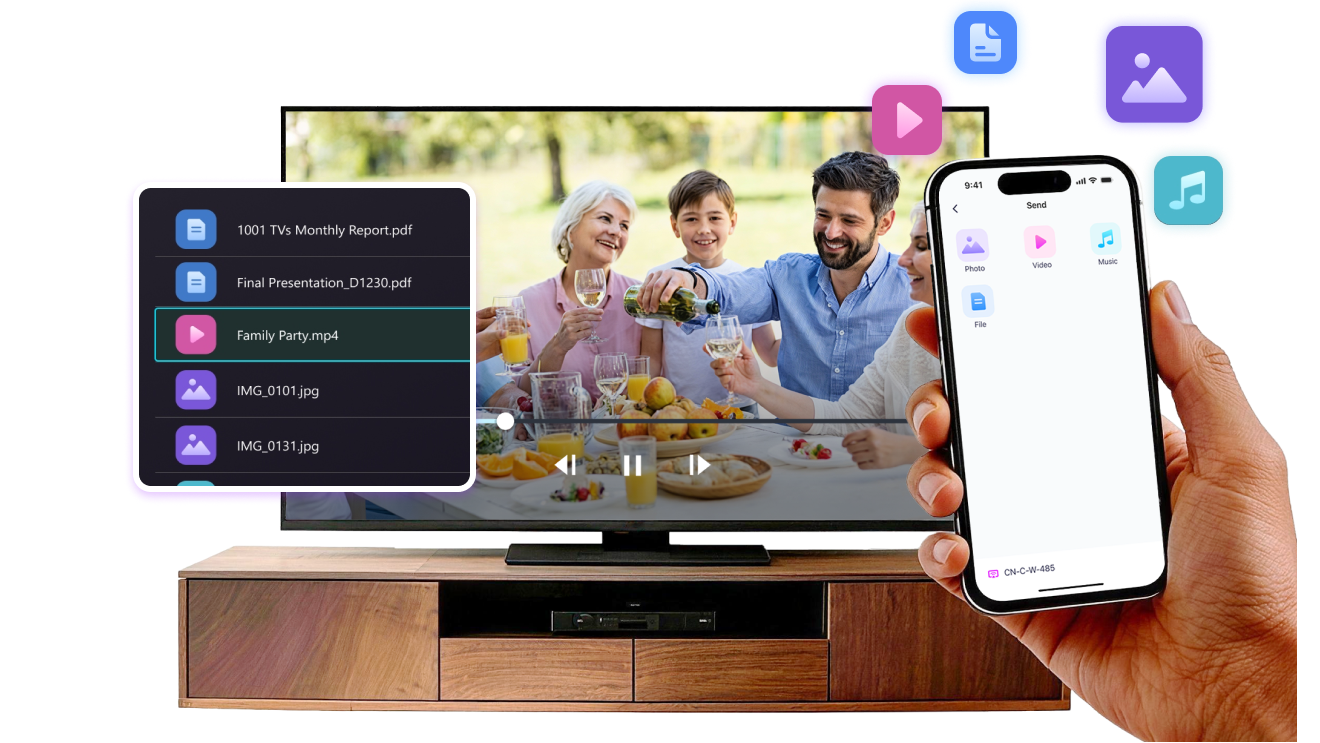
Make sure both devices are on the same Wi-Fi network. On the TV, open Files. On your phone, tap File Transfer. Available devices will be detected automatically.
3
파일 전송하기
Select the target device and send files for fast, direct transfer.
Simple. Secure. File Transfer.
NO LIMITS ON FORMATS
Send photos, videos, and audio files directly from your phone to your TV.
Supports common formats like JPG, PNG, MP4, MKV, AVI, and MP3 — no conversion required.

No USB cables needed. No extra steps.

Just select your files and send them to the TV with ease.
no-limits-on-formats
LOCAL TRANSFER. NO DATA USAGE.
All transfers happen over your local network — no cloud uploads and no data usage.

Once files are sent, they play directly on the TV.

Phone calls, screen locks, or switching apps won’t interrupt playback, so you can watch with confidence.
local-transfer-no-data-usage
활용 사례
사진 & 동영상 공유
Presentations & Demos
Learning & Teaching
Show What You Captured — Bigger and Clearer
Photos and videos look better on a TV than on a small phone screen. A larger display makes details clearer and moments easier to enjoy together.

Send photos and videos directly from your phone to the TV for smooth playback and a more comfortable viewing experience. Share family moments, trips, or special occasions without passing phones around or dealing with cables.

With 1001 TVs, everyday photos and videos naturally become something everyone in the room can enjoy on the big screen.
photo-video-sharing
Present with Confidence — Clear and Distraction-Free
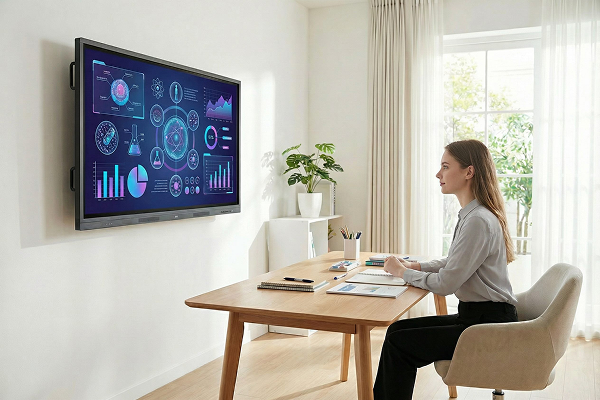
Presentations are easier to follow when everyone can see the content clearly.
A larger screen helps keep attention focused and makes key points stand out.

Share slides, visuals, or demos directly from your device to the TV for a smooth and uninterrupted presentation. No cables on the table, no crowding around a laptop.

With 1001 TVs, presenting on a big screen feels simple and professional in any space.
presentations-demos
Make Learning More Visual — and More Engaging
Learning becomes more effective when ideas are easy to see and follow. A bigger screen helps students stay focused and understand concepts more clearly.

Display lessons, exercises, or demonstrations on a TV to create a shared learning experience. Everyone can follow along at the same pace, without distractions.

With 1001 TVs, learning naturally becomes more interactive on the big screen.
learning-teaching
다운로드
자주 묻는 질문
기기 목록에서 TV나 PC가 보이지 않는 이유는 무엇인가요?
  • 휴대폰과 컴퓨터/TV가 동일한 Wi-Fi 네트워크에 연결되어 있는지 확인하세요. 필요하다면 공유기를 재시작해 보세요.
  • iPhone 사용자는 '로컬 네트워크'와 '무선 데이터' 접근 권한이 허용되어 있는지 확인하세요. 설정 → 앱 → 아래로 스크롤하여 1001 TVs 선택 → 로컬 네트워크 활성화 → 무선 데이터 → Wi-Fi 및 셀룰러 선택.
  • 1001 TVs가 휴대폰과 수신 장치(컴퓨터 또는 TV)에 설치되어 있고 실행 중인지 확인하세요.
  • 문제가 발생하면 1001 TVs를 다시 시작하고 다시 시도해 보세요.
  • 호텔이나 공항 같은 장소의 공용 Wi-Fi 네트워크는 AP 격리 기능이 활성화되어 있을 수 있으며, 이로 인해 연결이 차단될 수 있습니다.
  • 또는 휴대폰의 핫스팟을 켜고 컴퓨터나 TV를 연결한 다음 화면 미러링을 시도해 보세요.
  • 그래도 작동하지 않는다면 휴대폰을 재시작한 후 다시 시도해 보세요.
구독을 취소하려면 어떻게 하나요?
iOS에서 구독 취소하기
- 설정을 열고 → 상단에 표시된 본인 이름을 터치 → 구독 → 구독 선택 → 구독 취소
Google Play에서 구독 취소하기
- Google Play 스토어 열기 → 오른쪽 상단의 프로필 아이콘 클릭 → 결제 및 구독 → 구독 → 구독 선택 → 구독 취소 → 취소 확인
환불을 요청하려면 어떻게 하나요?
iOS에서 환불 요청하기
- 먼저 구독을 취소하세요 .
- 설정 열기 → 상단에 표시된 본인 이름 탭 → 미디어 및 구매 → 계정 보기 → 구매 내역 → 구독 선택 → 문제 신고 → 환불 요청 및 이유 선택
Google Play에서 환불 요청하기
- play.google.com으로 이동 → 오른쪽 상단 프로필 아이콘 클릭 → 결제 및 구독 → 예산 및 주문 내역 → 문제 신고 → 상황에 맞는 옵션 선택 → 제출