[iOS] How to Mirror iPhone to Mac
1. Connect to the Same Wi-Fi:
Make sure both your iPhone and Mac are connected to the same Wi-Fi network. (A 5G band Wi-Fi connection is recommended for the best performance.)
2. Install and Open 1001 TVs
Ensure to install 1001 TVs on both your iPhone and Mac.
📱 iOS Version: Download from App Store
📥 Mac Version: Download from App Store
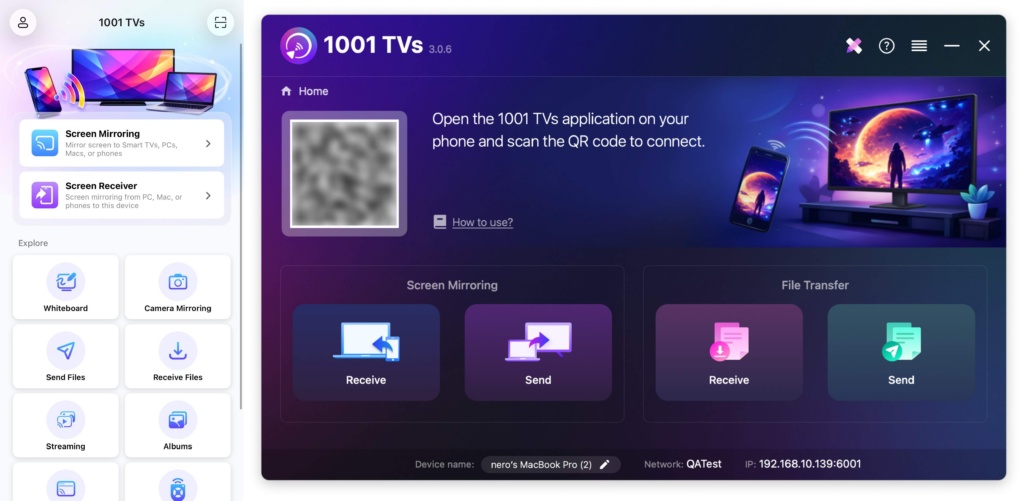
3. Start Screen Mirroring
There are three ways to begin:
1) Scan QR code
You can scan the QR code directly from the homepage or after selecting the “Screen Mirroring” option.
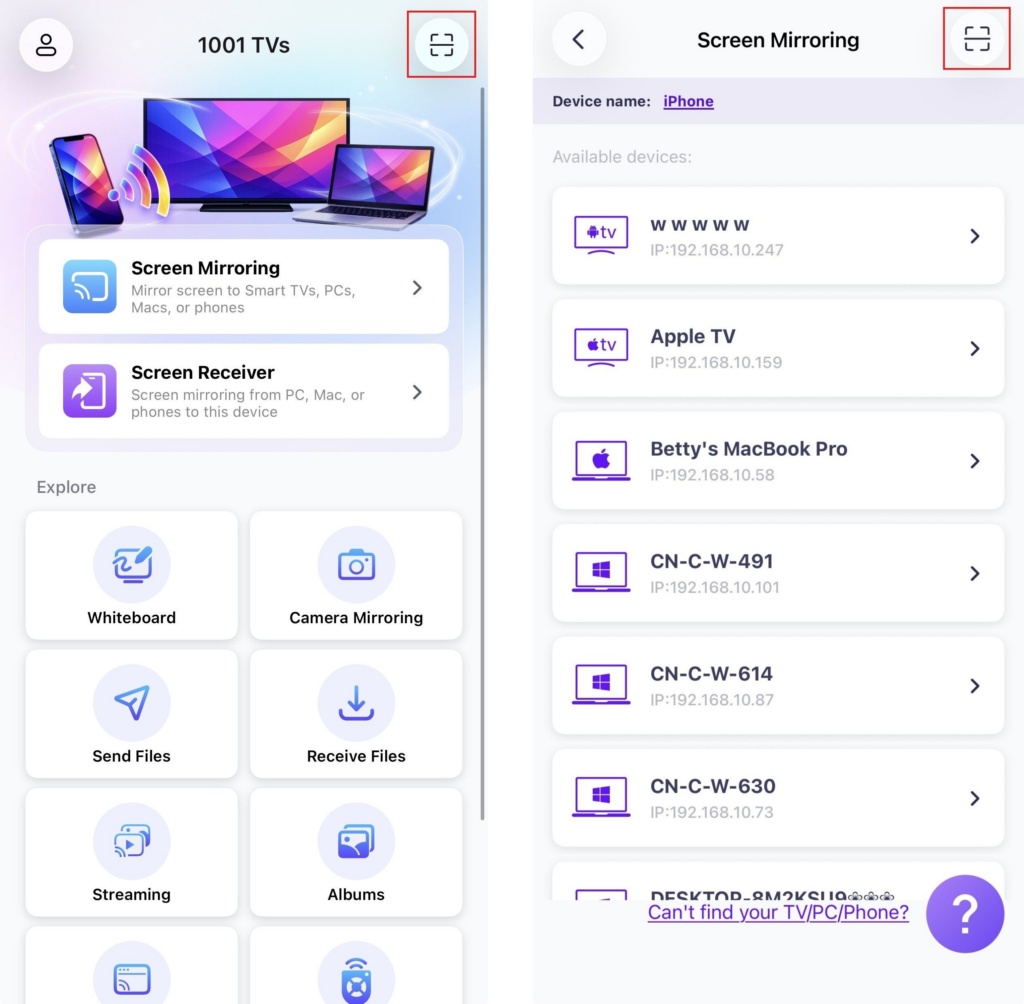
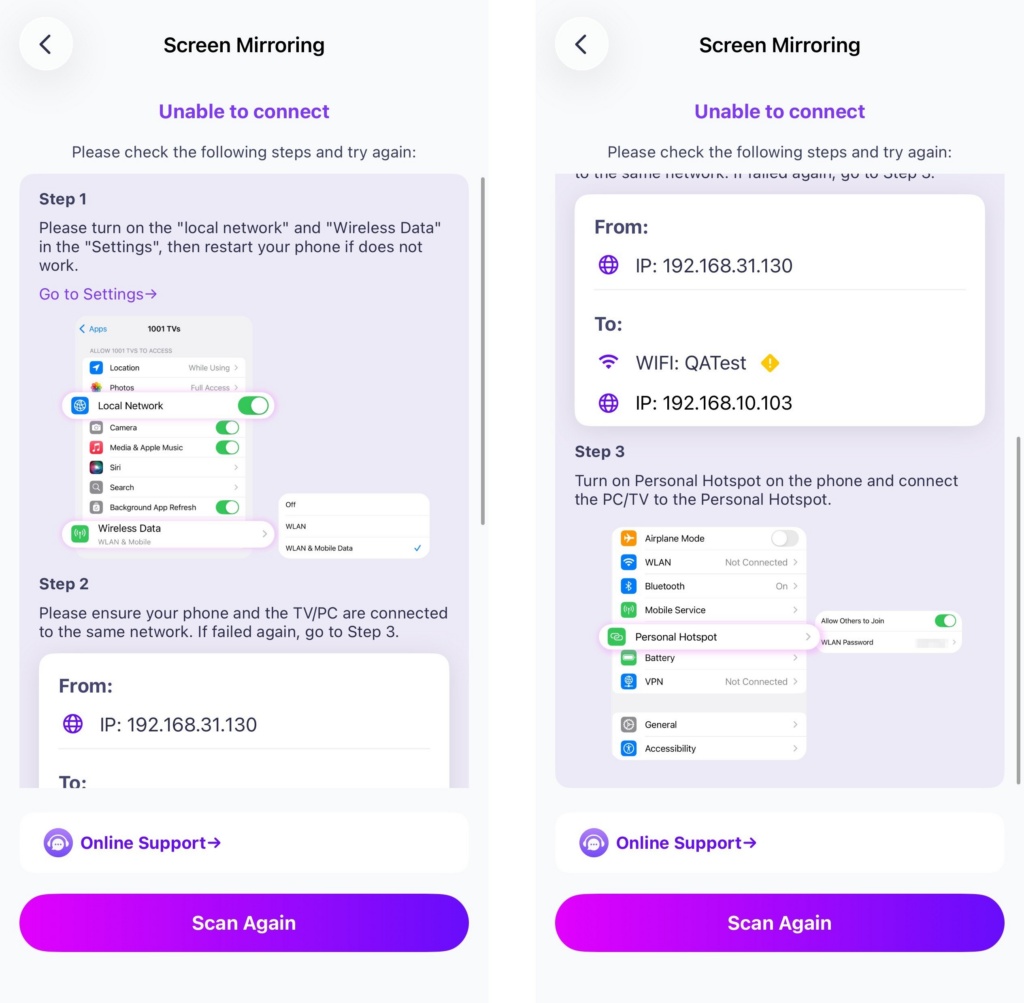
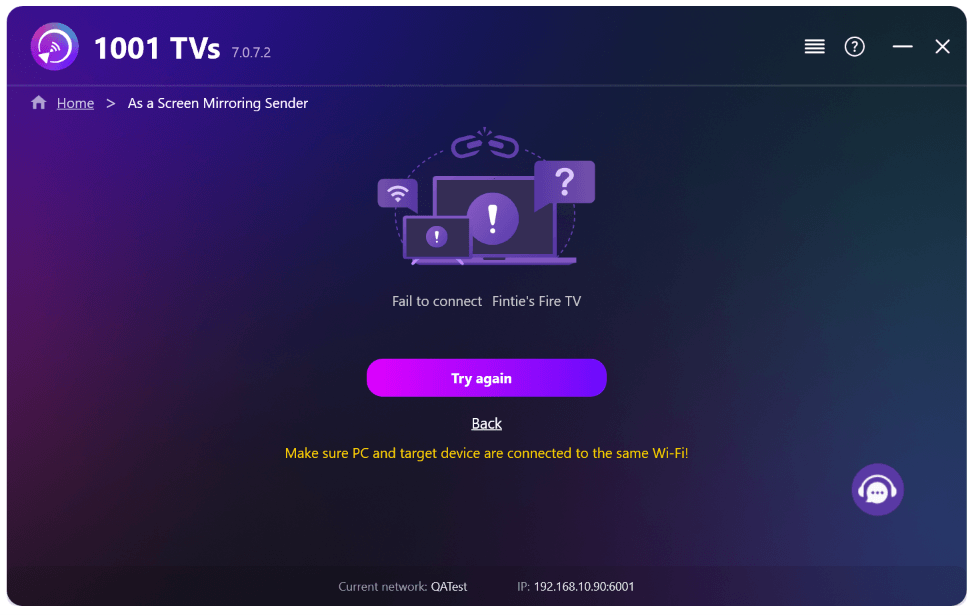
If the connection fails, the following interface will appear.
If the connection is successful, you’ll see the mirroring interface.
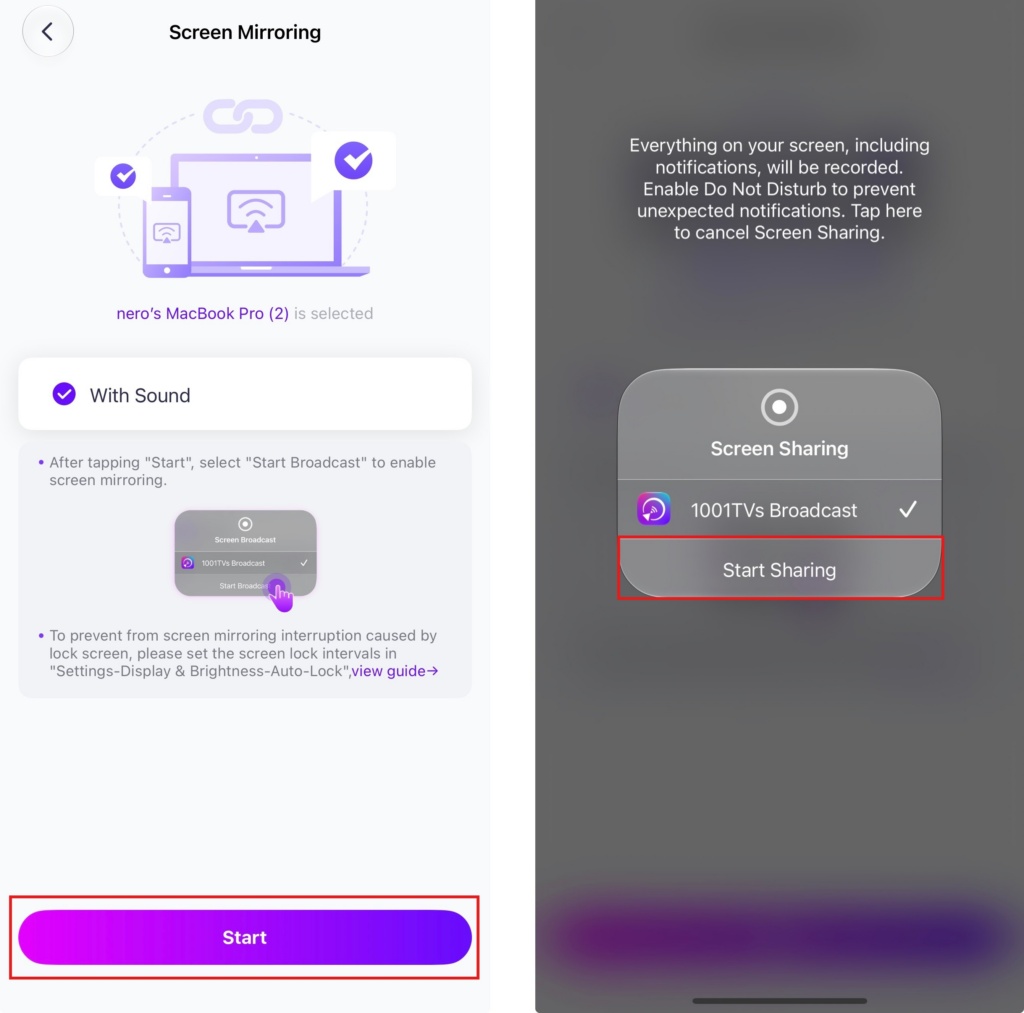
Tap “Start” ➜ “Start Sharing”.
2) Select Nearby Devices
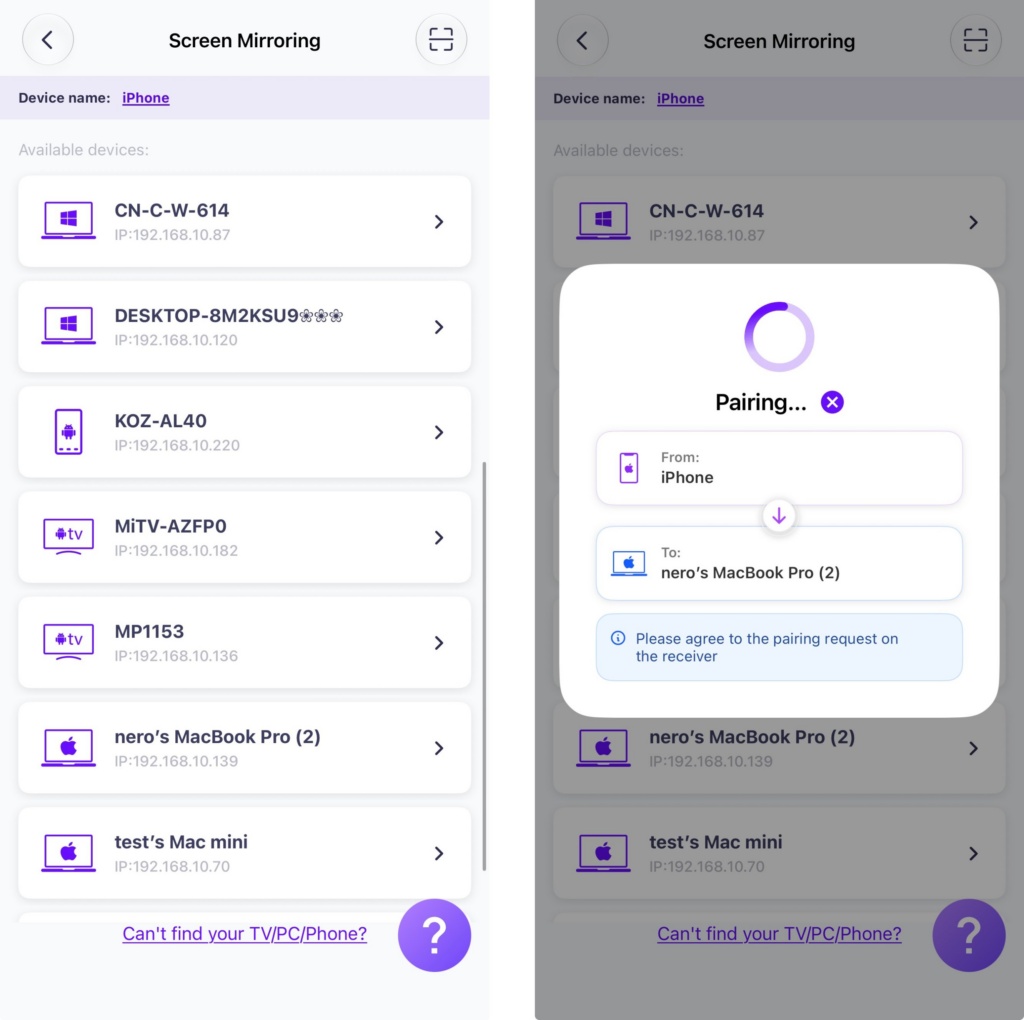
1001 TVs will automatically detect devices such as smart TVs, TV boxes, and PCs connected to the same Wi-Fi network.
Simply choose the device you want to cast to.
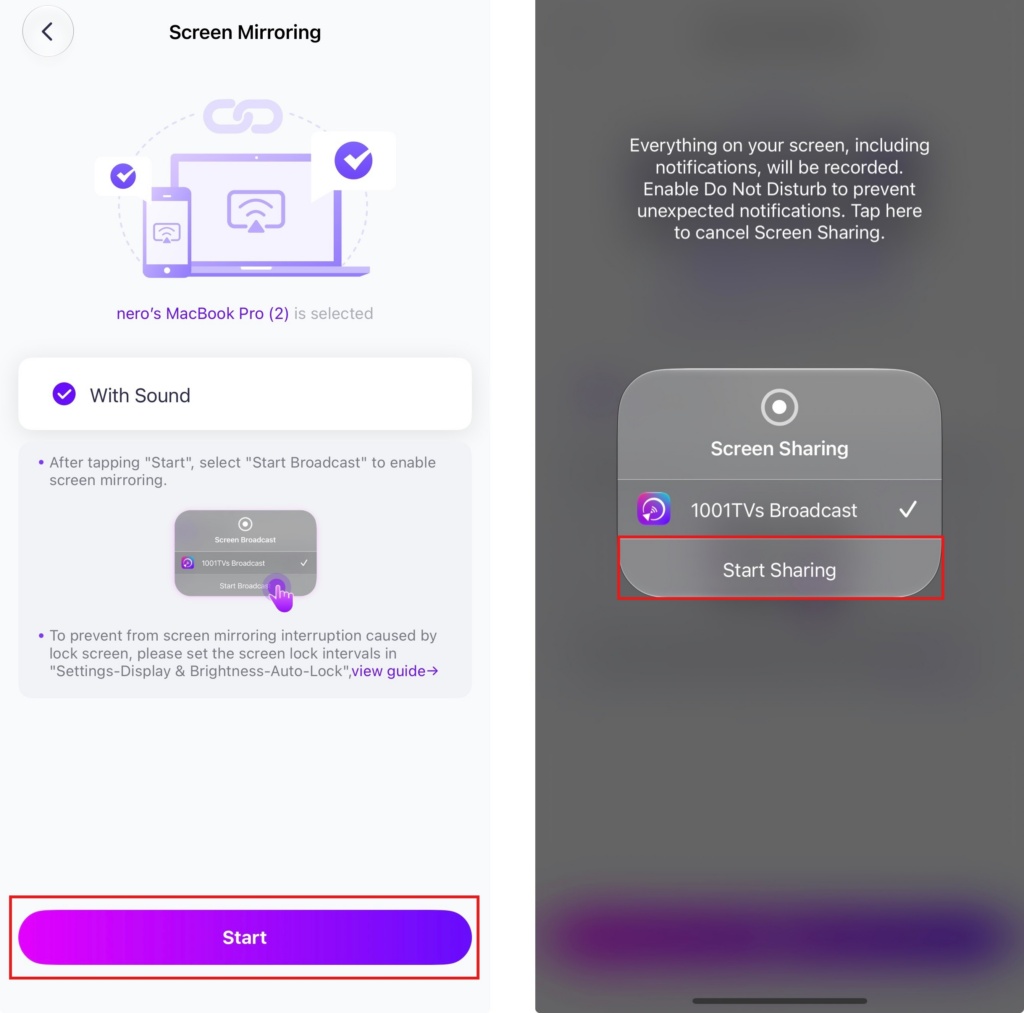
Tap “Start” ➜ “Start Sharing”.
3) Mirror Screen to Web Browser
Check out 1001 TVs–[iOS] How to Mirror Screen from iPhone to Browser (Chrome)
Get 1001 TVs Now!
📱 iOS Version: Download from App Store
📥 Mac Version: Download from App Store

Read More
 New Setting: No More Pop-ups When Mirroring Ends
When you're mirroring your PC screen to a TV and stop the session using the TV remote, the 1001 TVs window pops back up…
New Setting: No More Pop-ups When Mirroring Ends
When you're mirroring your PC screen to a TV and stop the session using the TV remote, the 1001 TVs window pops back up…
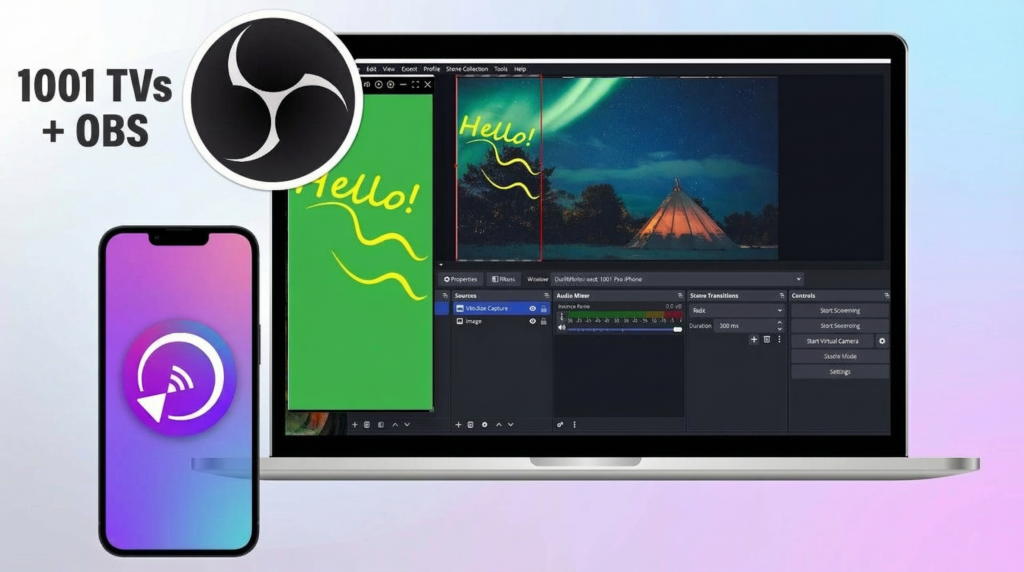 How to Capture Screen Mirroring in OBS (Android & iPhone)
Want to capture screen mirroring in OBS for mobile gameplay, tutorials, or live content? With 1001 TVs, you can easily mirror your phone screen…
How to Capture Screen Mirroring in OBS (Android & iPhone)
Want to capture screen mirroring in OBS for mobile gameplay, tutorials, or live content? With 1001 TVs, you can easily mirror your phone screen…

