Profitez de vos films - plus grands et plus fluides
Les films stockés sur votre PC ou votre Mac sont mieux présentés sur un téléviseur. Un écran plus grand fait ressortir plus de détails et rend
et rend les longs films beaucoup plus agréables à regarder.
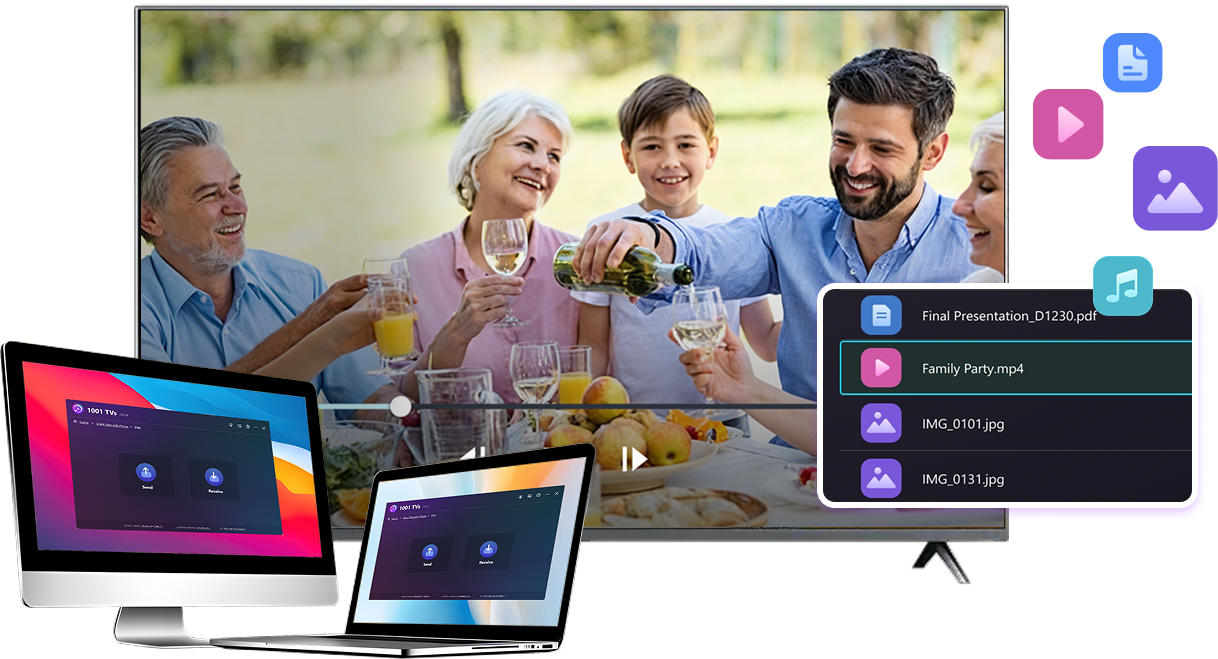
Diffusez des fichiers vidéo volumineux, y compris des vidéos complètes et 4K, directement depuis votre ordinateur vers votre téléviseur pour une lecture locale fluide.
pour une lecture locale fluide. Pas de clé USB, pas de câble HDMI, pas d'interruption.
Avec 1001 TVs, votre bibliothèque de films personnelle se transforme en une véritable expérience de cinéma à domicile sur grand écran.
écran.
Revivez vos souvenirs de famille sur le grand écran de télévision
Vos meilleures photos et vidéos se trouvent souvent sur votre ordinateur. Arrêtez de plisser les yeux devant l'écran d'un ordinateur portable ou de risquer votre vie privée avec des téléchargements dans le nuage.
de risquer votre vie privée avec les téléchargements dans le nuage.
Envoyez des photos et des vidéos de famille directement de votre PC ou de votre Mac vers votre téléviseur. Pas d'Internet, pas d'inscription et
pas d'attente - les fichiers sont envoyés directement sur votre téléviseur, en local.
Avec 1001 TVs, vos souvenirs restent en sécurité sur le téléphone portable, tandis que la joie de les partager remplit la pièce.
chambre.
Présenter comme un pro - Sans fil et fiable
Votre présentation se trouve sur votre PC. La montrer sur un téléviseur ne devrait pas dépendre de câbles, d'adaptateurs ou de solutions de dernière minute.
de dernière minute.
Envoyez sans fil des diapositives, des vidéos de démonstration et d'autres fichiers de votre ordinateur vers le téléviseur. La connexion
reste stable, de sorte que votre présentation se déroule sans interruption.
Pas de retard dans l'installation. Pas de problèmes inattendus.
Vous vous concentrez sur votre contenu - la télévision se contente de le diffuser.



 Télécharger




