检测到浏览器语言为,中文点此切换到中文页面->
How to Send Files to TV from Your PC & Mac?
Easily send files from your PC or Mac to a smart TV using 1001 TVs — in 3 simple steps.
1
Installer appen
Download og åbn 1001 TVs-appen på alle enheder.
2
Opret forbindelse
Connect your PC or Mac and TV to the same Wi-Fi network. Available devices will be detected automatically.
3
Send filer
Select your TV and send files instantly for fast, local transfer.
Stable. Local. Large File Transfer.
LARGE FILES & ANY FORMAT
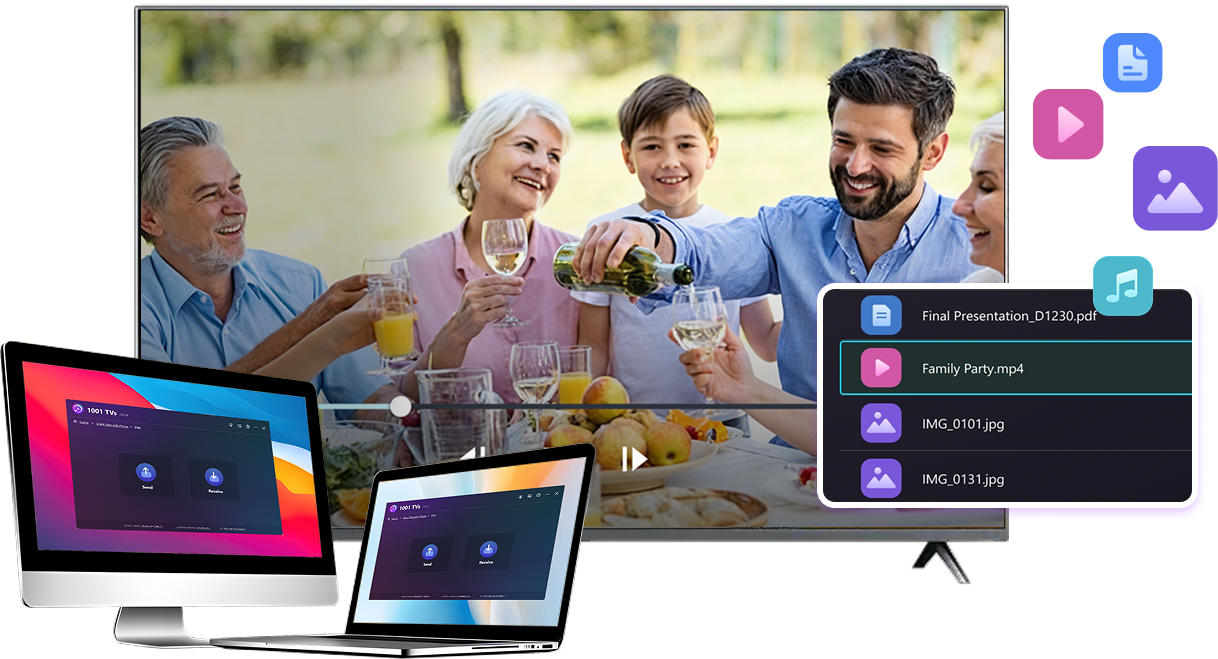
Transfer large files from your PC or Mac to your TV, including full-length videos and 4K movies.


Supports major file types such as MKV, MP4, AVI, and MP3, as well as documents and other desktop files.

No USB drives. No HDMI cables.
Select files on your computer and send them to the TV wirelessly.
large-files-any-format
LOCAL TRANSFER. RELIABLE PLAYBACK.
Alle overførsler sker via dit lokale netværk - ingen uploads i skyen og intet dataforbrug.

Transfer files in the background while you keep working.

Designed for stable, long-running transfers —even with large files.
local-transfer-reliable-playback
Brugsscenarier
Home Theater & Movies
Family Photos & Videos
Præsentationer og demonstrationer
Enjoy Your Movies — Bigger and Smoother
Movies stored on your PC or Mac look best on a TV. A larger screen brings out more detail and makes long movies far more comfortable to watch.

Stream large movie files, including full-length and 4K videos, directly from your computer to your TV for smooth, local playback—no USB drives, no HDMI cables, and no interruptions.

With 1001 TVs, your personal movie library turns into a true home-theater experience on the big screen.
home-theater-movies
Relive Family Memories on the Big TV Screen
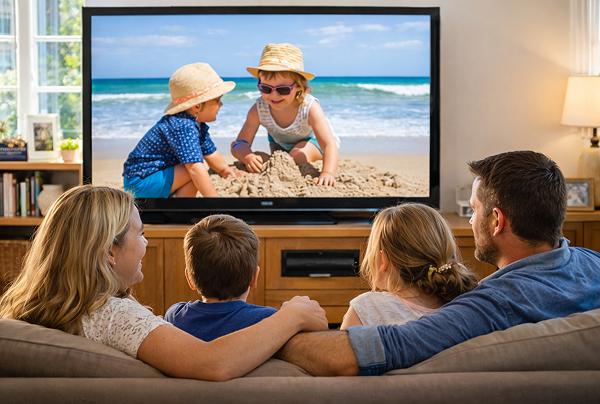
Your best photos and videos often live on your computer. Stop squinting at a laptop screen or risking your privacy with cloud uploads.

Send family photos and videos straight from your PC or Mac to the TV. No internet, no sign-ups, and no waiting — files go directly to your TV, locally.

With 1001 TVs, your memories stay safely on the local, while the joy of sharing them fills the room.
family-photos-videos
Present Like a Pro — Wireless and Reliable
Your presentation lives on your PC. Showing it on a TV shouldn’t depend on cables, adapters, or last-minute fixes.

Send slides, demo videos, and other files from your computer to the TV wirelessly. The connection stays stable, so your presentation runs without interruptions.

No setup delays. No unexpected glitches.
You focus on your content — the TV simply shows it.
præsentationer-demoer
Hent
Ofte stillede spørgsmål
Må jeg prøve det?
1001 TVs tilbyder en tidsbegrænset gratis prøveperiode med fuld, ubegrænset adgang til premiumfunktioner som skærmspejling, filoverførsel og album.
Hvis du vil fortsætte med at bruge tjenesten, skal du blot opgradere til et abonnement, når prøveperioden er slut.
Hvordan installerer jeg 1001 TVs-appen?
Du kan finde den ved at søge på "1001 TVs" i følgende app-butikker:
- Apple App Store (til iPhone, iPad, Mac, Apple TV)
- Microsoft Store (til Windows)
- Google Play (til Android-telefoner, -tablets og -fjernsyn)
Hvordan annullerer jeg mit abonnement?
Annuller et abonnement på din iOS-enhed
-  Åbn Indstillinger → tryk på dit navn, der vises øverst → Abonnementer → vælg → Annuller abonnement
Annuller et abonnement på din Google Play-konto
- Åbn Google Play Store → tryk på din profilbillede (øverst til højre) → Betalinger og abonnementer → Abonnementer → vælg abonnement → Annuller abonnement → bekræft annulleringen
Hvordan kontakter du os?
Kontakt os venligst på 1001tvs@nero.com.