检测到浏览器语言为中文,点此切换到中文页面->
Send Files to TV in 3 Simple Steps
1
Nainstalujte aplikaci
Install 1001 TVs on your phone and TV.
2
Připojte svá zařízení
Make sure both devices are on the same Wi-Fi network. On the TV, open Files. On your phone, tap File Transfer. Available devices will be detected automatically.
3
Odeslat soubory
Select the target device and send files for fast, direct transfer.
Simple. Secure. File Transfer.
NO LIMITS ON FORMATS
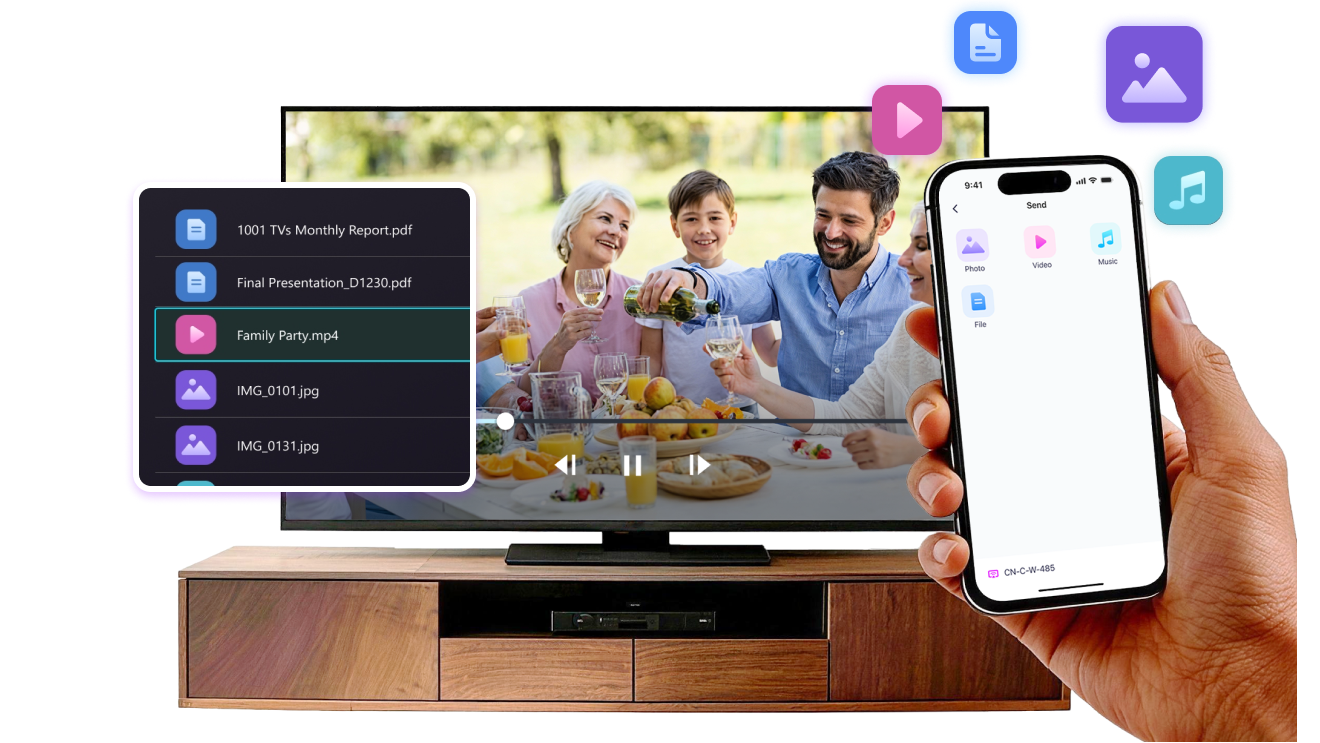
Send photos, videos, and audio files directly from your phone to your TV.
Supports common formats like JPG, PNG, MP4, MKV, AVI, and MP3 — no conversion required.

No USB cables needed. No extra steps.

Just select your files and send them to the TV with ease.
no-limits-on-formats
LOCAL TRANSFER. NO DATA USAGE.
All transfers happen over your local network — no cloud uploads and no data usage.

Once files are sent, they play directly on the TV.

Phone calls, screen locks, or switching apps won’t interrupt playback, so you can watch with confidence.
local-transfer-no-data-usage
Příklady použití
Sdílení Fotek a Videí
Presentations & Demos
Learning & Teaching
Show What You Captured — Bigger and Clearer
Photos and videos look better on a TV than on a small phone screen. A larger display makes details clearer and moments easier to enjoy together.

Send photos and videos directly from your phone to the TV for smooth playback and a more comfortable viewing experience. Share family moments, trips, or special occasions without passing phones around or dealing with cables.

With 1001 TVs, everyday photos and videos naturally become something everyone in the room can enjoy on the big screen.
photo-video-sharing
Present with Confidence — Clear and Distraction-Free
Presentations are easier to follow when everyone can see the content clearly.
A larger screen helps keep attention focused and makes key points stand out.

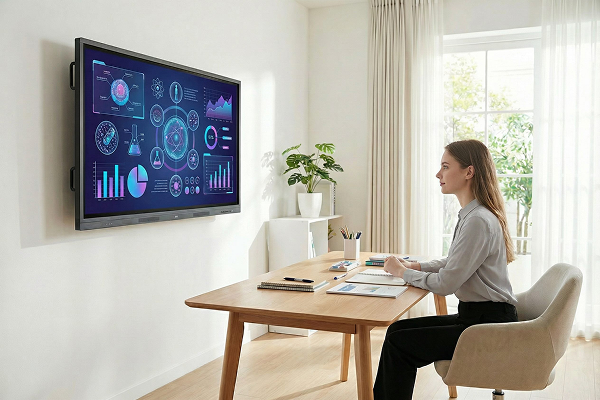
Share slides, visuals, or demos directly from your device to the TV for a smooth and uninterrupted presentation. No cables on the table, no crowding around a laptop.

With 1001 TVs, presenting on a big screen feels simple and professional in any space.
presentations-demos
Make Learning More Visual — and More Engaging
Learning becomes more effective when ideas are easy to see and follow. A bigger screen helps students stay focused and understand concepts more clearly.

Display lessons, exercises, or demonstrations on a TV to create a shared learning experience. Everyone can follow along at the same pace, without distractions.

With 1001 TVs, learning naturally becomes more interactive on the big screen.
learning-teaching
Stáhnout
Často kladené dotazy
Proč nevidím svou TV nebo PC v seznamu zařízení?
  • Zkontrolujte, zda jsou telefon i počítač/televizor připojeny ke stejné síti Wi-Fi. Pokud je na adrese zkuste restartovat směrovač.
  • Na iPhonu se ujistěte, že jste udělili přístup k „Místní síti“ a „Bezdrátovým datům“. Jděte do Nastavení → Aplikace → Přejděte na 1001 TVs → Povolit místní síť → Bezdrátová data → Wi-Fi a mobilní data.
  • Ujistěte se, že je 1001 TVs nainstalovaný a spuštěný jak na telefonu, tak na cílovém zařízení (počítač nebo televize).
  • Pokud narazíte na problémy, restartujte 1001 TVs a zkuste to znovu.
  • Veřejné Wi-Fi sítě na místech jako hotely nebo letiště mohou mít zapnutou izolaci AP, což může zablokovat připojení.
  • Případně zkuste zapnout hotspot v telefonu a připojit k němu počítač nebo televizor. zkuste zrcadlení obrazovky.
  • Pokud stále nefunguje, restartujte telefon a zkuste to ještě jednou.
Jak mohu zrušit své předplatné?
Zrušení předplatného na vašem iOS zařízení
- Otevřete Nastavení → klepněte na své jméno zobrazené nahoře → Předplatné → vyberte → Zrušit předplatné
Zrušení předplatného na vašem účtu Google Play
- Otevřete Google Play Store → klepněte na ikonu profilu (vpravo nahoře) → Platby a předplatné → Předplatná → vyberte předplatné → Zrušit předplatné → potvrdit zrušení
Jak mohu požádat o vrácení peněz?
Požádat o vrácení peněz na iOS
- Nejprve zrušte předplatné .
- Otevřete Nastavení → klepněte na své jméno zobrazené nahoře → Média a nákupy → Zobrazit účet → Historie nákupů → vyberte předplatné → Nahlásit problém → vyberte „Požádat o vrácení peněz“ a důvod
Požádat o vrácení peněz na Google Play
- Přejděte na play.google.com → klepněte na svou profilovou ikonu (vpravo nahoře) → Platby a předplatné → Historie rozpočtu a objednávek → Nahlásit problém → vyberte možnost, která odpovídá vaší situaci → Odeslat