检测到浏览器语言为中文،点此切换到中文页面->
Send Files to TV in 3 Simple Steps
1
ایپ انسٹال کریں۔
Install 1001 TVs on your phone and TV.
2
Connect Your Devices
Make sure both devices are on the same Wi-Fi network. On the TV, open Files. On your phone, tap File Transfer. Available devices will be detected automatically.
3
Send Files
Select the target device and send files for fast, direct transfer.
Simple. Secure. File Transfer.
NO LIMITS ON FORMATS
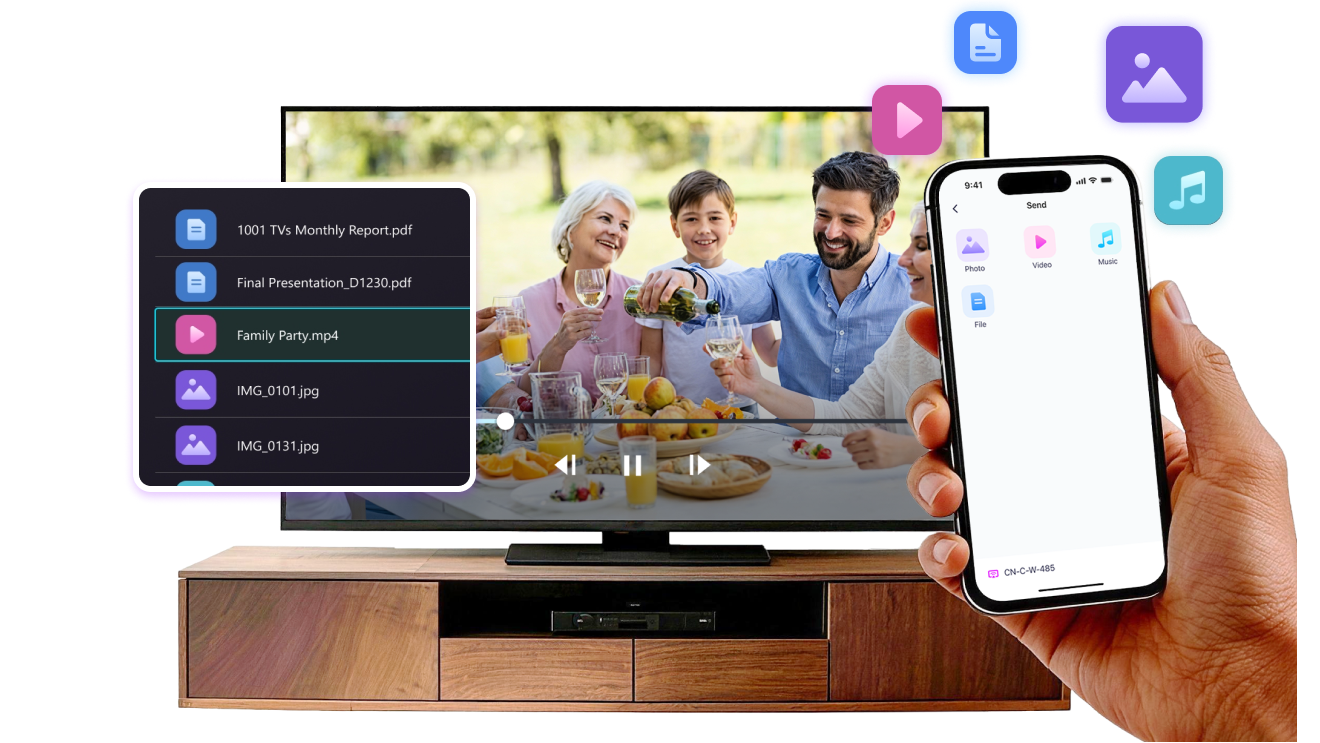
Send photos, videos, and audio files directly from your phone to your TV.
Supports common formats like JPG, PNG, MP4, MKV, AVI, and MP3 — no conversion required.

No USB cables needed. No extra steps.

Just select your files and send them to the TV with ease.
no-limits-on-formats
LOCAL TRANSFER. NO DATA USAGE.
All transfers happen over your local network — no cloud uploads and no data usage.

Once files are sent, they play directly on the TV.

Phone calls, screen locks, or switching apps won’t interrupt playback, so you can watch with confidence.
local-transfer-no-data-usage
کیسز استعمال کریں۔
تصویر اور ویڈیو شیئرنگ
Presentations & Demos
Learning & Teaching
Show What You Captured — Bigger and Clearer
Photos and videos look better on a TV than on a small phone screen. A larger display makes details clearer and moments easier to enjoy together.

Send photos and videos directly from your phone to the TV for smooth playback and a more comfortable viewing experience. Share family moments, trips, or special occasions without passing phones around or dealing with cables.

With 1001 TVs, everyday photos and videos naturally become something everyone in the room can enjoy on the big screen.
photo-video-sharing
Present with Confidence — Clear and Distraction-Free
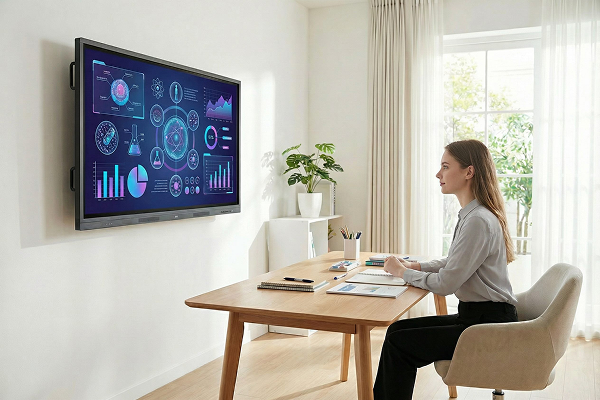
Presentations are easier to follow when everyone can see the content clearly.
A larger screen helps keep attention focused and makes key points stand out.

Share slides, visuals, or demos directly from your device to the TV for a smooth and uninterrupted presentation. No cables on the table, no crowding around a laptop.

With 1001 TVs, presenting on a big screen feels simple and professional in any space.
presentations-demos
Make Learning More Visual — and More Engaging
Learning becomes more effective when ideas are easy to see and follow. A bigger screen helps students stay focused and understand concepts more clearly.

Display lessons, exercises, or demonstrations on a TV to create a shared learning experience. Everyone can follow along at the same pace, without distractions.

With 1001 TVs, learning naturally becomes more interactive on the big screen.
learning-teaching
ڈاؤن لوڈ کریں۔
اکثر پوچھے گئے سوالات
میں آلہ کی فہرست میں اپنا TV یا PC کیوں نہیں ڈھونڈ سکتا؟
  • یقینی بنائیں کہ آپ کا فون اور کمپیوٹر/ٹی وی دونوں ایک ہی Wi-Fi نیٹ ورک سے جڑے ہوئے ہیں۔ اگر ضروری ہو تو، روٹر کو دوبارہ شروع کرنے کی کوشش کریں۔.
  • آئی فونز کے لیے، یقینی بنائیں کہ آپ "لوکل نیٹ ورک" اور "وائرلیس ڈیٹا" تک رسائی فراہم کرتے ہیں۔ ترتیبات → ایپس → 1001 TVs تک نیچے سکرول کریں → مقامی نیٹ ورک کو فعال کریں → وائرلیس ڈیٹا → WLAN اور سیلولر پر جائیں۔.
  • یقینی بنائیں کہ 1001 TVs انسٹال ہے اور آپ کے فون اور وصول کرنے والے ڈیوائس (کمپیوٹر یا ٹی وی) دونوں پر کھلا ہے۔.
  • اگر آپ کو مسائل درپیش ہیں تو 1001 TVs کو دوبارہ شروع کریں اور دوبارہ کوشش کریں۔.
  • ہوٹلوں یا ہوائی اڈوں جیسی جگہوں پر عوامی Wi-Fi نیٹ ورکس میں AP تنہائی ہوسکتی ہے، جو کنکشن کو روک سکتی ہے۔.
  • متبادل طور پر، اپنے فون کے ہاٹ اسپاٹ کو آن کرنے کی کوشش کریں اور اپنے کمپیوٹر یا ٹی وی کو اس سے جوڑیں، پھر اسکرین مررنگ کی کوشش کریں۔.
  • اگر یہ اب بھی کام نہیں کر رہا ہے، تو اپنا فون دوبارہ شروع کریں اور ایک بار پھر کوشش کریں۔.
سبسکرپشن کیسے منسوخ کریں؟
اپنے iOS پر سبسکرپشن منسوخ کریں۔
· سیٹنگز ایپ کھولیں → اپنا نام → سبسکرپشنز → سبسکرپشن → سبسکرپشن منسوخ کریں۔
Google Play پر سبسکرپشن منسوخ کریں۔
· Google Play Store ایپ کھولیں → پروفائل تصویر اوپر دائیں جانب → ادائیگی اور سبسکرپشنز → سبسکرپشنز → سبسکرپشن → منسوخ کریں سبسکرپشن → منسوخی کی تصدیق کریں
رقم کی واپسی کی درخواست کیسے کی جائے؟
اپنے iOS پر رقم کی واپسی کی درخواست کریں۔
· رکنیت منسوخ کریں۔ پہلے.
· ترتیبات ایپ کھولیں → اپنا نام → میڈیا اور خریداریاں → اکاؤنٹ دیکھیں → خریداری کی سرگزشت → سبسکرپشن → ایک مسئلہ کی اطلاع دیں → رقم کی واپسی کی درخواست کریں اور وجہ منتخب کریں
Google Play پر رقم کی واپسی کی درخواست کریں۔
· play.google.com پر جائیں۔ → پروفائل تصویر اوپر دائیں طرف → ادائیگی اور سبسکرپشنز → بجٹ اور آرڈر کی سرگزشت → کسی مسئلے کی اطلاع دیں → وہ اختیار منتخب کریں جو آپ کی صورتحال کو بیان کرتا ہے → جمع کرائیں