Digital Signage: No Repeated Uploads — Auto-Update Photos & Videos to Multiple TVs
For photos and videos, 1001 TVs lets you use Albums to send content from your phone to a single TV for playback.
However, managing content across multiple TVs can be time-consuming—you would need to select and send the same photos or videos to each TV separately.
With Digital Signage, you can keep multiple TVs updated automatically. Simply add photos and videos to your content folder, and the connected TVs will automatically download the latest files and make them available for playback.
Tutorial
Step 1. Connect to the Same Wi-Fi
Make sure both your phone and TV are connected to the same Wi-Fi network.
For best performance, use a 5 GHz Wi-Fi network to reduce delay and improve stability.
Step 2. Install and Open 1001 TVs App
Install and open the 1001 TVs app on your phone.
📱iOS App: Download from App Store
📱Android App: Download from Google Play
📥TV App: How to Install 1001 TVs on Your TV
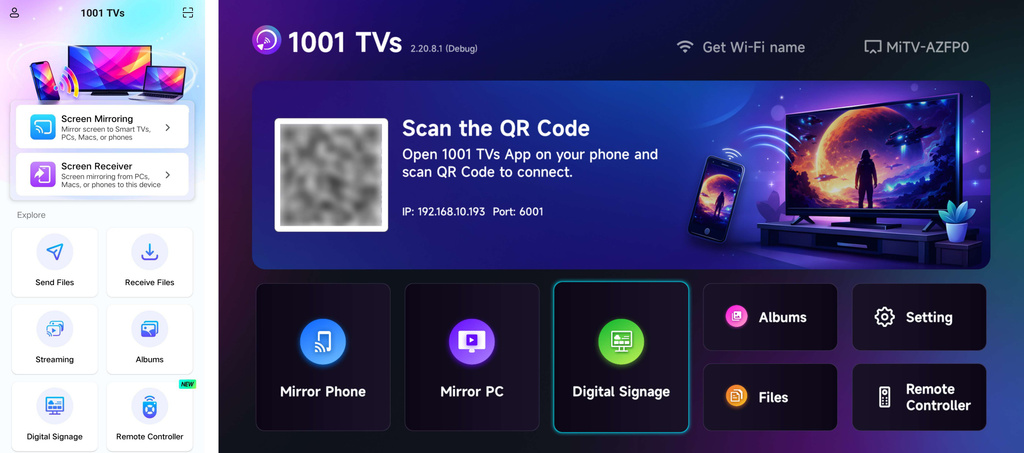
Step 3. Start pairing
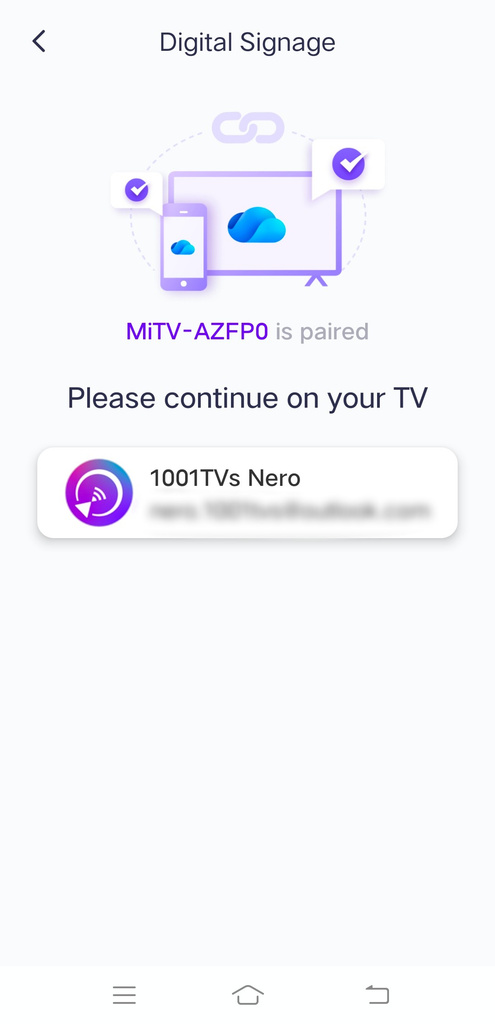
Tap Digital Signage, then select your TV or scan the QR code on the TV to pair.
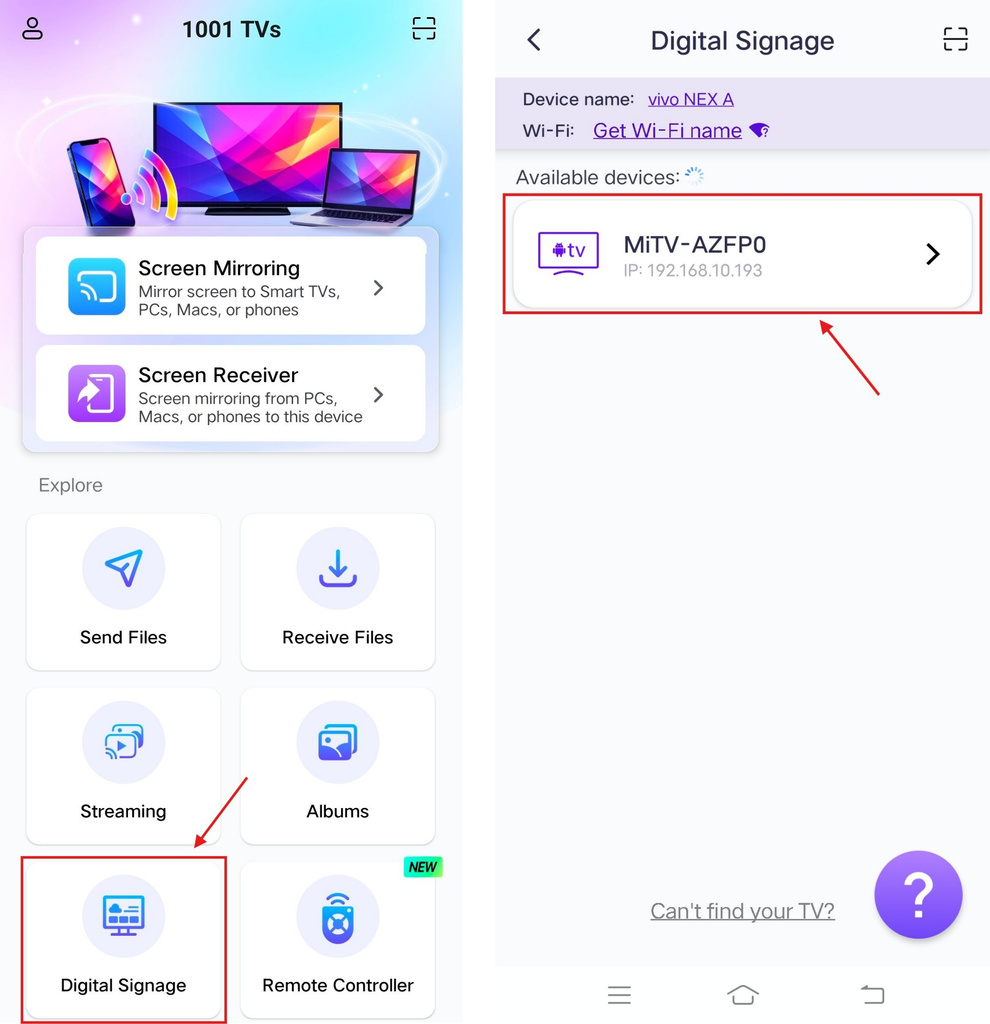
Accept the pairing request on your TV.
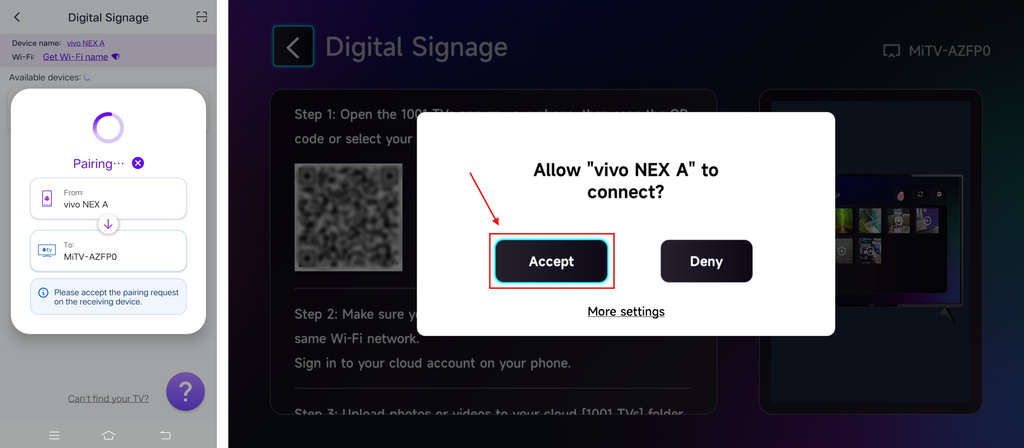
Step 4. Sign in to your OneDrive account
Tap Next, then sign in to your OneDrive account.
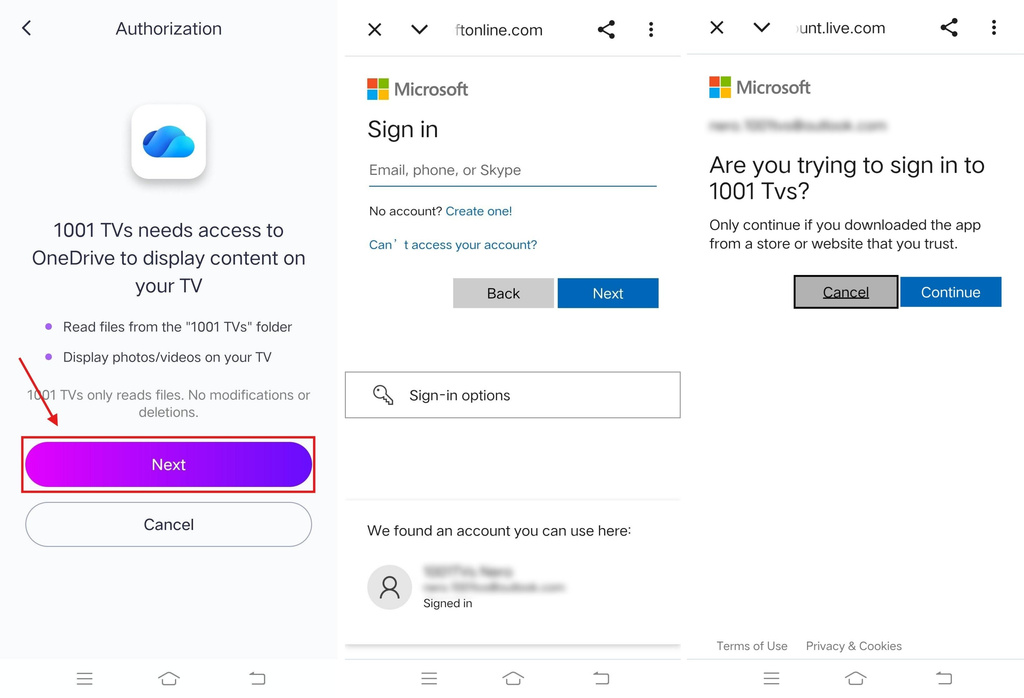
Once you’ve signed in, the interface will look like this.
Step 5. Upload photos and videos
Upload the photos and videos you want to show on your TV to the [1001 TVs] folder in OneDrive — via either the OneDrive website or the OneDrive client.
OneDrive versions:
- Desktop – can sign in to only one personal account, but supports multiple work accounts simultaneously. To add more accounts, sign in via the web version.
- Web
- Mobile (iOS) – requires iOS 18 or later to download.
- Mobile (Android) – can also be installed; requires Android 6.0 or later.
The files in the folder will then be automatically downloaded to your TV for viewing or playback.
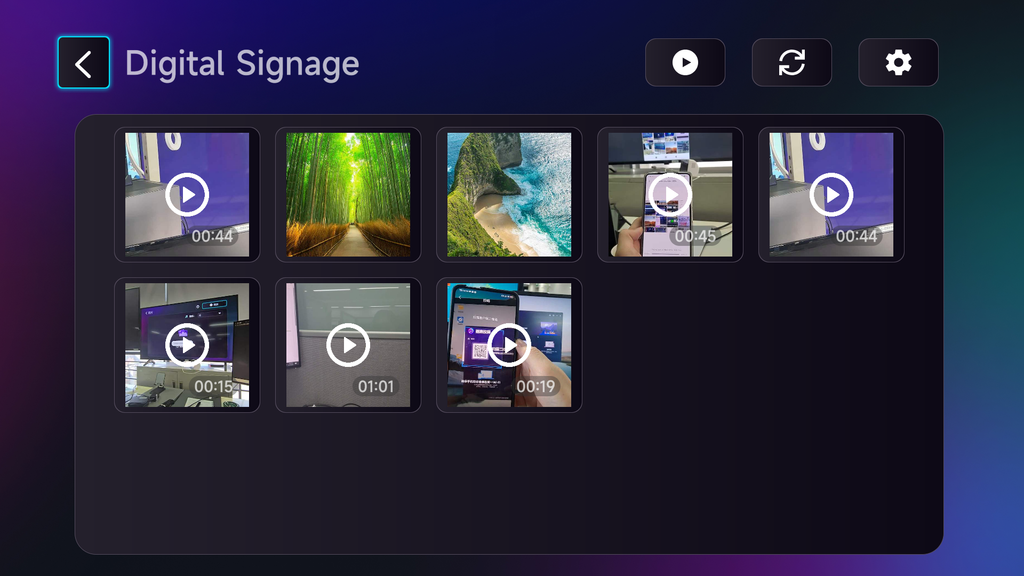
Step 6. Update content to multiple TVs
Repeat Steps 3–5 for each TV. All connected TVs will automatically stay updated with the photos and videos in the folder.
More Settings
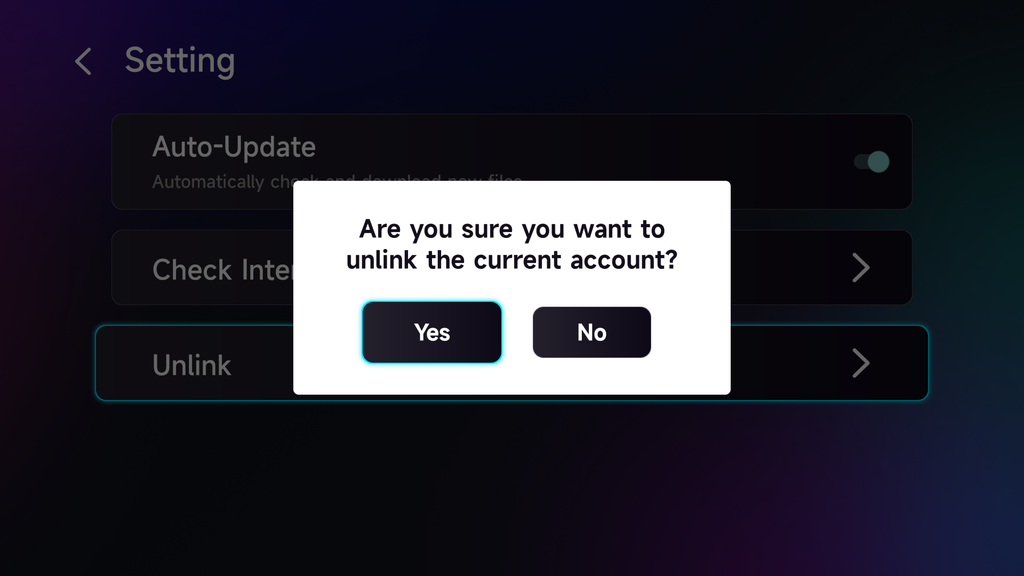
You can turn on Auto-Update to automatically check for and download new files from your [1001 TVs] folder to your TV.
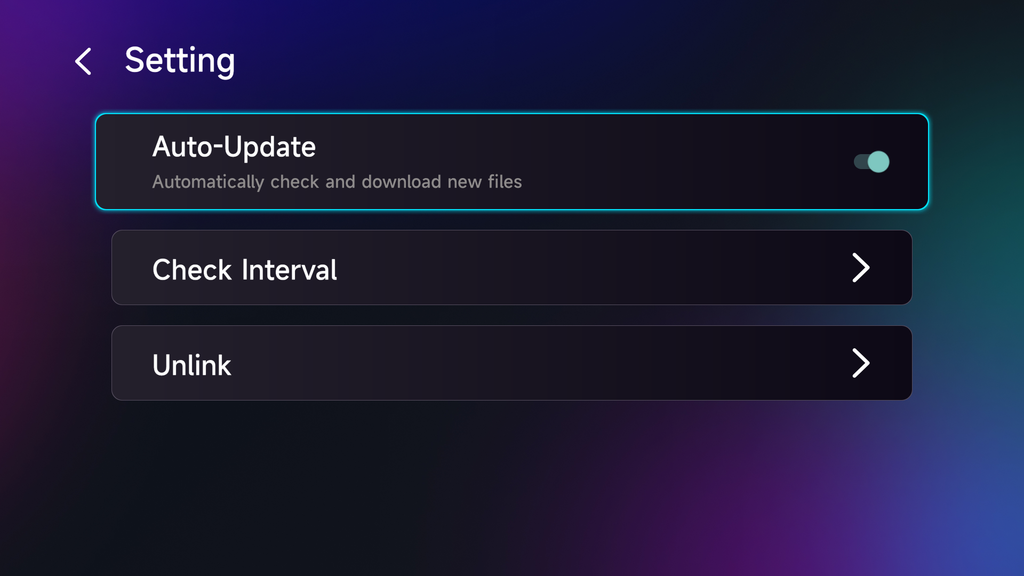
You can also set the auto-check interval to 2 hours, 4 hours, or 24 hours.
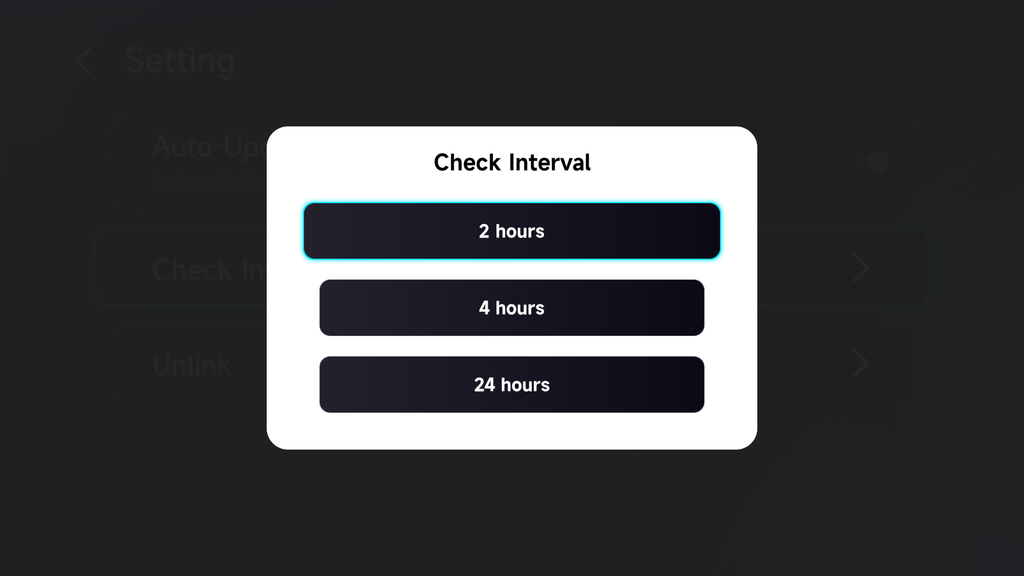
To use a different OneDrive account, select Unlink and sign in with another account.
That’s it!
Your TVs will automatically stay updated with the latest photos and videos in your content folder, without the need to upload them to each TV separately.
Get 1001 TVs Now!
📱iOS App: Download from App Store
📱Android App: Download from Google Play
📥TV App: How to Install 1001 TVs on Your TV
Read More
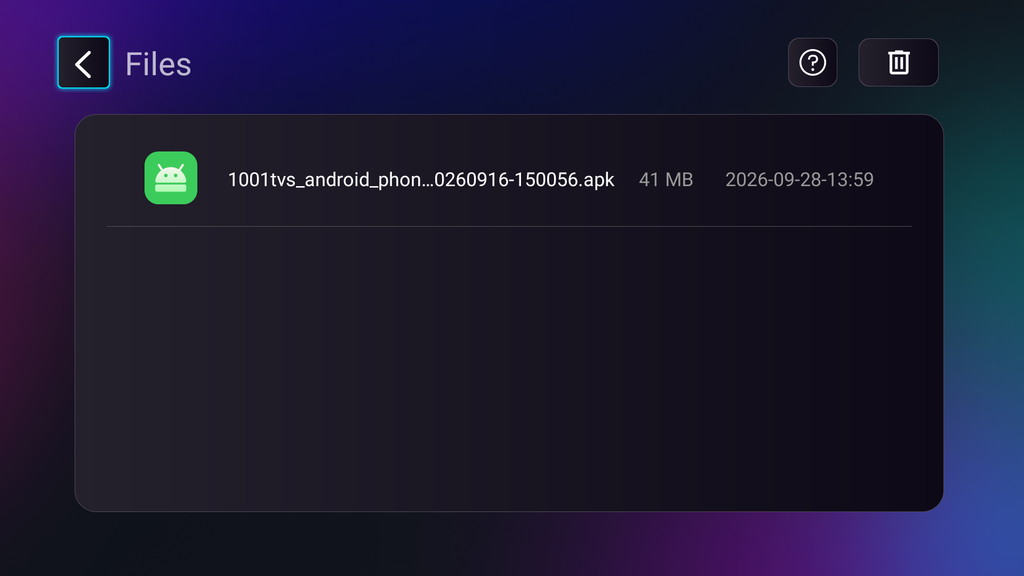 TV APK Installation Guide: How to Send and Install APK Files on TV from Your PC or Mac via Wi-Fi
Got an APK file on your phone, PC or Mac that you want to run on your TV? With 1001 TVs and TV File…
TV APK Installation Guide: How to Send and Install APK Files on TV from Your Phone via Wi-Fi
Got an APK file on your phone or PC that you want to run on your TV? With 1001 TVs, you can send APK…