检测到浏览器语言为中文,点此切换到中文页面 →
Set Up Digital Signage with OneDrive in Just 3 Steps
1
Install & Pair Your TVs
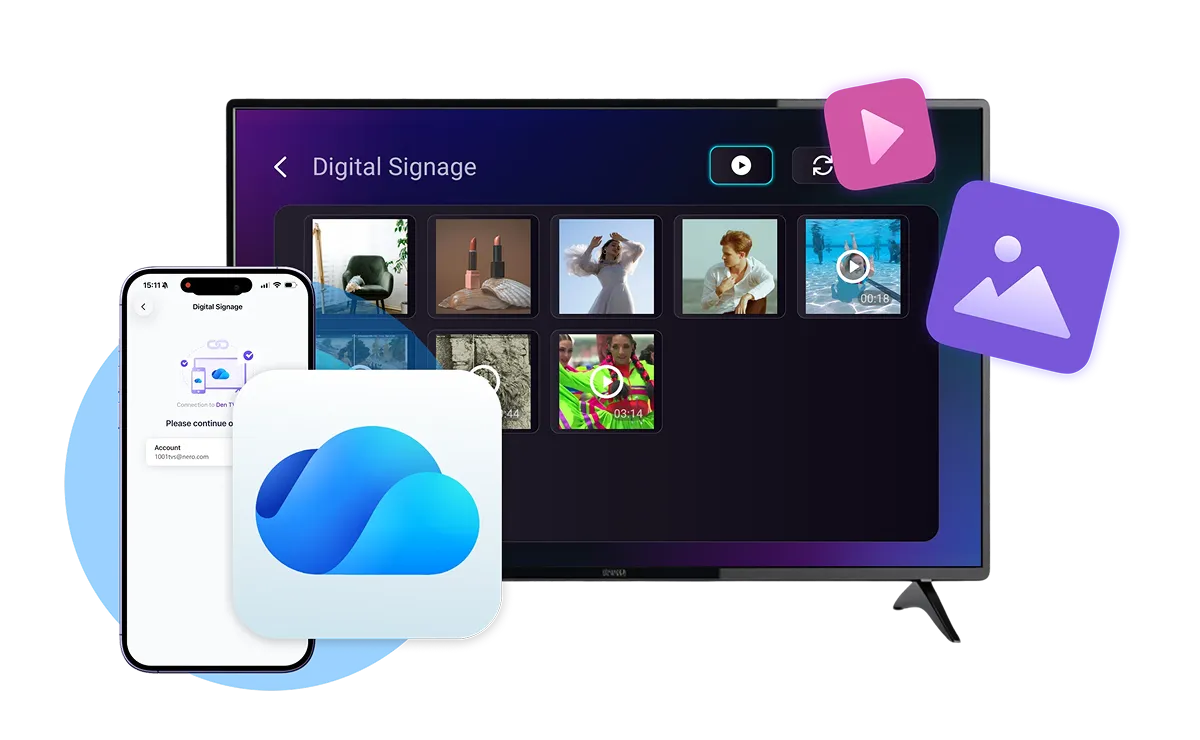
Install 1001 TVs on your phone and TVs. Connect to the same Wi-Fi, then select or scan to pair each TV.
2
Connect OneDrive
Use 1001 TVs on your phone to set up OneDrive on your TV, then add photos and videos to the [1001 TVs] folder.
3
Enable Auto-Update
Turn on Auto-Update and choose a 2, 4, or 24-hour check interval. Your TVs will automatically download new content for slideshow playback.
Manage and Update TV Content with Ease
photo-video-display
Photo & Video Display
checkedVersatile Media Support: Display photos and videos on your TVs, turning everyday screens into digital displays.
checkedSlideshow Playback: Present downloaded photos and videos as a slideshow on your TV, ideal for promotions, announcements, and visual displays.
easy-setup
Easy Setup from Your Phone
checkedConvenient TV Pairing: Connect and pair your TVs using the 1001 TVs mobile app for a simple initial setup.
checkedEasy OneDrive Configuration: Set up OneDrive on your TV directly from your phone, making the process quicker and more convenient.
automatic-updates
Automatic Updates Across Multiple TVs
checkedOne Source, Multiple Screens: Keep photos and videos in one OneDrive folder, so multiple connected TVs can access the same content.
checked Flexible Auto-Updates: Let connected TVs automatically check for and download new media at your chosen update interval.
Digital Signage (OneDrive) for Every Space
Retail
Restaurants
Offices
Hotels
Events
Bring Your Promotions to Every Screen
Showcase new arrivals, seasonal promotions, and product videos on TVs throughout your store. Keep promotional displays fresh and consistent across multiple screens as your campaigns change.
retail
Make Your Menu More Appealing
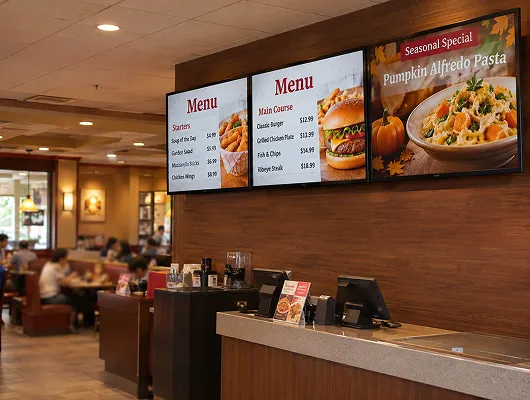
Turn your TVs into digital menu displays featuring food photos, daily specials, and promotional videos. Easily update menu visuals and special offers to highlight what is available to customers.
restaurants
Keep Your Workplace Informed
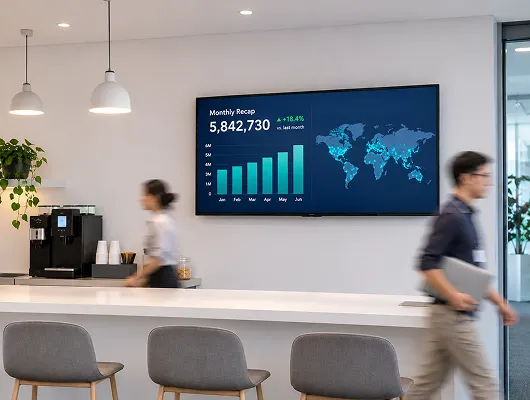
Display company announcements, employee achievements, and upcoming events on TVs around your office. Share consistent information across reception areas, meeting spaces, and common areas.
offices
Create a Welcoming Guest Experience
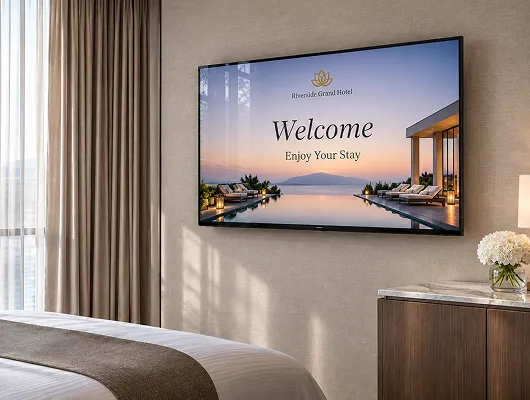
Welcome guests with displays featuring hotel amenities, local attractions, and upcoming events. Keep information current across lobby TVs, reception areas, and other shared spaces.
hotels
Make Every Event Display Count
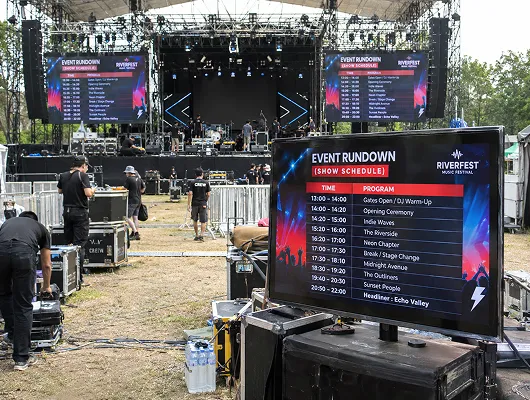
Show event schedules, speaker introductions, sponsor graphics, and promotional videos across venue TVs. Keep visual content up to date throughout exhibitions, conferences, and other events.
events
Download
FAQs
Digital signage uses digital screens, such as TVs, to display information, advertisements, photos, and videos. With 1001 TVs, you can use OneDrive to manage content and automatically update it across multiple connected TVs.
Yes. Digital Signage is free to use in 1001 TVs. You can manage and automatically update photos and videos across multiple connected TVs without a paid Digital Signage subscription.
Yes. Digital Signage uses OneDrive as its content source. You'll need to sign in to a OneDrive account to manage the photos and videos displayed on your TVs.
Yes. Once photos and videos are downloaded from OneDrive to your TV, you can play them as a slideshow with 1001 TVs.
Yes. You can add or update photos and videos through the OneDrive website or desktop app. Your connected TVs will automatically check for and download new content at the configured interval.
Screen Mirroring displays your device's screen on a TV in real time, while Albums lets you manually send photos and videos from your phone to a TV. Digital Signage uses OneDrive to automatically update media files across multiple connected TVs, making it better suited to ongoing content management.