检测到浏览器语言为中文,点此切换到中文页面->
How to Send Files to TV from Your PC & Mac?
Easily send files from your PC or Mac to a smart TV using 1001 TVs — in 3 simple steps.
1
Nainstalujte aplikaci
Stáhněte si a otevřete aplikaci 1001 TVs na všech zařízeních.
2
Připojení
Connect your PC or Mac and TV to the same Wi-Fi network. Available devices will be detected automatically.
3
Odeslat soubory
Select your TV and send files instantly for fast, local transfer.
Stable. Local. Large File Transfer.
LARGE FILES & ANY FORMAT
Transfer large files from your PC or Mac to your TV, including full-length videos and 4K movies.


Supports major file types such as MKV, MP4, AVI, and MP3, as well as documents and other desktop files.

No USB drives. No HDMI cables.
Select files on your computer and send them to the TV wirelessly.
large-files-any-format
LOCAL TRANSFER. RELIABLE PLAYBACK.
Všechny přenosy probíhají v místní síti - žádné nahrávání do cloudu a žádná spotřeba dat.

Transfer files in the background while you keep working.

Designed for stable, long-running transfers —even with large files.
local-transfer-reliable-playback
Příklady použití
Home Theater & Movies
Family Photos & Videos
Prezentace a ukázky
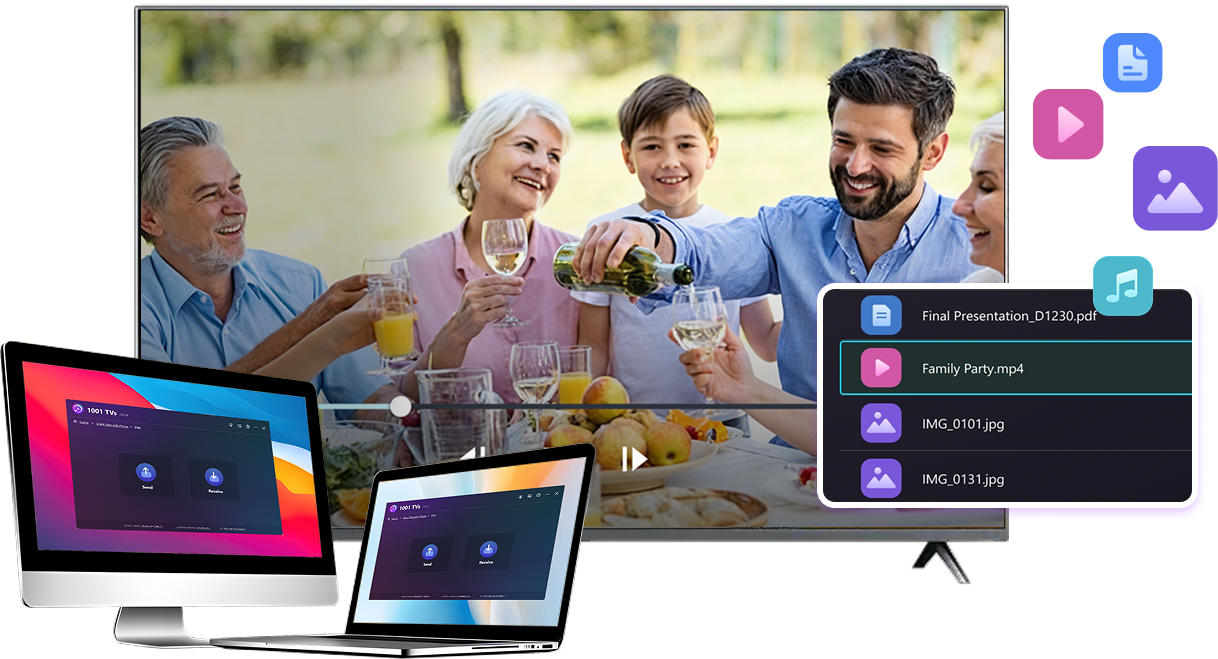
Enjoy Your Movies — Bigger and Smoother
Movies stored on your PC or Mac look best on a TV. A larger screen brings out more detail and makes long movies far more comfortable to watch.

Stream large movie files, including full-length and 4K videos, directly from your computer to your TV for smooth, local playback—no USB drives, no HDMI cables, and no interruptions.

With 1001 TVs, your personal movie library turns into a true home-theater experience on the big screen.
home-theater-movies
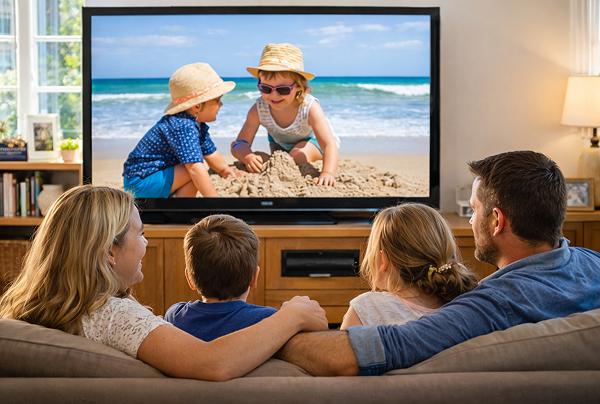
Relive Family Memories on the Big TV Screen
Your best photos and videos often live on your computer. Stop squinting at a laptop screen or risking your privacy with cloud uploads.

Send family photos and videos straight from your PC or Mac to the TV. No internet, no sign-ups, and no waiting — files go directly to your TV, locally.

With 1001 TVs, your memories stay safely on the local, while the joy of sharing them fills the room.
family-photos-videos
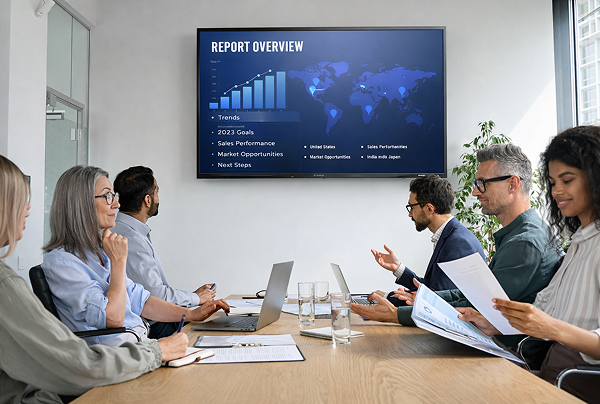
Present Like a Pro — Wireless and Reliable
Your presentation lives on your PC. Showing it on a TV shouldn’t depend on cables, adapters, or last-minute fixes.

Send slides, demo videos, and other files from your computer to the TV wirelessly. The connection stays stable, so your presentation runs without interruptions.

No setup delays. No unexpected glitches.
You focus on your content — the TV simply shows it.
prezentace-demonstrace
Stáhnout
Často kladené dotazy
Mohu si to vyzkoušet?
1001 TVs nabízí časově omezenou bezplatnou zkušební verzi s plným a neomezeným přístupem k prémiovým funkcím, jako je zrcadlení obrazovky, přenos souborů a album.
Chcete-li službu využívat i nadále, stačí po skončení zkušební verze přejít na předplatné.
Jak nainstaluji aplikaci 1001 TVs?
Najdete ji vyhledáním "1001 TVs" v následujících obchodech s aplikacemi:
- Apple App Store (pro iPhone, iPad, Mac, Apple TV)
- Microsoft Store (pro Windows)
- Google Play (pro telefony, tablety a televizory se systémem Android)
Jak mohu zrušit své předplatné?
Zrušení předplatného na vašem iOS zařízení
-  Otevřete Nastavení → klepněte na své jméno zobrazené nahoře → Předplatné → vyberte → Zrušit předplatné
Zrušení předplatného na vašem účtu Google Play
- Otevřete Google Play Store → klepněte na ikonu profilu (vpravo nahoře) → Platby a předplatné → Předplatná → vyberte předplatné → Zrušit předplatné → potvrdit zrušení
Jak nás kontaktovat?
Kontaktujte nás na adrese 1001tvs@nero.com.