Fire TV Casting Not Working? Quick Fixes and What to Try Next
If your Fire TV won’t show up when you try to cast, or the connection fails, the problem is usually one of two things: the devices can’t find each other on Wi-Fi, or your Fire TV doesn’t support the casting method your phone or computer uses. The first problem is easy to fix. The second can’t be fixed in settings, but there are other ways to get your screen onto the TV.
The short answer: Connect your phone and Fire TV to the same Wi-Fi network, restart both devices and your router, and try again. If it still doesn’t work, check whether your Fire TV supports your device: iPhones, Google Pixel phones, and many Fire TV Sticks don’t work together natively.
Try these quick fixes first
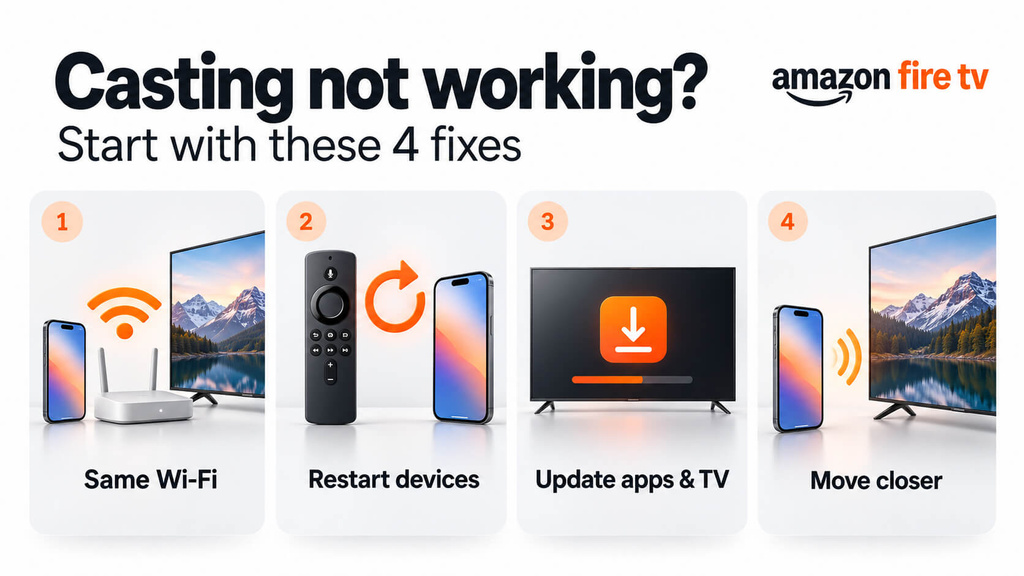
Try casting again after each step. Most problems are solved by the first two.
- Use the same Wi-Fi network. Your phone and Fire TV must be on the same network. Turn off mobile data and any VPN on your phone, and don’t use a guest network. You can see the Fire TV’s network under Settings > Network.
- Restart everything. Restart the Fire TV (Settings > My Fire TV > Restart), your phone or computer, and your router. For the router, unplug it for about a minute and then plug it back in.
- Update the Fire TV and the app. On the Fire TV, go to Settings > My Fire TV > About > Check for Updates. Update the app you’re casting from on your phone as well.
- Move closer. Amazon recommends keeping your phone within 30 feet (10 meters) of the Fire TV when mirroring your screen.
If your Fire TV now shows up, you’re done. If not, find your situation below.
Still not working? Find your situation
The Cast button in an app doesn’t show your Fire TV
Only some apps can cast to Fire TV, such as YouTube and Prime Video. Many apps only cast to Chromecast or Google TV devices, so your Fire TV will never appear in them.
If the app does support Fire TV:
- Open the same app on the Fire TV first and sign in.
- For Prime Video, sign in to the phone app with the same Amazon account as your Fire TV.
- For YouTube, pair with a code: on the Fire TV’s YouTube app, open Settings > Link with TV code, then tap the Cast button on your phone, choose Link with TV code, and enter the code.
Netflix no longer supports casting from phones to most TVs and streaming devices. Open the Netflix app on your Fire TV instead.
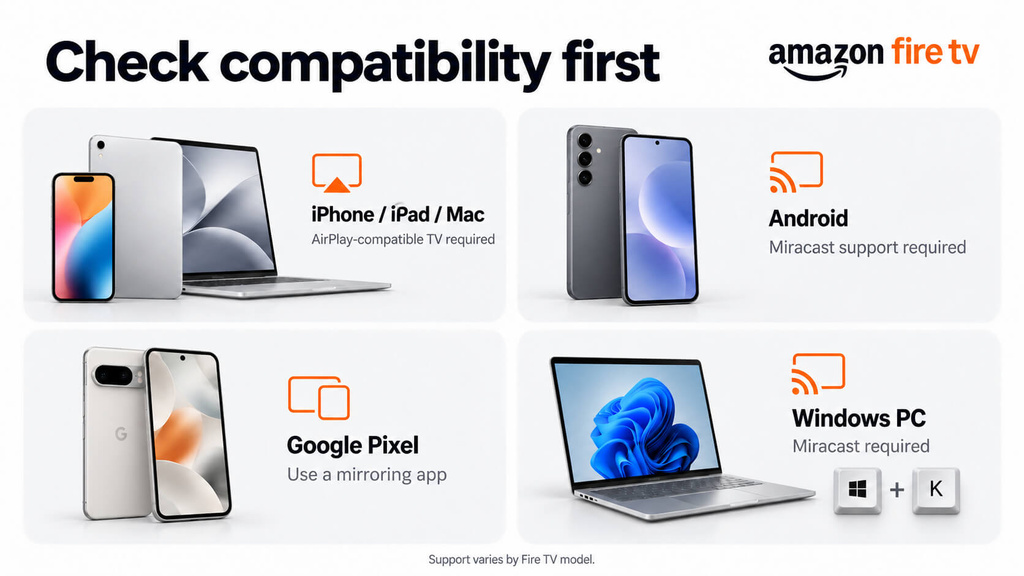
Your Android phone can’t find the Fire TV for screen mirroring
First, turn on mirroring on the Fire TV. Go to Settings > Display & Sounds > Enable Display Mirroring (some models label it Display & Audio). Keep that screen open, because the Fire TV only accepts a connection while it is showing.
Then open your phone’s screen-sharing option. Its name depends on the brand, such as ئەقلىي كۆرۈنۈش on Samsung or رول ئېلىش, Screen Cast, ، ياكى Wireless Display on other phones. Select your Fire TV from the list.
Two things can stop this from working entirely:
- Enable Display Mirroring isn’t in the menu. According to Amazon, this means your Fire TV doesn’t support screen mirroring.
- You have a Google Pixel phone. Pixel phones use a different method from Fire TV, so they can’t mirror to it directly.
Your iPhone, iPad, or Mac can’t find the Fire TV
iPhones, iPads, and Macs use AirPlay, which most Fire TV devices, including most Fire TV Sticks, don’t support. Only some Fire TV smart TVs do.
To check, go to your Fire TV’s settings and look for Apple AirPlay & HomeKit. If it’s there, turn AirPlay on, then open كونترول مەركىزى on your Apple device, tap ئېكران ئەينىكى, and choose the Fire TV. If the setting isn’t there, your Fire TV can’t receive AirPlay. See the options below.
Your Windows PC won’t connect
ئېچىش Enable Display Mirroring on the Fire TV, then press Win + K on your PC and select the Fire TV. If it doesn’t appear or the connection keeps failing, update your PC’s Wi-Fi and graphics drivers from the manufacturer’s website. On work or school networks, this kind of connection is sometimes blocked.
It connects, but the video is black
If you can hear the sound but see a black screen, the streaming service is blocking screen sharing to protect its content. Netflix and Disney+ do this, and no casting method can get around it. Use the service’s own app on the Fire TV.
If your Fire TV doesn’t support your device
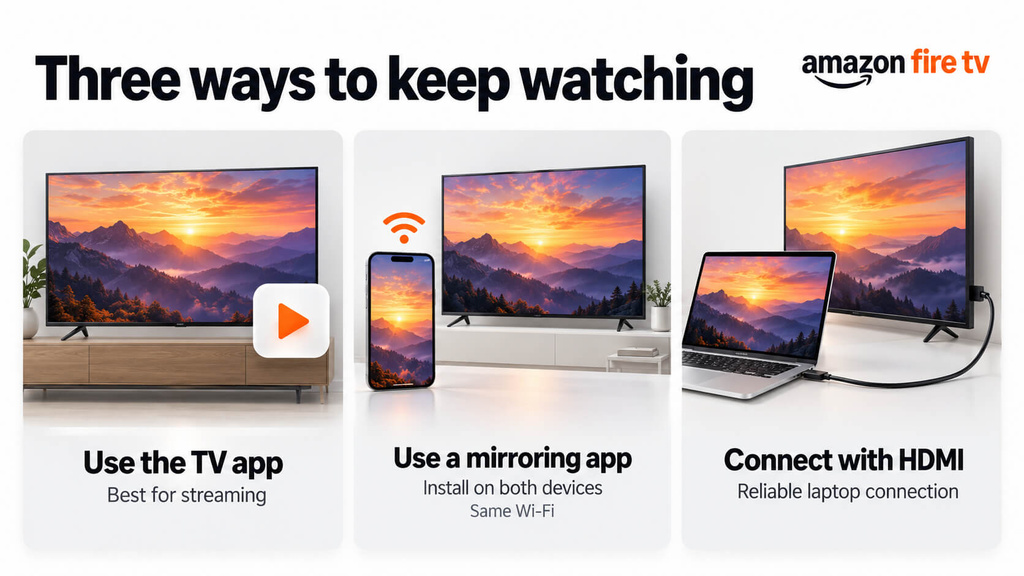
If none of the built-in methods work for your devices, you have three options:
- Use the app on the Fire TV. For Netflix, Prime Video, YouTube, and other streaming services, the Fire TV app usually gives the best picture.
- Use a screen mirroring app. Apps such as 1001 TVs are installed on both the Fire TV and your phone or computer, so they work even when the two devices don’t share a built-in method. This is useful for an iPhone or Pixel phone and a Fire TV Stick. You can get it from the 1001 TVs download page. Both devices still need to be on the same Wi-Fi network. For step-by-step setup, see How to Screen Mirror to Amazon Fire TV from Any Device.
- Use an HDMI cable. For a laptop, a cable plugged directly into the TV is the most reliable option and has no delay.
If your devices are on the same Wi-Fi, support each other, and still won’t connect, the problem is probably your router settings. See [[internal link: home network troubleshooting guide]] for next steps.
سوئال
Why won’t my phone cast to my Firestick?
Usually because the phone and Firestick are on different Wi-Fi networks, or the phone uses a casting method the Firestick doesn’t support. iPhones and Google Pixel phones can’t mirror to most Firesticks without an extra app.
Does Fire TV support Chromecast?
No. Apps that only cast to Chromecast won’t show your Fire TV. Some apps, such as YouTube and Prime Video, can still cast to Fire TV directly.
Can I cast from an iPhone to a Fire TV Stick?
Not with built-in tools, because most Fire TV Sticks don’t support AirPlay. You can cast from apps that support Fire TV, such as YouTube, or use a screen mirroring app installed on both devices.
Do I need internet to cast to Fire TV?
For screen mirroring, the two devices only need to be on the same Wi-Fi network. To cast online videos from an app, the Fire TV also needs an internet connection.

Read More
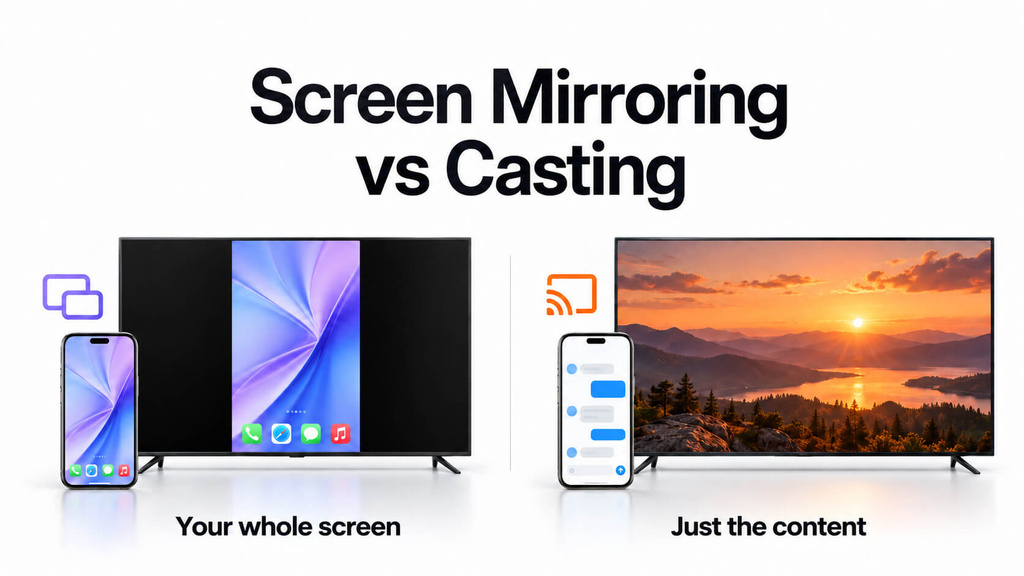 Screen Mirroring vs Casting: What’s the Difference?
Screen mirroring and casting both send content from your phone or computer to a TV, and many device makers use the two terms interchangeably.…
Screen Mirroring vs Casting: What’s the Difference?
Screen mirroring and casting both send content from your phone or computer to a TV, and many device makers use the two terms interchangeably.…
 How to Watch NBA on TV in the US
Watching NBA games on your TV in the US is easiest when you make two decisions in order: first, confirm which authorized service carries…
How to Watch NBA on TV in the US
Watching NBA games on your TV in the US is easiest when you make two decisions in order: first, confirm which authorized service carries…

