ئېكران ئەينىكىنىڭ سۈپىتىنى قانداق ياخشىلاش: ئېنىقلىق تەڭشەكلىرىنى تەڭشەش
If you’re using 1001 TVs screen mirroring and the display quality appears blurry or less clear than expected, you can enhance the visual output by fine-tuning the resolution settings in the advanced options. This guide walks you through adjusting the max width and max height parameters to achieve sharper and more detailed image quality.
تەپسىلىي ئورنىتىش قەدەملىرى
Step 1. Access Mirror Settings
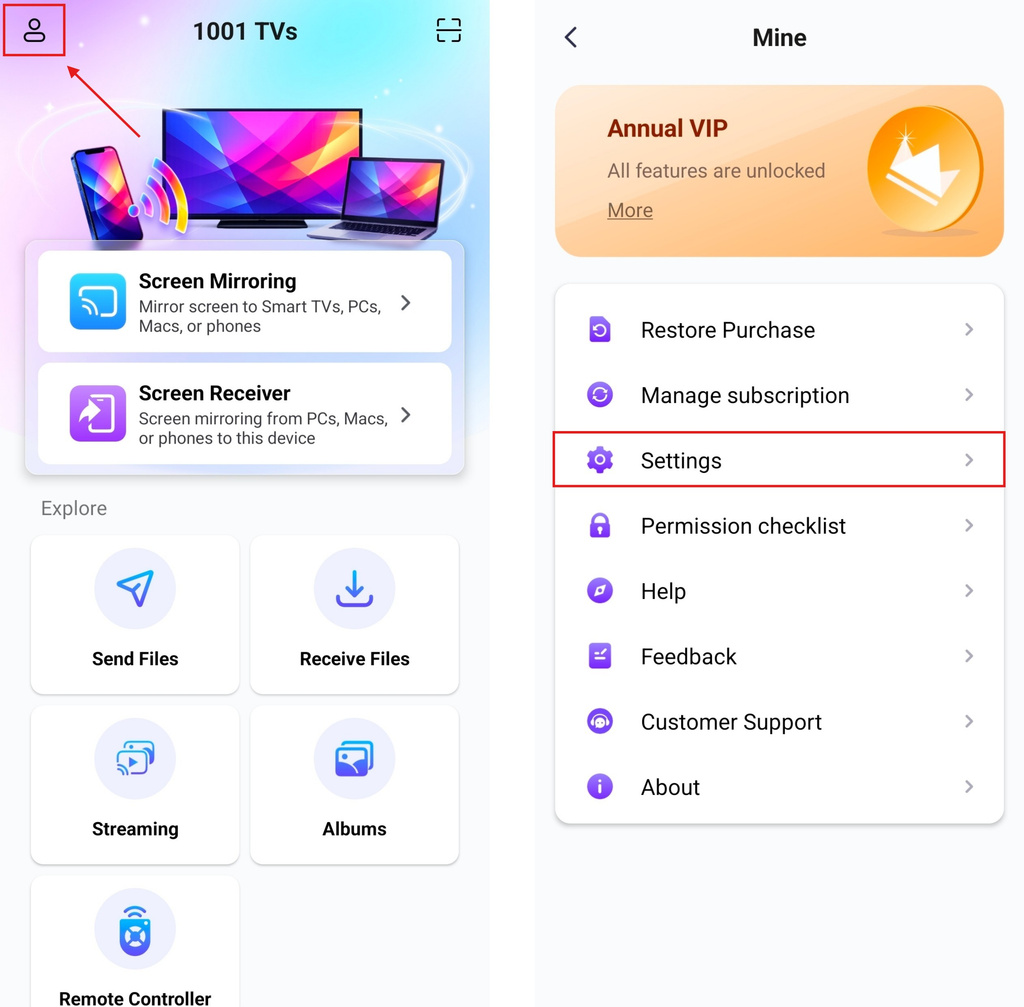
1001 TVs ئەپنى ئېچىپ، چېكىڭ Profile icon in the top-left corner.
“مېنىڭ” بېتىدە، ئۇنى تېپىپ چېكىڭ. تەڭشەكلەر.
Step 2. Enable Advanced Settings
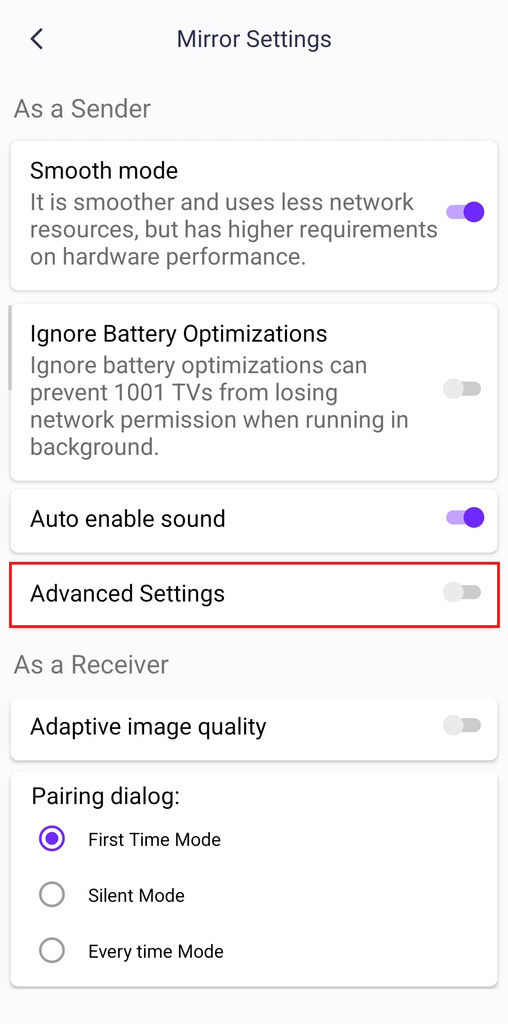
In the Settings page, scroll down to find the ئىلغار تەڭشەكلەر تاللاش.
Tap the toggle switch on the right to turn it on (the switch turns purple when enabled).
Once enabled, additional configuration options will appear below.
Step 3. Adjust Resolution Parameters
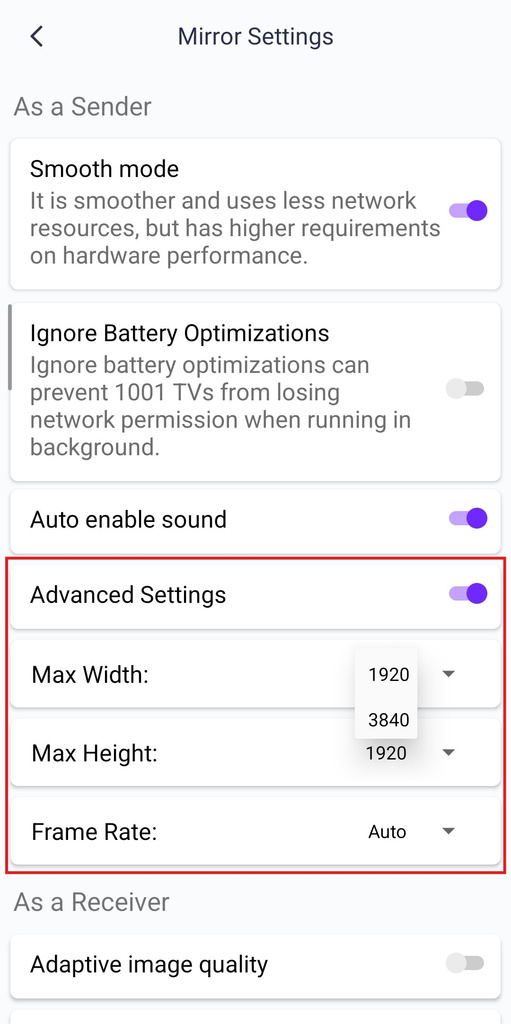
«ئىلغار تەڭشەكلەر» بۆلىكىدە، ئۈچ مۇھىم پارامېتىرنى كۆرىسىز. يۇقىرى قىممەتلەر رەسىم سۈپىتىنى ياخشىلايدۇ، ئەمما تورنىڭ ئىقتىدارىنى يۇقىرى كۆتۈرۈشنى تەلەپ قىلىدۇ:
1. ئەڭ چوڭ كەڭلىك
- سۈكۈتتىكى قىممەت: 1920 (پىكسېل)
- بار بولغان تاللاشلار: 1920، 3840
2. ئەڭ چوڭ ئېگىزلىك
- سۈكۈتتىكى قىممەت: 1920 (پىكسېل)
- بار بولغان تاللاشلار: 1080، 1920، 3840
3. رامكا سۈرئىتى
- Default value: Auto
- Available options: Auto/24/30/35/45/60 fps
ياردەم كېرەكمۇ؟
ئەگەر ئەپنى ئىشلەتكەندە قانداقلا بولمىسۇن مەسىلىگە يولۇقسىڭىز، قوللاش گۇرۇپپىمىز بىلەن ئالاقىلىشىڭ:
- تېخىمۇ كۆپ دەرسلىكلەر: Guidance
- ئېلخەت: 1001tvs@nero.com
- تور بېكەت: www.1001tvs.com

Read More
 New Setting: No More Pop-ups When Mirroring Ends
When you're mirroring your PC screen to a TV and stop the session using the TV remote, the 1001 TVs window pops back up…
New Setting: No More Pop-ups When Mirroring Ends
When you're mirroring your PC screen to a TV and stop the session using the TV remote, the 1001 TVs window pops back up…
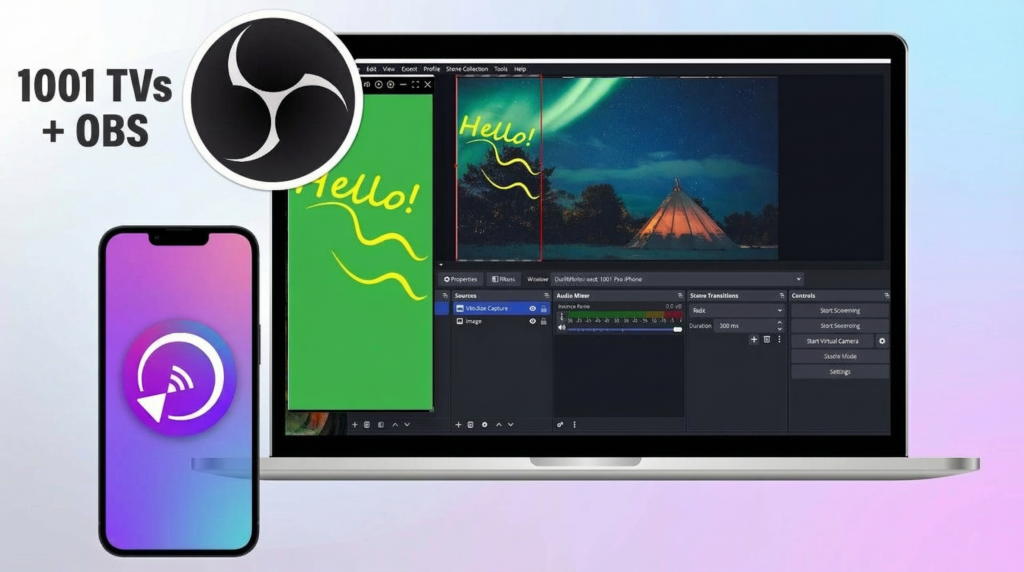 How to Capture Screen Mirroring in OBS (Android & iPhone)
Want to capture screen mirroring in OBS for mobile gameplay, tutorials, or live content? With 1001 TVs, you can easily mirror your phone screen…
How to Capture Screen Mirroring in OBS (Android & iPhone)
Want to capture screen mirroring in OBS for mobile gameplay, tutorials, or live content? With 1001 TVs, you can easily mirror your phone screen…

