检测到浏览器语言为中文,点此切换到中文页面->
Send Files to TV in 3 Simple Steps
1
Uygulamayı Yükle
Install 1001 TVs on your phone and TV.
2
Cihazlarınızı bağlayın
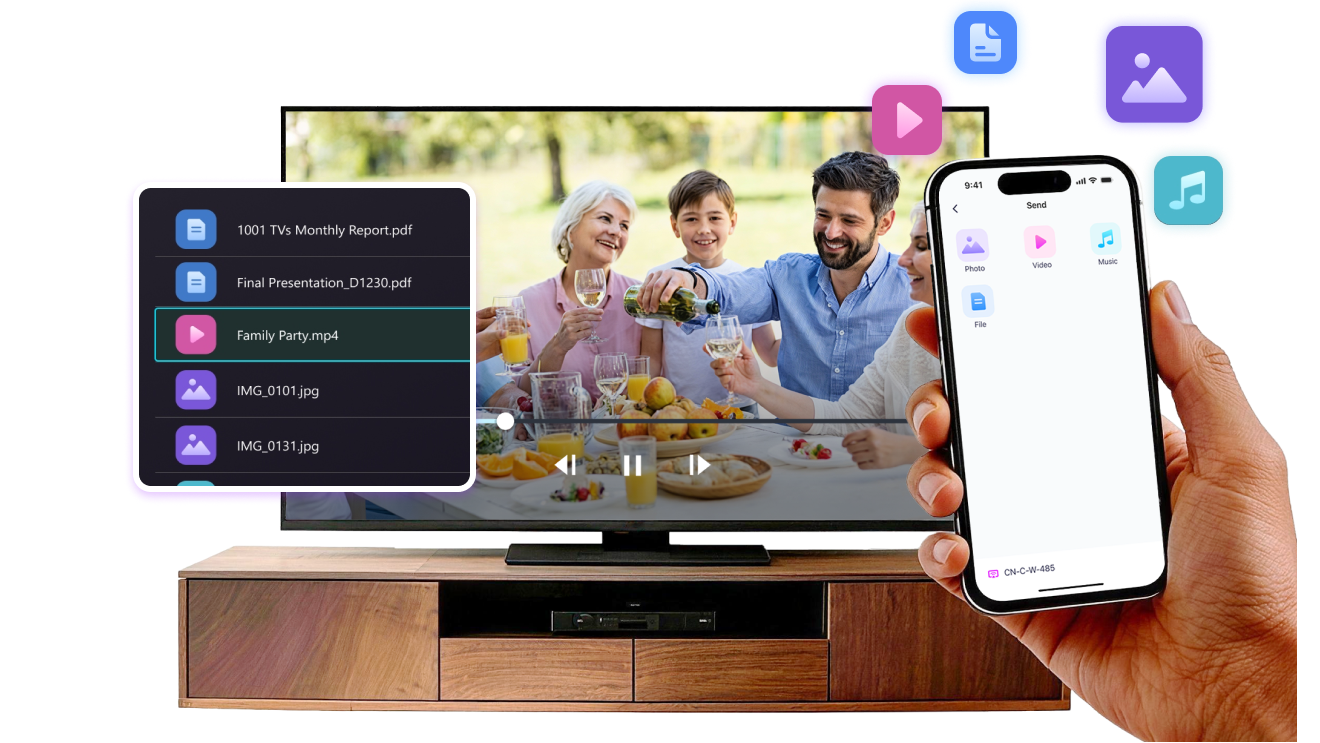
Make sure both devices are on the same Wi-Fi network. On the TV, open Files. On your phone, tap File Transfer. Available devices will be detected automatically.
3
Dosya Gönder
Select the target device and send files for fast, direct transfer.
Simple. Secure. File Transfer.
NO LIMITS ON FORMATS
Send photos, videos, and audio files directly from your phone to your TV.
Supports common formats like JPG, PNG, MP4, MKV, AVI, and MP3 — no conversion required.

No USB cables needed. No extra steps.

Just select your files and send them to the TV with ease.
no-limits-on-formats
LOCAL TRANSFER. NO DATA USAGE.
All transfers happen over your local network — no cloud uploads and no data usage.

Once files are sent, they play directly on the TV.

Phone calls, screen locks, or switching apps won’t interrupt playback, so you can watch with confidence.
local-transfer-no-data-usage
Kullanım Alanları
Fotoğraf ve Video Paylaşımı
Presentations & Demos
Learning & Teaching
Show What You Captured — Bigger and Clearer
Photos and videos look better on a TV than on a small phone screen. A larger display makes details clearer and moments easier to enjoy together.

Send photos and videos directly from your phone to the TV for smooth playback and a more comfortable viewing experience. Share family moments, trips, or special occasions without passing phones around or dealing with cables.

With 1001 TVs, everyday photos and videos naturally become something everyone in the room can enjoy on the big screen.
photo-video-sharing
Present with Confidence — Clear and Distraction-Free
Presentations are easier to follow when everyone can see the content clearly.
A larger screen helps keep attention focused and makes key points stand out.

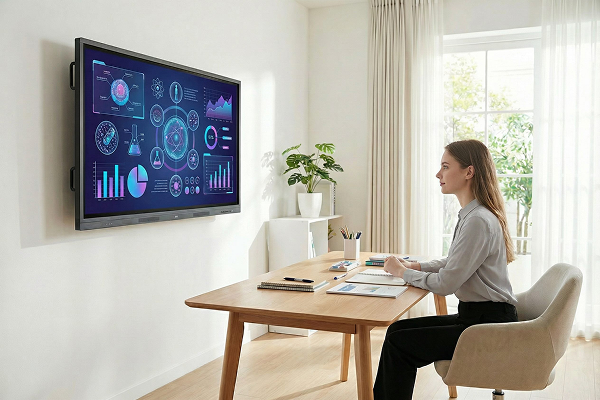
Share slides, visuals, or demos directly from your device to the TV for a smooth and uninterrupted presentation. No cables on the table, no crowding around a laptop.

With 1001 TVs, presenting on a big screen feels simple and professional in any space.
presentations-demos
Make Learning More Visual — and More Engaging
Learning becomes more effective when ideas are easy to see and follow. A bigger screen helps students stay focused and understand concepts more clearly.

Display lessons, exercises, or demonstrations on a TV to create a shared learning experience. Everyone can follow along at the same pace, without distractions.

With 1001 TVs, learning naturally becomes more interactive on the big screen.
learning-teaching
İndir
Sıkça Sorulan Sorular
Cihaz listesinde televizyonumu veya bilgisayarımı neden göremiyorum?
  • Hem telefonunuzun hem de bilgisayarın/TV'nin aynı Wi-Fi ağına bağlı olduğundan emin olun. Eğer gerekli ise, yönlendiriciyi yeniden başlatmayı deneyin.
  • iPhone'da, "Yerel Ağ" ve "Kablosuz Veri" izinlerini verdiğinizden emin olun. Ayarlar → Uygulamalar → 1001 TVs uygulamasını bulun → "Yerel Ağ"ı etkinleştirin → "Kablosuz Veri" → Wi-Fi ve Hücresel seçin.
  • 1001 TVs'nin hem telefonunuzda hem de alıcı cihazda (bilgisayar veya TV) yüklü ve açık olduğundan emin olun.
  • Sorunla karşılaşırsanız 1001 TVs'yi yeniden başlatın ve tekrar deneyin.
  • Otel veya havaalanı gibi yerlerdeki ortak Wi-Fi ağlarında AP izolasyonu olabilir ve bu, bağlantıyı engelleyebilir.
  • Alternatif olarak, telefonunuzun erişim noktasını açın ve bilgisayarınızı veya TV’nizi bu ağa bağlayın, ardından ekran yansıtmayı deneyin.
  • Hâlâ çalışmıyorsa, telefonunuzu yeniden başlatın ve tekrar deneyin.
Abonelik nasıl iptal edilir?
iOS cihazınızda aboneliği iptal etme
- Ayarlar'ı açın → en üstte gösterilen adınıza dokunun → Abonelikler → aboneliği seçin → İptal et
Google Play hesabınızda aboneliği iptal etme
- Google Play Store'u aç → Sağ üst köşedeki profil simgesine tıkla → Ödemeler ve abonelikler → Abonelikler → Aboneliği seç → Aboneliği iptal et → İptali onayla
Para iadesi nasıl talep edilir?
iOS'ta geri ödeme talep etme
- Önce aboneliği iptal edin .
- Ayarları açın → en üstte gösterilen adınıza tıklayın → Medya ve Satın Alımlar → Hesap Görüntüle → Satın Alma Geçmişi → aboneliği seçin → Sorun bildir → Geri ödeme talep et ve sebep seçin
Google Play üzerinden geri ödeme talep etme
- play.google.com adresine gidin → sağ üstteki profil simgesine tıklayın → Ödemeler ve abonelikler → Bütçe ve sipariş geçmişi → Sorun bildir → Durumunuza uygun seçeneği seçin → Gönder