检测到浏览器语言为中文,点此切换到中文页面->
Send Files to TV in 3 Simple Steps
1
Instale a aplicação
Install 1001 TVs on your phone and TV.
2
Conecte os seus dispositivos
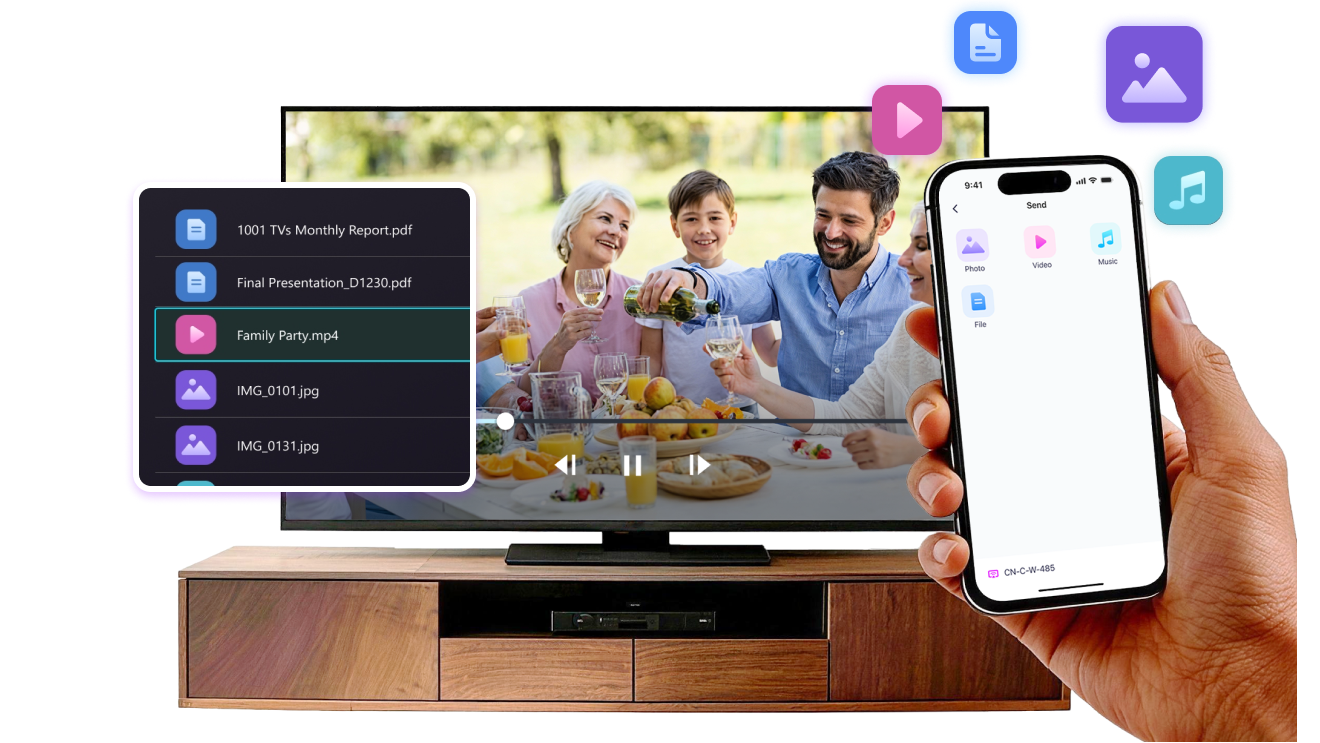
Make sure both devices are on the same Wi-Fi network. On the TV, open Files. On your phone, tap File Transfer. Available devices will be detected automatically.
3
Enviar ficheiros
Select the target device and send files for fast, direct transfer.
Simple. Secure. File Transfer.
NO LIMITS ON FORMATS
Send photos, videos, and audio files directly from your phone to your TV.
Supports common formats like JPG, PNG, MP4, MKV, AVI, and MP3 — no conversion required.

No USB cables needed. No extra steps.

Just select your files and send them to the TV with ease.
no-limits-on-formats
LOCAL TRANSFER. NO DATA USAGE.
All transfers happen over your local network — no cloud uploads and no data usage.

Once files are sent, they play directly on the TV.

Phone calls, screen locks, or switching apps won’t interrupt playback, so you can watch with confidence.
local-transfer-no-data-usage
Casos de uso
Partilha de Fotos e Vídeos
Presentations & Demos
Learning & Teaching
Show What You Captured — Bigger and Clearer
Photos and videos look better on a TV than on a small phone screen. A larger display makes details clearer and moments easier to enjoy together.

Send photos and videos directly from your phone to the TV for smooth playback and a more comfortable viewing experience. Share family moments, trips, or special occasions without passing phones around or dealing with cables.

With 1001 TVs, everyday photos and videos naturally become something everyone in the room can enjoy on the big screen.
photo-video-sharing
Present with Confidence — Clear and Distraction-Free
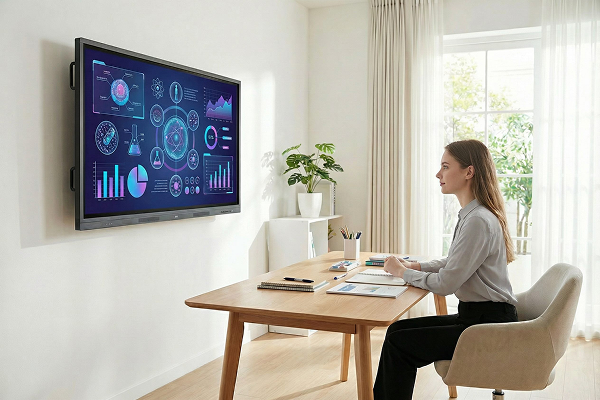
Presentations are easier to follow when everyone can see the content clearly.
A larger screen helps keep attention focused and makes key points stand out.

Share slides, visuals, or demos directly from your device to the TV for a smooth and uninterrupted presentation. No cables on the table, no crowding around a laptop.

With 1001 TVs, presenting on a big screen feels simple and professional in any space.
presentations-demos
Make Learning More Visual — and More Engaging
Learning becomes more effective when ideas are easy to see and follow. A bigger screen helps students stay focused and understand concepts more clearly.

Display lessons, exercises, or demonstrations on a TV to create a shared learning experience. Everyone can follow along at the same pace, without distractions.

With 1001 TVs, learning naturally becomes more interactive on the big screen.
learning-teaching
Transferir
Perguntas frequentes
Porque é que não consigo encontrar a minha TV ou PC na lista de dispositivos?
  • Certifique-se de que o telemóvel e o computador/TV estão ligados à mesma rede Wi-Fi. Se necessário, tente reiniciar o router.
  • No iPhone, certifique-se de que autorizou o acesso à “Rede local” e aos “Dados móveis”. Vá a Definições → Apps → Desça até 1001 TVs → Ativar “Rede local” → “Dados móveis” → Wi-Fi e Dados móveis.
  • Certifique-se de que o 1001 TVs está instalado e aberto tanto no seu telemóvel como no dispositivo de receção (computador ou TV).
  • Se tiver problemas, reinicie o 1001 TVs e tente novamente.
  • As redes Wi-Fi públicas em locais como hotéis ou aeroportos podem ter isolamento de AP, o que pode bloquear a ligação.
  • Em alternativa, tente ativar o hotspot do seu telemóvel e ligar o computador ou a TV a ele, depois tente fazer a partilha de ecrã.
  • Se ainda não funcionar, reinicie o telemóvel e tente novamente.
Como posso cancelar a minha subscrição?
Cancelar uma subscrição no iOS
- Abra Definições → toque no seu nome exibido no topo → Subscrições → selecione a subscrição → Cancelar subscrição
Cancelar uma subscrição na sua conta Google Play
- Abra o Google Play Store → toque no ícone do seu perfil (no canto superior direito) → Pagamentos e subscrições → Subscrições → selecione a subscrição → Cancelar subscrição → confirmar o cancelamento
Como posso pedir um reembolso?
Solicitar um reembolso no iOS
- Cancele primeiro a subscrição .
- Abra as Definições → toque no seu nome exibido no topo → Mídia e Compras → Ver Conta → Histórico de Compras → selecione a subscrição → Reportar um problema → escolha Solicitar reembolso e motivo
Solicitar um reembolso no Google Play
- Acesse play.google.com → toque no ícone do seu perfil (canto superior direito) → Pagamentos e subscrições → Histórico de orçamento e pedidos → Reportar um problema → selecione a opção que descreve sua situação → Enviar