How to Mirror Multiple Phones to the Same Computer
1001 TVs lets you cast multiple phones to a single computer, creating a seamless viewing experience. Whether it’s a family gathering or a business meeting, everyone can share and connect effortlessly. Here’s how to mirror multiple phones to one computer.
For Android:
1. Connect to the Same Wi-Fi
Make sure both your Android Phone and PC/Mac are connected to the same Wi-Fi network.
For best performance, use a 5 GHz Wi-Fi network to reduce delay and improve stability.
2. Install and Open 1001 TVs
Install and open the 1001 TVs app on both your phone and PC/Mac.
📥 PC App: Download from Microsoft Store
For detailed steps, refer to the PC Installation Guide.
📥 Mac App: Download from App Store
📱 Android App: Download from Google Play
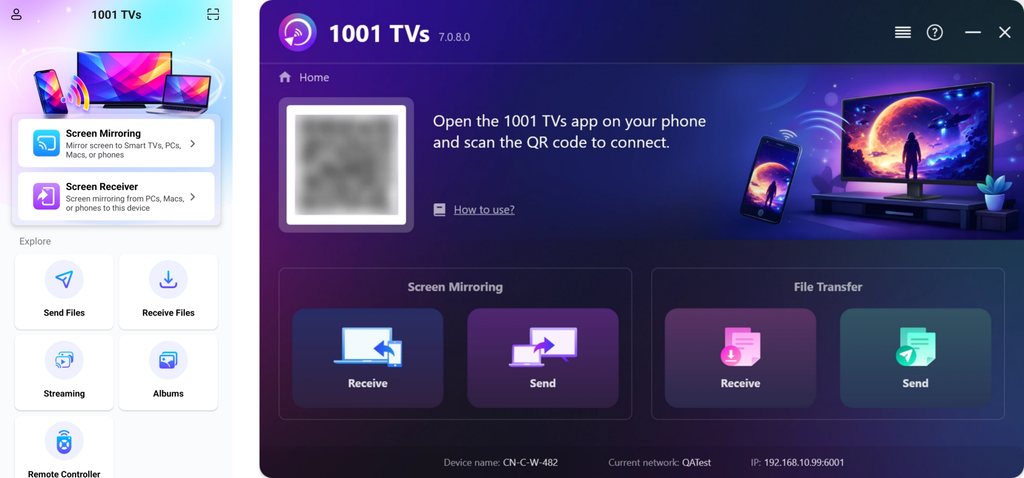
3. Start Screen Mirroring
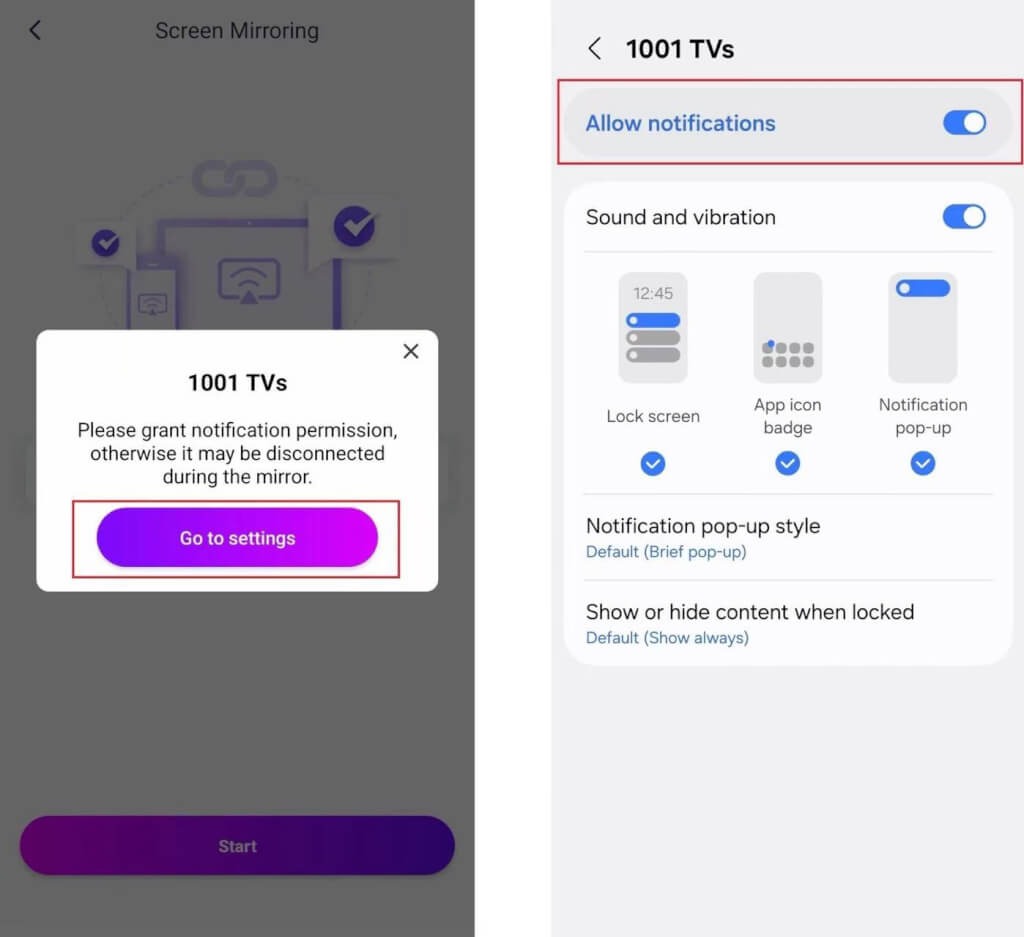
Before you start, make sure notification permission is enabled in Settings.
The app may also request this permission to display your connection status in the notification bar.
You can start screen mirroring using one of the following methods:
1) Scan QR code
You can scan the QR code directly from the home screen or the Screen Mirroring page.
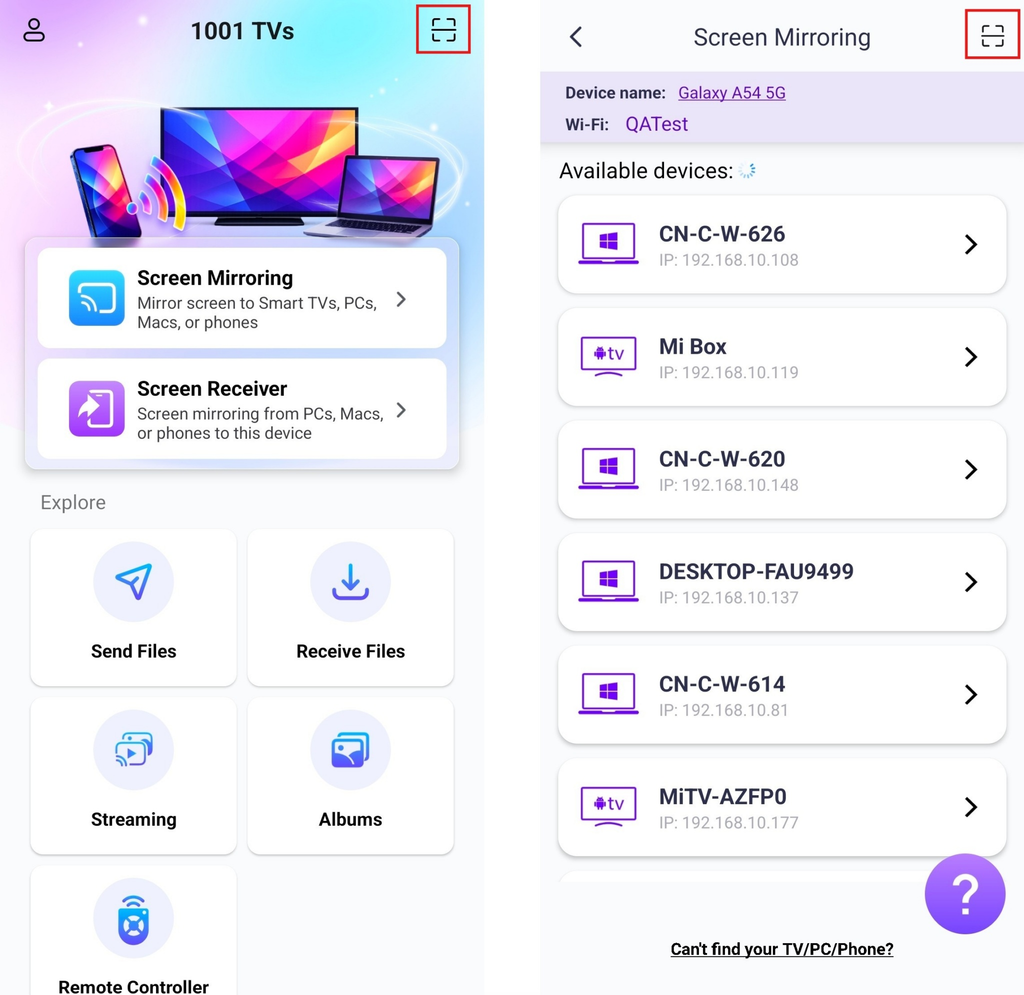
(Note: Camera access is required for the first scan and can be enabled in Settings.)
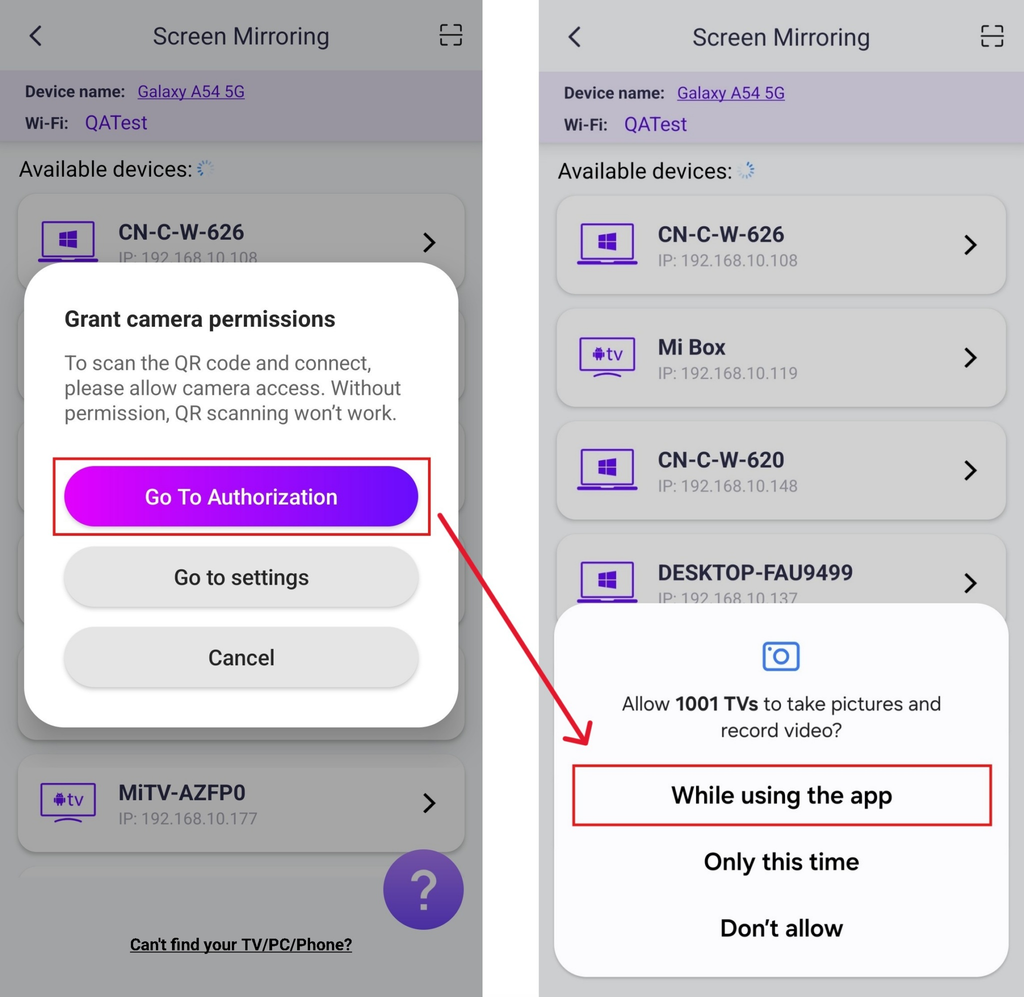
Once the scanning is successful, you can start screen mirroring.
2) Select Your Target Device
Tap “Screen Mirroring” in 1001 TVs app on your phone.
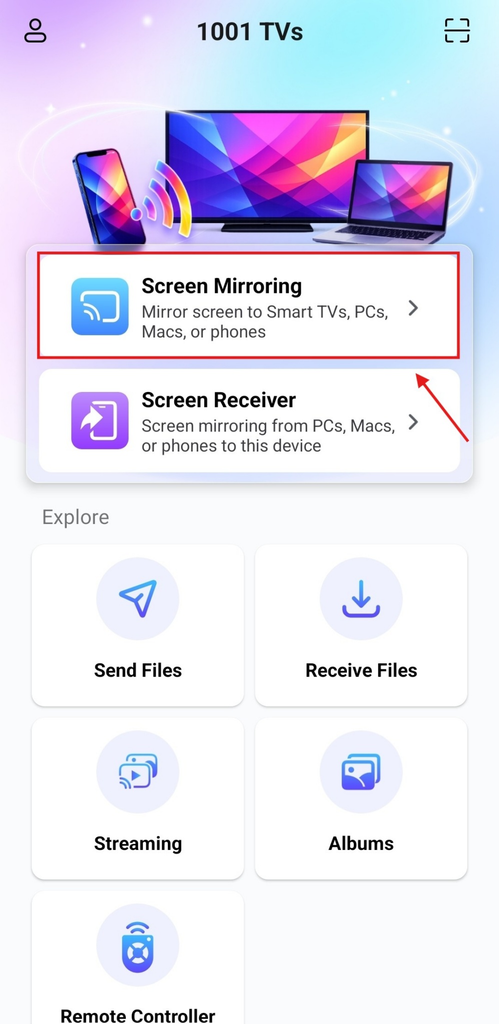
The app will automatically detect available devices on the same Wi-Fi network.
Select the device you want to mirror to.
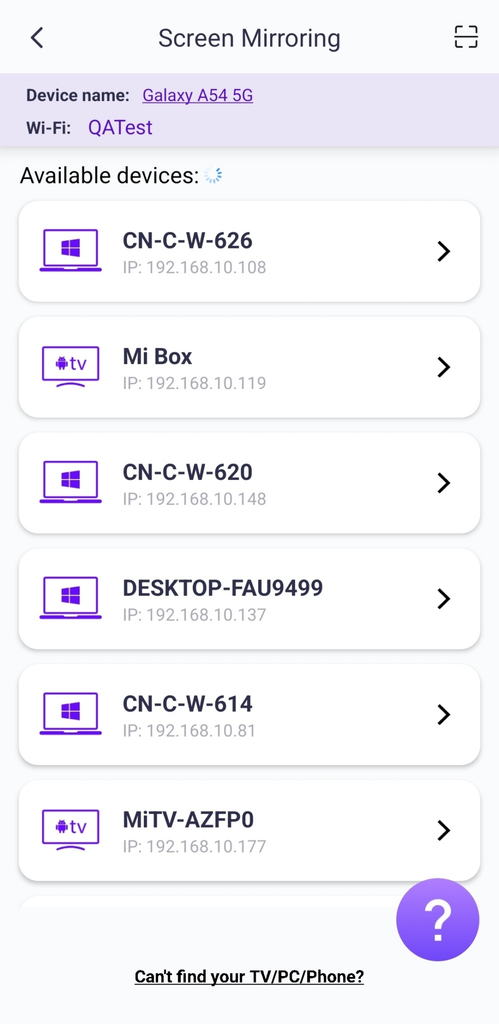
Note: Make sure the app is running on your PC or Mac, and refresh the list if needed.
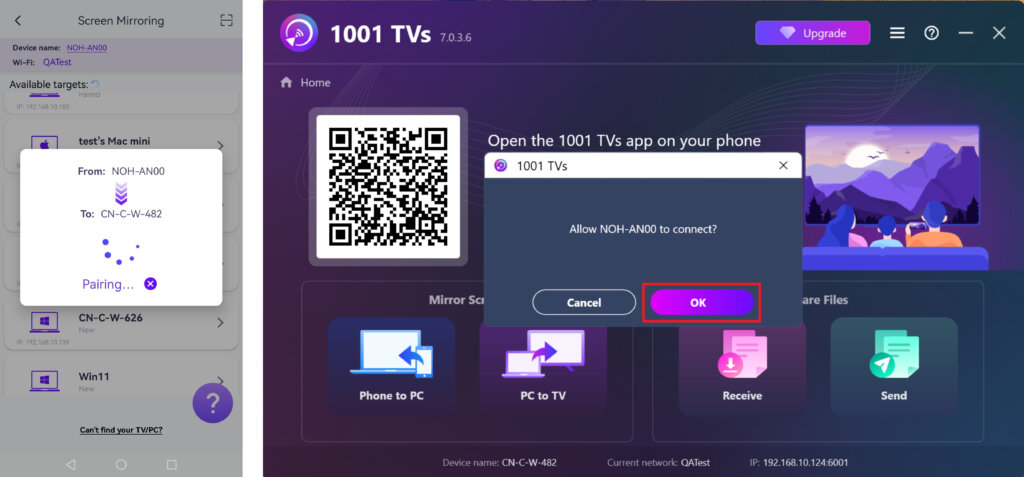
When prompted on the PC/Mac, select “OK” to confirm the connection.
For iPhone:
1. Connect to the Same Wi-Fi
Make sure both your iPhone and TV are connected to the same Wi-Fi network.
For best performance, use a 5 GHz Wi-Fi network to reduce delay and improve stability.
2. Install and Open 1001 TVs
Install and open the 1001 TVs app on both your iPhone and PC/Mac.
📥 PC App: Download from Microsoft Store
For detailed steps, refer to the PC Installation Guide.
📥 Mac App: Download from App Store
📱 iOS App: Download from App Store
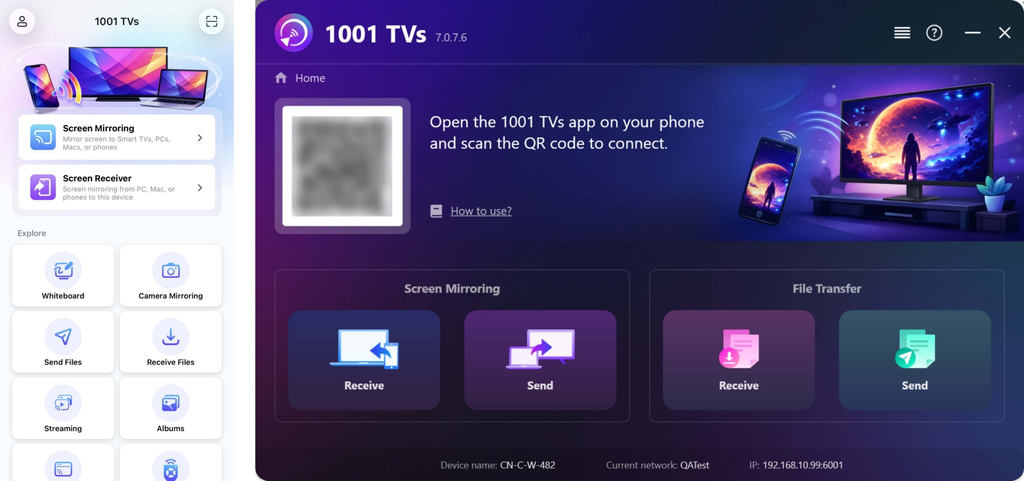
3. Start Screen Mirroring
You can start screen mirroring using one of the following methods:
1) Scan the QR code
You can scan the QR code directly from the home screen or the Screen Mirroring page.
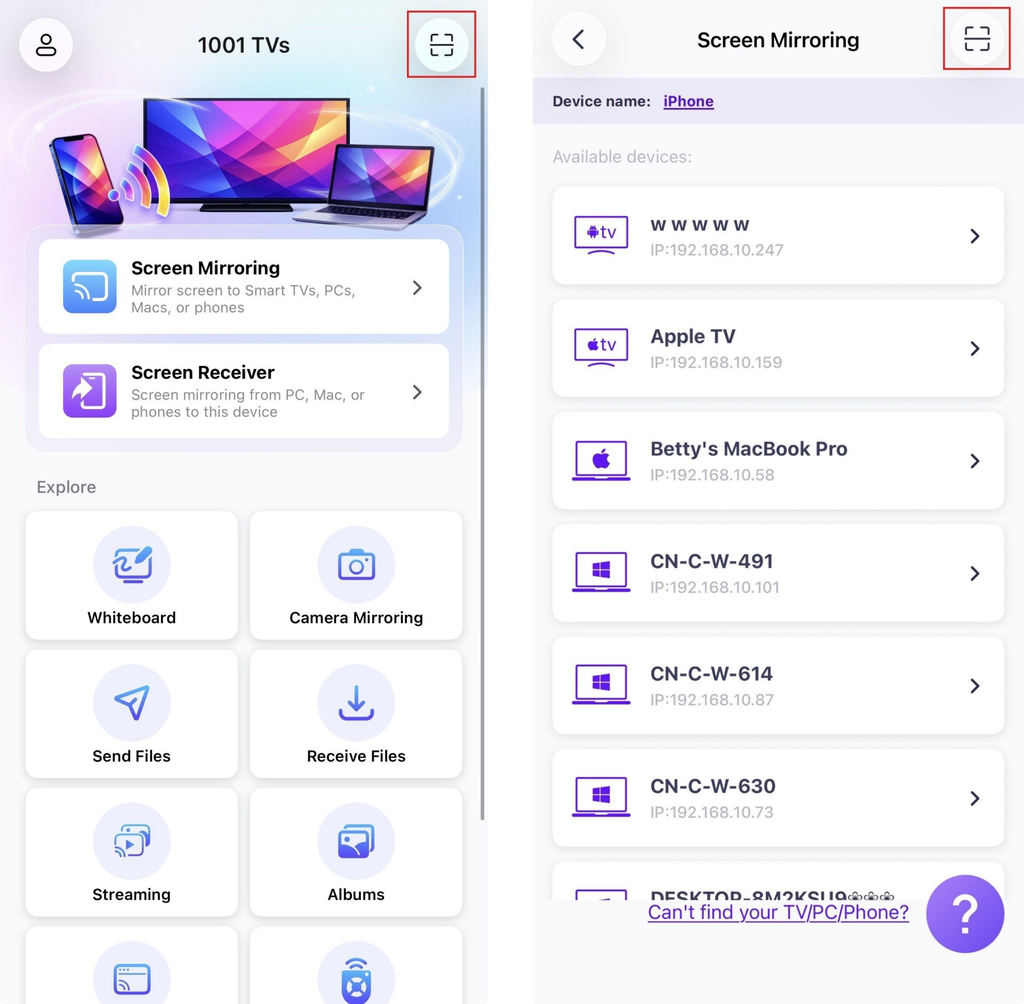
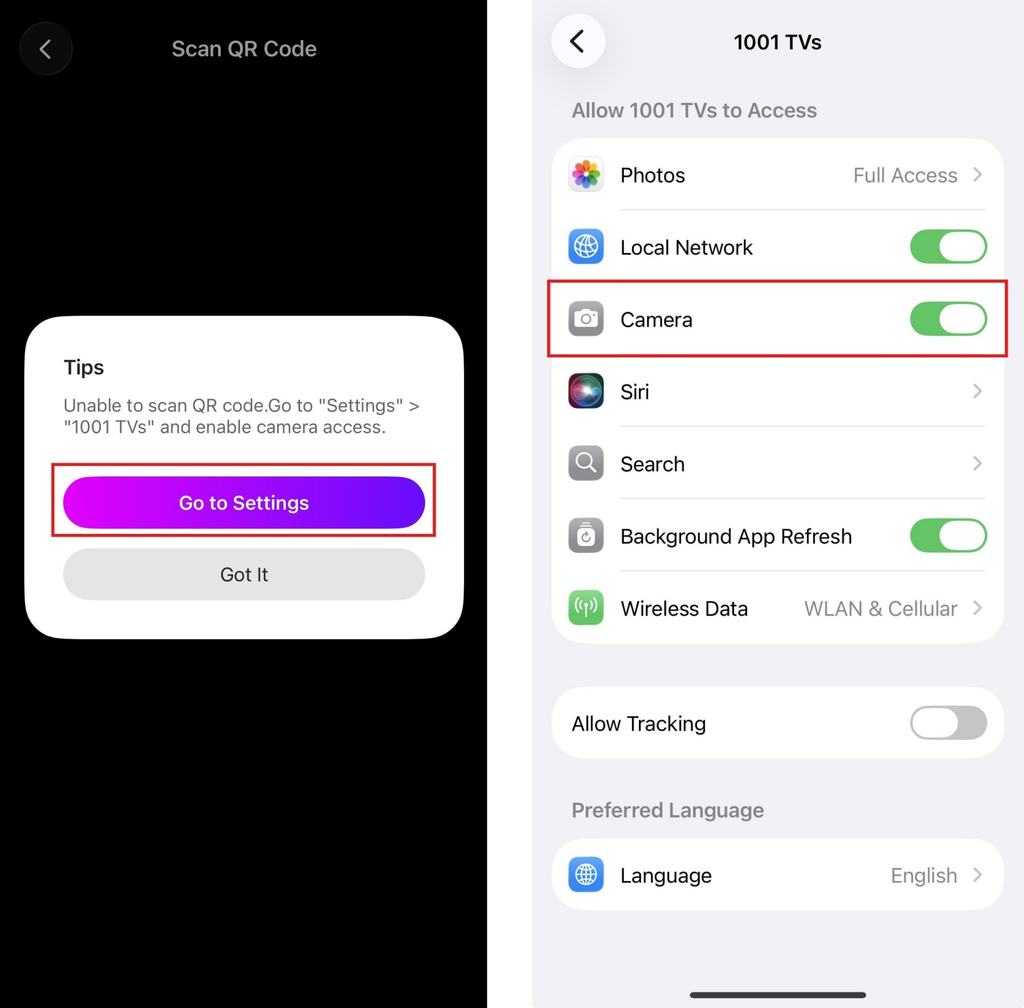
(Note: Camera access is required for the first scan and can be enabled in Settings.)
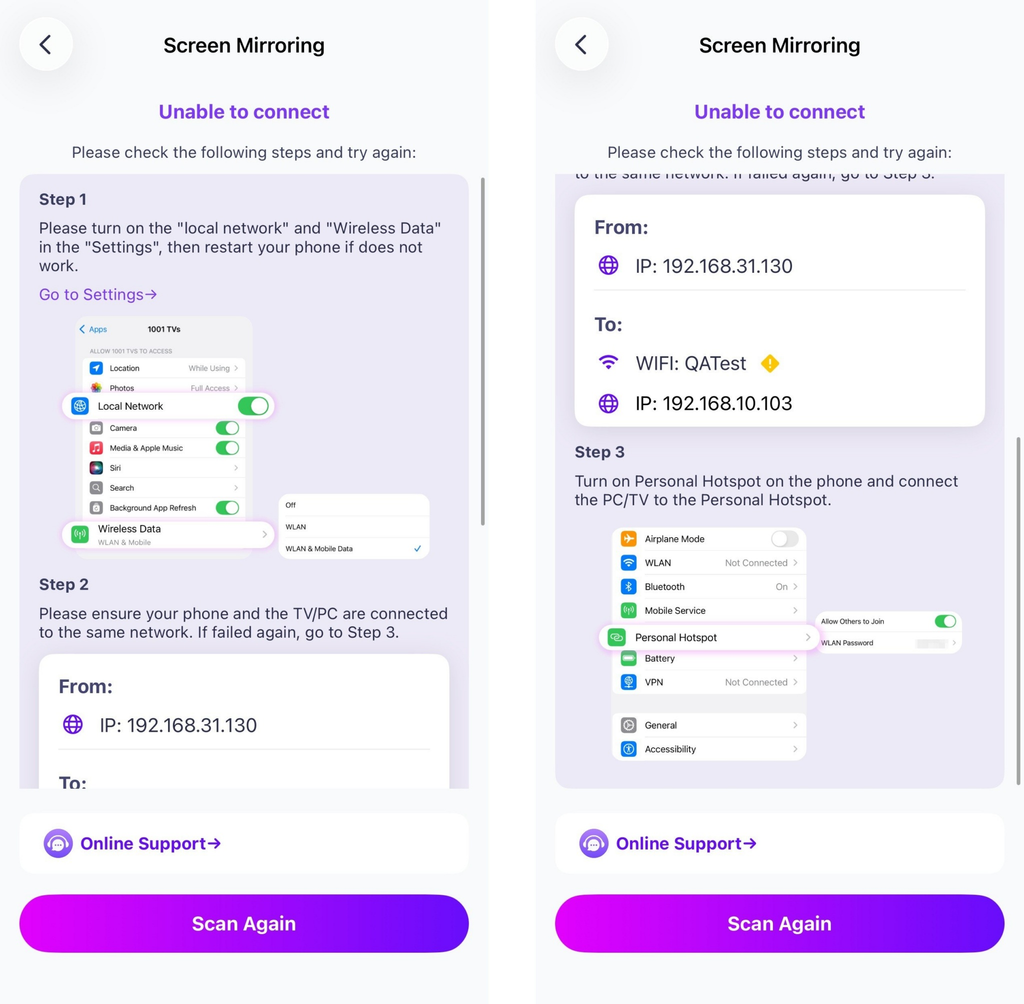
If the connection fails, the following interface will appear. Follow the on-screen instructions to proceed.
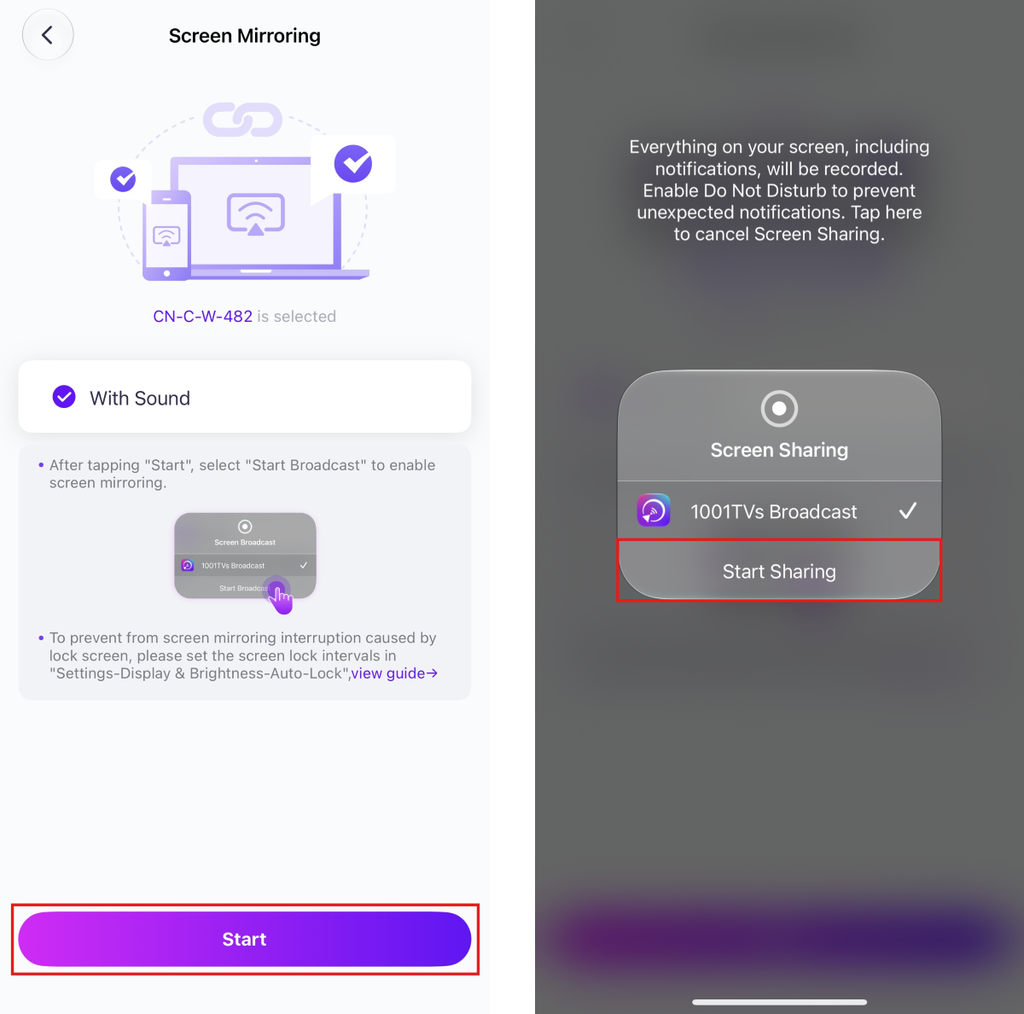
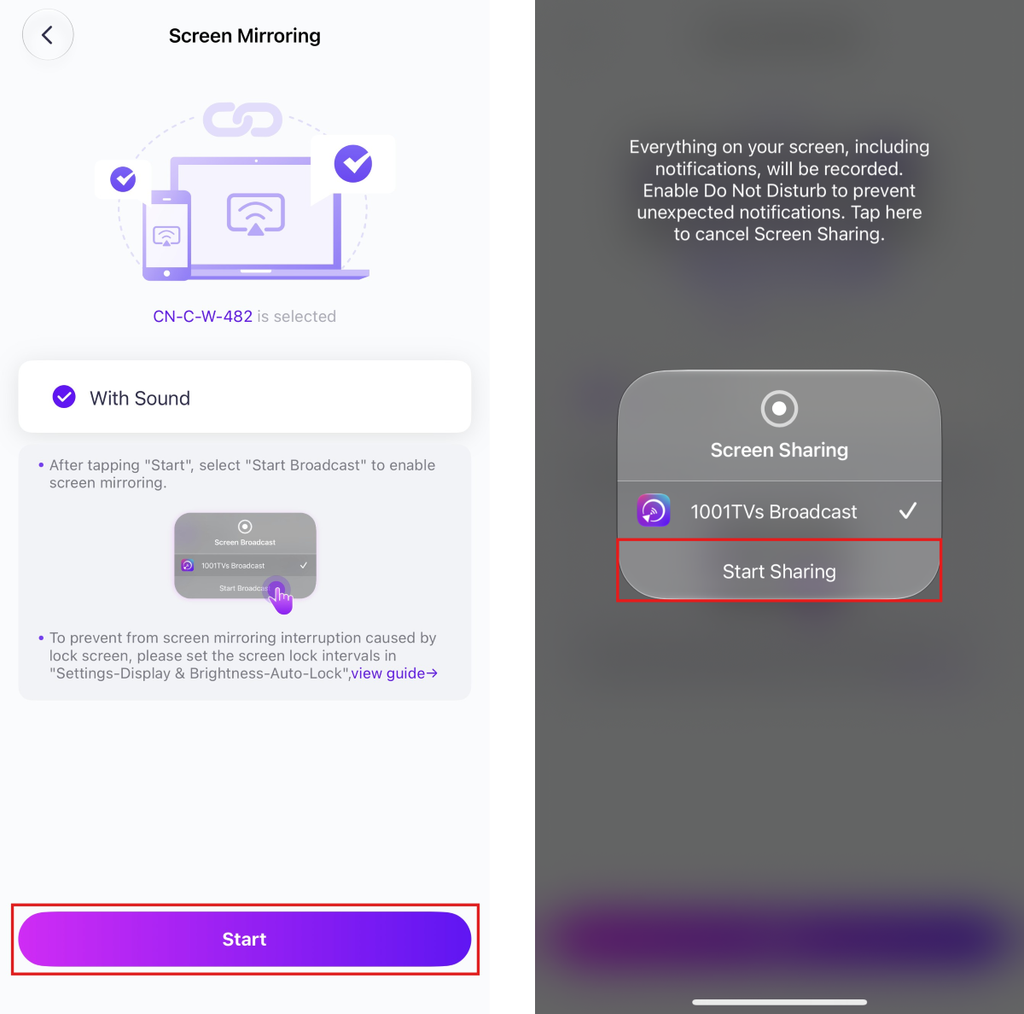
Once connected successfully, you’ll see the mirroring interface.
Tap “Start” ➜ “Start Sharing” to mirror your screen.
2) Select Your Target Device
Tap “Screen Mirroring” in 1001 TVs app on your phone.
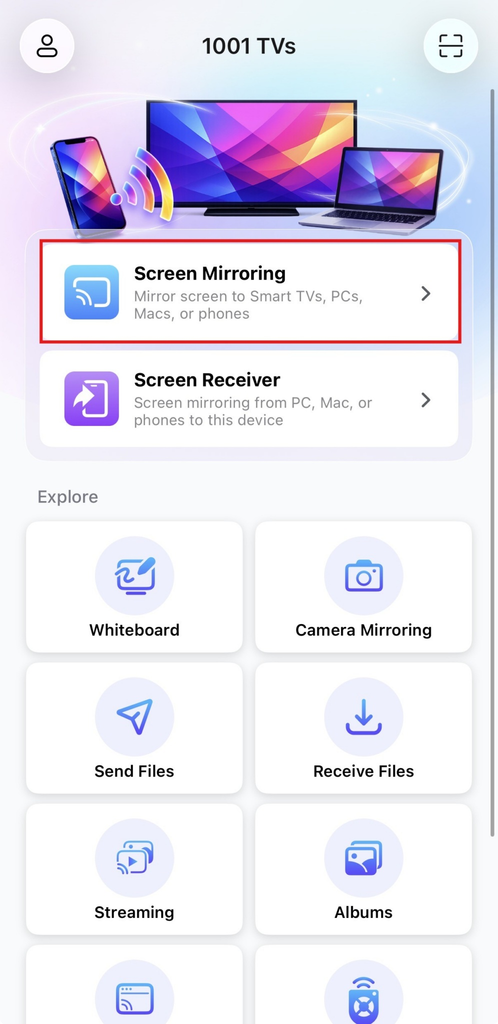
The app will automatically detect available devices on the same Wi-Fi network.
Select the device you want to mirror to.
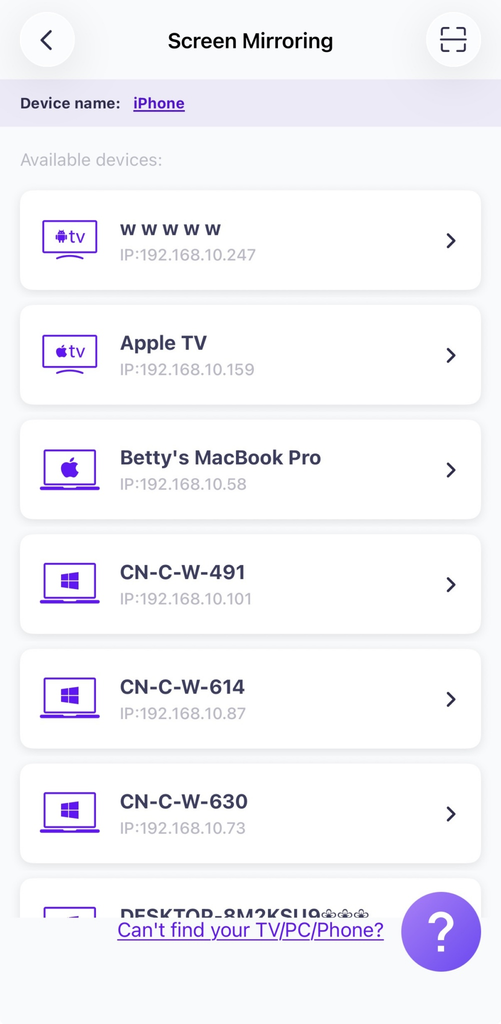
Tip: If the device is not listed, make sure the app is running on the target device, then refresh the list if needed.
When prompted on the PC/Mac, select “OK” to confirm the connection.
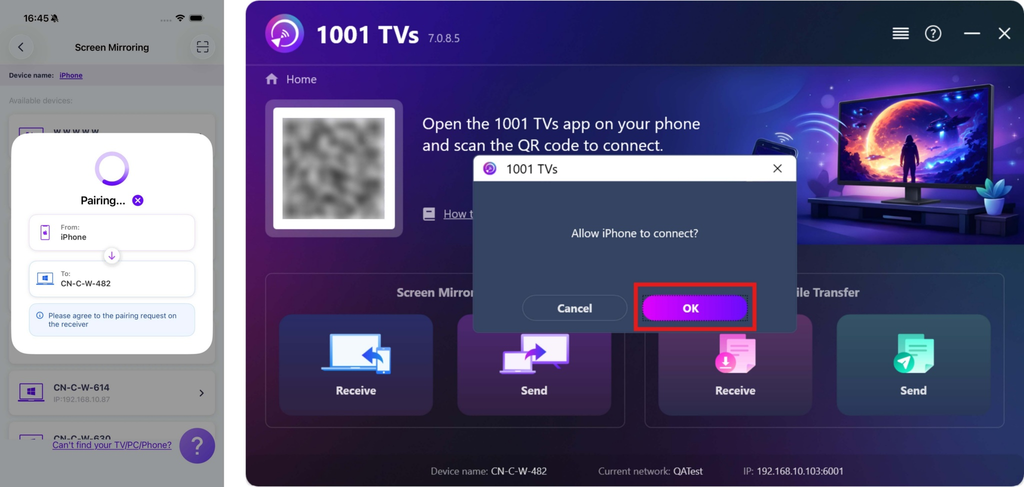
Tap “Start” ➜ “Start Sharing” to mirror your screen.
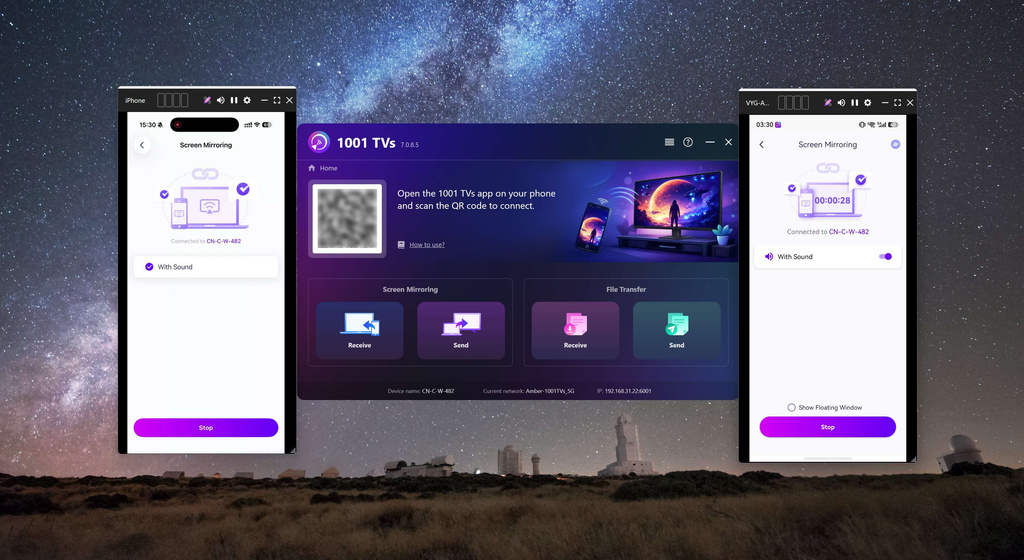
Multiple Phones Mirroring
Now you can easily mirror multiple phones to one computer and enjoy a larger, clearer screen!
Get 1001 TVs Now!
📥 PC App: Download from Microsoft Store
For detailed steps, refer to the PC Installation Guide.
📥 Mac App: Download from App Store
📱 iOS App: Download from App Store
📱 Android App: Download from Google Play

Read More
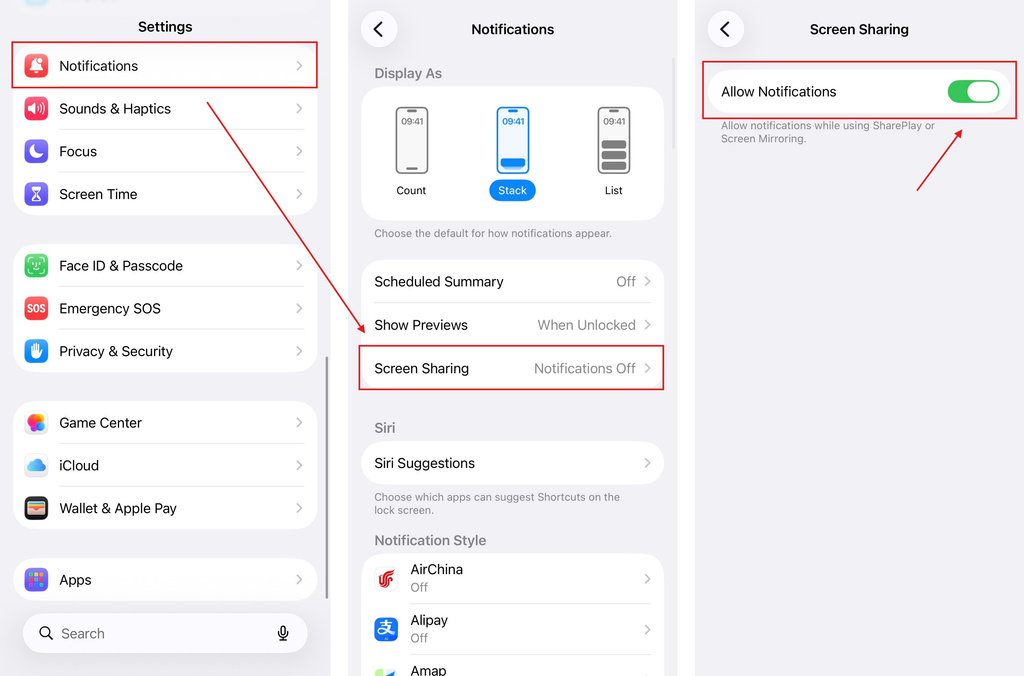 iOS: How to Fix Missing App Notifications During Screen Mirroring
Why Notifications Are Missing When you mirror your iPhone screen, notifications from other apps may not appear on the mirrored screen. This can happen…
iOS: How to Fix Missing App Notifications During Screen Mirroring
Why Notifications Are Missing When you mirror your iPhone screen, notifications from other apps may not appear on the mirrored screen. This can happen…
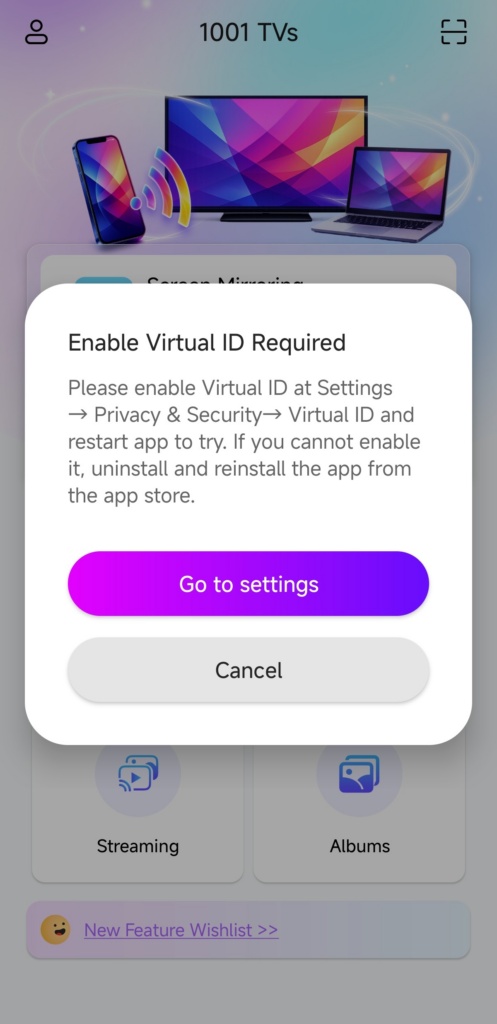 How to Fix the Enable Virtual ID Required Pop-Up
If you're using a Xiaomi or Redmi phone or tablet, you might see a pop-up that says "Enable Virtual ID Required" when you launch…
How to Fix the Enable Virtual ID Required Pop-Up
If you're using a Xiaomi or Redmi phone or tablet, you might see a pop-up that says "Enable Virtual ID Required" when you launch…

