How to Send Files from Your PC/Mac to TV/PC/Mac
With 1001 TVs, you can send files from your PC/Mac to your TV/PC/Mac over the same local network.
And yes — PCs and Macs on the same LAN can transfer files directly to each other, no additional setup.
No cloud uploads. No cables. No sign-ups — just fast, secure local transfers.
Before You Start
- Make sure your devices are connected to the same Wi-Fi network.
- Install and open 1001 TVs on both your devices, keep the app running on the receiving device.
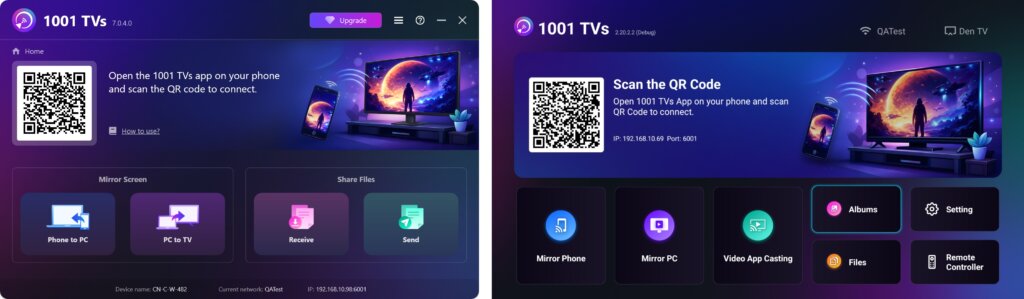
Start Sending
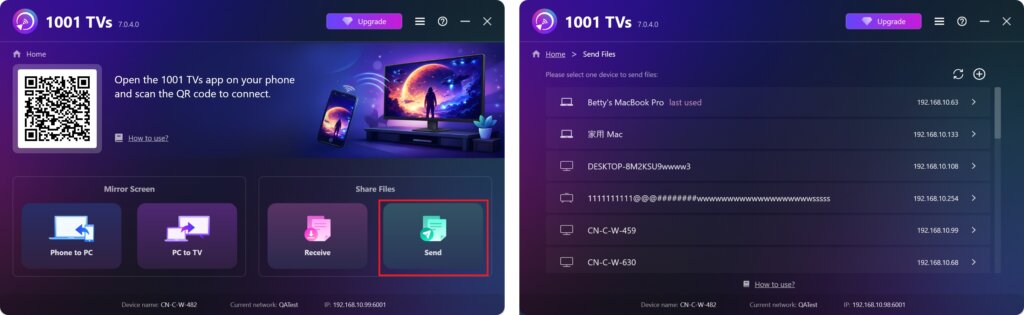
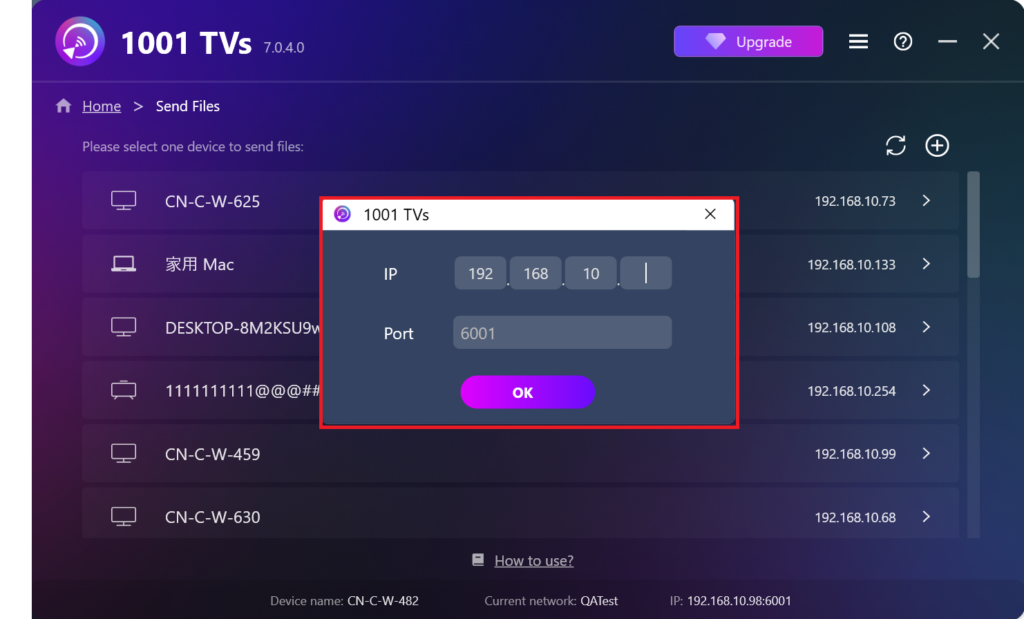
On your sending device, click Send and the app will automatically search for available devices on the same network.
Choose your target device from the list. (e.g., your TV/PC/Mac)
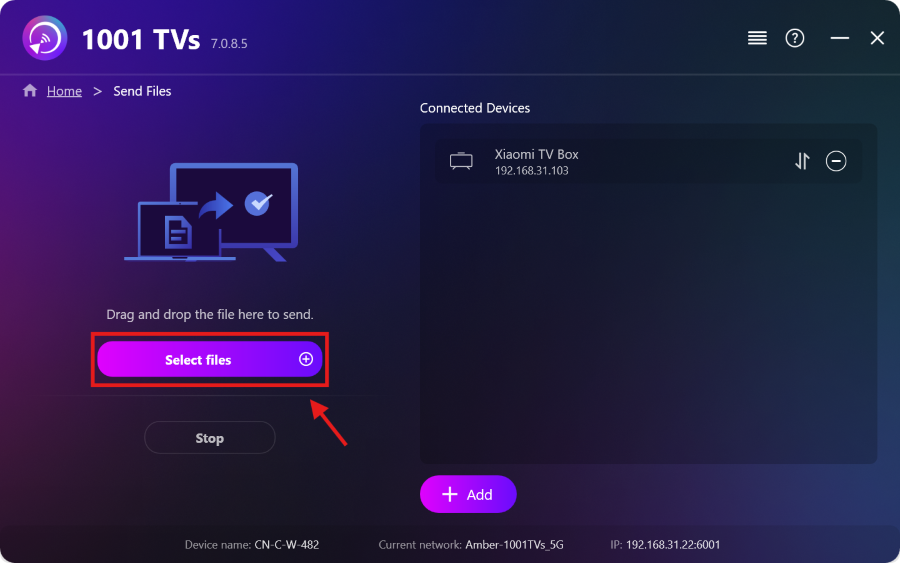
Select files on your PC/Mac (videos, photos, music, documents, and more), or simply drag and drop them into the file area on the left.
The transfer will start automatically to the target device.
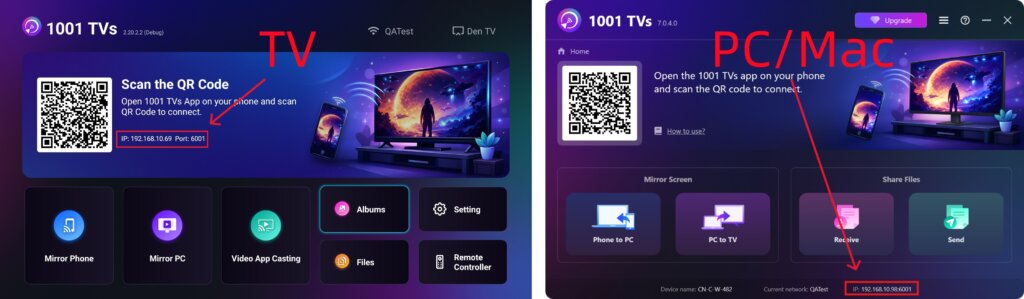
Can’t Find Your Target Device?
If the target device doesn’t appear in the device list, click the + icon in the top-right corner and use IP address pairing to connect quickly and securely.
View Received Files on PC/Mac
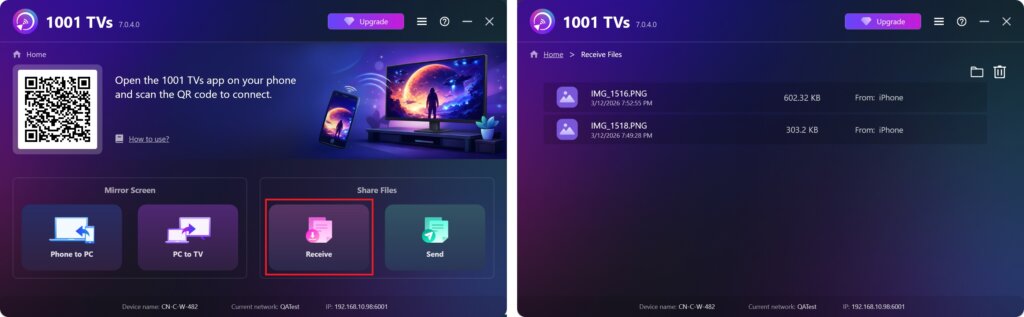
Click Receive on your PC/Mac to see all incoming files.
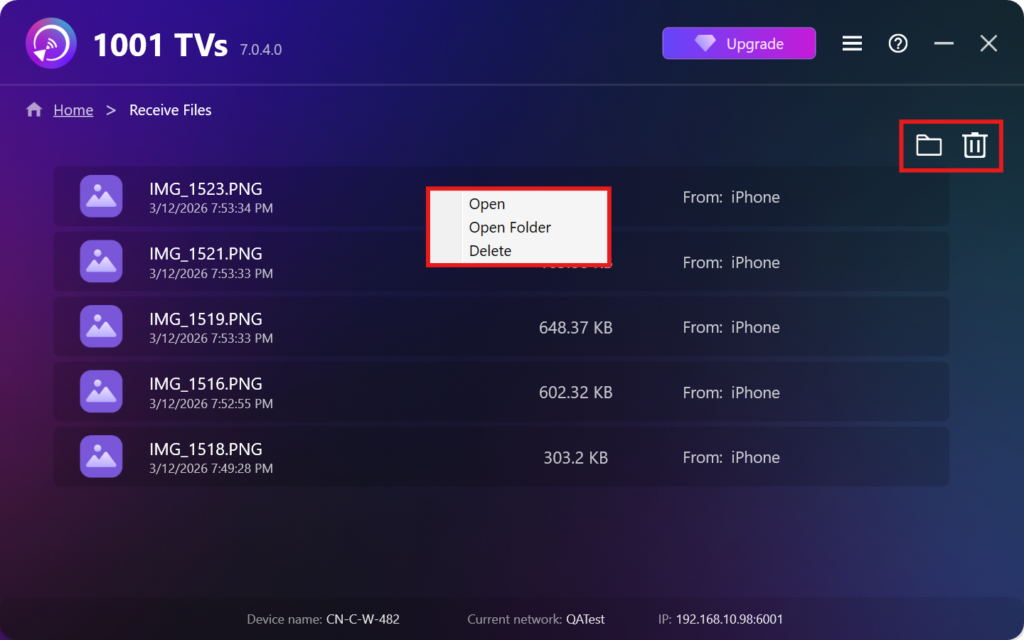
- Open View the received files – Click or right-click and select “Open Folder” to to view all files from that specific device (e.g., iPhone 12123).
- Locate them in Finder (Mac) or File Explorer (Windows) – Click the folder icon in the top‑right to access all device folders.
- Delete options – Right‑click a file and select “Delete” to remove it individually, or click the trash icon in the top‑right to delete all received files at once.
View Received Files on TV
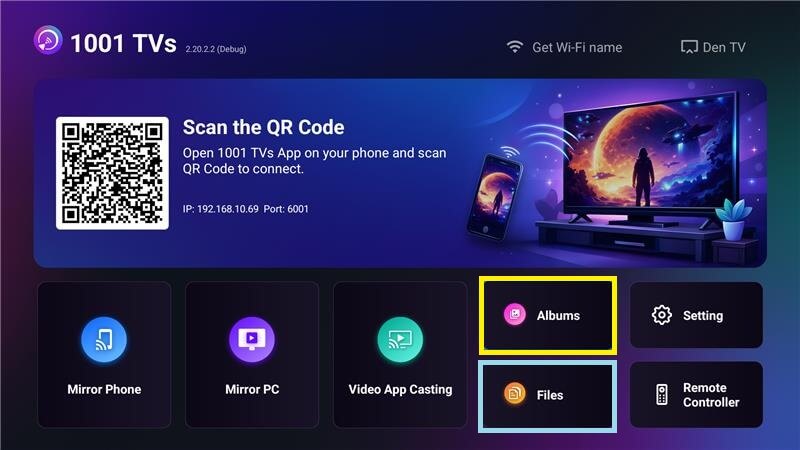
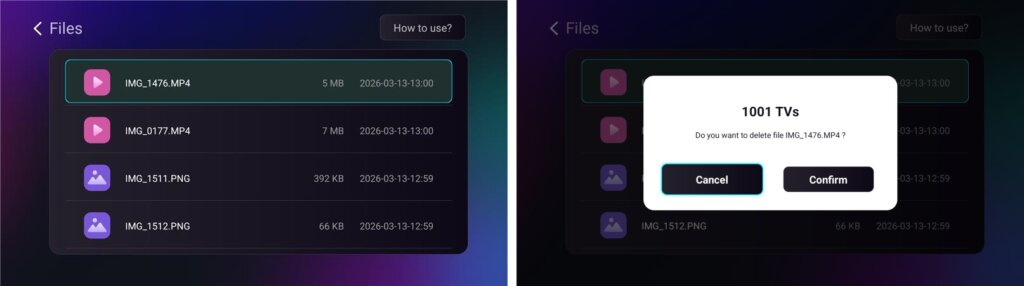
- Navigate to Files to view received files. You can select a file and long‑press OK to delete it.
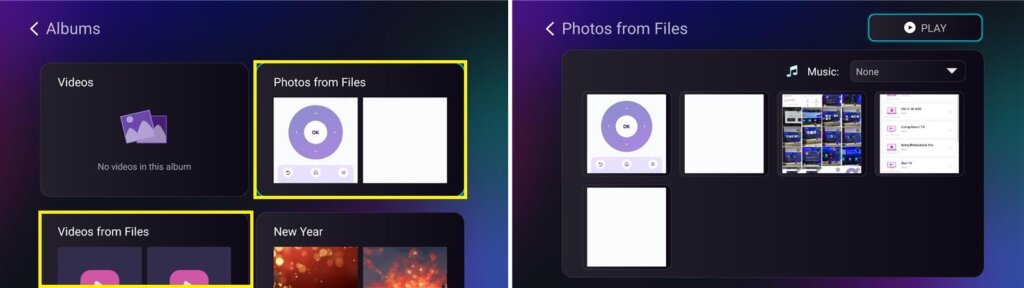
- Navigate to Albums > Photos/Videos from Files to view received photos and videos. You can select a file and long‑press OK to delete it, or play them as a slideshow.
Why Use 1001 TVs?
- Fast, private, and easy to use
- Local transfer — no cloud required
- No login or account needed
- Supports large file transfers
Need Help?
If you encounter any issues, feel free to contact our support team:
📧 Email: 1001tvs@nero.com
🌐 Website: www.1001tvs.com
📖 More Guides: Guidance

Read More
 How to Send Files to Android/iOS Phone
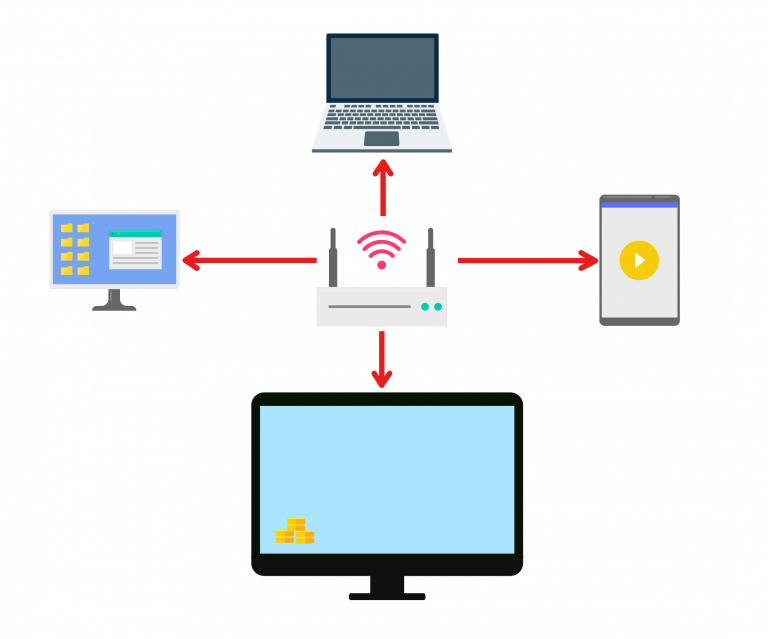
1001 TVs lets you transfer files seamlessly between devices — from PC/Mac to phone, or from phone to phone — all over Wi-Fi with…
How to Send Files to Android/iOS Phone
1001 TVs lets you transfer files seamlessly between devices — from PC/Mac to phone, or from phone to phone — all over Wi-Fi with…
 [Android] How to Send Files From Android Phone to PC, Mac, and TV
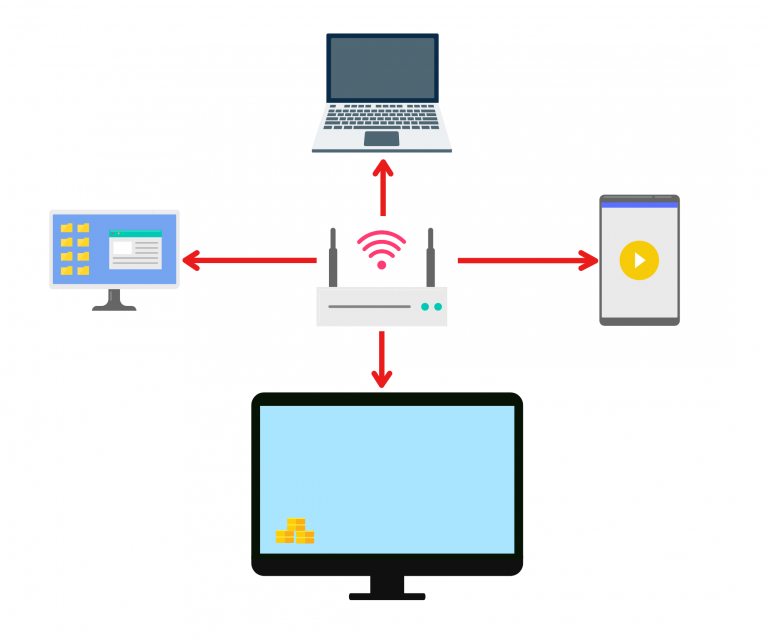
1001 TVs makes it easy to wirelessly transfer files from your Android phone to a PC, Mac, or TV — no cables, no hassle.…
[Android] How to Send Files From Android Phone to PC, Mac, and TV
1001 TVs makes it easy to wirelessly transfer files from your Android phone to a PC, Mac, or TV — no cables, no hassle.…

