How to Improve Screen Mirroring Quality: Adjusting Resolution Settings
If you’re using 1001 TVs screen mirroring and the display quality appears blurry or less clear than expected, you can enhance the visual output by fine-tuning the resolution settings in the advanced options. This guide walks you through adjusting the max width and max height parameters to achieve sharper and more detailed image quality.
Detailed Setup Steps
Step 1. Access Mirror Settings
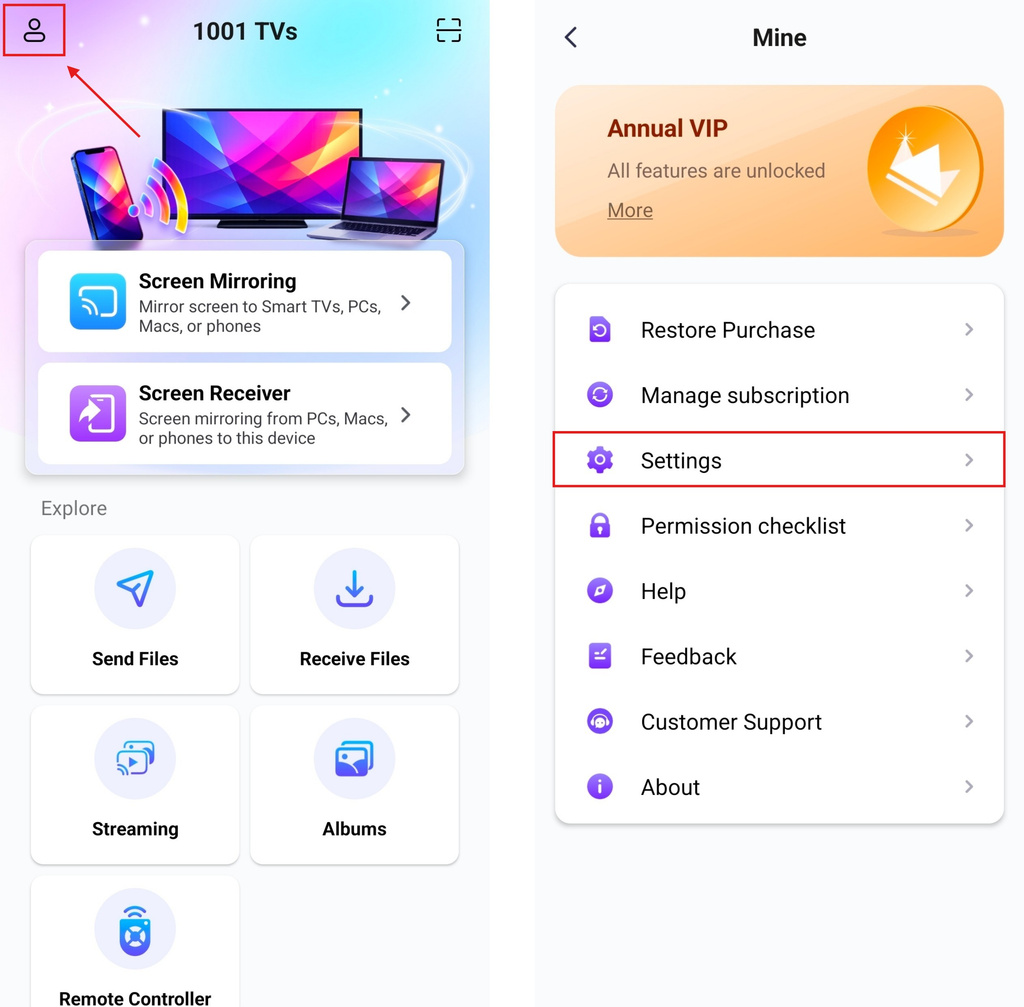
Open the 1001 TVs app and tap the Profile icon in the top-left corner.
On the “Mine” page, locate and tap Settings.
Step 2. Enable Advanced Settings
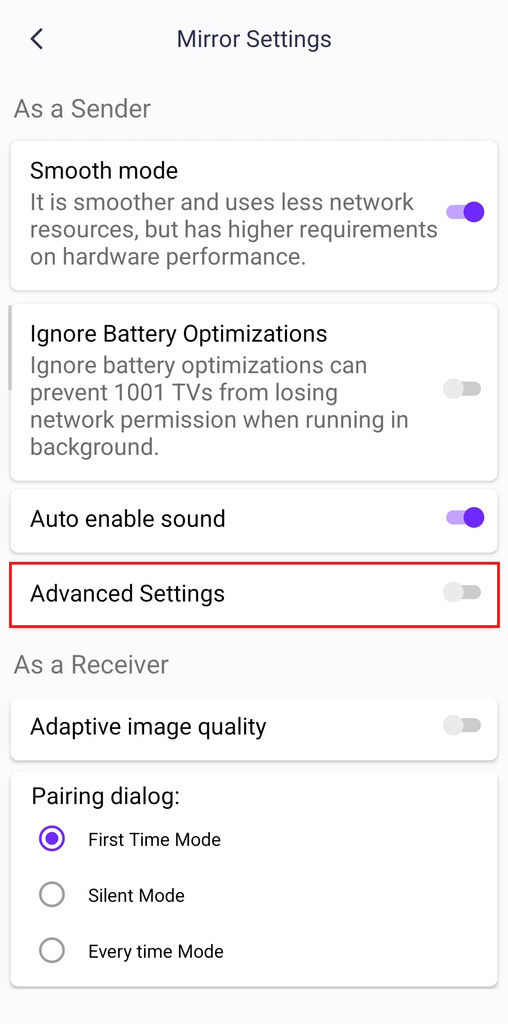
In the Settings page, scroll down to find the Advanced Settings option.
Tap the toggle switch on the right to turn it on (the switch turns purple when enabled).
Once enabled, additional configuration options will appear below.
Step 3. Adjust Resolution Parameters
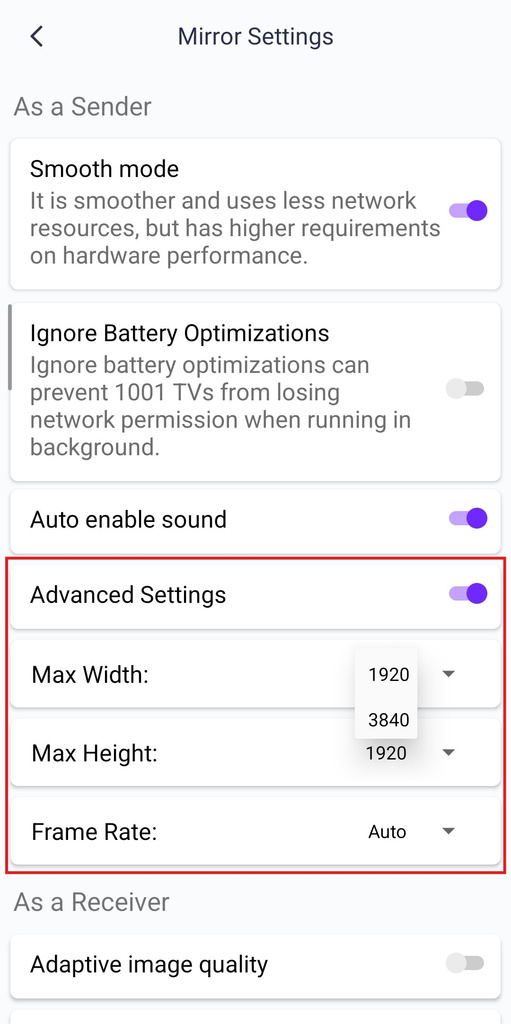
In the Advanced Settings section, you’ll see three important parameters. Higher values provide better image quality but require stronger network performance:
1. Max Width
- Default value: 1920 (pixels)
- Available options: 1920, 3840
2. Max Height
- Default value: 1920 (pixels)
- Available options: 1080, 1920, 3840
3. Frame Rate
- Default value: Auto
- Available options: Auto/24/30/35/45/60 fps
Need Help?
If you encounter any issues while using the app, feel free to contact our support team:
- More Tutorials: Guidance
- Email: 1001tvs@nero.com
- Website: www.1001tvs.com

Read More
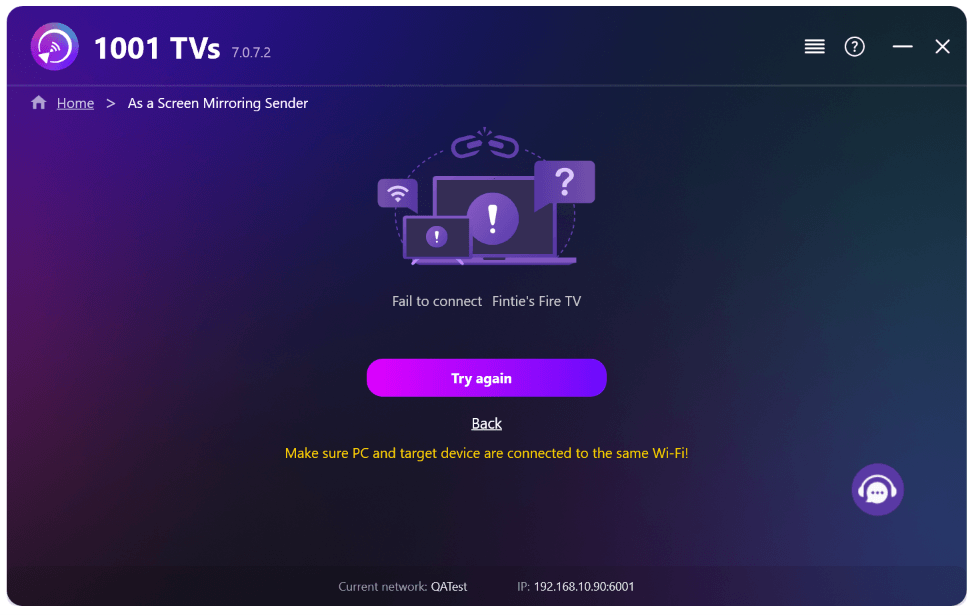 New Setting: No More Pop-ups When Mirroring Ends
When you're mirroring your PC screen to a TV and stop the session using the TV remote, the 1001 TVs window pops back up…
New Setting: No More Pop-ups When Mirroring Ends
When you're mirroring your PC screen to a TV and stop the session using the TV remote, the 1001 TVs window pops back up…
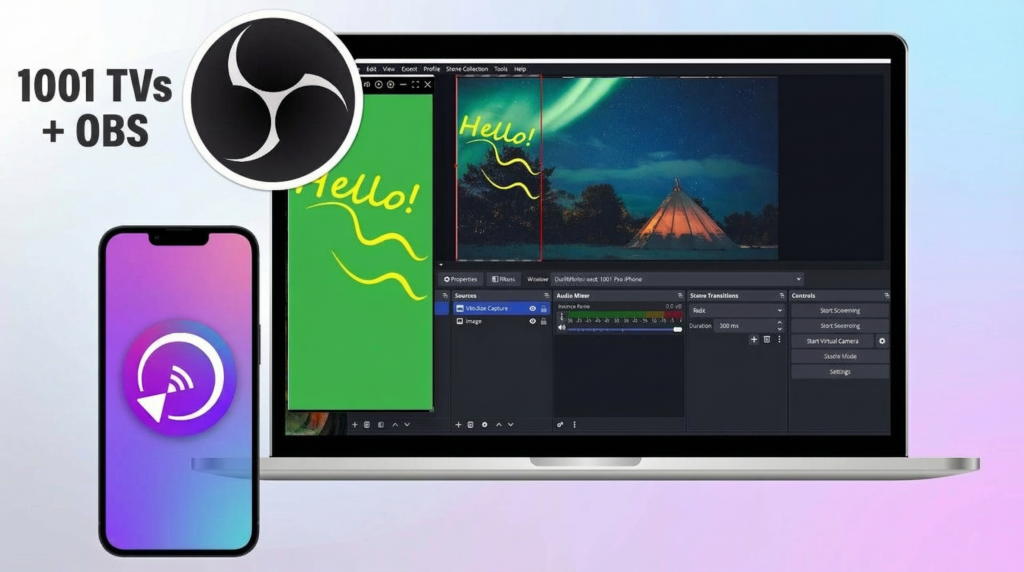 How to Capture Screen Mirroring in OBS (Android & iPhone)
Want to capture screen mirroring in OBS for mobile gameplay, tutorials, or live content? With 1001 TVs, you can easily mirror your phone screen…
How to Capture Screen Mirroring in OBS (Android & iPhone)
Want to capture screen mirroring in OBS for mobile gameplay, tutorials, or live content? With 1001 TVs, you can easily mirror your phone screen…

