How to Watch TikTok on TV With Comments (Complete 2026 Guide)
If you’re wondering how to watch TikTok on TV with comments, you’re not alone.
Since TikTok removed its TV app in 2025, users have been searching for a way to mirror TikTok to TV while keeping the comments visible.
This guide will show you the best way to watch TikTok on TV with full comments display, step by step.
Can You Watch TikTok on TV With Comments?
Short answer: Yes—but not with default screen mirroring.
Most built-in options (like AirPlay or Chromecast) will:
- ❌ Show video only
- ❌ Hide comments
- ❌ Miss LIVE chat
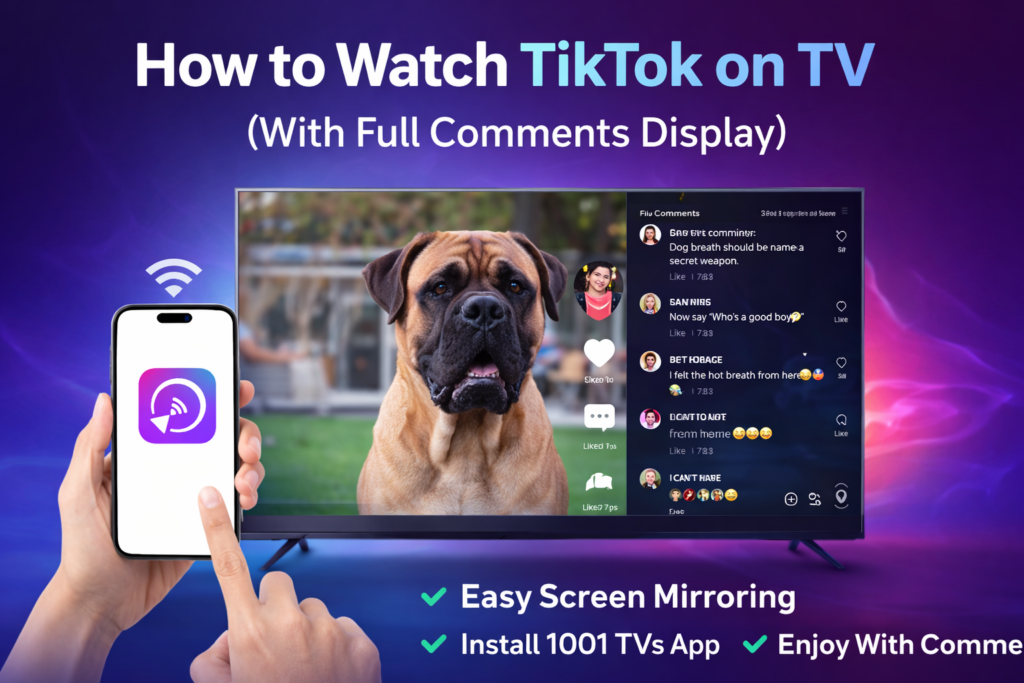
👉 To watch TikTok on TV with comments, you need a screen mirroring solution that supports the full mobile interface.
Why Comments Are Important on TikTok
For many users, TikTok isn’t just about videos—it’s about the comments.
- Comments add humor and context
- Often funnier than the video itself
- Essential for shared viewing (family, couples, friends)
Without comments, the TikTok TV experience feels incomplete.
Best Way to Watch TikTok on TV: Use 1001 TVs
The easiest and most reliable way is using 1001 TVs.
It’s specifically optimized for streaming apps like TikTok.
Why it works better than other methods:
- ✅ Displays full TikTok interface (including comments & LIVE chat)
- ✅ Low-latency streaming (smooth playback)
- ✅ Hides phone notifications
- ✅ Works across:
- Android TV
- Google TV
- Huawei TV
- HONOR TV
- Xiaomi TV
- Apple TV
How to Mirror TikTok to Android TV (Step-by-Step)
Follow these steps to mirror TikTok to Android TV with comments:
Step 1: Install the App
- Install 1001 TVs on your Android TV
- Install the app on your phone (iOS or Android)
Step 2: Connect to the Same Wi-Fi
- Make sure both devices use the same Wi-Fi network
- Open the app on your phone
- Tap the cast icon
- Select your Android TV
Step 3: Start Watching TikTok on TV
- Open TikTok on your phone
- Start screen mirroring
- Scroll videos normally
🎉 Your TV will now show:
- TikTok videos
- Comments
- LIVE streams
Tips for Better TikTok Screen Mirroring
Improve quality
- Use 5GHz Wi-Fi
- Close background apps
- Keep your phone charged
Better viewing experience
- Rotate your phone to landscape
- Disable motion smoothing on TV
Privacy tips
- Enable Do Not Disturb
- Avoid opening private apps while mirroring
Other Ways to Watch TikTok on TV (Comparison)
| Method | Works? | Comments | Experience |
|---|---|---|---|
| AirPlay / Chromecast | Yes | ❌ No | Basic |
| HDMI cable | Yes | ❌ No | Inconvenient |
| Other mirroring apps | Sometimes | ❌ Limited | Unstable |
| 1001 TVs | ✅ Yes | ✅ Full | Best |
FAQ: Watching TikTok on TV
How do I watch TikTok on TV with comments?
Use a screen mirroring app like 1001 TVs that supports full interface display.
Can I mirror TikTok LIVE to TV?
Yes, including real-time chat.
Why don’t comments show with AirPlay?
Because it mirrors video layers only—not the full UI.
Is screen mirroring TikTok laggy?
Not with a stable Wi-Fi connection (usually under 1 second delay).
Final Thoughts
Watching TikTok on TV is still possible—even after the official app was removed.
But the key difference is this:
👉 Most methods show videos
👉 Only the right solution shows comments
If you want the full TikTok experience on your TV, including comments and LIVE chat,
1001 TVs is currently the best solution available.
Start Watching TikTok on Your TV Today
👉 Download 1001 TVs and bring TikTok back to your big screen—with comments included.