Comment regarder TikTok sur la TV avec des commentaires (Guide complet 2026)
Il existe trois façons pratiques de regarder TikTok sur un téléviseur : utiliser l'application TikTok lorsqu'elle est disponible, diffuser le contenu depuis votre téléphone ou dupliquer l'écran de votre téléphone. La méthode à choisir dépend de ce que vous souhaitez voir sur le téléviseur. Si vous souhaitez simplement visionner la vidéo sur un écran plus grand, l'application TV ou la diffusion peuvent constituer la solution idéale. Si vous souhaitez que le téléviseur affiche l'interface TikTok déjà ouverte sur votre téléphone, la duplication d'écran est l'option la plus adaptée.
La disponibilité de TikTok peut varier en fonction du modèle de téléviseur, de l'appareil de streaming et de la région de l'App Store. Avant de commencer, demandez-vous si vous recherchez une expérience de visionnage simple et détendue ou une version plus complète de l'expérience interactive à laquelle vous êtes habitué sur votre téléphone.
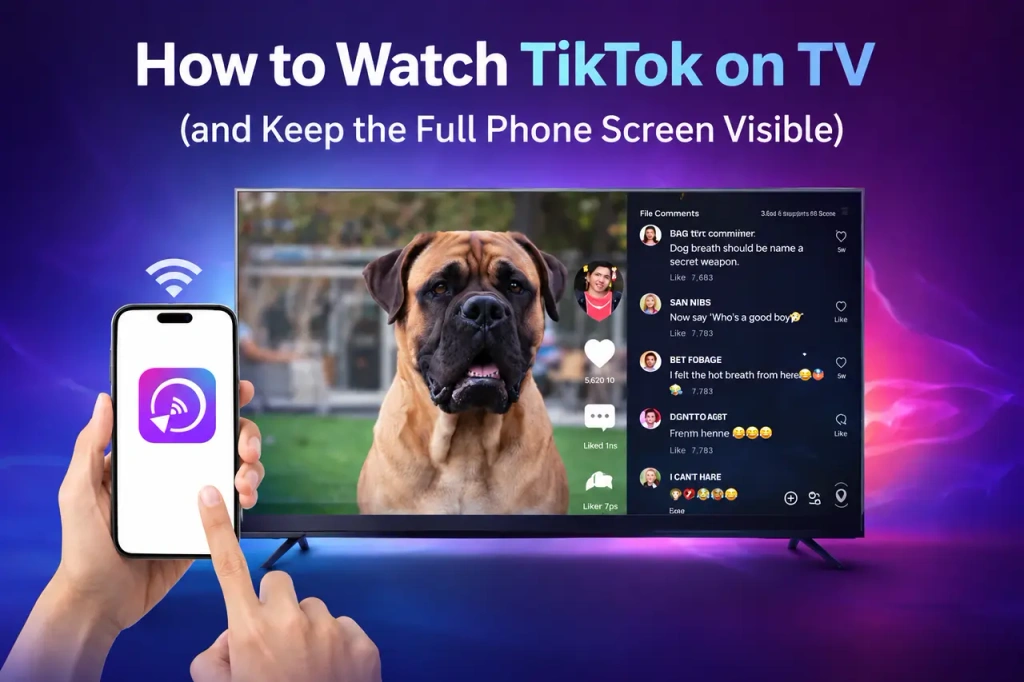
Choisissez la meilleure façon de regarder TikTok sur votre téléviseur
| Méthode | Idéal pour | Ce que vous voyez à la télé |
| Application TikTok TV | Regarder des vidéos avec la télécommande du téléviseur | Une expérience TikTok optimisée pour la télévision ; la disponibilité varie selon l'appareil et la région. |
| Casting | Afficher rapidement une vidéo sur un écran plus grand | La lecture de vidéos s'effectue souvent en utilisant le téléphone comme télécommande ; les résultats varient selon l'appareil et l'option de diffusion choisie. |
| Duplication d'écran | Maintenir la visibilité de l'expérience TikTok telle qu'elle est sur mobile | L'écran de votre téléphone, y compris l'interface utilisateur de TikTok ; les contenus au format portrait peuvent paraître plus étroits sur un téléviseur à écran large. |
Optez pour une application TV ou la fonction « casting » lorsque la lecture vidéo est votre priorité. Choisissez la fonction « screen mirroring » lorsque vous souhaitez que le téléviseur reprenne ce que vous faites sur TikTok depuis votre téléphone. Cette distinction est importante lorsque les commentaires, le chat en direct et les commandes depuis votre téléphone font partie de l'expérience que vous souhaitez garder à l'écran.
Utilisez l'application TikTok sur votre téléviseur
Certains téléviseurs connectés et appareils de streaming peuvent proposer TikTok via leur boutique d'applications. Lorsque l'application est disponible, c'est un moyen simple de naviguer à l'aide de la télécommande et de regarder des vidéos sur un grand écran.
Ouvrez l'App Store sur votre téléviseur ou votre appareil de streaming, recherchez TikTok, puis suivez les instructions d'inscription qui s'affichent à l'écran. La disponibilité dépend de votre appareil et de votre région ; il est donc préférable de vérifier directement sur la boutique plutôt que de partir du principe que l'application apparaîtra sur tous les écrans.
Une application TV est utile si vous souhaitez principalement parcourir des vidéos et les regarder depuis votre canapé. Son interface peut toutefois ne pas correspondre à celle de l'application mobile. Si vous souhaitez que votre téléviseur affiche la mise en page à laquelle vous êtes habitué sur votre téléphone, optez plutôt pour la duplication d'écran.
Diffusez vos vidéos TikTok sur votre téléviseur
La fonction de diffusion est utile lorsque vous souhaitez envoyer une vidéo depuis votre téléphone vers un téléviseur ou un appareil de streaming compatible, sans dupliquer l'intégralité de l'écran de votre téléphone. En fonction de votre configuration, cela peut concerner des appareils compatibles avec Chromecast ou des récepteurs prenant en charge AirPlay. Recherchez une option de diffusion ou de partage dans TikTok, ou utilisez les commandes de diffusion disponibles sur votre téléphone.
Dans de nombreuses configurations, le téléviseur se charge de la lecture tandis que le téléphone sert de commande. Cela peut être idéal pour afficher rapidement une vidéo sur un écran plus grand. Ce n'est toutefois pas la même chose que la duplication d'écran complète : les commandes et l'interface affichées sur le téléviseur peuvent varier selon l'appareil et la méthode de diffusion.
Si votre objectif est simplement de regarder une vidéo, la fonction « Casting » devrait suffire. Si vous souhaitez que le téléviseur affiche l'intégralité de l'écran TikTok de votre téléphone plutôt que de se limiter à la lecture de la vidéo, optez pour la fonction « Screen Mirroring ».
Diffuser le contenu de TikTok sur votre téléviseur avec 1001 TVs
Sélectionnez la fonction de duplication d'écran lorsque vous souhaitez que le téléviseur affiche l'écran TikTok déjà ouvert sur votre téléphone. C'est là qu'un outil de duplication comme 1001 TVs prend tout son sens : il vise à afficher l'écran de votre mobile sur un écran plus grand, plutôt que de remplacer TikTok par une interface TV distincte.
1001 TVs propose une option de duplication d'écran entre les appareils mobiles et les appareils récepteurs compatibles. Consultez la Centre de téléchargement 1001 TVs pour connaître les options actuellement disponibles pour votre configuration avant de commencer.
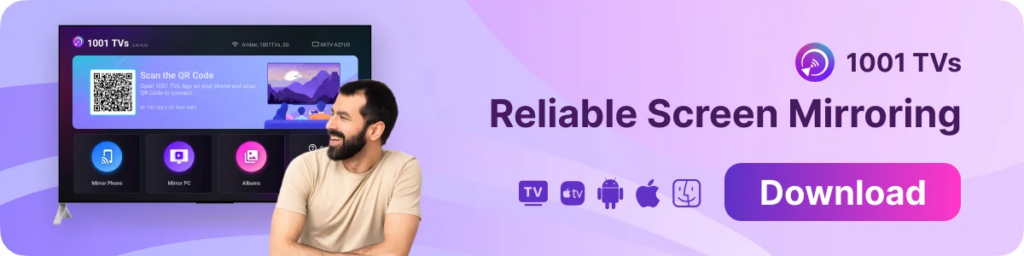
Pour commencer :
- Installez 1001 TVs sur le téléphone ou la tablette que vous utiliserez pour TikTok, ainsi que sur un appareil récepteur compatible si nécessaire.
- Connectez les deux appareils au même réseau Wi-Fi local.
- Ouvrez 1001 TVs et sélectionnez l'écran de réception, ou utilisez la méthode de connexion indiquée dans l'application.
- Acceptez les autorisations nécessaires pour partager votre écran.
- Ouvre TikTok sur ton téléphone et commence à regarder.
Gardez votre téléphone en mode portrait si vous souhaitez conserver la mise en page verticale habituelle de TikTok. Un écran en mode portrait laissera de l'espace inutilisé de chaque côté d'un téléviseur à écran large, mais le téléviseur reproduira fidèlement l'interface TikTok de votre téléphone.
Profitez de l'expérience interactive de TikTok sur votre téléviseur
La différence entre la diffusion et la duplication d’écran n’est pas seulement technique : elle influe sur ce que vous pouvez partager sur le téléviseur. Lorsque le téléviseur affiche l'intégralité de l'écran du téléphone, le panneau de commentaires ou le chat en direct peut rester visible s'il est déjà ouvert dans TikTok sur votre téléphone. Cela peut s'avérer utile lorsque vous regardez une vidéo avec d'autres personnes et que vous souhaitez que les réactions, le contexte ou la conversation en direct fassent partie intégrante de l'expérience de visionnage.
Pour que ces éléments restent visibles, ouvrez la fenêtre des commentaires ou le chat en direct sur votre téléphone avant ou pendant la diffusion, puis laissez TikTok en mode portrait. Votre téléphone reste l'outil le plus pratique pour faire défiler le contenu, saisir du texte et contrôler la lecture, tandis que le téléviseur sert d'écran partagé.
Il y a toutefois un compromis à faire : une mise en page mobile verticale ne remplit pas tout l'écran d'un téléviseur horizontal. Si votre priorité est d'afficher la vidéo la plus grande possible, le « casting » ou une application TV pourraient mieux vous convenir. Si vous tenez davantage à conserver l'expérience interactive du téléphone, la duplication d'écran est le choix le plus évident.
Dépannage de la fonction de duplication d'écran sur TikTok
Votre téléviseur n'apparaît pas sur votre téléphone. Vérifiez que les deux appareils sont connectés au même réseau Wi-Fi local. Rouvrez l'application 1001 TVs sur les deux appareils et réessayez. Un VPN ou un réseau invité peut parfois empêcher les appareils locaux de se détecter mutuellement.
La connexion se fige ou est interrompue. Limitez les activités gourmandes en bande passante sur le même réseau, telles que les téléchargements volumineux ou d'autres sessions de streaming. Il peut également être utile de vous rapprocher du routeur.
L'écran reste noir ou il n'y a pas de son. Vérifiez à nouveau les autorisations demandées par l'application de mise en miroir, mettez fin à la session, puis reconnectez-vous. Assurez-vous que l'appareil destinataire est prêt à accepter la connexion de mise en miroir.
La mise en page de TikTok semble trop petite. Gardez le téléphone en mode portrait si les commentaires et le chat sont importants. Si une vidéo en grand format est plus importante que l'interface du téléphone, essayez plutôt la diffusion sur écran ou une application TV.
Foire aux questions
Est-ce que je peux regarder TikTok à la télévision avec les commentaires ?
Oui. La fonction « Screen mirroring » est celle qu'il vous faut si vous souhaitez que le téléviseur affiche l'interface complète de TikTok depuis votre téléphone. Ouvrez la fenêtre des commentaires sur votre téléphone avant de lancer la duplication d'écran ; la présentation finale peut varier en fonction de l'appareil et de la version de l'application.
Puis-je diffuser une vidéo TikTok sur Chromecast ou via AirPlay sur un téléviseur ?
TikTok ne fonctionne pas toujours de la même manière selon que vous utilisez Chromecast ou AirPlay ; les résultats dépendent de votre téléphone, de votre téléviseur et de l'appareil récepteur. Si vous accordez plus d'importance à l'interface complète de TikTok qu'à la simple lecture vidéo, la duplication d'écran est généralement la meilleure solution.
Est-ce que TikTok propose une application pour la télévision ?
Ce service peut être disponible sur certains téléviseurs et appareils de streaming compatibles. Consultez la boutique d'applications de votre appareil pour vérifier sa disponibilité sur votre appareil et dans votre région.
Pourquoi mon téléphone ne parvient-il pas à détecter ma télévision ?
Vérifiez que les deux appareils sont connectés au même réseau Wi-Fi local, redémarrez les applications si nécessaire et évitez d'utiliser un réseau invité ou un VPN susceptible de bloquer la détection des appareils locaux.
Prêt à diffuser TikTok depuis votre téléphone ? Consultez le Centre de téléchargement 1001 TVs pour les appareils pris en charge.

En savoir plus
 Comment regarder la NBA à la télévision aux États-Unis
Pour regarder les matchs de la NBA sur votre téléviseur aux États-Unis, le plus simple est de prendre deux décisions dans l'ordre : tout d'abord, vérifiez quel service agréé diffuse...
Comment regarder la NBA à la télévision aux États-Unis
Pour regarder les matchs de la NBA sur votre téléviseur aux États-Unis, le plus simple est de prendre deux décisions dans l'ordre : tout d'abord, vérifiez quel service agréé diffuse...
 Comment diffuser l'écran sur un téléviseur Sony Bravia (Google TV)
Un téléviseur Sony Bravia Google TV n'utilise pas une seule méthode universelle de “ Screen Mirroring ” pour tous les téléphones et ordinateurs. Le choix approprié dépend à la fois...
Comment diffuser l'écran sur un téléviseur Sony Bravia (Google TV)
Un téléviseur Sony Bravia Google TV n'utilise pas une seule méthode universelle de “ Screen Mirroring ” pour tous les téléphones et ordinateurs. Le choix approprié dépend à la fois...

