
1001 TVs بىلەن macOS تەڭشەكلىرىنى ئىشلىتىپ Mac ئېكرانىڭىزنى قانداق كېڭەيتىش كېرەك
macOS سىستېما كۆرسىتىش تەڭشەكلىرىنى ئىشلىتىپ ئۈستەل يۈزىڭىزنى سىرتقى كۆرسىتىشكە كېڭەيتىشكە يول قويىدۇ.
ياردىمى بىلەن 1001 TVs, ، بۇ ئىقتىدارنى تېخىمۇ كېڭەيتىشكە بولىدۇ -- بۇ ئارقىلىق Mac ئېكرانىڭىزنى كېڭەيتكىلى بولىدۇ بىر فىزىكىلىق كۆرسىتىش ۋە كۆپ خىل مەۋھۇم كۆرسىتىش تېخىمۇ جانلىق كۆپ ئېكرانلىق تەڭشەش ئۈچۈن.
بارلىق ئۇلانغان ئېكرانلار كۆرسىتىدۇ ئوخشاش كېڭەيتىلگەن ئۈستەل يۈزى ھەمدە ماۋۇس ئارقىلىق تولۇق كونترول قىلغىلى بولىدۇ، شۇڭا بۇ خۇددى ئاساسلىق ئېكرانىڭىزنى مەخپىي تۇتۇپ تۇرۇپ يەنە بىر ئىشلىتىشكە بولىدىغان ئېكران قوشقاندەك ھېس قىلدۇرىدۇ.
1. macOS ئارقىلىق فىزىكىلىق ئېكراننى ئۇلاڭ
Mac كومپيۇتېرىڭىزدا، بۇ يەرگە كىرىڭ تەڭشەكلەر > كۆرسىتىشلەر, ، چېكىڭ + سىنبەلگە, ، ۋە فىزىكىلىق كۆرسىتىشىڭىزنى قوشۇڭ.
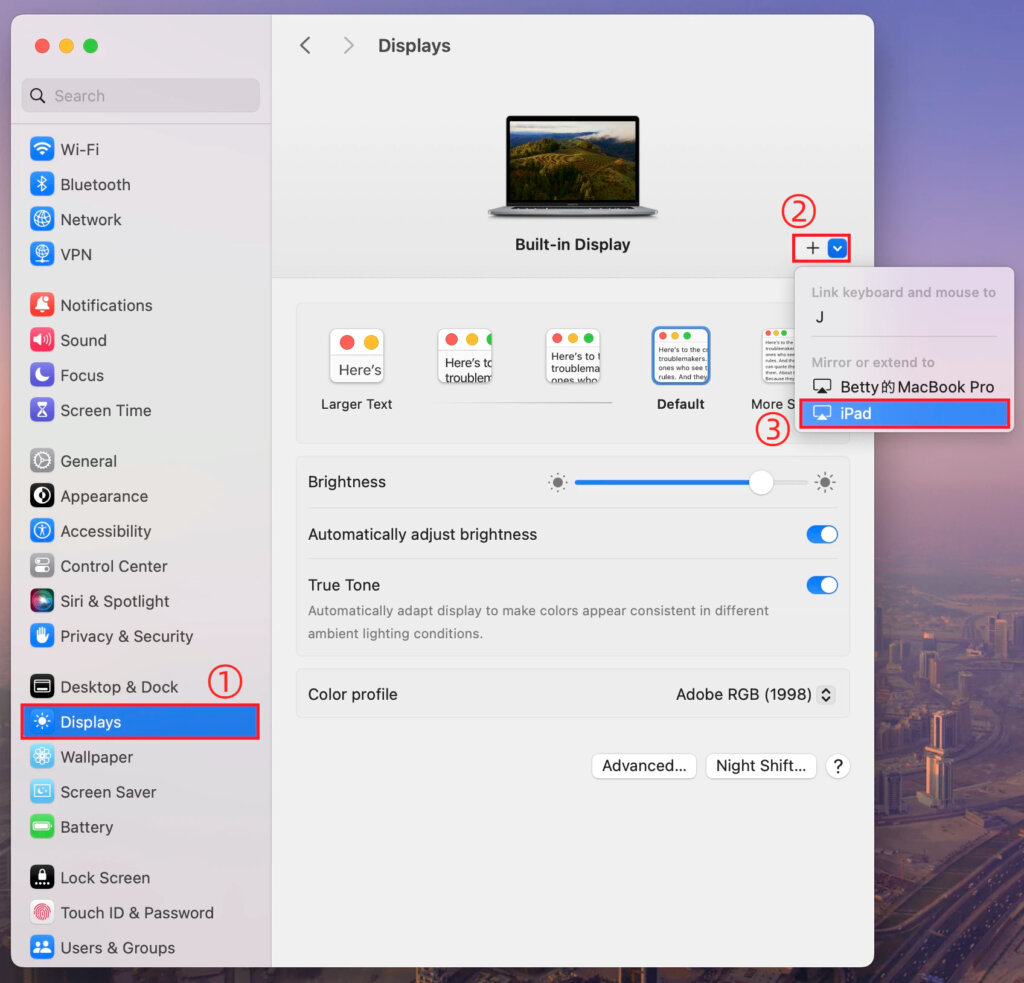
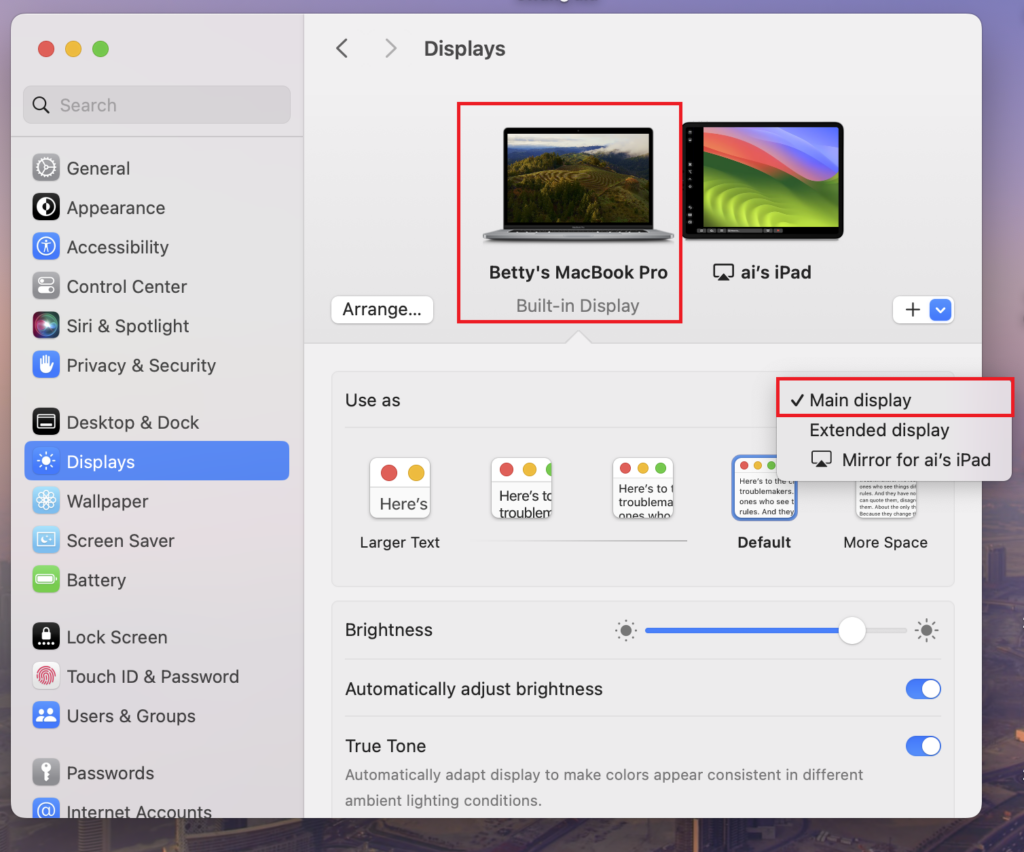
ھەر ئىككى ئېكراننى ئاساسلىق كۆرسىتىش قىلىپ تەڭشىسىڭىز بولىدۇ، يەنە بىرى ئاپتوماتىك ھالدا كېڭەيتىلگەن كۆرسىتىشكە ئايلىنىدۇ.
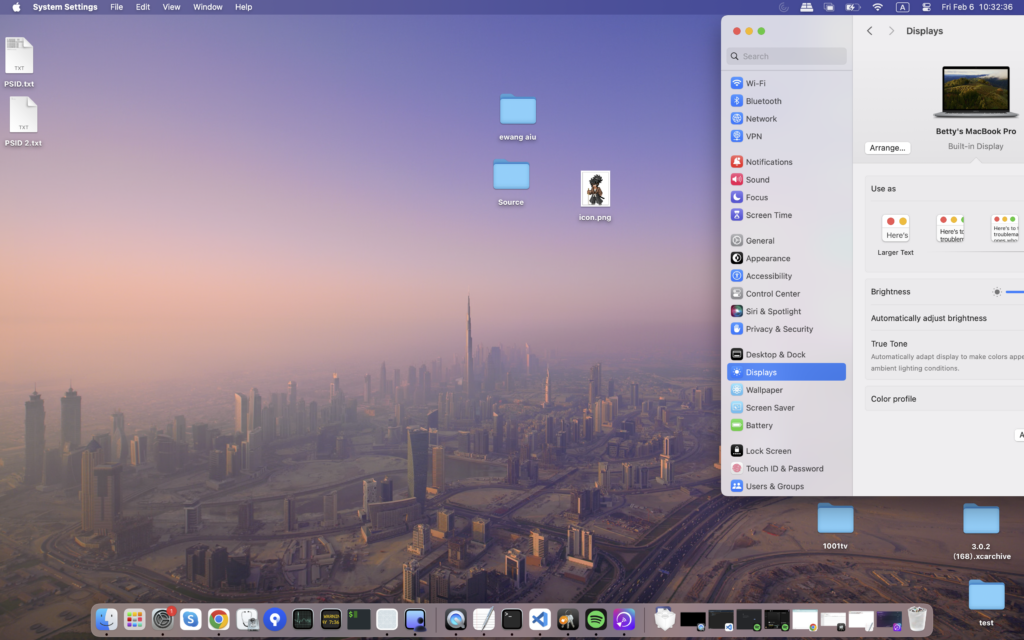
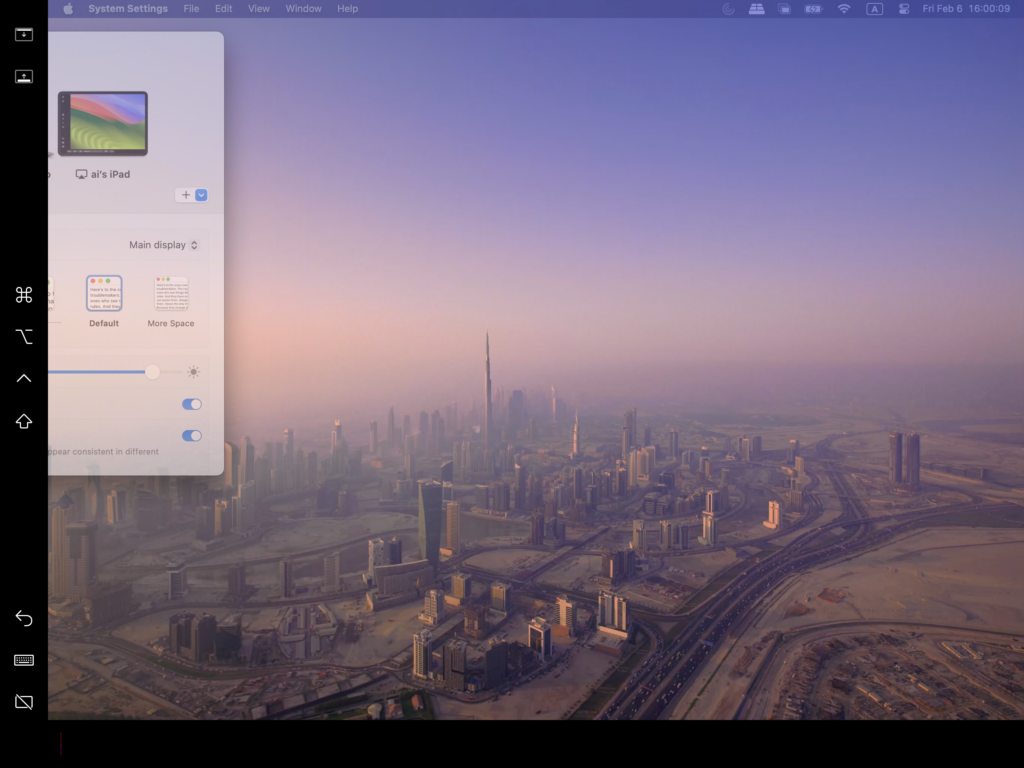
تاماملانغاندىن كېيىن، Mac ئۈستەل يۈزى مۇۋەپپەقىيەتلىك ھالدا ئىككىنچى ئېكرانغا كېڭەيتىلىدۇ.
2. 1001 TVs ئارقىلىق كۆپ خىل مەۋھۇم كۆرسىتىشلەرنى قوشۇڭ
Mac كومپيۇتېرىڭىزنى فىزىكىلىق كۆرسىتىشكە كېڭەيتكەندىن كېيىن، سىز بۇنى ئىشلىتەلەيسىز 1001 TVs كېڭەيتىش ئۈچۈن ئوخشاش ئۈستەل يۈزى قوشۇمچە ئۈسكۈنىلەرگە مەۋھۇم كۆرسىتىشلەر.
1) ئوخشاش Wi-Fi تورىغا ئۇلاڭ
Mac كومپيۇتېرىڭىز ۋە بارلىق نىشانلىق ئۈسكۈنىلىرىڭىزنىڭ ئوخشاش Wi-Fi تورىغا ئۇلانغانلىقىغا كاپالەتلىك قىلىڭ.
ئەڭ ياخشى ئۈنۈم ئۈچۈن، 5 گىگاگېرتسلىق Wi-Fi تورى تەۋسىيە قىلىنىدۇ.
2) 1001 TVs نى ئورنىتىپ ئېچىڭ
قاچىلاڭ ۋە قوزغىتىڭ 1001 TVs Mac كومپيۇتېرىڭىزدا ۋە مەۋھۇم كۆرسىتىش سۈپىتىدە ئىشلەتمەكچى بولغان ھەر قانداق ئۈسكۈنىڭىزدە.
📥 Mac ئەپ: App Store دىن چۈشۈرۈڭ
📥 كومپيۇتېر ئەپلىرى: چۈشۈرۈش Microsoft دۇكىنى
تەپسىلىي قەدەملەر ئۈچۈن، تۆۋەندىكىگە قاراڭ كومپيۇتېر ئورنىتىش قوللانمىسى.
📥 تېلېۋىزىيە ئەپ دېتالى: تېلېۋىزورىڭىزغا 1001 TVs نى قانداق ئورنىتىش كېرەك
3) كېڭەيتىش كۆرسىتىش ھالىتىنى باشلاڭ
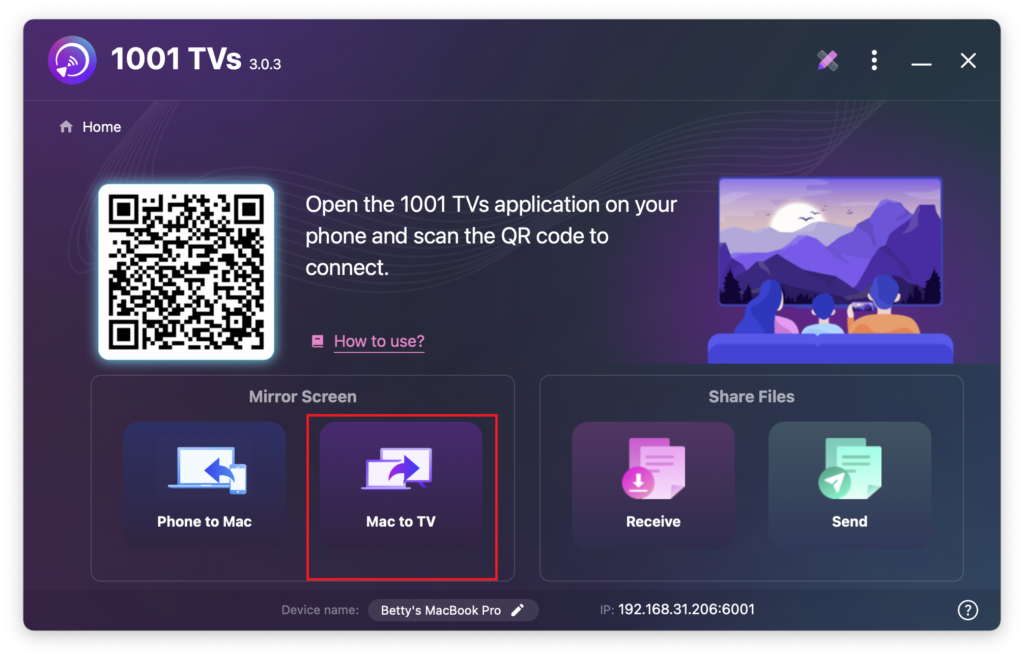
Mac كومپيۇتېرىڭىزدىكى 1001 TVs ئىچىدە، تاللاڭ Mac دىن تېلېۋىزورغا, ، تاللاڭ ئېكراننى كېڭەيتىش, نى تاللاڭ، ئاندىن نىشانلىق ئۈسكۈنىلىرىڭىزنى (مەسىلەن، كومپيۇتېر، Mac، تېلېفون ياكى تېلېۋىزور) تاللاڭ.
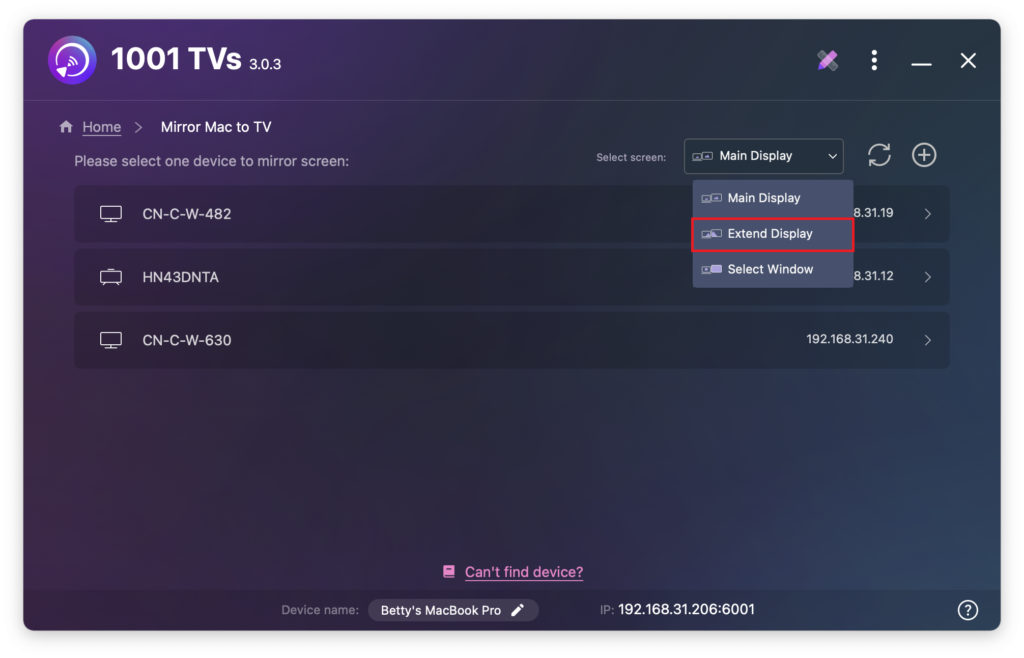
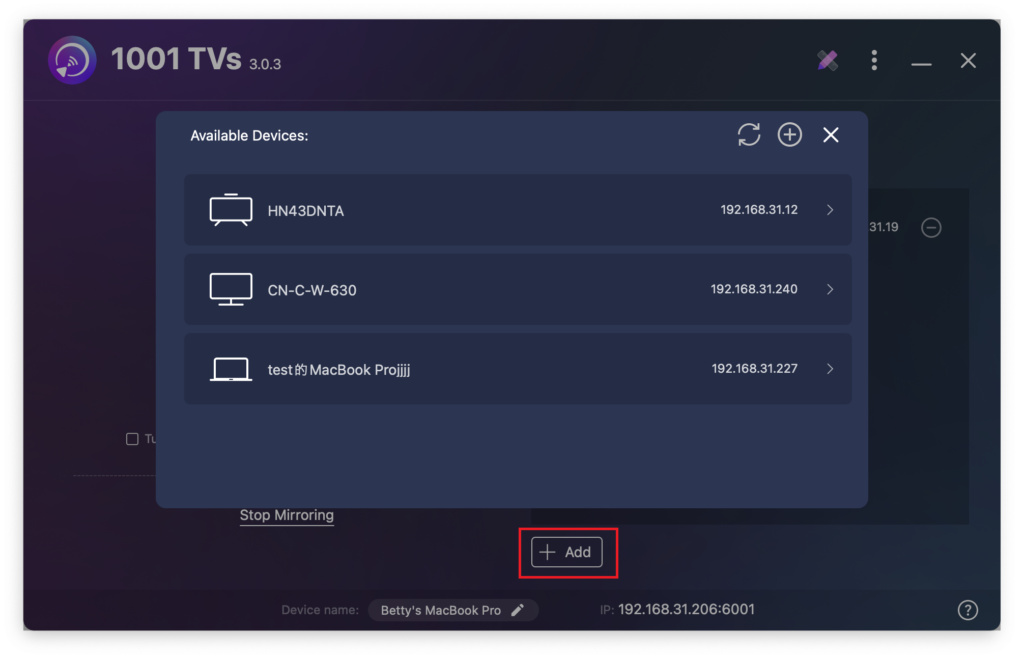
سىز چېكىپ كۆرەلەيسىز + قوشۇش لازىم بولغاندا تېخىمۇ كۆپ ئۈسكۈنىلەرنى ئۇلاش ئۈچۈن كۇنۇپكىنى بېسىڭ.
پەقەت Mac ئېكرانى ۋە ئاساسلىق كېڭەيتىلگەن ئېكرانلا ئۆز-ئارا تەسىر كۆرسىتىدۇ.
باشقا ئۇلانغان ئۈسكۈنىلەرنىڭ ھەممىسى كېڭەيتىلگەن ئېكراننى ئەكس ئەتتۈرىدۇ ۋە ئوخشاش مەزمۇننى كۆرسىتىدۇ.
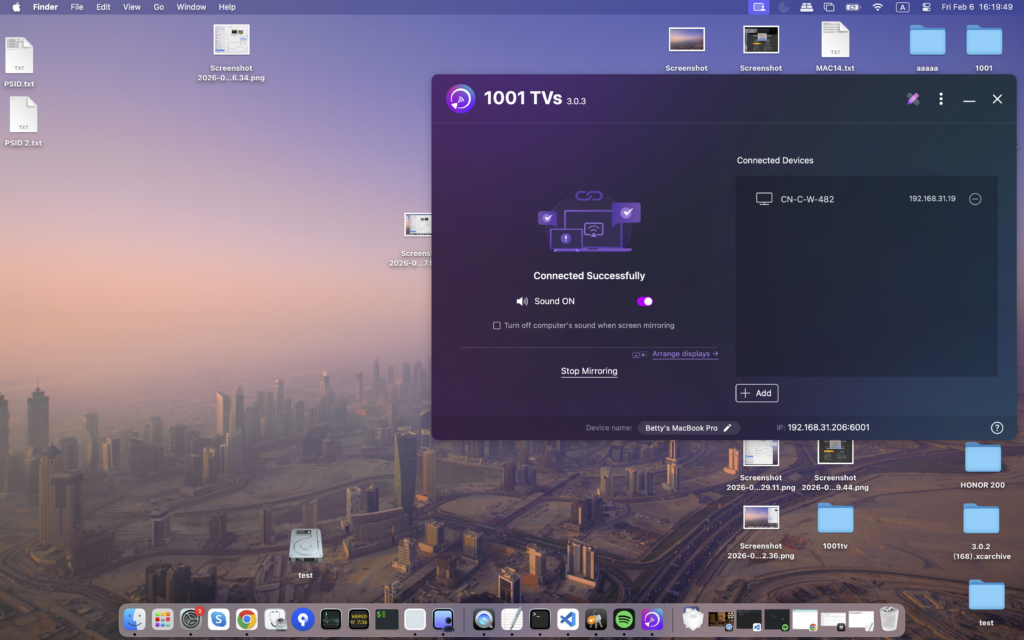
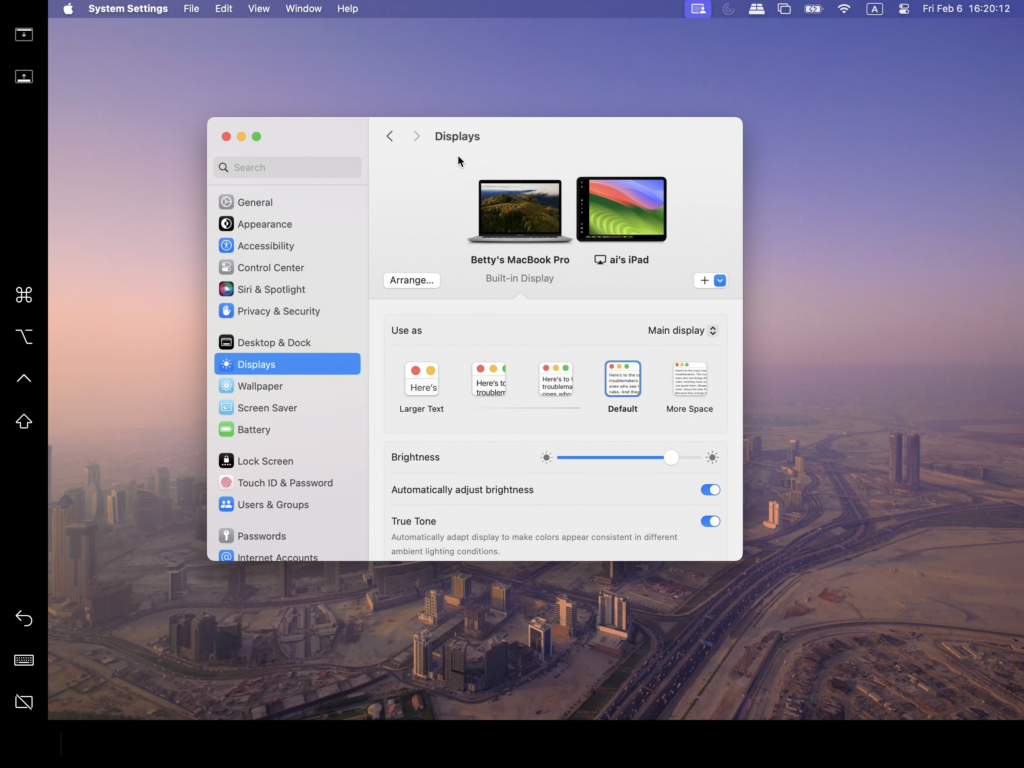
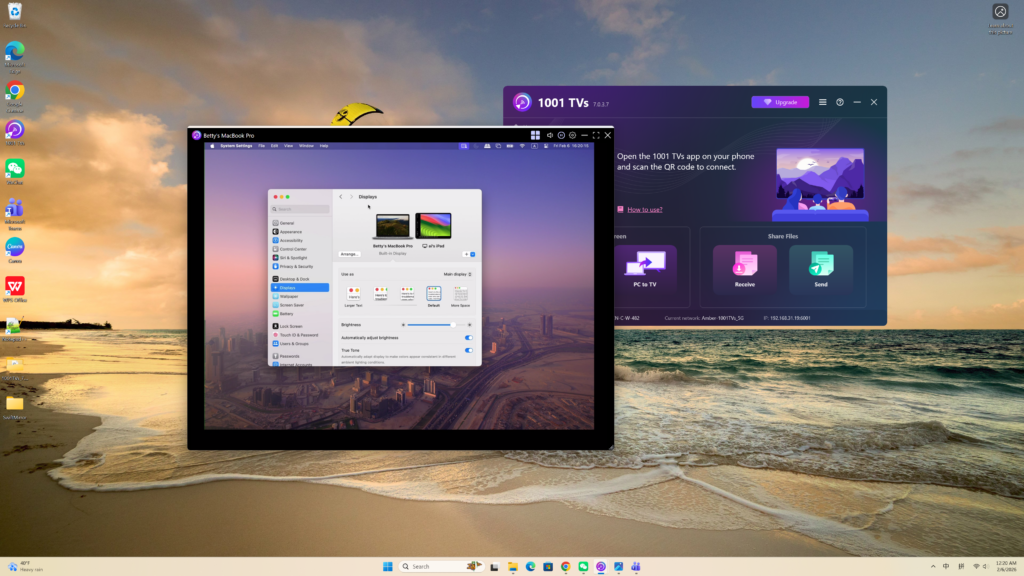
بۇ سىستېما كېڭەيتىلگەن ئۈستەل يۈزى تەجرىبىسى بىلەن تەمىنلەيدۇ، ئاساسلىق ئېكراندىكى مەزمۇنلارنى مەخپىي ساقلاش بىلەن بىر ۋاقىتتا، كۆزنەكلەرنى Mac بىلەن ئاساسلىق كېڭەيتىلگەن ئېكران ئارىسىدا يۆتكەشكە يول قويىدۇ.