macOS 15+ سىستېمىسىدا ئېكران ئەينىكىنىڭ ۋاقىت چەكلىمىسى ئۈچۈن ھەل قىلىش چارىسى
ئەگەر سىز ئىشلىتىۋاتقان بولسىڭىز macOS 15 ياكى ئۇنىڭدىن كېيىنكى نەشرى ۋە خاتالىققا يولۇقىدۇ:
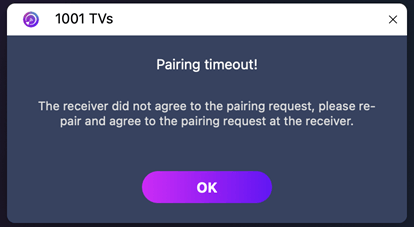
“جۈپلەش ۋاقتى ئۆتۈپ كەتتى! قوبۇللىغۇچ جۈپلەش تەلىپىنى قوبۇل قىلمىدى. قايتا جۈپلەشنى سىناپ بېقىڭ.”
—ھەر ئىككى ئۈسكۈنە ئۇلانغان تەقدىردىمۇ ئوخشاش Wi-Fi تورى— مەسىلە بەلكىم تۆۋەندىكى سەۋەبتىن كېلىپ چىققان بولۇشى مۇمكىن macOS 15+ نىڭ يەرلىك تور ئىجازەت چەكلىمىسى.
ئۇنى قانداق تۈزىتىش كېرەك
For macOS 15 +:
1. Open Terminal and run the following commands:
Enter the first command, then press كىرىڭ:
sudo rm /Library/Preferences/com.apple.networkextension.plistWhen prompted, enter your كىرىش پارولى and press كىرىڭ again. (The password will not be shown on screen.)
Then enter the second command, and press كىرىڭ:
sudo rm /Library/Preferences/com.apple.networkextension.uuidcache.plist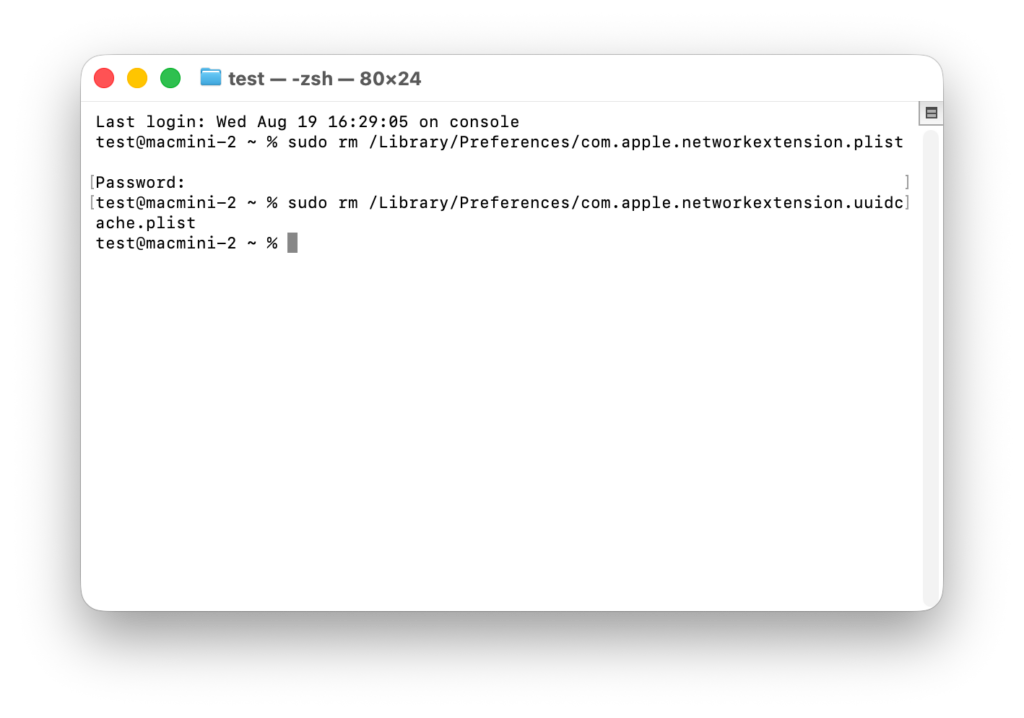
2. Restart your Mac, open 1001 TVs, and try pairing again.
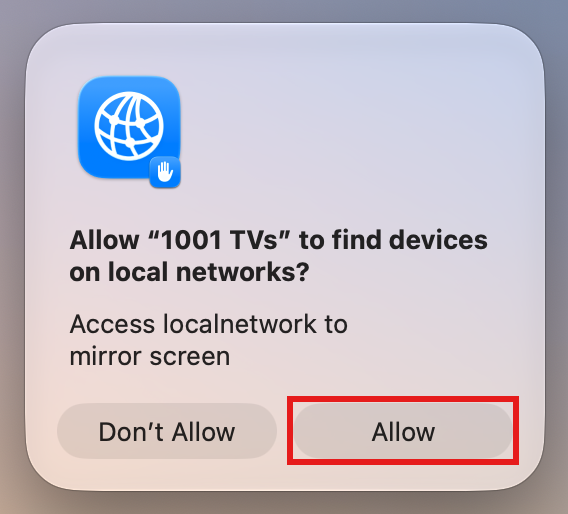
⚠️ Important: When you open the app, if a Local Network permission prompt appears, be sure to click “رۇخسەت قىلىش” to grant access.
For macOS 26+:
1. Create a New User Account
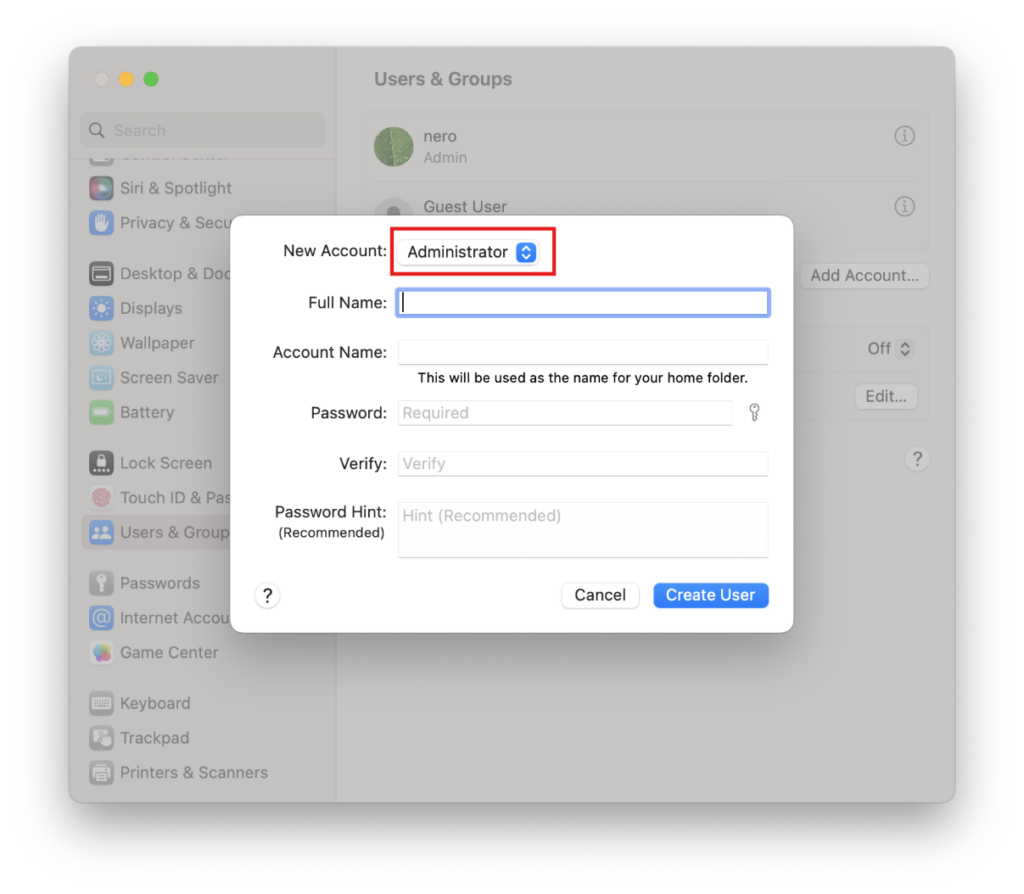
بارىڭ System Settings > Users & Groups ۋە چېكىڭ Add Account.
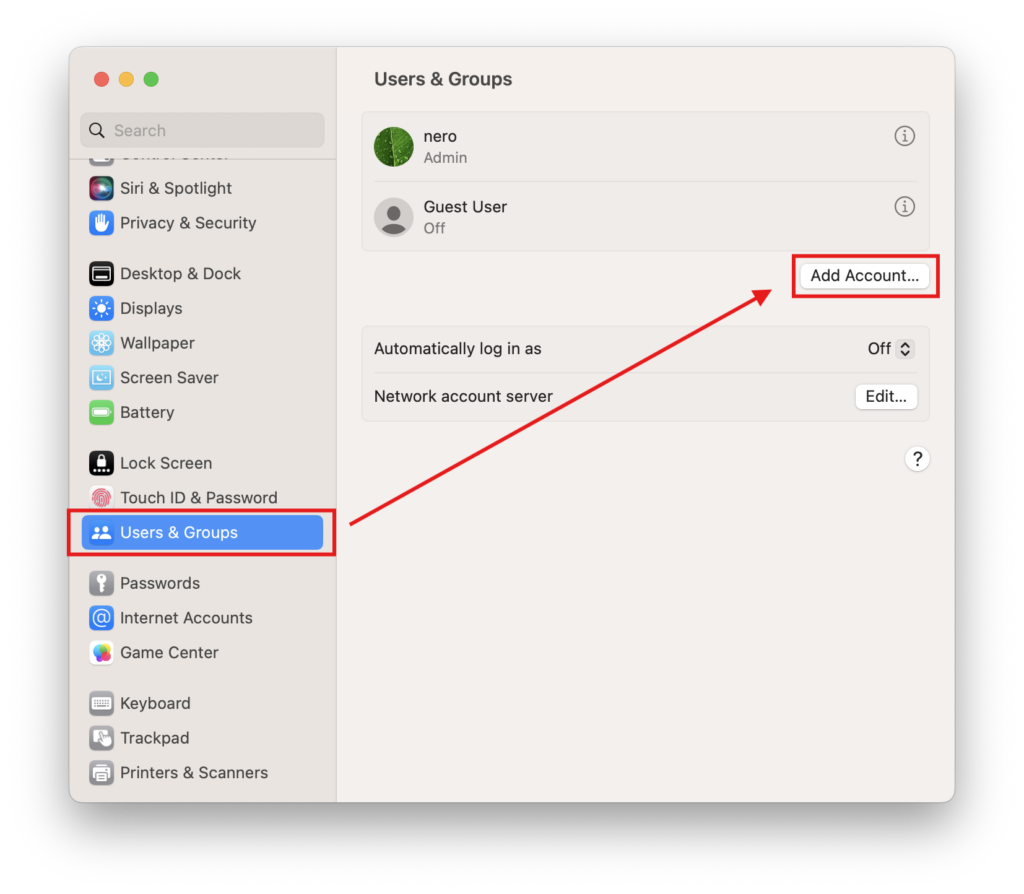
Set the new account type to Administrator, then enter the Full Name and Account Name, set a password, and click Create User.
2. Log In to the New Account
Click the Apple logo in the top-left corner and select Log Out to sign out of your current account.
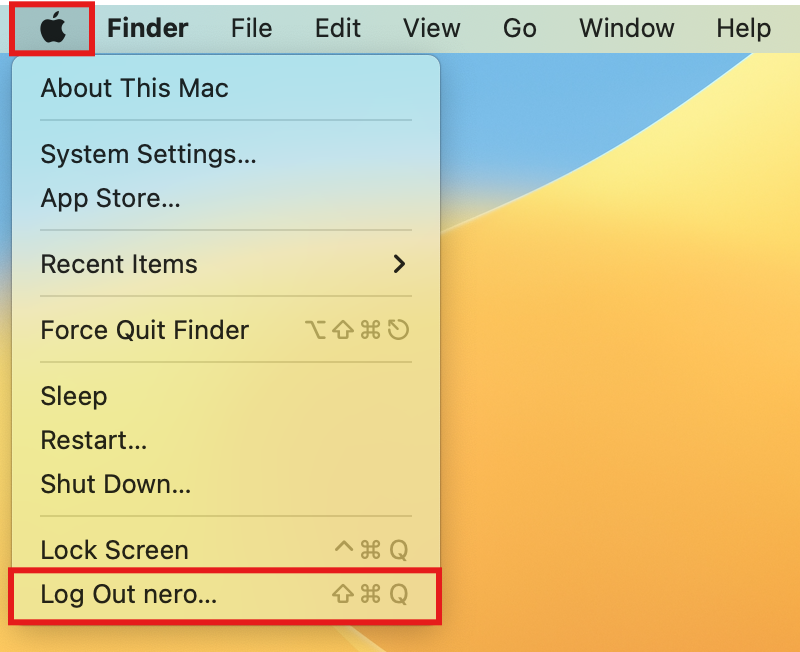
Log in to the account you just created.
3. Retry Pairing
Restart your Mac, open 1001 TVs, and try pairing again.
⚠️ Important: When you open the app, if a Local Network permission prompt appears, be sure to click “رۇخسەت قىلىش” to grant access.
As a last resort, please follow the steps below.
1. Start up in Recovery Mode
Click the Apple logo in the top-left corner and select Shut Down.
Depending on your Mac’s chip type, do the following:
- Apple Silicon Mac: After shutting down, press and hold the power button (Touch ID) until you see “Loading startup options”. Release the power button, then click Options.
- Intel Mac: After shutting down, press the power button to turn on your Mac, then immediately press and hold Command (⌘) + R until the Apple logo or a progress bar appears on screen, then release the keys.
Once you are in Recovery Mode, select your account and enter your login password.
2. Turn off system protection temporarily
In the Recovery menu bar, click Utilities > تېرمىنال.
Type the following command and press كىرىڭ:
csrutil disableWhen you see “Successfully disabled System Integrity Protection.”, click the Apple logo and select Restart.
3. Delete the cached permission files
After your Mac restarts, open تېرمىنال (found in Launchpad or Applications > Utilities).
Enter the first command and press كىرىڭ:
sudo rm /Library/Preferences/com.apple.networkextension.plistWhen prompted, enter your كىرىش پارولى and press كىرىڭ again. (Your password will not be shown on screen — this is normal.)
Enter the second command and press كىرىڭ:
sudo rm /Library/Preferences/com.apple.networkextension.uuidcache.plist4. Turn system protection back on
Shut down your Mac again.
Repeat Step 1 to re-enter Recovery Mode.
ئېچىق تېرمىنال, type the following command, and press كىرىڭ:
csrutil enableWhen you see the success message, click the Apple logo and select Restart.
5. Try pairing again
Restart your Mac, open 1001 TVs, and try pairing again.
⚠️ Important: When you open the app, if a Local Network permission prompt appears, be sure to click “رۇخسەت قىلىش” to grant access.

Read More
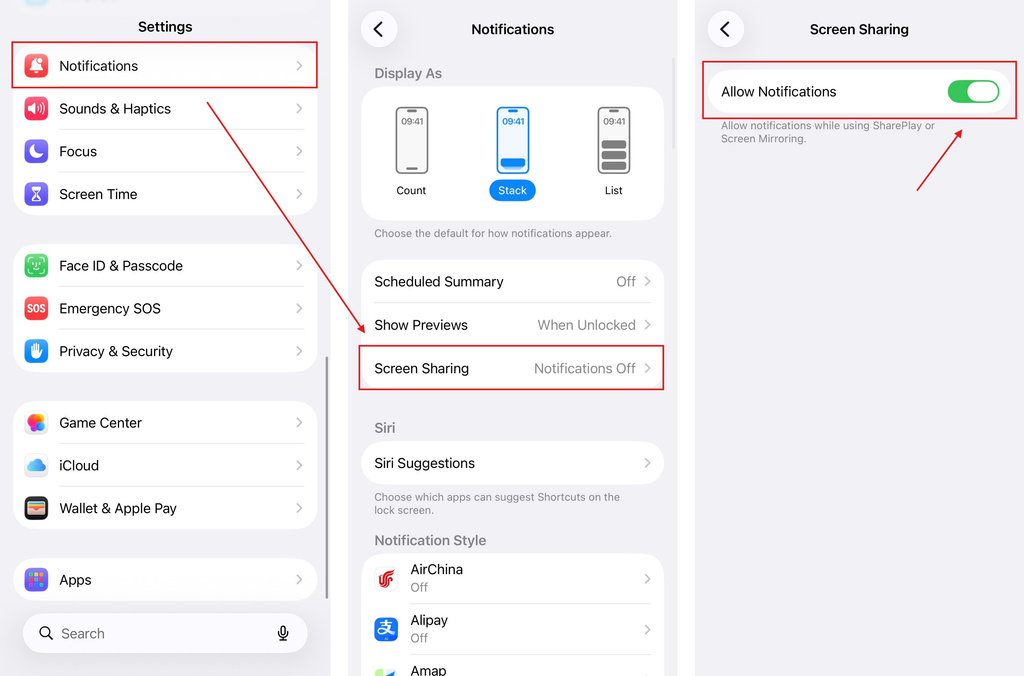 iOS: How to Fix Missing App Notifications During Screen Mirroring
Why Notifications Are Missing When you mirror your iPhone screen, notifications from other apps may not appear on the mirrored screen. This can happen…
iOS: How to Fix Missing App Notifications During Screen Mirroring
Why Notifications Are Missing When you mirror your iPhone screen, notifications from other apps may not appear on the mirrored screen. This can happen…
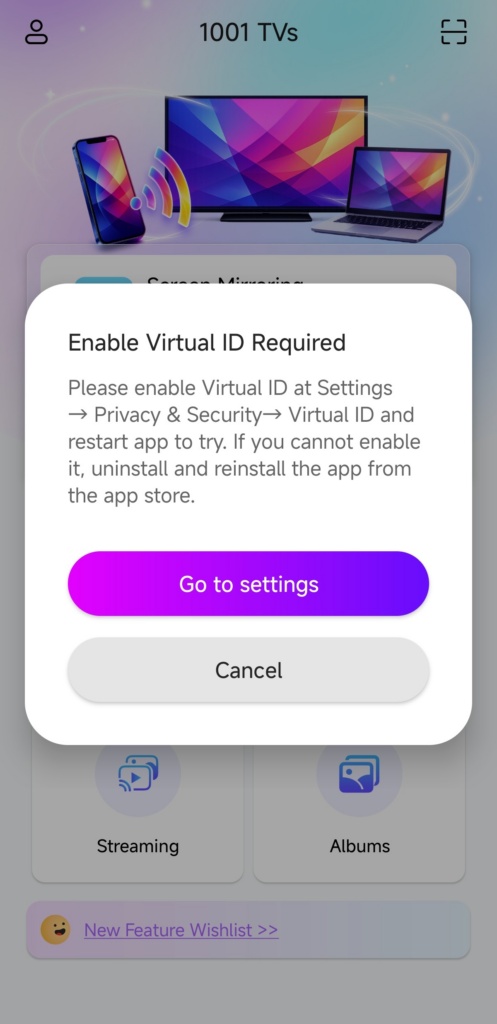 How to Fix the Enable Virtual ID Required Pop-Up
If you're using a Xiaomi or Redmi phone or tablet, you might see a pop-up that says "Enable Virtual ID Required" when you launch…
How to Fix the Enable Virtual ID Required Pop-Up
If you're using a Xiaomi or Redmi phone or tablet, you might see a pop-up that says "Enable Virtual ID Required" when you launch…

