iPhone、Android、またはPCからHisenseテレビに画面ミラーリングを行う方法
ハイセンスのテレビに画面ミラーリングを行うには、まずそのテレビのOSを確認し、両方のデバイスで対応している方法を選択してください。. iPhoneとAirPlay対応のテレビの場合はAirPlayを、互換性のあるAndroid端末とGoogle TVを接続する場合はGoogle Castを、両方のデバイスがMiracastに対応している場合はMiracastを使用してください。.
組み込みのオプションが一致しない場合は、, 1001 TVs 対応している受信デバイスにおいて、別の選択肢を提供する場合があります。.
ハイセンスのテレビには、Google TV、Android TV、Roku TV、VIDAA、Fire TVなど、さまざまなソフトウェアプラットフォームが採用されています。あるハイセンスのモデルで有効な方法が、別のモデルでは利用できない場合があります。詳しくは ハイセンスのプラットフォーム概要 詳細についてはこちらをご覧ください。.
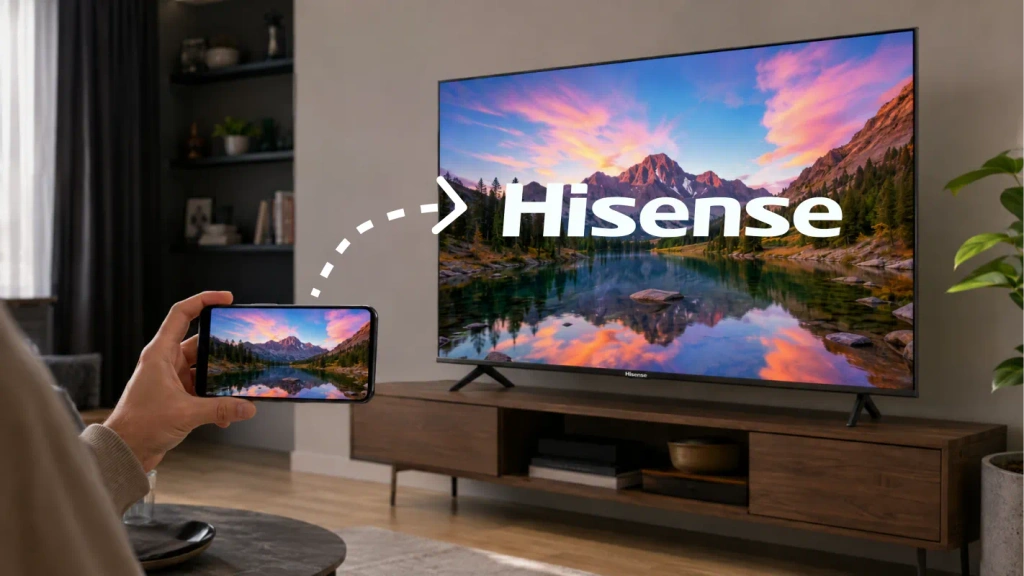
1. Hisense製テレビのOSを確認する
プレス ホーム リモコンを確認し、「Google TV」、「Roku TV」、「VIDAA」、または「Fire TV」のロゴを探してください。.
もしわからない場合は、以下の手順に従ってください:
- オープン 設定.
- 探してみてください システム, について, デバイスの設定 または サポート.
- ソフトウェアの情報と型番を確認してください。.
- それでもオペレーティングシステムが不明な場合は、取扱説明書をご確認ください。.
メニュー名は機種や地域によって異なります。ストリーミングスティックが接続されている場合は、の「ホーム」ボタンを押してください。 ハイセンスのリモコン スティック側のシステムではなく、テレビ本体のシステムを確認するためです。.
この表を参考としてください:
| ハイセンスのテレビシステム | iPhoneまたはiPadから | Androidから |
|---|---|---|
| Google TV / Android TV | AirPlayが搭載されている場合は(AirPlay 2 対応テレビ一覧); そうでない場合は、互換性のある受信アプリ | グーグルキャスト |
| ロクTV | AirPlayをオンにする 対応機種 | Miracast対応 スクリーンミラーリング |
| VIDAA | お使いの機種にAirPlay機能が搭載されている場合 | 両方のデバイスで画面共有がサポートされている場合 |
| Fire TV | 対応機種ではAirPlayが利用可能です。それ以外の場合は、互換性のある受信アプリをご利用ください。 | 利用可能な場合は、画面ミラーリングを表示する |
| その他のシステムまたは旧式のシステム | 取扱説明書を確認するか、外部受信機を使用してください | 取扱説明書を確認するか、外部受信機を使用してください |
2. 接続する前に、以下の設定を確認してください
AirPlay、Google Cast、またはアプリによる画面ミラーリング機能を使用する前に:
- テレビと送信機器を、同じ自宅のWi-Fiネットワークに接続してください。.
- 接続されたデバイスを隔離してしまうゲストネットワークは避けてください。.
- テレビの電源を入れっぱなしにし、受信機能または画面共有機能を有効にしておいてください。.
- 要求されたローカルネットワークおよび画面共有の権限を許可してください。.
- テレビのソフトウェアと、ご利用予定のアプリを最新バージョンに更新してください。.
ローカルネットワークへのアクセスをブロックするVPNを使用していると、テレビが表示されなくなる場合があります。トラブルシューティング中は、一時的にVPNの接続を切断してください。.
また、以下が必要かどうかを判断してください スクリーンミラーリング または ビデオキャスティング. ミラーリングは、スマートフォンやパソコンの画面全体を表示します。キャストは、アプリから選択したコンテンツを互換性のある受信端末に送信します。動画を見るだけなら、アプリの「キャスト」や「AirPlay」ボタンだけで十分かもしれません。.
3. iPhoneの画面をハイセンスのテレビにミラーリングする方法
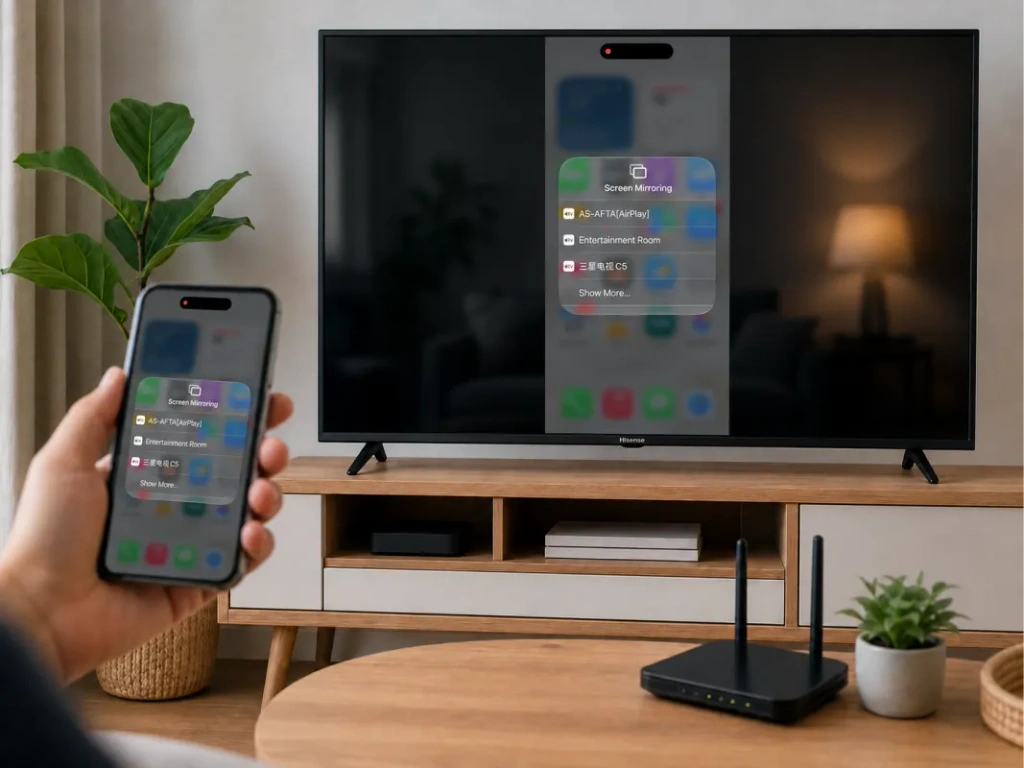
お使いのテレビがAirPlayに対応している場合は、AirPlayをご利用ください
テレビの設定や入力ソース一覧で、以下の項目を探してください。 エアプレイ または Apple AirPlayとHomeKit. Hisenseは、対応機種におけるAirPlayについて記載していますが、利用の可否は機種や地域によって異なります。詳しくは ハイセンス AirPlay 操作手順.
iPhoneを接続するには:
- テレビでAirPlayをオンにしてください。.
- iPhoneとテレビを同じWi-Fiネットワークに接続してください。.
- オープン コントロールセンター iPhoneで。.
- タップ スクリーン ミラーリング.
- お使いのハイセンス製テレビを選択してください。.
- 指示があった場合は、テレビに表示されているコードを入力してください。.
ミラーリングを停止するには、以下を開いてください。 スクリーン ミラーリング もう一度タップして ミラーリングを停止. iPadでも同じ手順で動作します。詳しくは Appleの画面ミラーリングガイド.
HisenseのテレビにAirPlayのオプションがない場合
関連性のない「画面共有」メニューでは、iPhoneを接続することはできません。テレビの受信機能が、iPhoneで使用されている方式に対応している必要があります。.
対応しているGoogle TVまたはAndroid TVの機種では、1001 TVsをインストールできるかどうかを確認してください。RokuやVIDAAについては、Android TVアプリがインストールできるとは限りません。必要に応じて、対応している外部受信機を使用してください。.
4. Android端末の画面をハイセンスのテレビにミラーリングする方法
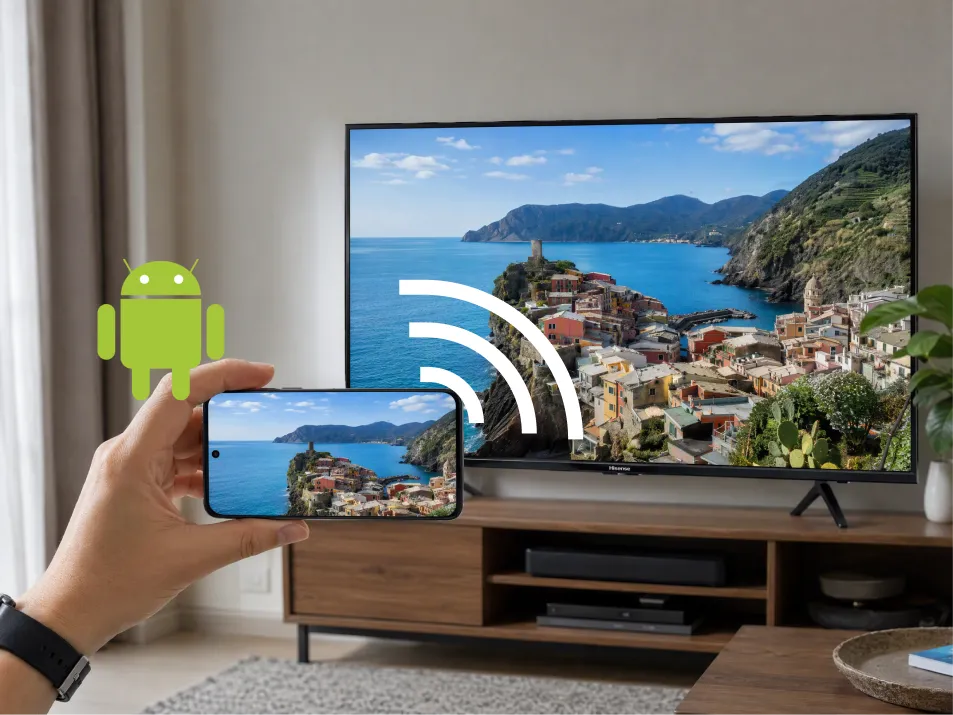
Google TV または Android TV:Google Cast を使用する
Google Cast対応のHisense製テレビの場合:
- Androidスマートフォンとテレビを同じWi-Fiネットワークに接続してください。.
- オープン Google Home.
- テレビのデバイスタイルを探して選択してください。.
- 探してみてください 画面をキャストする またはスクリーンキャストの操作。.
- 画面または選択したアプリを共有するには、画面の指示に従ってください。.
表示される文言は、アプリやAndroidのバージョンによって異なる場合があります。Googleの現在の説明は、Android 8.0以降を対象としています。詳しくは Google Homeでのキャスト方法.
Roku、VIDAA、Fire TV:まずは受信機を確認してください
対応機種では、以下の設定を確認してください:
- Roku TV: 「設定」→「システム」→「画面ミラーリング」。.
- VIDAA: 「画面共有」は、多くの場合、「入力」または「アプリ」の下にあります。.
- Fire TV: 「設定」→「ディスプレイとサウンド」→「ディスプレイミラーリングを有効にする」。.
次に、スマートフォンで対応するワイヤレスディスプレイのコントロールアプリを開き、テレビを選択して接続を承認してください。.
サムスンのスマートフォンでは、この機能を次のように呼んでいる可能性があります スマートビュー. 。他のスマートフォンでは異なる名称が使用されており、「Cast」と表示されたボタンが必ずしも同じ技術を採用しているとは限りません。Rokuによると、Google Pixelシリーズは同社の標準的なAndroid画面ミラーリング方式に対応していないとのことです。詳しくは Roku 対応ガイド.
Fire TVについて、Amazonは次のように述べています。もし……なら ディスプレイのミラーリングを有効にする が存在しない場合、ネイティブメソッドは利用できません。詳しくは Amazonの互換性に関するガイドライン.
5. ノートパソコンの画面をハイセンスのテレビにミラーリングする方法
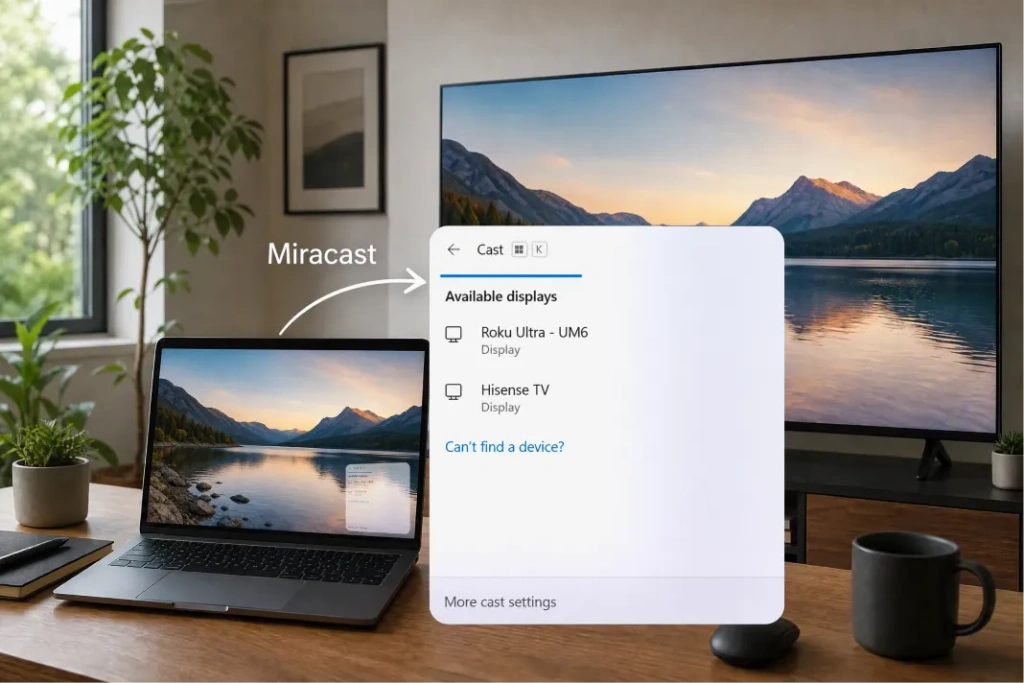
~については Windows搭載のノートパソコン, 押す Windows キー + K コンピュータとテレビの両方がMiracastに対応している場合。テレビを選択し、接続を承認してください。必要に応じて、 Windows キー + P そして、以下から選択してください 重複.
Google Cast対応の受信機は、Windows + Kのリストには自動的に表示されません。Google Cast対応のテレビをご利用の場合は、Chromeの別のキャスト機能をご利用ください。.
~については Mac, を使用する コントロールセンター → スクリーンミラーリング HisenseのテレビがAirPlayに対応している場合。対応していない場合は、対応している受信アプリの利用やHDMI接続をご検討ください。.
6. 1001 TVsをいつ使うか
1001 TVsは、スマートフォンとテレビの間で標準的なミラーリング方式が共通していない場合――例えば、AirPlayに対応していない互換性のあるAndroid TVにiPhoneを接続する場合など――に役立ちます。.
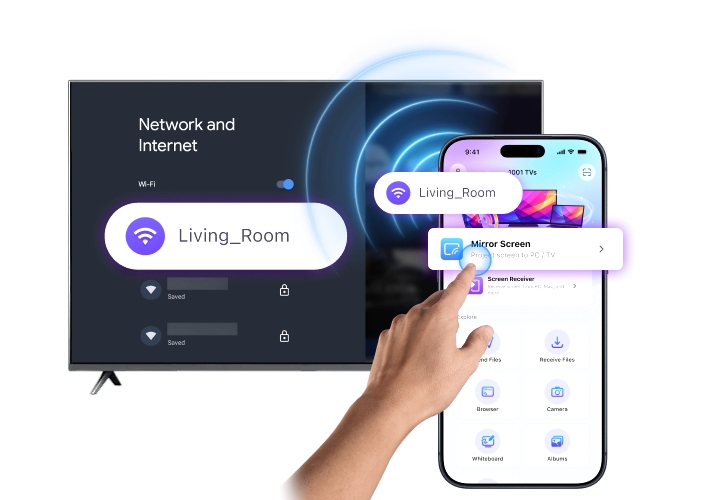
まず、以下を確認してください。 1001 TVsは受信側デバイス上で動作可能です. 以下の項目を確認してください。 公式インストールガイド 対応プラットフォームについては。Fire TVをご利用の方は、別途用意されている 1001 TVs Fire TV ガイド.
その後:
- 両方のデバイスに1001 TVsをインストールして起動してください。.
- 両方のデバイスを同じWi-Fiネットワークに接続する。
- 選択 スクリーン ミラーリング 送信者側で。.
- 受信者を選択するか、表示されている場合はそのQRコードをスキャンしてください。.
- 接続と画面共有の確認メッセージに同意してください。.
iPhoneでは、プロンプトが表示されたら放送の確認を完了してください。詳しくは iPhone用 1001 TVs 対応している受信プラットフォームについては。.
Hisenseのテレビに受信アプリをインストールできない場合は、HDMI経由で接続した互換性のあるAndroid TV端末またはApple TVを受信プラットフォームとして利用できます。.

ハイセンスのテレビで画面ミラーリングが機能しない?
まずは症状から:
| 問題 | 確認すべき事項 |
|---|---|
| テレビが表示されない | 互換性のある通信方式、共有ネットワーク、および動作中の受信機を確認してください |
| iPhoneがテレビを認識できません | AirPlayが利用可能で、有効になっていることを確認してください |
| Androidがテレビを検出できません | お使いのスマートフォンがGoogle Castを使用しているか、またはMiracastに対応しているかを確認してください |
| 1001 TVsが受信機を検出できません | 権限、ゲストネットワークの分離、およびVPNの設定を確認してください |
| ミラーリングがフリーズしたり、遅延が生じたりする | Wi-Fiの電波状態を改善し、競合するトラフィックを減らし、両方のデバイスを再起動してください |
| ストリーミング動画だけが真っ黒になっている | コンテンツ保護機能により録画ができない場合があります。その場合は、当該サービスのテレビアプリをご利用ください。 |
まずは写真やホーム画面で試してみてください。それらが正常に動作するにもかかわらず、特定の動画アプリだけが動作しない場合は、接続の問題ではなく、コンテンツ制限が原因である可能性があります。.
よくある質問
アプリを使わずに、ハイセンスのテレビに画面ミラーリングすることはできますか?
はい、AirPlayやMiracastなど、両方のデバイスが同じ組み込み機能をサポートしている場合は可能です。Google Homeを介してAndroidの画面をキャストするには、そのアプリが必要です。.
ハイセンスのテレビはすべてAirPlayに対応していますか?
いいえ。お使いのモデルの設定や取扱説明書をご確認ください。Hisenseというブランド名だけでは、AirPlayに対応しているかどうかは確定できません。.
Wi-Fiなしでミラーリングはできますか?
お使いのパソコンやスマートフォンが、選択したケーブルやアダプターを介した映像出力をサポートしている場合、HDMI接続を利用すればWi-Fiを使用せずに済みます。一般的なUSB充電ケーブルは、必ずしも映像接続として機能するわけではありません。.
一番簡単な方法は何ですか?
まずは、テレビの対応しているネイティブオプションから試してみてください。お使いのデバイスと互換性がない場合は、対応している1001 TVsレシーバーで必要な接続が可能かどうかを確認してください。.