如何將 iPhone、Android 裝置或電腦的畫面鏡像傳輸至海信電視
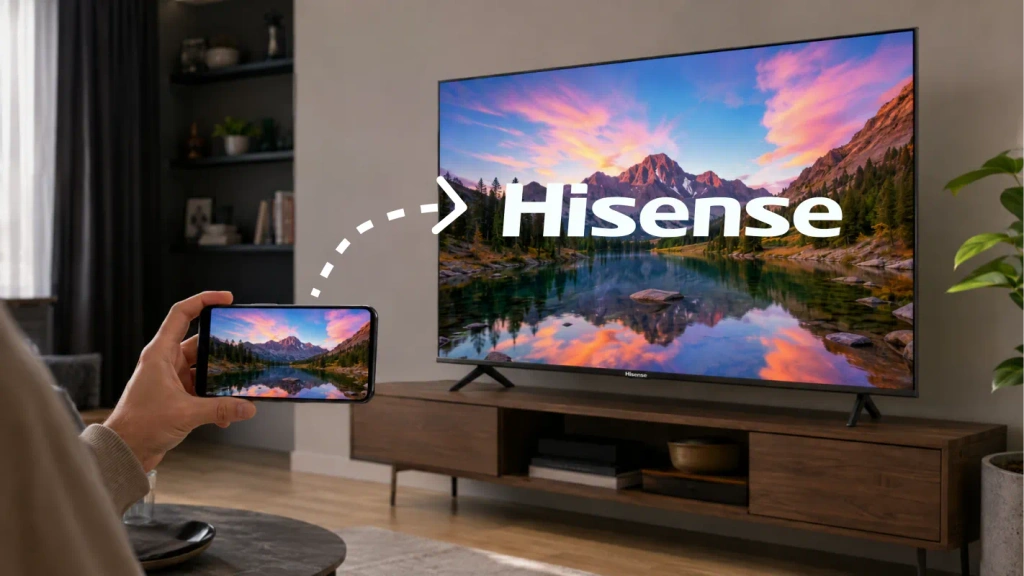
若要將螢幕鏡像投射至海信電視,請先確認其作業系統,然後選擇一種兩台裝置皆支援的方法。. 若使用 iPhone 搭配支援 AirPlay 的電視,請使用 AirPlay;若要將相容的 Android 裝置連接至 Google TV,請使用 Google Cast;若兩台裝置均支援 Miracast,則請使用 Miracast。.
如果內建選項不符,, 1001 TVs 在受支援的接收裝置上,可能會提供另一種選項。.
海信電視採用多種軟體平台,包括 Google TV、Android TV、Roku TV、VIDAA 以及 Fire TV。某種方法若適用於某一款海信機型,未必適用於另一款機型。請參閱 海信平台概覽 欲了解更多資訊。.
1. 確認您的海信電視所使用的作業系統
新聞 首頁 在遙控器上尋找 Google TV、Roku TV、VIDAA 或 Fire TV 的標誌。.
如果您不確定,請按照以下步驟操作:
- 开放 设置.
- 尋找 系統, 關於, 裝置偏好設定 或 技術支持.
- 請查閱軟體資訊及型號。.
- 若仍不確定作業系統為何,請查閱該機型的使用手冊。.
選單名稱會因機型和地區而異。若已連接串流棒,請按下 海信遙控器 以檢查電視本身的系統,而非隨身裝置的系統。.
請將此表格作為起點:
| 海信電視系統 | 透過 iPhone 或 iPad | 來自 Android |
|---|---|---|
| Google TV / Android TV | 若包含 AirPlay 功能(支援 AirPlay 2 的電視清單); 否則為相容的接收端應用程式 | Google Cast |
| Roku TV | 開啟 AirPlay 支援的機型 | 相容於 Miracast 屏幕镜像 |
| VIDAA | 若您的機型支援 AirPlay 功能 | 若兩台裝置均支援此功能,即可進行螢幕共享 |
| Fire TV | 支援的機型可使用 AirPlay;否則請使用相容的接收器應用程式 | 若支援,請顯示螢幕鏡像 |
| 其他或較舊的系統 | 請參閱機型說明書,或使用外部接收器 | 請參閱機型說明書,或使用外部接收器 |
2. 連線前請先檢查以下設定
在使用 AirPlay、Google Cast 或基於應用程式的螢幕鏡像功能之前:
- 將電視與傳輸裝置連接到同一個家用 Wi-Fi 網路。.
- 請避免使用會將連線裝置隔離的訪客網路。.
- 請讓電視保持喚醒狀態,並開啟其接收器或螢幕共享功能。.
- 請允許所請求的區域網路及螢幕共享權限。.
- 請更新電視的軟體以及您打算使用的應用程式。.
若使用會封鎖本地網路存取的 VPN,可能會導致電視無法顯示。在排除故障時,請暫時斷開該 VPN 的連線。.
同時也請決定您是否需要 屏幕镜像 或 影片選角. 鏡像顯示會將手機或電腦的整個螢幕畫面顯示出來。投射則是將應用程式中的選定內容傳送至相容的接收裝置。若您只想觀看影片,該應用程式的「投射」或「AirPlay」按鈕通常就已足夠。.
3. 如何將 iPhone 螢幕鏡像傳輸至海信電視
若您的電視支援 AirPlay,請使用此功能
請在電視的設定或輸入來源清單中尋找 AirPlay 或 Apple AirPlay 和 HomeKit. 海信在支援該功能的機型說明中記載了 AirPlay 功能,但實際可用性會因機型和地區而異。請參閱 海信 AirPlay 使用說明.
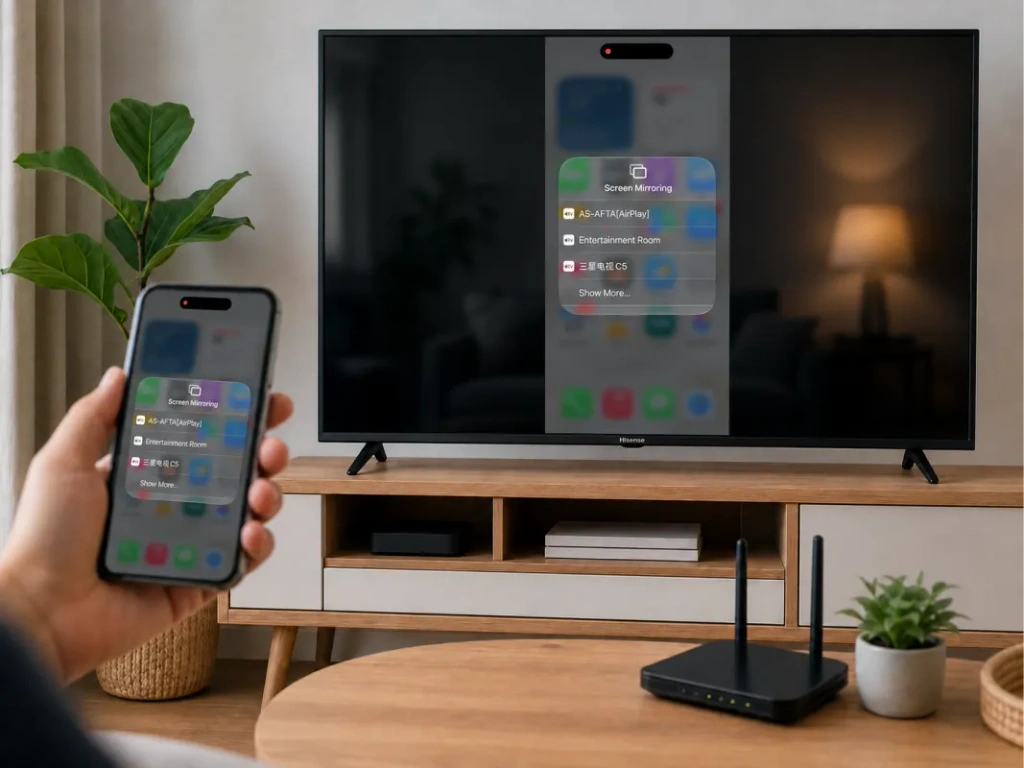
要連接您的 iPhone:
- 在電視上開啟 AirPlay。.
- 將 iPhone 和電視連接到同一個 Wi-Fi 網路。.
- 开放 控制中心 在 iPhone 上。.
- 敲击 螢幕鏡像.
- 請選擇您的海信電視。.
- 若系統要求,請輸入電視螢幕上顯示的代碼。.
若要停止鏡像功能,請開啟 螢幕鏡像 再次點擊 停止鏡像. 此流程在 iPad 上同樣適用。請參閱 Apple 的螢幕鏡像功能指南.
如果您的海信電視沒有 AirPlay 選項
若「螢幕共享」選單不符,iPhone 將無法連線。電視的接收功能必須支援 iPhone 所使用的連線方式。.
在相容的 Google TV 或 Android TV 機型上,請確認是否能安裝 1001 TVs。若使用 Roku 或 VIDAA,請勿假設可以安裝 Android TV 應用程式。如有需要,請使用受支援的外部接收器。.
4. 如何將 Android 裝置的畫面鏡像傳輸至海信電視
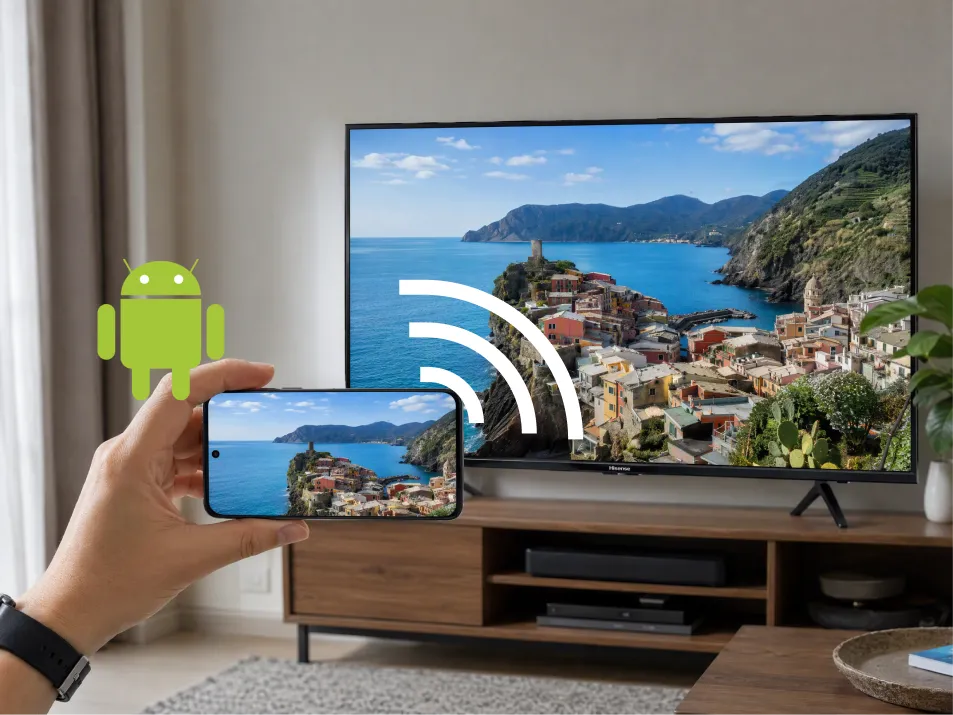
Google TV 或 Android TV:使用 Google Cast
針對配備 Google Cast 的海信電視:
- 將 Android 手機和電視連接到同一個 Wi-Fi 網路。.
- 开放 Google Home.
- 找到並選取電視的裝置磁貼。.
- 尋找 投射我的螢幕 或螢幕錄製控制功能。.
- 請依照提示分享螢幕或選定的應用程式。.
不同應用程式和 Android 版本的文字表述可能有所不同。Google 目前的說明適用於 Android 8.0 及後續版本。請參閱 Google Home 投射操作說明.
Roku、VIDAA 或 Fire TV:請先檢查接收器
在相容的機型上,請尋找以下設定:
- Roku TV: 「設定」→「系統」→「螢幕鏡像」。.
- VIDAA: 「螢幕共享」,通常位於「輸入」或「應用程式」選單下。.
- Fire TV: 「設定」→「顯示與聲音」→「啟用螢幕鏡像」。.
接著在手機上開啟相容的無線螢幕投射控制程式,選取電視並確認連線。.
三星手機可能會將這項功能稱為 智慧檢視. 其他手機採用不同的名稱,且標有「Cast」的按鈕未必總是使用相同的技术。Roku 指出,Google Pixel 手機並不支援其標準的 Android 螢幕鏡像功能。請參閱 Roku 相容性指南.
關於 Fire TV,亞馬遜表示,如果 啟用螢幕鏡像功能 若缺失,則無法使用該原生方法。請參閱 亞馬遜的相容性指引.
5. 如何將筆電畫面投射至海信電視
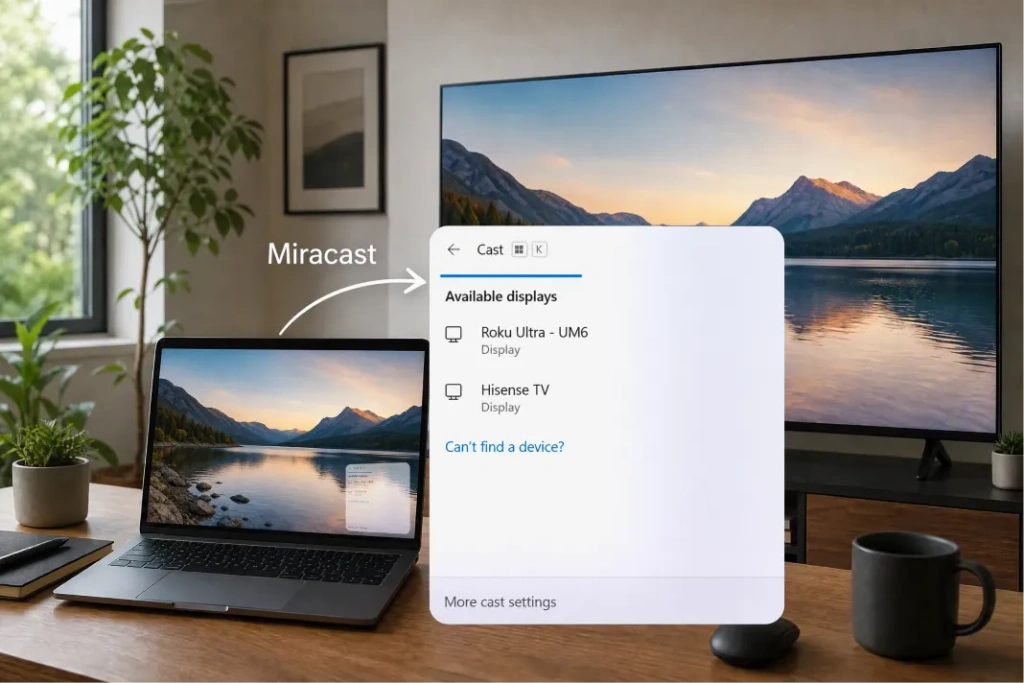
對於一個 Windows 筆記型電腦, 按下 Windows + K 當電腦和電視都支援 Miracast 時,請選擇電視並確認連線。如有需要,請按下 Windows + P 並選擇 重複.
Google Cast 接收器不會自動出現在 Windows + K 選單中。若使用支援 Google Cast 的電視,請使用 Chrome 獨立的投射功能。.
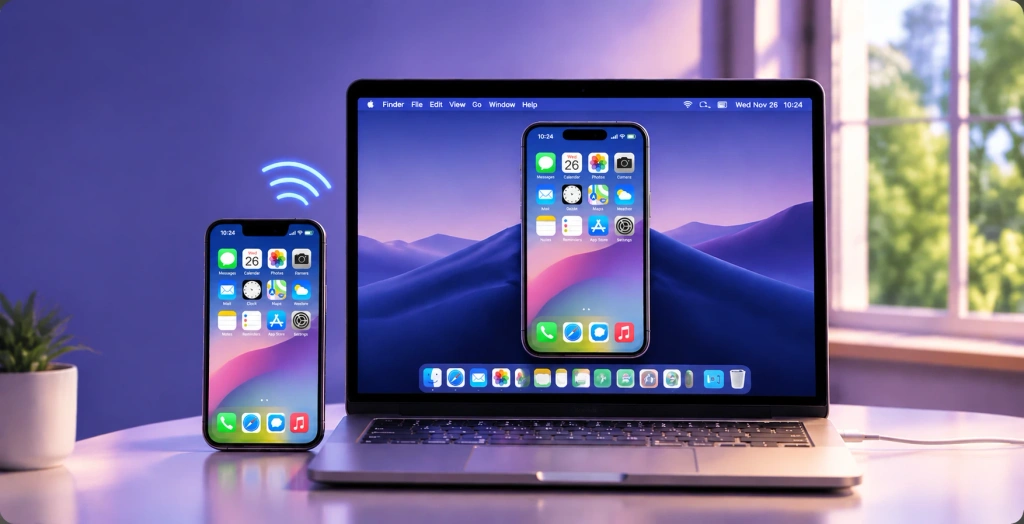
對於一個 Mac, 使用 控制中心 → 螢幕鏡像 若海信電視支援 AirPlay,則可使用此功能;否則,請考慮使用支援該功能的接收應用程式或透過 HDMI 連接。.
6. 何時該使用 1001 TVs
當您的手機與電視沒有共通的原生鏡像功能時,1001 TVs 便能派上用場——例如,當 iPhone 需要在不支援 AirPlay 的情況下連接至相容的 Android TV 時。.
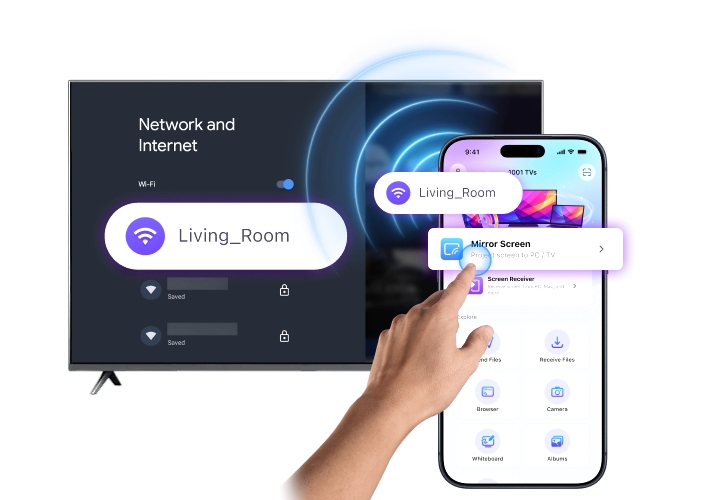
首先,請確認 1001 TVs 可在接收裝置上運行. 請檢查 官方安裝指南 適用於受支援的平台。Fire TV 使用者可使用獨立的 1001 TVs Fire TV 節目表.
接著:
- 請在兩台裝置上安裝並開啟 1001 TVs。.
- 將兩部裝置連接到相同的 Wi-Fi 網路。
- 选择 螢幕鏡像 在寄件者那邊。.
- 請選擇收件人,或(如有提供)掃描其 QR 碼。.
- 請核准連線及螢幕共享的提示。.
在 iPhone 上,當系統提示時,請完成廣播確認。請參閱 1001 TVs for iPhone 適用於受支援的接收平台。.
若您的海信電視無法安裝接收器應用程式,可透過 HDMI 連接相容的 Android TV 裝置或 Apple TV 來作為接收平台。.

海信電視的螢幕鏡像功能無法運作嗎?
從症狀開始:
| 問題 | 應檢查哪些事項 |
|---|---|
| 電視畫面未顯示 | 確認使用相容的方法、共用網路以及接收器是否處於運作狀態 |
| iPhone 無法找到電視 | 請確認 AirPlay 是否可用且已啟用 |
| Android 無法找到電視 | 請確認該手機是否使用 Google Cast 或支援 Miracast |
| 1001 TVs 無法偵測到接收器 | 檢查權限、訪客網路隔離及 VPN 設定 |
| 鏡像畫面會凍結或出現延遲 | 改善 Wi-Fi 訊號、減少競爭性流量,並重新啟動兩台裝置 |
| 只有串流影片是黑色的 | 內容保護功能可能會阻擋螢幕擷取;請使用該服務的電視應用程式 |
請先試著上傳一張照片或顯示您的主畫面。如果這樣能正常運作,但某個影片應用程式卻無法運作,那麼問題可能是出在內容限制,而非連線問題。.
常見問題
不用透過應用程式,我也能將螢幕鏡像傳輸到海信電視上嗎?
是的,當兩台裝置都支援相同的內建功能(例如 AirPlay 或 Miracast)時,即可進行螢幕投射。若要透過 Google Home 進行 Android 螢幕投射,則需要該應用程式。.
每台海信電視都支援 AirPlay 嗎?
不。請查閱您特定機型的設定與使用手冊。僅憑「海信」這個品牌名稱,並不能確認是否支援 AirPlay。.
沒有 Wi-Fi 的情況下,我可以進行螢幕鏡像嗎?
如果您的電腦或手機支援透過所選的線材或轉接器輸出視訊,則可透過 HDMI 連接來避開 Wi-Fi。標準的 USB 充電線並不一定能自動作為視訊連接使用。.
什麼是最簡單的方法?
請先嘗試電視的相容原生選項。若該選項與您的裝置不符,請確認是否有一款受支援的 1001 TVs 接收器能提供您所需的連接方式。.