Comment diffuser l'écran de son iPhone, de son appareil Android ou de son PC sur un téléviseur Hisense
Pour diffuser l'écran de votre appareil sur un téléviseur Hisense, identifiez d'abord son système d'exploitation, puis choisissez une méthode prise en charge par les deux appareils. Utilisez AirPlay pour un iPhone et un téléviseur compatible AirPlay, Google Cast pour une connexion entre un appareil Android et un téléviseur Google TV compatible, ou Miracast lorsque les deux appareils prennent en charge cette technologie.
Si les options intégrées ne correspondent pas, 1001 TVs peut offrir une autre option sur les appareils de réception compatibles.
Les téléviseurs Hisense utilisent différentes plateformes logicielles, notamment Google TV, Android TV, Roku TV, VIDAA et Fire TV. Une méthode qui fonctionne sur un modèle Hisense peut ne pas être disponible sur un autre. Voir Présentation de la plateforme Hisense Pour plus d'informations.
1. Identifiez le système d'exploitation de votre téléviseur Hisense
Presse Accueil sur la télécommande et recherchez les marques Google TV, Roku TV, VIDAA ou Fire TV.
En cas de doute, procédez comme suit :
- Ouvrir Paramètres.
- Recherchez Système, A propos de, Préférences de l'appareil ou Soutien.
- Recherchez les informations relatives au logiciel et le numéro de modèle.
- Si vous avez encore des doutes concernant le système d'exploitation, consultez le manuel d'utilisation de l'appareil.
Les noms des menus varient selon le modèle et la région. Si une clé de streaming est connectée, appuyez sur la touche « Accueil » de la Télécommande Hisense pour vérifier le système propre au téléviseur plutôt que celui de la clé.
Utilisez ce tableau comme point de départ :
| Système TV Hisense | Depuis un iPhone ou un iPad | Depuis Android |
|---|---|---|
| Google TV / Android TV | AirPlay, le cas échéant (Liste des téléviseurs compatibles AirPlay 2) ; sinon, une application réceptrice compatible | Google Cast |
| Télévision Roku | AirPlay activé modèles pris en charge | Compatible Miracast miroir d'écran |
| VIDAA | AirPlay, si cette fonctionnalité est disponible sur votre modèle | Partage d'écran, si cette fonctionnalité est prise en charge par les deux appareils |
| Fire TV | AirPlay sur les modèles pris en charge ; sinon, une application réceptrice compatible | Affichage en miroir, si disponible |
| Autre système ou système plus ancien | Consultez le manuel d'utilisation de l'appareil ou utilisez un récepteur externe | Consultez le manuel d'utilisation de l'appareil ou utilisez un récepteur externe |
2. Vérifiez ces paramètres avant de vous connecter
Avant d'utiliser AirPlay, Google Cast ou une méthode de duplication d'écran via une application :
- Connectez le téléviseur et l'appareil émetteur au même réseau Wi-Fi domestique.
- Évitez les réseaux « invités » qui isolent les appareils connectés.
- Laissez le téléviseur allumé et activez sa fonction de réception ou de partage d'écran.
- Acceptez les autorisations demandées concernant le réseau local et le partage d'écran.
- Mettez à jour le logiciel du téléviseur et l'application que vous comptez utiliser.
Un VPN qui bloque l'accès au réseau local peut empêcher le téléviseur de s'afficher. Déconnectez-le temporairement pendant le dépannage.
Déterminez également si vous avez besoin de miroir d'écran ou casting vidéo. La fonction « Mirroring » permet d'afficher l'intégralité de l'écran de votre téléphone ou de votre ordinateur. La fonction « Casting » permet de diffuser le contenu sélectionné dans une application vers un récepteur compatible. Si vous souhaitez simplement regarder une vidéo, le bouton « Cast » ou « AirPlay » de l'application peut suffire.
3. Comment diffuser l'écran de son iPhone sur un téléviseur Hisense
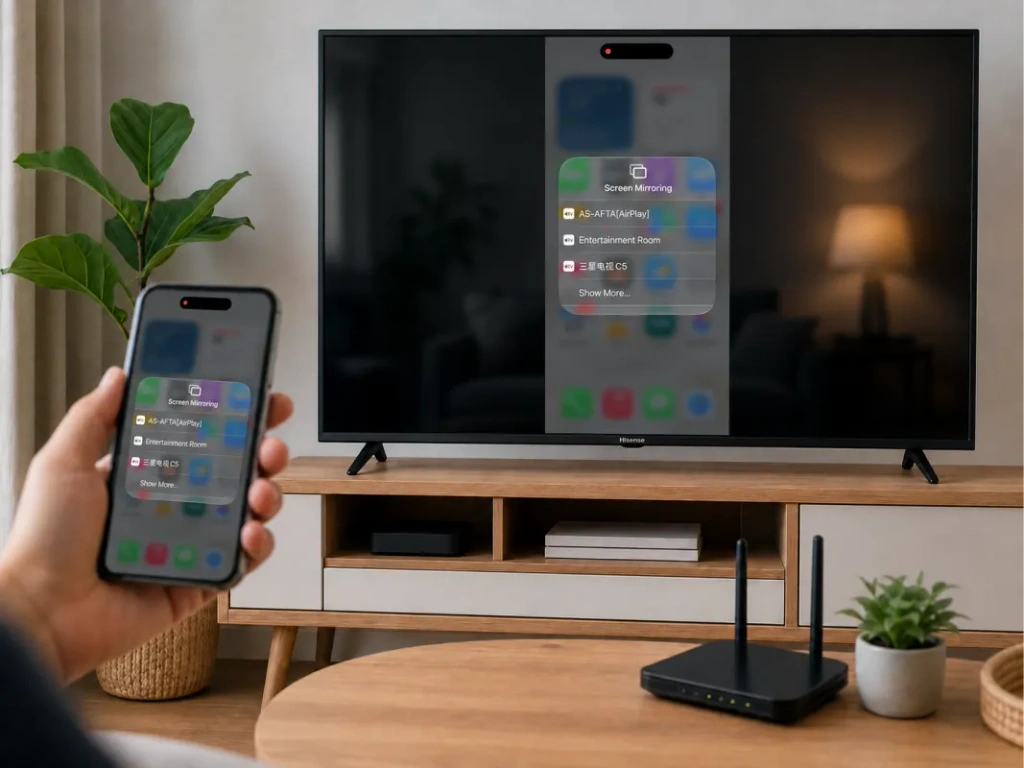
Utilisez AirPlay si votre téléviseur prend en charge cette fonctionnalité
Consultez les paramètres du téléviseur ou la liste des sources d'entrée pour trouver AirPlay ou Apple AirPlay et HomeKit. Hisense mentionne la prise en charge d'AirPlay sur certains modèles, mais la disponibilité varie selon les modèles et les régions. Voir Mode d'emploi Hisense AirPlay.
Pour connecter votre iPhone :
- Activez AirPlay sur le téléviseur.
- Connectez l'iPhone et le téléviseur au même réseau Wi-Fi.
- Ouvrir Centre de contrôle sur l'iPhone.
- Robinet Dupliquer l’écran.
- Sélectionnez votre téléviseur Hisense.
- Saisissez le code affiché à l'écran, si on vous le demande.
Pour arrêter la mise en miroir, ouvrez Dupliquer l’écran à nouveau, puis appuyez sur Arrêter la mise en miroir. La procédure est la même sur l'iPad. Voir Guide d'Apple sur la duplication d'écran.
Si votre téléviseur Hisense ne dispose pas de la fonction AirPlay
Un menu « Partage d'écran » non compatible ne permettra pas de connecter un iPhone. La fonction de réception du téléviseur doit prendre en charge la méthode utilisée par l'iPhone.
Sur un modèle compatible Google TV ou Android TV, vérifiez si vous pouvez installer 1001 TVs. Pour Roku ou VIDAA, ne partez pas du principe que l'application Android TV peut être installée. Si nécessaire, utilisez un récepteur externe pris en charge.
4. Comment diffuser l'écran d'un appareil Android sur un téléviseur Hisense
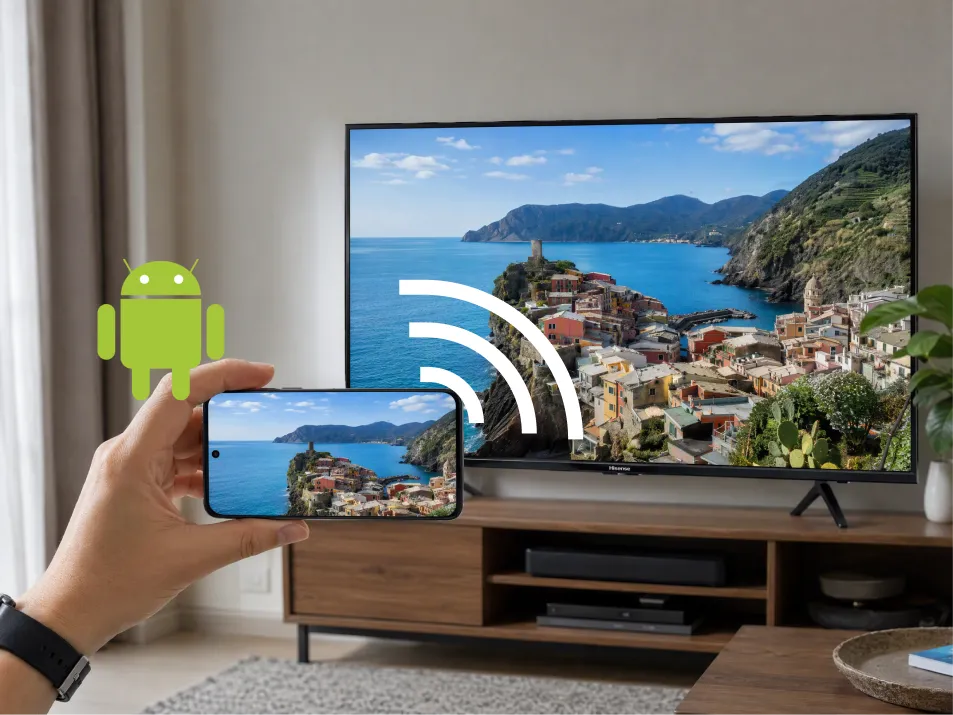
Google TV ou Android TV : utilisez Google Cast
Pour un téléviseur Hisense compatible avec Google Cast :
- Connectez le téléphone Android et le téléviseur au même réseau Wi-Fi.
- Ouvrir Google Home.
- Recherchez et sélectionnez la vignette correspondant au téléviseur.
- Recherchez Diffuser mon écran ou la commande de capture d'écran.
- Suivez les instructions pour partager votre écran ou une application de votre choix.
La formulation peut varier selon l'application et la version d'Android. Les instructions actuelles de Google s'appliquent à Android 8.0 et aux versions ultérieures. Voir Instructions pour la diffusion via Google Home.
Roku, VIDAA ou Fire TV : vérifiez d'abord le récepteur
Sur les modèles compatibles, recherchez les paramètres suivants :
- Roku TV : Paramètres → Système → Partage d'écran.
- VIDAA : « Partage d'écran », souvent dans la rubrique « Entrées » ou « Applications ».
- Fire TV : Paramètres → Affichage et sons → Activer la duplication d'écran.
Ouvrez ensuite l'application de contrôle d'affichage sans fil compatible sur votre téléphone, sélectionnez le téléviseur et validez la connexion.
Les téléphones Samsung pourraient appeler cette fonctionnalité Vue intelligente. D'autres téléphones utilisent des noms différents, et un bouton intitulé “ Cast ” ne fait pas toujours appel à la même technologie. Roku précise que les téléphones Google Pixel ne prennent pas en charge sa méthode standard de duplication d'écran sous Android. Voir la Guide de compatibilité Roku.
Sur Fire TV, Amazon précise que si Activer la duplication d'écran est absent, la méthode native n'est pas disponible. Voir Guide de compatibilité d'Amazon.
5. Comment diffuser l'écran d'un ordinateur portable sur un téléviseur Hisense
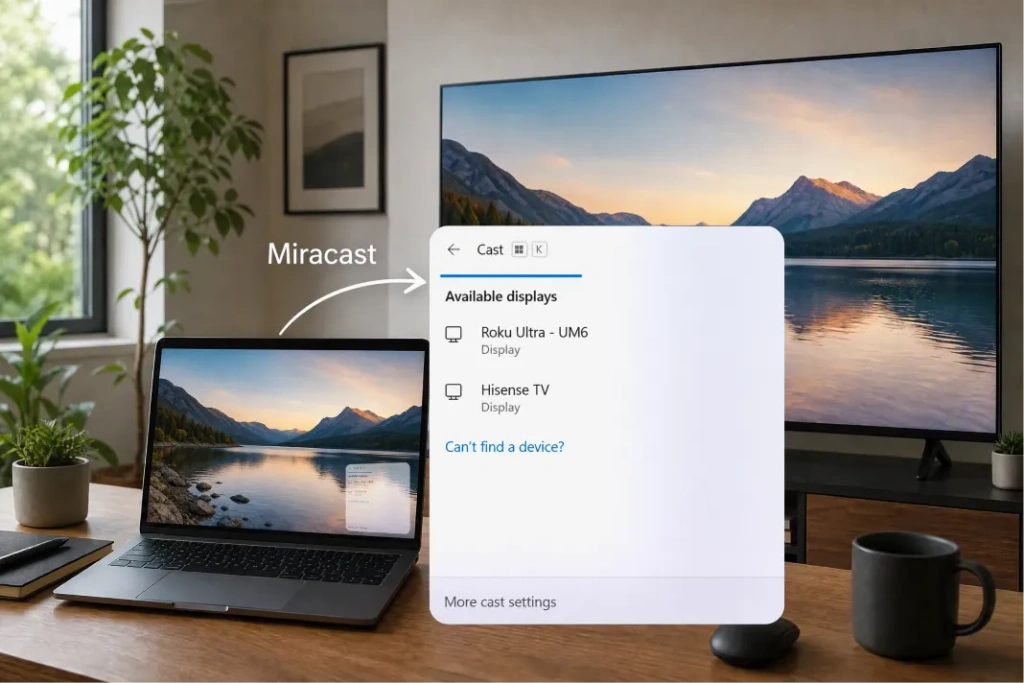
Pour un Ordinateur portable sous Windows, appuyez sur Windows + K lorsque l'ordinateur et le téléviseur prennent tous deux en charge Miracast. Sélectionnez le téléviseur et validez la connexion. Si nécessaire, appuyez sur Windows + P et choisir Duplicata.
Un récepteur Google Cast n'apparaît pas automatiquement dans Windows + K. Si vous disposez d'un téléviseur compatible Google Cast, utilisez la fonctionnalité de diffusion distincte de Chrome.
Pour un Mac, utilisez Centre de contrôle → Partage d'écran si le téléviseur Hisense prend en charge AirPlay. Sinon, envisagez d'utiliser une application de réception compatible ou une connexion HDMI.
6. Quand utiliser la méthode 1001 TVs ?
1001 TVs peut s'avérer utile lorsque votre téléphone et votre téléviseur ne disposent pas d'une méthode de duplication d'écran native commune — par exemple, lorsqu'un iPhone se connecte à une Android TV compatible sans AirPlay.
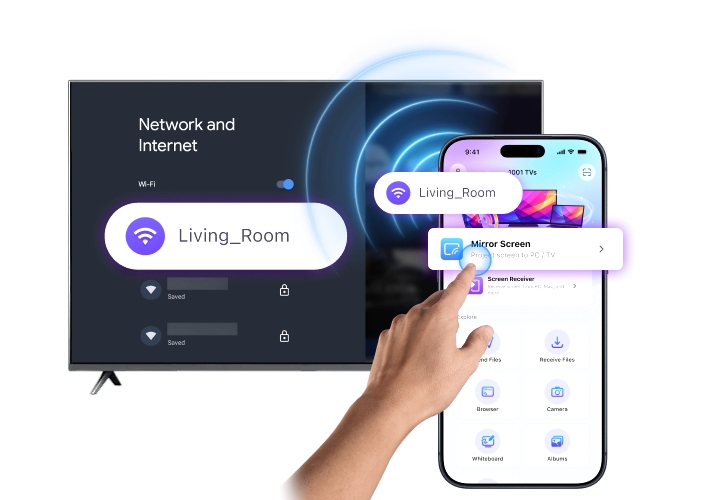
Commencez par vérifier que 1001 TVs peut fonctionner sur l'appareil récepteur. Vérifiez le guide d'installation officiel pour les plateformes prises en charge. Les utilisateurs de Fire TV peuvent utiliser l'application distincte Guide Fire TV 1001 TVs.
Puis :
- Installez et ouvrez 1001 TVs sur les deux appareils.
- Connectez les deux appareils au même réseau Wi-Fi.
- Sélectionner Dupliquer l’écran sur l'expéditeur.
- Choisissez le destinataire ou scannez son code QR s'il est disponible.
- Acceptez les invites relatives à la connexion et au partage d'écran.
Sur l'iPhone, confirmez la diffusion lorsque vous y êtes invité. Voir 1001 TVs pour iPhone pour les plateformes de réception prises en charge.
Si votre téléviseur Hisense ne parvient pas à installer l'application du récepteur, un appareil Android TV compatible ou une Apple TV connectée via HDMI peut servir de plateforme de réception.

La fonction « Screen Mirroring » de votre téléviseur Hisense ne fonctionne pas ?
Commençons par le symptôme :
| Problème | Ce qu'il faut vérifier |
|---|---|
| La télévision ne s'affiche pas | Vérifiez que la méthode est compatible, que le réseau est partagé et que le récepteur est actif |
| L'iPhone ne parvient pas à détecter le téléviseur | Vérifiez qu'AirPlay est disponible et activé |
| Android ne parvient pas à détecter le téléviseur | Vérifiez si le téléphone utilise Google Cast ou prend en charge Miracast |
| 1001 TVs ne parvient pas à détecter le récepteur | Vérifiez les autorisations, l'isolation du réseau invité et les paramètres VPN |
| La synchronisation se bloque ou présente des ralentissements | Améliorez le signal Wi-Fi, réduisez le trafic concurrent et redémarrez les deux appareils |
| Seule la vidéo en streaming est noire | La protection des contenus peut empêcher l'enregistrement ; utilisez l'application TV du service |
Commencez par faire un test avec une photo ou votre écran d'accueil. Si cela fonctionne mais qu'une application vidéo ne fonctionne pas, le problème provient peut-être des restrictions de contenu plutôt que de la connexion.
Questions fréquemment posées
Puis-je diffuser l'écran de mon appareil sur un téléviseur Hisense sans application ?
Oui, lorsque les deux appareils prennent en charge la même fonctionnalité intégrée, comme AirPlay ou Miracast. La diffusion de l'écran Android via Google Home nécessite cette application.
Tous les téléviseurs Hisense prennent-ils en charge AirPlay ?
Non. Vérifiez les paramètres et le mode d'emploi de votre modèle. La marque « Hisense » ne suffit pas à elle seule à garantir la prise en charge d'AirPlay.
Puis-je diffuser mon écran sans Wi-Fi ?
Une connexion HDMI permet d'éviter d'utiliser le Wi-Fi si votre ordinateur ou votre téléphone prend en charge la sortie vidéo via le câble ou l'adaptateur choisi. Un câble de recharge USB standard ne sert pas automatiquement de connexion vidéo.
Quelle est la méthode la plus simple ?
Commencez par vérifier si le téléviseur dispose d'une option native compatible. Si ce n'est pas le cas, vérifiez si un récepteur 1001 TVs pris en charge peut vous permettre d'établir la connexion dont vous avez besoin.

En savoir plus
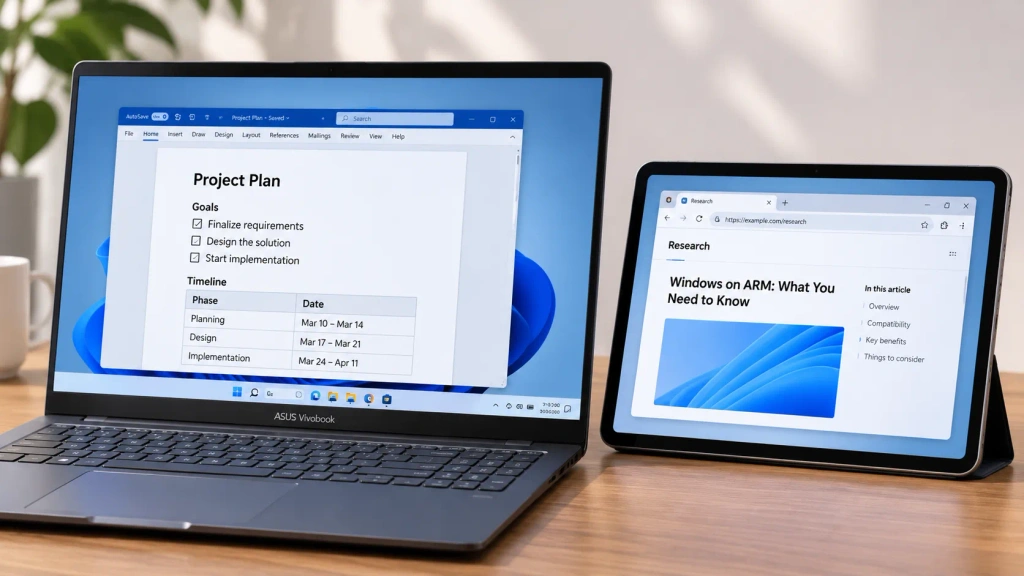 Comment étendre votre écran sous Windows ARM
1001 TVs fonctionne désormais en mode natif sous Windows ARM, avec une extension d'écran et non plus seulement en mode miroir. Son application Arm64 s'exécute directement sur les processeurs ARM plutôt que via...
Comment étendre votre écran sous Windows ARM
1001 TVs fonctionne désormais en mode natif sous Windows ARM, avec une extension d'écran et non plus seulement en mode miroir. Son application Arm64 s'exécute directement sur les processeurs ARM plutôt que via...
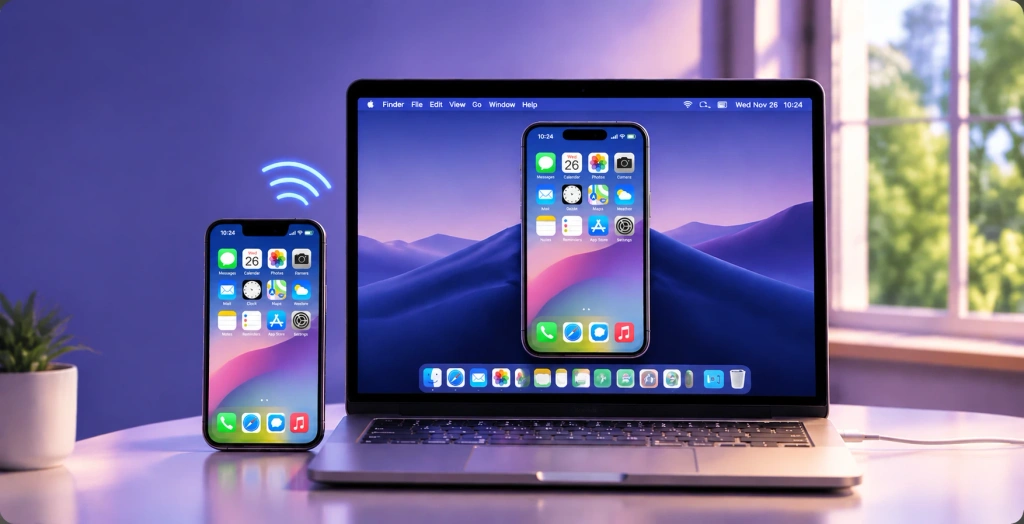 Comment faire miroiter votre iPhone sur un Mac : Méthodes simples avec ou sans fil
Pour afficher l'écran de votre iPhone sur un Mac, utilisez AirPlay pour le partage d'écran sans fil, la fonction « iPhone Mirroring » pour contrôler votre iPhone depuis votre Mac, ou QuickTime...
Comment faire miroiter votre iPhone sur un Mac : Méthodes simples avec ou sans fil
Pour afficher l'écran de votre iPhone sur un Mac, utilisez AirPlay pour le partage d'écran sans fil, la fonction « iPhone Mirroring » pour contrôler votre iPhone depuis votre Mac, ou QuickTime...

