Como fazer a transmissão de tela do iPhone, Android ou PC para uma TV Hisense
Para fazer o espelhamento de tela em uma TV Hisense, identifique primeiro o sistema operacional dela e, em seguida, escolha um método compatível com ambos os dispositivos. Use o AirPlay para um iPhone e uma TV compatível com AirPlay, o Google Cast para uma conexão compatível entre um dispositivo Android e uma Google TV, ou o Miracast quando ambos os dispositivos forem compatíveis com essa tecnologia.
Se as opções integradas não corresponderem, 1001 TVs pode oferecer outra opção nos dispositivos receptores compatíveis.
As TVs Hisense utilizam diferentes plataformas de software, incluindo Google TV, Android TV, Roku TV, VIDAA e Fire TV. Um método que funciona em um modelo Hisense pode não estar disponível em outro. Consulte Visão geral da plataforma da Hisense para mais informações.
1. Identifique o sistema operacional da sua TV Hisense
Imprensa Início no controle remoto e procure pelas marcas Google TV, Roku TV, VIDAA ou Fire TV.
Se você tiver dúvidas, siga estas etapas:
- Aberto Configurações.
- Procure por Sistema, Sobre, Preferências do dispositivo ou Suporte.
- Encontre as informações do software e o número do modelo.
- Consulte o manual do modelo caso ainda não tenha clareza sobre o sistema operacional.
Os nomes dos menus variam de acordo com o modelo e a região. Se um dispositivo de streaming estiver conectado, pressione o botão Home no Controle remoto da Hisense para verificar o próprio sistema da TV, em vez do sistema do dispositivo.
Use esta tabela como ponto de partida:
| Sistema de TV Hisense | Do iPhone ou iPad | Do Android |
|---|---|---|
| Google TV / Android TV | AirPlay, se incluído (Lista de TVs compatíveis com AirPlay 2); caso contrário, um aplicativo receptor compatível | Google Cast |
| TV Roku | AirPlay ativado modelos compatíveis | Compatível com Miracast espelhamento de tela |
| VIDAA | AirPlay, se estiver incluído no seu modelo | Compartilhamento de tela, caso seja compatível com ambos os dispositivos |
| Fire TV | AirPlay em modelos compatíveis; caso contrário, um aplicativo receptor compatível | Espelhamento de tela, se disponível |
| Outro sistema ou sistema mais antigo | Consulte o manual do modelo ou utilize um receptor externo | Consulte o manual do modelo ou utilize um receptor externo |
2. Verifique essas configurações antes de conectar
Antes de usar o AirPlay, o Google Cast ou um método de espelhamento por meio de aplicativo:
- Conecte a TV e o dispositivo de transmissão à mesma rede Wi-Fi doméstica.
- Evite redes de visitantes que isolem os dispositivos conectados.
- Mantenha a TV ligada e ative o recurso de receptor ou de compartilhamento de tela.
- Conceda as permissões solicitadas para acesso à rede local e compartilhamento de tela.
- Atualize o software da TV e o aplicativo que você pretende usar.
Uma VPN que bloqueia o acesso à rede local pode impedir que a TV seja exibida. Desconecte-a temporariamente enquanto resolve o problema.
Decida também se você precisa espelhamento de tela ou seleção por vídeo. O espelhamento exibe toda a tela do seu celular ou computador. O envio de conteúdo transmite o conteúdo selecionado de um aplicativo para um receptor compatível. Se você quiser apenas assistir a um vídeo, o botão “Enviar” ou “AirPlay” do aplicativo pode ser suficiente.
3. Como espelhar a tela do iPhone na TV Hisense
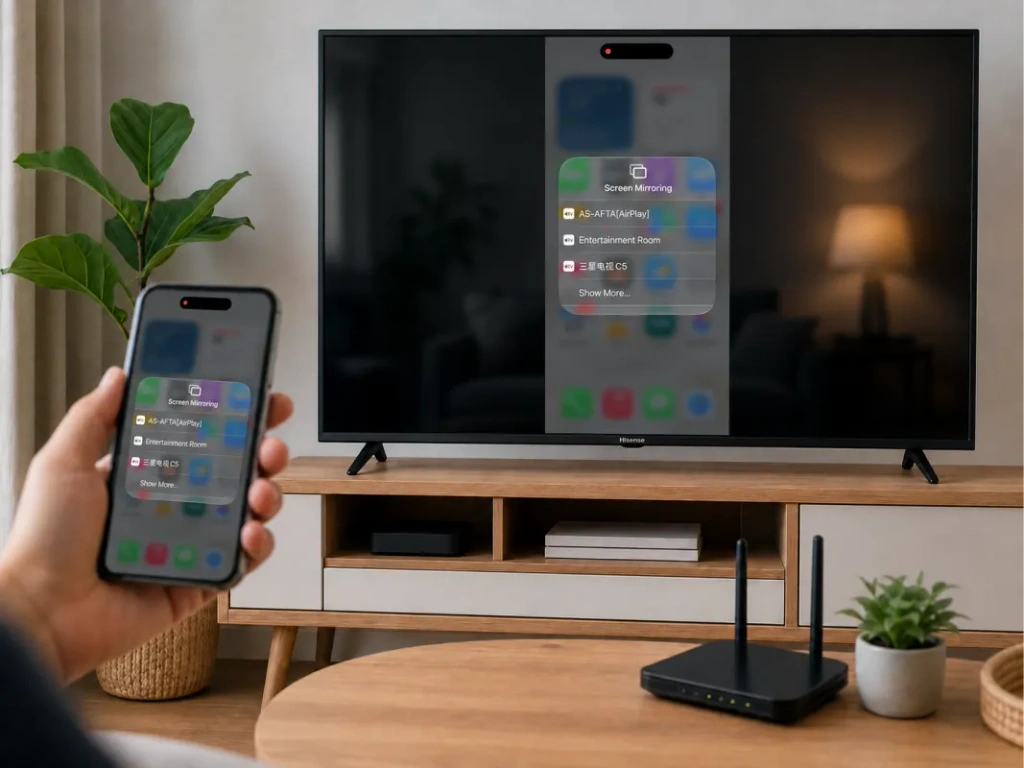
Use o AirPlay se a sua TV for compatível com esse recurso
Procure nas configurações da TV ou na lista de entradas por AirPlay ou Apple AirPlay e HomeKit. A Hisense informa sobre o AirPlay nos modelos compatíveis, mas a disponibilidade varia de acordo com o modelo e a região. Consulte Instruções do Hisense AirPlay.
Para conectar seu iPhone:
- Ative o AirPlay na TV.
- Conecte o iPhone e a TV à mesma rede Wi-Fi.
- Aberto Centro de controle no iPhone.
- Torneira Espelhar tela.
- Selecione sua TV Hisense.
- Digite o código exibido na TV, se solicitado.
Para interromper o espelhamento, abra Espelhar tela novamente e toque Interromper o espelhamento. O mesmo processo funciona no iPad. Veja Guia da Apple sobre espelhamento de tela.
Se a sua TV Hisense não tiver a opção AirPlay
Um menu de compartilhamento de tela que não seja o adequado não fará com que o iPhone se conecte. O recurso de recepção da TV deve ser compatível com o método utilizado pelo iPhone.
Em um modelo compatível com Google TV ou Android TV, verifique se é possível instalar o 1001 TVs. No caso do Roku ou do VIDAA, não presuma que o aplicativo do Android TV possa ser instalado. Se necessário, utilize um receptor externo compatível.
4. Como espelhar a tela do Android na TV Hisense
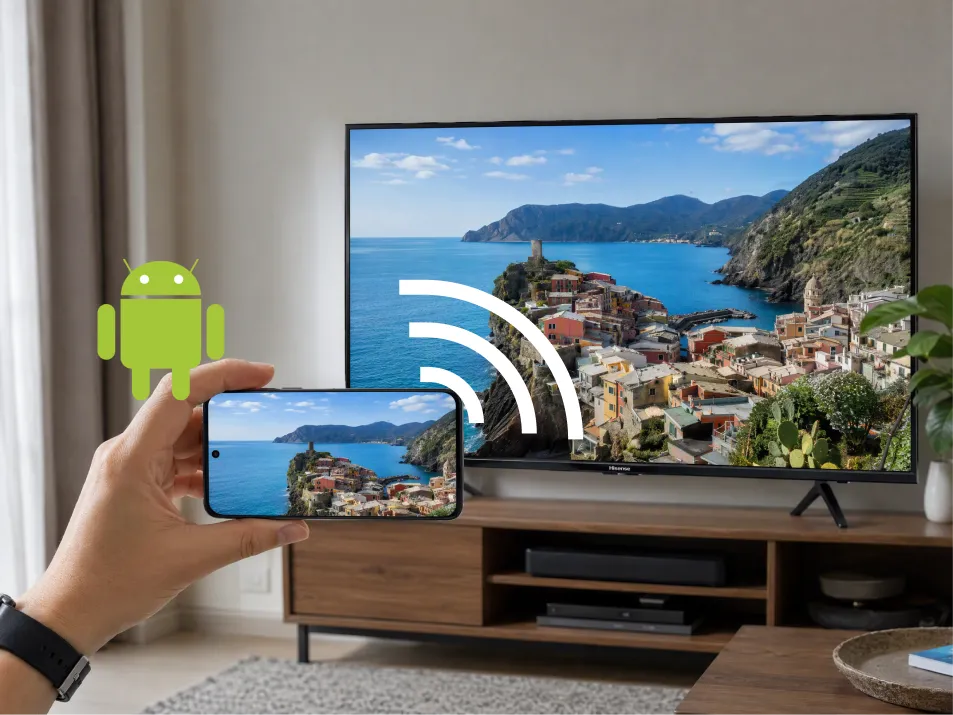
Google TV ou Android TV: use o Google Cast
Para uma TV Hisense com Google Cast:
- Conecte o celular Android e a TV à mesma rede Wi-Fi.
- Aberto Google Home.
- Encontre e selecione o bloco do dispositivo da TV.
- Procure por Transmitir minha tela ou o controle de captura de tela.
- Siga as instruções para compartilhar a tela ou um aplicativo selecionado.
O texto pode variar de acordo com o aplicativo e a versão do Android. As instruções atuais do Google se aplicam ao Android 8.0 e versões posteriores. Consulte Instruções para transmitir conteúdo pelo Google Home.
Roku, VIDAA ou Fire TV: verifique primeiro o receptor
Em modelos compatíveis, procure estas configurações:
- Roku TV: Configurações → Sistema → Espelhamento de tela.
- VIDAA: Compartilhamento de tela, geralmente na seção “Entradas” ou “Aplicativos”.
- Fire TV: Configurações → Tela e sons → Ativar espelhamento de tela.
Em seguida, abra o aplicativo de controle de tela sem fio compatível no seu celular, selecione a TV e confirme a conexão.
Os celulares da Samsung podem chamar esse recurso de Visão inteligente. Outros celulares utilizam nomes diferentes, e um botão chamado “Cast” nem sempre utiliza a mesma tecnologia. A Roku observa que os celulares Google Pixel não são compatíveis com seu método padrão de espelhamento de tela do Android. Consulte o Guia de compatibilidade com o Roku.
No Fire TV, a Amazon afirma que, se Ativar espelhamento de tela está faltando, o método nativo não está disponível. Consulte Orientações de compatibilidade da Amazon.
5. Como espelhar a tela de um laptop na TV Hisense
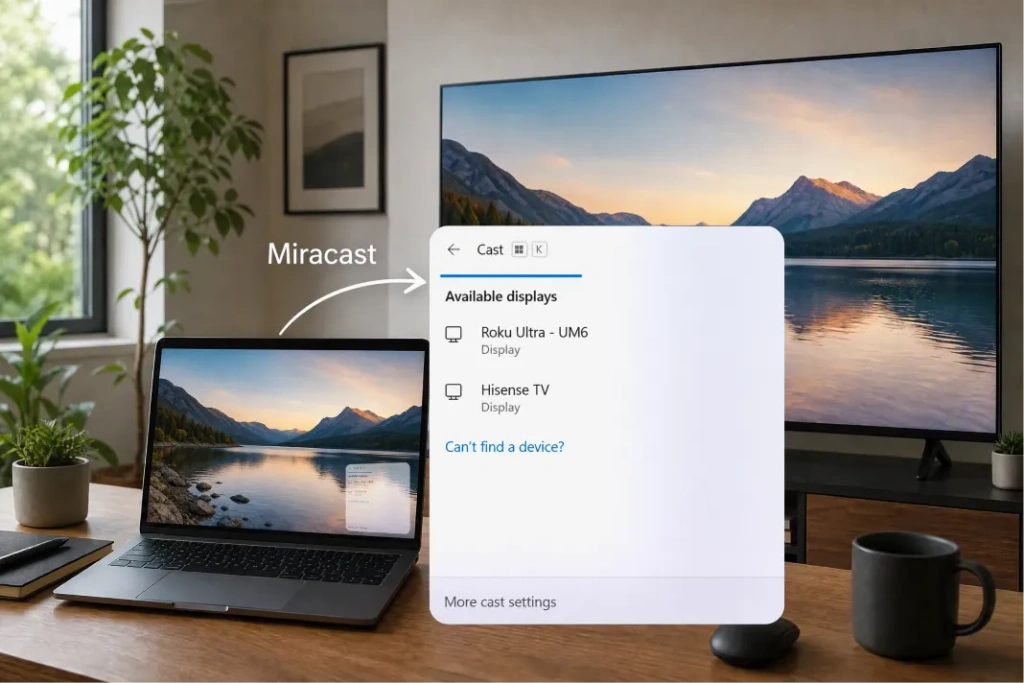
Para um Laptop com Windows, pressione Windows + K quando tanto o computador quanto a TV forem compatíveis com o Miracast. Selecione a TV e confirme a conexão. Se necessário, pressione Windows + P e escolha Duplicado.
Um receptor do Google Cast não aparece automaticamente no Windows + K. Se você tiver uma TV compatível com o Google Cast, use o recurso de transmissão do Chrome.
Para um Mac, use Centro de Controle → Espelhamento de tela se a TV Hisense for compatível com o AirPlay. Caso contrário, considere usar um aplicativo receptor compatível ou uma conexão HDMI.
6. Quando usar o 1001 TVs
O 1001 TVs pode ajudar quando seu celular e sua TV não compartilham um método nativo de espelhamento — por exemplo, quando um iPhone se conecta a uma Android TV compatível sem o AirPlay.
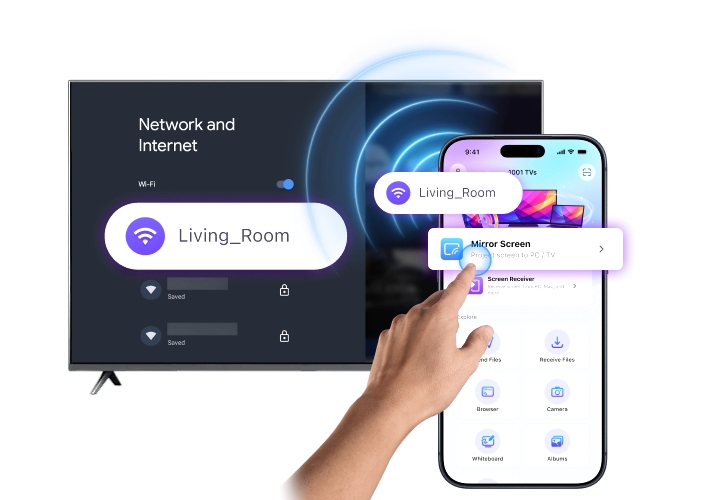
Primeiro, verifique se O 1001 TVs pode ser executado no dispositivo receptor. Verifique o guia oficial de instalação para as plataformas compatíveis. Os usuários do Fire TV podem usar o aplicativo separado Guia do Fire TV 1001 TVs.
Então:
- Instale e abra o 1001 TVs nos dois dispositivos.
- Conecte os dois dispositivos à mesma rede Wi-Fi.
- Selecione Espelhar tela no remetente.
- Escolha o destinatário ou escaneie o código QR dele, se disponível.
- Aceite as solicitações de conexão e de compartilhamento de tela.
No iPhone, confirme a transmissão quando solicitado. Consulte 1001 TVs para iPhone para plataformas de recepção compatíveis.
Caso sua TV Hisense não consiga instalar o aplicativo receptor, um aparelho Android TV compatível ou uma Apple TV conectada via HDMI pode servir como plataforma de recepção.

O espelhamento de tela da TV Hisense não está funcionando?
Comece pelo sintoma:
| Problema | O que verificar |
|---|---|
| A TV não aparece | Verifique se há um método compatível, uma rede compartilhada e um receptor ativo |
| O iPhone não consegue localizar a TV | Verifique se o AirPlay está disponível e ativado |
| O Android não consegue localizar a TV | Verifique se o celular usa o Google Cast ou é compatível com o Miracast |
| O 1001 TVs não consegue detectar o receptor | Verifique as permissões, o isolamento da rede de visitantes e as configurações de VPN |
| O espelhamento congela ou apresenta atrasos | Melhore o sinal de Wi-Fi, reduza o tráfego que causa interferência e reinicie os dois dispositivos |
| Apenas um vídeo em streaming aparece preto | A proteção de conteúdo pode bloquear a gravação; use o aplicativo de TV do serviço |
Tente primeiro com uma foto ou com a tela inicial. Se isso funcionar, mas um aplicativo de vídeo não funcionar, o problema pode ser causado por restrições de conteúdo, e não pela conexão.
Perguntas frequentes
Posso espelhar a tela na TV Hisense sem usar um aplicativo?
Sim, quando ambos os dispositivos suportam o mesmo método integrado, como o AirPlay ou o Miracast. Para transmitir a tela do Android pelo Google Home, é necessário esse aplicativo.
Todas as TVs Hisense são compatíveis com o AirPlay?
Não. Verifique as configurações e o manual do seu modelo específico. A marca Hisense, por si só, não garante a compatibilidade com o AirPlay.
Posso fazer o espelhamento sem Wi-Fi?
Uma conexão HDMI pode dispensar o uso do Wi-Fi se o seu computador ou celular for compatível com a saída de vídeo por meio do cabo ou adaptador escolhido. Um cabo USB padrão para carregamento não funciona automaticamente como conexão de vídeo.
Qual é o método mais fácil?
Comece pela opção nativa compatível da TV. Se ela não for compatível com o seu dispositivo, verifique se um receptor 1001 TVs compatível pode fornecer a conexão de que você precisa.

Leia mais
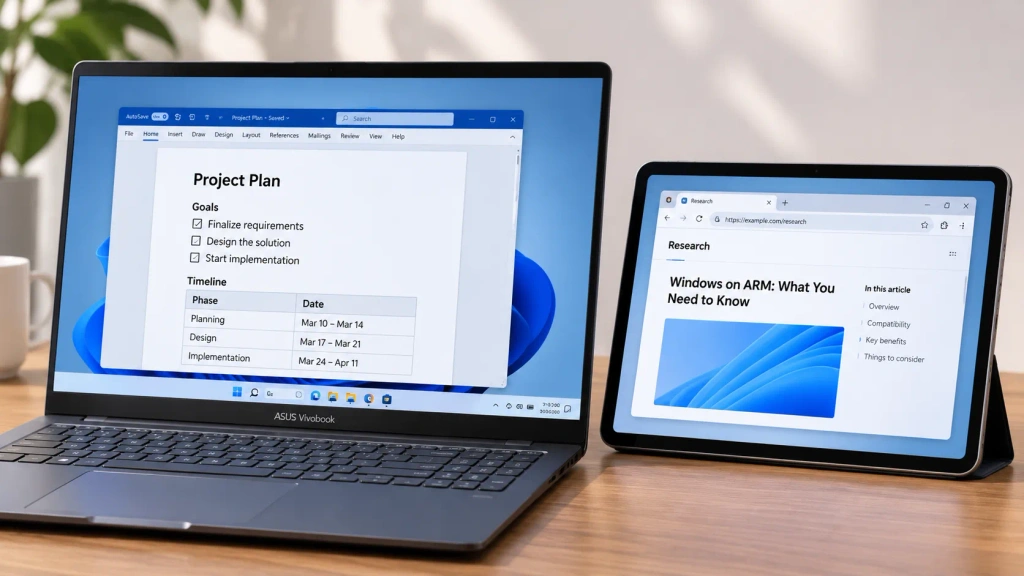 Como estender sua tela no Windows ARM
O 1001 TVs agora roda nativamente no Windows ARM — com extensão de tela, e não apenas espelhamento. Seu aplicativo Arm64 é executado diretamente nos processadores ARM, em vez de por meio de...
Como estender sua tela no Windows ARM
O 1001 TVs agora roda nativamente no Windows ARM — com extensão de tela, e não apenas espelhamento. Seu aplicativo Arm64 é executado diretamente nos processadores ARM, em vez de por meio de...
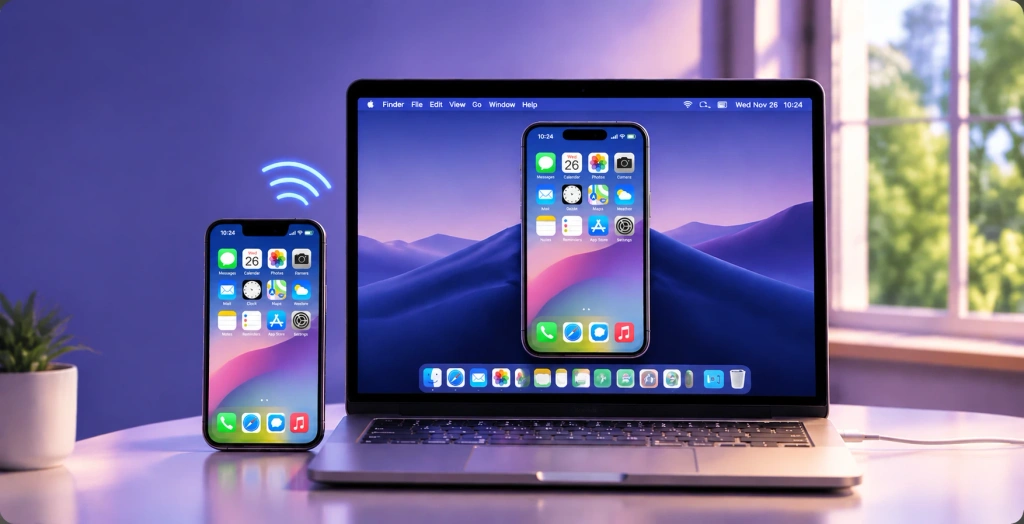 Como espelhar seu iPhone em um Mac: Métodos fáceis com e sem fio
Para espelhar a tela do seu iPhone no Mac, use o AirPlay para compartilhar a tela sem fio, o iPhone Mirroring para controlar o iPhone a partir do Mac ou o QuickTime...
Como espelhar seu iPhone em um Mac: Métodos fáceis com e sem fio
Para espelhar a tela do seu iPhone no Mac, use o AirPlay para compartilhar a tela sem fio, o iPhone Mirroring para controlar o iPhone a partir do Mac ou o QuickTime...

