Hogyan lehet az iPhone-ról, Android-készülékről vagy számítógépről képernyőt tükrözni a Hisense tévére
Ha a képernyőt egy Hisense tévére szeretné tükrözni, először állapítsa meg a tévé operációs rendszerét, majd válasszon egy olyan módszert, amelyet mindkét eszköz támogat. Használja az AirPlay-t iPhone és AirPlay-kompatibilis tévék esetén, a Google Cast-et kompatibilis Android–Google TV-kapcsolat esetén, vagy a Miracast-ot, ha mindkét eszköz támogatja azt.
Ha a beépített beállítások nem egyeznek, 1001 TVs további lehetőséget kínálhat a támogatott fogadóeszközökön.
A Hisense tévék különböző szoftverplatformokat használnak, többek között a Google TV-t, az Android TV-t, a Roku TV-t, a VIDAA-t és a Fire TV-t. Előfordulhat, hogy egy Hisense-modellnél működő módszer egy másiknál nem áll rendelkezésre. Lásd A Hisense platformjának áttekintése További információkért.
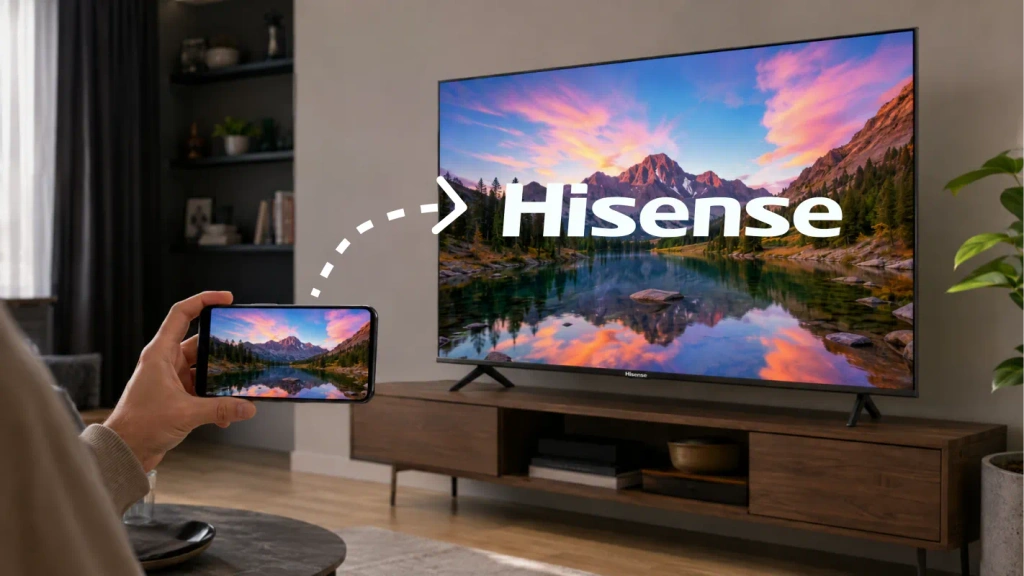
1. Határozza meg a Hisense tévéje operációs rendszerét
Sajtó Otthon a távirányítón, és keresse meg a Google TV, Roku TV, VIDAA vagy Fire TV feliratot.
Ha nem biztos benne, kövesse az alábbi lépéseket:
- Nyissa meg a címet. Beállítások.
- Keresse meg a Rendszer, A oldalról, Eszközbeállítások vagy Támogatás.
- Keresse meg a szoftver adatait és a modellszámot.
- Ha az operációs rendszerrel kapcsolatban még mindig kérdései vannak, olvassa el a készülék használati útmutatóját.
A menünevek modelltől és régiótól függően eltérhetnek. Ha egy streaming-kulcs van csatlakoztatva, nyomja meg a Home gombot a Hisense távirányító hogy a TV saját rendszerét ellenőrizze, nem pedig a csatlakozóét.
Használd ezt a táblázatot kiindulási pontként:
| Hisense TV-rendszer | iPhone-ról vagy iPad-ről | Androidról |
|---|---|---|
| Google TV / Android TV | AirPlay, ha rendelkezésre áll (Az AirPlay 2-kompatibilis tévék listája); egyébként egy kompatibilis vételi alkalmazás | Google Cast |
| Roku TV | AirPlay bekapcsolva támogatott modellek | Miracast-kompatibilis képernyőtükrözés |
| VIDAA | AirPlay, amennyiben a modell rendelkezik ezzel a funkcióval | Képernyőmegosztás, amennyiben mindkét eszköz támogatja |
| Fire TV | AirPlay a támogatott modelleken; egyéb esetben egy kompatibilis vételi alkalmazás | Tükörkép-megjelenítés, ha elérhető |
| Egyéb vagy régebbi rendszer | Olvassa el a készülék használati útmutatóját, vagy használjon külső vevőt | Olvassa el a készülék használati útmutatóját, vagy használjon külső vevőt |
2. A csatlakozás előtt ellenőrizze ezeket a beállításokat
Az AirPlay, a Google Cast vagy egy alkalmazáson alapuló képernyő-tükrözési módszer használata előtt:
- Csatlakoztassa a tévét és az adatátviteli eszközt ugyanahhoz az otthoni Wi-Fi-hálózathoz.
- Kerülje azokat a vendéghálózatokat, amelyek elszigetelik a csatlakozó eszközöket.
- Tartsa ébren a tévét, és kapcsolja be a vevőkészülékét vagy a képernyőmegosztási funkcióját.
- Engedélyezze a kért helyi hálózati és képernyőmegosztási jogosultságokat.
- Frissítse a tévé szoftverét és azt az alkalmazást, amelyet használni szeretne.
Egy olyan VPN, amely blokkolja a helyi hálózathoz való hozzáférést, megakadályozhatja a tévé megjelenését. A hibaelhárítás idején ideiglenesen válassza le a kapcsolatot.
Döntsd el azt is, hogy szükséged van-e képernyőtükrözés vagy videós casting. A tükrözés a telefon vagy a számítógép teljes képernyőjét jeleníti meg. A továbbítás során egy alkalmazásból kiválasztott tartalmat küldünk egy kompatibilis vevőeszközre. Ha csak egy videót szeretnél megnézni, az alkalmazás „Cast” vagy „AirPlay” gombja is elegendő lehet.
3. Hogyan lehet az iPhone képernyőjét tükrözni egy Hisense tévére
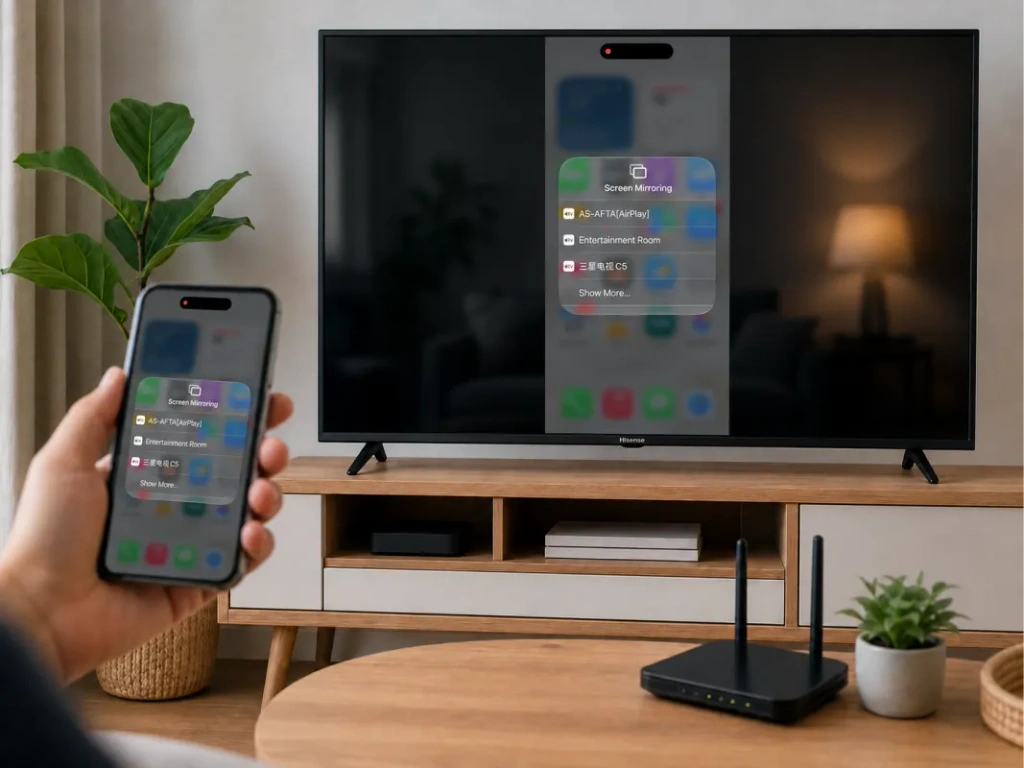
Használd az AirPlay funkciót, ha a tévéd támogatja azt
Nézd meg a tévé beállításaiban vagy a bemeneti listában a következőket: AirPlay vagy Apple AirPlay és HomeKit. A Hisense a támogatott modellek esetében feltünteti az AirPlay funkciót, de annak elérhetősége modelltől és régiótól függ. Lásd Hisense AirPlay használati útmutató.
Az iPhone csatlakoztatásához:
- Kapcsolja be az AirPlay funkciót a tévékészüléken.
- Csatlakoztasd az iPhone-t és a tévét ugyanahhoz a Wi-Fi-hálózathoz.
- Nyissa meg a címet. Vezérlőközpont az iPhone-on.
- Tap Képernyő tükrözés.
- Válassza ki a Hisense tévéjét!.
- Ha a rendszer kéri, írja be a tévéképernyőn megjelenő kódot.
A tükrözés leállításához nyissa meg a Képernyő tükrözés ismét, majd érintse meg Tükrözés leállítása. Ugyanez a folyamat az iPad-en is működik. Lásd Az Apple képernyőtükrözési útmutatója.
Ha a Hisense tévéjén nincs AirPlay-funkció
Egy nem megfelelő „Képernyőmegosztás” menü nem biztosítja az iPhone csatlakozását. A tévékészülék vételi funkciójának támogatnia kell az iPhone által használt módszert.
Egy kompatibilis Google TV- vagy Android TV-modellen ellenőrizze, hogy telepítheti-e az 1001 TVs alkalmazást. Roku vagy VIDAA esetében ne feltételezze, hogy az Android TV-alkalmazás telepíthető. Szükség esetén használjon támogatott külső vevőkészüléket.
4. Hogyan lehet az Android-készülék képernyőjét tükrözni egy Hisense tévére
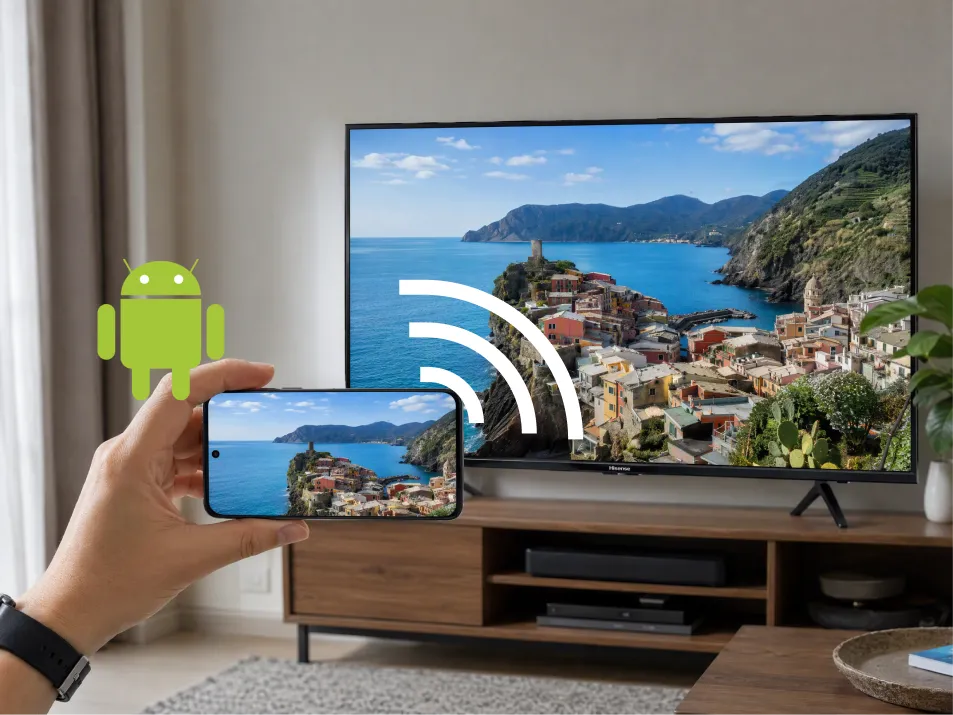
Google TV vagy Android TV: használja a Google Cast szolgáltatást
Google Cast funkcióval rendelkező Hisense tévék esetében:
- Csatlakoztassa az Android-telefont és a tévét ugyanahhoz a Wi-Fi-hálózathoz.
- Nyissa meg a címet. Google Home.
- Keresse meg és válassza ki a tévékészülék csempéjét.
- Keresse meg a A képernyőm tükrözése vagy a képernyőfelvétel-vezérlő.
- Kövesse az utasításokat a képernyő vagy egy kiválasztott alkalmazás megosztásához.
A szöveg az alkalmazástól és az Android-verziótól függően eltérhet. A Google jelenlegi útmutatása az Android 8.0 és újabb verziókra vonatkozik. Lásd A Google Home közvetítési útmutatója.
Roku, VIDAA vagy Fire TV: először ellenőrizd a vevőkészüléket
A támogatott modelleken keresse meg az alábbi beállításokat:
- Roku TV: Beállítások → Rendszer → Képernyő-tükrözés.
- VIDAA: Képernyőmegosztás, gyakran a „Bemenetek” vagy az „Alkalmazások” menüpont alatt.
- Fire TV: Beállítások → Kijelző és hangok → Kijelzőtükrözés engedélyezése.
Ezután nyissa meg a telefonján a kompatibilis vezeték nélküli kijelző-vezérlő alkalmazást, válassza ki a tévét, majd erősítse meg a kapcsolatot.
A Samsung telefonoknál ezt a funkciót így nevezik Intelligens nézet. Más telefonok eltérő elnevezéseket használnak, és a “Cast” feliratú gomb nem mindig ugyanazt a technológiát alkalmazza. A Roku felhívja a figyelmet arra, hogy a Google Pixel telefonok nem támogatják a szokásos Android-képernyőtükrözési módszert. Lásd a Roku kompatibilitási útmutató.
A Fire TV-vel kapcsolatban az Amazon azt állítja, hogy ha Képernyő-tükrözés engedélyezése hiányzik, a natív módszer nem érhető el. Lásd Az Amazon kompatibilitási útmutatója.
5. Hogyan lehet egy laptop képernyőjét tükrözni egy Hisense tévére?
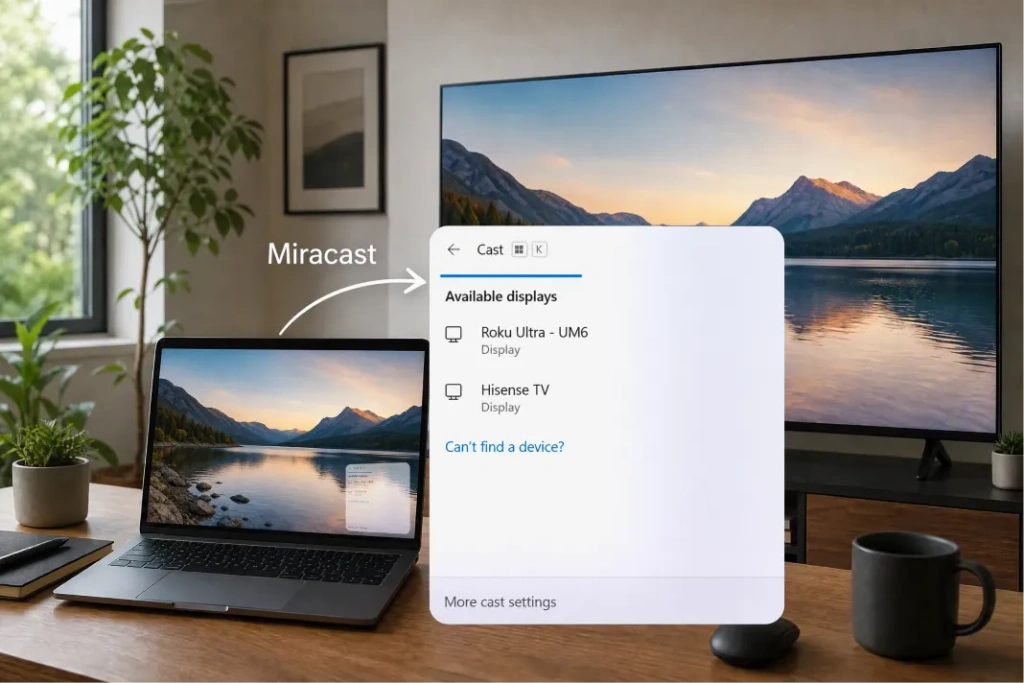
Egy Windows-alapú laptop, nyomja meg Windows + K ha mind a számítógép, mind a tévé támogatja a Miracast funkciót. Válassza ki a tévét, és hagyja jóvá a csatlakozást. Szükség esetén nyomja meg a Windows + P és válasszon Duplikátum.
A Google Cast-vevő nem jelenik meg automatikusan a Windows + K billentyűkombinációval. Google Cast-kompatibilis tévék esetén használd a Chrome különálló továbbítási funkcióját.
Egy Mac, használja a Vezérlőközpont → Képernyő-tükrözés ha a Hisense tévé támogatja az AirPlay funkciót. Ellenkező esetben érdemes megfontolni egy támogatott vételi alkalmazás használatát vagy egy HDMI-csatlakozást.
6. Mikor érdemes a 1001 TVs-t alkalmazni?
Az 1001 TVs akkor jöhet jól, ha a telefonod és a tévéd nem támogatja egymás natív tükrözési módját – például amikor egy iPhone AirPlay nélkül csatlakozik egy kompatibilis Android TV-hez.
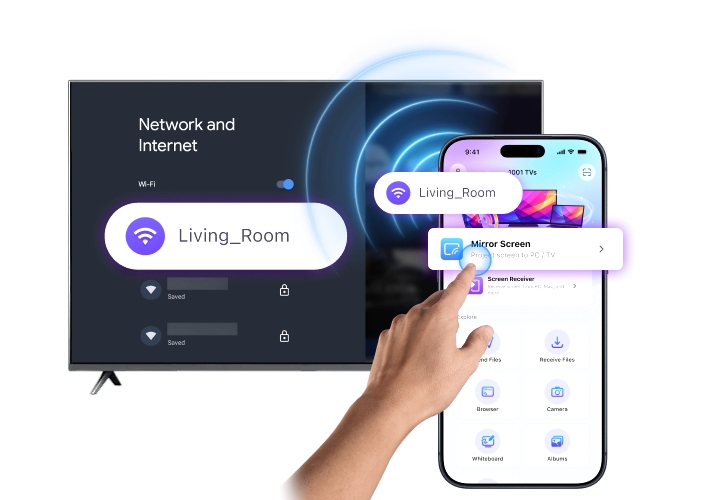
Először is győződjön meg arról, hogy Az 1001 TVs futtatható a fogadó eszközön. Ellenőrizze a hivatalos telepítési útmutató a támogatott platformok esetében. A Fire TV-felhasználók a különálló 1001 TVs Fire TV útmutató.
Ezután:
- Telepítse és indítsa el az 1001 TVs alkalmazást mindkét eszközön.
- Csatlakoztassa mindkét eszközt ugyanahhoz a Wi-Fi hálózathoz.
- Válassza ki a címet. Képernyő tükrözés a feladón.
- Válassza ki a címzettet, vagy ha rendelkezésre áll, olvassa be a QR-kódját.
- Fogadja el a csatlakozással és a képernyőmegosztással kapcsolatos kéréseket.
Az iPhone-on a rendszer kérésére hajtsa végre a közvetítés megerősítését. Lásd 1001 TVs iPhone-ra a támogatott fogadó platformok esetében.
Ha a Hisense tévéjére nem sikerül telepíteni a vevőalkalmazást, akkor egy kompatibilis Android TV-készülék vagy HDMI-n keresztül csatlakoztatott Apple TV is szolgálhat vételi platformként.

Nem működik a Hisense tévé képernyő-tükrözése?
Kezdjük a tünettel:
| Probléma | Mit kell ellenőrizni |
|---|---|
| A tévé nem jelenik meg | Ellenőrizze, hogy a módszer kompatibilis-e, a hálózat megosztott-e, és a vevő működik-e |
| Az iPhone nem találja a tévét | Ellenőrizd, hogy az AirPlay elérhető-e és be van-e kapcsolva |
| Az Android nem találja a tévét | Ellenőrizze, hogy a telefon Google Cast-et használ-e, vagy támogatja-e a Miracast-ot |
| Az 1001 TVs nem tudja felismerni a vevőt | Ellenőrizze a jogosultságokat, a vendéghálózat elszigeteltségét és a VPN-beállításokat |
| A tükrözés lefagy vagy akadozik | Javítsd a Wi-Fi-jelet, csökkentsd az ütköző forgalmat, és indítsd újra mindkét eszközt |
| Csak egy streaming videó fekete | A tartalomvédelem megakadályozhatja a felvételt; használja a szolgáltatás TV-alkalmazását |
Először próbáld ki egy fotóval vagy a kezdőképernyővel. Ha ez működik, de egy videóalkalmazás nem, akkor a probléma valószínűleg nem a kapcsolattal, hanem a tartalomkorlátozásokkal kapcsolatos.
Gyakran ismételt kérdések
Lehet-e alkalmazás nélkül képernyőt tükrözni egy Hisense tévére?
Igen, ha mindkét eszköz támogatja ugyanazt a beépített funkciót, például az AirPlay-t vagy a Miracastot. Az Android-képernyő továbbításához a Google Home-on keresztül szükség van erre az alkalmazásra.
Minden Hisense tévé támogatja az AirPlay-t?
Nem. Ellenőrizze a konkrét modell beállításait és a használati útmutatót. A Hisense márkanév önmagában nem jelenti azt, hogy a készülék támogatja az AirPlay-t.
Wi-Fi nélkül is lehet képernyőt tükrözni?
Ha a számítógéped vagy a telefonod támogatja a videokimenetet a választott kábelen vagy adapteren keresztül, akkor a HDMI-csatlakozással elkerülhető a Wi-Fi használata. Egy szokásos USB-töltőkábel nem feltétlenül szolgál videokapcsolatra.
Mi a legegyszerűbb módszer?
Kezdje a tévé kompatibilis natív beállításával! Ha ez nem felel meg az Ön készülékének, ellenőrizze, hogy egy támogatott 1001 TVs vevőegység biztosítja-e a szükséges kapcsolatot.

További információk
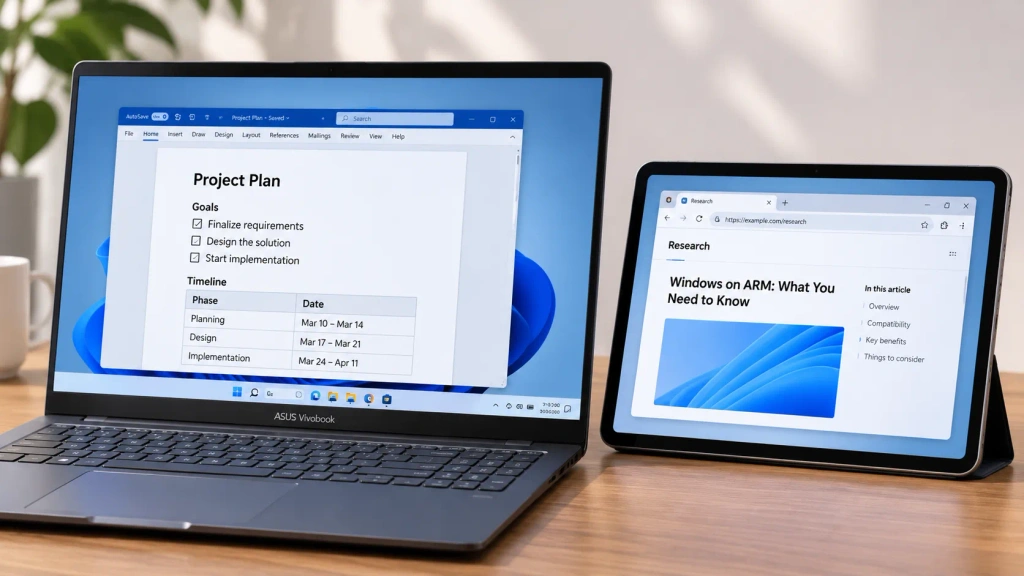 Hogyan bővítheti ki a képernyőt Windows ARM rendszeren
Az 1001 TVs mostantól natívan fut a Windows ARM rendszeren – képernyő-kiterjesztéssel, nem csupán tükrözéssel. Az Arm64-es alkalmazása közvetlenül az ARM-processzorokon fut, nem pedig….
Hogyan bővítheti ki a képernyőt Windows ARM rendszeren
Az 1001 TVs mostantól natívan fut a Windows ARM rendszeren – képernyő-kiterjesztéssel, nem csupán tükrözéssel. Az Arm64-es alkalmazása közvetlenül az ARM-processzorokon fut, nem pedig….
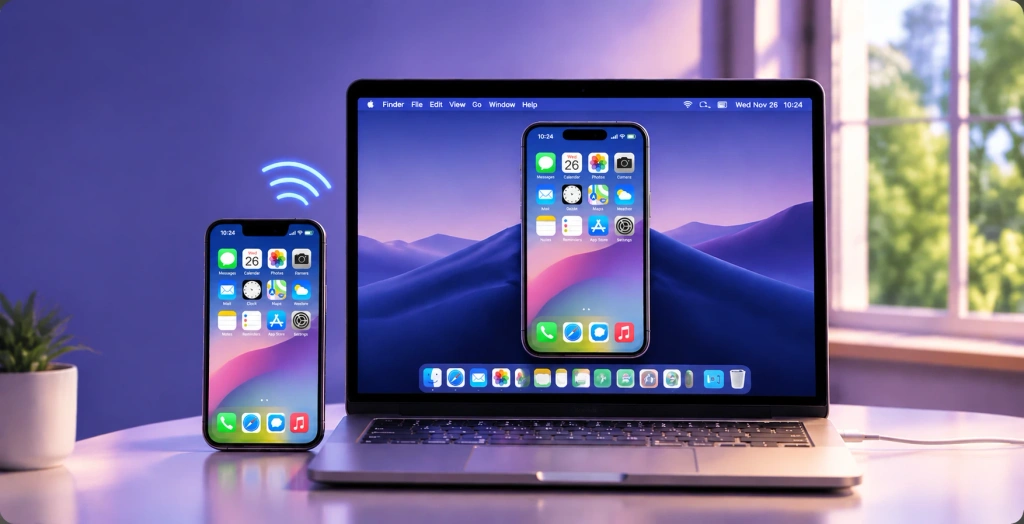 Hogyan tükrözheti iPhone készülékét egy Mac számítógépre: Egyszerű vezetékes és vezeték nélküli módszerek
Ha az iPhone-odat egy Mac-re szeretnéd tükrözni, használd az AirPlay-t a vezeték nélküli képernyőmegosztáshoz, az iPhone Mirroring alkalmazást az iPhone Mac-ről történő vezérléséhez, vagy a QuickTime-ot...
Hogyan tükrözheti iPhone készülékét egy Mac számítógépre: Egyszerű vezetékes és vezeték nélküli módszerek
Ha az iPhone-odat egy Mac-re szeretnéd tükrözni, használd az AirPlay-t a vezeték nélküli képernyőmegosztáshoz, az iPhone Mirroring alkalmazást az iPhone Mac-ről történő vezérléséhez, vagy a QuickTime-ot...

