
Core Features of the Desktop Casting Window (Split Screen · Full Screen · Pause · Hide Title Bar)
The 1001 TVs desktop app lets you control screen casting directly from the casting window, including full-screen mode, pause, hiding the title bar, and multi-device split-screen casting.
All actions can be performed on the desktop itself—no phone or additional sending device required—making it ideal for both individual use and team collaboration.
1. How to Use
1) Title Bar Controls
The title bar provides quick access to the following features:
Automatic Split Screen (Windows)
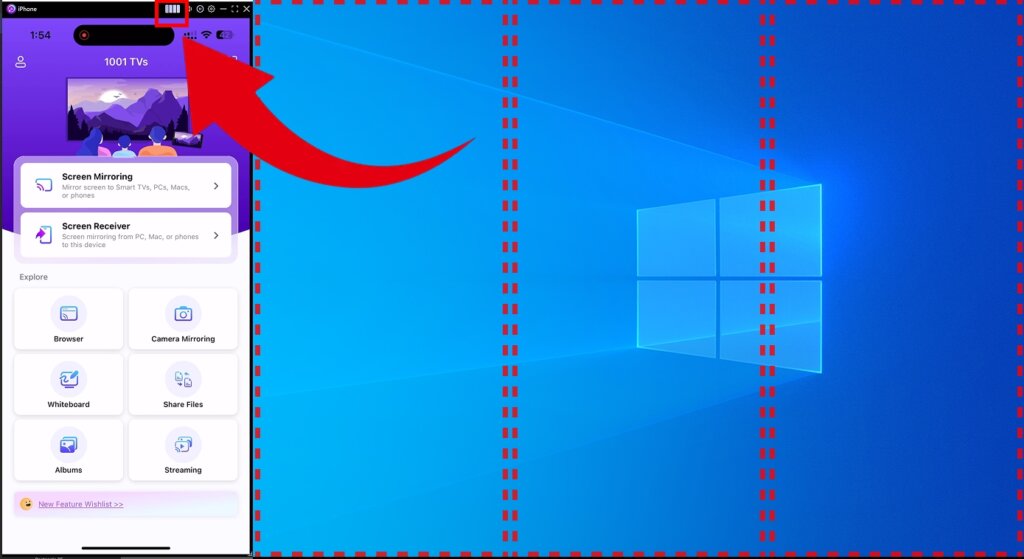
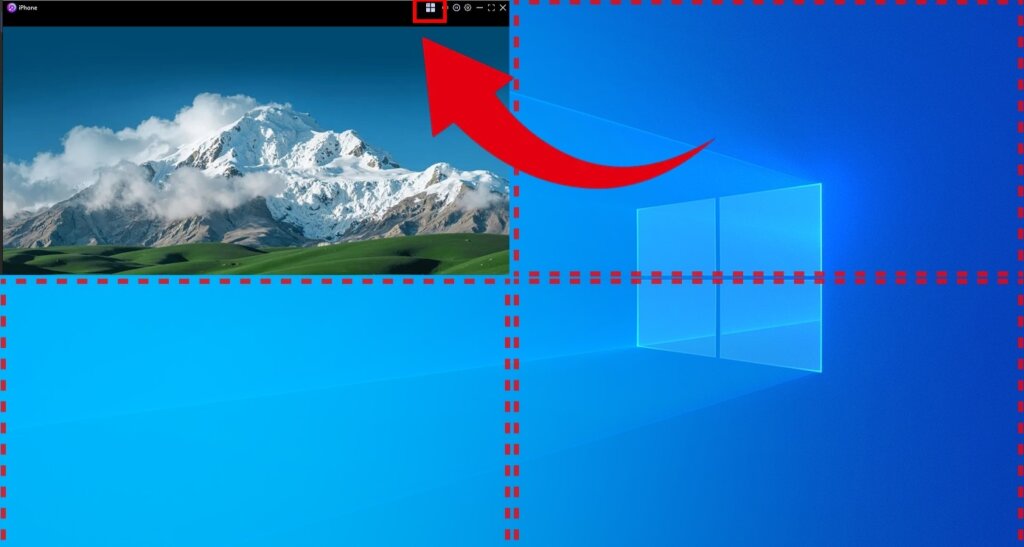
After a successful connection, click the four-square icon in the title bar to automatically split the screen into four sections.
Each connected device is displayed in its own window, supporting both portrait and landscape orientations—ideal for multi-device comparison or team collaboration.
Full Screen Display
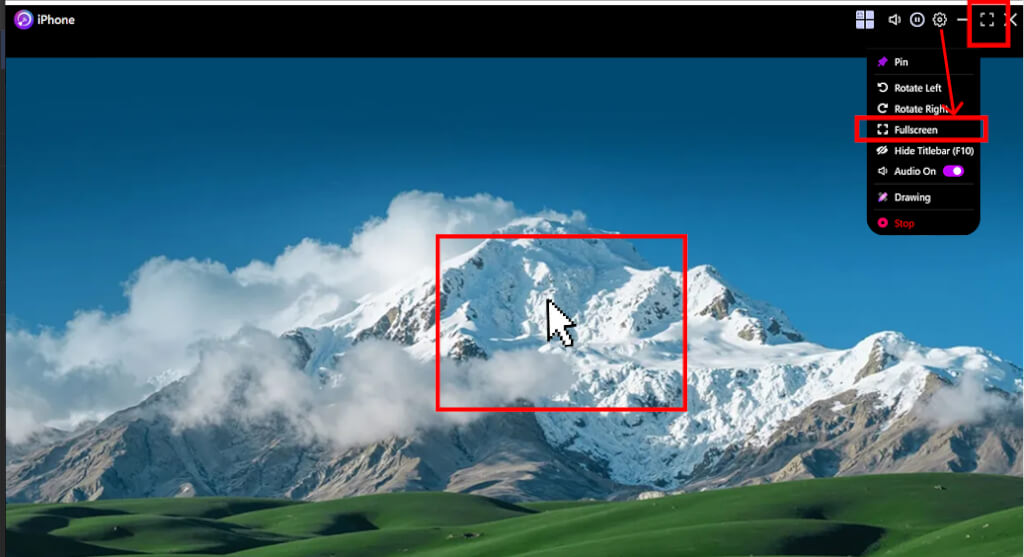
You can enter full-screen mode in three ways:
· Click the Full Screen icon in the title bar
· Open Settings and select Full Screen from the menu
· Double-click the center of the casting window
(Available when Settings > Display > Casting Window > Auto Arrange Multiple Windows is turned off)
In full-screen mode, a minimize button appears in the top-right corner and automatically hides after 5 seconds.
Move your mouse to the top-right corner to show it again.
Press ESC to exit full-screen mode at any time.
Other Quick Controls
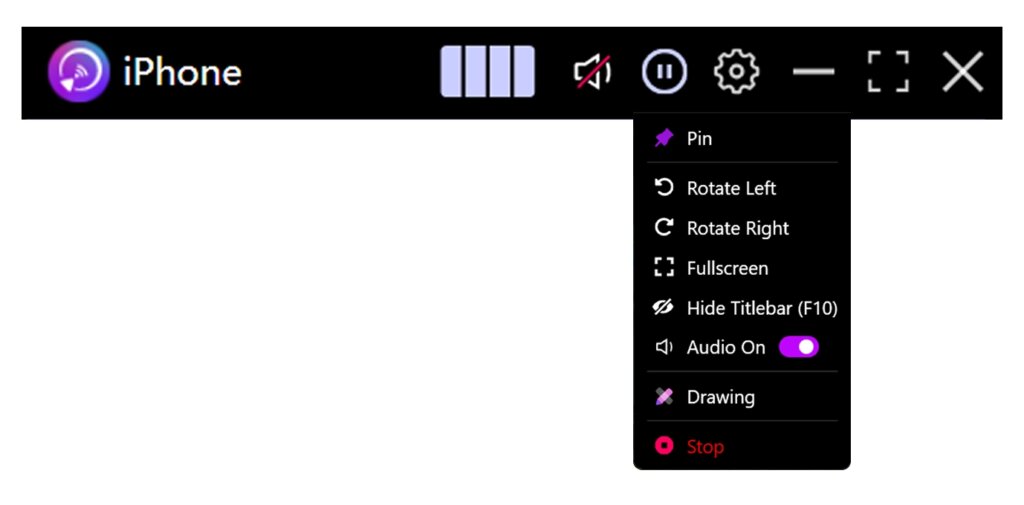
The title bar also includes quick controls for Mute, Pause, Settings, Minimize, and Full Screen, allowing you to perform common actions with a single click.
2) Right-Click Menu Controls
Right-click on any blank area of the casting window to access additional options:
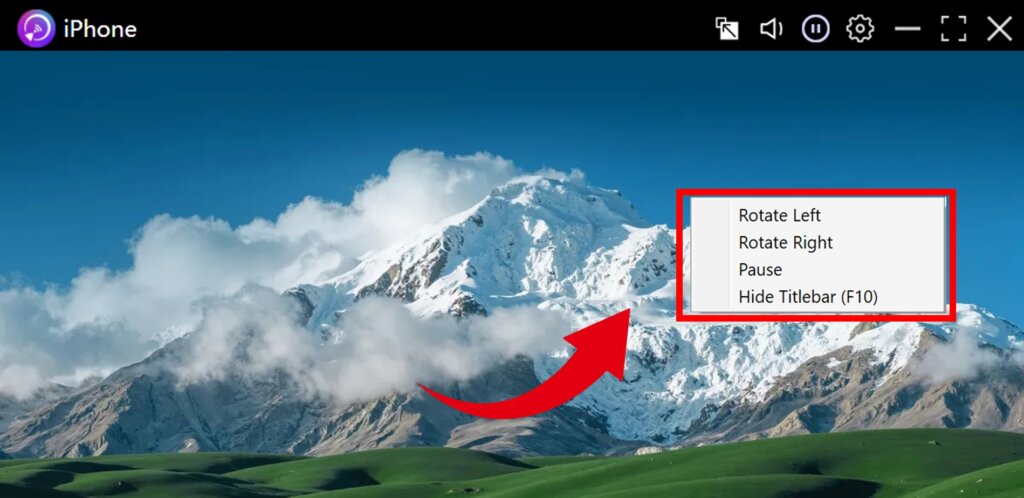
Screen Rotation
Select Rotate Left or Rotate Right (90° per rotation).
This is especially useful when mirroring a portrait-mode phone to a landscape computer screen.
Pause / Resume Casting
Click Pause to freeze the current screen.
Click Resume to continue real-time casting.
Hide Title Bar
Select Hide Title Bar (F10) to remove the title bar and maximize display space.
You can restore the title bar via the right-click menu or by pressing F10 again.
2. Supported Platforms
Supported systems:
- Windows 7 or later
- macOS 10.15 or later
Supported casting mode:
- Screen mirroring
Need Help?
If you encounter any issues, feel free to contact our support team:
- More Guides: Guidance
- Email: 1001tvs@nero.com
- Website: www.1001tvs.com